Start small
Finish one video, then add a skill
Use a few clips from one project. Make a cut you can watch from beginning to end, check the sound and export it. The first six guides cover that route; open another section when a particular task gets in the way.
First project · 8 guides
Your first finished video
Start with the complete beginner tutorial, or open the step you need.
DaVinci Resolve Tutorial for Beginners
Finish a short video: import clips, make a rough cut, add a title, balance audio and review the export.
How to Split a Video in DaVinci Resolve
Split at the playhead or use Blade mode. Check track selection before cutting video and audio separately.
Trim vs Blade in DaVinci Resolve: Which Edit Tool to Use
Blade creates a new cut; Trim changes an existing edit point. Learn when to use Ripple Trim, Roll, Slip and Slide in DaVinci Resolve.
How to Move a Clip Without Shortening It in DaVinci Resolve
Move a whole clip without changing its duration, reorder occupied edits with Swap, insert new footage, or extend a shot with Ripple Trim.
How to Save Work in DaVinci Resolve
Understand project libraries, Live Save, backups and exported project files. Choose what to save before relying on recovery.
How to Mute and Split Audio in DaVinci Resolve
Mute a clip or track, split an audio section and keep picture and sound aligned when separating them.
How to Color Grade in DaVinci Resolve: Beginner Tutorial
Start with color management, exposure and balance. Match shots before building a look, then check a test export.
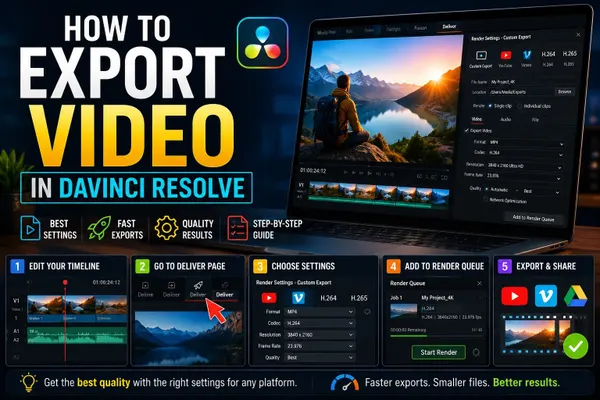
How to Export Video in DaVinci Resolve 21
Choose Quick Export or the Deliver page. Check format, range and audio, then play the finished file.
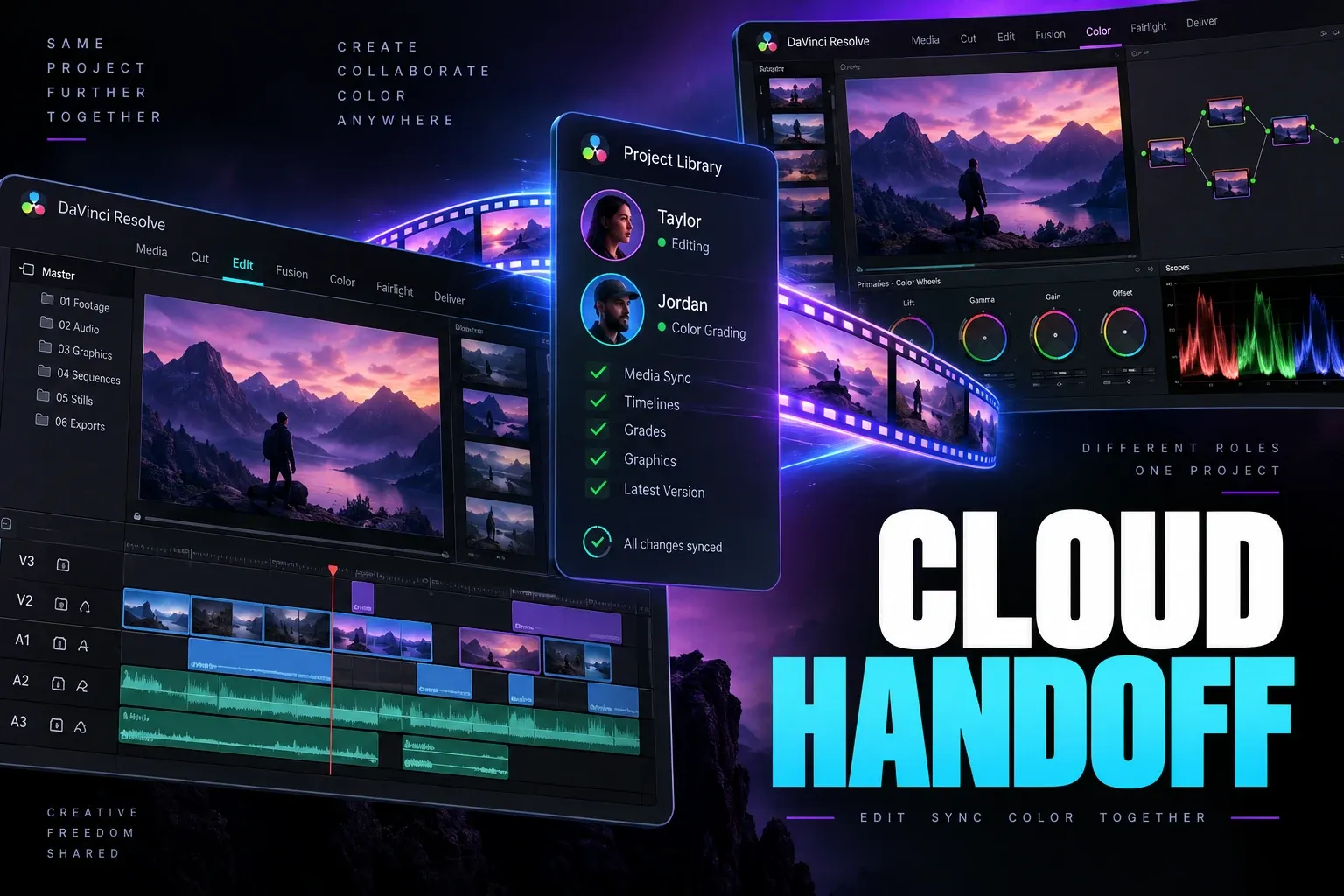
DaVinci Resolve Cloud Collaboration: Media Sync and Handoff
Separate shared project data from synced media, proxies and archives so collaborators can reconnect the same sources without overwriting approved work.
Set up the project4 guides
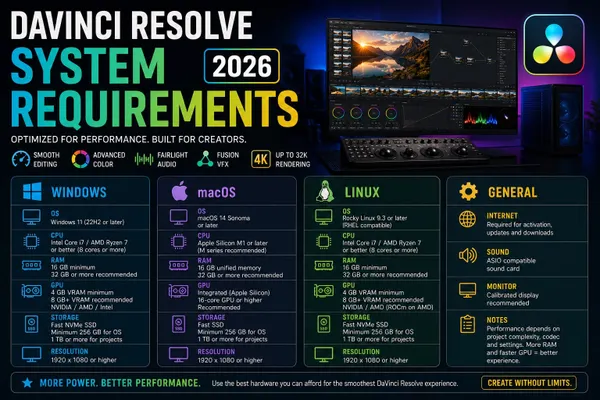
DaVinci Resolve System Requirements (2026)
Check operating system, memory, GPU and storage requirements for the version and edition you intend to install.
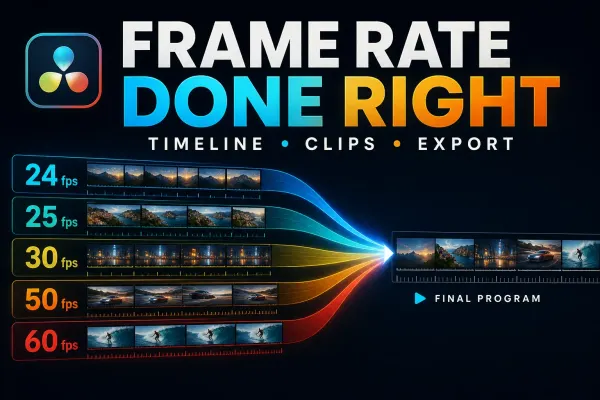
DaVinci Resolve Frame Rate: Set Timeline FPS Correctly
Choose timeline cadence before importing. Understand mixed frame rates, slow motion and options when timeline FPS is locked.
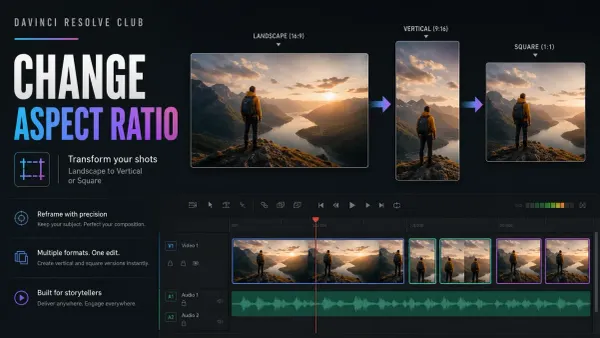
Change Resolution and Aspect Ratio in DaVinci Resolve
Set a landscape, vertical or square timeline. Reframe the subject and check titles before exporting another aspect ratio.
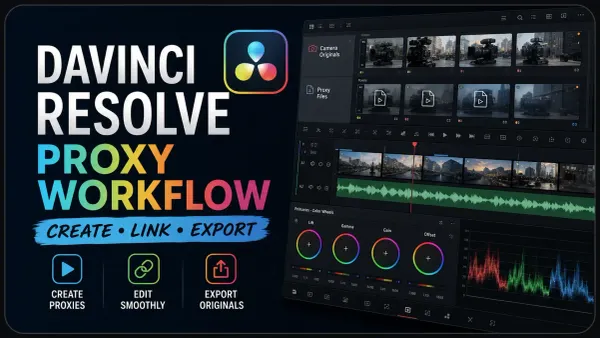
DaVinci Resolve Proxy Workflow: Create, Link & Export
Choose between proxies, optimized media and render cache. Create and relink proxies, then check the source used for export.
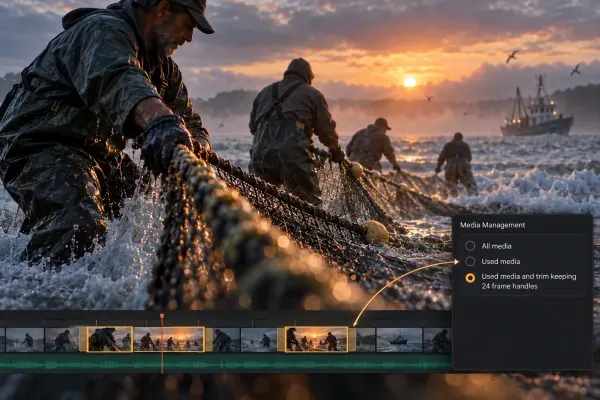
DaVinci Resolve Media Management: Consolidate, Trim and Archive
Collect the media a Resolve project actually needs, choose Copy or Transcode, set defensible handles and prove the package works without the source drive.
Edit, arrange and add titles9 guides
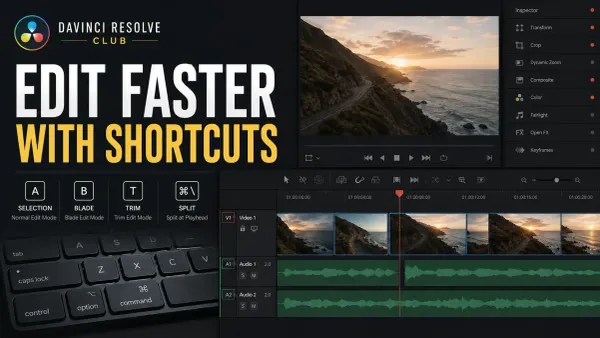
DaVinci Resolve Keyboard Shortcuts That Save Time
Find editing shortcuts, check the active keyboard preset and diagnose commands that affect the wrong track or panel.
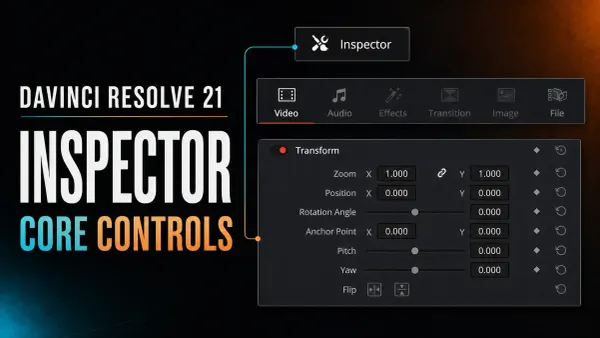
DaVinci Resolve Inspector: Core Controls Explained
Find transform, crop, audio and effect controls. Check the selected clip before copying, animating or resetting a setting.
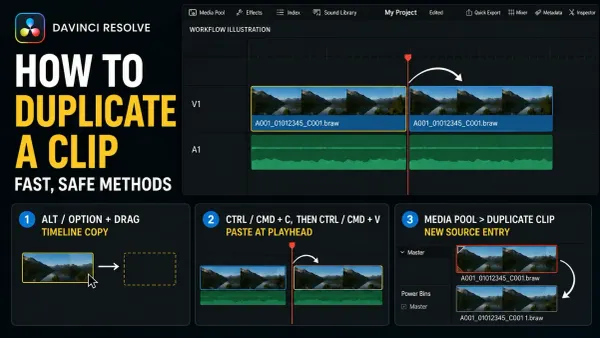
How to Duplicate a Clip in DaVinci Resolve (Fast Ways)
Compare drag-copy, copy-and-paste and paste-insert methods. Check destination tracks and whether a nested copy is independent.
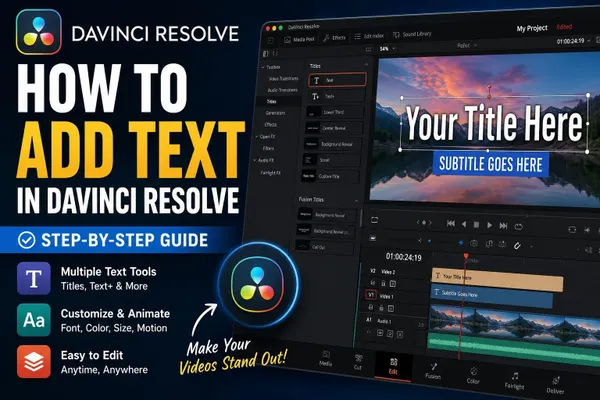
How to Add Text in DaVinci Resolve
Choose basic Text, Text+ or a title preset. Set the wording and position without confusing titles with subtitle tracks.
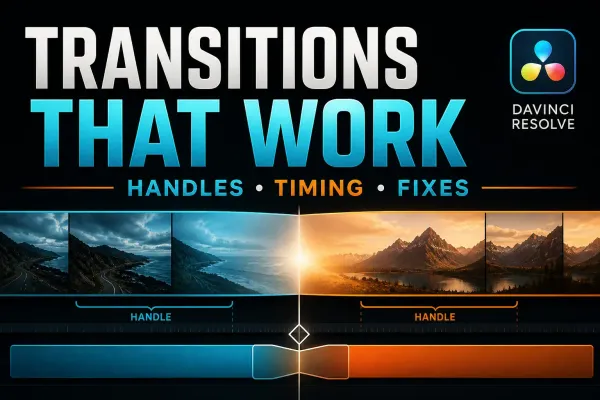
DaVinci Resolve Transitions: Add, Trim and Fix Them
Add a transition, choose its duration and check available handles. Diagnose a dissolve that will not fit the cut.
Adjustment Clips in DaVinci Resolve
Apply a shared transform or effect over a defined range. Check which clips and titles sit underneath it.
How to Change Clip Speed in DaVinci Resolve
Use a fixed speed, a ramp or a freeze frame. Check interpolation, audio and the space around the edit.
Compound Clips in DaVinci Resolve: Create, Edit and Undo
Group an edit inside a compound clip. Open its contents, make an independent copy and check before decomposing it.
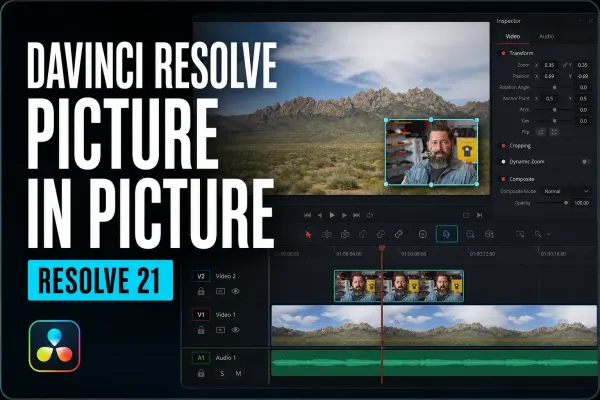
DaVinci Resolve Picture in Picture: Resolve 21 Guide
Build an inset video, adjust its crop and position, then add a border or animation where the composition needs it.
Build a specific skill4 guides
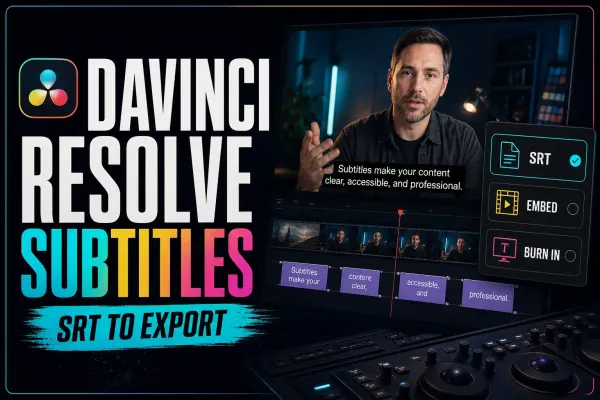
DaVinci Resolve Subtitles: Create, Style, Import & Export
Create or import captions, check timing and choose between a subtitle file, embedded captions and burned-in text.
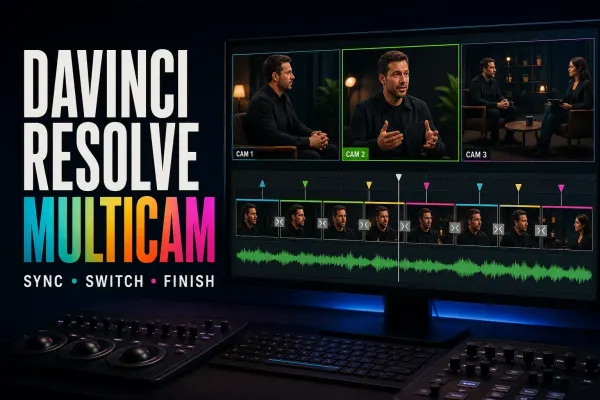
DaVinci Resolve Multicam Editing: Sync to SmartSwitch
Sync camera angles, keep the chosen audio and review the camera cuts. Explore SmartSwitch when your edition supports it.

DaVinci Resolve Keyframes and Curve Editor Guide
Animate a parameter, shape its timing with curves and troubleshoot missing keyframes. Check the motion in playback.
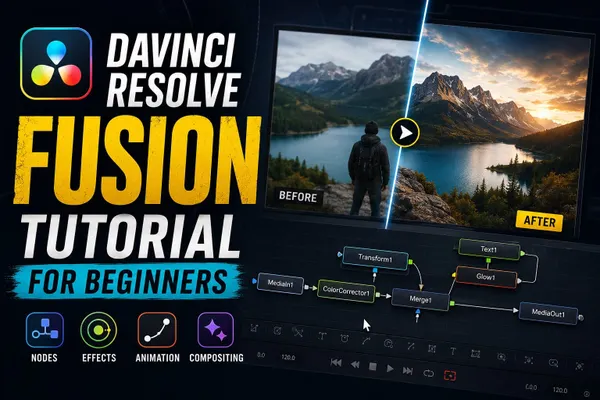
DaVinci Resolve Fusion Tutorial for Beginners
Learn nodes through a tracked title, a green-screen key and a lower third. Troubleshoot a composition that appears blank.
Check features and updates4 guides
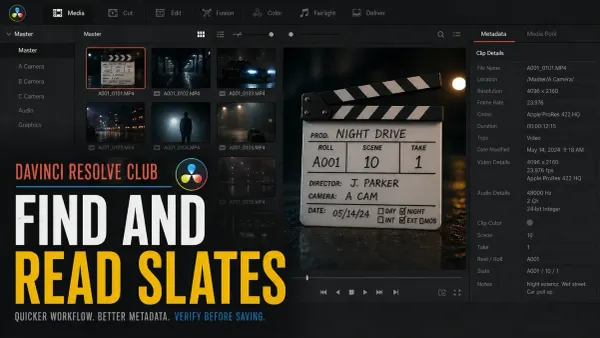
DaVinci Resolve 21 AI Slate ID and Slate Finder
Distinguish finding a slate from reading its metadata. Review detected fields before saving them to the clips.
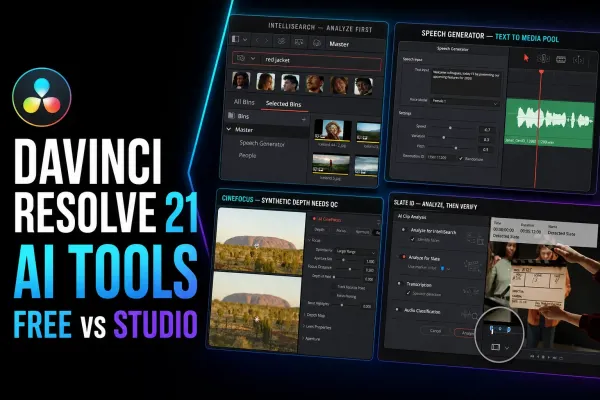
DaVinci Resolve 21 AI Tools: Free vs Studio Breakdown
Compare AI tools by task, edition and hardware needs. Check model downloads and review the result before using it.

DaVinci Resolve 21: What's New, AI Tools, Photo Page and Upgrade Notes
Review the Photo page, editing changes and upgrade notes. Check the release notes for the exact build you install.
How to Update DaVinci Resolve Safely
Back up projects, libraries and media before upgrading. Keep a rollback plan and test a copy of an active project.
Before you start
A few beginner questions
Do I need Studio to follow the beginner path?
Start with Free for a basic edit, title, color correction and export. Specific AI tools, formats and finishing features can require Studio or particular hardware. Check the feature you need before buying an upgrade.
Do I need to learn Fusion before editing a video?
No. Make a straightforward edit first. Open the Fusion guide when you need a tracked title, a key or another compositing task. You can learn it alongside a project instead of completing a whole effects course before you begin.
Where can I get footage and structured lessons to practice?
Blackmagic Design provides free training videos, books and lesson files. Check the version named on each course: the training page currently lists Resolve 20 books, while the current desktop release notes cover 21.1. Menus and available features can differ.
Get the official training and lesson files, and check Blackmagic’s Resolve 21.1 release notes before following a version-specific step.
