Proxy Media is the right Resolve workflow when your camera originals are too heavy for smooth editing and you want lightweight files that can be moved, shared, inspected, and relinked. Set the proxy resolution and codec in Project Settings, generate the files from the Media Pool, choose Prefer Proxies while editing, then switch back to camera originals before the final quality check.
That's different from Timeline Proxy Resolution, Optimized Media, and Render Cache. Those tools can all improve playback, but they solve different bottlenecks. This guide gives you one repeatable workflow for a single workstation, a laptop handoff, or a remote edit without turning your final export into a guessing game.
Choose the right playback tool first
Don't generate hundreds of gigabytes of proxy files until you know that Proxy Media is the tool your project needs. Start with the smallest intervention that matches the symptom.
Workflow selector
Which playback tool should you use?
Pick the symptom you can reproduce. The selector recommends the smallest useful intervention; you can combine tools later if the project has more than one bottleneck.
What slows down first?
Do the generated files need to move outside this workstation?
Test one clip before generating a full set. Proxies reduce source-media demands; Render Cache stores processed results. Neither replaces a backup of your originals.
Blackmagic makes the same distinction in the DaVinci Resolve 21 Reference Manual: Proxy Media is independent and portable, Timeline Proxy Resolution changes processing resolution without creating media, Optimized Media is managed internally, and Render Cache targets effect-heavy results.
Set resolution, codec, and location before generating files
Open File > Project Settings > Master Settings. In Optimized Media and Render Cache, choose Proxy Media Resolution and Proxy Media Format. Under Working Folders, confirm the Proxy generation location. Then check Preferences > System > Media Storage: its Proxy Generation Location preference can override that project folder. The Proxy Media Path column will tell you where each linked file actually lives.
For resolution, Choose Automatically is a safe first test because Resolve reduces sources that exceed the timeline resolution. Use Half or Quarter when you need a predictable size reduction. Eighth and Sixteenth are transport choices for unusually large originals or constrained remote workflows; they can make focus, key edges, fine text, and compression artifacts too difficult to judge.
Proxies can reduce decoding and storage demands, but they are not a way around the system requirements. Check hardware and driver compatibility separately; effects can still exhaust GPU memory with proxies enabled.
For codec, prioritize decoding speed on the editing machine rather than the smallest possible number on disk. ProRes Proxy or ProRes LT is a common macOS choice. DNxHR LB or SQ is a practical cross-platform choice. The exact list depends on the operating system and Resolve build. H.264 or H.265 can make compact handoff files, but highly compressed long-GOP media may move work back onto the decoder you were trying to relieve. Test one representative clip before generating the whole card.
Put proxies on a fast SSD with enough free space and a stable path. Avoid a temporary download folder, a drive letter that changes between workstations, or a cloud-sync directory that may evict files. If the project will move, design the folder structure before generation so the same proxy root can travel with the project.
Generate Proxy Media from the Media Pool
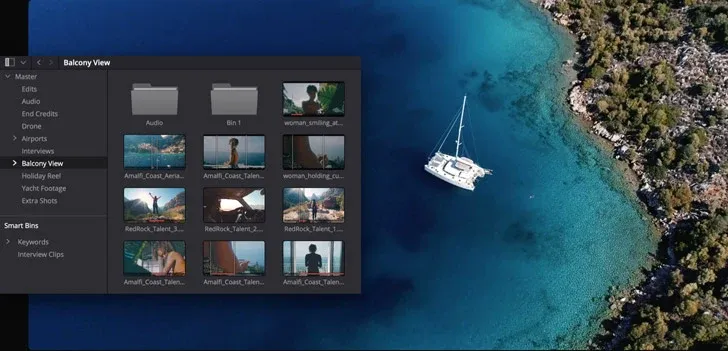
- Select one representative clip in the Media Pool.
- Right-click it and choose Generate Proxy Media.
- Wait for generation to finish and test playback, scrubbing, audio sync, and a short color or Fusion section.
- If the test is clean, select the remaining source clips and generate the full set.
Resolve uses the proxy resolution and format already stored in Project Settings. Changing those settings after generation does not silently rebuild old files. Generate a new proxy if you want a different resolution, codec, or RAW interpretation.
When separately recorded audio is synced to a source clip in the Media Pool, Blackmagic notes that generated proxy media includes the synced audio inside the proxy video file. Verify sync on a slate or a hard consonant before handing the project to another editor.
Verify that Resolve is actually using the proxies
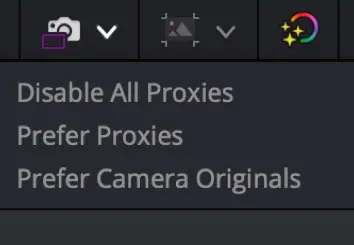
Generating files isn't the same as playing them. In the Cut or Edit viewer, open Proxy Handling and choose Prefer Proxies. Resolve will use a linked proxy when it exists and fall back to the camera original when it doesn't. That fallback is convenient, but it can hide a partial proxy set: one section plays smoothly while another still decodes the original.
Use List view in the Media Pool and enable the Proxy and Proxy Media Path columns. The status should show a resolution rather than None or Offline. Check several clips from different camera folders. The first item in the bin is not enough.
- None means no proxy is linked.
- Offline means Resolve has proxy metadata but can't find the expected file.
- A resolution means linked proxy media is online.
The viewer and clip badges also show whether Resolve prefers proxy media, prefers camera originals, has only proxy media available, or has disabled the proxy workflow. Use those indicators during handoff checks instead of trusting memory.
Proxy Media vs Optimized Media
Both make source footage easier to play, but ownership is different. Proxy Media creates normal, independent files that you can copy, inspect, archive, and relink. Optimized Media is controlled internally by Resolve and is designed to stay with the project environment that created it.
Choose Proxy Media when the edit moves between systems, another editor needs compact files, or you need an explicit file path and status. Choose Optimized Media when Resolve can manage the substitute media inside the current setup. Resolve 21 can reuse Optimized Media across projects in the same project library, but it isn't included in Media Management or Project Archive operations, so don't treat it as portable handoff media.
Proxy Media vs Timeline Proxy Resolution
Timeline Proxy Resolution doesn't transcode your source clips. It asks Resolve to process the timeline at a lower working resolution. That makes it an excellent first move when playback is close to real time and the bottleneck is general processing rather than source decoding.
Choose Playback > Timeline Proxy Resolution and test Half or Quarter. Restore full processing resolution when judging fine detail. Proxy Media and Timeline Proxy Resolution are independent, so you can edit with proxy files and still reduce timeline processing for a heavy grade. If playback is already smooth after one change, stop there.
Proxy Media vs Render Cache
Proxies reduce source-media demands; they do not pre-render your effects. A proxy may make an H.265 interview play cleanly, yet a Fusion composition, temporal noise reduction or a chain of Resolve FX can still drop frames. Use Render Cache for the processed result when that is the bottleneck, rather than assuming that another proxy set will solve it.
A GPU Memory Full error can survive a proxy change when the real pressure comes from timeline resolution, Fusion, temporal effects, or the grade. Reduce the expensive processing or cache that result instead of generating another proxy set.
Render Cache is project-managed and not a portable replacement for the original camera media. Don't copy a CacheClip folder to another workstation and call it a handoff. Use a proxy-aware archive or copy the proxy root deliberately.
Automate watch folders with Blackmagic Proxy Generator
Use the separate Blackmagic Proxy Generator when new camera files arrive in one or more watch folders and you want proxy creation to continue outside the Resolve interface. Choose the proxy format, add the watched folders, and let the application place generated media in Proxy subfolders beside the originals.
When those originals are imported into the Media Pool, Resolve can link the matching proxies automatically. If you need a separate handoff folder, Extract Proxies copies the generated proxy files to a destination you choose; it doesn't replace the camera originals.
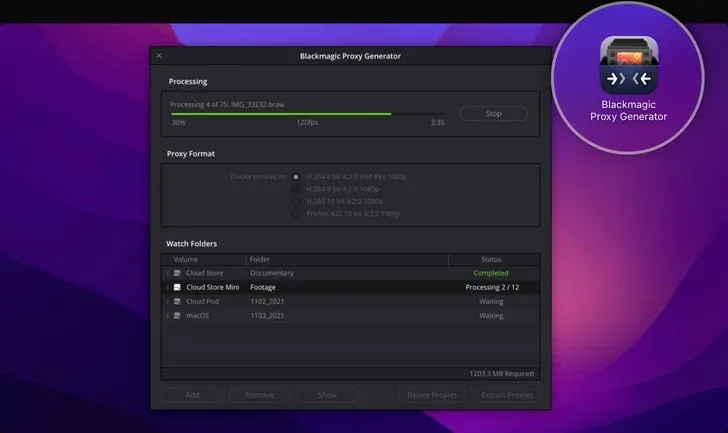
In Proxy Generator, click Start after selecting the watch folders and proxy format. When you need Extract Proxies, stop processing first so that control is available. Check the copied files on the destination before handing over the project.
Move, link, and relink proxy files
If proxies were generated outside Resolve or moved, select the source clips in the Media Pool and choose Link Proxy Media. External proxies need identical source timecode, the same base filename, the same frame rate and a supported codec. A timecode number burned into the picture is not a substitute for matching file metadata. Check duration and audio sync after linking, too.
After linking, verify the Proxy and Proxy Media Path columns. If a moved drive produces Offline status, relink to the directory containing the matching files. Don't relink camera originals through the proxy command; original relinking and proxy relinking are separate operations.
If the originals are also missing, separate proxy relinking from the broader Media Offline diagnosis so Resolve is pointed at the correct file type in each step.
Unlink Proxy Media removes the metadata relationship but doesn't delete the file from disk. That is useful when testing a link, but it also means old proxy generations can accumulate. Record the active proxy root before cleanup.
Switch back to camera originals before finishing
For a reliable original-media check, choose Disable All Proxies. Unlike Prefer Camera Originals, it cannot silently fall back to a proxy when an original is missing. Also turn off Playback > Use Optimized Media if Available and disable caching under Playback > Render Cache for this check. Inspect focus, noise, key edges, stabilization and texture; restore your working playback options afterward if needed.
A purple timeline line warns that camera originals are missing in the proxy workflow. With proxies disabled, missing originals appear as Media Offline instead. Confirm the originals are online before a master export; selecting Prefer Camera Originals alone does not prove they are available.
Export without accidentally using proxies
In the Deliver page’s advanced video settings, leave Use proxy media off for an original-media master. Also check the independent Use optimized media and Use render cached images options: turn both off when you want Resolve to process the originals afresh. High-quality optimized media or cache can be a deliberate delivery choice, but only after you verify their format and quality—not simply because proxy delivery is disabled.
Choose the final codec, container, resolution, and audio layout from the DaVinci Resolve export settings hub; proxy choice shouldn't silently become the delivery specification.
Before adding the final render job, run this short gate:
- Disable All Proxies, and confirm the original clips are online.
- For the visual check, disable optimized-media playback and render caching.
- Open several clips at 100% and inspect focus, grain, keys, and noise reduction.
- For a fresh original-media render, turn off Use proxy media, Use optimized media and Use render cached images.
- Render a short difficult section and inspect the exported file outside Resolve.
If the master still stops or fails after originals are restored, follow the render-failure isolation workflow before turning proxy media back on.
For a quick daily or a proxy-only remote review, you can deliberately enable Use proxy media. Label that output as a proxy review. Do not present it as an original-quality master just because the render completed. Playback preferences and Deliver-page media choices are separate checks.
Does the proxy workflow work in Free and Studio?
Blackmagic presents robust proxy editing as part of the main Resolve workflow, and the current DaVinci Resolve product page places the Free download alongside those editing features. Studio adds separate AI, effects, codec, resolution, and performance capabilities, but you do not need Studio merely to create and use a normal proxy workflow.
Codec availability and hardware acceleration still vary by operating system, source format, bit depth, GPU, and Resolve edition. If an option is absent on your system, choose a proxy codec that the current installation can generate and decode reliably rather than copying a setting from another platform.
Common proxy workflow failures
Proxy generation is slow or makes huge files
Test a lower resolution or a lighter proxy codec on one clip. High-quality intermediate codecs trade storage for easy decoding. Highly compressed codecs save space but can take longer to encode and may be less responsive on weak hardware. Confirm that the proxy destination isn't a slow network volume.
Proxy status says Offline
Show the Proxy Media Path column, mount the expected drive, and use Link Proxy Media if the files moved. If the folder was renamed or a Windows drive letter changed, fix that path before regenerating anything.
Playback is still slow with proxies enabled
First verify that Resolve is using proxies rather than originals. If it is, the bottleneck may be Fusion, grading, noise reduction, an OFX plug-in, audio processing, storage or timeline resolution. Use the slow playback diagnosis instead of generating a second proxy set blindly.
The final export looks soft
Make the camera originals available. Turn off Use proxy media, Use optimized media and Use render cached images for a fresh original-media test, then render a short section again. If it remains soft, check timeline resolution, scaling, source resolution and the delivery codec. Turning off proxy delivery alone does not rule out a low-quality optimized file or cache.
Unlinking did not free disk space
That's expected. Unlinking removes the relationship inside Resolve; it doesn't delete the proxy files. Confirm the active Proxy Media Path, close the project, and remove only the old proxy generation you have positively identified. Keep a backup if the project is still active.
The proxy workflow checklist
- Test one representative clip before generating the full set.
- Choose a codec for easy decoding on the actual edit machine.
- Store proxies on a fast, stable path with enough free space.
- Verify Proxy and Proxy Media Path columns after generation.
- Use Prefer Proxies while editing and camera originals while finishing.
- Relink moved proxies; don't regenerate until the path is ruled out.
- Check all three Deliver media options before an original-media master.
- Document and remove old proxy generations deliberately.
When playback is stable, use the DaVinci Resolve tutorial roadmap to place proxy setup back in the larger import, edit, color, audio, and export sequence.
Proxy workflow questions
Where does DaVinci Resolve save proxy media?
Project Settings > Master Settings > Working Folders sets the Proxy generation location. Preferences > System > Media Storage can override it. Check the Proxy Media Path column for the exact file expected by a clip.
Should I use Proxy Media or Optimized Media?
Use Proxy Media for portable files that you can inspect, copy and relink. Optimized Media is managed internally and can be reused across projects in the same project library. It is not included in Media Management or Project Archive operations, so do not rely on it as your handoff package.
Does Timeline Proxy Resolution create proxy files?
No. It lowers the timeline processing resolution on the fly. Proxy Media creates actual files on disk and links them to the camera originals.
Will Resolve export from the original files?
By default, delivery uses originals rather than proxy files. For a fresh original-media render, verify the originals are online and turn off Use proxy media, Use optimized media and Use render cached images. High-quality optimized media or cache can be used deliberately after checking their format and quality.
Does Unlink Proxy Media delete the files?
No. It removes the metadata link. The proxy file remains on disk until you delete it deliberately.
Why are my proxies offline after moving the project?
The recorded Proxy Media Path no longer matches the mounted drive or folder. Restore the path or select the source clips and use Link Proxy Media to point Resolve to the moved files.
