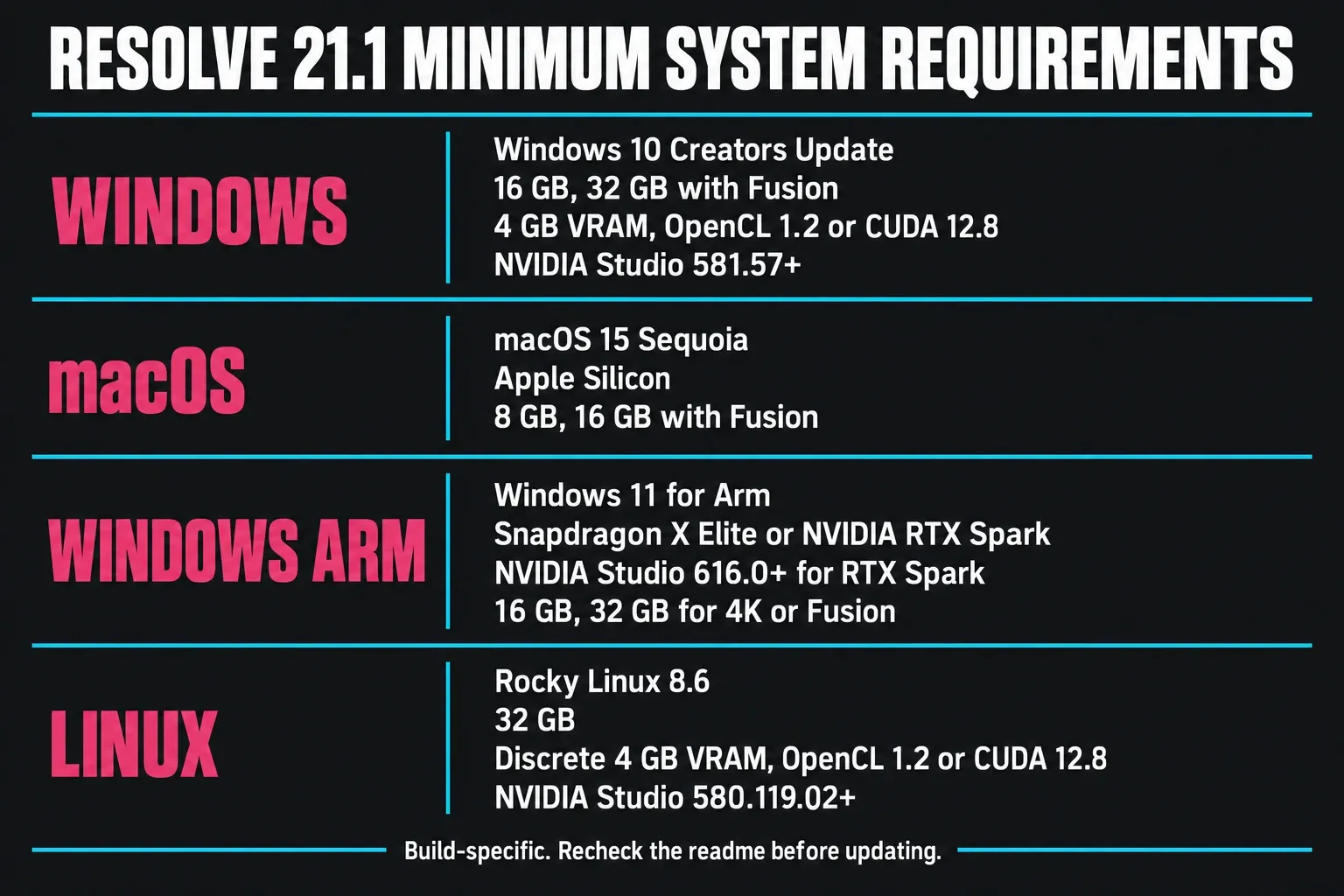
DaVinci Resolve 21.1 has different minimums by platform. The Windows list specifies 16 GB RAM, or 32 GB with Fusion, and a 4 GB GPU. The Mac list specifies Apple Silicon, macOS 15 Sequoia or later and 8 GB memory, or 16 GB with Fusion. Linux lists Rocky Linux 8.6, 32 GB RAM and a discrete 4 GB GPU. The Windows-for-Arm list names Windows 11, a Snapdragon X Elite or NVIDIA RTX Spark processor and 16 GB RAM, or 32 GB for 4K or Fusion. Studio advanced AI and background rendering have higher requirements, so leave the 4 GB base GPU figure out of any plan that includes those features.
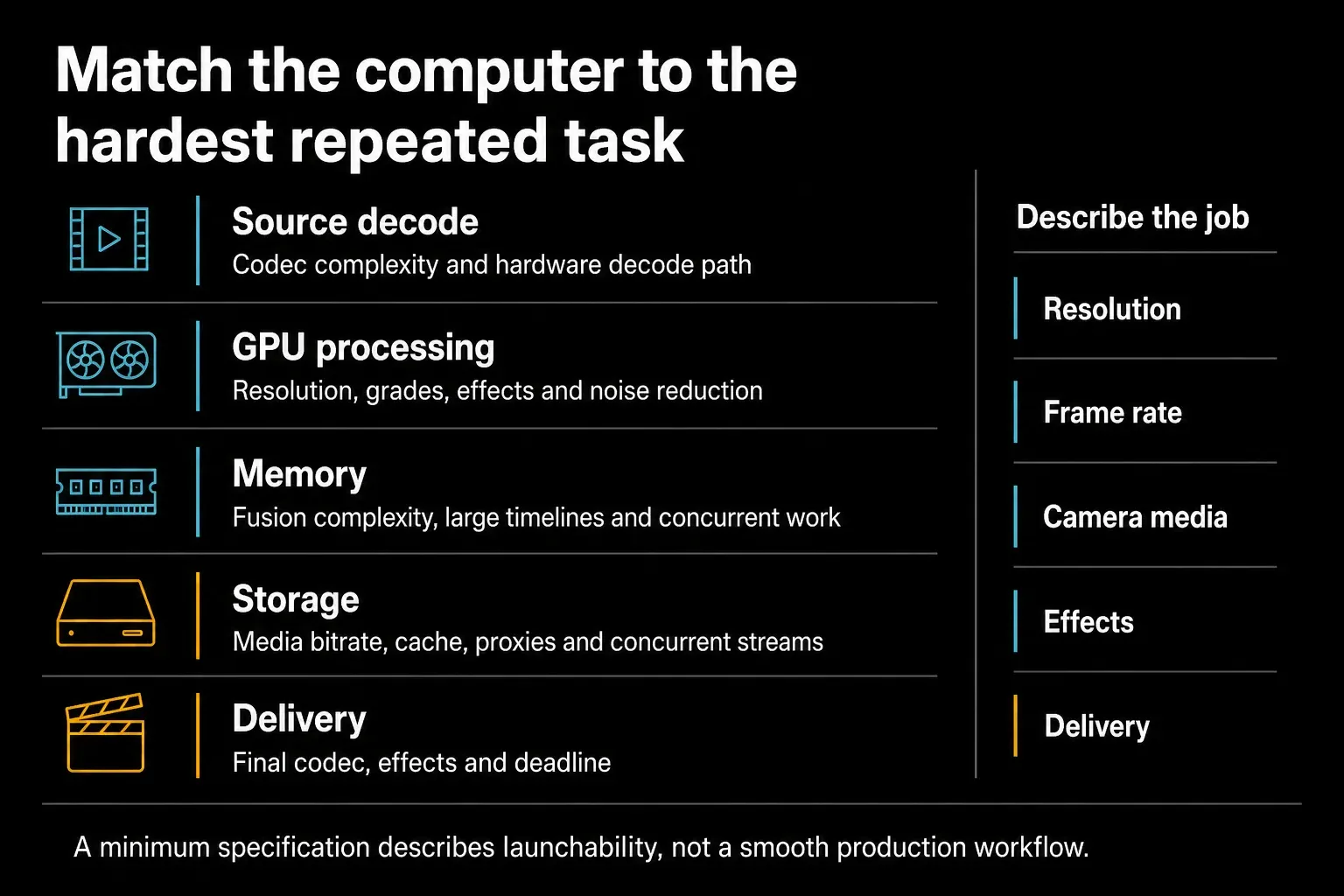
Those numbers get the current build running. Smooth playback is a separate question, and the job itself decides where the bottleneck lands: source codec, resolution, frame rate, simultaneous streams, Color and Fusion processing, AI tools, cache format and delivery settings.
Checked on October 5, 2026 against Blackmagic's Resolve 21.1.1 and Studio 21.1.1 release readmes, both updated October 1, 2026. That update, build 10 posted on October 2, was the newest stable Resolve release that day, and its minimum lists match the 21.1 readmes from September 8 line for line, so every 21.1 figure on this page still applies. These floors belong to the build, so check the exact installer, operating system and driver combination before you update a working machine.
Check your computer against Resolve 21.1
Before you download anything, a few minutes in your own system settings answers most of the question.
- Find the platform, OS and memory. On Windows, open Settings > System > About: Windows specifications show the edition and version, and Device specifications show the processor, installed RAM and whether Windows is 64-bit. If the processor is a Snapdragon X Elite or NVIDIA RTX Spark chip, use the Windows-for-Arm line. On a Mac, choose Apple menu > About This Mac, which also shows the macOS version. An item labeled Chip means Apple silicon; Processor means an Intel Mac, which the 21.1 list does not include. For installed memory, hold Option, choose Apple menu > System Information, then click Memory under Hardware.
- Identify the GPU and its driver. Task Manager's Performance tab lists the GPUs Windows can see. Look up that exact model's VRAM on the maker's spec page, because Task Manager's dedicated-memory figure shows memory in use, and on integrated graphics it reflects system memory reserved for the GPU. With an NVIDIA card on Windows x86 or Linux,
nvidia-smiprints the installed driver version; compare it with 581.57 on Windows or 580.119.02 on Linux. RTX Spark systems need 616.0 or newer. - Pick the right line. Fusion raises the memory floor on Windows, Mac and Windows for Arm, and on Arm 4K does too; Linux lists 32 GB either way. Studio's advanced AI tools and background rendering have their own limits.
- Record the result. Enter those values in the Resolve PC checker and leave anything you could not confirm as Not sure. Meeting the list still does not prove smooth playback, so finish with the short stress timeline described below.
DaVinci Resolve System Requirements for Windows
These are the base Windows requirements. Studio's advanced AI and background-rendering limits are listed separately below.
Scroll sideways to see all three columns.
| Windows component | Official Resolve 21.1 minimum | What to verify |
|---|---|---|
| OS | Windows 10 Creators Update | Current updates and supported drivers |
| Memory | 16 GB; 32 GB with Fusion | Leave headroom for the OS and other apps |
| GPU | Integrated or discrete, at least 4 GB VRAM | Codec, effects and timeline workload |
| GPU API | OpenCL 1.2 or CUDA 12.8 | API supported by the selected GPU |
| NVIDIA | Studio driver 581.57 or newer | Exact floor for this build |
| AMD/Intel drivers | Official drivers from the GPU manufacturer | Check support for your exact GPU and OS |
| Desktop Video | 12.9 or later for monitoring | For Blackmagic monitoring hardware, not an ordinary computer display |
A 16 GB Windows machine can clear the requirement and still run short once the operating system, a browser, background services and Resolve all share that memory. Judge it with representative media and effects; an empty project tells you almost nothing. Fusion gets its own 32 GB official floor because composites can pile on system-memory demand. If this is your first editing setup, the Resolve beginner workflow shows the pages and tasks the machine will actually be asked to run.
For Resolve 21.1 and the 21.1.1 update, Blackmagic lists NVIDIA Studio driver 581.57 or newer on Windows, and that number belongs to these builds only. Before you update Resolve or the driver, open the current Blackmagic support readme, write down the versions that work today and keep a rollback path.
Blackmagic still names Windows 10 Creators Update as the software minimum. Don't read that as a security recommendation: standard Windows 10 Home and Pro support ended on October 14, 2025. Check your Windows edition and update coverage on their own, because Resolve compatibility says nothing about whether the OS installation is still supported.
System Requirements for macOS
Blackmagic's Resolve 21.1 readme asks for macOS 15 Sequoia or later, 8 GB of system memory or 16 GB with Fusion, and an Apple Silicon computer. In plain terms, Resolve 21 doesn't support Intel Macs. If an Intel Mac has to stay in service, keep it on a compatible earlier Resolve build and read that build's own readme before you touch macOS.
Scroll sideways to see all three columns.
| macOS component | Official Resolve 21.1 minimum | Practical check |
|---|---|---|
| OS | macOS 15 Sequoia or later | Resolve 21 does not support Intel Macs |
| Memory | 8 GB; 16 GB with Fusion | Test the intended media and effects |
| Computer | Apple Silicon | Choose memory for the complete workload |
| Desktop Video | 12.9 or later for monitoring | Needed with Blackmagic monitoring hardware |
Apple Silicon uses unified memory shared by the CPU and GPU. There's no separate VRAM pool, but that doesn't make 16 GB of unified memory worth the same as a fixed amount of Windows system RAM or discrete VRAM. Resolve, macOS, the GPU and every other open application draw from one capacity. Buy and test for the full workflow, and ignore cross-platform memory slogans.
The 8 GB Mac figure is the application baseline, and I wouldn't plan every 4K job around it. Fusion needs 16 GB, and Studio publishes additional AI and background-work requirements on top. Larger composites, high-resolution media and simultaneous streams all eat into the headroom, so test the intended workload before the machine takes on paid work.
System Requirements for Linux and Windows ARM
Resolve 21.1 lists Rocky Linux 8.6, 32 GB system memory, a discrete GPU with at least 4 GB VRAM, OpenCL 1.2 or CUDA 12.8, and NVIDIA Studio driver 580.119.02 or newer when using NVIDIA. For AMD GPUs, use the manufacturer's official drivers. Blackmagic monitoring hardware needs Desktop Video 12.9 or later. CentOS isn't listed in this build's Linux minimums. Treat the OS and driver lines as build-specific support requirements.
The Windows-for-Arm minimum section names Windows 11 for Arm and a Qualcomm Snapdragon X Elite or NVIDIA RTX Spark processor, with 16 GB memory or 32 GB for 4K or Fusion. RTX Spark systems also need NVIDIA Studio driver 616.0 or newer, and the 21.1 release notes add native support for them on Windows. Those named processors don't mean every Arm laptop qualifies. "Arm" on a spec sheet guarantees nothing, so check the exact build and machine.
Linux suits managed facility pipelines, but it isn't automatically faster or more stable than Windows or macOS. Codec support, GPU drivers, storage, monitoring hardware and the surrounding pipeline all matter. Pick it when the whole configuration is supported and tested, and ignore blanket platform claims in either direction.
Studio AI and background rendering requirements
The Studio 21.1 readme adds these feature-specific memory requirements, and the 21.1.1 Studio readme repeats them. A machine that meets the ordinary application minimum can still fall short of a Studio feature minimum.
Scroll sideways to see all three columns.
| Platform | Advanced AI tools | Background work |
|---|---|---|
| Apple Silicon Mac | At least 16 GB system memory | At least 32 GB for background rendering and analysis |
| Windows x86 | At least 16 GB VRAM | At least 32 GB RAM and 12 GB VRAM for background rendering |
| Linux | At least 16 GB VRAM | At least 32 GB RAM and 12 GB VRAM for background rendering |
The Windows-for-Arm section publishes no equivalent advanced AI or background limits, so don't carry the x86 discrete-VRAM table over to an Arm system by assumption. On Mac, the listed memory is shared system memory, with no separate discrete-VRAM allocation behind it.
CPU and Laptop Requirements: What Blackmagic Does Not Specify
Blackmagic's Resolve 21.1 readme doesn't name a universal Intel or AMD processor model, clock speed or core count for x86 Windows or Linux. It does name Apple Silicon for macOS, and Snapdragon X Elite or NVIDIA RTX Spark processors for Windows on Arm. So when you see a Core i5 or Ryzen 5 minimum somewhere else, read it as third-party shorthand. It doesn't come from Blackmagic's official Resolve 21 requirement list.
Choose the CPU for the media and the task. Long-GOP H.264/H.265 decoding, RAW processing, Fusion and export each lean on different parts of a system, and more cores alone won't settle the choice. Puget Systems' current Resolve CPU guidance recommends comparing tested workload performance over buying by core count. A laptop can run Resolve when it meets the build's OS, memory, GPU/API and driver floor, but try the intended codec, effects and power mode on that exact machine before you count on smooth 4K work.
GPU Requirements: What 4 GB VRAM Actually Gets You
Four gigabytes of VRAM is the base Windows and Linux figure for Resolve 21.1. It isn't a 4K recommendation. Studio's advanced AI tools carry their own 16 GB VRAM minimum on Windows x86 and Linux, and timeline resolution, frame format, simultaneous streams, Fusion, temporal effects and noise reduction all change the memory your actual project needs.
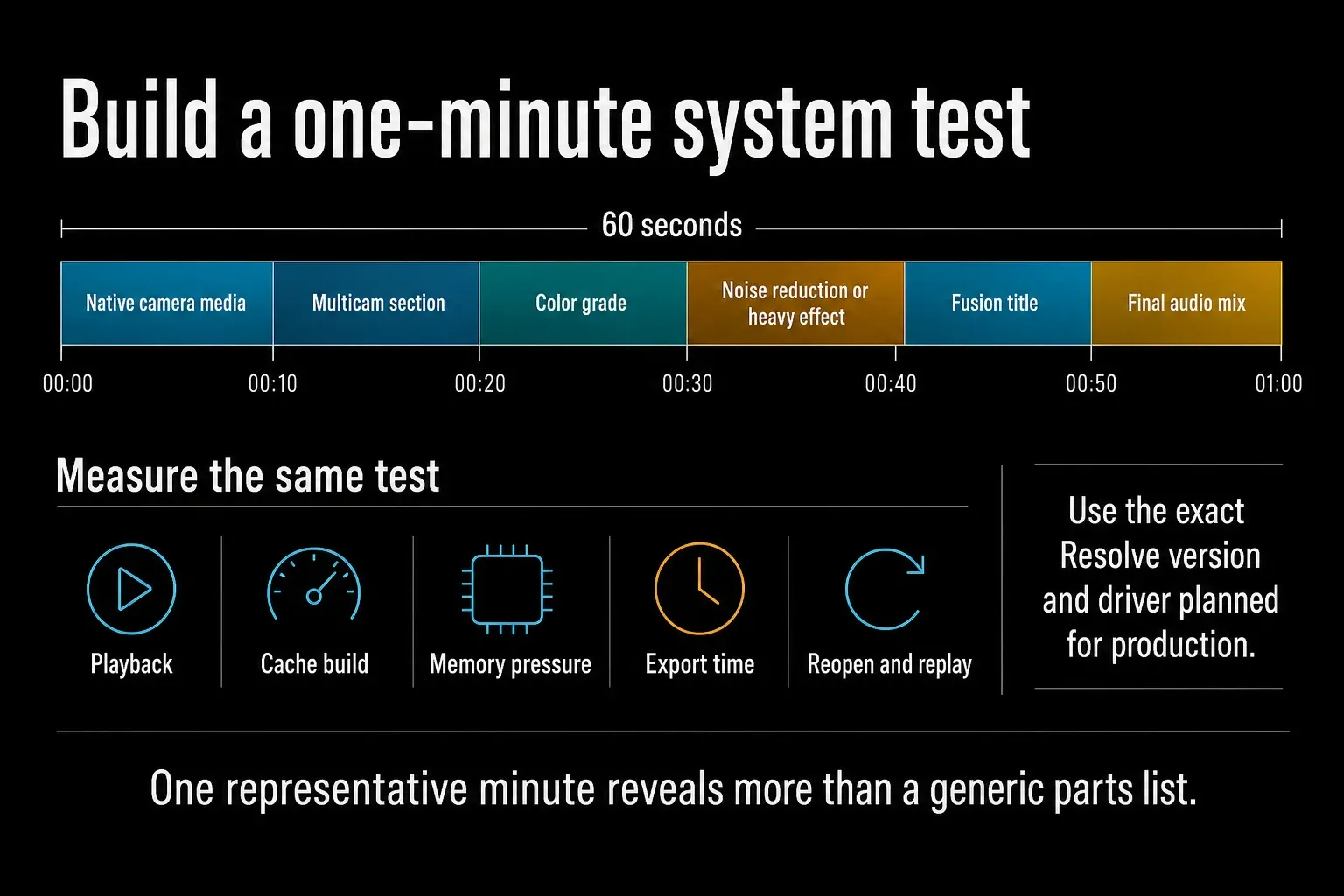
Build a short stress timeline from your own camera media, with the heaviest grade, Fusion composition, retime, titles and delivery codec you expect to use. Then watch playback, cache completion, GPU memory, export and reopening. Node count on its own tells you little about hardware: one simple node can be expensive while a long node tree stays light. A one-minute sample can expose a bottleneck, but it won't vouch for every long render or sustained thermal load.
Keep PugetBench's Windows prerequisites separate from application and feature requirements:
- Basic preset: a discrete GPU with 6 GB VRAM; the preset can run in Free or Studio.
- Standard/Extended presets: a discrete GPU with 8 GB VRAM, and DaVinci Resolve Studio.
These cover the benchmark presets only. They can't override Resolve 21.1's higher advanced AI requirements, and passing them won't certify your own 4K project.
For a separate workstation-planning view, Puget's current GPU guidance recommends 12 GB VRAM for a 4K timeline. That's Puget's own advice, separate from Blackmagic's minimums, and 12 GB still sits below Studio 21.1's 16 GB advanced AI line on Windows x86 and Linux. Compare results from the same benchmark version, edition and preset, then check the exact card's codec support, power and cooling.
The free Resolve 21.1 build supports one processing GPU on Windows and Linux, and Studio adds multi-GPU support. A second GPU still won't help every Studio workflow equally. Use the Free vs Studio comparison to find the tools the project really needs, then check current benchmarks before you buy hardware around one edition difference.
RAM Requirements for Real Workflows
The base system-memory figures are 16 GB on Windows, or 32 GB with Fusion; 8 GB on an Apple Silicon Mac, or 16 GB with Fusion; and 32 GB on Linux. The Studio table above adds feature-specific requirements. More RAM helps larger projects and multitasking, but it can't make up for every decoder, GPU or storage bottleneck.
Before spending money, work out whether the pressure sits in memory, storage or the GPU. Reproduce the slow section, close unrelated applications, watch system and GPU memory, then repeat with the Resolve proxy workflow or a lighter effect branch. If only the decode path changes the result, adding RAM may not fix the real bottleneck.
A cautious planning ladder:
- Meet the official floor first: use the exact operating-system and Fusion minimum for the current build.
- Add workload headroom: allow for other applications, longer timelines, larger frames and simultaneous streams.
- Test the worst minute: include the real codec, grade, Fusion, Fairlight and export settings.
- Keep an upgrade path: memory that can't be upgraded later deserves extra planning at purchase time.
Low memory can look a lot like slow storage, a difficult codec or GPU pressure. Read the operating system's memory view alongside Resolve playback, cache and export tests. If the machine already meets the build floor and playback still fails, follow the slow-playback diagnostic before treating RAM as the answer. One metric, or one smooth empty timeline, isn't enough to size a production machine.
Storage Requirements and Drive Setup
Start with media throughput and free space. The number of drives comes later.
Resolve may read source media while it writes cache or proxies. Putting active media and generated cache on different drives can cut competing I/O and makes capacity easier to manage, but three drives aren't a universal requirement. One sufficiently fast, healthy drive can handle modest work; high-bitrate or multi-stream jobs need measured throughput and enough free space.
A practical layout to test:
- OS and applications: the system drive, with enough free space for updates and temporary files.
- Cache and proxy media: a fast location with monitored free space; separate it when the workload benefits.
- Camera originals: reliable storage fast enough for the codec, resolution and number of streams, with a separate backup.
Resolution alone won't tell you how fast the storage must be. Compressed camera media, RAW, image sequences, multicam and cache formats can have wildly different data rates at the same frame size. Measure the real media stream and leave margin for simultaneous reads and writes. RAID or network storage earns its added complexity only when capacity, redundancy and shared access justify it.
Before upgrading to Resolve 21.1
The 21.1 release readme separates project-library compatibility from project compatibility, and the 21.1.1 readme keeps the same rule. A library can stay accessible to 20.3.2, but an individual project created or opened in 21.1 or later will no longer open in 20.3.2. Back up the full project library and the individual projects before you open them in the new version.
Keep a record of the Resolve, OS and driver versions that work, plus a usable rollback path. If a supported machine stops launching or rendering after an update, use the Resolve troubleshooting hub to tell launch, media, GPU-memory and render failures apart before you buy replacement hardware.
System Requirements FAQ
What CPU does DaVinci Resolve 21 require?
Blackmagic's 21.1 minimum list doesn't name an Intel or AMD x86 processor model or core count. It names Apple Silicon for Mac, and Snapdragon X Elite or NVIDIA RTX Spark processors in the Windows-for-Arm section. For x86 Windows or Linux, compare workload benchmarks and read a generic Core i5 or Ryzen 5 label as third-party shorthand with no official status.
Can DaVinci Resolve run on 8 GB RAM?
The Resolve 21.1 Mac baseline does list 8 GB, but only on Apple Silicon with macOS 15 or later. Fusion and Studio advanced AI need at least 16 GB on Mac, and Studio background rendering and analysis need at least 32 GB. Windows starts at 16 GB, or 32 GB with Fusion, and Linux at 32 GB. No 21.1 platform lists less than 8 GB, so a 4 GB computer is below every 21.1 minimum.
Does DaVinci Resolve work on integrated graphics?
The 21.1 Windows minimum list permits an integrated or discrete GPU with at least 4 GB VRAM and OpenCL 1.2 or CUDA 12.8 support. That baseline won't guarantee smooth 4K, and it falls short of Studio's separate advanced-AI requirements. Linux's list specifies a discrete GPU.
What NVIDIA driver does DaVinci Resolve 21 require?
For Resolve 21.1 and the 21.1.1 update, Blackmagic lists NVIDIA Studio driver 581.57 or newer on Windows x86, 580.119.02 or newer on Linux, and 616.0 or newer for NVIDIA RTX Spark systems on Windows for Arm. These are build-specific floors; verify the readme for the installer you use.
Do DaVinci Resolve Free and Studio have different hardware requirements?
They share the base platform requirements, but the Studio 21.1 readme adds higher limits for advanced AI and background work. Advanced AI needs at least 16 GB memory on Mac or 16 GB VRAM on Windows x86/Linux. Background rendering needs at least 32 GB memory on Mac, or 32 GB RAM plus 12 GB VRAM on Windows x86/Linux. Free supports one processing GPU on Windows and Linux; Studio adds multi-GPU support.
Does DaVinci Resolve run on Windows ARM?
Yes. The 21.1 Windows-for-Arm minimum section lists Windows 11, a Snapdragon X Elite or NVIDIA RTX Spark processor, and 16 GB memory, or 32 GB for 4K or Fusion. RTX Spark systems also need NVIDIA Studio driver 616.0 or newer. That list doesn't approve every Arm laptop, so check the exact system and build.
What macOS version does DaVinci Resolve 21 require?
Resolve 21.1 requires macOS 15 Sequoia or later and an Apple Silicon computer. Intel Macs aren't in the supported 21.1 Mac baseline; check an earlier Resolve build's own readme before changing an Intel Mac's installation.
How much storage does DaVinci Resolve need?
Blackmagic's minimum-system list doesn't set a universal project-drive capacity. Leave room for the application, originals, proxies, cache, exports and backups, then measure the real media data rate. Move generated cache to its own drive when testing shows an I/O or capacity benefit.
For driver, codec and machine-specific questions, use the Hardware & Compatibility hub. To compare a configuration against the listed baseline, try the Resolve PC checker; it uses the values you enter and doesn't scan your computer.