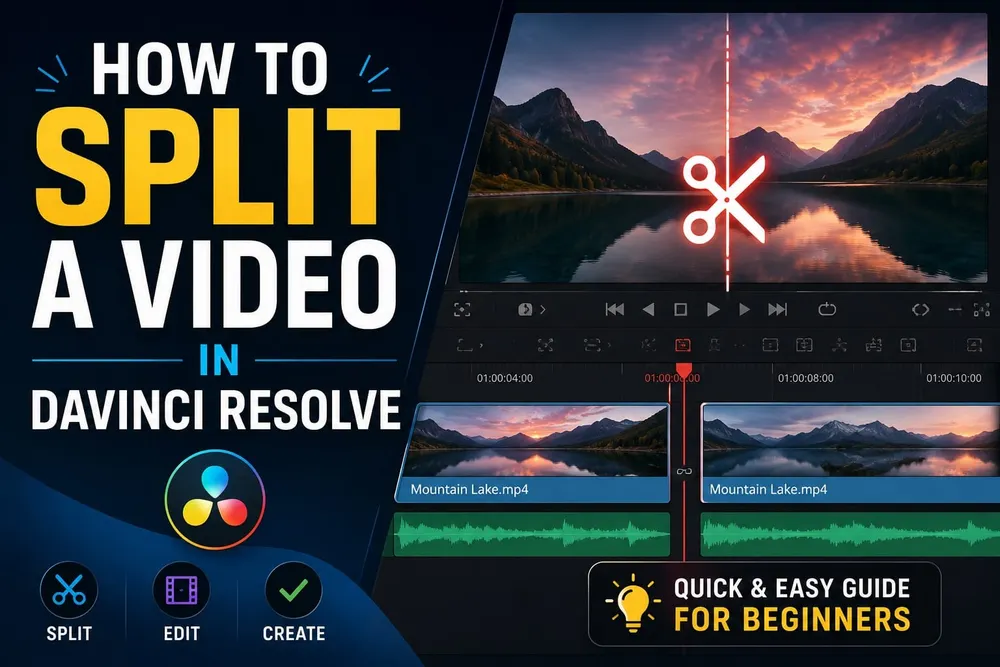
To split a video in DaVinci Resolve, press B on the Edit page and click the clip where you want the cut, then press A. For a cut at the playhead, use Timeline > Split Clips: Cmd+\ on Mac or Ctrl+\ on Windows in the default preset. Check which clips are selected and whether linked audio should be cut too. Splitting adds an edit point; it does not remove frames or create separate media files. If the page layout is still new, start with the DaVinci Resolve learning path; here, the focus is cutting without losing track of linked audio or ripple scope.
Choose the method by the scope of the edit:
- Blade Edit Mode (B): click the cut position on a clip; linked audio can follow
- Split Clips (Cmd+\ / Ctrl+\): cut at the playhead, with selection and track scope checked first
- Razor (Cmd+B / Ctrl+B): another cut command, not the same as pressing B alone
- Track locks: protect material that must stay untouched
- Linked Selection: choose whether linked picture and audio are selected together
- Scene Cut Detection: recover cuts from a flattened finished video
How to Split a Video in DaVinci Resolve Using the Blade Tool
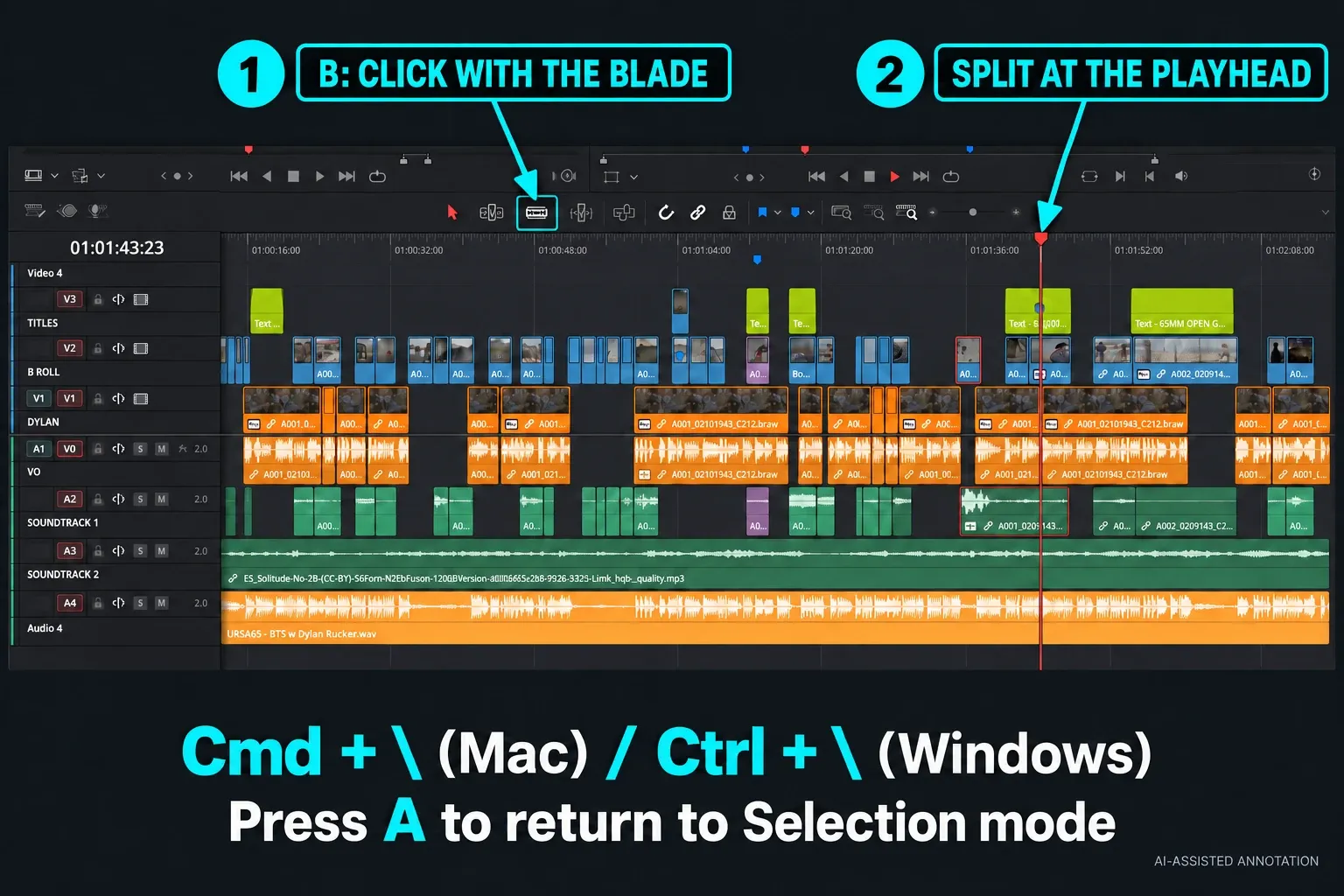
Use the Blade tool when pointing at the cut is easier than placing the playhead. It cuts where you click. Keep Linked Selection on for a normal picture-and-sound edit; do not assume that clicking the video leaves its linked audio untouched.
On the Edit page:
- Open the Edit page and locate the clip. Lock unrelated tracks that must not change.
- Press B to enter Blade Edit Mode.
- Click the required frame on the clip. Check the new boundary in both picture and linked audio.
- Press A to return to Selection mode before moving or trimming pieces.
If you're working through your first project, our DaVinci Resolve beginner tutorial covers the full Edit page interface before you start making cuts.
Use J, K and L to find the frame, then zoom only when the visual or audio transition needs closer inspection. The Blade cursor cuts where you click, not automatically at the playhead, so watch the blade indicator before committing the edit.
For a one-sided cut, decide what should happen to the audio before using the blade. Temporarily turn Linked Selection off when you need the picture cut without its linked sound, and inspect the remaining link relationship afterwards. For a synchronized cut through several tracks, the playhead method below is easier to control.
How to Split a Video with a Keyboard Shortcut
There are three controls worth separating. B changes the pointer to Blade Edit Mode. Cmd+B on Mac or Ctrl+B on Windows invokes Razor in the standard preset; Blackmagic’s editor training uses it after selecting a timeline clip. Cmd+\ or Ctrl+\ invokes Split Clips at the playhead. If you have imported another editing application’s preset, check the assigned command rather than assuming these keys still match.
- Press A for Selection mode and click the timeline clip you want to cut. Keep Linked Selection on if its picture and audio should stay together.
- Move the playhead inside that clip to the cut frame.
- Choose Timeline > Razor, or press Cmd+B on Mac / Ctrl+B on Windows.
- Inspect the new boundaries before moving or deleting either piece.
For Split Clips, use Timeline > Split Clips or its Cmd+\ / Ctrl+\ shortcut. A manual clip selection can narrow the operation: it is not safe to assume the command always cuts every enabled track. To work by track scope instead, deselect clips first and set the track controls as described below. A selected clip can leave its first half selected after the split, so explicitly select the piece you want to change next.
If a shortcut does nothing, click the timeline to give it keyboard focus, make sure the playhead is inside a clip rather than in a gap, and check the track lock. Look for a selected clip elsewhere in the timeline. Then open DaVinci Resolve > Keyboard Customization and search for Split Clips, Razor or Blade Edit Mode. Those are separate actions; a different preset or keyboard layout can explain why a shortcut from a tutorial does not work.
How to Cut Multiple Tracks at Once
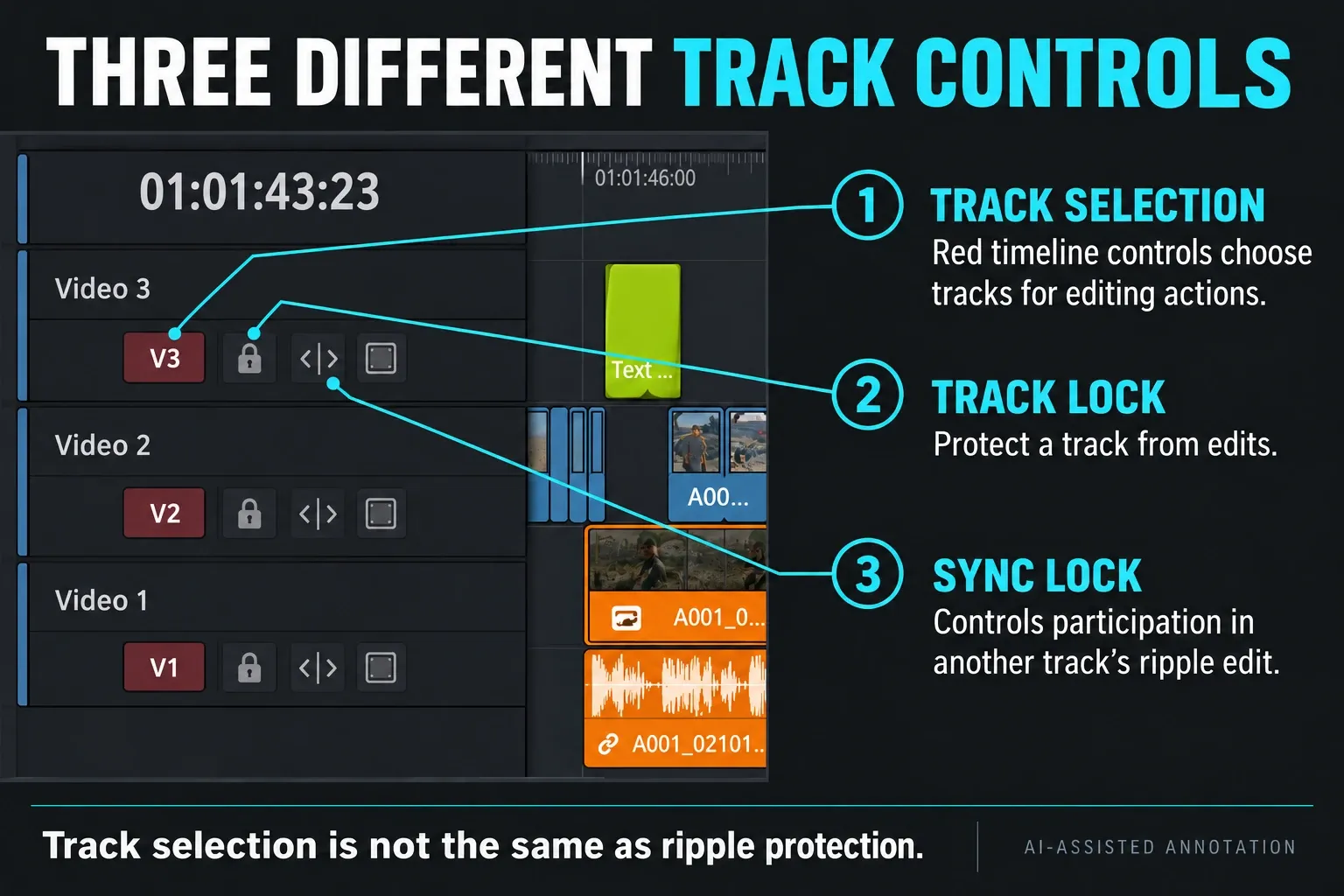
For a track-wide cut, clear any manual clip selection, position the playhead and enable only the timeline tracks that should participate. In current Resolve, the red destination track selectors handle this selection role. They are not the blue source-patching controls, and they are not Sync Lock.
To split stacked clips at the same frame:
- Deselect clips by clicking an empty area of the timeline.
- In the track headers, enable the red destination controls for the video and audio tracks you want to cut; disable the others.
- Lock any track that must not be edited, such as a finished music bed.
- Place the playhead at the cut and choose Timeline > Split Clips.
- Check every intended boundary. Restore the track controls when you finish.
An ordinary track lock protects its clips from editing even when that track is otherwise targeted. Muting a track only changes playback; it is not editing protection. The toolbar’s Position Lock is another control again, so use the individual track padlock when you need to protect a track from cuts.
Following an older tutorial? Resolve 20.2 replaced the old Auto Track Selector icon with the red timeline track controls. Sync Lock now independently governs whether a track follows a ripple edit on another track. Turning a red selector off is therefore not a promise that its clips will stay put during a later ripple delete. Blackmagic explains this change in its track selection and Sync Lock update.
Delete the middle section without moving the wrong clips
On the Edit page, a split leaves both pieces in place. To remove a section, cut at its start and end, return to Selection mode and click the unwanted middle piece. Confirm that the correct audio is selected with it. Use Delete or Backspace for a lift edit that leaves a gap; use Forward Delete when you want later material to move left and close the gap.
Before a ripple delete, check Sync Lock on the other tracks. It controls their participation in another track’s ripple edit; it does not prevent an edit made directly on that track. Lock material that must be protected. Play across the join afterwards and check picture, speech and any music cue, not just the empty space disappearing.
How to Split Audio and Video Separately
Imported picture and production audio are normally linked, and Linked Selection is on. For an ordinary cut, keep that relationship intact so both sides stay in sync.
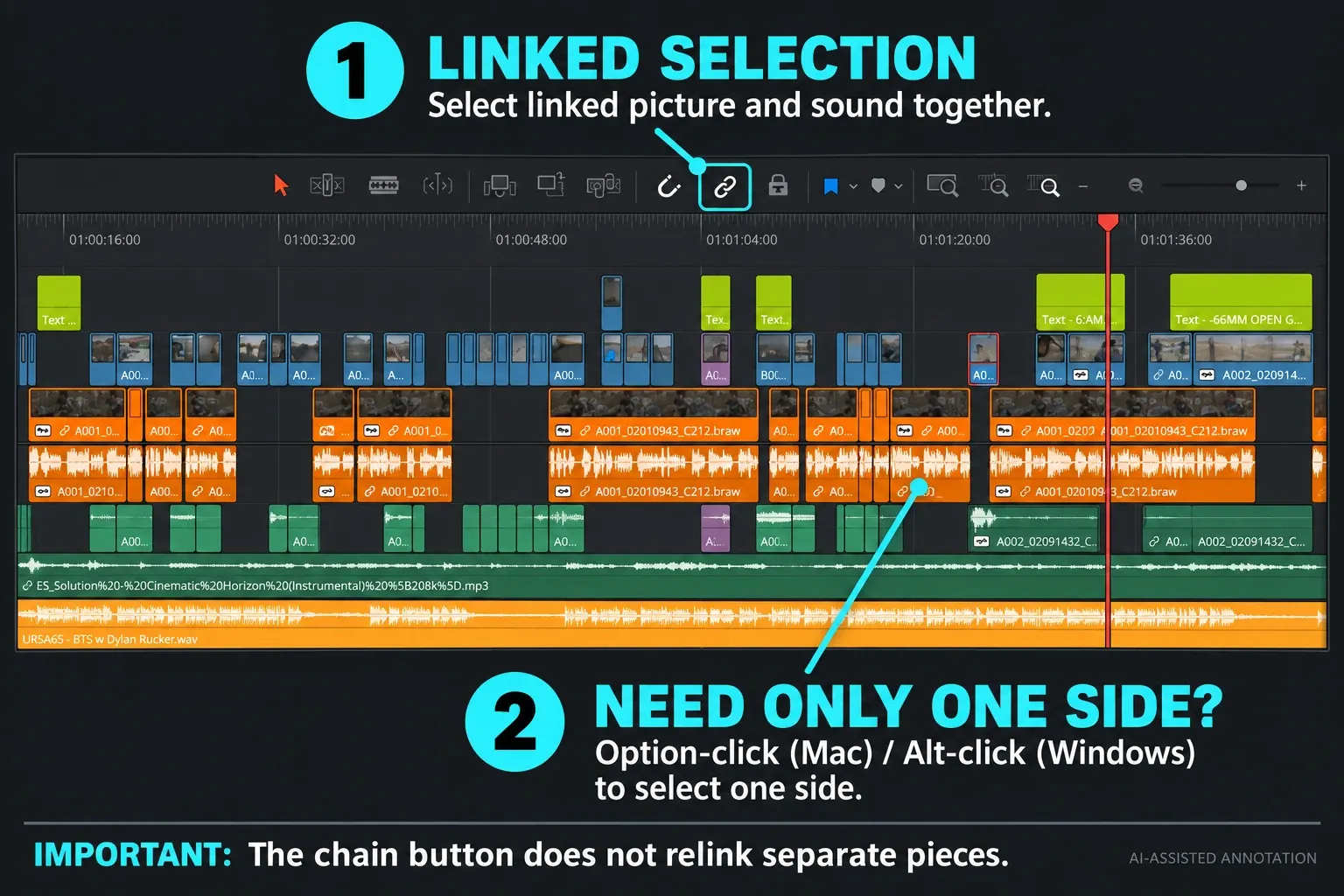
Most one-off audio edits don't require permanent unlinking. Hold Option on macOS or Alt on Windows while selecting the audio or video side to suspend linked selection for that selection, or toggle the chain-link button temporarily. With only the intended item selected, place the playhead and choose Timeline > Razor to cut it. Check the result, then restore Linked Selection when finished. The audio splitting guide covers the next cleanup steps without breaking sync by default.
To change the link relationship permanently:
- Select the linked clip items and toggle Link Clips from the contextual menu
- Cut or move the audio and video sides independently
- Select the matching items and toggle Link Clips again when they should travel together
Unlinking changes which items Resolve treats as associated; it does not fix or restore sync for you. After separate cuts or moves, check that the intended picture and audio are still aligned before linking them again. Turning the toolbar chain button back on does not create a missing link between unrelated pieces.
For J-cuts and L-cuts, keep the media linked, suspend Linked Selection and trim only the audio or video edit point. That changes where one side begins or ends without breaking the underlying link.
How to Split Clips on the Resolve Cut Page
The Cut page doesn't use the Edit page's Blade cursor. Put the playhead on the frame and use one of its Split Clips controls instead.
On the Cut page, choose any of these equivalent routes:
- Choose Edit Actions > Split
- Right-click the top playhead handle and choose Split
- Press Cmd+\ on macOS or Ctrl+\ on Windows
- Click the Split Clips scissors button in the Cut page toolbar
The Split Clips controls fit the Cut page's fast assembly workflow. Blackmagic's Cut page overview explains Source Tape, the dual timeline and the page's one-click editing model.
For detailed track-level work, switch to the Edit page. The Cut page is efficient for fast assembly, while the Edit page exposes the track headers, link controls and through-edit tools more clearly.
How to Automatically Split Clips Using Resolve Scene Cut Detection
Scene Cut Detection solves a different problem: recovering edit points from one flattened, already edited video. Don't run it on ordinary source clips just to make manual cuts.
Resolve 21 provides two scene-detection workflows:
Media page workflow: In Media Storage, select the file before adding it to the Media Pool, then right-click and choose Scene Cut Detection. Click Auto Scene Detect, then review the detected transitions in the dedicated window, remove false cuts, add missed cuts, and only then add the resulting clips to the Media Pool. This is the older pre-timeline workflow.
Timeline version (DaVinci Resolve Studio only): Put the flattened file on a timeline. Lock other video tracks, and set In and Out points if only part of it needs analysis. Then choose Timeline > Detect Scene Cuts. The DaVinci Neural Engine splits the clip directly on the timeline. This is a Studio-only feature. See the free vs Studio comparison if the Neural Engine features are a factor in your upgrade decision.
Step through the detected boundaries rather than trusting the first result. If a flash or transition produces a false cut, select that through edit and delete it. Add a missed cut with Split Clips at the correct frame. Detection finds candidate boundaries; it does not reconstruct the original editor’s project, transitions or source files.
Frequently Asked Questions
What is the keyboard shortcut to split a clip in DaVinci Resolve?
Use Cmd+Backslash on Mac or Ctrl+Backslash on Windows for Timeline > Split Clips in the default preset. Cmd+B / Ctrl+B invokes Razor. B alone enters Blade Edit Mode, where you click the cut position. Check manual clip selection, track targeting and linked audio before cutting; custom presets can assign different keys.
How do I split a clip on the DaVinci Resolve Cut page?
Place the playhead on the frame, then use Cmd+Backslash on macOS or Ctrl+Backslash on Windows, choose Edit Actions > Split, right-click the top playhead handle and choose Split, or click the scissors button. The Cut page doesn't have the Edit page's Blade cursor.
How do I delete a section after splitting in DaVinci Resolve?
On the Edit page, make a cut at the start and end of the unwanted part, then select that middle piece. Delete/Backspace performs a lift that leaves a gap. Forward Delete performs a ripple delete that closes it. Check Sync Lock and protected tracks first, because a ripple can affect other tracks.
Can I split audio and video separately in DaVinci Resolve?
Yes. Temporarily turn Linked Selection off, or use Option-click on Mac / Alt-click on Windows to select one side, then make the intended edit. Check that only the required piece changed. Link Clips changes the underlying relationship; turning Linked Selection back on does not relink pieces that are no longer associated.
Is Scene Cut Detection available in the free version of DaVinci Resolve?
The classic Media page Scene Cut Detection workflow is available before importing the file into the Media Pool. Timeline > Detect Scene Cuts is the Studio-only Neural Engine workflow. Both are for recovering edit points from a flattened program, not for making ordinary manual cuts.
How do I rejoin two split clips in DaVinci Resolve?
If the two halves are still continuous source media, select the dotted through edit and press Delete, or right-click it and choose Delete Through Edit. On the Cut page, Join Match Edit Clips rejoins matching continuous halves. Unrelated source clips can't be joined this way.