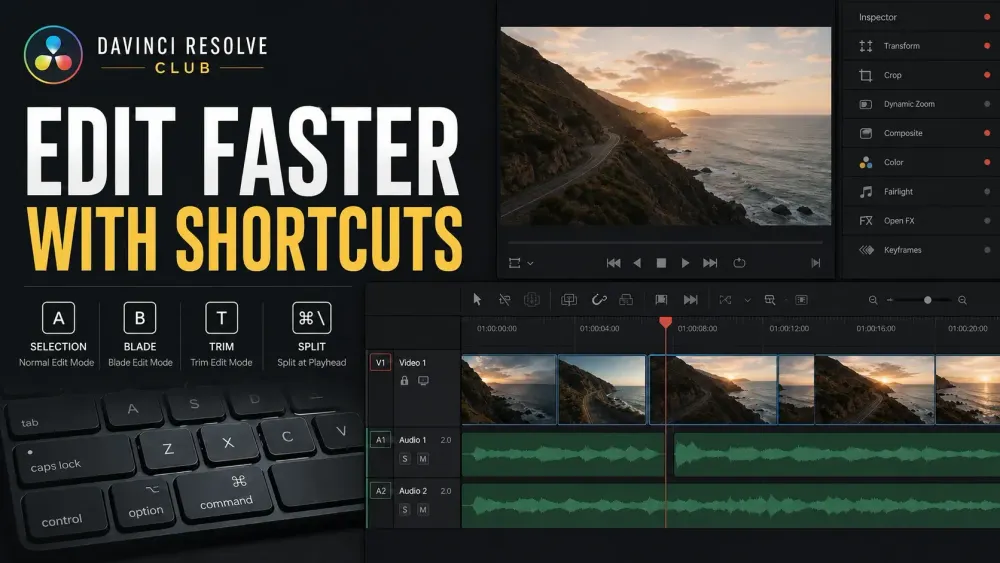
The best shortcut is the one that removes a mouse trip you make dozens of times a day. Start with a deliberately small map: transport under one hand, a few editing actions, markers, and timeline navigation. Learn the command name as well as the key, because the active preset, operating system, keyboard layout, page, and focused panel can all change what a physical key does. The Edit page guide below groups the starter commands by task; the table that follows gives the Windows and macOS defaults.
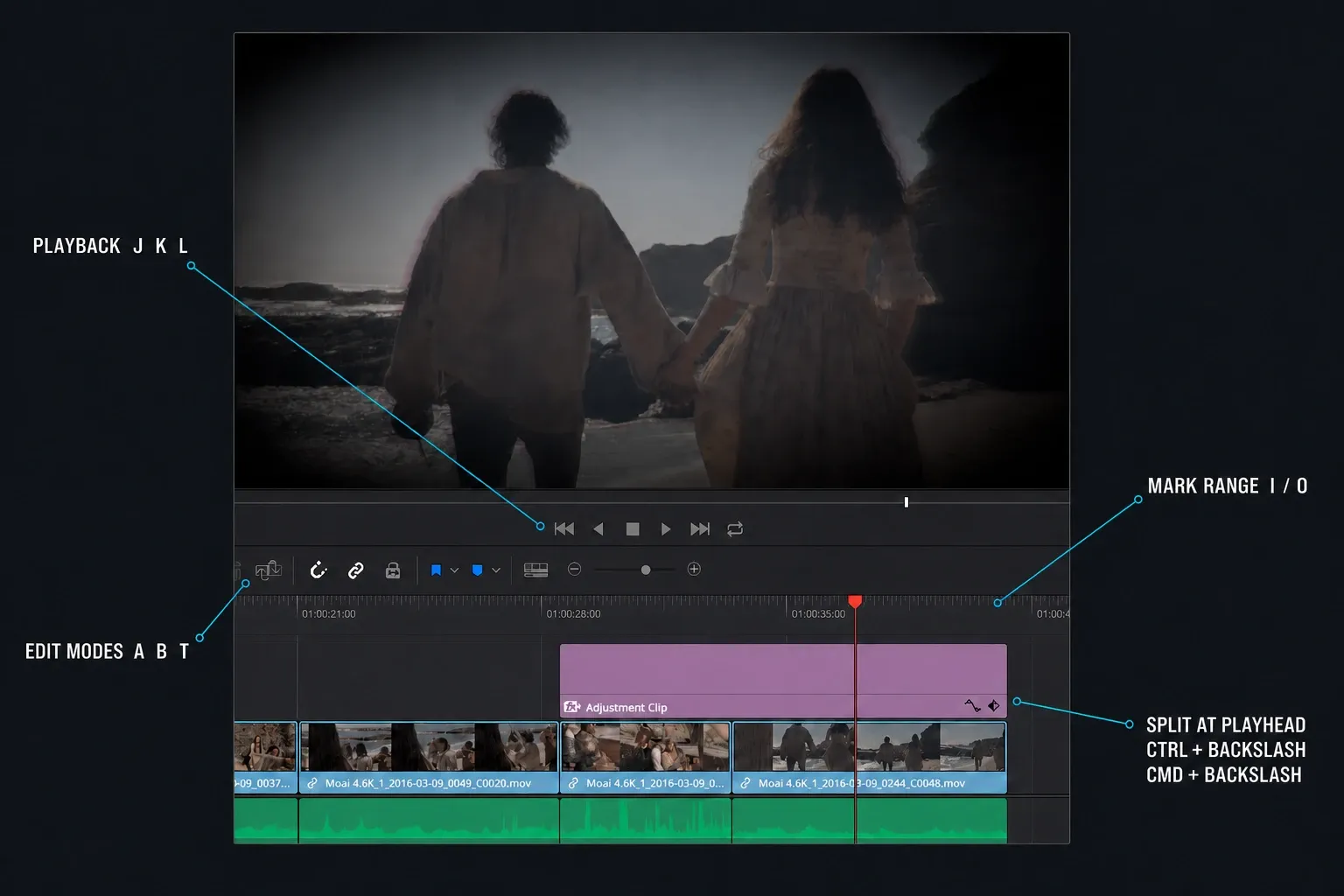
Essential DaVinci Resolve 21 Shortcuts
The table below assumes the default DaVinci Resolve keyboard preset. On compact Mac keyboards, the key labeled Delete behaves like Backspace; the forward-delete variant may require Fn. If a key differs on your machine, search the command name rather than forcing the printed combination.
Interactive reference
Search 40 editing commands
Type a command, filter by task, or show one operating system. Default keys are listed where specified; Ripple Delete and Keyboard Customization use verification or menu guidance. Check your installed preset before a destructive edit.
| Action | Windows | macOS | What it does |
|---|---|---|---|
| Play reversePlayback | J | J | Shuttle backward; repeated presses increase speed |
| StopPlayback | K | K | Stop shuttle playback |
| Play forwardPlayback | L | L | Shuttle forward; repeated presses increase speed |
| Mark InPlayback | I | I | Set the start of a source, timeline, or render range |
| Mark OutPlayback | O | O | Set the end of a source, timeline, or render range |
| Selection ModeEdit | A | A | Return to the normal selection pointer |
| Blade Edit ModeEdit | B | B | Turn the pointer into a click-to-cut blade |
| Trim Edit ModeTrim | T | T | Work with ripple, roll, slip, and slide trims |
| Split Clip at playheadEdit | Ctrl + \ | Cmd + \ | Add a cut without changing pointer mode |
| Toggle snappingNavigation | N | N | Turn timeline snapping off or on |
| Add markerNavigation | M | M | Add the current marker at the playhead |
| Fit timeline in windowNavigation | Shift + Z | Shift + Z | Show the complete timeline; press again to restore zoom |
| Previous edit or clipNavigation | Up Arrow | Up Arrow | Move to the previous edit or clip |
| Next edit or clipNavigation | Down Arrow | Down Arrow | Move to the next edit or clip |
| Nudge left 1 frameTrim | , | , | Move the selected clip or edit one frame left |
| Nudge right 1 frameTrim | . | . | Move the selected clip or edit one frame right |
| Fast nudge left 5 framesTrim | Shift + , | Shift + , | Move left by the default fast-nudge amount |
| Fast nudge right 5 framesTrim | Shift + . | Shift + . | Move right by the default fast-nudge amount |
| Extend edit to playheadTrim | E | E | Move the selected edit point to the playhead |
| Trim start to playheadTrim | Shift + [ | Shift + [ | Trim the clip start at the playhead |
| Trim end to playheadTrim | Shift + ] | Shift + ] | Trim the clip end at the playhead |
| Enable or disable clipEdit | D | D | Toggle the selected clip without deleting it |
| Toggle linked selectionEdit | Ctrl + Shift + L | Cmd + Shift + L | Change whether linked picture and sound select together |
| Select clips forward on current trackNavigation | Y | Y | Select later clips on the targeted track |
| Select clips forward on all tracksNavigation | Alt + Y | Option + Y | Select later clips across tracks |
| Ripple cut selectionEdit | Ctrl + Shift + X | Cmd + Shift + X | Cut the selection to the clipboard and close the gap |
| Ripple DeleteEdit | Verify active preset | Verify active preset | Delete and close time; physical Delete labels and emulation maps vary |
| Insert editEdit | F9 | F9 | Insert source material and move later timeline content |
| Overwrite editEdit | F10 | F10 | Replace timeline material without moving later content |
| Replace editEdit | F11 | F11 | Replace by matching the source and timeline positions |
| Place on topEdit | F12 | F12 | Place video above existing clips, or audio below, on the first empty track |
| Fit to FillEdit | Shift + F11 | Shift + F11 | Retime the source range to fill the destination duration |
| Append to endEdit | Shift + F12 | Shift + F12 | Add source material at the end of the timeline |
| Save projectProject | Ctrl + S | Cmd + S | Save the current project |
| UndoProject | Ctrl + Z | Cmd + Z | Reverse the last action |
| RedoProject | Ctrl + Shift + Z | Cmd + Shift + Z | Restore the last undone action under the Resolve preset |
| CutProject | Ctrl + X | Cmd + X | Cut the current selection |
| CopyProject | Ctrl + C | Cmd + C | Copy the current selection |
| PasteProject | Ctrl + V | Cmd + V | Paste at the active destination |
| Keyboard CustomizationProject | Resolve menu | Resolve menu | Open the documented menu route and confirm the active map |
Premiere Pro, Final Cut Pro, Avid, and custom presets can replace these assignments. Panel focus can also change what a key does. Confirm destructive commands in DaVinci Resolve > Keyboard Customization before using them on a live timeline.
Blackmagic’s official Edit page explains the source/timeline and trimming model behind these commands, while the Resolve 21.1 Reference Manual supplies the current command tables and Keyboard Customization workflow. The shortcut name matters more than the printed keycap: Resolve, Premiere Pro, Final Cut Pro, Avid, and custom presets can assign the same physical key differently.
Playback: Build J-K-L Muscle Memory First
J plays backward, K stops, and L plays forward. Press J or L repeatedly to shuttle faster. Hold K and J together for slow backward playback, or K and L for slow forward playback. Keep K held and tap J or L to step one frame at a time. These controls act on the focused source or timeline viewer; Dynamic Trim Mode changes their job to trimming a selected edit.
Add the left and right arrow keys for precise frame stepping. Don't scrub wildly with the mouse when you're trying to land on a single consonant, clap, or visual cut. Shuttle close, stop, then step frame by frame.
Mark, Insert, and Overwrite Without Guessing
I sets an In point and O sets an Out point. Use them in the Source Viewer to choose a shot before editing it into the timeline. Use them on the timeline to define a playback, render, or replace range. If Resolve exports only part of a sequence, stale In and Out marks are an early check; our audio export guide shows the same range check on the Deliver page.
The default professional edit keys are F9 for Insert, F10 for Overwrite, F11 for Replace, and F12 for Place on Top. Laptop function rows may require Fn or an operating-system setting. Beginners can still drag clips, but learning Insert and Overwrite makes track targeting and duration consequences visible. Our Resolve beginner tutorial covers the surrounding source-to-timeline workflow.
Split Clip Is Not the Same as Blade Mode
Ctrl+\ on Windows or Cmd+\ on macOS runs Split Clip at the playhead on selected clips and tracks governed by the current timeline targeting. B enters Blade Edit Mode, where every click can create a cut; A returns to Selection Mode. Blackmagic’s official beginner training guide gives the platform-specific backslash combinations, and the Resolve 21.1 manual lists Command-\ in its Edit shortcut table.
For one precise cut at the playhead, use Split Clip without changing pointer mode. Blade mode is useful for several cuts at visually chosen positions, but accidental edits multiply when the pointer remains a razor. The habit is simple: Ctrl+\ or Cmd+\ for the playhead cut; B for click-to-cut work; A as soon as the blade pass is finished.
The complete selection, track-targeting, linked-audio, and Cut-page workflow lives in the dedicated split-clip guide. When the task is to make a copy rather than a cut, use the separate duplicate-clip workflow so the original timing stays intact.
Ripple Delete and Trim Commands
Delete removes selected material and leaves a gap; Ripple Delete also closes the time it occupied. Distinguish the command from the keycap: the manual calls the ripple key Forward Delete, while compact Mac keyboards label the backspace key Delete. Confirm your assignment in Keyboard Customization. Check the selected clips or marked range, track locks, linked selection and Sync Locks before a ripple. Sync Locks determine which downstream tracks move. Timeline markers follow only when Timeline > Ripple Timeline Markers is enabled.
For J/K/L trimming on the Edit page, select the edit point and press W, or choose Trim > Dynamic Trim Mode. Inspect the highlighted edge before pressing J or L: enabling this mode can automatically select the nearest edit. J and L trim the selection during playback; K stops. Press W again to leave Dynamic Trim Mode before reviewing the result.
Resolve 21.1 enables Trim Edit Mode when you switch into Dynamic Trim. In older builds, use T for a ripple, roll, slip or slide trim; Selection Mode can resize or move instead. If you clear the selection while Dynamic Trim is active, J/K/L return to ordinary playback. The highlighted selection and mode, not the key alone, determine what changes.
Audio often reveals a bad ripple before the picture does. After closing dialogue gaps, inspect waveforms and listen across the join. The workflow in our Remove Silence guide shows why pre-head, post-tail, and crossfades matter even when the delete itself is automatic.
Timeline Navigation and View Shortcuts
- Shift+Z: fit the complete timeline into the available window; press again to return to the previous zoom.
- Up/Down Arrow: move between edit points, subject to active tracks and mapping.
- N: toggle snapping when the playhead or an edit keeps jumping to nearby boundaries.
- M: add a marker; press M again at that location to open its details.
- Cinema Viewer: choose Workspace, Viewer Mode, Cinema Viewer, then search that command in Keyboard Customization before relying on a printed key; the manual shows different defaults in different page contexts.
- Shift+2 through Shift+8: switch between Media, Cut, Edit, Fusion, Color, Fairlight, and Deliver pages under the standard Resolve map.
Page shortcuts are especially useful on a single display. If you keep losing context between Edit and a parameter panel, our Inspector guide explains which controls belong to the selected clip and which belong to the timeline or project.
How to Customize Shortcuts Without Breaking the Map
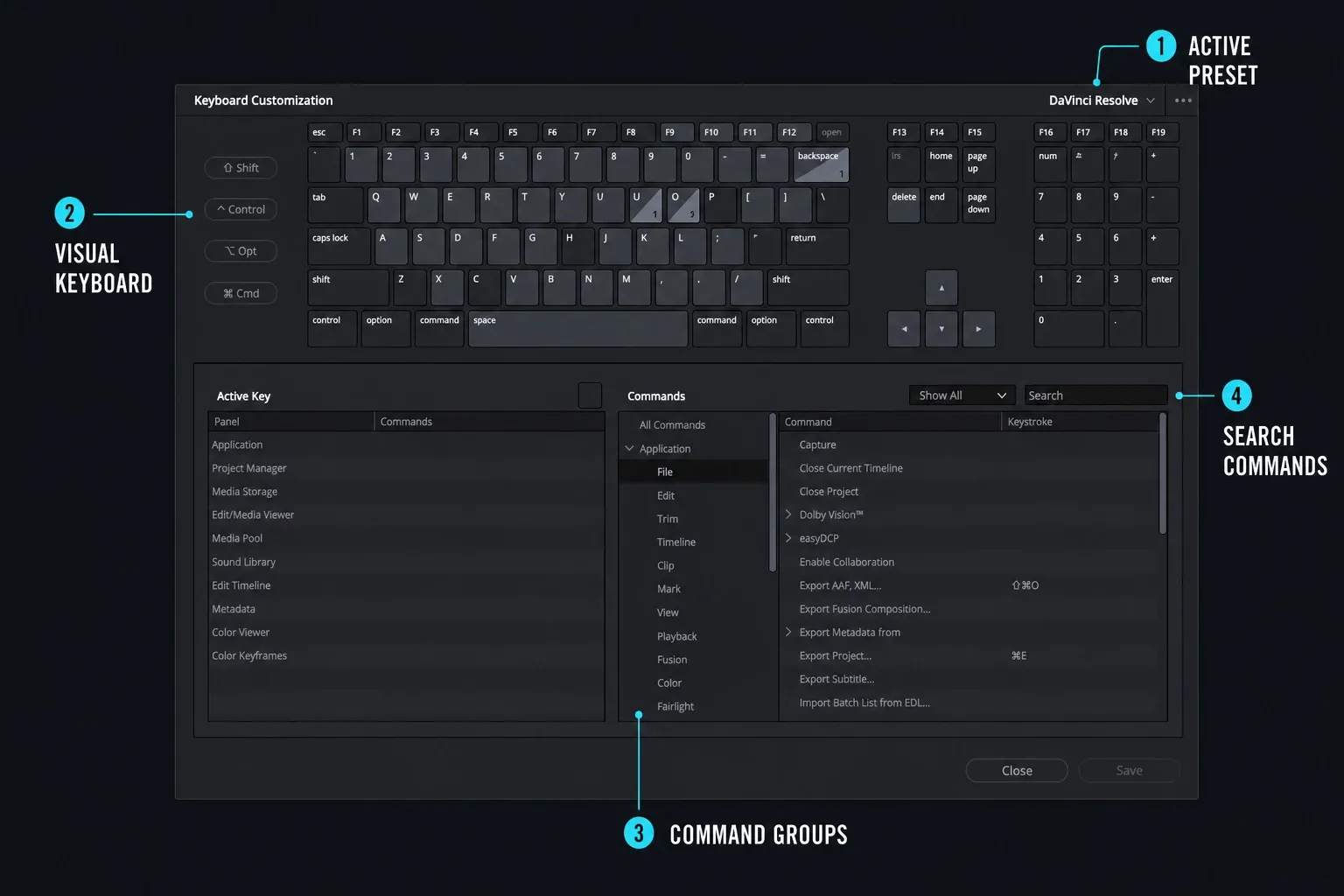
- Choose DaVinci Resolve > Keyboard Customization and check the active preset.
- From the options menu, choose Save As New Preset. Give your copy a descriptive name before changing the map.
- Search for the command name. Choose the correct Application or Panels scope; similarly named commands can act in different places.
- Select the proposed key on the visual keyboard and inspect its existing assignments.
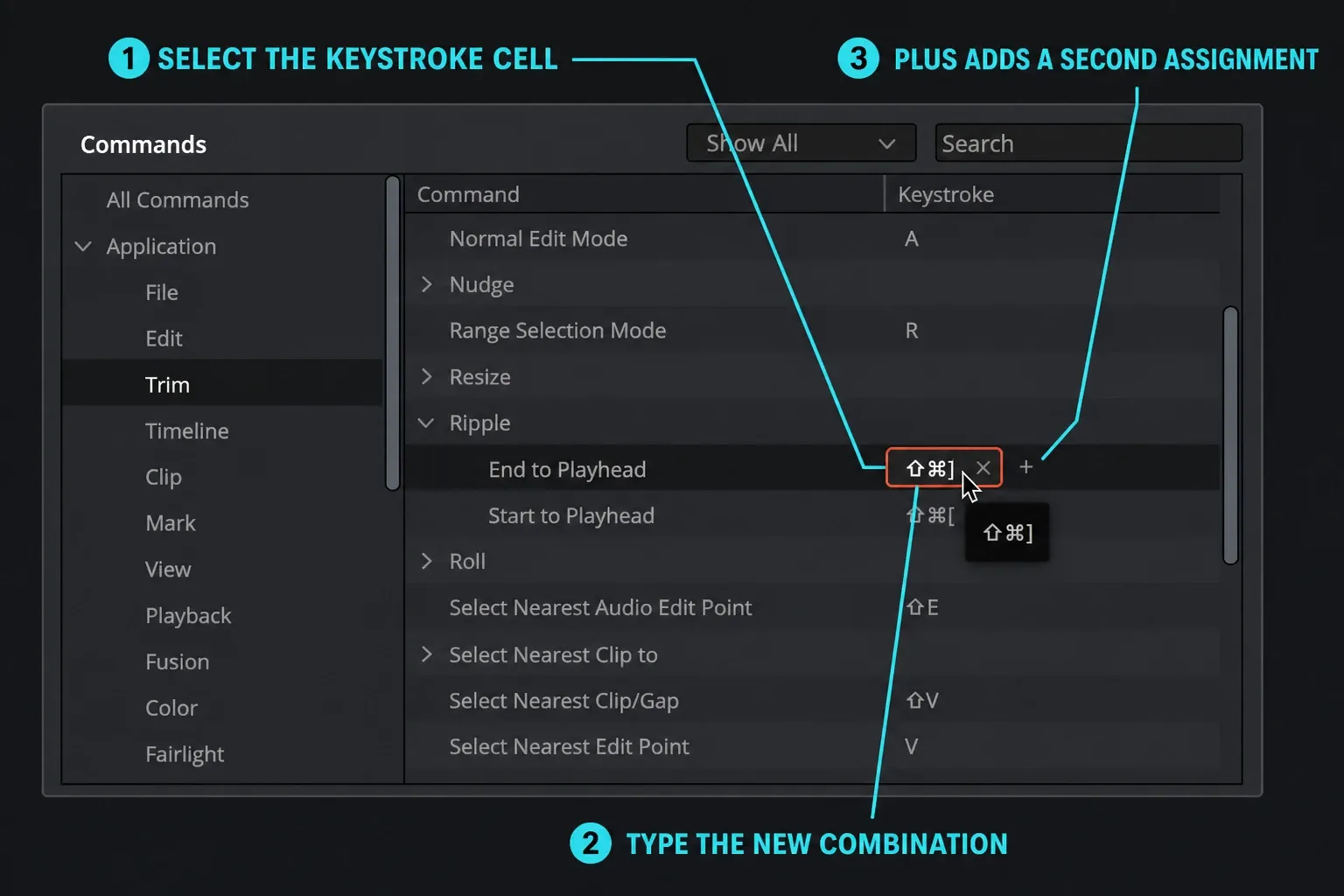
- Click the command’s Keystroke cell and press the replacement key combination. Use the plus button only if you need a second assignment for that command.
- Resolve any conflict warning. Reassign or clear the competing command at the same scope instead of accepting an ambiguous map.
- Click Save, then Close.
- Reopen Keyboard Customization and use Export Preset in its options menu. Keep the dated export outside Resolve.
- Test the changed commands on a duplicate timeline, including the panels and selections you actually use. Keep the previous preset until the new map behaves as expected.
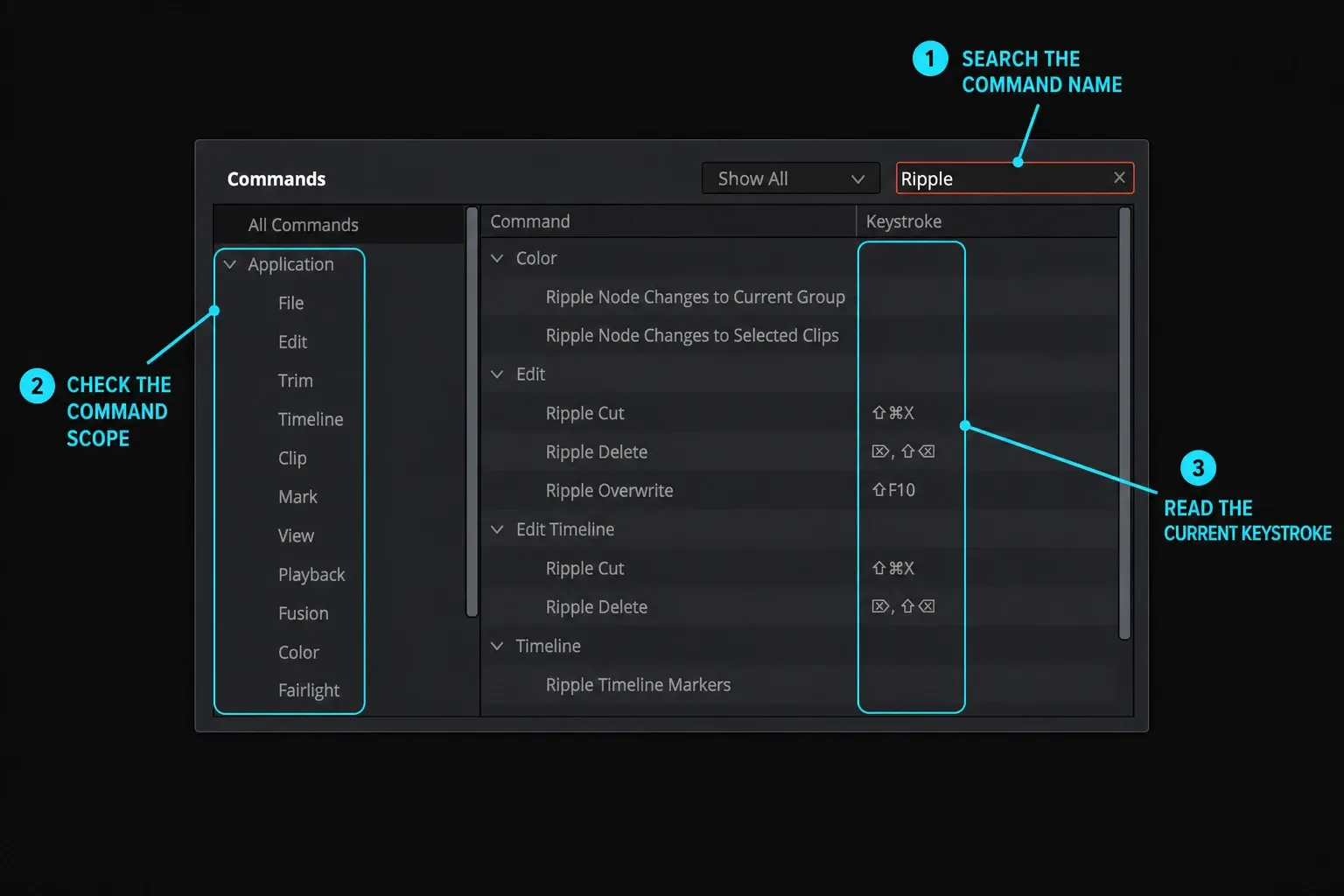
The Resolve 21.1 Reference Manual documents the exact sequence: choose a starting mapping, use Save As New Preset, and manage Export Preset or Import Preset from the options menu. Before changing Resolve versions, also export a project checkpoint and follow our safe update checklist.
Resolve, Premiere, Final Cut, or Avid Preset?
If you're temporarily moving between applications, the familiar preset reduces friction. If Resolve is becoming your main editor, keep the old preset only long enough to stay productive, then add Resolve-specific commands deliberately. An imported Premiere layout can't make Resolve’s Trim Edit Mode, Color page, Fusion nodes, or Fairlight routing behave like Premiere.
Shared rooms need a stricter rule: never overwrite the facility default. Load your named preset at the start, export changes at the end, and restore the house layout for the next editor. Include the preset file in the same workstation documentation as fonts, LUTs, plugins, and project-recovery notes.
Free vs Studio and Resolve 21 Notes
Keyboard Customization and the editing commands in this guide work in both DaVinci Resolve Free and Studio. A shortcut can still point to a Studio-only effect or AI command, but mapping the key doesn't unlock the feature.
Resolve 21.1 release notes say new user keyboard presets inherit updates to factory defaults. The manual recommends creating a new custom layout in 21.1 or later to use this behavior: later non-conflicting defaults can update without overwriting your custom assignments. Keep an exported backup. New multicam and track-selection commands may be assignable without having a factory key, so inspect the installed command list instead of guessing a combination.
Why a DaVinci Resolve Shortcut Does Not Work
The shortcut does nothing
Record the exact Resolve build, Free or Studio edition, operating system, and keyboard layout before changing anything. Click the panel where the command should act, because many commands are page-, mode-, and focus-sensitive. Then search the command in Keyboard Customization and check whether the active preset, macOS or Windows, an input method, screen recorder, or keyboard utility intercepts the same combination.
The wrong command fires
Select the key on the visual keyboard and inspect every listed assignment. Confirm the preset at the upper right. The same key can have application- and panel-specific actions, so a command that works on Edit may do something else, or nothing, when a text field, Media Pool, Viewer, Fusion panel, or Color page owns focus.
Ripple Delete removes too much
Undo immediately. Check selected clips, track auto-select controls, linked selection, and locked tracks. Ripple operations change time; a shortcut cannot decide which downstream sync relationships you intended to preserve.
A shortcut types into a field instead
Text entry has focus. Click the timeline or viewer, press Escape if appropriate, and try again. Don't keep hammering a destructive key while a rename or metadata box is active.
The custom preset disappeared
Confirm the current OS user, Resolve build, edition, and selected preset, then import the dated export. A temporary default preset can separate a broken custom map from a build, layout, or focus problem, but export the current map first and never overwrite the only working copy. If defaults also fail, capture a full UI screenshot and the exact command assignment before reporting a build-specific defect.
A Seven-Day Shortcut Practice Plan
- Day 1: J, K, L, arrows, I, and O.
- Day 2: A, B, and Ctrl+\ or Cmd+\ for Split Clip.
- Day 3: Delete versus Ripple Delete.
- Day 4: T and edit-point navigation.
- Day 5: M, N, and Shift+Z.
- Day 6: Insert, Overwrite, and source/timeline focus.
- Day 7: review the commands you still reach for with the mouse and map one new cluster.
Keep the cheat sheet visible, but say the command name in your head rather than memorizing a colored key. That makes the skill survive a different keyboard, OS, or preset.
Build the shortcut set around the actual tasks in our DaVinci Resolve learning roadmap, not around a memorized list of commands.
DaVinci Resolve Keyboard Shortcuts FAQ
How do I open Keyboard Customization?
Choose DaVinci Resolve, then Keyboard Customization. That menu route is reliable across presets. If you use a remembered keyboard combination, verify it in the active preset and on your physical keyboard layout rather than assuming every installation maps it identically.
What is the shortcut to cut a clip in DaVinci Resolve?
Split Clip is Ctrl+\ on Windows and Cmd+\ on macOS under the default Resolve preset. B enters Blade Edit Mode for click-to-cut work; press A to return to Selection Mode. If the backslash combination does not fire, search Split Clip in Keyboard Customization and confirm the active preset and keyboard layout.
What are J, K, and L in Resolve?
J plays backward, K stops, and L plays forward. Repeated J or L presses increase shuttle speed. Hold K together with J or L for slow playback; hold K and tap J or L to step one frame. In Dynamic Trim Mode, these controls trim the selected edit instead.
What is the difference between Delete and Ripple Delete?
Delete removes selected material and leaves a gap. Ripple Delete closes that time and can move later material on tracks with Sync Locks enabled. Timeline markers move only when Timeline > Ripple Timeline Markers is enabled. Check the command assignment, selection, range and track state before deleting.
Can I use Premiere Pro shortcuts in Resolve?
Yes. Resolve includes presets that emulate other NLEs. Check every Resolve-specific trim, Color, Fusion, and Fairlight command because the applications don't map one-to-one.
Can I export my DaVinci Resolve keyboard preset?
Yes. Save the layout as a named preset, then use the Keyboard Customization options menu to export it. Keep a dated copy outside the application.
Do keyboard shortcuts differ between Resolve Free and Studio?
The core editing and customization shortcuts are the same. A mapped command for a Studio-only feature won't make that feature available in the free edition.
