To undo in DaVinci Resolve, press Ctrl+Z on Windows or Cmd+Z on Mac, or choose Edit > Undo. To put that change back, use Ctrl+Shift+Z or Cmd+Shift+Z, or Edit > Redo. Those are the default Resolve mappings; an imported keyboard preset can assign different keys.
If the result surprises you, stop pressing the shortcut and check which history you’re changing. Timeline edits share one history across Media, Cut, Edit and Fairlight. Color grades and Fusion compositions have their own histories for each clip. And once you close a project, its undo history is gone.
Undo or redo one change
The menu is the quickest way to separate a missing shortcut from a missing undo step. Open Edit and choose Undo once. Check the affected clip, edit point or control before going farther. If you’ve stepped back too far, choose Redo to move forward again.
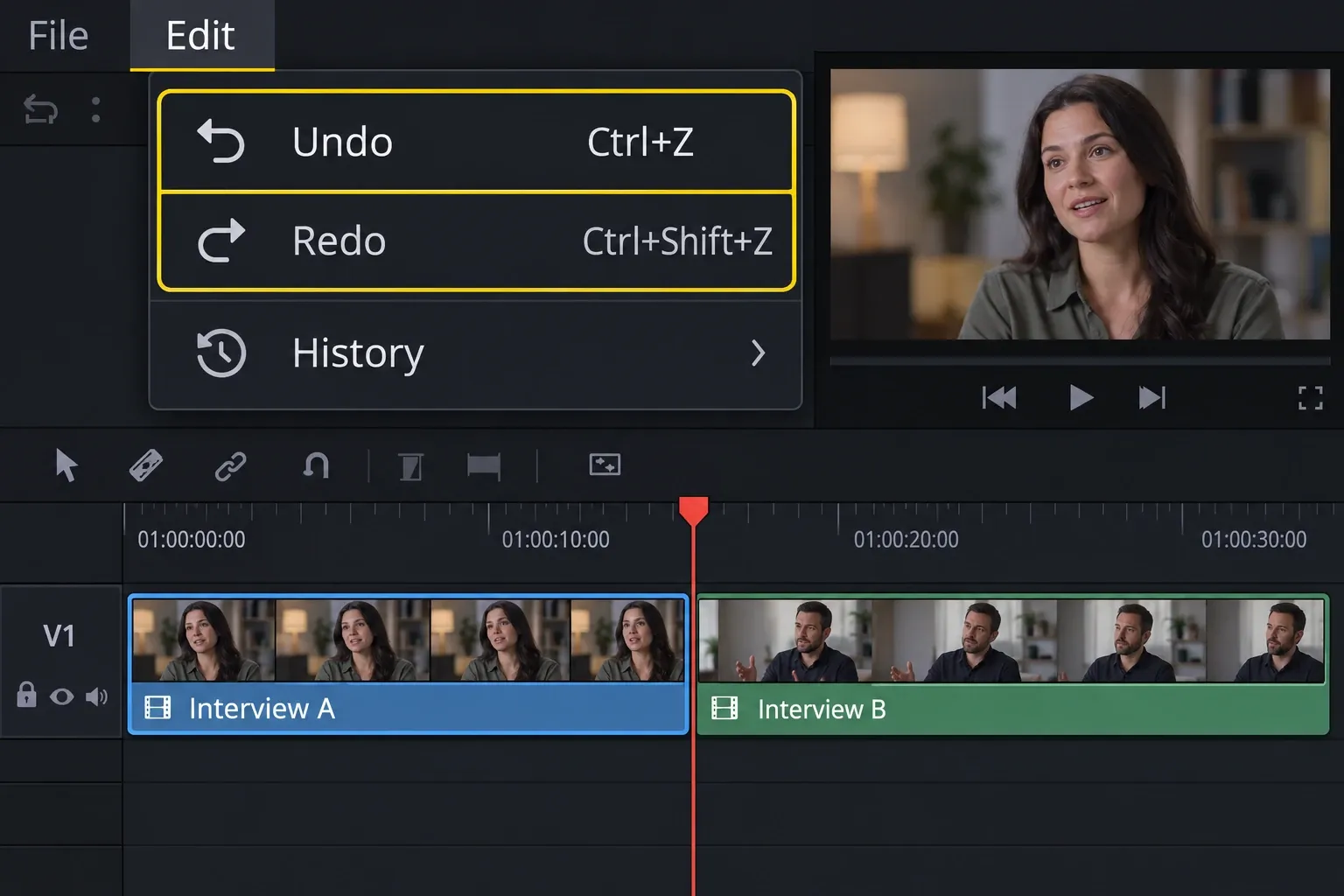
Redo means restoring a change you’ve just undone. It isn’t repeating a command on another clip. Use Shift with the normal Undo shortcut; Ctrl+Y is not the default Resolve Redo mapping. For other commands or an imported Premiere-style map, use the searchable Windows and Mac shortcuts reference.
I’d use the menu first when the keys seem unreliable. If the menu works, open DaVinci Resolve > Keyboard Customization, search for Undo and Redo, and check the active preset and assignments. Also finish an active text entry or dismiss an open dialog before trying the timeline command again. That’s a useful diagnostic sequence. It doesn’t prove that every unresponsive shortcut is a keyboard problem.
Choose a point in Undo History
On the Media, Cut, Edit and Fairlight pages, you can jump back several changes without guessing how often to press Z. Blackmagic’s undo and history documentation describes two views of the same available editing history:
- Edit > History shows up to the last 20 actions. The newest action is at the top of this submenu.
- Edit > History > Open History Window opens the longer history list. The newest action is at the bottom of this window.
In the window, click the action that represents the state you want to return to. Resolve updates the project and grays out the later actions that remain available for Redo. Review the cut with sound, including any downstream timing that the undone edit affected, then close the window when you’re done.
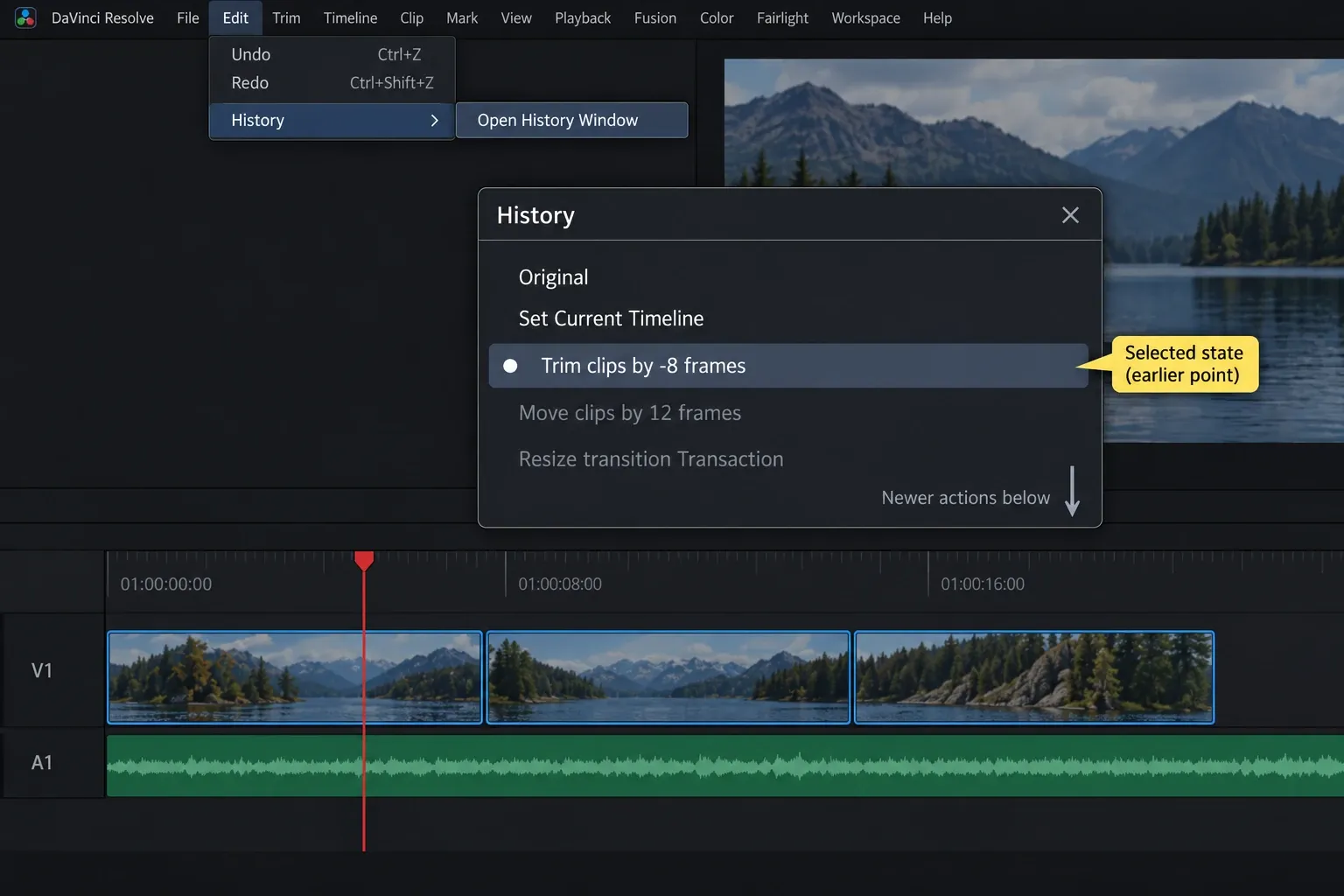
Don’t confuse the short submenu with a 20-step undo limit. The manual distinguishes the last-20-action menu from the longer available history. It also limits this multi-step History route to Media, Cut, Edit and Fairlight; it isn’t a universal window for every clip’s Color grade or Fusion composition.
Why switching pages or clips changes what Undo does
What matters is the owner of the history, more than the page name. The Color-page documentation confirms the same division:
- Media, Cut, Edit and Fairlight: one shared multiple-undo stack for editing work. Switching from Edit to Fairlight does not give you an independent safe rollback list.
- Color: an independent history for each clip’s grade. Select the clip whose grade you mean to change.
- Fusion: an independent history for each clip’s composition. Open the composition you mean to change.
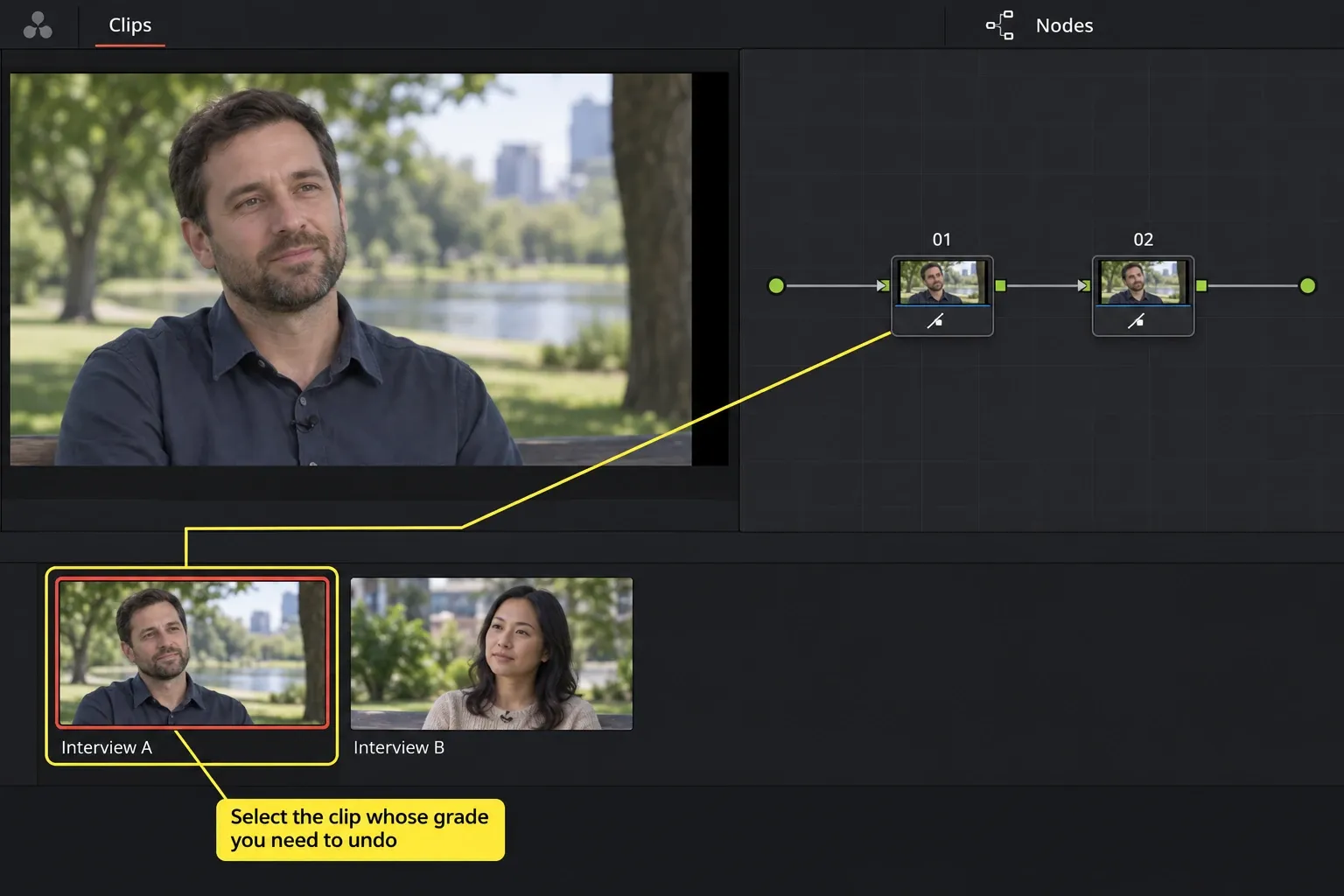
Consider an editing sequence: you trim a clip on Edit, then change audio on Fairlight. Both changes belong to the shared editing history. Moving back to Edit doesn’t make the last audio change disappear from that history. By contrast, undoing a grade on clip A is a different task from undoing a grade on clip B.
For node work, follow the Color node guide or the Fusion learning path after identifying the right clip. These are editing contexts, and they aren’t interchangeable ways to restore the whole project.
What to check when Undo seems not to work
The menu works, but the keys don’t. Check the assigned command in Keyboard Customization, your active preset and the focused panel. Compare one menu action with one key action instead of repeatedly applying both.
Undo changes something unexpected. Check the page and clip first, then inspect History where that route applies. A shared timeline/audio stack or a per-clip Color/Fusion stack can explain why the visible change is different from the one you expected.
A Fairlight mixer change is missing from History. Open DaVinci Resolve > Preferences > User > Fairlight and, under General Settings, turn on Include mixer events in Undo history before relying on Undo for mixer actions such as panning or track mute. Blackmagic documents this as a separate mixer-history setting; a shared editing stack doesn’t mean every mixer event is automatically recorded.
Redo is unavailable after another edit. Undo and Redo follow a branch of changes. If you undo several steps and make a new edit, the abandoned later steps are discarded from that branch. Decide whether you want to redo them before you start changing the earlier state.
You reopened the project. Closing a project purges its undo history; opening it starts a new one. No shortcut can restore that earlier session’s stack. That’s also why I wouldn’t rely on Undo as protection against a crash or a closed project.
You mean “unpack a compound clip.” That’s a structural edit and isn’t necessarily a request to rewind history. Use Decompose in Place and compound-clip guidance for that task. Likewise, changing reverse playback, disabling an effect or reconnecting missing media calls for the relevant control; Ctrl+Z isn’t a general repair command.
When you need a backup instead
Undo is for the available changes in the open project. It doesn’t retrieve deleted media from a drive, recreate a purged history, or guarantee that a previous saved project version exists.
If you’ve reached that boundary, preserve the current project before restoring an older copy. The save and backup guide explains Project Backups, Timeline Backups and separate DRP/DRA copies. Use the recovery method you have; don’t assume pressing Save created a rollback point.
For a first edit, the Resolve tutorial path connects these commands to the wider workflow. The safest habit here is small, and it’s the one I’d keep. Make one undo, inspect the result, and keep a separate recovery copy for changes you can’t afford to lose.