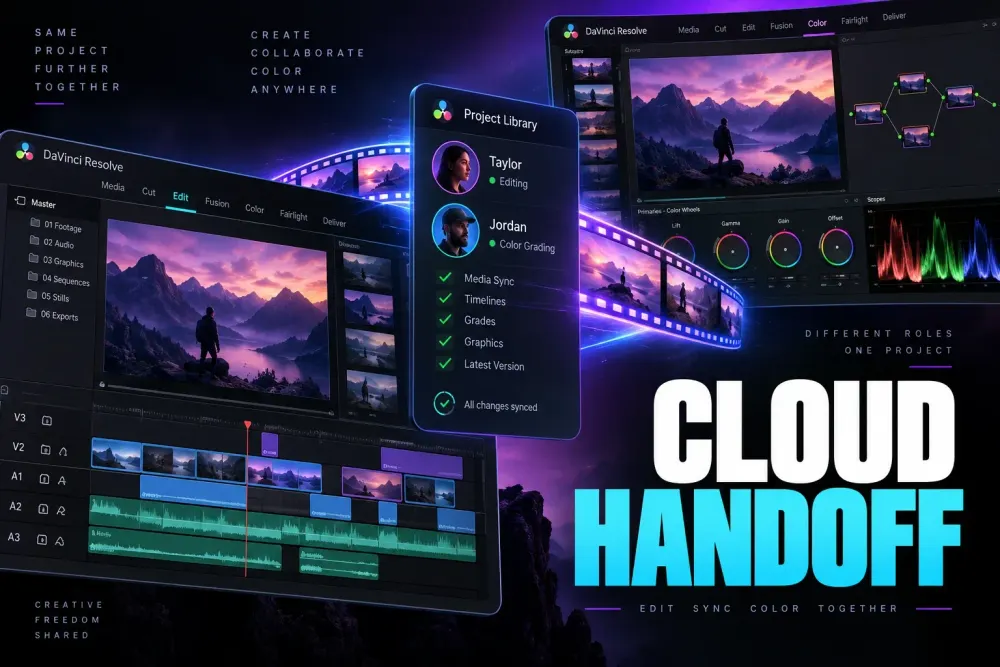
A dependable Blackmagic Cloud workflow starts by separating the shared Resolve project from the media sync choice. The Cloud Project Library carries project access and collaboration changes; Blackmagic Cloud Storage can upload no media, Resolve proxies only, or proxies plus originals, depending on the project setting. An invitation therefore does not guarantee that every file needed for editing or finishing is already local. Confirm what will sync, what must travel another way, and which machine owns the authoritative originals. Media handoff is closely tied to the proxy workflow hub. The broader editing route is collected in the DaVinci Resolve tutorial hub.
Before anyone cuts a frame, decide whether collaborators will receive originals, proxies, or a hybrid set. Give every person the same relative folder structure, confirm that their clips open locally, and reserve the full-resolution originals for a known finishing station. That simple division prevents most “the project opened but everything is offline” handoffs.
| Layer | What it contains | What must be planned |
|---|---|---|
| Cloud project library | Bins, timelines, edits, grades, markers, metadata, and project changes | Access, project naming, locks, update review, and backups |
| Local media | Original clips, proxies, audio, graphics, and other files used by each collaborator | Transfer method, folder structure, file names, and relinking |
| Finishing originals | Approved camera originals and final delivery assets | Conform, online checks, cache rebuild, and export responsibility |
What Blackmagic Cloud Syncs—and What It Does Not
Blackmagic Design’s cloud-project guide lists three choices under Synchronize Storage with Blackmagic Cloud. These are media rules inside the shared project workflow:
- Don’t Sync Media: the project remains collaborative, but imported media is not uploaded to Blackmagic Cloud Storage. Plan a separate transfer, shared storage path, or another local-media route.
- Sync Proxies Only: proxy media created by DaVinci Resolve is uploaded for collaborators. Originals still need a separate path to the finishing system.
- Sync Proxies and Originals: both sets are uploaded. This can simplify access, but original media can consume substantially more cloud storage.
You can change the selection later under Project Settings > Blackmagic Cloud. Treat that as a workflow change rather than a silent toggle: check pending uploads, confirm that collaborators have fully downloaded the intended files, verify local media paths, relink from a scoped project root when needed, and make sure the finishing station is using originals before export.
Choose Originals, Proxies, or a Hybrid Handoff
The sync mode controls what Blackmagic Cloud Storage uploads; the handoff plan controls what each person actually needs. Sharing all camera originals gives collaborators the same source quality, but it creates a larger transfer and duplicates storage. Proxy-only editing is lighter, but the final machine must retain or receive the originals before delivery. A hybrid handoff keeps originals on the finishing system while remote editors receive proxies and only the full-resolution files required for specialist work.
- Use originals when the media set is manageable and collaborators need full-resolution reframing, keying, noise reduction, or final color work.
- Use proxies for editorial review, assembly, selects, dialogue work, and many remote cutting tasks.
- Use a hybrid when remote editors cut proxies while one designated machine owns final conform and export.
Do not treat render cache as project media. Cache files are temporary acceleration data and may be cleared, rebuilt, or stored in a machine-specific location. The Resolve render cache guide covers that system separately. For collaboration, the handoff should survive after every cache folder is empty.
Set the Folder Plan Before You Invite Anyone
A consistent relative structure makes cross-platform relinking easier even when absolute paths differ. One editor might store the job under an external drive on macOS while another uses a different drive letter on Windows. They do not need identical user names or identical root paths if everything below the project root stays predictable.
A practical project root can look like this:
Project_Name/
  01_Originals/
    Camera_A/
    Camera_B/
  02_Audio/
  03_Graphics/
  04_Proxies/
  05_Exports/
  06_Project_Snapshots/
Keep file names stable after the first sync. Renaming a camera card, proxy, or audio file halfway through an edit creates a new identity problem rather than solving an organizational one. If a team needs editorial labels, add metadata, keywords, clip color, or bin organization inside Resolve instead of rewriting source file names.
Choose one person to own folder changes. If every collaborator reorganizes the same media independently, relinking becomes a recurring task and the finishing station cannot tell which layout is authoritative. Write the agreed project-root name and proxy location into the handoff note so a new editor does not have to infer them from an offline timeline.
Create the Cloud Project Library and Invite Collaborators
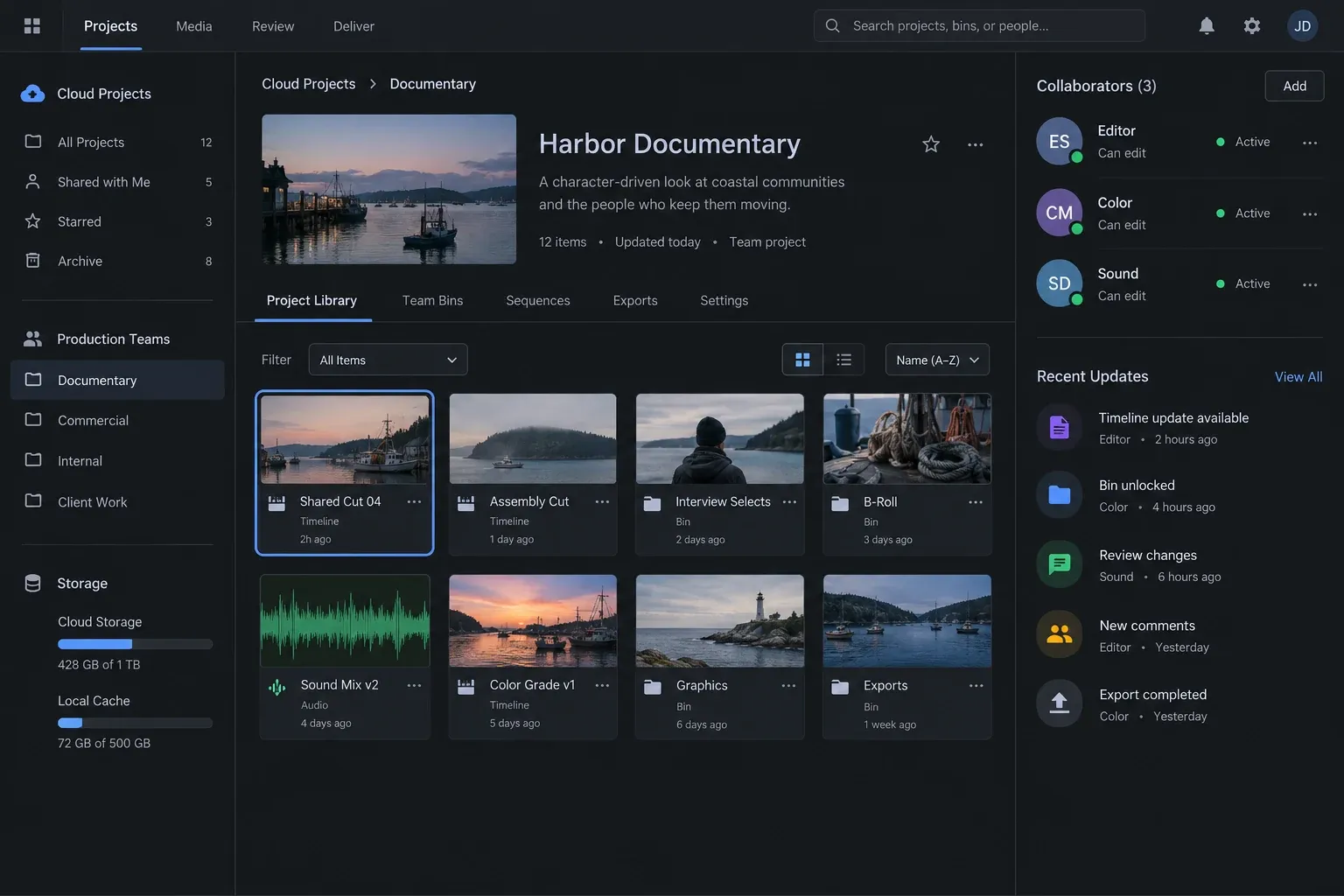
Blackmagic’s official collaboration page describes Cloud project libraries as the shared layer for projects, timelines, edits, grades, markers, metadata, and collaborator updates. Create or connect to the intended library, place the project there, and invite only the people who need access. Then select the media sync mode deliberately instead of assuming that project access moves every file. Use a project name that identifies the production and version without relying on a generic label such as “New Project 3.”
Before the team begins, confirm four items:
- Every collaborator can see the correct project in the correct library.
- The project frame rate, timeline resolution, color-management settings, and audio configuration are agreed before substantial editing.
- Each person knows whether they are working from originals or proxies.
- The finishing editor is identified and has access to the authoritative originals.
Cloud collaboration reduces the need to pass a new project file after every edit, but it does not remove change control. Use clear timeline names, avoid unexplained duplicates, and communicate before replacing a sequence that someone else is reviewing.
Verify Local Media Before Editing
A successful project open is not proof that the media handoff is complete. Open representative clips from every source group: each camera, production audio, music, stills, graphics, and any compound or multicam source that depends on those files. Scrub near the beginning and end of long clips. Check a few audio waveforms and confirm that picture and sound durations make sense.
If clips are offline, stop before creating more edits. First confirm whether the files actually exist on the local disk. Then relink from the narrowest useful folder rather than searching an entire computer. The Media Offline troubleshooting guide owns the broader diagnosis of missing files, moved folders, unsupported media, and path problems.
Do not accept a partially online project without documenting the exceptions. A timeline can look healthy while an unused interview angle, a second audio recorder, or a graphic required later remains offline. The handoff is ready when the planned source groups are online, not when the first visible shot plays.
Generate and Distribute Proxies Predictably
Blackmagic’s collaboration documentation describes Proxy Generator watch folders and proxy creation in H.264, H.265, or ProRes, with the exact options depending on platform and current Resolve build. The useful operational idea is the watched source folder and its linked proxy location: new originals can produce matching proxy media without requiring editors to build a separate naming system.
Keep the proxy relationship boring. A proxy should preserve the source base name and maintain a folder relationship that can be understood later. Avoid manually renaming proxies to editorial descriptions. If two source files share a name, preserve enough of their card or camera folder structure to keep them distinct.
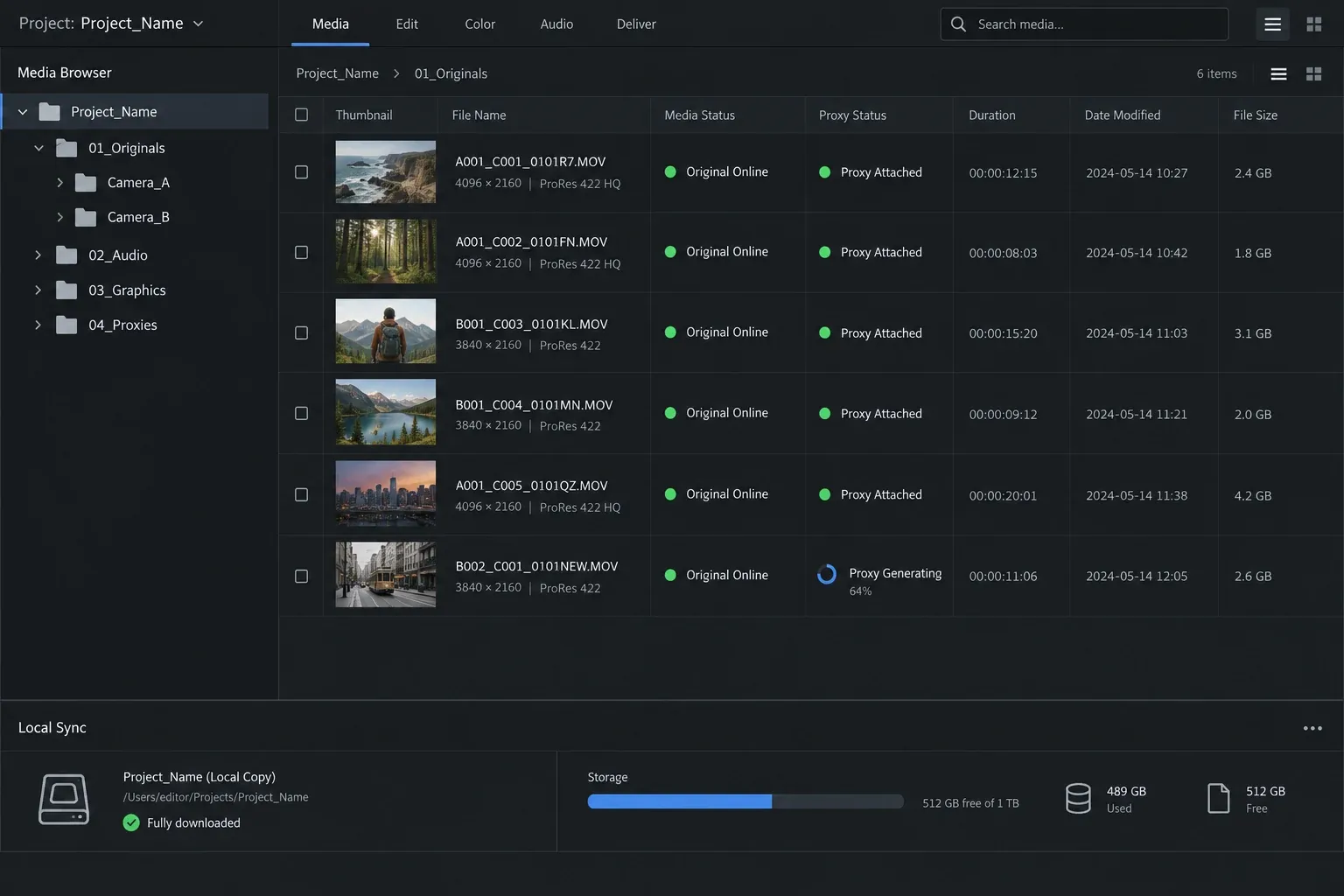
Before sending a proxy package, compare its coverage with the source inventory. The goal is not merely to have “some proxies.” Every clip assigned to proxy editing needs a matching file that Resolve can associate with the original. Include production audio and graphics separately because a video proxy does not replace those assets.
After transfer, each collaborator should attach or relink the proxy set and verify playback. Do not assume a completed cloud or drive sync means Resolve sees the files. A sync client can report success while a folder is excluded, stored as online-only placeholders, or mounted under a different local root.
Relink from a Scoped Root
When paths differ, point Resolve at the project’s local media root or the specific missing source folder. A scoped search is faster to reason about and less likely to match the wrong file from another job. If several cards contain repeated names such as C0001, searching a whole archive drive can produce a technically online but incorrect match.
Relink one source group, inspect several clips, and then continue. Check reel, duration, resolution, frame rate, timecode, and visible content where those details matter. For proxy workflows, confirm whether Resolve is using proxy media or camera originals before judging image quality or declaring the conform finished.
The location of the project library is a separate issue from media paths. Our guide to where DaVinci Resolve projects are saved explains local libraries and project backups. Moving a project database does not move camera files, and moving camera files does not update every project path automatically.
Use Locks, Updates, and Timeline Comparison Deliberately
Resolve collaboration includes update notifications, bin and timeline locking, multi-user timelines, chat, and timeline comparison. Those tools work best when the team agrees what each signal means.
- Locks prevent two people from silently rewriting the same protected work. Treat a locked timeline or bin as owned work, not an obstacle to bypass.
- Update notifications tell collaborators that project state has changed. Review changes before accepting them into a critical sequence.
- Timeline comparison helps identify edits between versions. Use it when merging a returned sequence or checking what changed after a handoff.
- Chat can carry short coordination notes, but important delivery decisions should also live in the handoff record.
Use separate timelines for genuinely separate editorial branches. Do not create a new timeline for every small adjustment, and do not overwrite the approved cut with an experiment. A simple naming pattern such as production, sequence, purpose, and date keeps the shared library readable without pretending the name is a full version-control system.
Bring the Project Back to the Finishing Station
The finishing station should own the authoritative originals and the responsibility for final online checks. Once editorial is approved, open the current shared timeline on that machine and make sure every required source resolves to the originals. If Resolve is still using proxy media, switch the workflow back to originals before judging sharpness, noise, reframing, keys, or final color.
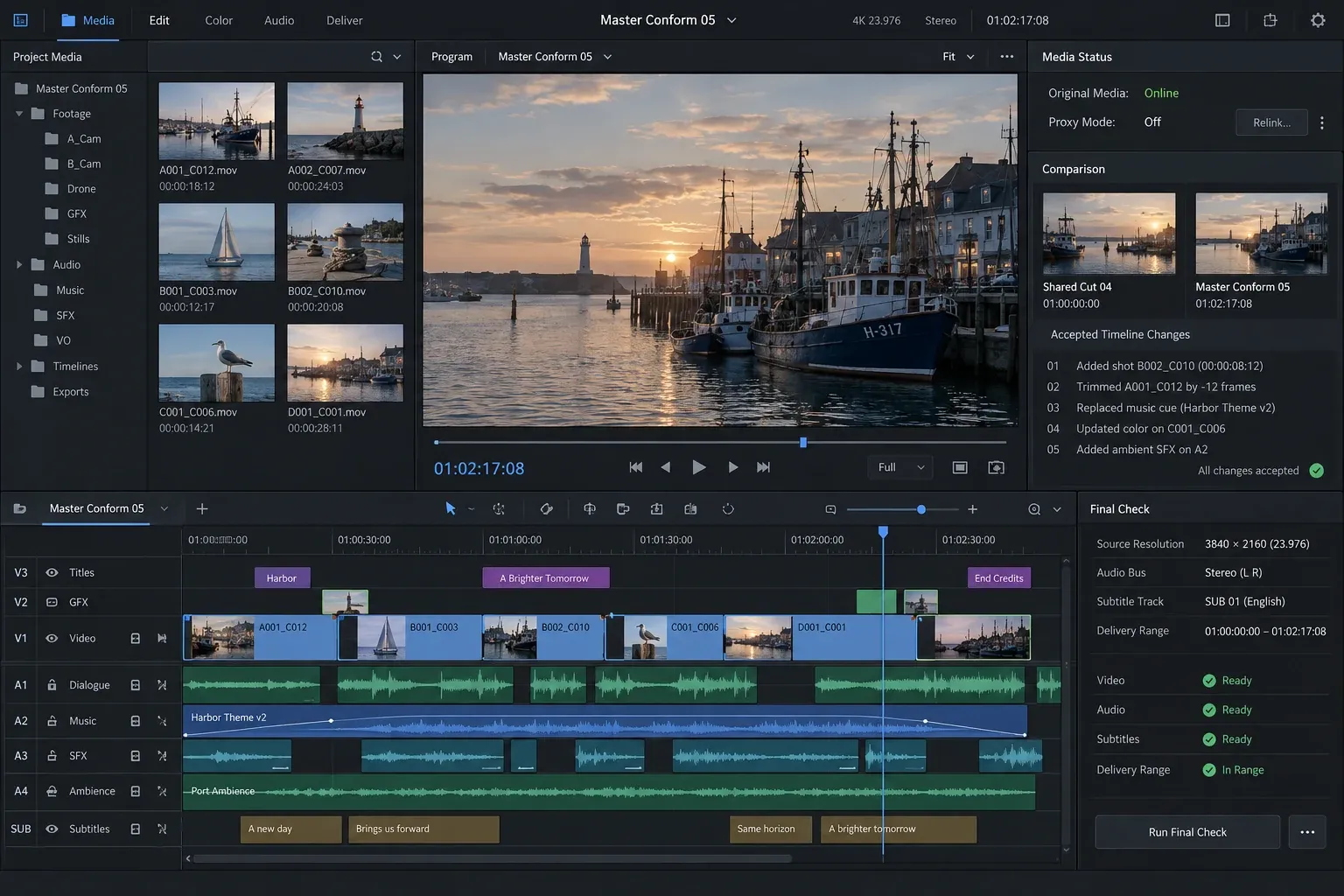
Then check the areas most likely to expose a bad conform:
- first and last frames of replaced or trimmed shots;
- speed changes, freeze frames, retiming, and optical-flow sections;
- multicam angles and synced production audio;
- Fusion compositions, titles, stills, and external graphics;
- reframed shots that depended on source resolution;
- color grades using clip groups, shared nodes, remote grades, or tracked windows;
- delivery range, audio buses, subtitles, data burn-in, and output naming.
Rebuild cache where needed instead of copying an old cache into the final decision. The finishing check should prove that the shared project points to the right durable media and produces the intended timeline without depending on another editor’s temporary files.
Keep a DRP Snapshot and Use DRA for a Closed Handoff
A shared Cloud project is the active workspace. A project export can still serve as a dated snapshot before a major conform, timeline merge, or delivery. Store that snapshot outside the live project library with a clear date and purpose. It gives the team a recoverable project state without turning every exchange into a chain of emailed project files.
A project archive is useful when the goal is a closed handoff that bundles the project with selected media. It can be appropriate for moving a finished job to another system, sending a self-contained package, or creating a deliberate archive. It is less suitable as the everyday transport for an actively shared project because repeated archives duplicate media and bypass collaboration controls.
Use the active Cloud project for ongoing changes, a DRP-style project snapshot for project-state recovery, and an archive when the recipient needs a bounded project-plus-media package. Each solves a different problem.
Common Collaboration Failures
The collaborator can open the project but every clip is offline
The project data arrived, but the media did not. Transfer or sync the planned originals or proxies, then relink from the local project root. Do not recreate the timeline or import duplicate clips before checking the handoff paths.
Some proxies attach and others do not
Compare missing clips against proxy coverage and naming. Look for duplicate base names, renamed files, broken card-folder structure, or source groups that were never included. Fix the smallest source group first and verify the match before relinking the remainder.
Two editors created conflicting timelines
Preserve both timelines, identify their owners and intended branch, and use timeline comparison to inspect changes. Merge deliberately into a named review timeline rather than declaring the newest timestamp the winner.
The final export is using proxies
Return to the finishing station, restore the originals, and confirm the active media choice before export. Spot-check resolution-sensitive shots and effects. A proxy-quality output can be technically complete while still being the wrong master.
Cloud sync says complete but Resolve cannot find files
Confirm that files are fully downloaded rather than placeholder entries, that the storage volume is mounted, and that the local folder root matches the relink target. Sync status and Resolve path resolution are related but separate checks.
A project archive became larger every round
The archive is being used as an active collaboration transport. Return ongoing edits to the shared project library and distribute only the media additions collaborators need. Reserve a new archive for a deliberate closed package or recovery milestone.
Cloud Collaboration Handoff Checklist
- The team distinguishes shared project data from transferred media.
- Originals, proxies, or a hybrid workflow is chosen before editing.
- The relative project folder structure is documented and stable.
- Source file names are not changed after proxy generation or sync.
- Each collaborator can open representative files from every required source group.
- Proxy coverage is checked against the source inventory.
- Relinking is scoped to the correct project root or source folder.
- Locks and timeline ownership are respected.
- Important updates are reviewed before they replace approved work.
- The finishing station has the authoritative camera originals.
- Originals are online before final color, effects review, and export.
- Temporary render cache is not treated as handoff media.
- A dated project snapshot exists before major merge or delivery steps.
- A project archive is used only when a bounded project-plus-media package is needed.
DaVinci Resolve Cloud Collaboration FAQ
Does a Blackmagic Cloud project upload all my video files?
Not automatically. Blackmagic Cloud can be set to Don’t Sync Media, Sync Proxies Only, or Sync Proxies and Originals. Even when storage sync is enabled, collaborators should confirm that the intended files are fully downloaded and linked locally before editing, and the finishing station must have the authoritative originals before final conform and export.
Do all collaborators need the same absolute media path?
No. A stable relative folder structure and scoped relinking can accommodate different drive names, mount points, and operating systems. The folders below the agreed project root should remain consistent.
Can editors work only with proxies?
Yes, when their tasks do not require full-resolution source media. The finishing station must retain or receive the originals and restore them before final conform and delivery.
Should I send a project archive for every revision?
No. Use the shared project library for active collaboration. Keep dated project snapshots for recovery, and use an archive for a deliberate self-contained handoff or long-term package.
Can render cache replace missing source media?
No. Cache is temporary performance data. A durable handoff depends on originals or linked proxies, plus separate audio, graphics, fonts, and other required assets.
