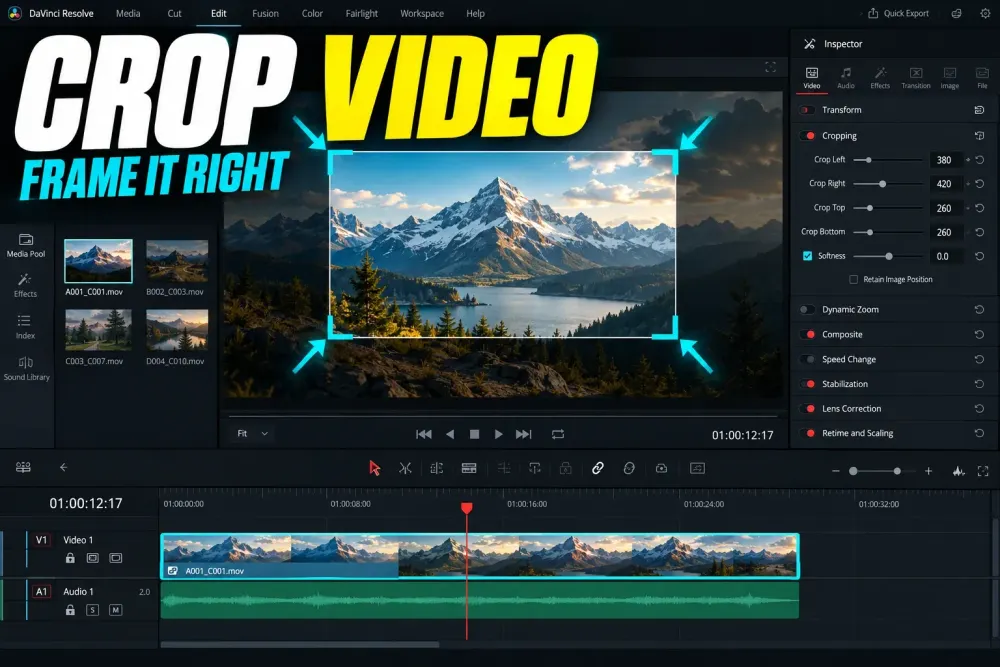
If you need to hide an unwanted edge in one shot, select the clip, open Inspector > Video > Cropping, then adjust Crop Left, Crop Right, Crop Top, or Crop Bottom. Use Softness only when you want a feathered boundary. Turn on Retain Image Position when the crop boundary should stay fixed in the frame while you move or scale the image behind it.
That is the fast answer. The part that trips editors up is deciding whether the job actually needs Crop, Transform, or a different timeline shape. Resolve gives you all three, but they solve different problems. This crop workflow fits into the broader DaVinci Resolve tutorial hub.
Crop, Zoom, or Change the Aspect Ratio?
| What you need | Use this control | Why |
|---|---|---|
| Hide a boom, rough edge, split-screen overlap, or part of one clip | Inspector > Cropping | It removes selected edges without changing the project canvas. |
| Make the subject larger or move it inside the frame | Inspector > Transform > Zoom and Position | It scales and repositions the entire source image. |
| Create a vertical, square, or widescreen version | Timeline Settings and output settings | Those settings define the shape and pixel dimensions of the canvas. |
| Show two clips beside each other | Cropping plus Position | Crop exposes part of each layer; Position places both pieces. |
| Reveal a title or image over time | Animated crop controls | Keyframes move one or more crop boundaries. |
I start with this decision because it prevents the most common detour: increasing Zoom to remove one unwanted edge, then discovering that the opposite edge and the subject were enlarged too. Crop hides an edge. Zoom changes the whole image. If the goal is a 9:16 social version, go to the aspect-ratio and timeline-resolution guide first, then reframe individual clips inside that canvas.
How to Crop a Clip in the Inspector
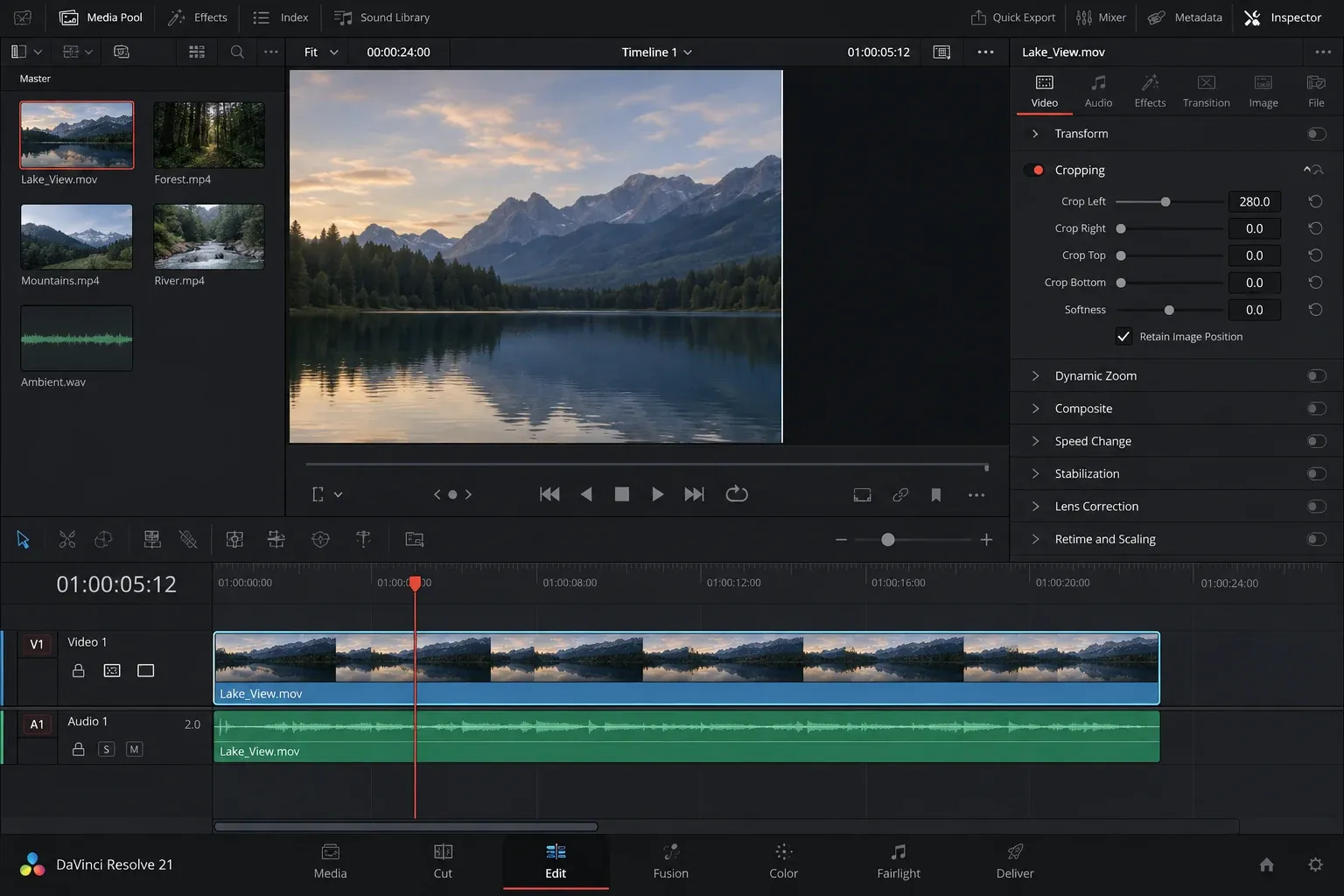
- Open the Edit page. Put the clip on a timeline and move the playhead to a frame where the unwanted edge is easy to see.
- Select the clip. The Inspector follows the selected timeline item. If no clip is selected, you may see no relevant Video controls.
- Open Inspector. Click Inspector in the upper-right area, choose the Video tab, and expand Cropping.
- Adjust the correct edge. Raise Crop Left, Right, Top, or Bottom until the unwanted area disappears.
- Check the whole shot. Scrub or play through the clip. A microphone that is absent on the first frame may enter later; a moving subject may cross the new boundary.
- Reframe if needed. Open Transform and use Zoom or Position after deciding exactly what the crop should hide.
The four edge values are independent. That matters for asymmetrical jobs. Removing a thin damaged border on the left does not require an equal crop on the right. For a split screen, one clip may need only Crop Right while the second needs only Crop Left.
The circular reset arrow beside the Cropping section returns that section to its defaults. Use the smallest reset that fixes the problem. Resetting the whole Inspector can also remove Transform, Composite, stabilization, speed, or other work on the clip.
What the Cropping Controls Do
Crop Left, Right, Top, and Bottom
Each control moves one boundary inward from that side of the source. Cropping does not stretch the remaining picture to fill the frame. It exposes whatever is below the clip: a lower video track, a background generator, or an empty black canvas.
That behavior is useful for layouts, but it also explains sudden black strips. The black area is usually not a render failure. You removed part of the visible clip and there is nothing under it.
Softness
Softness feathers the crop boundary instead of leaving a hard edge. A negative value feathers inward; a positive value feathers outside the crop box. Use it for a subtle blend or a soft reveal. Keep it at zero when you need a clean geometric edge, such as a two-column split screen.
Watch the feather over the actual background. A soft edge can appear clean over a dark frame and show a pale halo when the scene changes. If a crisp layout looks slightly blurred, check Softness before rebuilding the composition.
Retain Image Position
Retain Image Position decides how the crop boundary behaves when Transform changes the underlying image.
- Enabled: the crop stays anchored to the output frame while the image moves or scales behind it. This is the useful state for a fixed split-screen window, a stationary reveal boundary, or a graphic panel.
- Disabled: the crop travels and scales with the image. Use this when the cropped object and its boundary should behave as one transformed element.
If Position seems to move the picture but not the crop window, the control is likely enabled. If Zoom makes the crop boundary grow with the image when you expected a fixed window, disable or enable it according to the intended relationship. There is no universally correct state.
Crop a Clip Without Leaving Black Edges
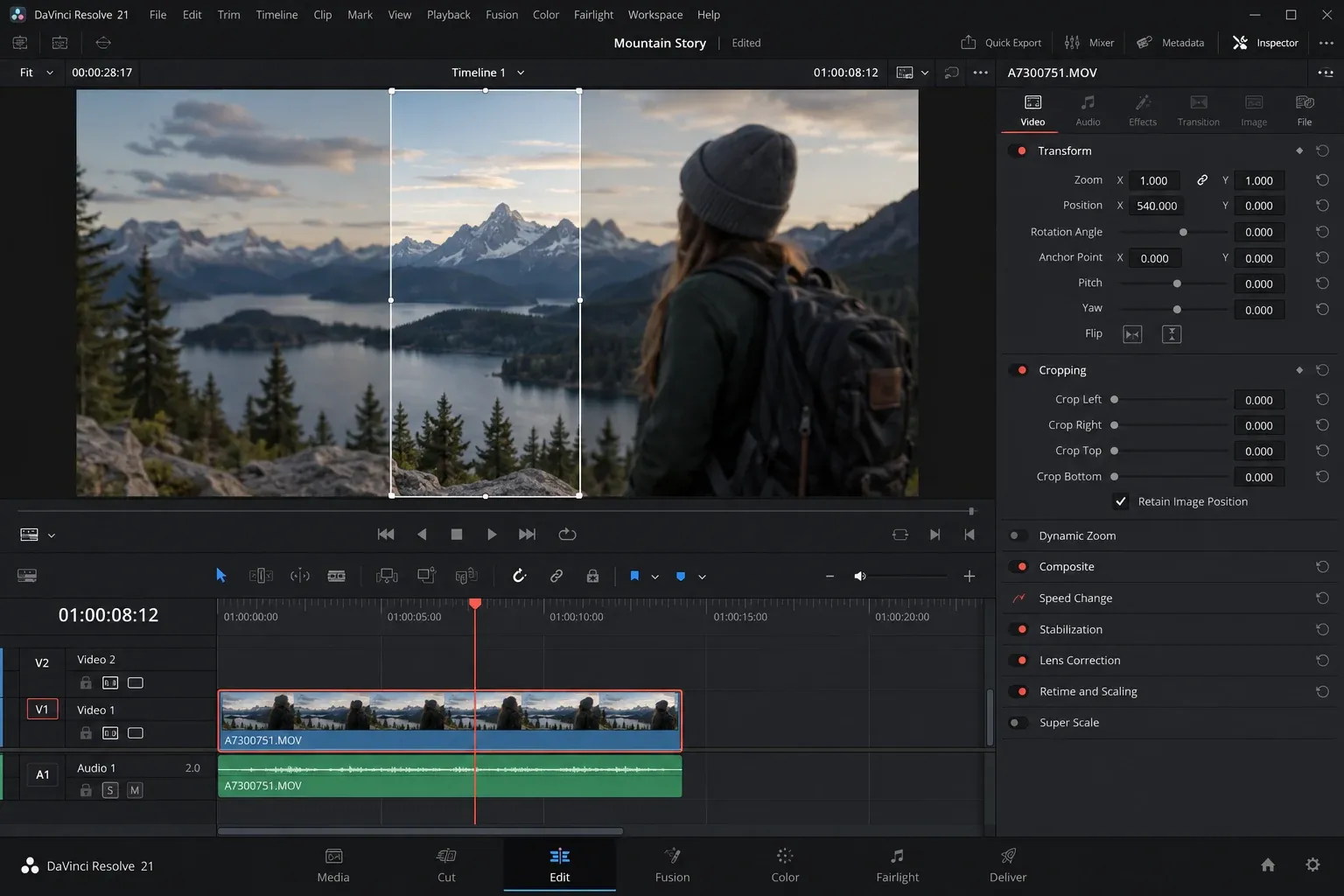
After cropping, Resolve does not automatically enlarge the image. If the clip sits on the bottom video track, the removed area shows the timeline background, which is normally black. Choose the fix based on the composition rather than reflexively increasing Zoom.
- For a normal full-screen shot: use a small Zoom increase and adjust Position until the cropped boundary is outside the canvas.
- For a split screen: keep the exposed region and place another clip or background on a lower track.
- For picture in picture: decide whether ordinary Crop and Transform are enough or whether the dedicated Picture in Picture controls offer the frame, border, rounding, and shadow you need.
- For a vertical or square timeline: confirm the timeline resolution and mismatch scaling before correcting every clip. A wrong canvas decision can create bars across the whole edit.
Do not judge only one paused frame. Play the shot at normal speed and inspect the beginning, middle, and end. A small Zoom change may conceal the edge at one camera position but expose it after stabilization, Dynamic Zoom, or another keyframed move.
Use Crop and Position for a Split Screen
A basic side-by-side layout needs two clips on separate tracks. Put the background clip on V1 and the second clip on V2. Select the upper clip, crop the half you do not want, then move the remaining half with Position. Repeat for the lower clip if its visible area also needs trimming.
For a clean center seam:
- keep Softness at zero;
- check that the clips meet without a one-pixel gap;
- use the Viewer at 100% when inspecting the seam;
- watch both subjects through the full overlap;
- add a background or divider only when the design calls for one.
When the two sources have different resolutions or framing, equal crop values do not guarantee equal-looking panels. Compose by the visible result. Resolve works with source pixels, while the viewer is showing those sources inside the timeline canvas.
Animate a Crop Reveal with Keyframes
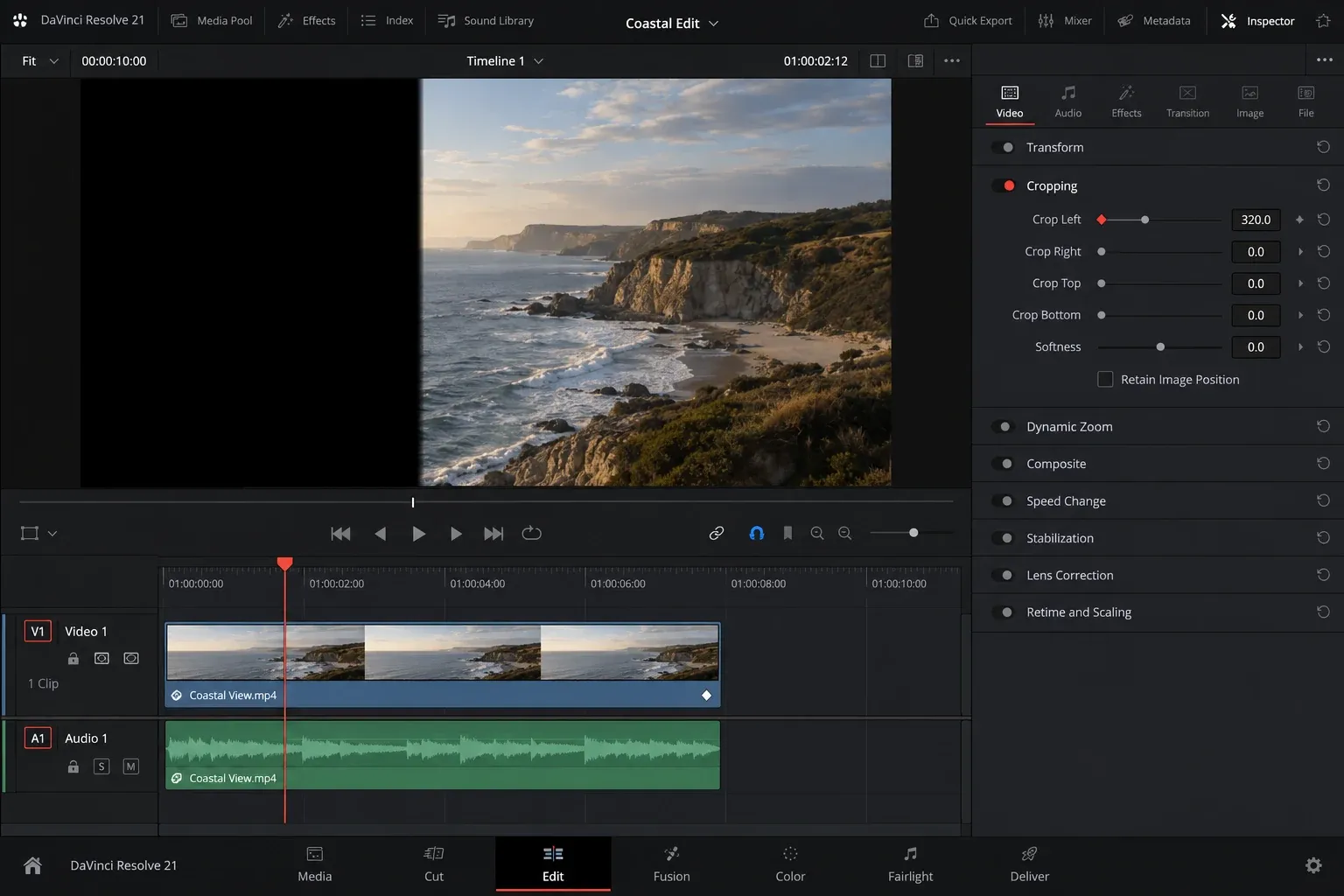
The Crop Left, Right, Top, Bottom, and Softness controls can be animated from the Inspector. A simple wipe-style reveal uses two keyframes on one edge.
- Select the clip and place the playhead where the reveal should begin.
- Open Inspector > Video > Cropping.
- Set the starting crop value so the subject or graphic is hidden.
- Click the diamond beside that crop control to create the first keyframe.
- Move the playhead to the end of the reveal.
- Reduce the crop value until the full intended area is visible. Resolve creates the next keyframe.
- Play through the move and adjust timing before adding more controls.
One animated boundary is usually cleaner than keyframing all four sides at once. For a horizontal reveal, animate Crop Left or Crop Right. For a vertical reveal, animate Crop Top or Crop Bottom. Add Softness only if the edge needs a feather.
Retain Image Position matters here. Enable it when the reveal boundary must remain in the frame while the image moves behind it. Disable it when the crop and image should move together. If you need to refine acceleration or coordinate this move with other parameters, the keyframes and Curve Editor guide covers the broader animation workflow.
Copy the Crop to Other Clips
When several shots need the same layout, copy the selected clip and use Paste Attributes on the destination clips. Select only the attributes you intend to transfer.
- Select the correctly cropped source clip and copy it.
- Select one or more destination clips.
- Open Paste Attributes from the Edit menu or the timeline context menu.
- Enable Crop. Enable Transform as well only if Zoom and Position are part of the same composition.
- Apply the attributes, then inspect each shot.
This is faster than retyping values, but matching numbers can produce different compositions when the sources have different dimensions or subjects. Review every destination clip. Also read the other checkboxes before applying: copying speed, stabilization, audio, or effects by accident can create a problem far away from the crop.
For a broad map of the panel and its reset behavior, use the DaVinci Resolve Inspector guide. Blackmagic Design’s official Edit page also shows the current editing workspace and clip-control model.
Crop Controls Are Missing or Do Nothing
The Cropping section is not visible
Confirm that a video clip is selected on the timeline, the Inspector is open, and the Video tab is active. An audio-only clip shows audio controls. A transition, title, generator, multicam angle, or effect can expose a different set of controls than an ordinary video clip.
The control changes, but the Viewer looks unchanged
Check track order and clip selection. You may be cropping a lower clip that is fully covered by an opaque clip above it. Disable the upper track temporarily or select the visible clip. Also confirm that the Viewer is showing the timeline rather than a source clip.
The crop moves when Zoom or Position changes
Check Retain Image Position. Enable it for a crop window anchored to the output frame. Disable it when the crop should follow the transformed image. Then reset the smallest wrong section and rebuild the relationship in this order: crop boundary, Transform, animation.
Black bars appear after cropping
The crop exposed empty canvas or a lower track. Increase Zoom only if the shot should fill the frame. For a layout, add or position the intended lower layer. If bars affect many clips, inspect timeline resolution and image-scaling rules instead of fixing each clip independently.
The export does not match the Viewer
Confirm the Deliver page resolution and scaling mode. A render preset can use dimensions that differ from the active timeline. Keep output matched to the timeline unless the delivery requirement says otherwise, and review any resizing or blanking choice before rendering. The crop itself is clip-level; the render still passes through timeline and output scaling.
A reveal jumps instead of animating
Look for two distinct keyframes on the same crop parameter. If only one diamond is active, Resolve has no interval to animate. Make sure the playhead moved before you changed the second value. If another Transform keyframe causes the boundary to drift, check Retain Image Position and inspect both parameter tracks.
A Reliable Crop Check Before Export
- Play the entire cropped clip, not just the frame where you set the values.
- Check the Viewer at 100% for narrow gaps, halos, and softened seams.
- Inspect the first and last frames of every animated crop.
- Confirm whether Retain Image Position matches the intended motion.
- Verify lower tracks anywhere the crop creates transparency.
- Review timeline and Deliver dimensions when the composition is vertical, square, or otherwise nonstandard.
- Watch the rendered file at its delivery aspect ratio before approving the layout.
The clean workflow is simple: decide whether you are hiding an edge, reframing the image, or changing the canvas; use the matching control; then check the whole shot. That order keeps a small crop from turning into a chain of compensating Zoom and Position fixes.
