The rule is simple: the new build must not touch the only recoverable copy. Export every active project, back up the whole Project Library, protect media and custom assets, then open an imported test copy. If any recovery layer is missing, the update waits.
The installer is rarely the dangerous part. The risky moment is opening a project in a newer version and discovering that an older build, a plug-in, a GPU driver, or a collaborator’s workstation can no longer reproduce it. A safe update creates a rollback path before Resolve changes any project data.
Use this maintenance checklist alongside the DaVinci Resolve workflow guides. It covers changing an existing installation safely, rather than a first-install walkthrough or a guide to locating lost projects.
Check the Exact Release Before Opening Projects
Checked September 15, 2026: Blackmagic’s official stable-download feed returns DaVinci Resolve 21.1, build 14, and its release notes are dated September 8. The 21.1 pre-install notes say Blackmagic made efforts to keep Project Libraries compatible with Resolve 20.3.2. Individual projects created or opened in 21.1 are no longer accessible in 20.3.2. Library access and project compatibility are different checks.
Don't test that boundary by opening the only copy of a live Resolve 20 project. Export a pre-update DRP, make the full library backup, install 21.1 only after both are verified, import the DRP under a new test name, and open that copy. Keep the untouched pre-21 project and backup as the rollback source.
Recheck the build and edition on the official Resolve support page on the day you update. The September 15 receipt identifies the build verified for this guide, not a permanent promise that it remains the newest. Read the pre-install notes for that exact download. A point release can still affect project or library compatibility.
DRP, Project Library Backup, and DRA Are Not Interchangeable
| Backup | Protects | Does not automatically protect |
|---|---|---|
| Export Project (.drp) | One project’s data; Gallery stills and LUTs only with Export Project With Stills and LUTs | Source media, fonts, plug-in installers, shared assets |
| Project Library backup | The library/database containing many projects and folders | External media and most system-level custom assets |
| Project Archive (.dra) | A project plus copied media chosen for the archive | Third-party plug-ins, fonts, licenses, every external dependency |
| Project Backups | Timed earlier states of a project | A failed system drive or library if stored beside the originals |
The current Resolve 21 Reference Manual separates these recovery layers. A normal DRP has no source media and excludes Gallery stills and LUTs; Export Project With Stills and LUTs adds those project assets, not the camera originals. A library backup and a DRA solve different scopes.
When to Delay an Update
Don't change Resolve, the operating system, the GPU driver, and core plug-ins in the same maintenance window. If something breaks, that creates four suspects and no clean baseline.
Delay the update when:
- a delivery is due before there's time for a full test;
- the project depends on an unverified OpenFX, audio plug-in, control panel, script, or codec;
- another editor must keep using the older version or a shared library;
- the exact update doesn't solve a bug or add a feature the job needs;
- the build is a beta and the project is production-critical.
“There's an update notification” isn't a production reason. Finish the job on the known build, or clone the workflow and test away from the delivery path.
Record the Working Baseline
Before changing anything, make a short reference render and a plain checklist containing:
- Resolve edition, full version, and build number;
- operating system version and hardware architecture;
- GPU model, VRAM, and driver version where applicable;
- active Project Library name and whether it's Local, Network, or Blackmagic Cloud;
- third-party OpenFX, audio plug-ins, Fusion tools, scripts, and control panels;
- project frame rate, color management, audio buses, and a known render preset;
- fonts, LUTs, DCTLs, macros, title templates, Power Bins, and keyboard presets the job uses.
Don't put Studio activation codes, passwords, or license secrets in screenshots or shared notes. Record only what you need to identify the installation.
Confirm Live Save and Project Backups
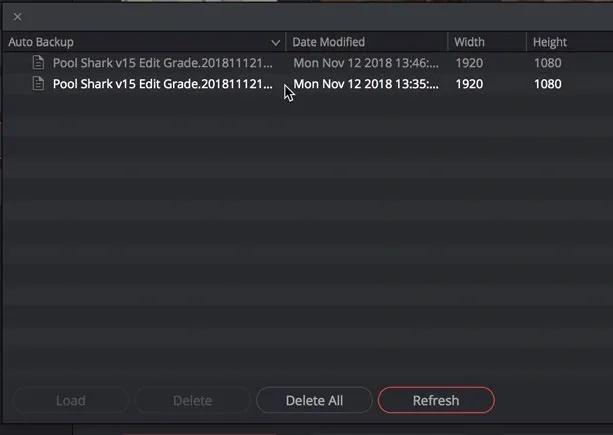
Open DaVinci Resolve > Preferences > User > Project Save and Load. Live Save is enabled by default and incrementally writes the current state. Project Backups must be enabled separately; they create periodic complete project files but exclude stills and LUTs.
Loading one later opens an independent project rather than overwriting the original. Timeline Backups are another separate switch: use them when you need restore points for an individual timeline, but don't count them as a backup of the full project or library.
Neither replaces a manual export. The guide to saving work in DaVinci Resolve explains the different roles of manual saves, Live Save, Project Backups, and DRP exports.
Live Save can faithfully preserve a bad change, and automatic backups stored on the failed system drive can disappear with it. Put the backup destination on independent reliable storage with enough space, then make and test the DRP and library backup anyway.
Export Every Active Project as DRP
- Open Project Manager.
- Right-click the active project.
- Choose Export Project.
- Name the file with the project, working Resolve version, and date, such as
Documentary_R20.3.2_pre_R21.1_2026-09-15.drp. - Save it outside the live Project Library and preferably off the system drive.
- Repeat for every project you can't afford to lose.
For important work, import one exported DRP into a separate test library under a new name before updating. Confirm that it opens and contains the expected bins, timelines, grades, Fusion comps, and Fairlight structure.
If the job depends on Gallery stills or LUTs, use Export Project With Stills and LUTs and verify those too. A file that has never been imported is an unverified backup.
Back Up the Entire Project Library
For a Local or Network library, close the open project, show Project Libraries in Project Manager, select the exact library, click the circled details icon, and choose Back Up. Save the .resolve.backup file away from the live library. Use Restore to create a separate test library with a new name and location, then inspect its projects before retiring the old setup. For a managed Network library, coordinate with its administrator; the Project Server application also provides Back Up and Restore.
A library backup protects projects you forgot to export individually and preserves library-level organization. The .drp exports remain valuable because they give you small, direct recovery units if the library itself becomes unhealthy.
Cloud libraries use a different destination. The Cloud backup procedure in the Resolve 21.1 manual uses Project Manager’s Cloud library Details > Back Up and confirms that the backup was made to Blackmagic Cloud. Details > Restore lets you choose a backup and assign a new library name. Have the owner or administrator verify a separate restored copy, and keep exported DRPs and media outside the Cloud library too. A Cloud library backup is not a downloaded .resolve.backup file.
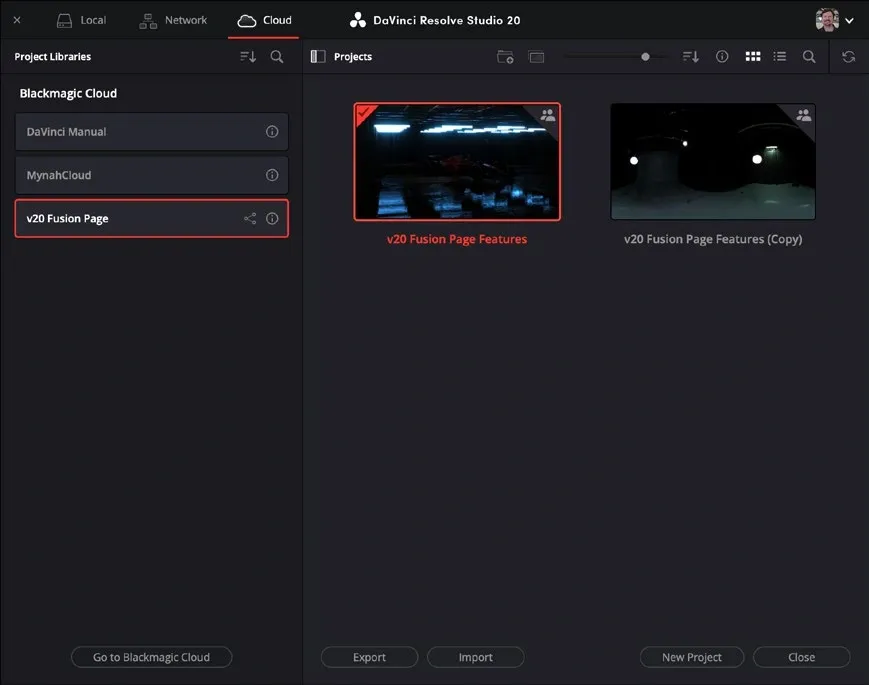
Never delete a library, replace database internals, or overwrite the original to make room for an update. Restoring to a new name and location keeps both recovery paths available.
If you aren't sure which library contains the project, the guide to where Resolve projects are saved explains Local, Network, and Cloud libraries without encouraging manual edits inside them.
Protect Media and Custom Assets
Original camera files, audio, graphics, and deliverables should already exist independently of Resolve. Confirm that backup rather than assuming proxy, cache, or optimized-media folders are the originals.
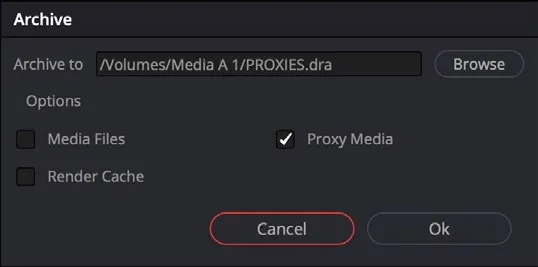
For a portable critical project, choose Export Project Archive. Select Media Files when camera originals must be included; Proxy Media alone protects proxies, not those originals. Choose Render Cache only when you need it. Resolve 21.1 adds archive options for stills, LUTs and used media, so review every option in your installed build rather than assuming an older dialog contains the full list. A DRA is a folder, not a substitute for plug-ins, fonts, licenses or every external dependency. Use Restore Project Archive to test a separate copy and inspect its media before treating it as cold storage.
Back up custom dependencies separately:
- LUTs and DCTLs;
- Fusion macros, scripts, templates, and third-party toolsets;
- fonts and title packages with their licenses;
- audio plug-ins, impulse responses, and sound libraries;
- keyboard presets and workspace layouts;
- render presets and delivery notes;
- plug-in installers and license-manager information without exposing credentials.
Download the Correct Installer
Use Blackmagic’s support page, not a download mirror. Match all three variables: operating system and architecture, DaVinci Resolve Free versus DaVinci Resolve Studio, and the exact stable build you intend to test.
In Resolve, choose DaVinci Resolve > Check For Updates to check and download an available build; use the support page when you need to select the exact edition, platform, or older installer. Blackmagic currently lists packages for macOS, Windows, Windows for Arm, and Linux; choose the one that matches the system you actually tested.
Keep the previous working installer in the recovery folder. Read minimum requirements and release notes before installation, especially GPU and operating-system requirements. The current Resolve system requirements help identify a machine that shouldn't be moved to the new build yet.
Keep the distribution channel consistent on a Mac. Update a Mac App Store installation through the App Store; use Blackmagic’s installer for its direct-download edition. Do not assume both channels offer the same build on the same day. The official Studio App Store listing warns that some control panels and third-party OpenFX or VST plug-ins may be unsupported. A Store purchase is a separate license, not an activation key for the direct installer; Blackmagic’s edition matrix documents that channel restriction in its July 2025 Resolve 20 edition. Check your purchase channel before switching distributions.
If the installer also offers control-panel or Desktop Video components, change them only when the release notes and hardware workflow require it. One maintenance variable at a time makes rollback understandable.
For direct downloads, unpack the downloaded package and run its DaVinci Resolve installer. On macOS, open the disk image and double-click the installer icon; do not substitute a drag-to-Applications instruction. On Windows, run the extracted installer. On Linux, run the supplied installer on a supported system. The 21.1 platform installation instructions say to follow the onscreen installer prompts on all three platforms. Finish the backup and restore test before approving installation.
Install, Then Test an Imported Copy
- Close Resolve and any dependent plug-in managers or Project Server administration tools.
- Install according to Blackmagic’s instructions for the exact operating system and build.
- Launch Resolve and confirm the edition and build number.
- Create or use a separate test library.
- Import the pre-update .drp with a name that clearly marks it as the Resolve 21 test.
- Open only that copy first.
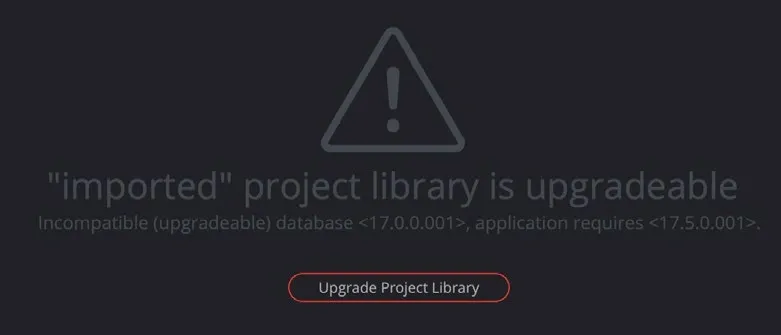
For a Network or Cloud library, appoint one person to control the update and agree the target Resolve build before anyone opens production projects. Matching the team’s build is a conservative maintenance rule, not a claim that every version difference blocks connection. Match plug-ins, fonts and media access too. Cloud creation includes a Resolve-version choice, and library upgrades are performed in Resolve, not the web interface. Follow the Cloud project-library instructions and the exact release’s compatibility note, not a blanket rule that all major releases upgrade libraries or all point releases are safe.
Keep three version numbers separate: the Resolve application, the Project Library schema, and the database engine used by a Network library. Resolve 21.1’s notes say Project Server now bundles PostgreSQL 18 while Resolve and Project Server still work with Network libraries based on PostgreSQL 13 and above. That is not an instruction to migrate a working database engine during the app update. Let the administrator plan any server migration independently.
Run a Real Post-Update Test
Opening the project without an error is only the first checkpoint. Test a representative timeline containing the parts most likely to break:
- online and relinked source media;
- camera RAW and 10-bit codecs;
- Text, Text+, subtitles, and third-party fonts;
- OpenFX and audio plug-ins, including license state;
- Color management, LUTs, DCTLs, grades, and stills;
- Fusion comps, macros, and cached effects;
- Fairlight buses, automation, plug-ins, and channel mapping;
- hardware decode/encode and the normal delivery codec;
- control panels, audio interfaces, and monitoring output.
Render the same short range you saved before the update. Compare picture, audio, duration, frame rate, and file properties. Close Resolve, reopen it, and open the test project again. A clean first launch isn't enough.
Rollback Without Damaging the Only Copy
If the update fails, stop experimenting on the live library. Preserve logs and screenshots of the exact error, then separate the failure:
- Application won't launch: verify OS and GPU requirements, then follow Blackmagic’s platform-specific uninstall/reinstall guidance.
- Project doesn't open: return to the older application and the untouched pre-update .drp or restored library copy.
- Plug-in is missing: verify vendor compatibility and licensing before replacing the effect in a duplicate.
- Media is offline: reconnect storage and paths; don't overwrite a healthy library with an empty one.
- Playback or export changed: compare GPU preferences, drivers, decode settings, caches, and the pre-update reference render.
A project opened in Resolve 21.1 is not a rollback asset for Resolve 20.3.2. A safe downgrade starts from the untouched pre-update project, verified DRP, and Project Library backup. If GPU memory or decoding becomes the failure point, use the GPU memory troubleshooting guide before changing several system components at once.
Resolve Free vs Studio Updates
Free and Studio are separate downloads. Install the edition you actually use. Accidentally replacing Studio with Free can make Studio-only effects and codecs appear unavailable even though the project data still exists.
Studio can be licensed by activation code, dongle, or an assigned Blackmagic Cloud license. Keep licensing material secure and available before maintenance; never place activation details in a project note, screenshot, or support post.
Common Update Problems
Projects are missing after the update
Open Project Manager and inspect which Project Library is connected. Reconnect the original library or import a .drp; don't create projects in an empty library and assume the old one was erased.
Resolve asks to upgrade or change a library
Cancel until the full library backup and individual DRP exports exist. A library that remains connectable in 20.3.2 does not make a project opened in 21.1 accessible to 20.3.2.
A plug-in has a watermark or is unavailable
Confirm that you installed the same Resolve edition, compatible plug-in build, architecture, and license. Test on a duplicate before removing or replacing nodes.
Resolve crashes after updating
Preserve logs, check the exact release notes and requirements, and test whether the problem is application launch, GPU initialization, a plug-in, or one project. The broader Resolve crash guide keeps those branches separate.
Exports look different
Compare the saved render preset, color management, GPU decode/encode settings, plug-ins, LUTs, audio buses, and the pre-update reference file. Rebuild no settings until you identify the first mismatch.
The Go/No-Go Check
Move live work to the updated build only after the imported test copy opens twice, all media is online, plug-ins load, Color and Fusion results match, Fairlight routing survives, and a known render matches the checkpoint. Keep the pre-update backups and installer until the project is delivered and archived.
Update for a feature, fix, or compatibility need you can name. The Resolve 21 changes guide helps decide whether the benefit is worth entering the maintenance window now.
After the update passes the test project, return to the DaVinci Resolve tutorial roadmap and verify the editing, Fairlight, Fusion, and export workflows you actually depend on.
Safe Resolve Update FAQ
Will updating Resolve delete my projects?
An update shouldn't delete projects, but libraries can disconnect, projects can change compatibility, and failures happen. Export active projects and back up the Project Library first.
Is a .drp file enough?
No. A standard DRP protects one project’s data, not source media, Gallery stills, LUTs, fonts, third-party plug-ins, scripts, licenses or the other projects in the library. Export Project With Stills and LUTs adds those named assets, but you still need media and library backups.
Can Resolve 20 open a project saved in Resolve 21?
Don't rely on it. Blackmagic’s Resolve 21.1 notes say a library can remain accessible in Resolve 20.3.2, but any project created or opened in 21.1 is no longer accessible in 20.3.2. Preserve a pre-update DRP and Project Library backup before opening the project.
Should I uninstall the old version first?
Follow the release notes and installer instructions for the exact operating system and build. Preserve the previous installer and verified backups before changing application state.
Where should I store backups?
Outside the live Project Library and preferably off the system drive. Important work should have another copy on independent storage.
Should I update during an active project?
Only when the update solves a blocking problem and there's time to test and roll back. Otherwise finish the delivery on the known build.
