
Quick answer: DaVinci Resolve has no Group command for clips on the Edit page. The closest thing is Link Clips: select the clips, then choose Clip > Link Clips or press Option-Command-L. While Linked Selection is on, clicking any one of them selects the whole set, so they move together. If you want one transform, effect or keyframe to drive all of them, a compound clip, an adjustment clip or the Inspector's multi-clip editing fits better, and for grading many shots the same way, the Color page has real groups.
Menu names and shortcuts here follow Resolve 21 and its 21.1 Reference Manual. Shortcuts are written the Mac way; the manual's keyboard note explains the swap for Windows, where Command becomes Ctrl and Option becomes Alt. If you meant grouping nodes, Command-G does exist on the Fusion page, and the guide to grouping Fusion nodes covers it. More editing basics live in the Learn Resolve hub.
Which Kind of Group Do You Need?
"Group" means different things depending on where you came from. In Premiere Pro it keeps clips together so they move as one. Plenty of people who search for it want something else: to animate a bunch of clips at once, or grade them the same. Resolve has a separate tool for each of those jobs:
| You want to | Use | How |
|---|---|---|
| Move several clips together and keep them in sync | Link Clips | Select them, then Option-Command-L |
| Change position, size or an effect on several clips but keep them separate | Inspector, Multiple Clips | Select them, then adjust in the Inspector |
| Put one effect, grade or transform over everything underneath | Adjustment clip | Effects > Toolbox, on a track above |
| Treat the clips as one clip with one set of controls | Compound clip | Right-click > New Compound Clip |
| Composite stacked layers on the Fusion page | Fusion clip | Right-click > New Fusion Clip |
| Grade several shots the same way | Color page group | Right-click thumbnails > Add Into New Group |
| Switch between camera angles of one event | Multicam clip | Right-click in the Media Pool > Create Multicam Clip Using Selected Clips |
For the Premiere-style group, start with Link Clips. I'd only reach for a compound clip when the clips really need to behave as a single object, because it replaces them on the timeline and you have to open it to edit what's inside.
How to Group Clips with Link Clips
Linking isn't only for a clip's own picture and sound. The manual describes linking any number of video and audio clips that you want to select, move and edit together as one, even if they were never meant to be synced: a subtitle with the shot it belongs to, a stack of sound effects with their clip, or the background and foreground layers of a green-screen composite. On the Edit page:
- Make sure the chain-link button at the right of the timeline toolbar is switched on, or press Shift-Command-L.
- Command-click each clip you want in the group. Shift-click selects every clip between two clips, and dragging a box from an empty part of the timeline selects a block.
- Choose Clip > Link Clips, or right-click one of the selected clips and choose Link Clips. The shortcut is Option-Command-L.
- A chain icon now appears before the name of every linked clip.
- Click any one of the linked clips and drag. The whole set comes with it, on every track it sits on.
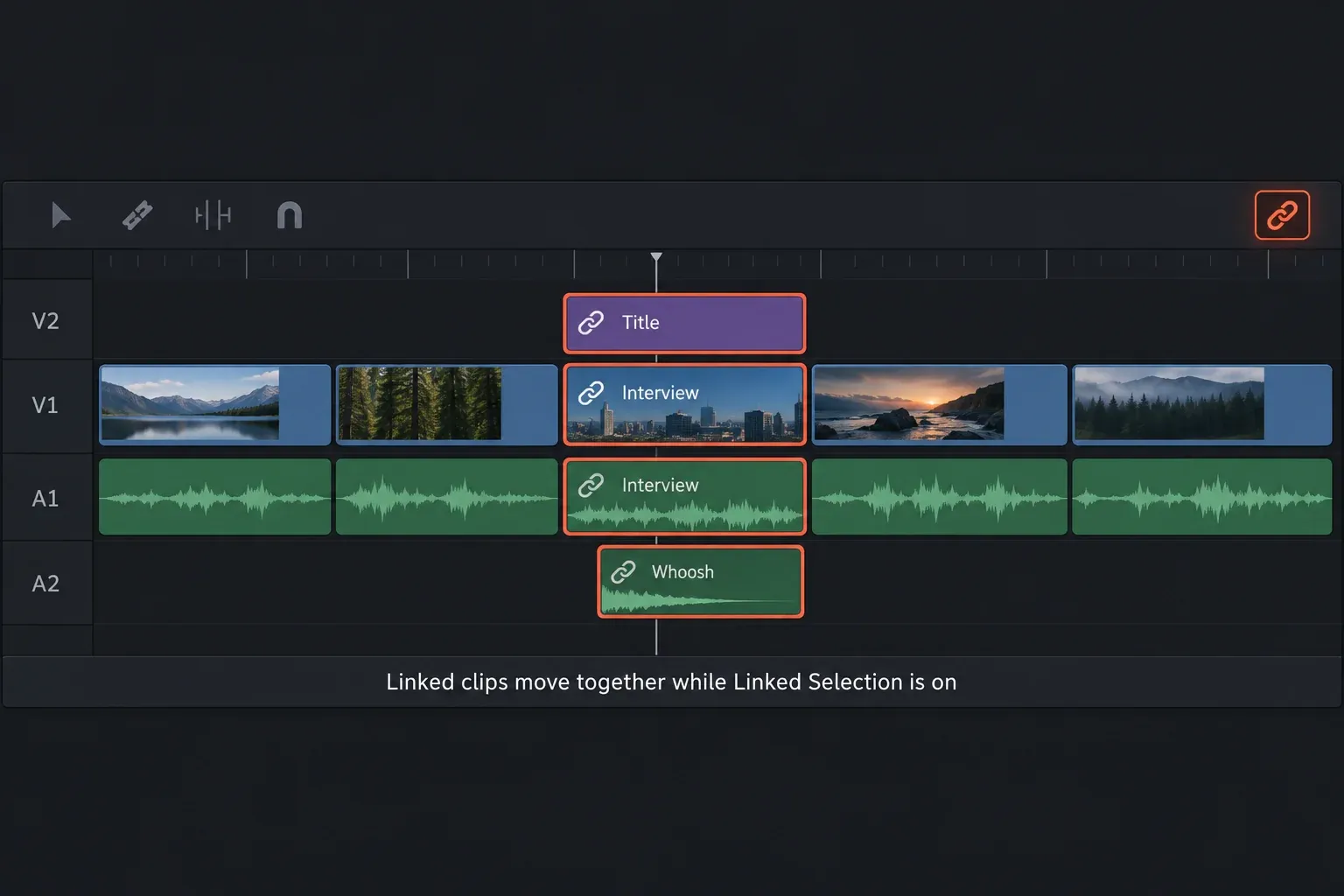
Linked clips act as a single clip only while Linked Selection is on, and that's the usual reason a link seems not to work. In a 2023 forum thread, someone who had just moved over from Premiere asked for the Group feature. One reply pointed to Link as Resolve's equivalent and added that Linked Selection has to be on for it to work. Back in 2018, another user found that Command-G did nothing and that Link Clips seemed broken until they switched a toolbar button back on. From their description, that was most likely the same audio and video linking button.
Move One Clip Without Breaking the Group
Sometimes you need to nudge one member, say the sound effect, by a couple of frames. You don't have to unlink anything for that. Hold Option while you click the clip, which suspends Linked Selection for that click, or switch Linked Selection off with Shift-Command-L, make the move, and switch it back on. The manual documents both. Moving one linked clip on its own puts it out of sync with the rest, and Resolve shows an out-of-sync indicator on it. That's expected after a deliberate nudge. The same Option-key trick is how you move or trim the audio without its picture.
How to Ungroup Clips Without Losing Their Audio Link
To ungroup, select the set and run the same command again: Clip > Link Clips toggles Link or Unlink for the selected clips, and Option-Command-L does the same. The chain icons disappear.
There's a catch. The Premiere switcher in that 2023 thread found that unlinking the group also unlinked each clip's own audio from its video, so a shot and its sound no longer moved together. That fits how the command works: it unlinks whatever is selected, and clicking a linked group selects every item in it, including each picture and sound pair. If that happens, there are two ways back:
- Undo straight away. Command-Z brings the group back as it was.
- Relink each pair. Command-click the video and the audio of one clip, then press Option-Command-L to link just those two again.
If you know you'll need the group again, I'd leave it linked and use Option-click or the Linked Selection button for one-off moves. Unlinking a single shot from its own sound on purpose is a different job, and the mute and split guide covers unlinking clips until you relink them.
Change Several Clips at Once Without Grouping Them
If the goal is to move a bunch of clips up the frame, scale them or add the same effect, you may not need a group at all. Select every clip you want to change and the Inspector shows Multiple Clips as its title. A change then applies to all of them, whether it's a transform, compositing, text, a filter or an audio setting:
- Drag the slider for a relative change. Every clip moves by the same amount and keeps its own offset from the others, so dragging Position Y raises them all together.
- Type a value (double-click the number field, enter it, press Return) to set every clip to exactly the same number.
A field showing two dashes means the selected clips have different values there. Keyframing works with a multi-clip selection too: select the clips, turn on Keyframe mode, and their keyframes show together if the clips are stacked, or one after another if they sit side by side.
When you'd rather add one layer of control on top, use an adjustment clip. Put it on a track above the clips, and the effects, transforms and grades on it apply to every clip underneath. The adjustment clip guide shows shared transforms and effects in practice, and what to do when only some of the layers below should change.
Combine Clips into One with a Compound Clip
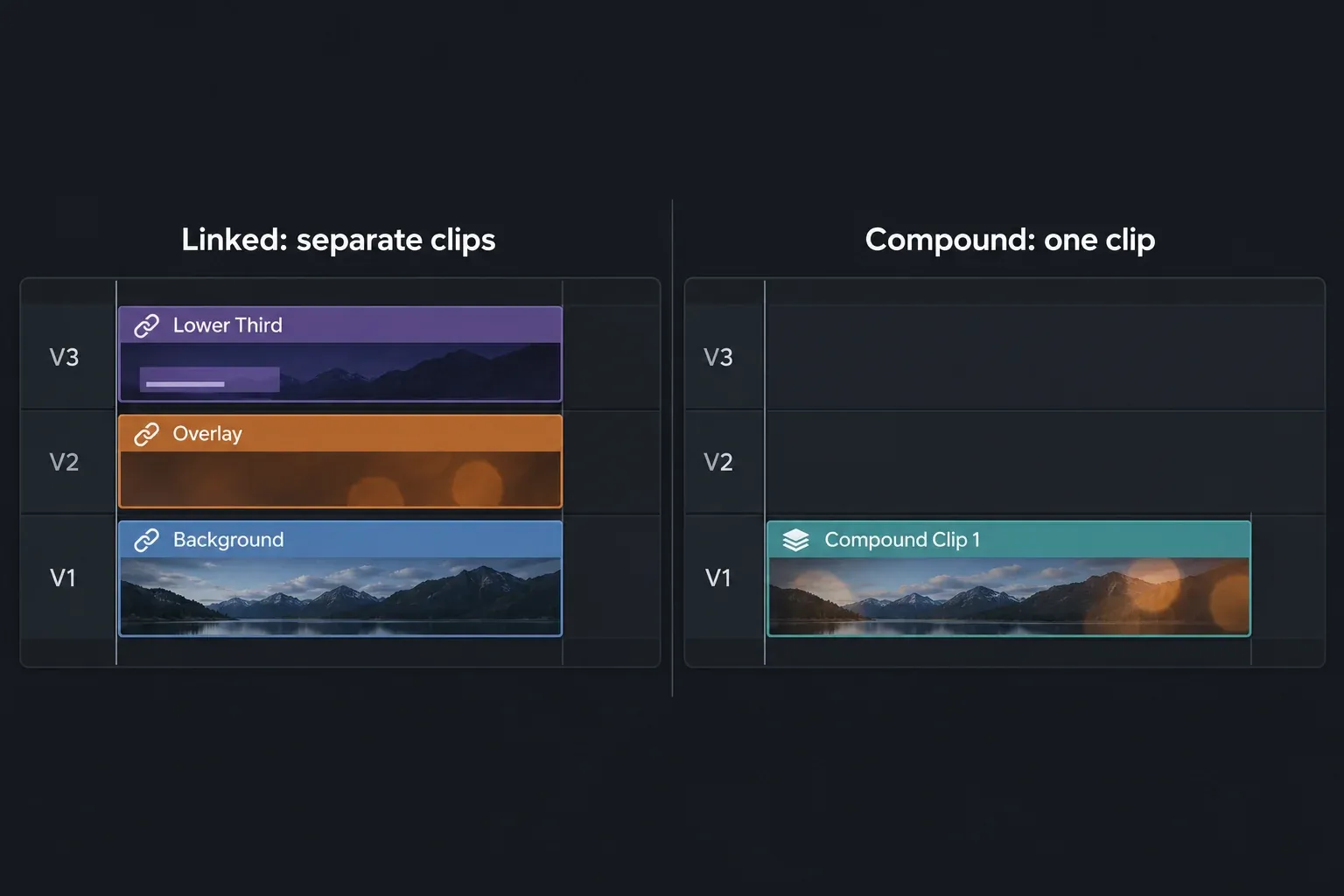
A compound clip turns the selection into a single clip. Use it when the clips really should behave as one object: one transform, one effect, one set of keyframes for the whole stack, or a block you want to reuse.
- Select the clips.
- Right-click one of them and choose New Compound Clip.
- Give it a name if you like, and click Create.
The compound clip replaces the original clips on the timeline, and a copy goes into the current Media Pool bin. To get the separate clips back, right-click it and choose Decompose in Place. The 2023 forum poster didn't want to nest clips just to shift them around, and I agree: for moving, linking is lighter. The compound clips guide goes deeper on when a container is worth it.
For a composite, such as a green-screen shot over a background with a graphic on top, I'd use New Fusion Clip instead. Select the stack and choose it, and Resolve connects every layer into a cascade of Merge nodes on the Fusion page. The Fusion hub is the place to start if nodes are new to you.
Group Clips on the Color Page
On the Color page, Group is a real command, and it's for grading. Select the clip thumbnails (Shift-click for a range, Command-click for separate shots), right-click one and choose Add Into New Group, then name it. The clips get a group badge. Grades you build in the Group Pre-Clip and Group Post-Clip modes ripple to every member, while the normal Clip mode stays specific to each shot. To take a shot out, right-click it and choose Remove From Group; deleting the group clears it but keeps the last grade on each clip.
The color grade guide walks through how to copy a color grade to many clips with groups.
When "Group" Means Camera Angles or Bins
Two more meanings come up. If you shot one event with several cameras, the group you want is a multicam clip: select the angles in the Media Pool, right-click and choose Create Multicam Clip Using Selected Clips. The multicam guide explains how to create the clip without losing the audio you need. If you only want related footage in one place before you edit, that's a bin job, and Smart Bins can collect clips for you by their metadata.
Select the Same Set of Clips Again Later
A light alternative to linking is to mark the clips and select them by that mark when you need them. Give them the same clip color, flag or marker, then choose Timeline > Select Clips By Clip Color (or By Flag Color, By Marker Color) to pick them all at once, wherever they are on the timeline. For everything from one point onward, Y selects the clip under the playhead and every clip after it on that track, and Option-Y does the same across all tracks. That's also how you shift the rest of a timeline to open a gap, and the move guide covers keeping audio, titles and other tracks in sync while you do it.
Frequently Asked Questions
Is there a Group command like Premiere Pro in DaVinci Resolve?
Not for timeline clips on the Edit page. The closest equivalent is Link Clips: select the clips and press Option-Command-L (Ctrl-Alt-L on Windows), or choose Clip > Link Clips. With Linked Selection on, the linked clips select and move as one. Command-G is the Fusion page shortcut for grouping nodes, not timeline clips.
What is the shortcut to link clips in DaVinci Resolve?
Option-Command-L on a Mac and Ctrl-Alt-L on Windows. The same shortcut unlinks linked clips. Linked Selection, which has to be on for linked clips to move together, toggles with Shift-Command-L (Ctrl-Shift-L on Windows).
Why don't my linked clips move together?
Most often, Linked Selection is off. Click the chain-link button at the right of the timeline toolbar or press Shift-Command-L. Holding Option while you click also selects one clip on its own, so let go of it before you drag the group. If they still split up, look for the chain icon to the left of each clip name; a clip without one isn't part of the link.
What's the difference between linking clips and a compound clip?
Linked clips stay separate clips on their own tracks, and you can still edit each one. A compound clip replaces them with one clip, so one transform, effect or set of keyframes applies to everything inside it, and you open it to edit the contents.
How do I move or keyframe several clips at once?
Select them all and adjust them in the Inspector, which then shows Multiple Clips. Dragging a slider changes every clip by the same amount and keeps their offsets; typing a value sets them all to that number. For one shared animation, put an adjustment clip above them or turn them into a compound clip.
How do I group clips on the Color page?
Select the thumbnails, right-click one and choose Add Into New Group, then name the group. Grades made in the Group Pre-Clip or Group Post-Clip modes apply to every clip in the group.
