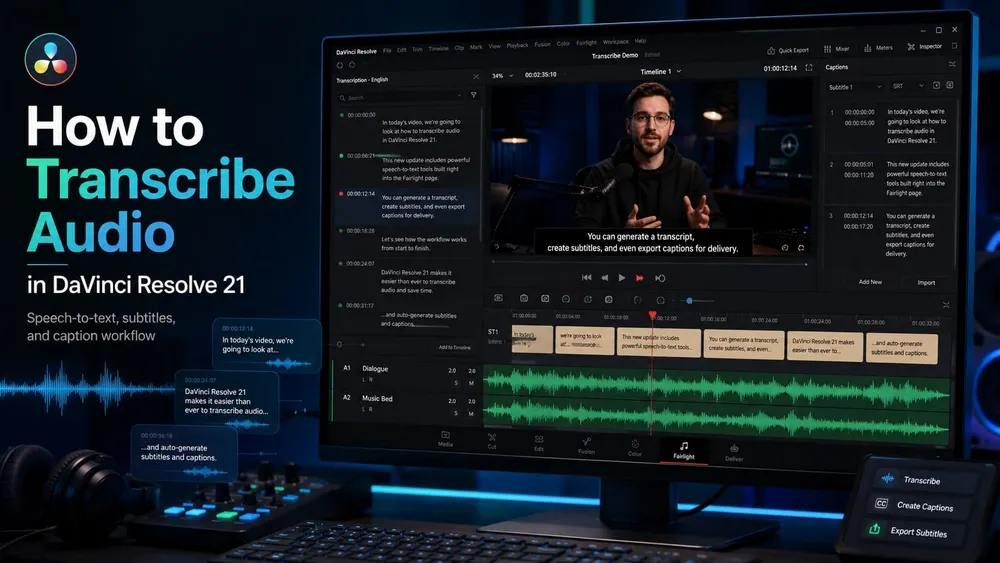
Choose the output first: a searchable transcript for editing, or timed subtitles for viewers. In DaVinci Resolve 21, transcribe Media Pool clips to find dialogue and assemble selects. Use Create Subtitles from Audio to build a subtitle track. Both automated workflows require DaVinci Resolve Studio; Free can import, edit and export subtitle files, but cannot generate them from speech natively.
The menu names and limits below follow Blackmagic's latest DaVinci Resolve 21 Reference Manual. Older tutorials often use shorter labels from previous releases, so match the full Resolve 21 paths when a command appears to be missing. For dialogue cleanup, routing, levels or audio-only delivery around this task, use the DaVinci Resolve Fairlight Audio hub; this page stays focused on speech-to-text, transcript editing and captions.
Choose the Right Transcription Workflow
A clip transcript is attached to source media. It helps you find what was said and build an edit from selected words. A timeline transcript represents the edit and can drive changes to it. Timeline subtitles are separate caption clips for styling and delivery. Transcribing a clip does not automatically put captions on screen.
- Need to search interviews or assemble selects? Transcribe source clips.
- Need captions on a finished edit? Create subtitles from timeline audio.
- Need a readable text record? Export the transcript as .txt.
- Need timed captions? Export an SRT from the Transcription window, subtitle track or Deliver page.
How to Transcribe Audio Clips in DaVinci Resolve 21
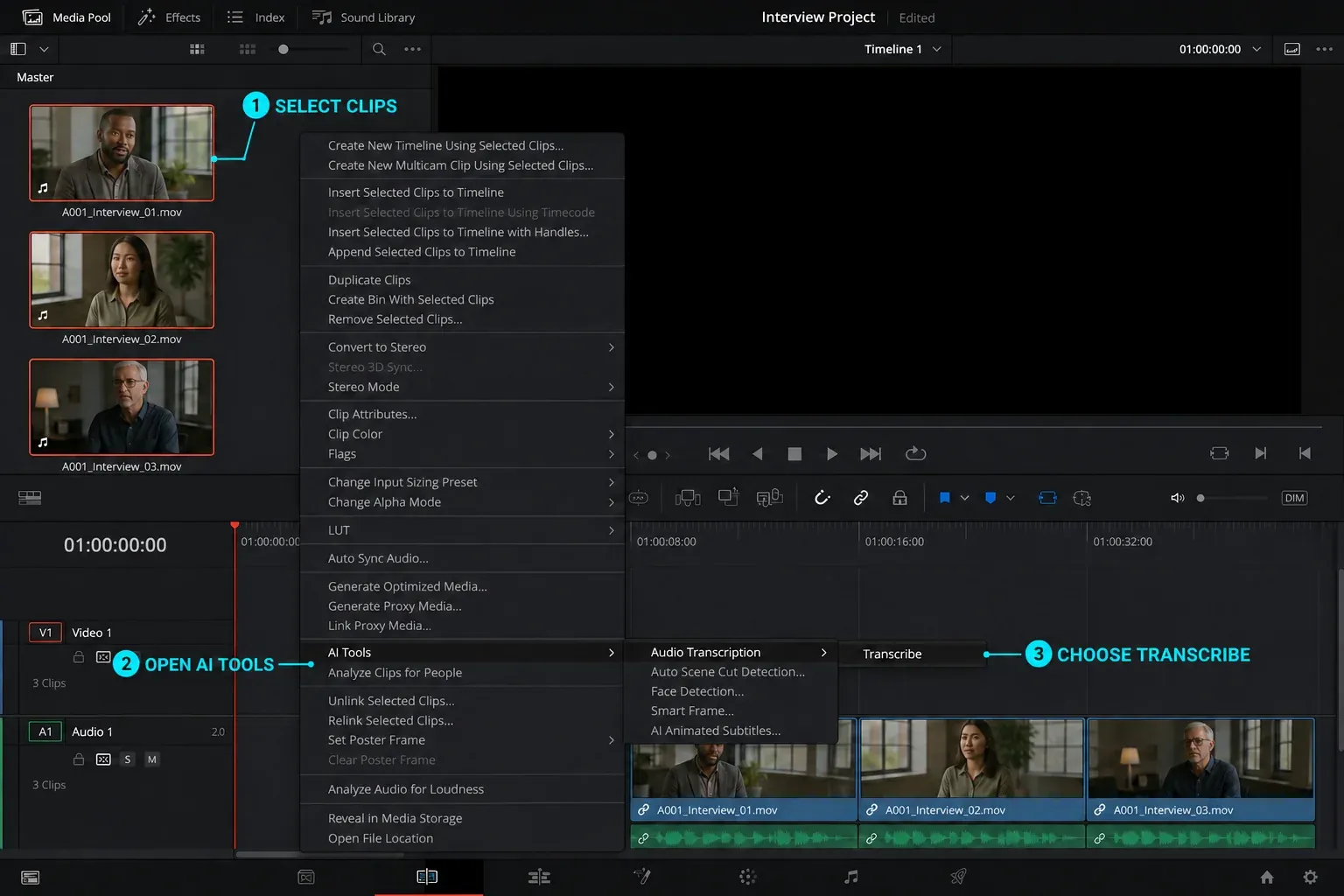
- Open the Media, Cut, Edit or Fairlight page and select one or more clips with speech in the Media Pool.
- Right-click a selected clip and choose AI Tools > Audio Transcription > Transcribe. The Transcribe Audio toolbar icon starts the same analysis.
- Wait for the Transcribing Audio window to finish. It reports clips remaining, analysis speed relative to real time and an estimated time remaining.
- Open the Transcription window. Transcribed clips carry a speech-balloon icon in the Media Pool, and Resolve 21 also exposes a Transcription column in List view.
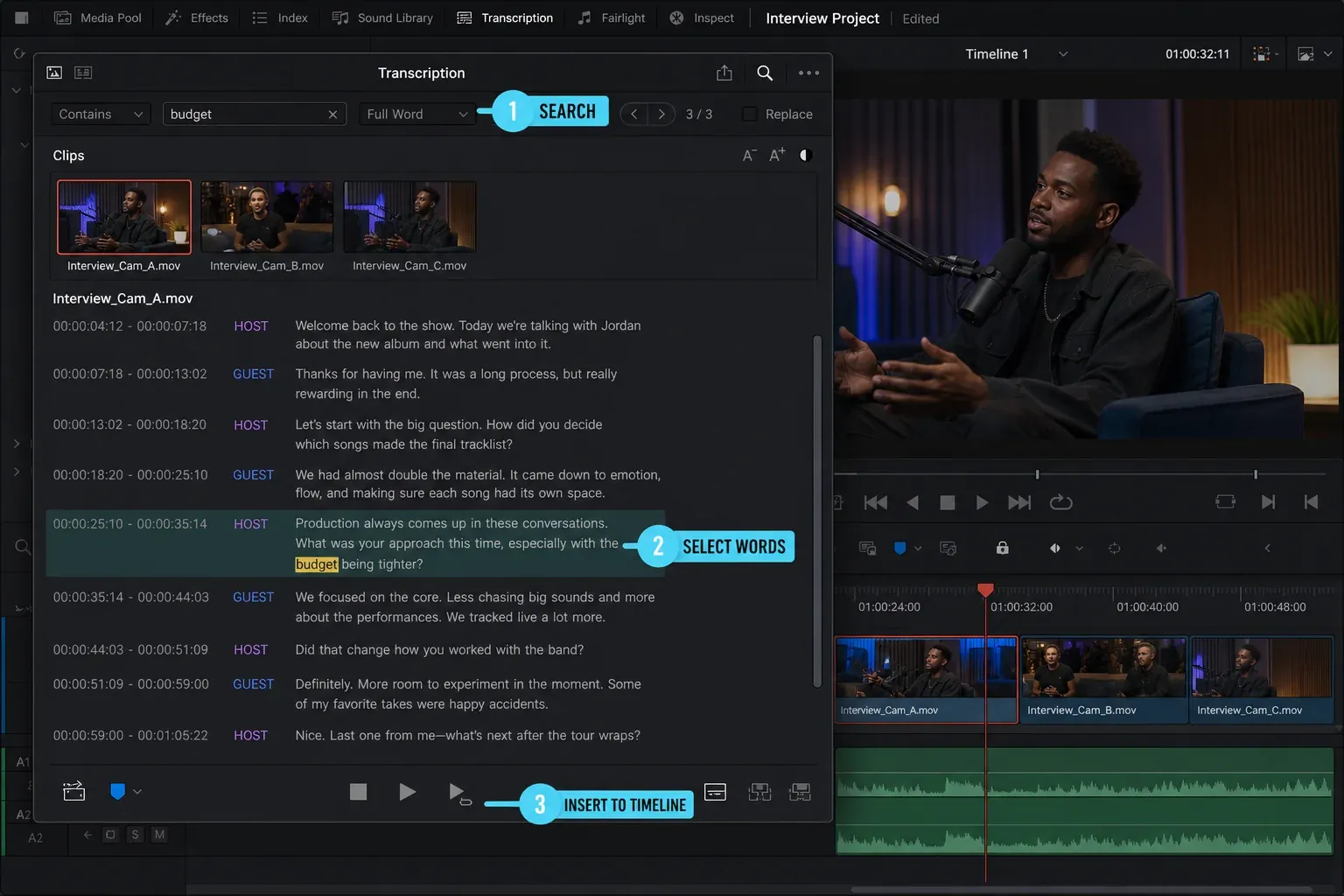
- Click a word to move the source viewer to the end of that word. Drag across text to set a source range, then use Place on Top, Insert or Append to edit that range into the timeline.
The Transcription window searches selected clips with Contains or Full Word matching. In source-clip mode, deleting text strikes it through: that range is excluded from transcript export and subsequent text-based edits, without erasing the recording. Use Undelete to restore it.
Resolve marks detected silence with ellipses. Remove Silent Portions excludes those ranges when you assemble selected dialogue into a timeline. Listen to the joins afterward: a pause may contain a breath, reaction or room tone that the edit still needs.
To change an existing edit through its transcript, duplicate the timeline first. Transcribe its source clips in the Media Pool, then click the Timeline mode icon in the Transcription window. Cut, Copy, Paste and Delete can now change the timeline itself. Verify the selected range and play the result after each edit. If a newly added clip says Transcription Pending, use Options > Transcribe Missing Clips in Timeline.
Correct, Search and Export a Transcript
Use Edit for spelling and proper-name corrections rather than rewriting whole paragraphs. Search and Replace is useful when the same name is wrong throughout several clips. Resolve warns that replacing a long passage with an unrelated summary can make text-based editing unpredictable because the words remain tied to source time ranges.
The Export icon saves a .txt transcript. When speaker detection is enabled, Resolve Studio's transcript export includes speaker names and timecodes for speech blocks. The Options menu also provides Export Subtitles, which writes an SRT and asks for a caption preset, maximum characters per line, number of lines and gap between subtitles.
How to Create Subtitles from Timeline Audio
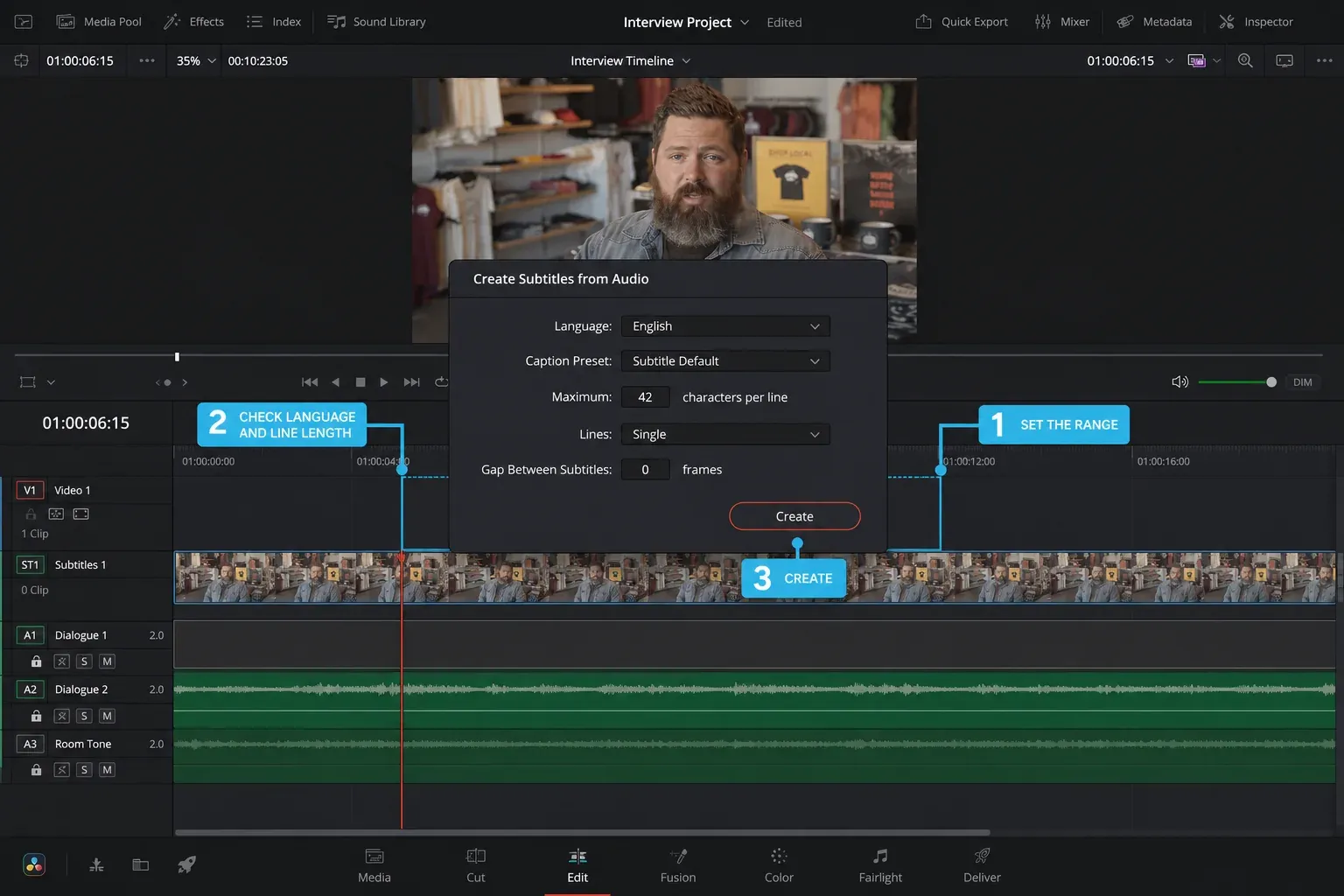
- Open the timeline on the Edit page. Set In and Out points if only part of the timeline needs captions; leave them unset to analyze the whole timeline.
- Choose Timeline > AI Tools > Create Subtitles from Audio.
- Choose the spoken language or Auto, select a Caption Preset, set Max Characters per Line, choose one or two lines, and set the frame gap. The documented default gap is 0 frames.
- Click Create. Resolve adds the result to a subtitle track. If no subtitle track exists, it creates one; if several exist, it writes to the highest track.
- Read every caption while watching the program. Correct words, cue timing, line breaks, speaker changes and non-speech labels before export.
Overlapping dialogue on multiple audio tracks is the failure case Blackmagic calls out explicitly. Mute any track that shouldn't be included in the analysis, generate the subtitles, then restore the mix. If dialogue and music are hard to separate, use the practical routing steps in Mute and Split Audio in DaVinci Resolve before generating subtitles again.
Edit and Style the Generated Subtitles
Select a subtitle clip and use the Caption tab in the Inspector to correct its text. Track controls set the shared typeface, size, color, position and outline. Enable Customize Caption only when one subtitle or selected words need a local override; otherwise keep the track style consistent.
Resolve 21 adds Find and Replace in the Subtitle Inspector and spell checking for text elements. Spell checking flags possible mistakes; it doesn't validate names, numbers, technical terms or whether the transcript matches the speaker. Those still require a listening pass.
For word-level animated captions, Resolve 21 can analyze manually entered or imported captions. Select a subtitle and click Update Word Timings, or right-click a subtitle track header and choose Synchronize Word Timings. This retimes word highlighting; it doesn't repair the wording itself.
Resolve 21 Transcription Changes That Matter
Blackmagic's Resolve 21 New Features Guide documents four relevant additions: background analysis for transcription, transcript search inside IntelliSearch, external subtitle word timing and the Media Pool Transcription column.
Background Rendering is disabled by default. In DaVinci Resolve > Preferences > System > Background Tasks, enable background renders and the Transcription task. Leave it off when the machine is short of memory. Pause background renders on foreground activity lets interactive work take priority; background processing is not a free speed increase.
IntelliSearch requires its own model download and media analysis. Search Transcript Only limits results to words found in audio transcripts; Search All can combine transcript, visual and metadata results. A clip transcript doesn't automatically mean its visual content has been analyzed for IntelliSearch.
Languages and Speaker Detection
Project Settings > Subtitle and Transcription > Transcription Setup controls the transcription language. The Resolve 21 manual lists 14 base language entries: Danish, Dutch, English, French, German, Italian, Japanese, Korean, Mandarin, Norwegian, Portuguese, Russian, Spanish and Swedish. Mandarin has simplified and traditional models. Auto lets Resolve select a model.
The Extended AI Transcription Support Package in Extras Downloads Manager adds 43 more named languages, including Arabic, Finnish, Greek, Hindi, Polish, Romanian, Thai, Turkish, Ukrainian and Vietnamese. Create Subtitles from Audio uses the same base list except the manual names Chinese as Simplified Mandarin; the extended package supplies the additional list.
Speaker Detection is project-specific. Enable it from AI Tools > Audio Transcription > Speaker Detection or from the Transcription window Options menu before transcribing. Resolve remembers detected voice signatures across clips in the project. Rename Speaker 1, Speaker 2 and later labels, or use Assign To when a segment is attributed incorrectly. Reset Speaker Data clears the saved project-level voice assignments.
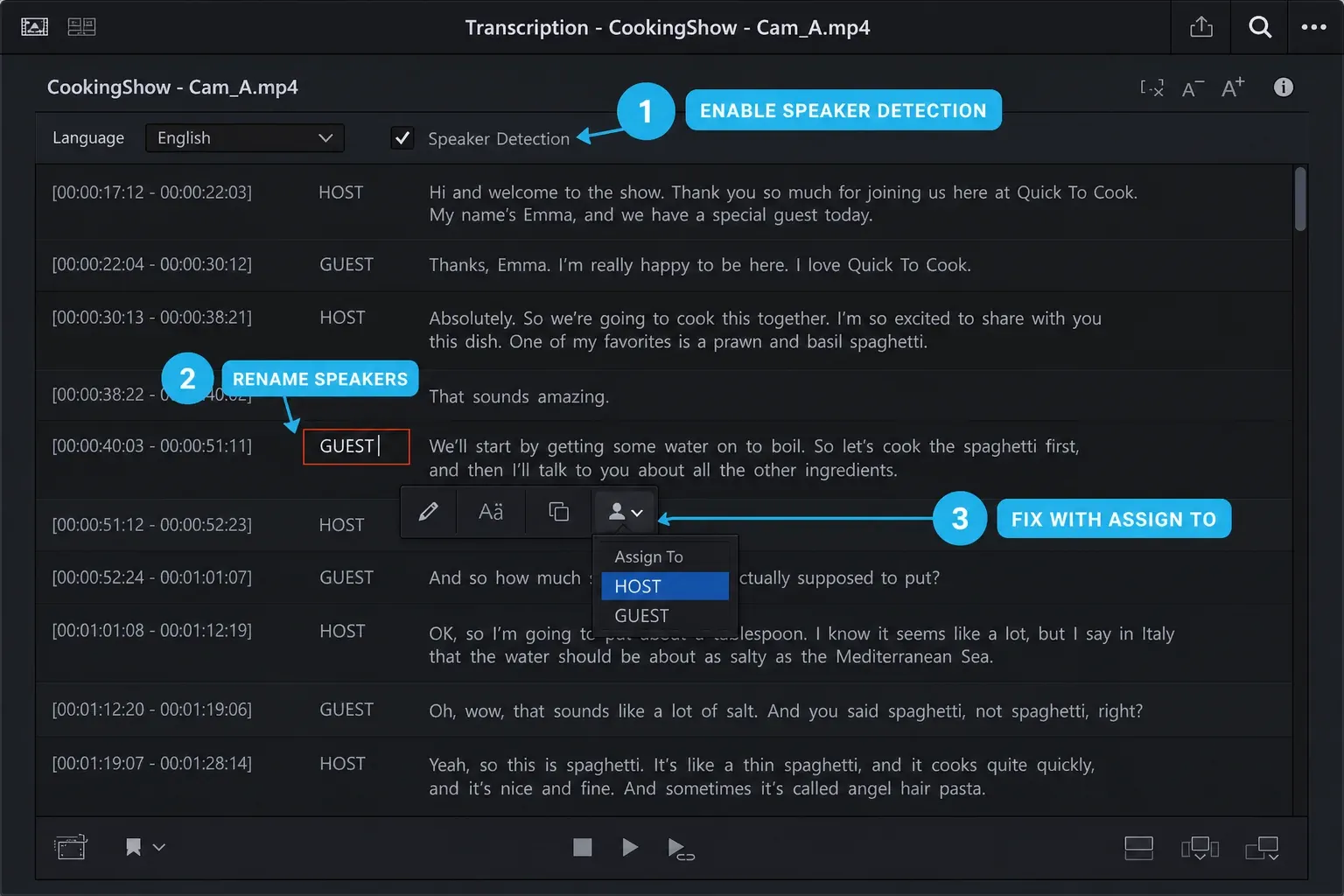
Listen through the transcript rather than trusting a confidence impression. Check names, numbers, negations and speaker changes against the recording. Noise, accents, overlapping voices and microphone distance can change the result; choose the known language when Auto gets it wrong, then review the regenerated text.
Why Transcribe Audio Is Missing or Produces Bad Results
- The command is missing: confirm the installed application says DaVinci Resolve Studio, then use the exact AI Tools > Audio Transcription menu path on a Media Pool clip.
- The transcript contains mostly ellipses: play the selected clip and confirm that audible dialogue is present on the source clip itself rather than only elsewhere in the timeline.
- The wrong language appears: choose the language manually in Project Settings > Subtitle and Transcription > Transcription Setup, then clear and regenerate the transcription.
- One speaker or track is ignored: check the actual source clip being transcribed. A timeline transcript analyzes underlying media; do not assume its input is identical to the finished audible mix. For captions, use the separate subtitle-generation workflow and test a short range.
- Subtitle generation misses overlapping speech: mute the tracks Resolve should ignore and run Create Subtitles from Audio again, as Blackmagic recommends.
- An imported transcript is not aligned: the SRT timecode must match the clip. Resolve 21 can also use AI Tools > Audio Transcription > Import and Detect Timing for a Media Pool clip.
Before clearing or regenerating a corrected transcript, export a copy of its text and save the project. Clear Transcription removes the saved transcript, including your corrections; it does not delete the original recording. Diagnose the source, language and selected workflow before changing routing or channel formats.
How to Export SRT Subtitles
For a transcript attached to a clip, open the Transcription window Options menu and choose Export Subtitles. Resolve writes an SRT after you set the caption preset, line length, line count and gap. This is different from the Export icon, which saves a readable .txt transcript.
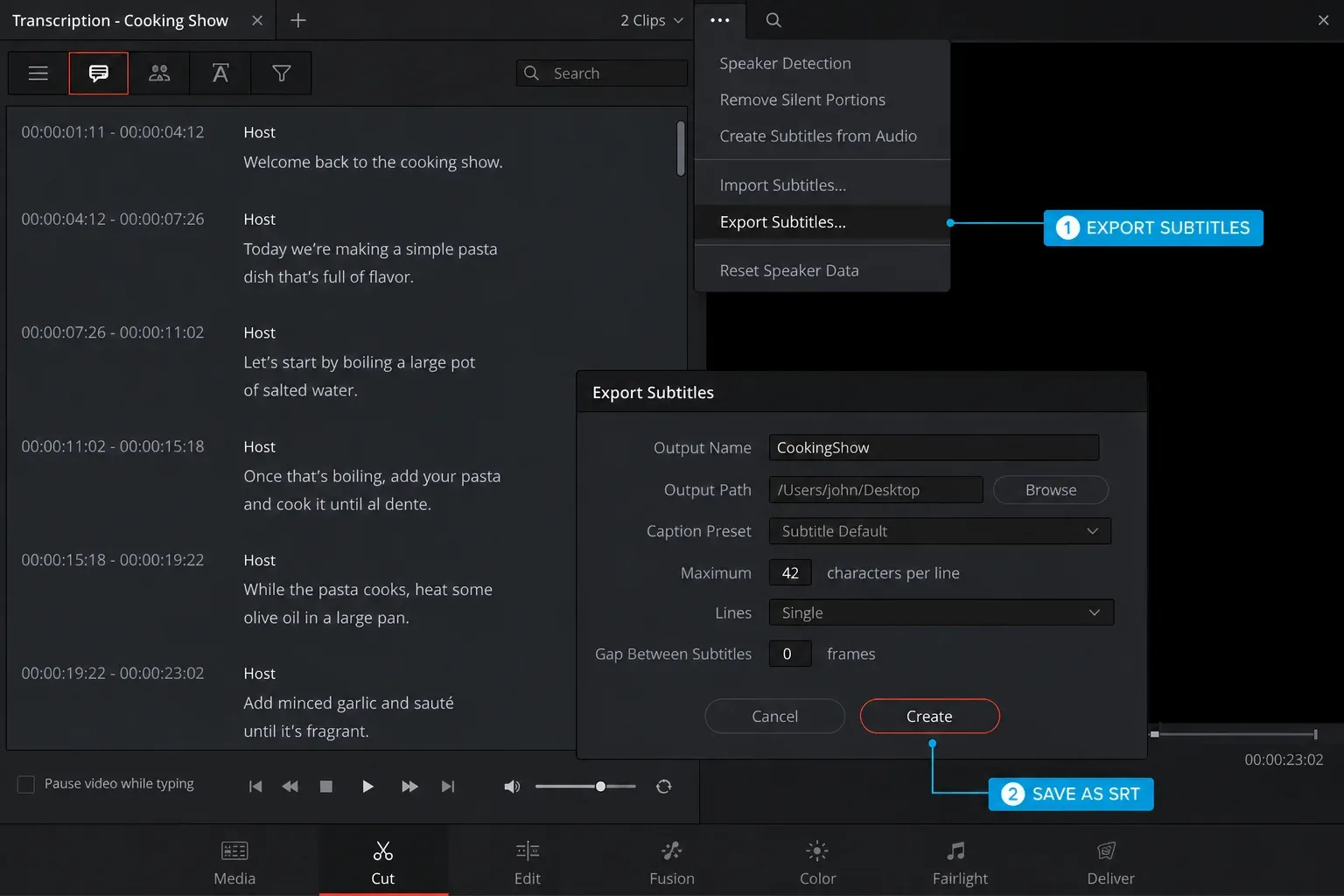
For a finished program, the Deliver page can export a separate subtitle file or burn captions into the rendered video. Choose the method required by the destination, render a short test, and open the exported file before the full delivery. The complete subtitle-track workflow, import formats and styling controls are covered in DaVinci Resolve Subtitles and Captions; final video settings are covered in the Resolve export guide.
Resolve Transcription vs. Premiere Pro
Both applications can assemble edits from transcripts, but captions remain a separate delivery step. Premiere's Text-Based Editing guide documents transcript editing, filler-word handling and speaker filtering. A list of supported languages does not establish accuracy for your speakers.
Check wording, speaker overlap and export requirements in the same sample before choosing an editor. Licensing, collaboration, color and handoff differences are covered in the DaVinci Resolve vs. Premiere Pro comparison.
DaVinci Resolve 21 Transcription FAQ
Is audio transcription available in free DaVinci Resolve?
No. Native audio transcription, text-based editing and Create Subtitles from Audio require DaVinci Resolve Studio. In Free, create captions manually or generate a timed SRT with an external transcription tool, then import and review it on a subtitle track. Importing an SRT does not unlock Studio text-based editing.
Can I transcribe one clip instead of the whole timeline?
Yes. Select the source clip in the Media Pool and choose AI Tools > Audio Transcription > Transcribe. To work with an existing edit, select its timeline in the Media Pool and transcribe it. Create Subtitles from Audio is a separate command for a subtitle track.
How many languages does Resolve 21 transcription support?
The manual lists 14 base language entries, with simplified and traditional Mandarin models, plus 43 named languages in the optional Extended AI Transcription Support Package. Choose the known source language manually when Auto selects the wrong model.
Can Resolve identify multiple speakers?
Yes. Speaker Detection assigns project-level speaker labels and remembers voice signatures across clips. Rename labels and correct wrong segments with Assign To. Overlapping voices still require careful review.
Can I export a Resolve transcript as SRT?
Yes. In the Transcription window Options menu, choose Export Subtitles. For a finished timeline, export the subtitle track or use the Deliver page. The separate Export icon writes a .txt transcript instead.
Why is Create Subtitles from Audio missing?
It's a Studio-only command. Confirm the installed app is DaVinci Resolve Studio, open a timeline on the Edit page, and use Timeline > AI Tools > Create Subtitles from Audio.
Does Resolve transcription need internet access?
Native transcription is processed on your computer by the DaVinci Resolve Neural Engine. Download any required language or IntelliSearch packages before going offline. This is not a promise that the whole application never connects: licensing, cloud projects, shared storage and third-party tools have their own network requirements.