
To create a new timeline in DaVinci Resolve, open the Edit page and choose File > New Timeline. Name it, leave Empty Timeline checked, and click Create. The default shortcut is Ctrl+N on Windows or Command+N on Mac.
That's the clean starting point when you want to choose every shot yourself. If you've already picked the clips for a sequence, use Create Timeline Using Selected Clips in the Media Pool instead. I recommend deciding which of those two jobs you're doing before opening the dialog: it prevents an empty sequence from arriving full of footage you didn't mean to include.
Create an empty timeline
You can add another timeline inside the project you already have open. You don't need a new project for every sequence or alternate assembly. These steps follow the desktop Edit-page workflow in Resolve 21.1; ordinary timeline creation doesn't require Studio.
- Open the Edit page using the page bar at the bottom of Resolve.
- In the Media Pool, select the bin where you want to store the timeline. A dedicated bin for timelines is useful once you have several versions.
- Choose File > New Timeline. You can also right-click empty space in the Media Pool and choose Timelines > Create New Timeline.
- Enter a recognizable Timeline Name, such as Interview Assembly. Set the starting timecode and initial video/audio track counts if you need specific values.
- Keep Empty Timeline checked. Leave Use Project Settings checked if this sequence should inherit the project's format.
- Click Create. Look for the new timeline in the selected bin and confirm that its tracks contain no clips. You can now add your first shot.
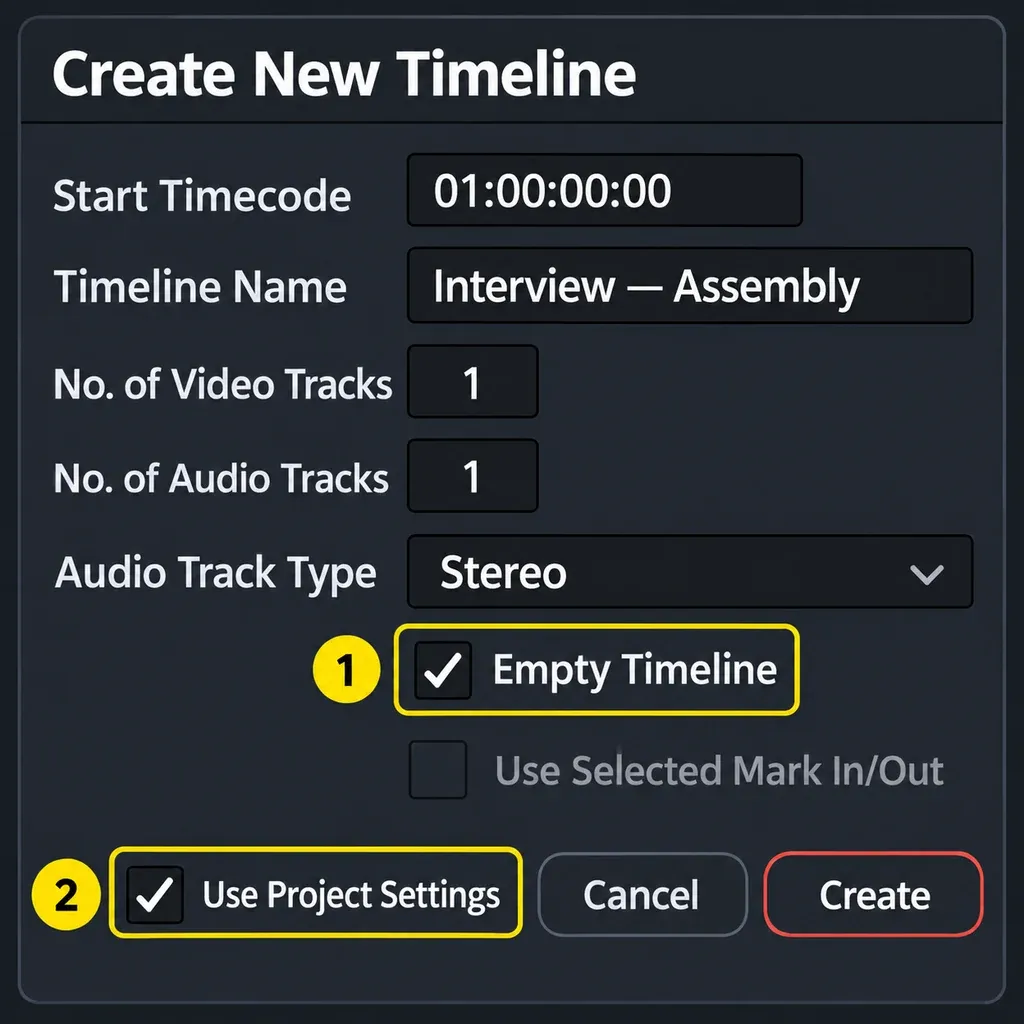
If you want the timeline ruler to begin at zero, enter 00:00:00:00 in Start Timecode before you create it. Choose a different start when your delivery or handoff calls for one.
Start with the tracks you need now. You can add more later by right-clicking a track header and choosing Add Track or Add Tracks; there's no need to predict the finished edit before placing a shot.
Watch the Empty Timeline checkbox. In the ordinary New Timeline dialog, turning it off creates a stringout containing media from every bin in the Media Pool. It isn't a shortcut for “just the clips I'm looking at.” Blackmagic's blank and stringout timeline instructions make that distinction explicit. For a smaller assembly, use a bin or selected clips as described next.
Create a timeline from selected clips or a bin
A stringout puts source clips in sequence so you can review and trim them. It's useful for interview selects, a day's footage, or a short batch of shots you've already organized.
- Open the source bin in the Media Pool. If order matters, switch to List view and sort by the column that gives you the sequence you want, such as clip name or scene metadata.
- Select the source clips you want to include. Right-click one of those clips and choose Create Timeline Using Selected Clips.
- Name the timeline. If you've marked useful ranges in the source clips, enable Use Selected Mark In/Out to assemble those ranges. A clip without saved In/Out points contributes its full duration.
- Review the settings, then click Create. Check the first few cuts against the Media Pool order before you start trimming.
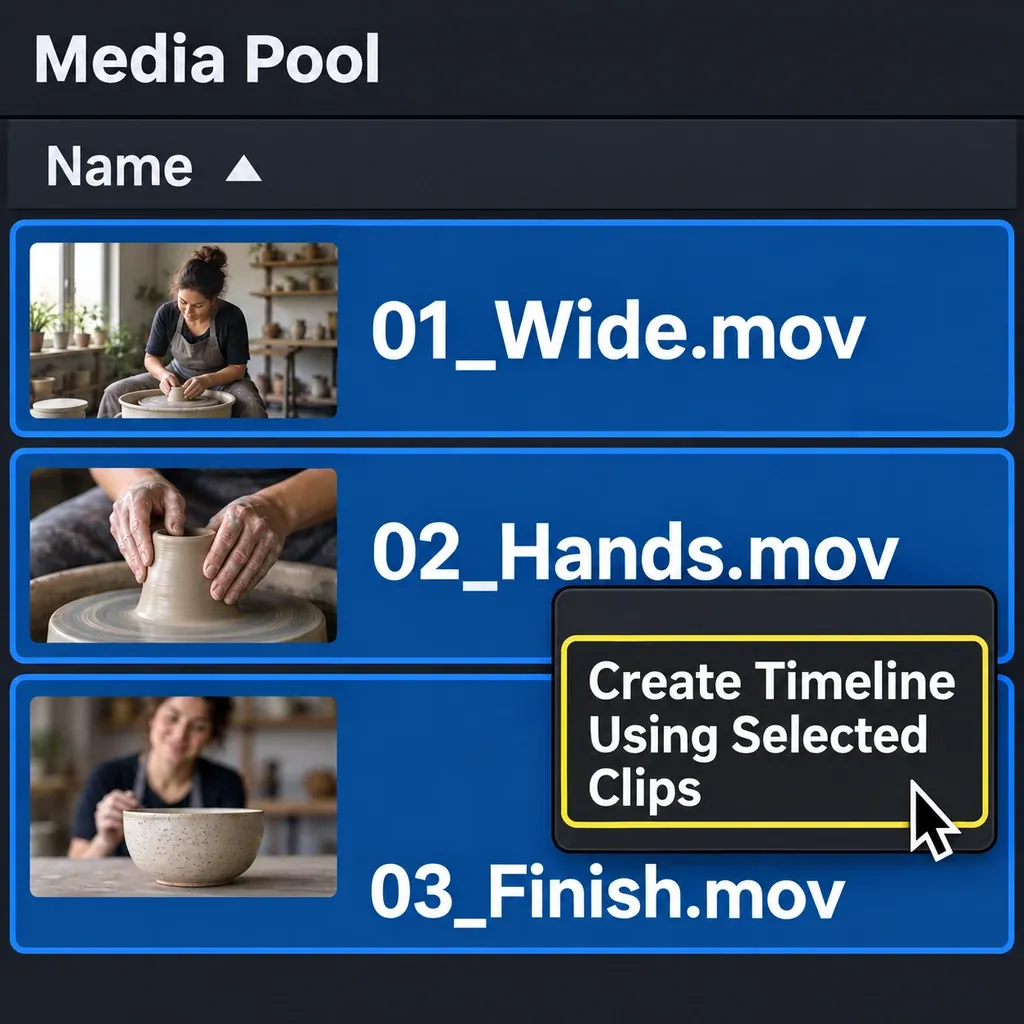
For everything in one bin, right-click the bin in the bin list and choose Create Timeline Using Bin. That's a different target from right-clicking a clip or empty space. The selected-clips and bin commands use the enclosing bin's sort order; don't rely on the order in which you happened to click the clips.
For selected clips, Audio Track Type defaults to Based on selected media. Review that choice if the sources have different channel layouts. Blackmagic documents both the selection order and source In/Out behavior, so you can make an intentional assembly instead of accepting a surprising one.
Dragging a clip into the empty Timeline Editor on the Edit page also creates a timeline automatically when it's the first edit in an empty project. I prefer the dialog when naming, frame rate, or delivery shape matters: you can inspect those choices before building the sequence. Dragging a clip into an existing edit is a different operation; it isn't the reliable way to ask for another blank timeline.
Give the new timeline its own resolution or frame rate
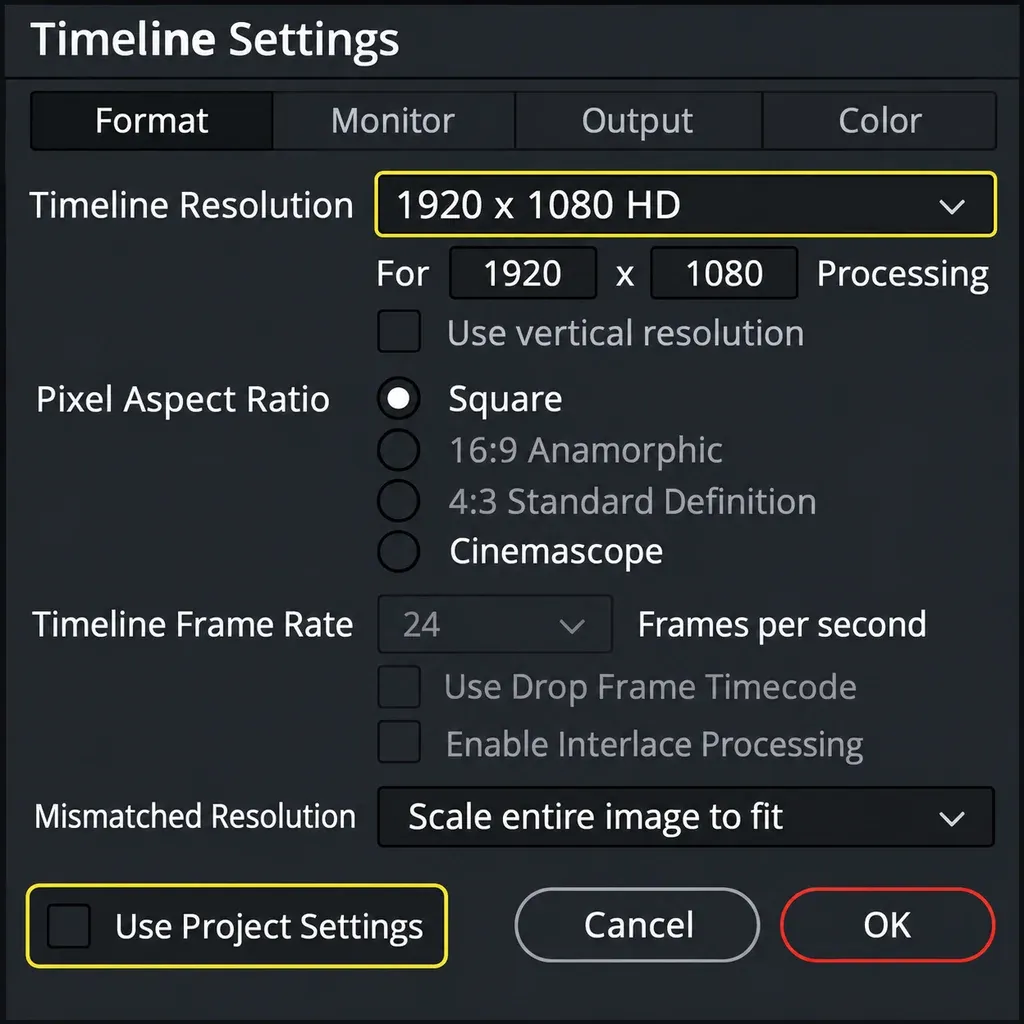
By default, a new timeline mirrors the project's timeline format. Leave that inheritance in place when you're making another sequence for the same delivery. Use individual settings when the new sequence needs a different canvas or timebase.
- Open File > New Timeline and name the new sequence.
- Uncheck Use Project Settings to expose the timeline's individual controls.
- In Format, set Timeline Resolution and Timeline Frame Rate for this deliverable before creating the timeline.
- Review Mismatched Resolution for footage that doesn't match the canvas. A fit setting and a crop-to-fill setting make different framing choices.
- Create the timeline, add a representative shot, and check its framing and timing before assembling the rest.
For example, a project might need a widescreen master and a vertical social version. An individual timeline gives the second version its own canvas; you still need to reframe the shots and graphics for that shape. The resolution change doesn't decide where a face or title should sit.
A locked project frame rate is another reason to create a custom timeline. The project-wide Timeline frame rate locks after media is imported, but a new timeline can have an individual rate. That doesn't unlock the project control or convert your existing edit. If you're moving an edit to another timebase, keep the original and follow the timeline frame-rate recovery workflow, including the timing and sync checks.
To revisit an existing timeline's settings, right-click that timeline in the Media Pool and choose Timelines > Timeline Settings. Don't expect every setting to remain editable after creation. For the project defaults shared by ordinary timelines, use the separate project settings guide.
Switch between timelines without creating another one
Double-click the timeline you want in the Media Pool. You can also choose it from the Timelines dropdown above the Timeline Viewer on the Edit page. Check the active timeline's name before making a cut; similar footage can make the wrong sequence look convincing.
If you're moving between assemblies often, enable Stacked Timelines in Timeline View Options. Opened timelines then appear as tabs. The plus button adds a tab that initially says Select Timeline; choose a timeline for it. Adding a tab isn't the same as creating a new empty sequence.
For an alternate version of the edit you already made, select its timeline in the Media Pool and choose Edit > Duplicate Timeline, or right-click it and choose Duplicate Timeline. Rename the copy so you can tell the versions apart. A duplicate is a starting copy of an edit; a new blank timeline starts without that assembly.
When New Timeline is missing, gray, or gives the wrong result
The menu only offers selected clips or a bin
Go to the Edit page and use File > New Timeline. If you want the context-menu route, right-click empty Media Pool space. Right-clicking a source clip or the bin itself offers commands for that object. The difference between those click targets is also visible in this Blackmagic forum discussion about finding the blank-timeline command; it isn't a reason to delete your clips or rebuild the project.
The shortcut does nothing
Use the File menu first. If the menu command works, check the binding in Keyboard Customization, especially if you use a custom keyboard preset. The shortcut can differ from the Resolve default. If the menu is unavailable too, confirm that you're on Edit with a project open, and finish or close any active dialog before trying again.
The new timeline is already full of clips
Check which creation command you chose and whether Empty Timeline was turned off. Create a separate blank timeline with it checked; you don't have to delete the populated sequence to get an empty one.
The new timeline contains one timeline-shaped clip
Check what you selected in the Media Pool. An existing timeline can be used as source material inside another timeline, creating a nested edit. If you wanted an editable copy of the whole assembly, use Duplicate Timeline. If you wanted a fresh stringout, select the original source clips instead of the timeline item.
Once the intended timeline is open, named, and using the right format, start arranging shots. The DaVinci Resolve tutorial hub has the next editing steps; for a complete first project, follow the beginner editing walkthrough.
