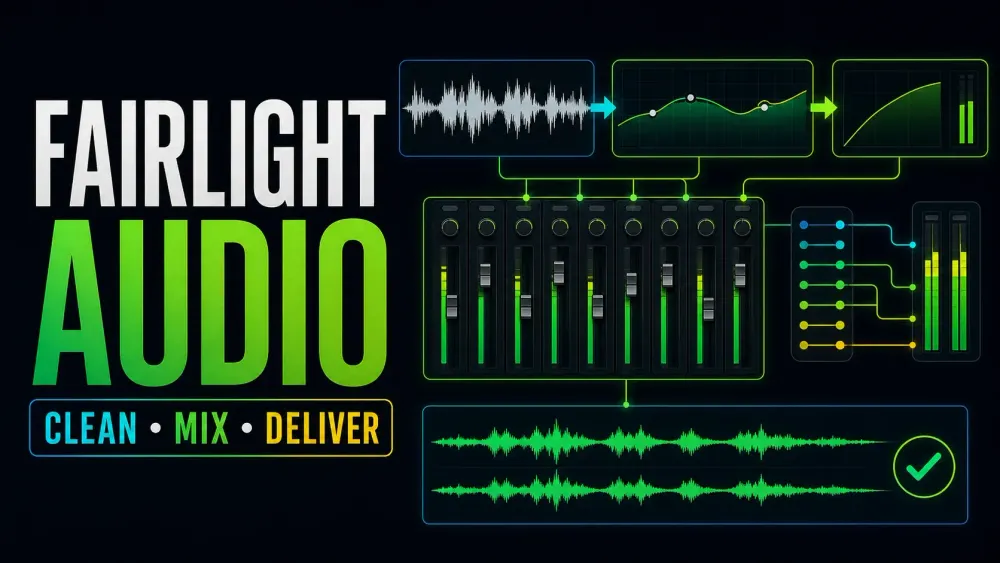
Make the dialogue work
Start with what you can hear
Get the voices balanced first and worry about the loudness number later. If the trouble is noise, buried dialogue or silence, jump to that task below. You don't have to put every processor on every recording.
Choose the task
Build and check your mix
Start with levels, routing or whatever sound you want to fix. Open the groups below for more audio tasks.
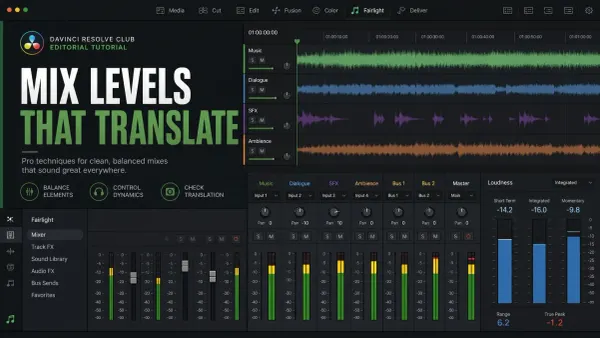
Audio Levels and LUFS in DaVinci Resolve
Balance the mix, tell peaks apart from loudness and measure the right delivery range. Each job sets its own target, so take it from the delivery spec.
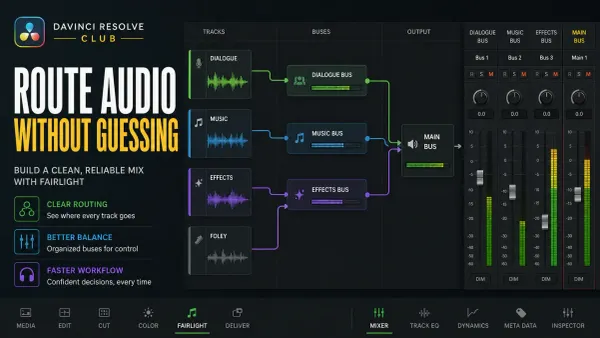
Fairlight Bus Routing Explained
Follow dialogue, music and effects through tracks, submixes and the final bus. Check for extra routes before you export a mix or stems.
Fairlight Compressor Settings for Dialogue
Set up the Fairlight compressor for dialogue in DaVinci Resolve 21: threshold, ratio, knee, mix, attack, hold, release and makeup gain, plus pumping fixes and a final QA listen.
Fairlight EQ: Clean Dialogue in DaVinci Resolve
Pick clip or track EQ and make changes you can hear in context. Tame rumble or harshness without pasting one curve onto every voice.
DaVinci Resolve Audio Ducking: Ducker, AI & Sidechain
Keep speech clear over music. Compare the Ducker, sidechain compression and AI-assisted mixing, then check transitions and exceptions by ear.
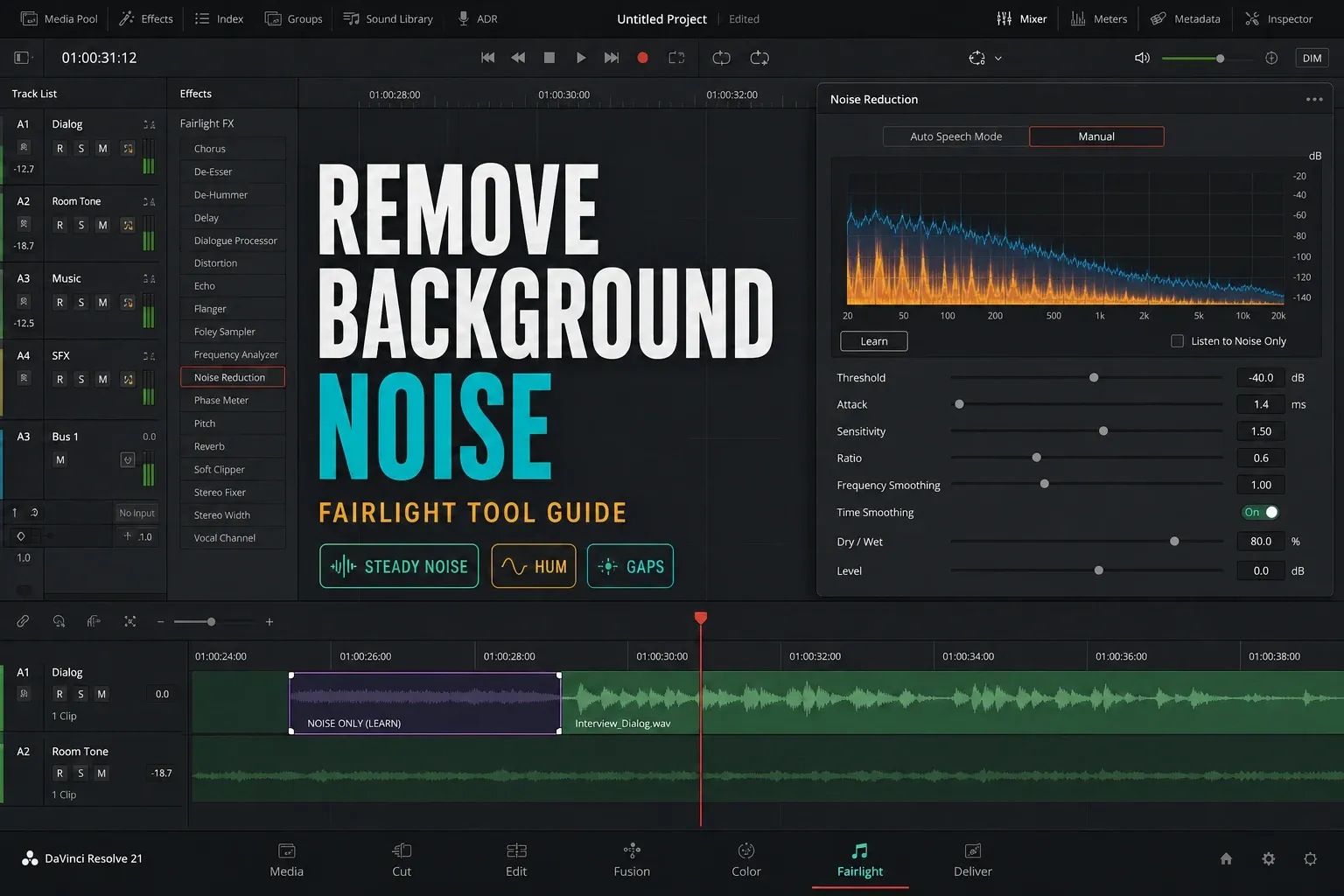
How to Remove Background Noise in DaVinci Resolve
Tell steady noise, hum and the gaps between words apart before you pick a processor. Cut the distraction without leaving the speech watery or muffled.
Edit, clean up and troubleshoot clips10 guides

How to Reduce Room Echo in DaVinci Resolve
Tame echoey dialogue with Voice Isolation, EQ, dynamics and automation, and learn when some reverb should stay.

How to Fix Audio Clicks and Pops in DaVinci Resolve
Tell edit clicks apart from playback crackle, then clean up clip boundaries with short fades and zero-crossing edits.
How to Remove Silence in DaVinci Resolve
See how silence removal differs from ripple edits that shorten the timeline. Protect quiet words, sync, music and captions, then listen to every join.
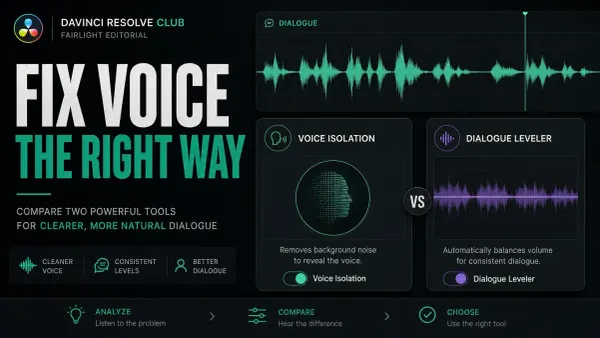
Voice Isolation vs Dialogue Leveler in DaVinci Resolve
Decide whether you need to reduce competing sound or even out dialogue levels. Check the edition requirements and compare both at matched loudness.
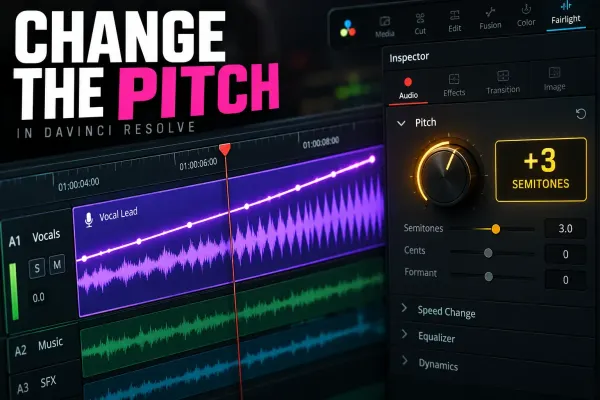
How to Change Audio Pitch in DaVinci Resolve
Shift one clip's pitch without changing its speed, or process a whole track with Fairlight FX.

How to Add Echo and Reverb in DaVinci Resolve
Drag Echo from Audio FX onto the clip, then set Delay Time, Feedback and Dry/Wet, or add Reverb instead.
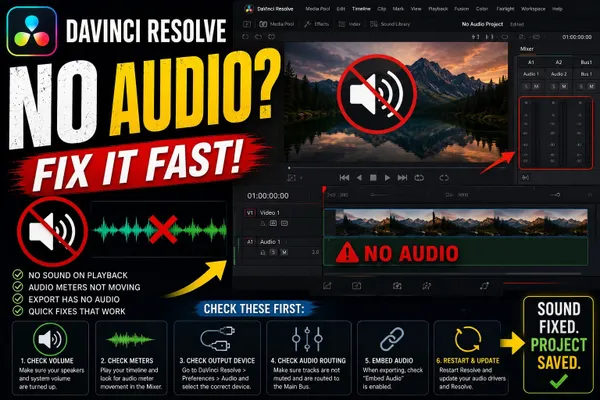
DaVinci Resolve No Audio
Follow the signal from the clip and track meters through buses, monitoring and the output device, and find the point where playback goes silent.
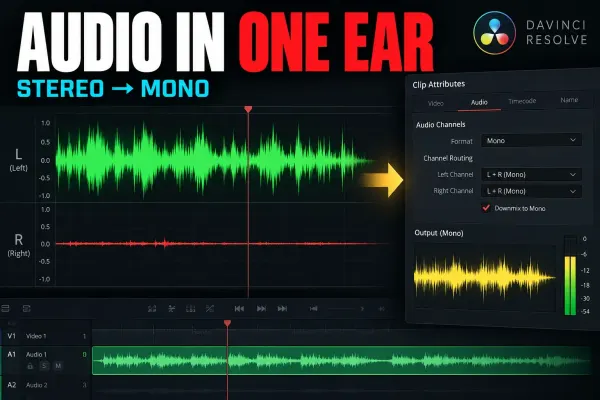
DaVinci Resolve Audio Only in One Ear: Mono Fix
Fix audio that only plays on one side by mapping the source channel, then check the track format, pan and bus.

How to Mute and Split Audio in DaVinci Resolve
Mute a clip, a track or a short section without losing sync. Unlinking audio from video is a different job from extracting a separate audio file.

How to Delete Audio from Multiple Clips in DaVinci Resolve
Turn off Linked Selection, select only the audio and press Delete (Backspace on Windows). The picture stays where it is.
Record, transcribe and deliver4 guides

How to Transcribe Audio in DaVinci Resolve 21
Choose clip transcripts or timeline subtitles, fix mistakes in the auto-created text and check the export format. Find the controls you need and the edition requirements.
How to Export Audio Only in DaVinci Resolve
Pick one finished mix or separate stems, confirm the source bus and render range, then listen to the exported file.
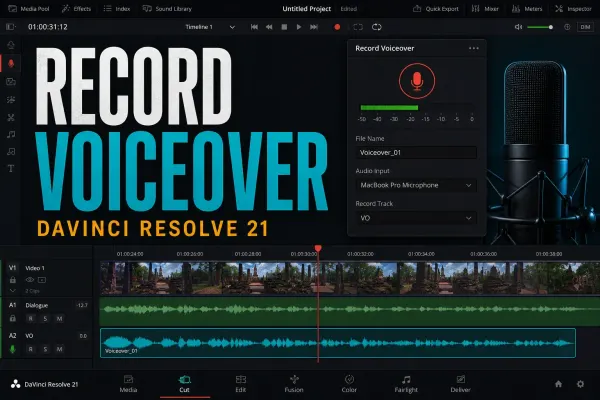
How to Record Voiceover in DaVinci Resolve 21
Use the simple voiceover route or patch Fairlight inputs yourself. Check the microphone signal, monitoring, channel mapping and the take you recorded.

Fairlight Sound Library: Add, Search and Fix Missing Sounds
Add Blackmagic or custom sound libraries, search the Fairlight catalog, audition effects and fix missing results after an update or a move.
Before you add another effect
Two useful starting checks
Do I need Studio to start mixing in Fairlight?
No. Resolve Free has the core audio editing and mixing tools. Studio adds features such as Voice Isolation, so check the edition requirements in the guide before you pick an AI workflow.
Is there one correct loudness or compressor setting?
No. The recording, the mix and the delivery requirements decide the settings. Listen for clear speech, check peaks and measure the finished program. Louder isn't automatically better.
Before you buy Studio for one feature, check Blackmagic’s Studio feature overview. New to audio? The official Fairlight lessons cover editing, mixing and recording. When I checked on October 5, 2026, the listed Fairlight book was still written for Resolve 20, so some controls differ in newer releases.
