
DaVinci Resolve 21 adds nine headline AI tools: media search, text-to-speech, synthetic focus, three face tools, slate metadata, sharpening and motion deblur. Every one of them needs Studio. Below I go through what each tool does, what you have to install before it appears, and what to check before you trust what it hands back.
Quick answer: Buy Resolve Studio for AI only when one named tool removes a bottleneck you hit again and again. IntelliSearch can shorten logging, Speech Generator can voice licensed or permitted narration, and CineFocus or the face tools can save setup time. None of them lets you skip watching the full clip, confirming consent or keeping the original.
The Nine New Resolve 21 AI Tools
Resolve 21 reached final release on June 3, 2026. When I checked Blackmagic's official Resolve support page on October 5, 2026, the current stable desktop update was 21.1.1 build 10, posted October 2; it followed 21.1 build 14 from September 8. Menus and fixes shift between updates, so check that page before you follow a tutorial recorded on a beta.
These are the nine headline AI additions in Resolve 21. Older Neural Engine features such as Magic Mask, Speed Warp and Voice Isolation were already established, so I've left them out. Studio 21.1 also adds a native MCP server for connecting AI assistants; that's an automation feature, and it sits apart from the image and audio tools below.
- IntelliSearch: finds visual content once clips are analyzed, with separate searches for transcripts and existing metadata.
- Speech Generator: turns typed text into a new spoken audio clip with a built-in or permitted custom voice.
- CineFocus: builds synthetic depth for defocus, bokeh and animated focus changes.
- Face Age Transformer: ages or de-ages a tracked face.
- Face Reshaper: changes facial proportions after face detection and tracking.
- Blemish Removal: cleans up facial and skin blemishes and leaves you manual control over the result.
- Slate ID: finds clapperboards and pulls the slate information into clip metadata.
- UltraSharpen: selective AI sharpening driven by a single amount control.
- Motion DeBlur: renders new media that reduces motion-blur softness and leaves the original source untouched.
Are Resolve 21 AI Tools Free or Studio-Only?
In the current Resolve 21.1 Reference Manual, all nine tools above are Studio-only. The license headings name IntelliSearch, Speech Generator, CineFocus, Face Age Transformer, Face Reshaper, Blemish Removal, Slate Finder and Slate ID, UltraSharpen and Motion DeBlur one by one. A missing or greyed-out control in Free is the license talking, and a different Free build won't switch it on.
Resolve Free still gives you the core editor, Color, Fusion, Fairlight and the core Photo page. The current US DaVinci Resolve product page lists Studio at $295 as a one-time desktop license; organization rental and iPad licensing are separate routes. For output ceilings, codecs and the non-AI differences, use the full Resolve Free vs. Studio comparison.
A long feature list is a weak reason to buy Studio. Write down the job you keep repeating, the media it touches, the workaround you use today and a pass/fail test. If the new tool doesn't save a step you can measure or improve a deliverable on representative footage, it isn't an upgrade reason yet.
IntelliSearch: Analyze First, Then Search
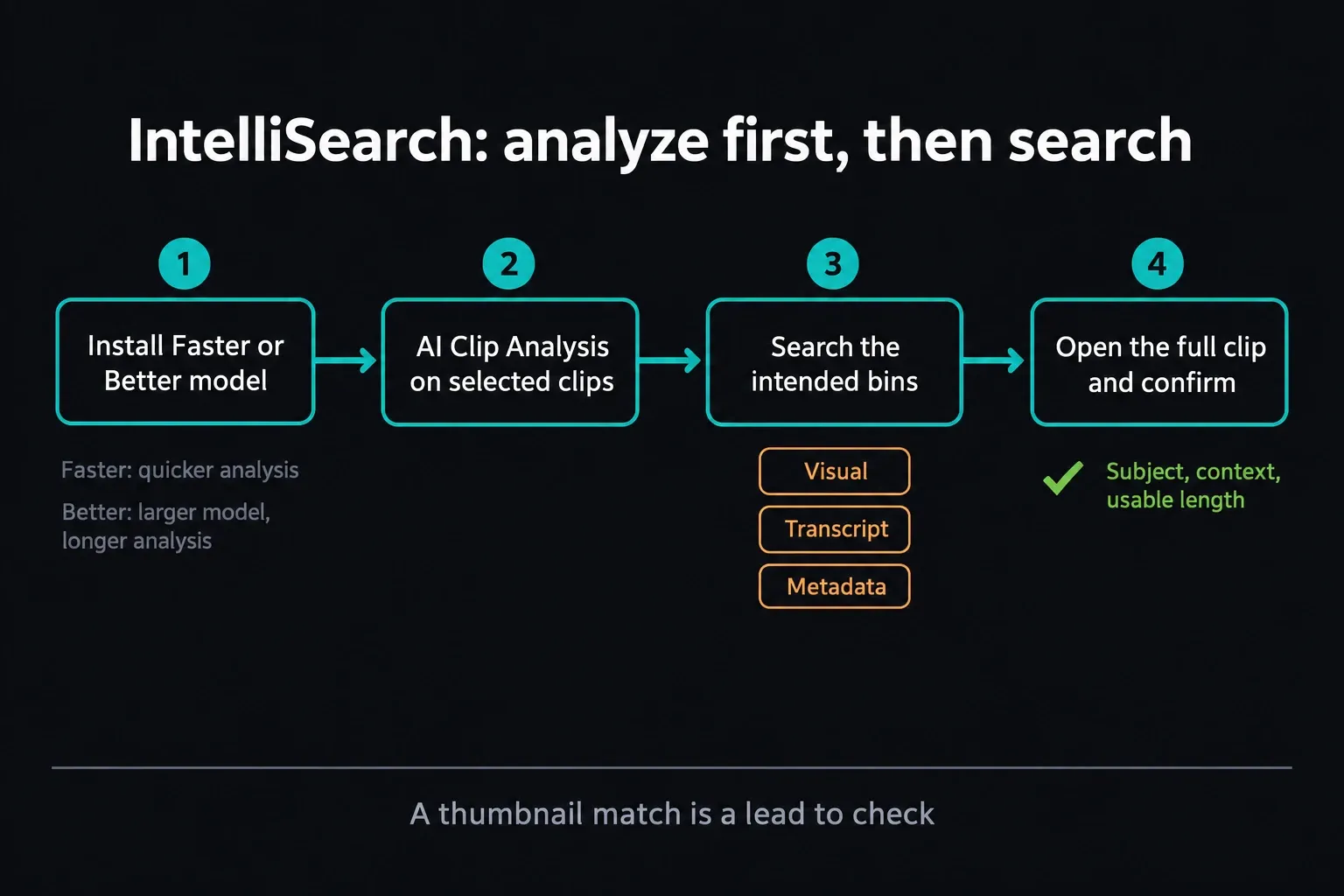
For visual searches, open DaVinci Resolve > Extras Download Manager first and install the Faster model, the Better model or both. Pick the installed mode from the Media Pool three-dot menu under IntelliSearch Mode. Select a small group of clips, open AI Clip Analysis and switch its scope dropdown to selected clips; by default it analyzes every clip in the Media Pool. Turn on Analyze for IntelliSearch, then click Analyze.
Faster and Better trade analysis time against accuracy. Once analysis finishes, both search equally quickly; Better uses a larger model, takes significantly longer to analyze and aims for more accurate results. I'd run Faster on a sample bin first. It's the safer move before you commit a whole library without knowing whether your queries suit the footage.
- Use Search Visual Only for analyzed objects, people, colors and other visible content. Search Transcript Only looks through transcribed audio. Metadata Search reads filenames, timecode, keywords and other existing fields; those fields do not need visual analysis. Search All combines available analyses and entered metadata. Search In lets you restrict the results to selected bins. For visual or transcript matches, Full Clips returns the complete clip and Segments narrows it to the matching portion. Add as SmartBin saves the criteria in a dynamic bin.
Tick Identify faces during analysis if you want to search for particular people, then go through the Face Gallery and correct names or grouping mistakes in Manage Faces. A plausible thumbnail proves very little. Open the full result and confirm the subject, the context and how much of the clip you can actually use.
Speech Generator: Text to a New Audio Clip
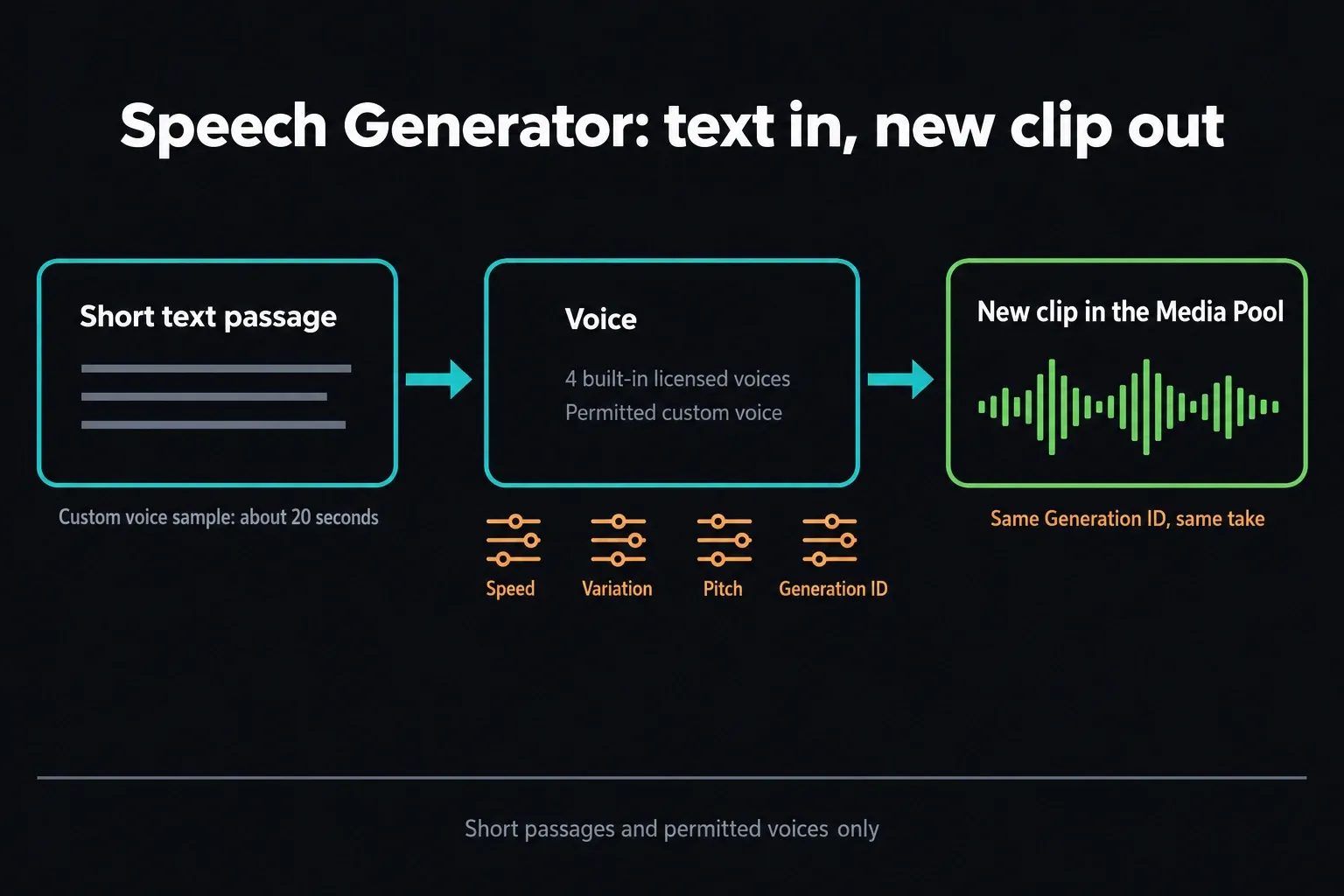
Install the Speech Generator model through Extras Download Manager, then open Timeline > AI Tools > Speech Generator. Type a short sentence or paragraph, pick one of the four built-in licensed voices or a permitted custom voice, set speed, variation, pitch and Generation ID, then generate the audio into the Media Pool. You can also drop the result at the playhead on an audio track you choose.
Treat Generation ID like a take number. Keep the same number and you keep the same performance while you change other settings. Punctuation shapes the timing, and the manual recommends shorter sentences or paragraphs. Split a long narration into manageable chunks, because one generation won't give you a finished voiceover.
Record the custom voice sample as a clean WAV. Published hands-on tests ran into WAV-only import restrictions, so don't count on an MP3 or AIFF sample being accepted. The 21.1 manual asks for about 20 seconds of high-fidelity audio and says longer recordings are truncated to the first 20 seconds. Get permission from real voice talent and pay them fairly before you use their voice.
Speech Generator and Voice Convert do different jobs. Speech Generator builds a performance from written text; Voice Convert follows an existing audio performance with another analyzed voice model. If you need dialogue turned into text, that's transcription, and the Resolve 21 transcription guide covers it.
CineFocus: Synthetic Depth and Bokeh
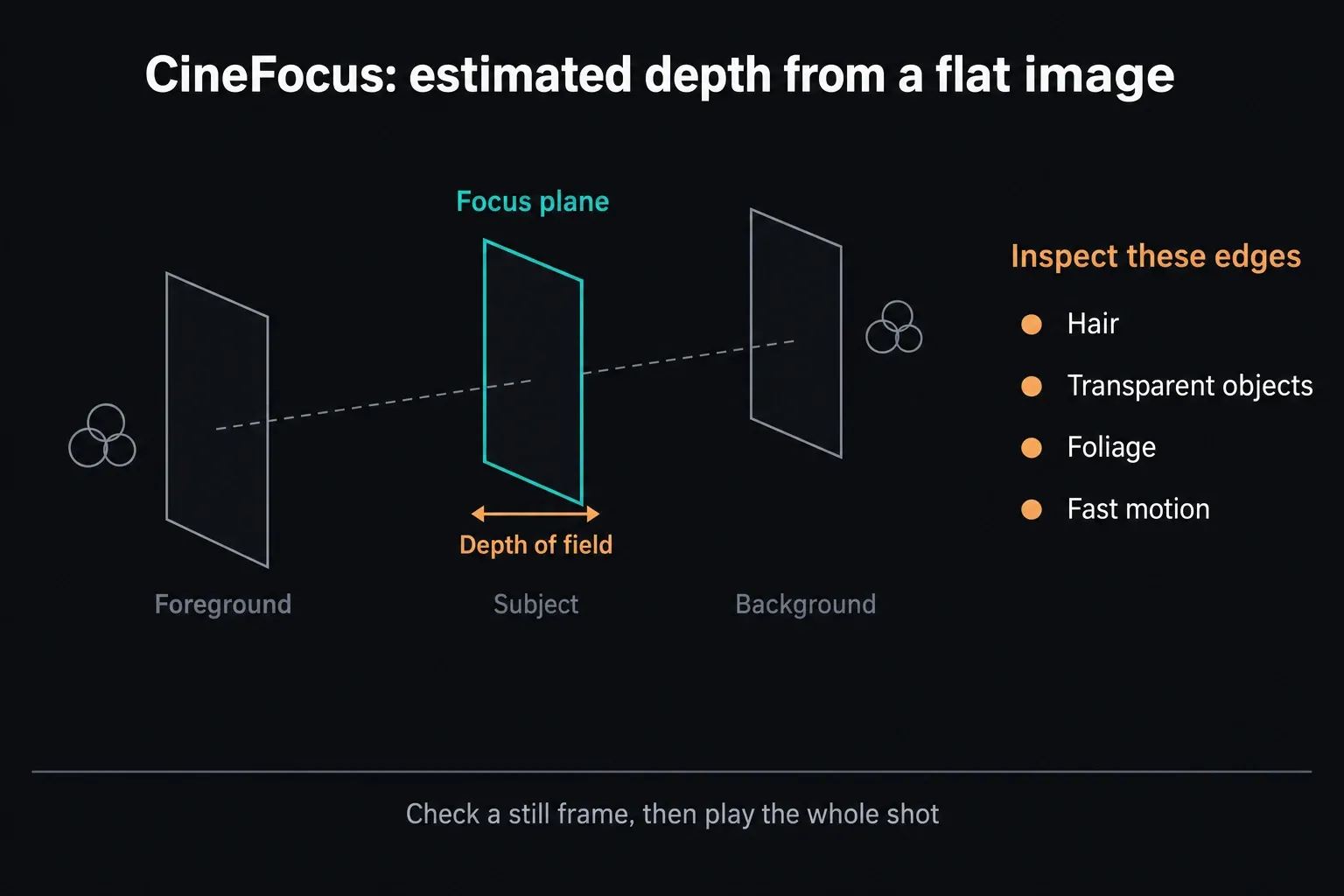
CineFocus is a Studio Resolve FX that builds a virtual lens treatment from a flat 2D image. Add it to a node on the Color page, let it work out the depth representation, choose a focus region, then set depth of field, aperture and bokeh. Keyframe the focus value for an artificial rack focus. Version 21.1 adds More Natural Effect and Higher Precision options. Higher Precision costs performance; More Natural Effect can be dramatically faster or slower depending on the shot and your hardware.
CineFocus can't recover optical depth the camera never recorded. Hair, transparent objects, foliage, overlapping limbs and fast motion are where it slips. Check a still frame for the mask edge, then play the whole shot at delivery resolution and watch for pulsing or shifting blur. Keep the effect on its own node so you can bypass or adjust it without disturbing the base grade.
Face Age Transformer, Face Reshaper and Blemish Removal
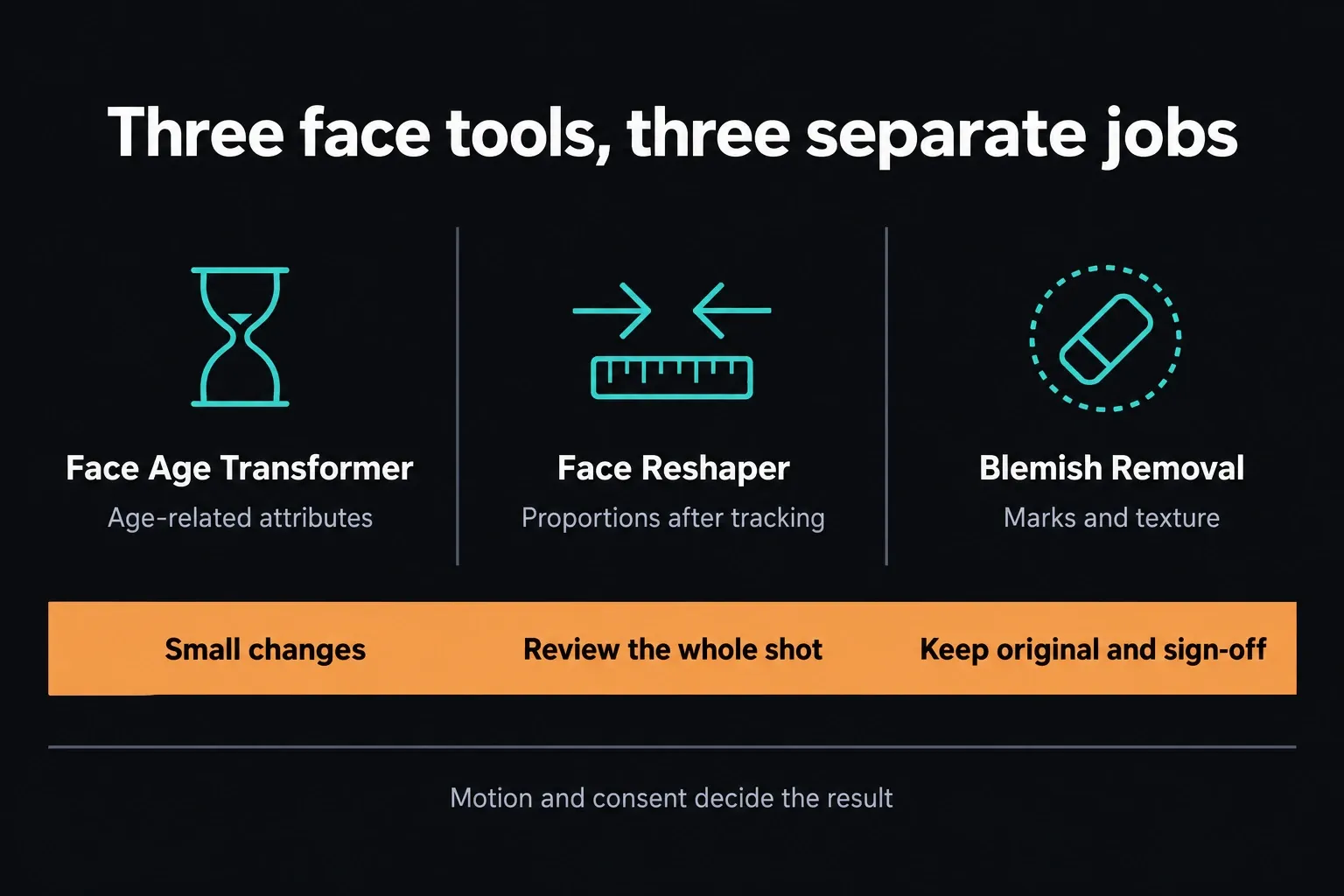
Three tools, three separate jobs, and no single beauty filter among them. Face Age Transformer changes age-related attributes such as wrinkles and skin laxity while following head position. Face Reshaper detects and tracks a face before adjusting proportions such as face, eyes, nose, mouth and eyebrows. Blemish Removal goes after marks and texture problems and leaves the structure of the face alone.
Make small changes and review motion across the whole shot, because a hero frame can't show every tracking or continuity problem. The manual itself warns that Face Reshaper works best with subtle adjustments, since viewers are very sensitive to facial proportions. Fix a lost track by hand, compare against the original, and check skin texture, eye and mouth movement, occlusions and continuity from shot to shot.
Approval and consent matter here as well. A technically clean alteration can still misrepresent someone or break a production agreement. Keep the original clip, the effect settings, the approved result and the sign-off together.
Slate ID, UltraSharpen and Motion DeBlur
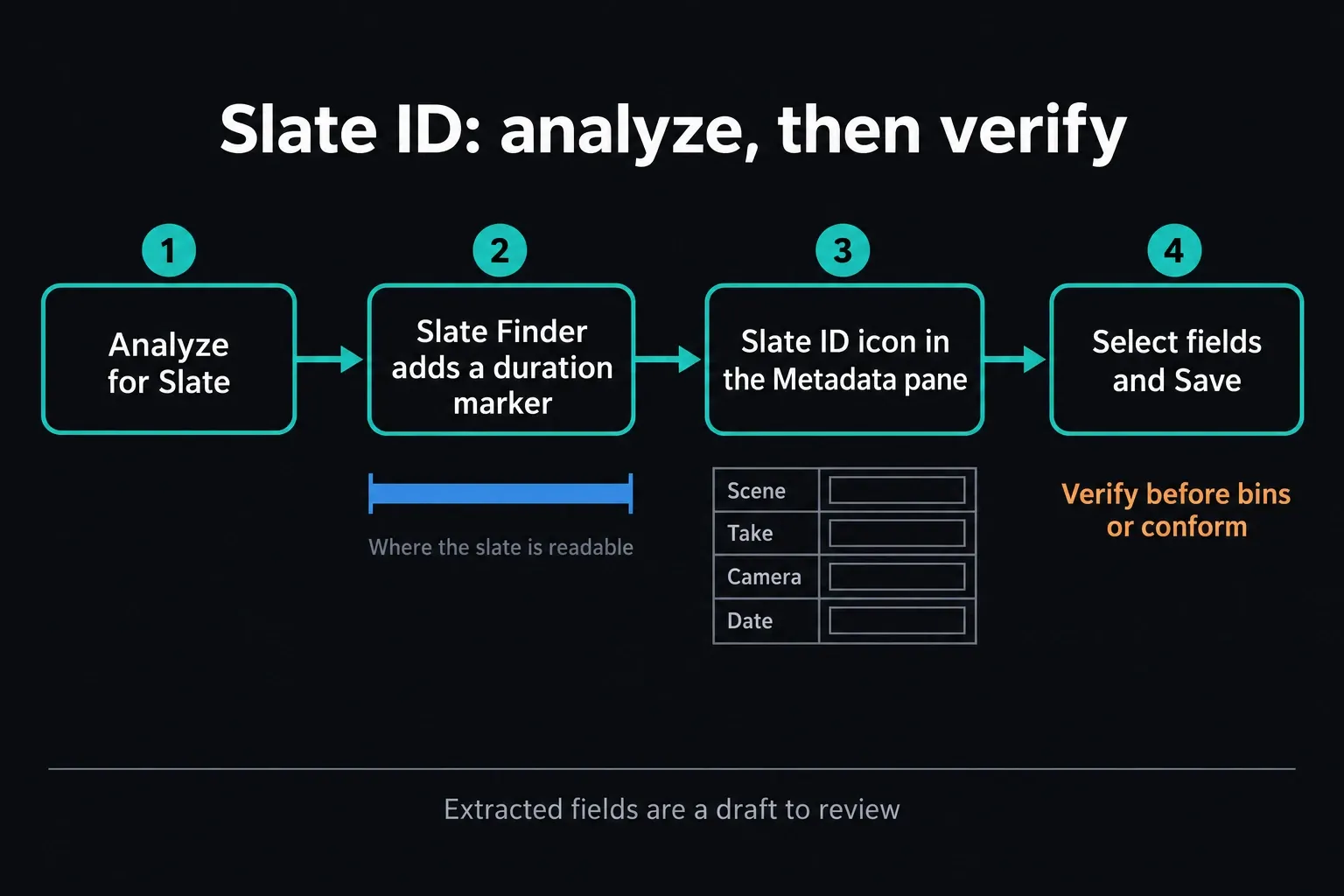
Download the Slate ID model through Extras Download Manager. In the Media Pool, select clips and right-click AI Tools > Analyze for Slate, or turn on Analyze for Slate in AI Clip Analysis with the selected-clips scope. Slate Finder only adds a duration marker where the slate is in frame and readable; the metadata still needs you. Click the Slate ID icon in the Metadata pane, review the extracted fields, select the ones to keep and click Save. Check scene, take, camera and date values before you build bins or make conform decisions from them. The Slate Finder and Slate ID guide walks through both stages.
UltraSharpen is a selective sharpening Resolve FX with one control, Sharpen Amount. It can rescue a slightly soft shot or lift low-resolution detail, but pushing the amount higher won't always help. Check hair, text, high-contrast edges, noise and skin at the actual delivery size for halos or texture that looks invented.
Motion DeBlur is a separate process. Install its model, select the source clips in the Media Pool and right-click AI Tools > Remove Motion Blur. Set the file name, codec and mode, then click Render; Resolve keeps the originals. The manual warns it can take up to 60 seconds to analyze each second of footage, so start with a short clip. Compare the result with the source for doubled edges, texture changes and motion artifacts, and accept that severe blur or very fast motion may be past saving.
AI Tools on the Resolve 21 Photo Page
On the Photo page you can use Resolve’s Studio AI and Resolve FX tools on stills, but you don't get a separate free AI tier there. IntelliSearch stays Studio-only, and so do Magic Mask, CineFocus, Depth Map, Blemish Removal and UltraSharpen. The core Photo workflow for imports, albums, culling, RAW adjustments and Color-page nodes remains available in Free, within Free’s documented output limits.
For importing stills, moving albums into Color, Lightroom migration limits and Studio-only tethering, use the Resolve 21 Photo page walkthrough.
Hardware and Performance: Test the Exact Workload
No single performance prediction covers all nine tools. Resolution, codec, clip length, node complexity, operating system, GPU memory and background work all play a part. Also check which media the tools actually analyze. In 21.1, with Always use full resolution media for AI Tools turned off, AI tools follow your camera-original or proxy preference and fall back to whatever media is available when the preferred files are offline. A proxy-based result doesn't replace reviewing the final-resolution output.
Test on representative media before you buy hardware: one long interview bin for IntelliSearch, one difficult moving edge for CineFocus, one tracked close-up for the face tools and one properly blurred shot for Motion DeBlur. Note analysis time, cache or render time, memory pressure, stability, and whether the delivered image actually passes review.
The Studio 21.1 release notes ask for at least 16 GB of VRAM for advanced AI tools on Windows x86 and Linux, and at least 16 GB of system memory on Apple Silicon Macs. Windows ARM and background rendering have their own requirements. Those figures are published minimums. They don't promise smooth playback, and they don't mean every smaller GPU will crash. Check your platform in the Resolve 21 system requirements guide before buying hardware.
When Studio Is Worth Buying for AI
- Buy for IntelliSearch when logging large documentary, archive or interview libraries is a repeated cost.
- Buy for Speech Generator when permitted in-app narration replaces a real round trip and the consent workflow is defined.
- Buy for CineFocus or face tools only after a difficult representative shot passes motion and artifact review.
- Buy for Slate ID when slate metadata is common enough that verified automated extraction materially shortens ingest.
- Don't buy for a hypothetical future use, a single marketing demo or a tool your current hardware cannot run reliably.
AI is only one part of Resolve 21. The DaVinci Resolve tutorial hub maps the wider learning path, and for the Photo page, Edit, Color, Fusion and Fairlight changes plus a safe upgrade sequence, see what’s new in DaVinci Resolve 21.
DaVinci Resolve 21 AI Tools FAQ
Are the new DaVinci Resolve 21 AI tools free?
No. The Resolve 21.1 Reference Manual marks all nine tools covered here as Studio-only: IntelliSearch, Speech Generator, CineFocus, Face Age Transformer, Face Reshaper, Blemish Removal, Slate ID, UltraSharpen and Motion DeBlur.
Is IntelliSearch free in DaVinci Resolve 21?
No. IntelliSearch needs Studio. Visual search needs a Faster or Better model plus clip analysis, and transcript search needs transcribed audio. Metadata Search reads existing fields such as filenames and timecode, so it doesn't depend on visual analysis.
Does CineFocus need camera depth data?
No. CineFocus builds a synthetic depth treatment from a 2D image. That keeps it camera-independent, but the estimated depth can be wrong, so inspect edges, occlusions and motion.
Does Speech Generator require a WAV voice sample?
Use a clean WAV file to be safe: published hands-on tests found WAV-only import restrictions. The 21.1 manual asks for about 20 seconds of high-fidelity audio, and the fact that it names no format doesn't mean MP3 or AIFF will work. Get permission before you use a real person’s voice.
What is the difference between UltraSharpen and Motion DeBlur?
UltraSharpen sharpens detail selectively through one Resolve FX amount control. Motion DeBlur targets motion-blur softness and renders a new media clip, leaving the original in place. Test each one on the problem it was built for.
Can Resolve 21 AI tools run on the Photo page?
Compatible Studio AI and Resolve FX tools work on stills, but they're still Studio-only. The core Photo workflow for imports, albums, RAW adjustments and node grading remains available in Resolve Free within Free’s documented output limits.
How do I install Resolve 21 AI models?
Open DaVinci Resolve > Extras Download Manager and install the model the tool needs. IntelliSearch has separate Faster and Better packages; Speech Generator, Slate ID and Motion DeBlur each need their own documented model download.
Is Resolve Studio worth $295 for AI tools?
It can be, when one named Studio AI tool removes a repeated paid or manual step and passes a test on representative media. A list of nine tools, or a demo that looks convincing on one frame, isn't enough reason on its own.
