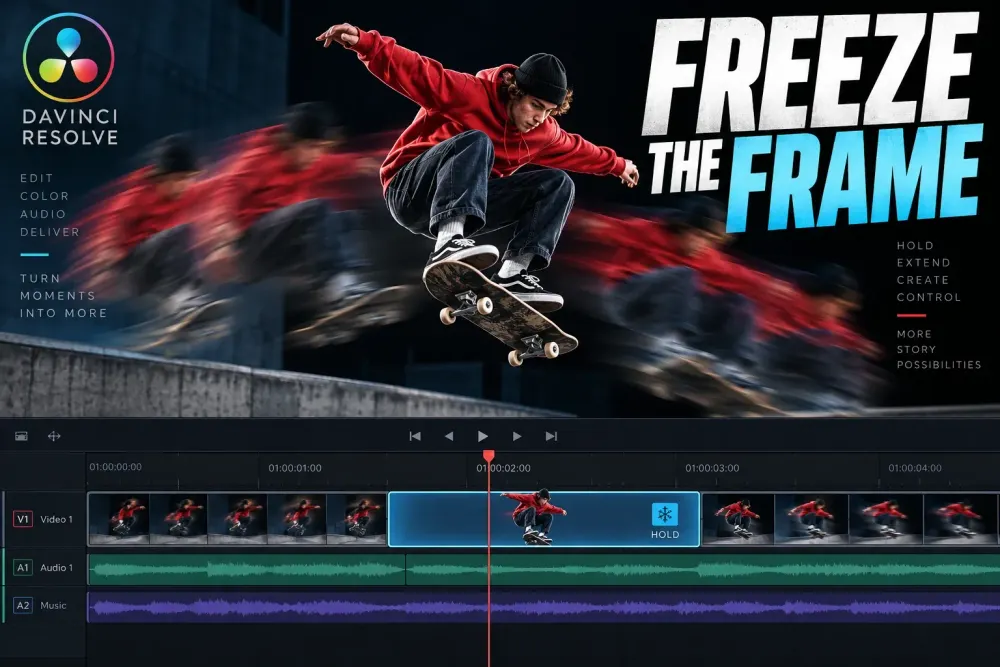
If you need a shot to stop on one precise moment and then continue, use a freeze frame rather than slowing the whole clip. DaVinci Resolve can hold a chosen frame inside a longer edit, keep the pause visible for a set duration, and resume normal motion afterward. The best method depends on whether you want a pause inside a clip, a completely frozen segment, or a reusable still image. This is a practical stop on the DaVinci Resolve tutorial hub.
For most timeline edits, start with Retime Controls. They let you choose the frame at the playhead and insert a freeze section without turning the rest of the shot into a still. Use Change Clip Speed when you have already isolated the exact segment that should be frozen. If the frame is going to be used in a thumbnail, title card, or separate design, export a still instead of extending the timeline.
Choose the freeze-frame method first
There are three useful decisions to make before opening a menu:
- Pause, then continue: use Retime Controls on a longer clip.
- Freeze an isolated section: split or trim the segment, then use Change Clip Speed.
- Save one frame as an image: use the Color page Gallery or a still export workflow.
That distinction prevents the most common mistake: freezing the entire clip when the edit only needs a short hold. The Edit page is built for arranging clips, trimming, retiming, and keeping picture and sound aligned, so the timeline method should be chosen around the final edit rather than the menu name alone. Blackmagic Design describes the Edit page as the environment for this kind of timeline work in its official product overview: DaVinci Resolve Edit page.
Freeze a frame inside a longer clip
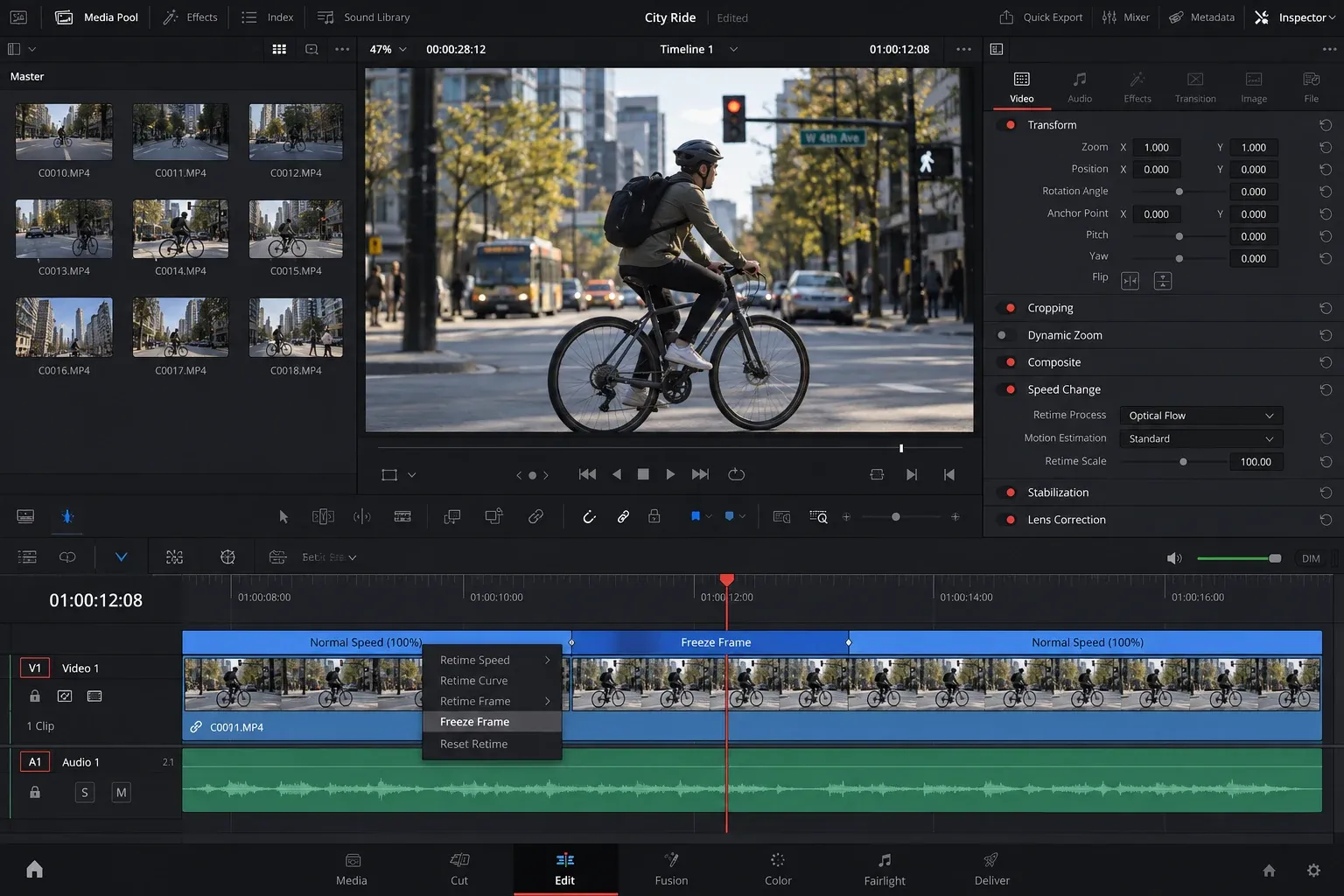
This is the cleanest route when the shot should move, pause on a chosen image, and then keep moving.
- Place the playhead on the frame you want to hold.
- Select the clip in the Edit timeline.
- Open the clip’s retime controls from the timeline context menu.
- Use the retime dropdown at the playhead and choose Freeze Frame.
- Extend or shorten the new freeze section until the pause has the right rhythm.
The important detail is the playhead position. Resolve uses the frame under the playhead as the visual source for the hold, so scrub through a few nearby frames before applying the command. A frame with a blink, half-closed mouth, awkward hand position, or motion blur can look acceptable while moving and distracting when displayed for a full second.
After the freeze section appears, treat it as a timing element. The moving material before it should end on the chosen frame, the freeze should repeat that frame, and the material after it should resume from the next part of the source. If the pause feels too abrupt, add a little lead-in or trim the hold rather than changing the entire clip speed. The broader DaVinci Resolve clip-speed guide is useful when the actual goal is a slower or faster continuous shot.
Control the pause by isolating a segment
Sometimes the exact section is easier to reason about as its own clip. Split around the moment, select the isolated segment, and open Change Clip Speed. The dialog can apply a Freeze Frame treatment to the selected clip or segment. This approach is helpful when you want a visible boundary before and after the hold or when the clip already has separate timing decisions on either side.
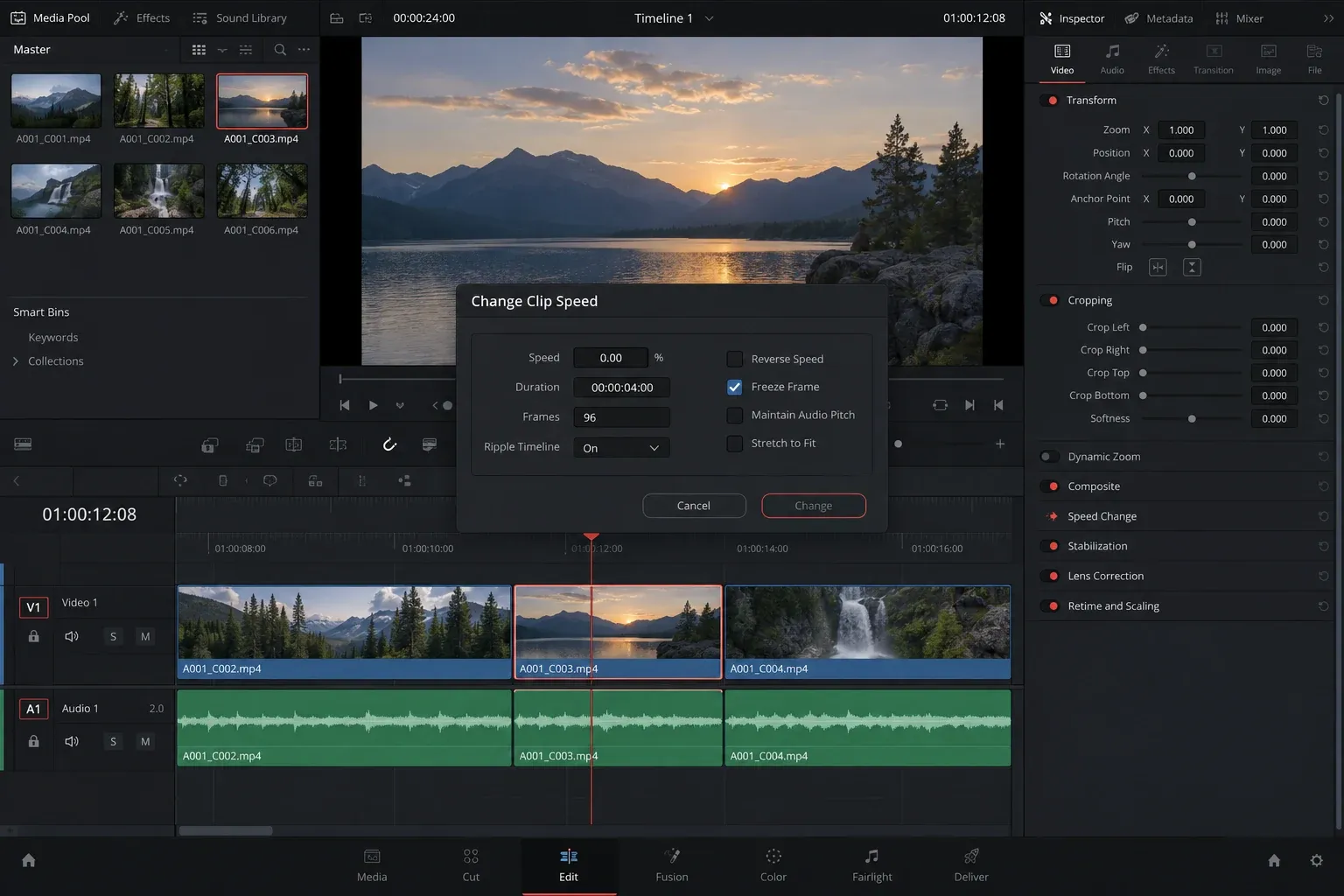
Before confirming the dialog, check the selected range in the timeline. If you selected the whole source clip, the whole clip may become frozen. If you selected only the intended segment, the surrounding clips keep their original motion. This is why a short split is often safer than trying to guess how a command will interpret a long, linked selection.
Use this method when the freeze is an editorial block with a clear beginning and end. It also makes it easier to replace the held section later. If the frame itself should be copied as a new clip for a different purpose, the workflow is closer to a duplicate-clip decision than a timing hold, so keep the two jobs separate.
Freeze the first or last frame deliberately
A freeze at the end of a shot often works as a clean landing point. Move to the last useful frame, create the hold, and trim the duration against the next edit. A freeze at the beginning can work as a title lead-in, but it is usually better to choose the first frame intentionally rather than relying on an accidental pause created by a cut.
If the first or last frame contains a fade, camera movement, or a transition artifact, move a few frames inward and choose a cleaner image. The hold magnifies defects that disappear during motion. This is also where frame rate matters: a frame from a conversion or mixed-rate timeline can look sharper or softer than its neighbors. If timing feels inconsistent across clips, review the site's guide to DaVinci Resolve frame rate choices before changing the freeze itself. For a cleaner entry or exit from the held frame, see the transitions guide.
Keep audio and subtitles intentional
A visual hold does not automatically create a matching pause in the soundtrack. Decide what the viewer should hear while the picture is frozen:
- Continue room tone or music if the pause is part of the same scene.
- Trim or split dialogue if the speaker should stop with the picture.
- Use a short audio tail or transition when the hold marks a deliberate beat.
- Check subtitles and captions because their timing may still advance while the image holds.
Linked audio can make the timeline look as if it is still moving under a frozen picture. That may be correct for a music edit, but it can be wrong for spoken instruction or a reaction shot. Zoom in around the freeze and listen through the boundary. Watch for a duplicated syllable, a clipped breath, a subtitle that ends too early, or a sound effect that fires before the held image resolves.
If you need the audio to pause with the image, make that a separate edit decision. Do not assume that extending the video section also extends the linked waveform in the way you expect. Resolve's tools can preserve the relationship between linked clips, but the intended sound design still needs a review.
Export a still when the timeline is not the destination
A timeline freeze and an exported still solve different problems. The timeline version is a piece of playback. A still is an image asset that can be reused outside the edit.
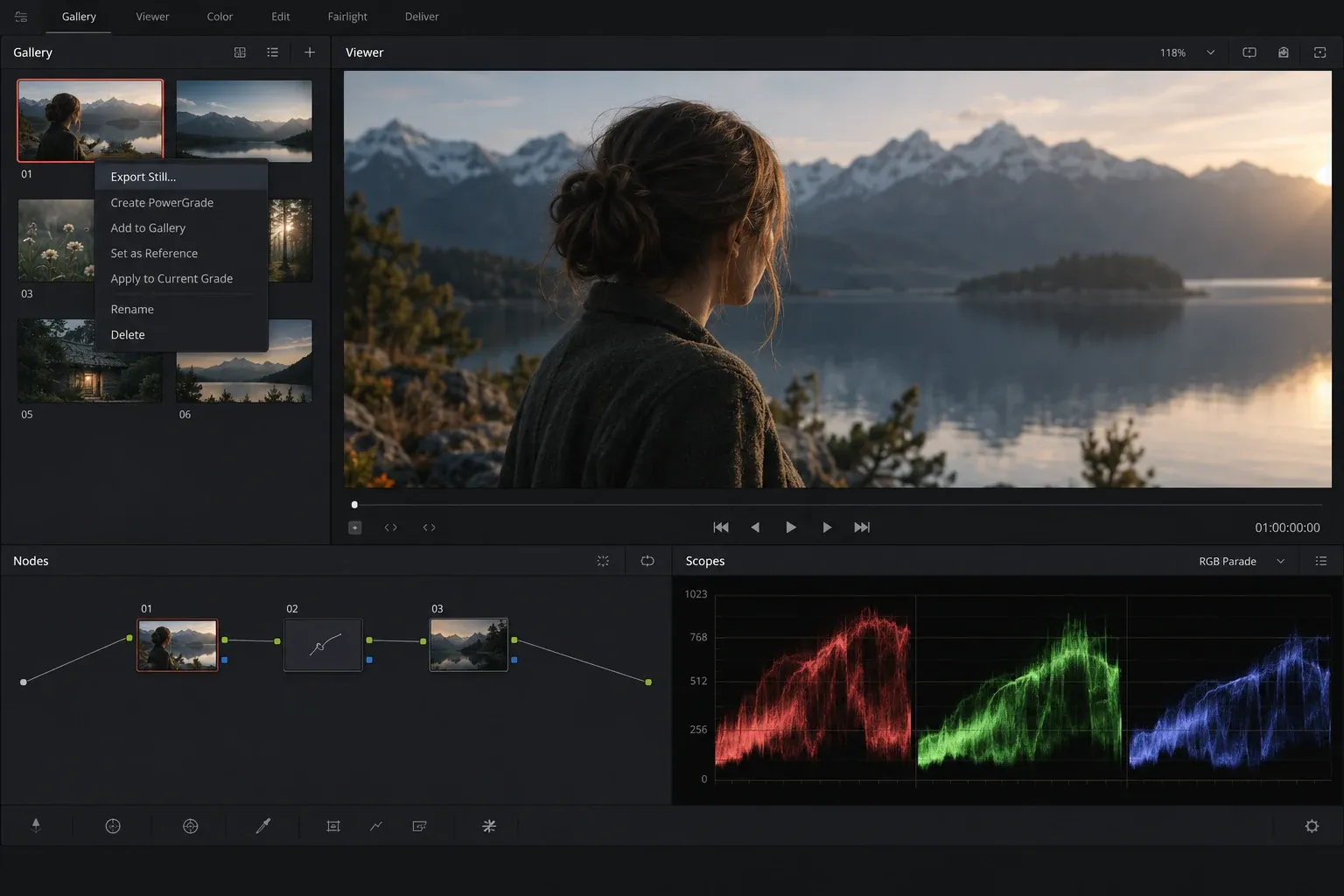
For a still, move to the exact frame, open the Color page, and use the Gallery workflow to save or export the selected image. This keeps the image separate from timeline duration. It is the better choice for a thumbnail, cover, reference image, or graphic that will be edited elsewhere.
Check the frame at the intended output size. A clean frame in the viewer can reveal noise, focus problems, or motion blur when enlarged. If the still is only an editorial reference, a smaller export may be enough. If it is going into a final graphic, keep the source resolution and color-management requirements in mind rather than treating every still as interchangeable.
Troubleshoot a freeze that looks wrong
The whole clip is frozen. Undo and confirm that you isolated the intended segment before using Change Clip Speed. For a pause inside a longer clip, use Retime Controls at the chosen playhead position.
The wrong frame is held. Move the playhead a few frames earlier or later and inspect the viewer at 100 percent if possible. The best-looking frame is often adjacent to the one first chosen.
Motion does not resume cleanly. Trim the end of the freeze section and inspect the first moving frame after it. A hold that ends on an awkward source boundary can feel like a jump even when the command worked correctly.
Audio drifts or repeats. Review the audio edit separately. The visual hold may be correct while the dialogue, music, or effect needs a split, trim, or short transition.
The pause is inside a compound or nested timeline. Open the level where the actual source clip is being edited. A freeze applied to the parent timeline can change the timing of the composed result without changing the underlying shot in the way you intended.
Retime Controls are not visible. Select the clip and check the timeline context menu again. If the interface is still crowded, zoom out horizontally until the retime strip and playhead position are easy to read. Menu wording and shortcuts can vary between Resolve releases, so use the visible command path for the installed version.
Run a final freeze-frame check
Before exporting, play across the edit at least once without stopping on the freeze. Confirm that the chosen frame is held for the intended duration, that motion resumes at the right point, and that the audio supports the pause. Then render a short proof of the affected section and inspect the rendered picture and sound, especially if the freeze crosses a cut, subtitle, transition, or linked audio boundary.
For the final delivery settings, use the site's DaVinci Resolve export guide. The freeze itself is only one timing decision inside the finished timeline. The export check is where you catch a frame that looks correct in the viewer but changes at the actual delivery resolution or after the audio is rendered.
Once the pause works, leave the retime section easy to identify for future edits. A clearly named marker or a visible freeze boundary saves time when the sequence is revised. The method is simple: choose the exact frame, freeze only the material that should hold, decide what the audio should do, and verify the rendered result before treating the pause as finished.
