
DaVinci Resolve Studio has a built-in Beat Detector: right-click a music clip in the timeline, run Detect Music Beats, then snap picture edits to the beat indicators on the audio. If you're using the free edition, you can still edit to the beat with manually placed markers. You don't need a plugin for that route.
The useful distinction is what happens next. Detection gives you timing guides; it doesn't choose shots or assemble a music video. I recommend finding the musical accents that deserve a cut, then using those guides to place the cut precisely. A sequence that changes shot on every beat can lose its shape surprisingly quickly.
Choose the native detector or the free marker route
The Beat Detector section in Blackmagic's reference manual identifies the feature as Studio only and describes it on both the Cut and Edit pages. The walkthrough below uses Edit. For the free edition, jump to the manual marker steps; hunting through Inspector won't reveal the Studio detector.
There are three different jobs here:
- Find musical timing: use Studio's beat-indicator overlays, or mark accents yourself in either edition.
- Place picture cuts: move or trim the relevant video edge to the chosen timing guide. Review the shot's action as well as the music.
- Change the music's duration: Studio's Music Editor is a separate feature in the audio Inspector. It shortens or extends music to a requested duration; it isn't the command for building picture cuts.
Detect music beats in DaVinci Resolve Studio
Start with the music section you intend to use. Changing the song's position or source section later means checking your picture timing again, so it pays to settle the broad arrangement first.
- Open the Edit page and locate the music audio clip in the timeline. Work on that clip, rather than a video clip or an empty area of a track.
- Right-click the music clip and choose Detect Music Beats. That's the wording in the current 21.1 reference manual. Some tutorials, including JayAreTV's beat-detector walkthrough, call the command Show Music Beats. If your version uses that label, you're looking for the audio clip's beat-display command.
- Let the analysis finish, then inspect the audio clip. The documented result is a set of beat-indicator overlays across the clip. These lines give you positions to snap other timeline elements to.
- Listen through a useful phrase before editing to the lines. Pick an obvious accent, such as a chorus entry or a strong drum hit, and check whether its indicator matches what you hear.
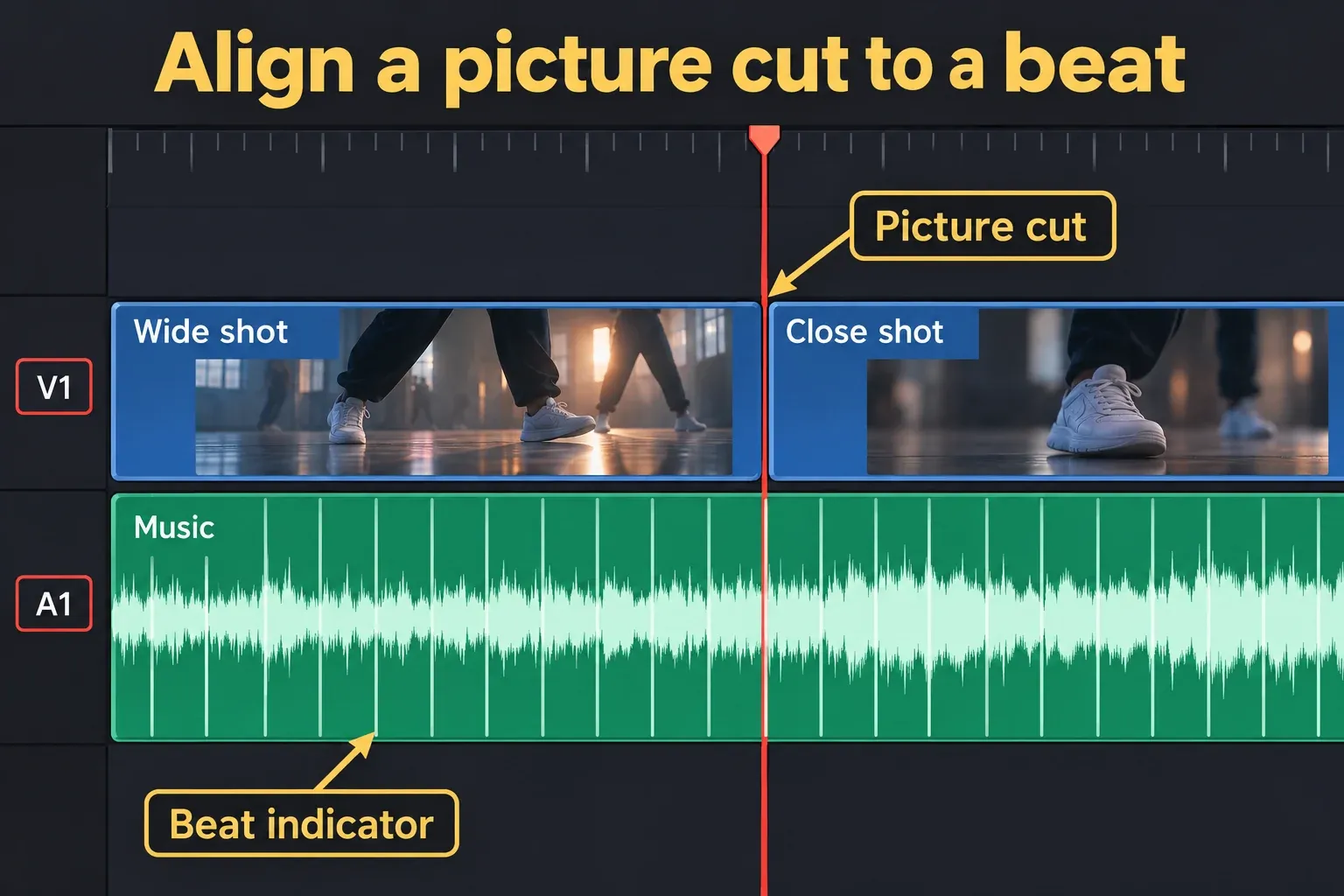
Blackmagic limits effective detection to beat-driven music in 4/4 or 3/4. A loose performance, an ambient passage or a complicated rhythm can call for manual judgment. A tall waveform peak is only a clue: it might be a vocal consonant or a sound that doesn't deserve a picture change.
Snap a picture cut to a chosen beat
Turn on the timeline's Snapping button, or press N in the default keyboard mapping. Zoom in around the intended beat, then drag or trim the relevant picture edge toward its indicator. Blackmagic documents both the snapping toggle and its temporary behavior during a drag: pressing N mid-drag temporarily changes snapping until you finish the operation.
If your shortcuts use a different preset, use the toolbar button or check your keyboard shortcut mapping. Keep the timeline focused when using keyboard commands.
For a new cut within an existing shot, place the playhead at the chosen guide and use your normal split command with the intended video clip selected. The clip-splitting guide covers selection and linked audio in detail. Avoid cutting the music just because the picture needs a new edit.
Then play from before the cut. Listen for the accent and watch the incoming movement. An edit can line up with a guide yet feel weak because the new shot's meaningful action happens later. Choose a better source moment or hold the existing shot longer; the beat line doesn't make that creative decision for you.
If you add a dissolve, check the timing again after changing its alignment. Our transition alignment guide explains why moving a transition around an edit changes which frames the audience sees.
Edit to the beat in the free version with manual markers
For a short montage, I'd start by marking the big accents. You get a manageable set of deliberate cut targets and can leave quieter passages room to breathe. This also gives Studio users a fallback when detection doesn't follow the rhythm they want.
- Select only the music audio clip in the Edit timeline. Clear other clip selections first, and make sure the playhead is over the music.
- Play the section and press M at the accents you want to use. With the music clip selected, those are clip markers. Blackmagic notes that multiple overlapping selected clips can all receive a marker, which is why the selection check matters.
- Stop, zoom in and correct the rough taps. Listen around each candidate and inspect the waveform. Drag an ordinary marker to a better frame, or edit its Time field. Your first tap is a starting point, not a precision measurement.
- Name the important moments. Double-click a marker to open its properties. Names such as “Chorus entry” or “Final accent” make a useful edit plan; numbering every drum hit often doesn't.
- Enable snapping and place the picture edges at the markers you've kept. Review the resulting phrase in playback, then remove or adjust unnecessary cuts.
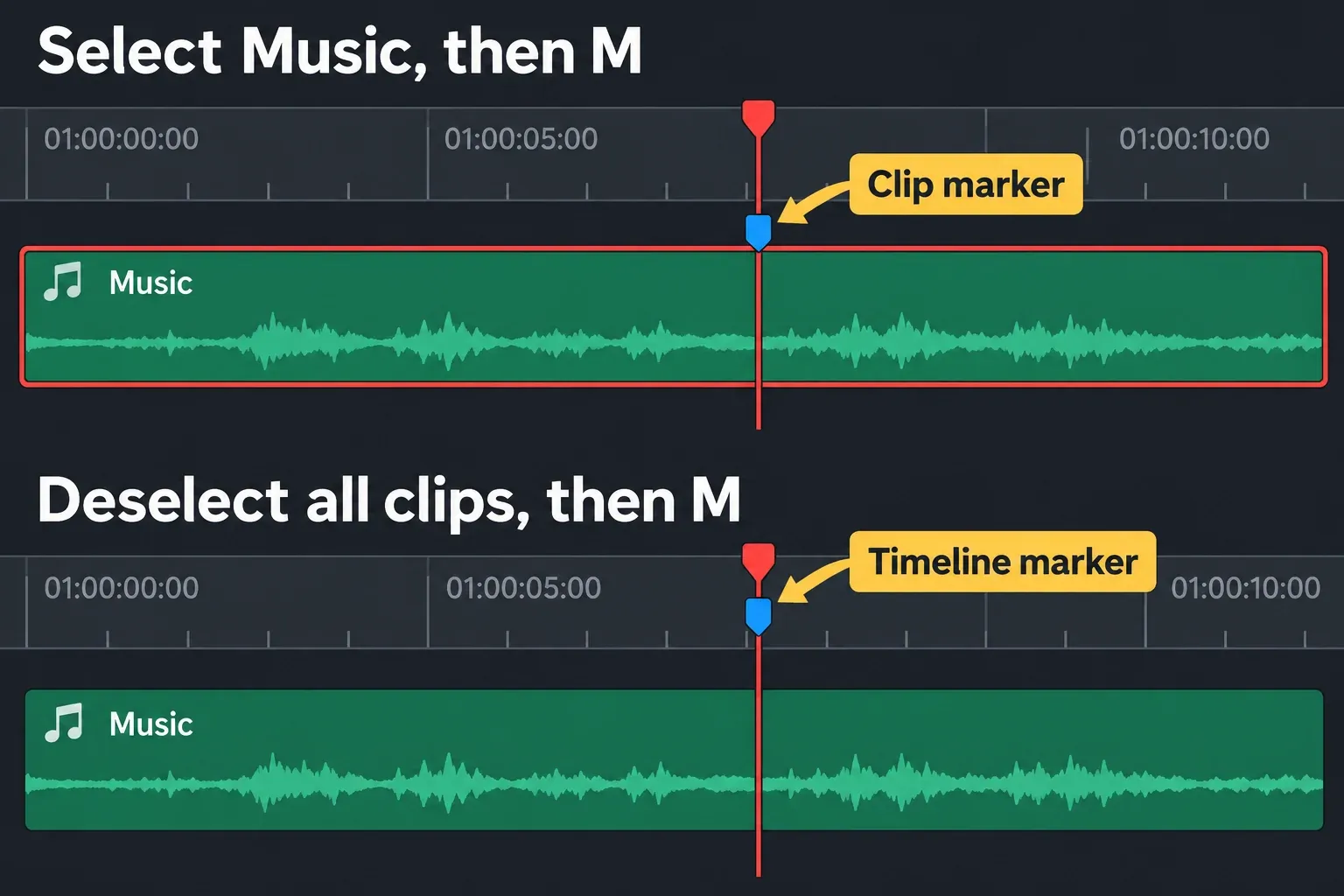
If you deliberately want a marker at a sequence time, deselect all clips before pressing M. Blackmagic's clip and timeline marker procedures describe both cases. Use clip markers when your notes belong to that piece of music; use ruler markers when the notes belong to positions in the edit.
The distinction becomes important when you move clips. A timeline marker isn't attached to the song underneath it. Timeline > Ripple Timeline Markers controls how ruler markers respond to ripple operations; it doesn't turn them into music-clip markers. For a fuller explanation, see what moves with clip markers, timeline markers and flags.
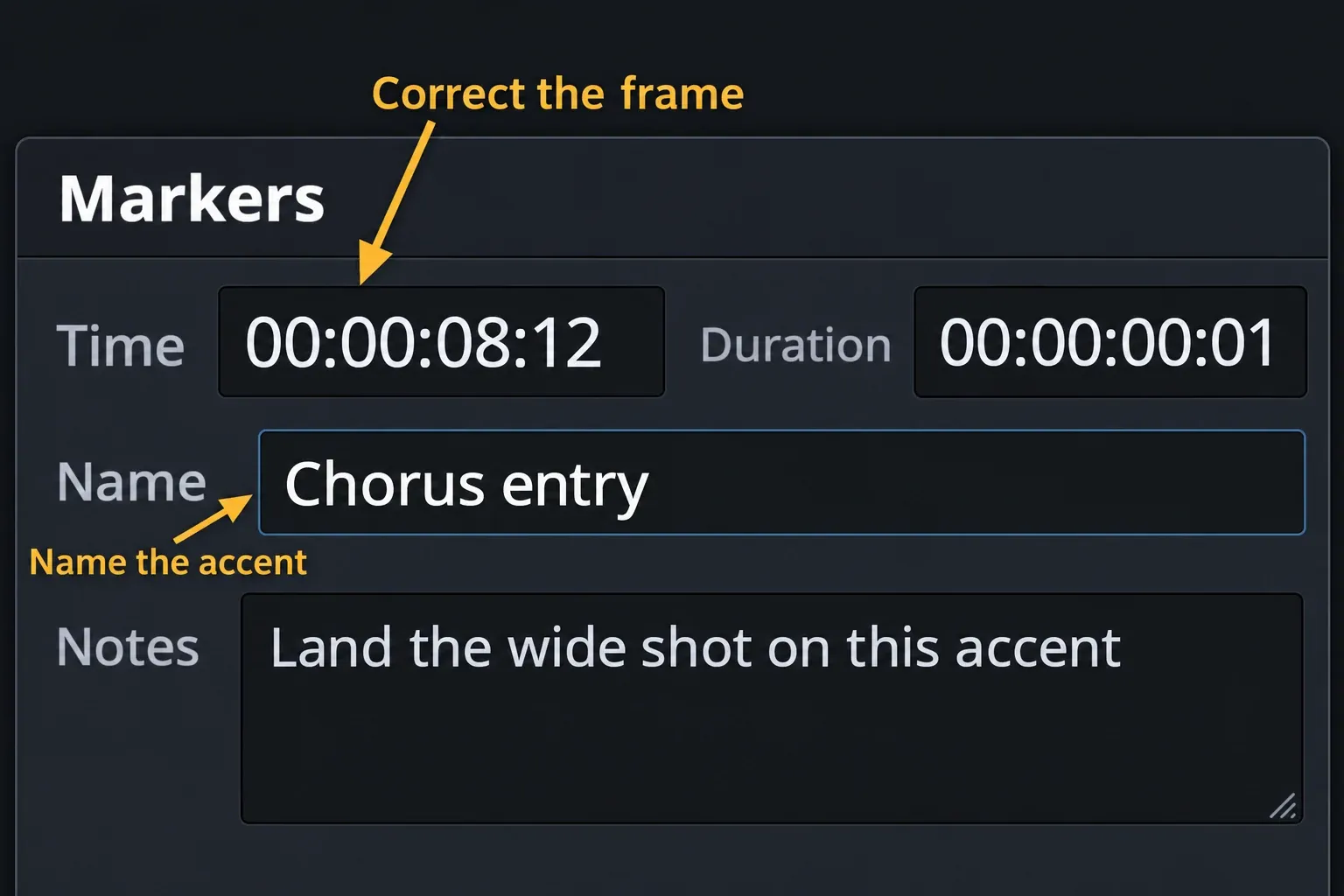
The marker property controls include Time, Duration, Name, Notes and Color. They aren't beat-detector sensitivity or BPM settings. Keep that distinction in mind when following a tutorial for a third-party beat-marking app.
When beat detection or snapping doesn't behave as expected
The beat command is missing
Check the edition first, then right-click a timeline audio clip on Edit. The current manual marks this feature Studio only. Don't start with a reinstall: in one resolved Blackmagic forum discussion, the editor discovered they'd installed the free edition during an update. That explains that case. It doesn't establish a Windows-specific detector bug.
If you're on Free, use the marker workflow above. If you have Studio and still can't locate the command, compare your installed version's manual and the menu label before assuming that a different tool is required.
The detected rhythm isn't the one you want to cut to
Listen for the musical phrase; an overlay on its own doesn't tell you to cut. Try manual markers for the accents you can clearly identify. For example, you might cut on a chorus entry, hold through a sustained movement and use the next strong accent for a close-up. That's an editing choice. The detector doesn't promise to identify musical importance.
The edit snaps somewhere nearby
Zoom in and identify the target. Clip edges, the playhead and ordinary markers are also snapping candidates. Confirm that snapping is on after the drag, especially if you pressed N during it. Move the picture edge again while watching the intended beat line, then listen across the cut.
The beat falls between video frames
A picture cut is constrained to video-frame boundaries. Blackmagic's subframe audio editing instructions distinguish audio In/Out adjustments from whole-frame video edits. Moving an audio edge more finely doesn't create an extra frame at which to cut the picture.
Choose the neighboring frame that feels right in playback. I wouldn't shift an otherwise finished soundtrack just to make one picture edge look perfectly aligned at maximum zoom; that can disturb timing elsewhere.
The timing changed after moving or replacing the music
Recheck the chosen accents against the music that's now playing. Don't assume that earlier guides still describe a slipped, replaced or rearranged section. Run detection on the current clip if needed, or revise the manual markers, then replay the affected picture edits.
Before calling the montage finished, listen through the whole sequence with the cuts in place. Leave a shot alone when its action carries the phrase, and save the strongest changes for moments that earn them. The guides help you hit a frame; you still decide why that frame deserves an edit.
