
In DaVinci Resolve, a flag labels the whole source clip, including its other uses in the project. A marker identifies a frame or range on a source clip, a timeline clip or the timeline ruler. Use a flag for “this take needs attention,” a clip marker for “fix this moment in this shot,” and a timeline marker for “review this point in the sequence.”
The distinction matters when you rearrange the edit. A marker attached to a timeline clip goes with that clip, while a ruler marker belongs to sequence time. Timeline markers can also shift during ripple edits when Ripple Timeline Markers is enabled, but they aren’t automatically attached to whichever shot happens to sit underneath.
Choose the mark by what the note belongs to
- The source footage as a whole: use a flag. A yellow flag on an interview source also appears on its other timeline uses. Moving one use does not turn the flag into a note about that cut alone.
- A moment in one edited shot: select that timeline clip and add a marker. This is the useful place for a note about a pause, a distracting frame or a correction in that instance.
- A point in the assembled program: deselect the clips and add a timeline marker. It sits on the ruler, useful for a section boundary, music cue or review note tied to sequence timing.
- A passage in footage you are still logging: add a source marker in the Source Viewer. Give it a duration if the useful material is a range rather than one frame.
Blackmagic’s current flag and marker documentation distinguishes source-wide flags from frame-specific markers. The official Colorist Guide’s filtering example also explains why a flag appears across the uses of a source, while a marker added to a timeline instance stays specific to that instance.
Clip color is a separate option. Blackmagic’s clip-color description makes it instance-specific: tinting one timeline clip doesn’t color every other use of the source. I’d use clip color for a visible category in the edit, then add a marker when that category needs a precise instruction.
Add a clip marker or timeline marker with M
On the Edit page, the same M shortcut can put a marker in different places. The timeline selection and the focused viewer decide which one you get.
- For a timeline-clip marker: select the intended clip, move the timeline playhead to the wanted frame inside it, and press M. Select only that clip if the note belongs to one layer; selecting several overlapping clips can mark all of them.
- For a ruler marker: deselect every timeline clip, keep focus on the timeline, move the playhead to the sequence position, and press M. Check that the mark appears on the ruler above the tracks.
- For a source marker: load the clip in the Source Viewer, focus that viewer, move its playhead to the frame, and press M.
- Double-click the resulting marker to open its dialog. Add a short Name and a useful Notes instruction, choose its color, and click Done.
These selection rules come from Blackmagic’s clip and timeline marker procedures. Pressing M a second time at the same marker is another way to open its dialog. With the default preset, Shift-M modifies a selected marker, and Shift-Up and Shift-Down move to the previous and next markers. Custom keyboard presets can change those bindings.
If M does nothing, check focus first. Typing in a name or notes field isn’t the same as working in the viewer or timeline. Then use Mark → Add Marker → Current Color to tell a shortcut problem from a placement problem. Our shortcut troubleshooting guide covers keyboard presets and focus.
Use flags for source-wide categories
Select a clip and use the Flag toolbar button and its color dropdown. With the default Resolve preset, G invokes Mark → Add Flag → Current Selected. You can also flag a loaded source while the Source Viewer has focus.
A clip can carry more than one flag color. Green could mean a preferred take, for example, and yellow could mean it needs a color check. You choose those meanings for your project. They aren’t built in. I’d keep the convention small enough that everyone using the project can remember it.
A flag added to one use of a source also marks the other uses. That’s helpful for categorizing a take, but it’s the wrong scope if only one appearance needs an adjustment. For that, put a marker on the affected timeline instance and describe the correction.
To clear a clip’s flags, select it and choose Clear All in the Flag dropdown. For a list of flagged clips, use Show Flags in the Edit Index’s option menu. If flags seem to have disappeared, check View → Show Flags → All before you assume they’re deleted.
Give a marker a duration and a useful note
A single-frame marker is enough for a cut point or one bad frame. For a pause, dialogue passage or section to review, double-click the marker and set its Duration. A duration marker shows as a bar. Drag its middle to move it, or drag an edge to change its length.
When you’re logging a source passage, you can mark its In and Out points in the Source Viewer, right-click the jog bar and choose Convert In and Out to Duration Marker. Blackmagic’s duration-marker instructions document that route. It lets you keep several named passages from one recording, so the latest In/Out selection isn’t the only thing describing them.
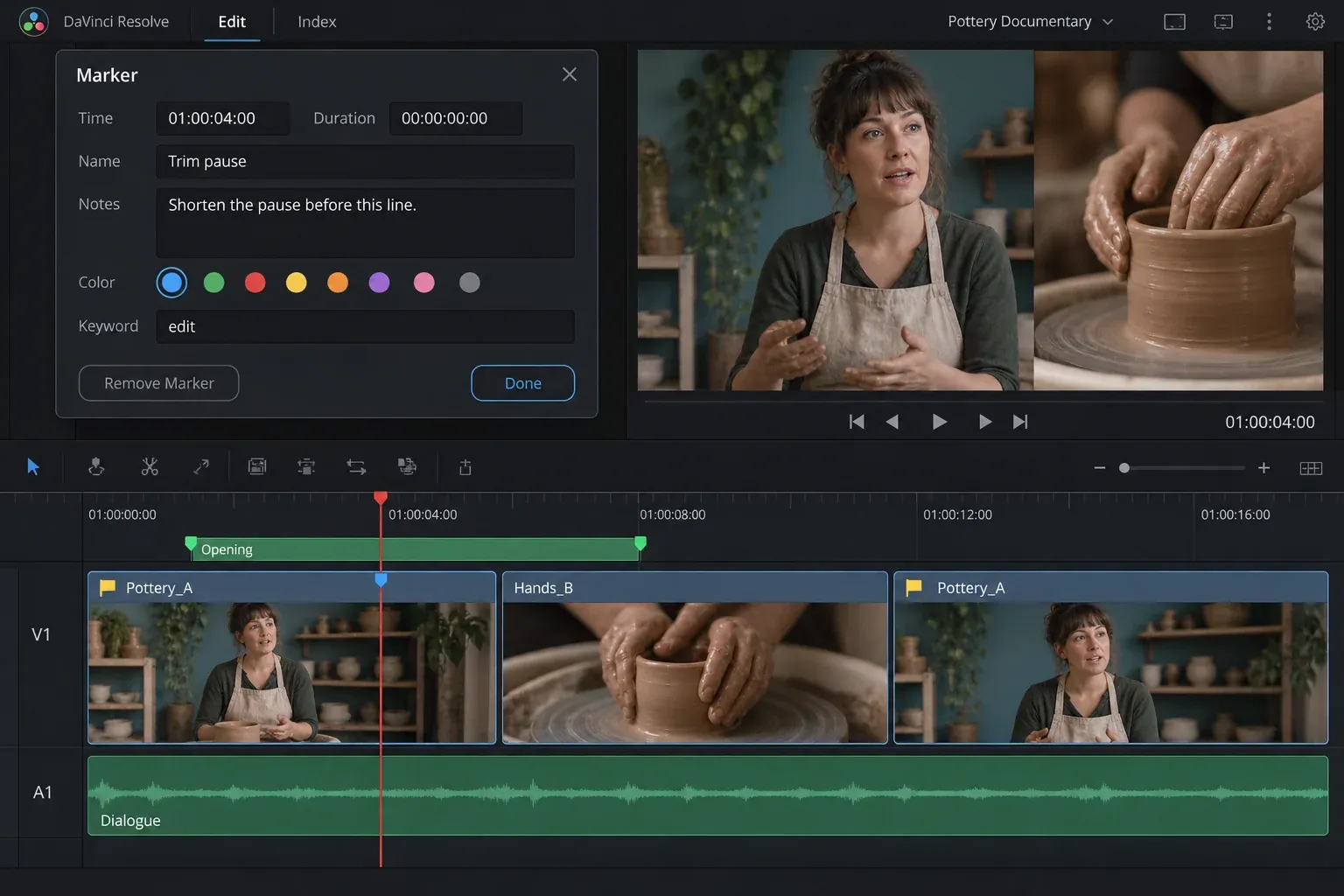
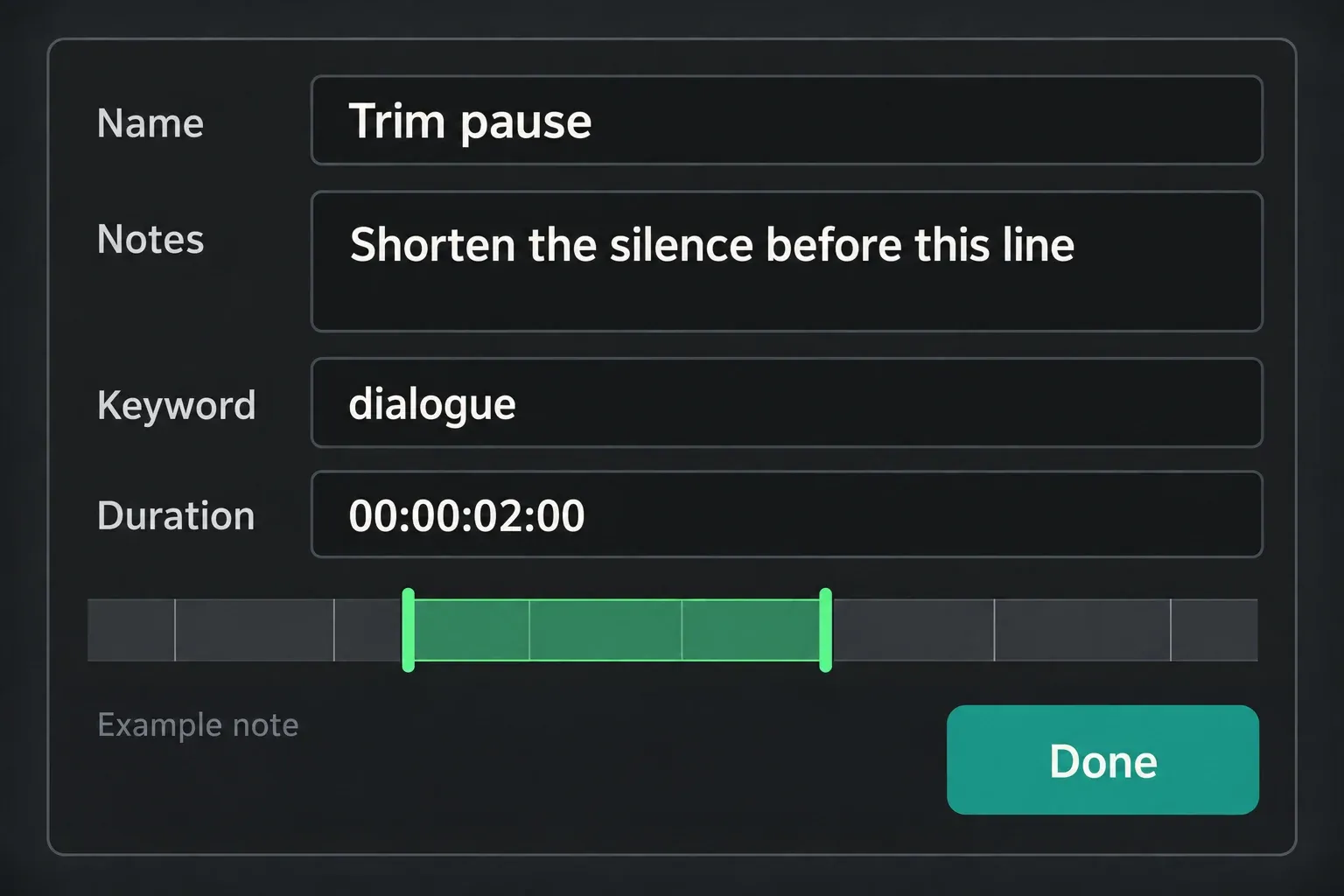
Write the action in the name and the condition in the note. “Trim pause” with “Shorten the silence before this line” gives someone more to work with than “Fix” or an unexplained red badge. For an audio click, say what they should listen for. For a color correction, name the shot or the visible issue.
The marker dialog also includes a Keyword field. Use it for a searchable category such as dialogue, sound or color. The documented marker fields separate name, notes, timing and keywords. Our Smart Bins guide explains the broader job of finding footage through metadata.
What moves when you move, trim or copy the edit?
A timeline-clip marker belongs to that clip’s marked moment. Moving the clip moves the marker’s sequence position with it. If you trim the clip and a marker falls outside the portion you keep, it may no longer be visible in the edited range. Blackmagic's Colorist Guide says a marker on a timeline clip appears only in that single instance, so don't go looking for a trimmed-out note on the Media Pool source.
A timeline marker belongs to sequence time. Moving an individual shot to another track or position doesn’t turn its ruler note into a clip attachment. If the instruction should follow that shot, put it on the clip. The clip movement guide covers moving and reordering footage while preserving the intended duration.
The important exception is Timeline → Ripple Timeline Markers. When it’s enabled, Blackmagic documents that markers to the right of affected ripple edits, trims or ripple deletes move with the later timeline. When it’s disabled, that automatic marker ripple is off. This is a sequence-editing setting. It doesn’t promise that any drag will carry the nearest ruler marker with the shot.
To transfer notes deliberately, you can select multiple markers on the Edit page, copy them and paste them at the destination playhead. The marker copy-and-paste procedure spells out the condition that decides what you get. Pasting with a timeline clip selected creates clip markers, and pasting with no clip selected creates timeline markers. Its documented macOS shortcuts are Command-C and Command-V. Align the destination playhead and check the pasted timing before you rely on the notes.
Find notes in the Marker Index or source list
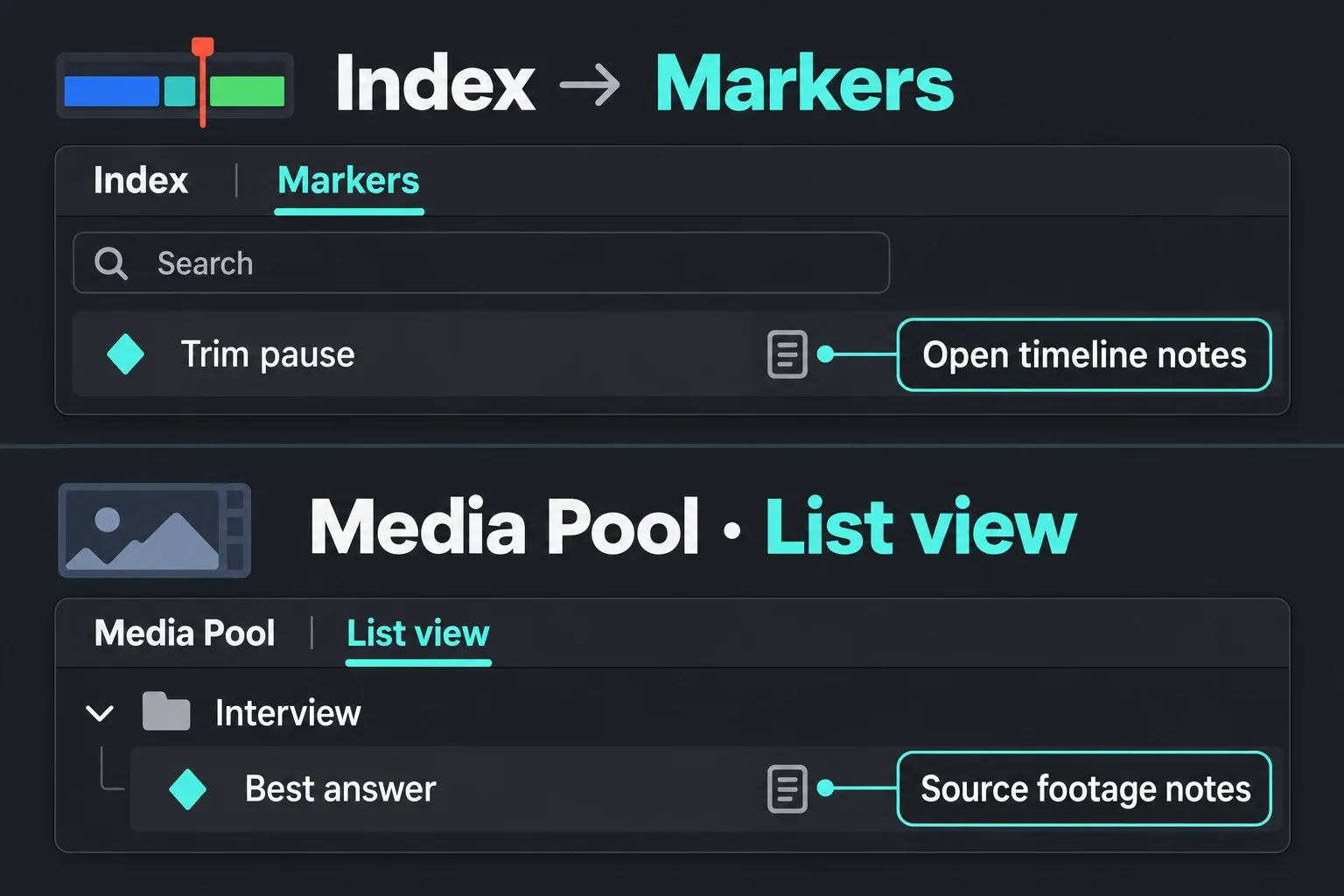
In Resolve 21.1, open Index → Markers to work with the timeline’s clip and ruler markers together. The option menu offers Show All and Show Only by color. Search can match the name, notes and keywords. Double-click an entry to move the playhead to its marker.
You can edit Name, Notes and Keyword in the index, but timing and duration are changed in the marker’s dialog. Blackmagic’s Marker Index documentation describes these limits. Older tutorials may only mention filtering Show Markers in the Edit Index, while the current Markers tab gives notes their own view.
To find markers on source footage, switch the Media Pool to List view and expand the source clip’s disclosure arrow. Its markers appear underneath. Double-click one to load the source at that marked point. Don’t expect the open timeline’s index to show every note on every unused source in the project.
If you prefer notes over the picture while reviewing, enable Show Marker Overlays in the relevant viewer’s option menu, stop playback and move to a marker. When only one department’s notes are useful, hide marks by color through View → Show Markers. Hiding a color doesn’t delete its notes.
For a portable list, the manual documents Export Edit Index to TXT or CSV after you filter the markers. To get timeline markers as an EDL, right-click the timeline in the Media Pool and choose Timelines → Export → Timeline Markers to EDL. These are different marker export routes, so don’t count a ruler-only EDL as a complete inventory of every source and clip note.
Fix a mark that appears in the wrong place
- The flag appeared on several cuts: those cuts share its Media Pool source. Use a timeline-clip marker for a note about just one appearance.
- M marked the clip instead of the ruler: deselect the clips and add the marker with timeline focus. Verify its position above the tracks.
- M marked the ruler instead of the shot: select the intended clip under the playhead. Check overlapping selections before marking.
- A note stayed behind after a shot moved: it was a timeline marker. Attach shot-specific notes to the clip, and check the ripple setting for sequence edits.
- A source note is missing from the timeline’s index: inspect that source in Media Pool List view or the Source Viewer. Check color filters and whether the marked frame is inside the used range.
- The index shows fewer notes than expected: clear its search and color filter. Show All in the index and View → Show Markers are separate controls to check.
I’d decide what owns the note before choosing its color. That one choice keeps source categories, shot corrections and sequence cues from getting mixed together. For the next editing task, use the Resolve tutorial learning path.
