The expensive mistake is treating Slate Finder and Slate ID as one automatic button. In current Resolve Studio 21, Finder adds a duration marker over the frames where it sees a readable board.
Select that analyzed clip, click Slate ID in Metadata, choose which recognized fields to keep, then Save. Blackmagic lays out those as two separate operations in the current Resolve 21 Reference Manual. The software can shorten the logging pass; it can't decide whether a production-specific value is trustworthy.
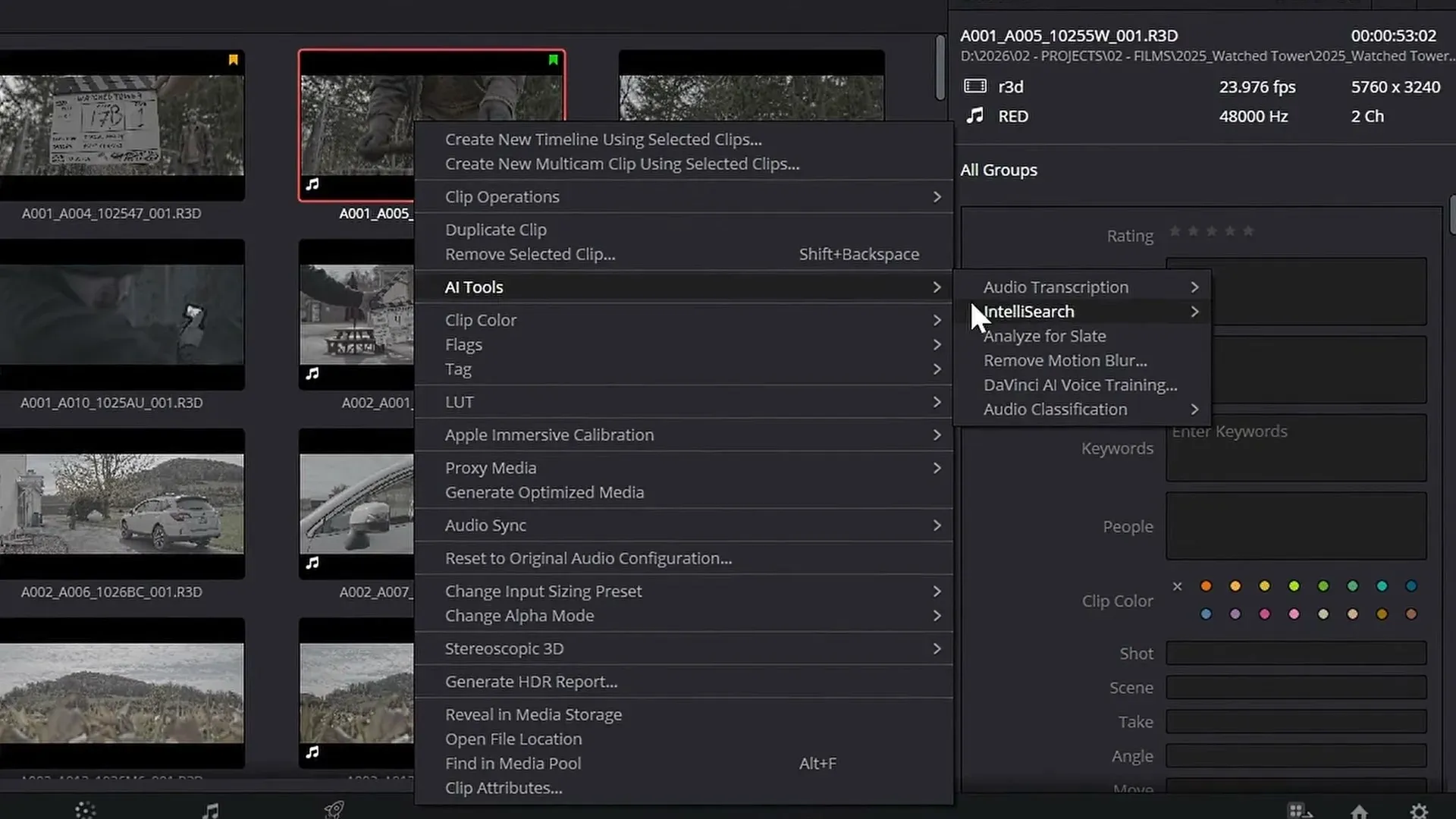
The steps below follow the Slate Finder and Slate ID sequence documented in Blackmagic’s final Resolve 21 Reference Manual. The April beta guide and several older tutorials show an incomplete sequence, so use the current control names and order shown here.
Slate Finder vs Slate ID: What Each Tool Does
| Operation | What it does | What you get |
|---|---|---|
| Slate Finder | Finds frames where a readable slate is visible | A duration marker in the color selected in AI Clip Analysis |
| Slate ID | Runs separately on a clip already analyzed by Slate Finder | A Slate Information window with recognized fields to accept or reject |
| Save | Writes only enabled Slate Information rows | Selected clip metadata; rejected or incorrect values remain for manual entry |
Slate Finder is the navigation step. Slate ID is the recognition-and-write step. A Finder marker doesn't mean that Scene, Take, Camera, Date, or any other field has been saved. Conversely, a plausible Slate ID result is still only a proposal until you enable that row and click Save.
One version trap is worth calling out. Blackmagic’s April New Features Guide used a yellow duration marker and retained a beta warning. The final Reference Manual says the marker color is selectable and illustrates blue. Current instructions should therefore say “duration marker,” not promise yellow.
Both tools are Studio-only in Resolve 21. Resolve Free still provides the Metadata Editor, list view, Smart Bins, and manual metadata entry; it doesn't provide this Slate Finder/Slate ID analysis. The Resolve 21 AI tools guide maps the same Free-versus-Studio boundary across the rest of the current AI feature set.
Prepare the Media Pool Before You Analyze
Run a representative trial before sending an entire shooting day through Finder. Start with ten clips: that is a manageable review sample, not a performance benchmark. Include different cameras, board layouts, interiors, exteriors, head slates, and tail slates so the trial exposes the production’s main failure patterns before you scale it.
- Preserve camera, sound-roll, and script-supervisor metadata before running any bulk operation.
- Group camera originals by shooting day and camera so the review set stays understandable.
- Confirm source timecode and project frame rate before you start a separate audio-sync workflow.
- Exclude audio-only files, graphics, and rolls that never contain a visible board.
- Write down the house style: whether 12B is a scene variant, camera identifier, angle, or another field.
- Choose a marker color that isn't already carrying another production meaning.
If bins and ingest are still unsettled, finish the DaVinci Resolve beginner workflow first. Slate analysis belongs after the media has a stable home and before editorial starts depending on the metadata.
Install the Slate AI Model
- Confirm that the application is DaVinci Resolve Studio 21.
- Open DaVinci Resolve > Extras Download Manager.
- Download the AI model corresponding to Slate Finder and Slate ID.
- Wait for the download and installation to complete, then return to the Media page.
- For a shared facility, record the exact Resolve build and verify the Extra on every ingest workstation before production.
The model download is an official prerequisite. The current manual doesn't say that a missing model must hide the command, so don't diagnose installation state from the menu alone. If the operation fails, verify the installed build and the Extra itself.
Run Slate Finder and Choose the Marker Color
- Go to the Media page and select the camera clips that contain visible boards.
- Right-click one selected clip and choose AI Tools > Analyze for Slate.
- Alternatively, open AI Clip Analysis at the top of the bin column, set the clip selection range, enable Analyze for Slate, and choose a marker color.
- Start the analysis and wait for the Slate Finder progress box to finish.
- Open each duration marker and confirm that the board is visible and readable in the marked interval.
- Ignore a marker that points to a monitor image, rehearsal board, false start, or the wrong slate for the take.
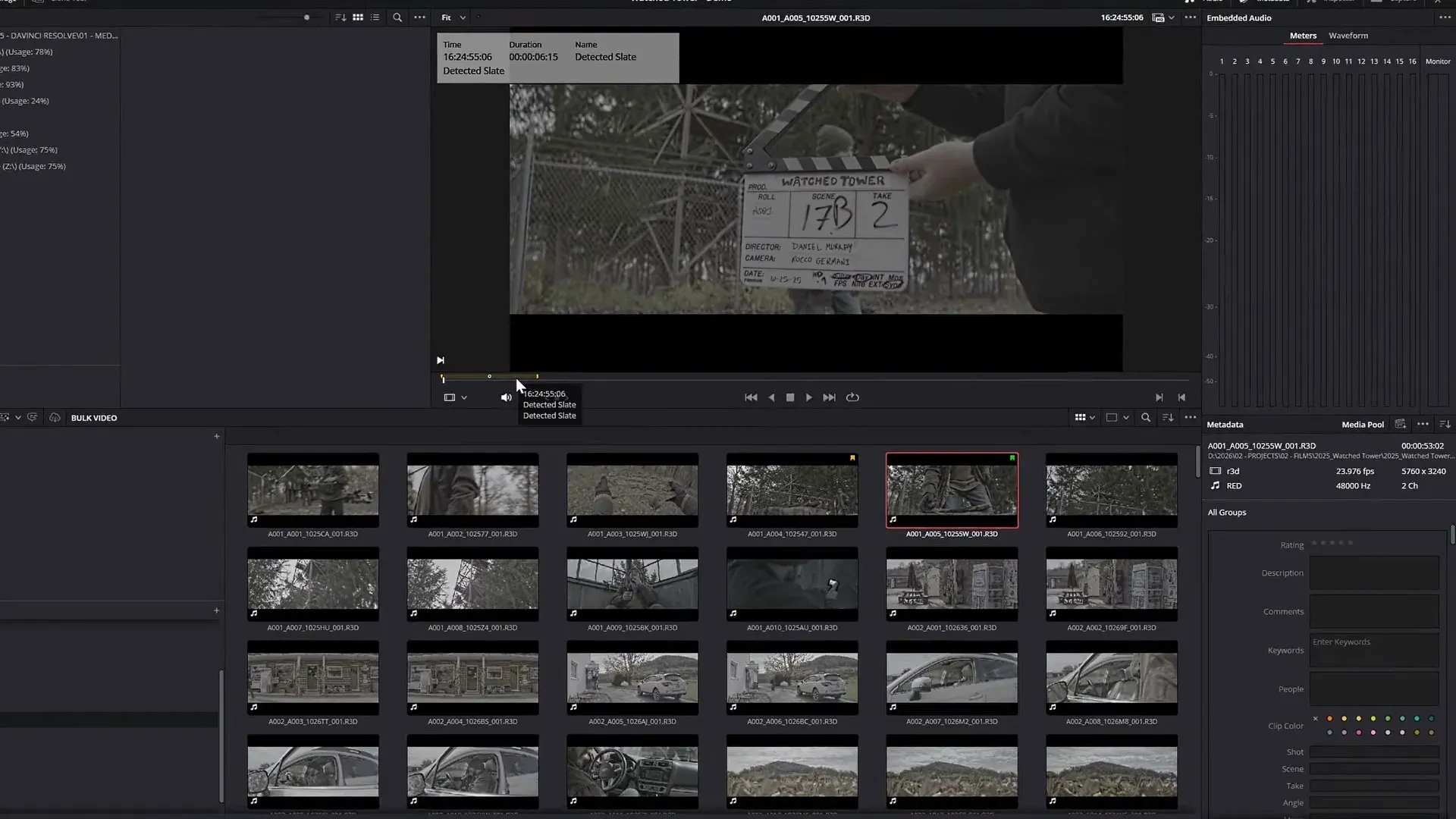
A Finder marker isn't metadata and it isn't audio sync. It tells you where Resolve believes a readable slate appears. The next operation is per-clip metadata recognition and approval.
Run Slate ID and Save Only Verified Fields
The final manual documents Slate ID after Finder, not as part of the same click. It also describes the approval on a selected clip; don't assume that one approval safely writes an entire Finder batch.
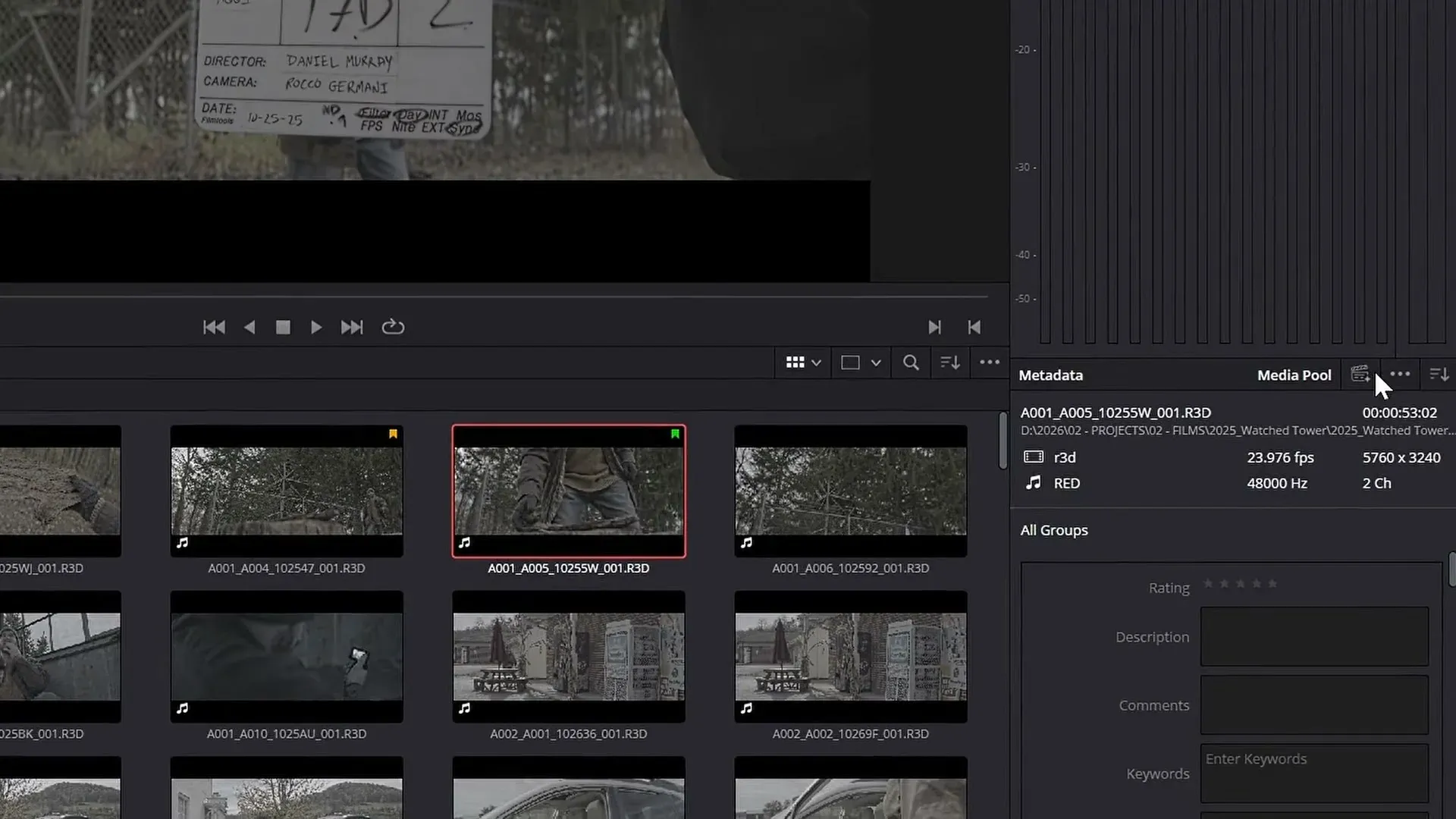
- Select one clip that has already been analyzed with Slate Finder.
- Open Metadata and click the Slate ID icon at the top of the Metadata bar.
- Wait for the separate Slate ID progress box.
- In Slate Information, compare every AI Recognized value with the photographed board and the production record.
- Disable the checkbox for any field that's wrong, ambiguous, or mapped to the wrong production concept.
- Click Save to write only the enabled rows to clip metadata.
- Correct rejected or incorrect values afterward in Metadata Editor; the Slate Information values aren't editable in that window.
Review the Slate Information Window
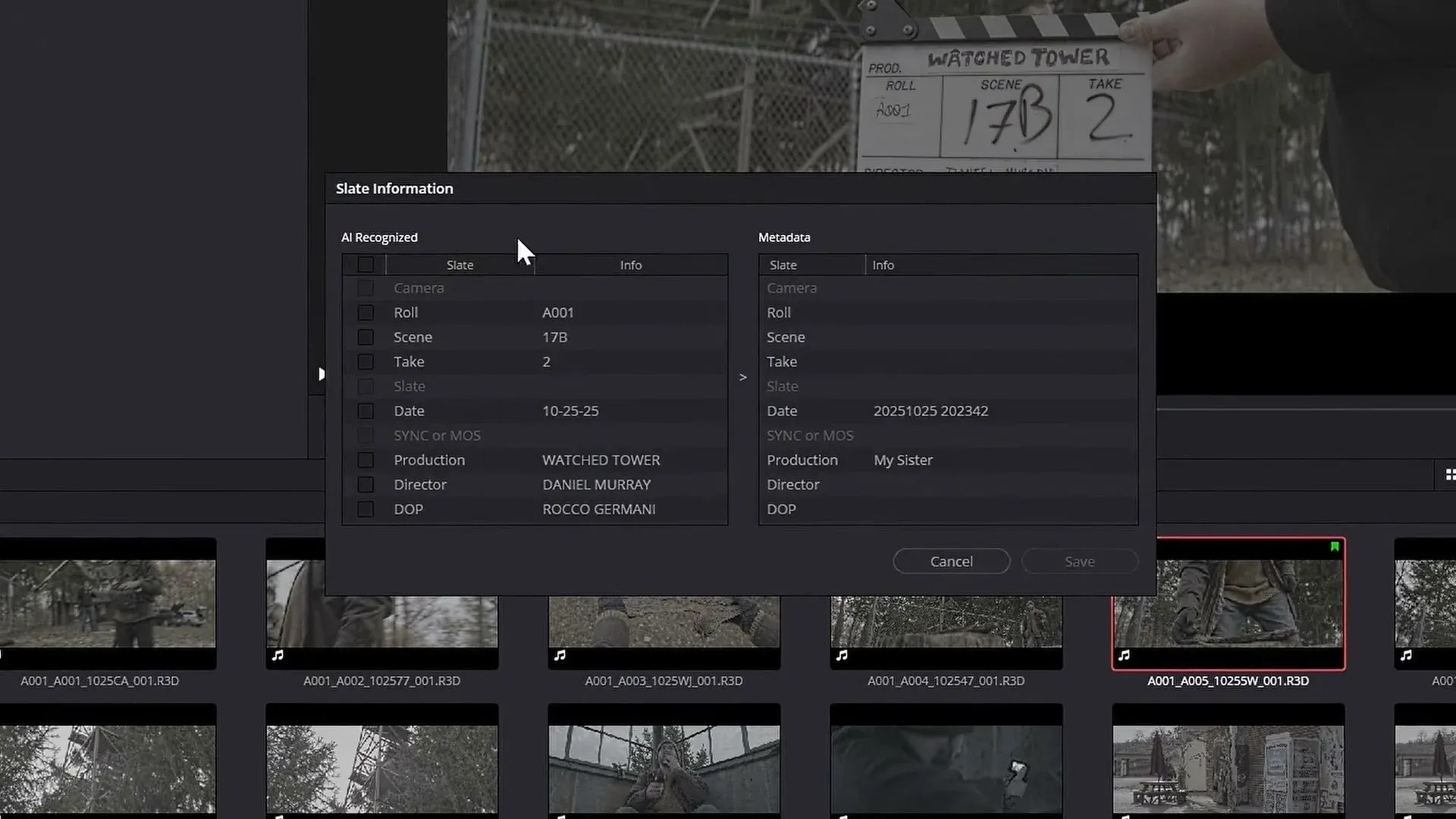
The recognized rows depend on the board and what the model can read. Blackmagic names Scene, Take, Shoot Day, and other information; the final-manual examples also show Date and Camera. Do not turn that list into a promise that every layout will produce every field.
Use three plain review states so every handoff distinguishes AI-recognized values from human-approved metadata:
- Verified: the photographed board and production record support the value and its destination field.
- Needs review: a character is unclear or the show’s field convention is ambiguous.
- Manual: the board is unreadable, absent, or laid out in a way that makes manual entry faster and safer.
Use clip colors, flags, keywords, or a custom metadata field to keep those states visible. The exact device matters less than separating AI-recognized values from human-approved values. Blackmagic’s Media page overview shows how metadata and bins support the broader ingest workflow.
Slate ID Does Not Sync Production Audio
Slate Finder marks a visual interval and Slate ID writes selected metadata. Audio synchronization is a separate Resolve workflow using matching timecode, waveform comparison, In/Out points, markers, or manual alignment. A correct Scene and Take value cannot repair bad timecode, mismatched sample rates, or drift.
Critical metadata warning: the current Reference Manual says Auto Sync Audio can make the video clip inherit metadata from the audio file when Retain Video Metadata is off, and off is the default.
If the Slate ID values on the video clip must survive, enable Retain Video Metadata or verify that the sound metadata is the intended authority before syncing.
After sync, spot-check the clap at the head and a later section for drift, then sort the Media Pool again. A successful sync doesn't prove that the desired metadata source won the merge.
Where Slate ID Commonly Needs Manual Help
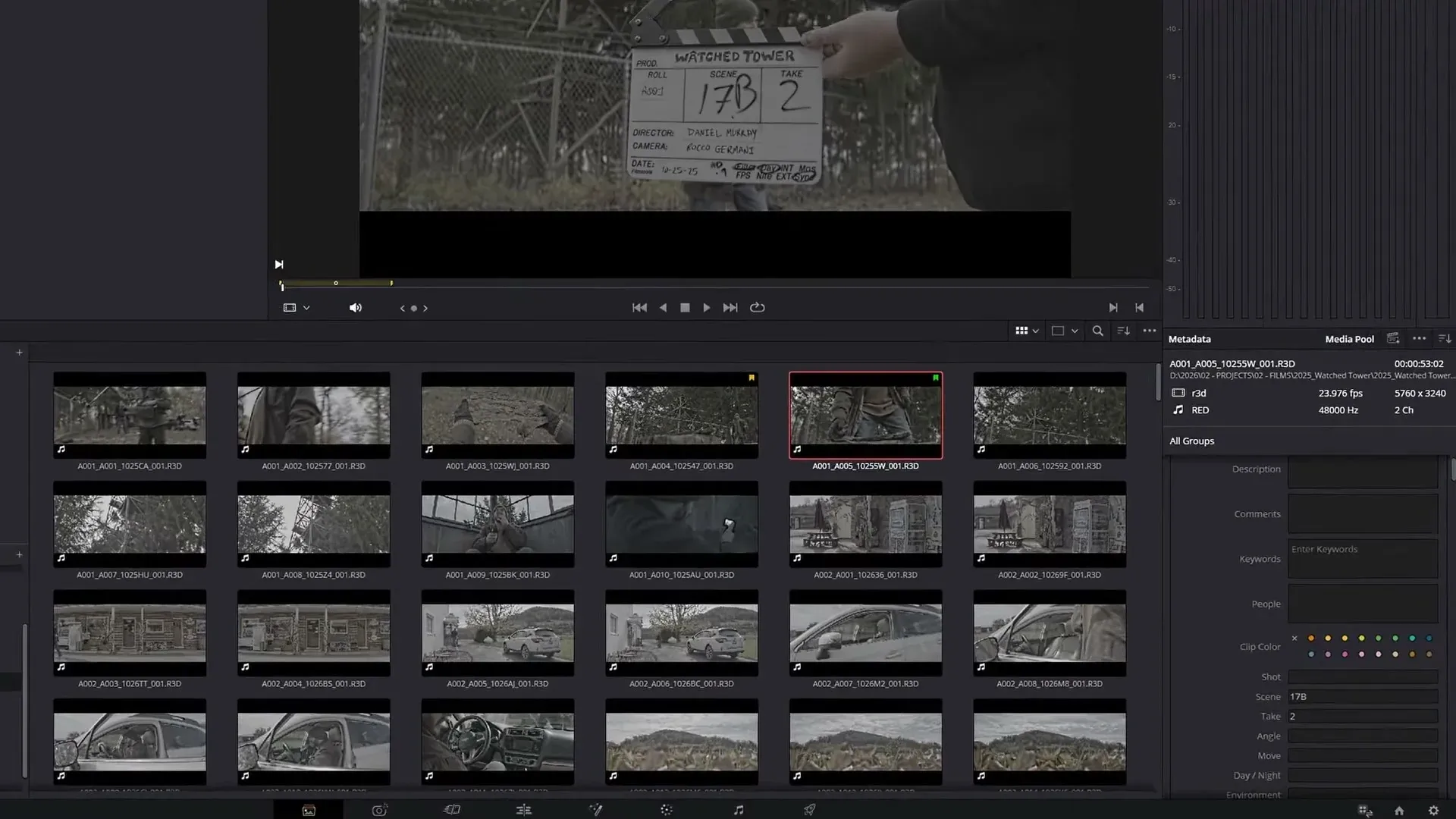
- Glare: a reflection erases thin marker strokes or part of a digit.
- Motion blur: the board exists, but no frame is sharp enough for reliable reading.
- Tail slates: the board may be inverted, brief, or close to the end of the clip.
- Multiple boards: a rehearsal board, monitor image, false start, or second slate can create the wrong interval.
- Handwriting: 1/7, 3/8, 5/6, B/8, and O/0 remain predictable recognition traps.
- House conventions: the same letter can mean a scene variant, camera, angle, or shot depending on the production.
- Digital boards: LED refresh and shutter timing can leave a field incomplete in an individual frame.
Community evidence is mixed, which is exactly why the trial matters. In an April 2026 Resolve slate-detection discussion, one professional dailies operator reported that a keyboard-driven manual workflow beat the beta model on an M3 Ultra.
That's one operator’s beta-era result, not a universal benchmark for the shipping build. Measure your own error and review time.
A Safer Batch Workflow for a Shooting Day
- Export the existing metadata first: File > Export Metadata From > Media Pool or Selected Clips. Save CSV, or ALE when Avid compatibility is required.
- Group the day by camera, board style, or another boundary that makes review manageable.
- Run Slate Finder on ten representative clips and inspect every duration marker.
- For each useful result, run Slate ID, reject doubtful rows, and Save only verified fields.
- Record the error pattern: missed board, false board, wrong character, or wrong destination field.
- If the trial saves time, expand Finder analysis in controlled batches while keeping Slate ID approval accountable per clip.
- Sort by Scene, Take, Camera, Date, and Shoot Day to expose blanks, duplicates, impossible sequences, and inconsistent punctuation.
- Before Auto Sync Audio, decide whether video or sound metadata is authoritative and set Retain Video Metadata accordingly.
- Export the cleaned metadata again and create a DRP project checkpoint before renaming clips or handing the project off.
If camera media goes offline during this work, stop and fix storage with the Media Offline guide. Reanalyzing relinked duplicates can produce a harder metadata problem than the original missing media. For the difference between Project Libraries, DRP files, archives, and recovery files, use the Resolve project storage guide.
Troubleshooting Slate Finder and Slate ID
Analyze for Slate is missing
Confirm Resolve Studio 21, install the corresponding model through Extras Download Manager, and verify the exact build in the About dialog. Menu placement for About varies by platform. Then compare your build with the current Blackmagic support downloads and release notes.
The model download fails
Check network access and free disk space, close Resolve cleanly, reopen it, and retry the official Extra. Don't install model files from an unofficial mirror.
A June 2026 Extras Download Manager failure thread documents one Windows download failure and a separate extraction/rename error; it doesn't establish one universal cause or file path. If the failure repeats, use Help > Create Diagnostics Log on Desktop and report the exact build, OS, and failing Extra to Blackmagic support or the official forum.
No slate is detected
Open the clip and confirm that a board is actually visible and readable for more than a fleeting blurred frame. Try the single clip through Analyze for Slate. If the only board is distant, obscured, or unreadable to you, log it manually instead of repeating the same analysis.
Slate Finder marks the wrong board
Inspect the selected-color duration marker for a rehearsal board, monitor image, false start, or tail slate. A marker is a navigation aid, not permission to write metadata. Continue only with the production-approved board.
Slate ID reads a value incorrectly
Disable that row in Slate Information and Save only the fields you trust. The recognized values aren't editable in the Slate Information window; enter the corrected value afterward in Metadata Editor.
Final Verification Before Editorial
- Sort list view by the fields your production actually uses and scan for blanks, duplicates, and broken sequences.
- Open at least one clip from every scene/camera group and compare saved metadata with the photographed board.
- Confirm that rejected Slate Information rows didn't overwrite trusted camera or sound-report values.
- If audio was synced, confirm the intended metadata source survived and spot-check head sync plus later drift.
- Open the exported CSV or ALE and verify that the expected populated fields are present before handoff.
The useful division of labor is simple: Finder narrows the search, Slate ID proposes fields, and the editor or assistant editor decides what becomes project metadata. That's faster than blind manual scrubbing without pretending the model is the production record.
For the larger ingest-to-delivery sequence around these tools, use the task-first DaVinci Resolve tutorial roadmap.
DaVinci Resolve AI Slate ID FAQ
Is Slate Finder available in DaVinci Resolve Free?
No. The current Resolve 21 Reference Manual labels Slate Finder and Slate ID as Studio-only. Resolve Free users can still enter and organize clip metadata manually.
What does AI Slate Finder detect?
It finds the interval where a readable clapperboard appears and adds a duration marker. The marker color is selectable in AI Clip Analysis; it isn't permanently yellow.
What does AI Slate ID read?
After Slate Finder analysis, Slate ID can recognize fields such as Scene, Take, Shoot Day, Date, Camera, and other information present on the board. The available result depends on what it recognizes.
Where is Analyze for Slate in Resolve 21?
On the Media page, select clips and right-click one of them, then choose AI Tools and Analyze for Slate. You can also enable Analyze for Slate in AI Clip Analysis at the top of the bin column.
How do I save Slate ID metadata?
Select a clip already analyzed by Slate Finder, click the Slate ID icon in the Metadata pane, wait for Slate Information, enable only the fields you trust, and click Save. Correct rejected values later in Metadata Editor.
Does Slate ID synchronize production audio?
No. Slate detection, metadata extraction, and audio synchronization are separate operations. Use timecode, waveform, markers, or manual sync, and review Retain Video Metadata before Auto Sync Audio.
Can Slate ID replace a script supervisor or dailies operator?
No. It can shorten the search and transcription work on readable boards, but production conventions, continuity, ambiguous handwriting, and final metadata approval still require human judgment.
