
To replace one clip in DaVinci Resolve without changing the length of your edit, use Edit → Replace, or F11 with the default keyboard preset. Put the timeline playhead over the shot you want to replace, load the new shot in the Source Viewer, align the two playheads on the moments you want to match, and target the correct video or audio track.
If you have an updated file that should replace the same source throughout the project, use Replace Selected Clip in the Media Pool instead. The names sound similar, but they change different relationships. I’d decide which one you need before touching the timeline.
Choose what you want to replace
- One timeline shot, same duration: Replace Edit. The Source Viewer and timeline playheads set the alignment; the existing timeline clip supplies the length.
- An updated file behind an existing Media Pool clip: Replace Selected Clip. This changes the source used by its linked timeline instances, so check the whole project, not just the open timeline.
- One timeline instance with another Media Pool clip, matched by timecode: Conform Lock with Media Pool Clip. This is useful for a revised version of the same shot.
- A longer or shorter replacement that should move later edits: Ripple Overwrite. It changes the sequence duration to accommodate the new range.
- A source range that must fit a fixed slot by changing speed: Fit to Fill. This retimes the incoming footage.
Blackmagic’s explanation of conforming and relinking separates a timeline clip’s link to the Media Pool from the Media Pool’s link to a file on disk. That’s why a source replacement can affect many cuts, while an ordinary Replace Edit changes the shot under the playhead.
Before a source-wide change, I’d export a project backup through File → Export Project. A duplicate timeline helps you compare a one-shot edit, but both timelines can still reference the same Media Pool source. Duplicating the timeline alone doesn’t isolate that source from replacement.
Use Replace Edit to keep the existing cut boundaries
Work on the Edit page. For the basic whole-clip replacement, clear any timeline In and Out marks first. You don’t need to mark a source range for this method.
- Put the timeline playhead inside the clip you want to replace. For a simple replacement, put it on the clip’s first frame. For a matching action, use the exact moment you want the new shot to meet.
- Double-click the incoming clip in the Media Pool to load it into the Source Viewer. Move that viewer’s playhead to the frame you want aligned with the timeline playhead.
- Set the Source Track Selector to the destination containing the old clip. In Resolve 21.1, blue controls represent the source tracks; red controls represent timeline destinations. Route the source video to the correct V track.
- If you want to replace video only, disable the audio source or destination controls. Leave existing dialogue or music on its own track. For audio-only replacement, disable video and target the intended audio destination.
- Choose Edit → Replace, click the Replace Clip toolbar control, or press F11 with the default Resolve preset. The Replace option in the Timeline Viewer’s drag-and-drop overlay performs the same edit.
- Check the incoming shot, both cut boundaries and any affected audio. Later clips should remain at their existing timeline positions.
The documented Replace Edit procedure uses the existing timeline clip’s duration and aligns the frames at the two playheads. It doesn’t ripple the timeline. Selecting a clip with the mouse isn’t a substitute for placing the playhead and choosing its destination track.
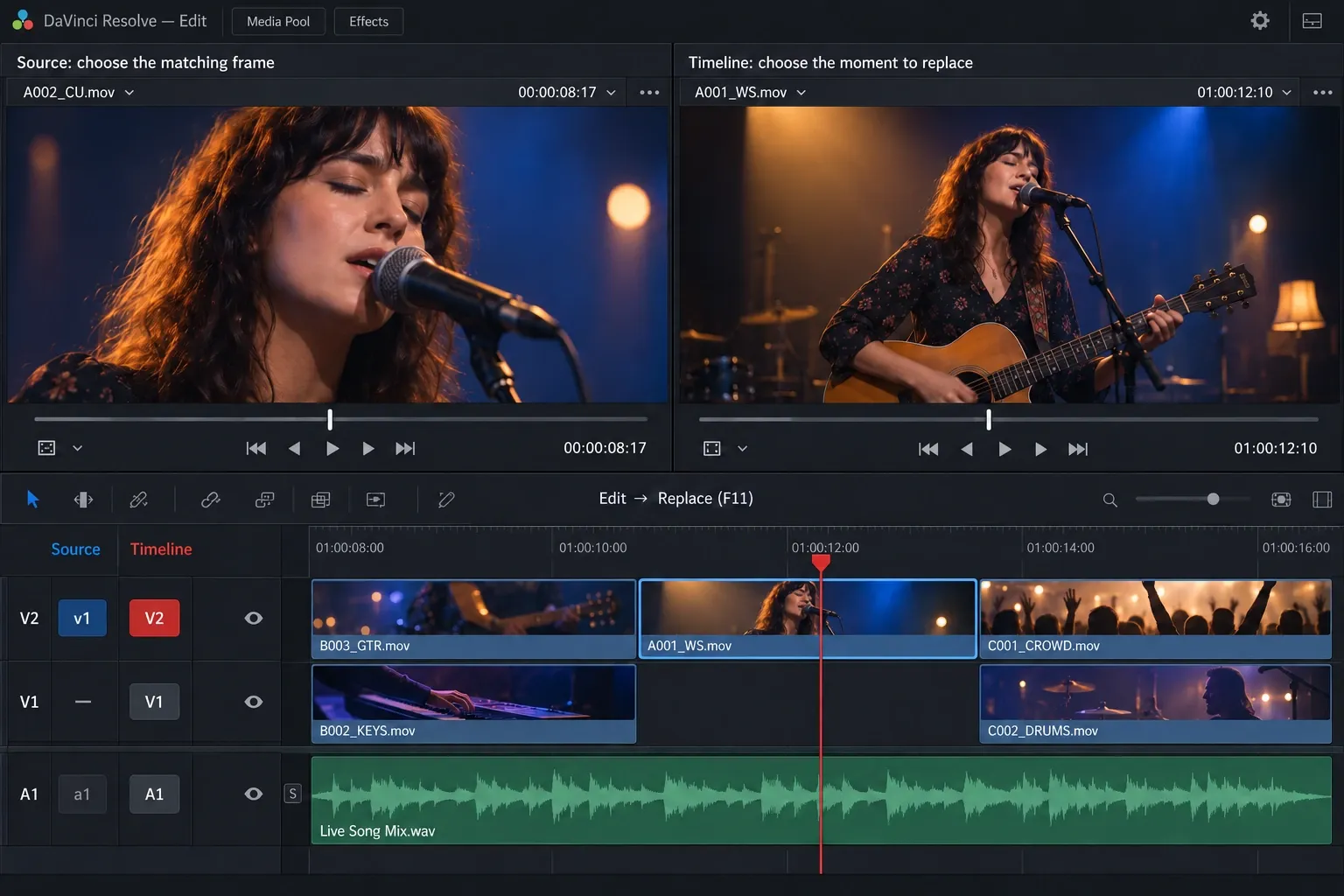
The source frame under the playhead is the anchor
Suppose the old shot occupies five seconds and you put the timeline playhead two seconds after its start. If you align a moment in the new source and run Replace, Resolve needs two seconds of source before that moment and three seconds after it to fill the same slot. Those durations are only an example.
That’s why an incoming clip can start at an unexpected point. You aligned a source frame with the middle of the timeline shot, not with its beginning. For a straightforward swap, align the first wanted source frame with the first timeline frame. For a clap, impact or gesture, align that action instead and leave enough source footage on both sides.
Replace Edit keeps the timeline slot. It doesn’t make missing source frames appear or automatically slow a short source range to fill it. Pick another source cue, use a different take, or choose Fit to Fill if a speed change is acceptable.
Replace only a marked timeline range
If you want to replace part of a shot, set In and Out points in the timeline around that section and align the playheads for the incoming media. Blackmagic documents timeline In/Out points as the alternative way to define a Replace Edit’s range. Clear those marks afterward so the next replacement uses the next clip’s full duration.
Watch for an empty destination, too. Replace can align new media on an empty track, and without a timeline range it can place the entire source there. If a shot appears above the old one instead of replacing it, check the target track before you change your source marks.
Replace an updated source file in the Media Pool
Use this route for a revised graphic, a new VFX render or a better-quality version of footage already cut into the project. Select the original Media Pool item whose file you want to change, not the new file you just imported.
- Keep a project backup and the previous source file so you can return to the earlier version.
- In the Media Pool, right-click that original item and open Clip Operations → Replace Selected Clip.
- Choose the updated file in the file dialog. This selects a file on disk; it is a different action from F11 in the timeline.
- Inspect its uses throughout the project: the first and last used frames, sync, framing, color and any Fusion work that depends on the original image.
The submenu matters if an older tutorial seems to show a missing command. Blackmagic’s Shrinivas Ramani confirmed that Replace and Relink moved into Clip Operations in Resolve 20. The official Colorist Guide’s renamed-graphic example uses that same command to update the file behind an existing Media Pool item.
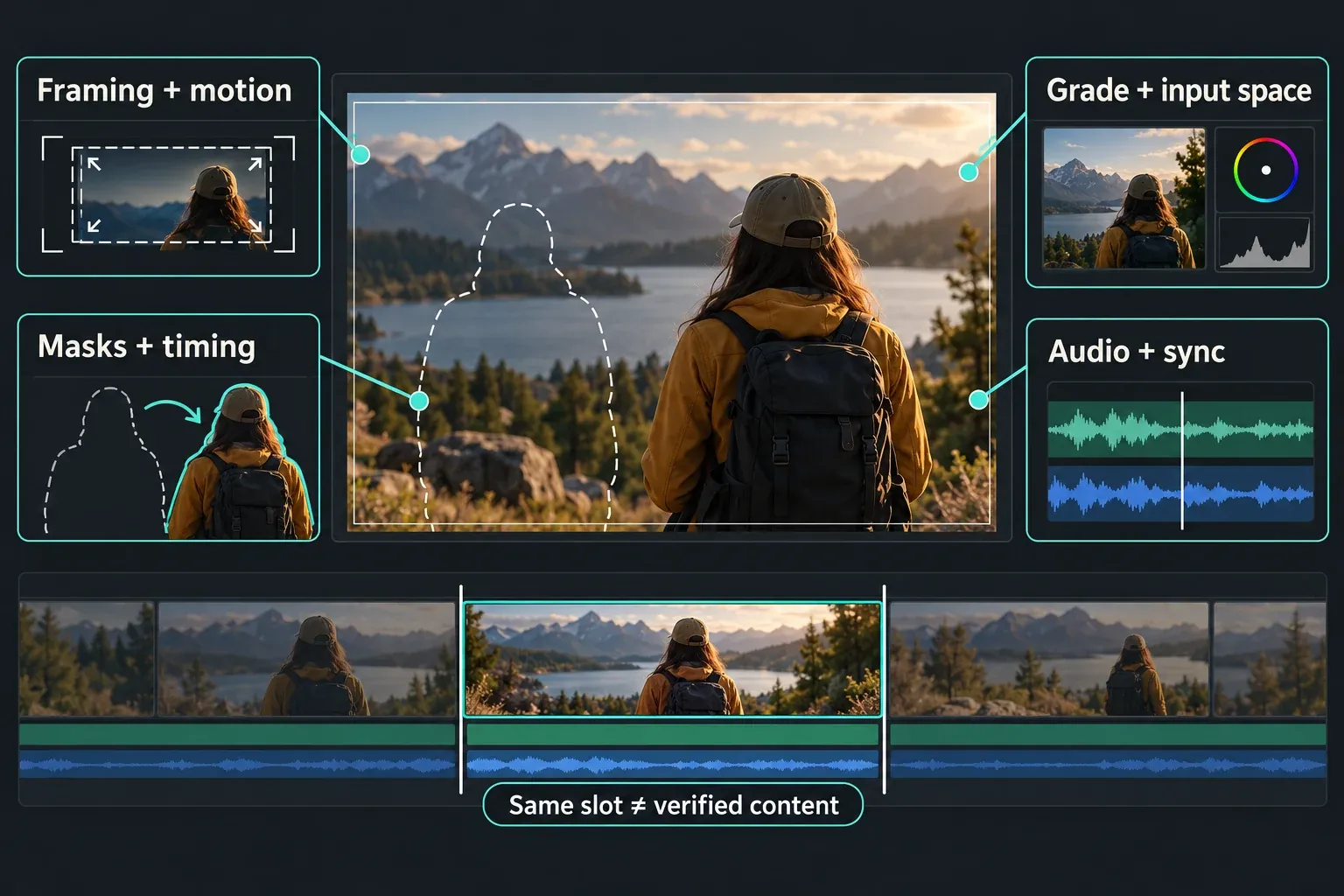
For a frame-aligned revision, keep its source timing compatible with the original. If the revision is a new recording or has a different starting timecode, frame rate, duration or audio layout, check every affected use. Existing masks or keyframes can still need adjusting when the subject moves or the image dimensions change. Keeping an edit’s structure intact doesn’t prove its content is still correct.
If the original file has only moved to another folder, use Relink Selected Clips. It searches for the existing media. Swapping in unrelated footage is a different job.
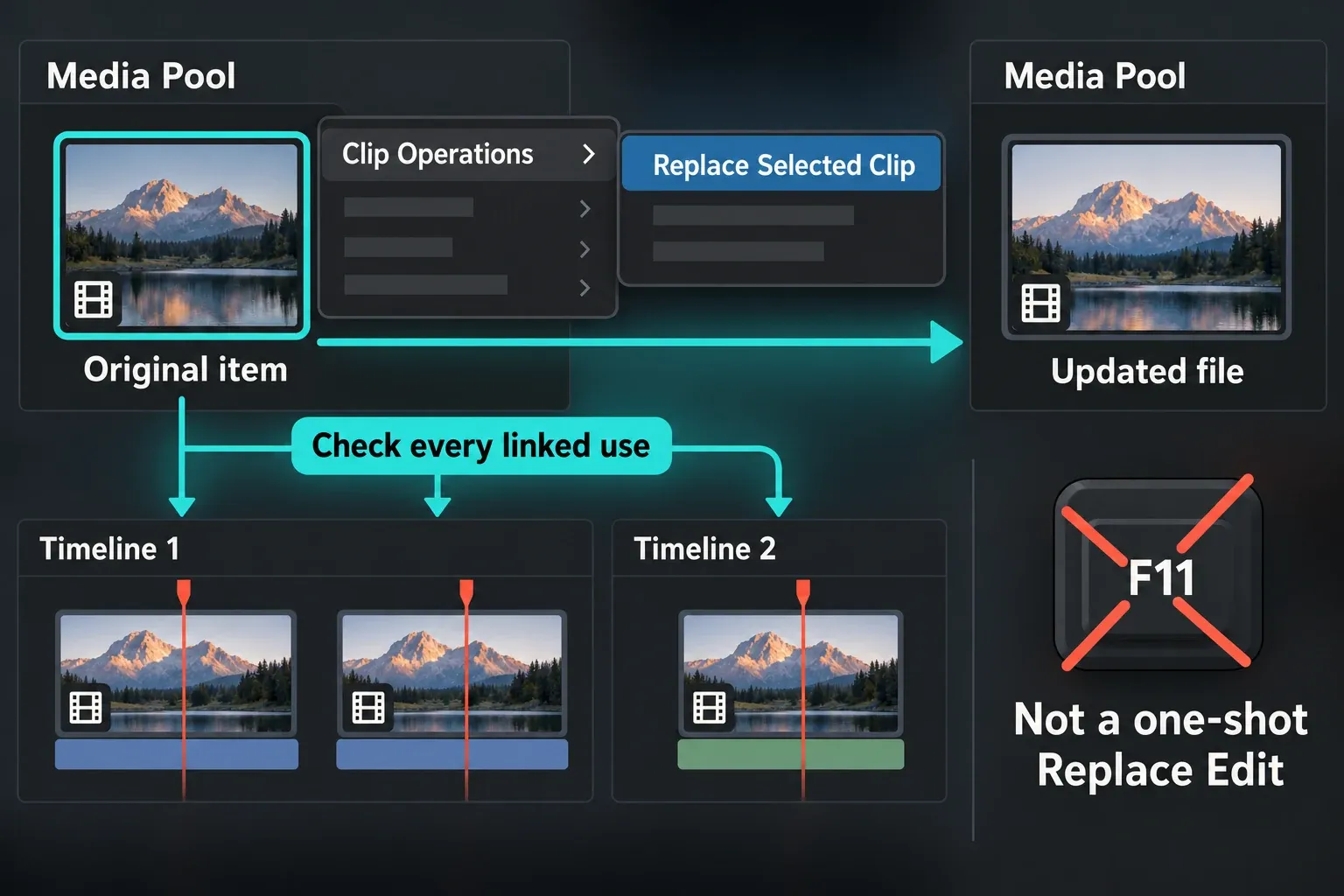
Use Conform Lock for a matching replacement instance
When the replacement is already in the Media Pool and should take over one timeline instance, select the new Media Pool clip, then right-click the timeline instance and choose Conform Lock with Media Pool Clip.
The critical condition is source timecode. Blackmagic’s Conform Lock instructions say matching timecode aligns the revised source with the original. If timecode doesn’t match, the new source’s first frame aligns with the timeline instance’s first frame, using the same duration. The new source also has to be long enough for the selected timeline clip.
That makes Conform Lock useful for a matching VFX revision, but it doesn’t automatically find the same action in an unrelated take. When you want to choose that visual alignment yourself, use Replace Edit’s two playheads.
For multiple revised shots, Reconform From Bins offers a separate batch workflow: organize the replacements in their own bin, unlock the intended timeline clips, choose the matching criteria and review the results. Timecode is enabled by default, and unmatched clips are left alone. Our XML transfer and conform guide covers the broader handoff; don’t loosen matching rules across an entire timeline just to fix one shot.
Keep the grade and check the settings that matter
I wouldn’t use “keeps everything” as the deciding rule for a replacement. Clip duration, a copied grade, clip-level keyframes and track-level audio processing are different things. Choose the operation for the source relationship you need, then inspect the settings you depend on.
For a specific grade-preserving timeline swap, Blackmagic documents a stacked-clip replacement method: put the new version on another timeline track above or below the old shot, align it, then hold Command on macOS while you drag the new timeline clip onto the old one. As documented, this copies the old clip’s grade to its replacement. It applies to clips already in the timeline and isn’t the same gesture as dragging from the Media Pool or Source Viewer.
For any other settings you want to carry over on purpose, copy the original timeline clip and choose Edit → Paste Attributes on the replacement. Select the video, audio or color attributes you need. The Paste Attributes controls also separate Maintain Timing from Stretch to Fit for keyframes, so decide how their timing should carry over.
- Framing and motion: check sizing, crop, stabilization and any tracked position against the new image.
- Color: check the grade and source color-space interpretation. A look that worked on one camera or render need not suit another.
- Effects and Fusion: inspect controls, masks and timing that refer to particular frames or features of the old shot.
- Audio: check clip fades, volume keys, channel mapping and sync. Track processing stays associated with the track, but a new waveform can need different edits.
- Transitions: inspect both ends and make sure the replacement supplies the extra source frames the transition needs.
If you’re replacing a clip because it reused footage by accident, the duplicate-frame guide shows how to check that the new range doesn’t overlap the same source frames again.
Fix the replacement that landed in the wrong place
It replaced the wrong track or added a clip above the old one
Undo the edit and check the Source Track Selector. Target the destination that holds the old clip, not an empty V track or the dialogue track out of habit. Load the intended source and disable source components you don’t want to edit. Blackmagic’s source and destination routing instructions explain the blue source/red destination controls and how to disable them.
F11 does nothing
Try Edit → Replace. If the menu command works, check your keyboard preset or laptop function-key behavior. If the command itself is unavailable, check the loaded source, the timeline playhead, destination controls and locked tracks. The shortcut troubleshooting guide covers presets, focus and the Fn row.
It replaced only a section, or the new shot starts too early
For an unexpected range, look for leftover timeline In and Out marks. For the wrong source moment, look at both playheads. Source marks alone don’t describe the basic Replace Edit alignment. The two current frames do.
Later clips moved, or the new clip’s speed changed
Check which operation you chose. Ripple Overwrite moves later edits to accommodate a different duration. Fit to Fill changes speed to fit a marked source range into a fixed slot. Replace Edit keeps the existing slot without rippling it. The timeline movement guide explains Ripple Overwrite when that duration change is what you intended.
For a fixed-duration swap, the useful final check is simple: the new source shows the right moment, the cut boundaries remain where you planned, and the soundtrack is still correct. The Resolve tutorial hub connects the next editing tasks once that replacement is settled.
