Quick answer: decide which loop you need. To repeat a section while editing, set timeline In and Out points, enable Playback > Loop, then choose Playback > Play Around/To > Play In to Out. To make a short clip fill a longer timeline, duplicate it end to end. To export a seamless loop, split a continuous shot near the middle, swap the two halves, and hide the new internal seam with a short dissolve. The exported end-to-start boundary then uses frames that were adjacent in the original recording. You can place this workflow alongside the other tasks in the DaVinci Resolve tutorial hub.
Those are three different jobs. Loop playback does not add repeated frames to an export. Duplicating a clip makes a longer finite sequence but does not guarantee a smooth join. A seamless loop must be edited so its last frame can return to its first without a visible or audible jolt.
Choose the Loop Method That Matches the Deliverable
| Goal | Method | What changes |
|---|---|---|
| Review a transition or effect repeatedly | Loop playback with In and Out points | Playback only; timeline and export stay unchanged |
| Fill a longer background or display sequence | Duplicate the clip or finished loop unit | Timeline duration becomes longer |
| Create a file that a player can repeat cleanly | Build and test a seamless end-to-start boundary | The clip itself is re-edited |
| Make motion reverse at each end | Forward-plus-reverse ping-pong loop | Direction changes instead of wrapping to the first frame |
Start with the smallest method that solves the real task. A reviewer who wants to watch a cut ten times does not need ten copied clips. A lobby screen that needs an hour of material does need repeated timeline content or a player configured to repeat a shorter exported file.
Loop a Timeline Section for Preview
- Move the playhead to the beginning of the section and mark In.
- Move to the end and mark Out.
- Enable Playback > Loop or the Loop transport control.
- Choose Playback > Play Around/To > Play In to Out.
- Clear the range when the review is finished so an old mark does not control later playback or delivery.
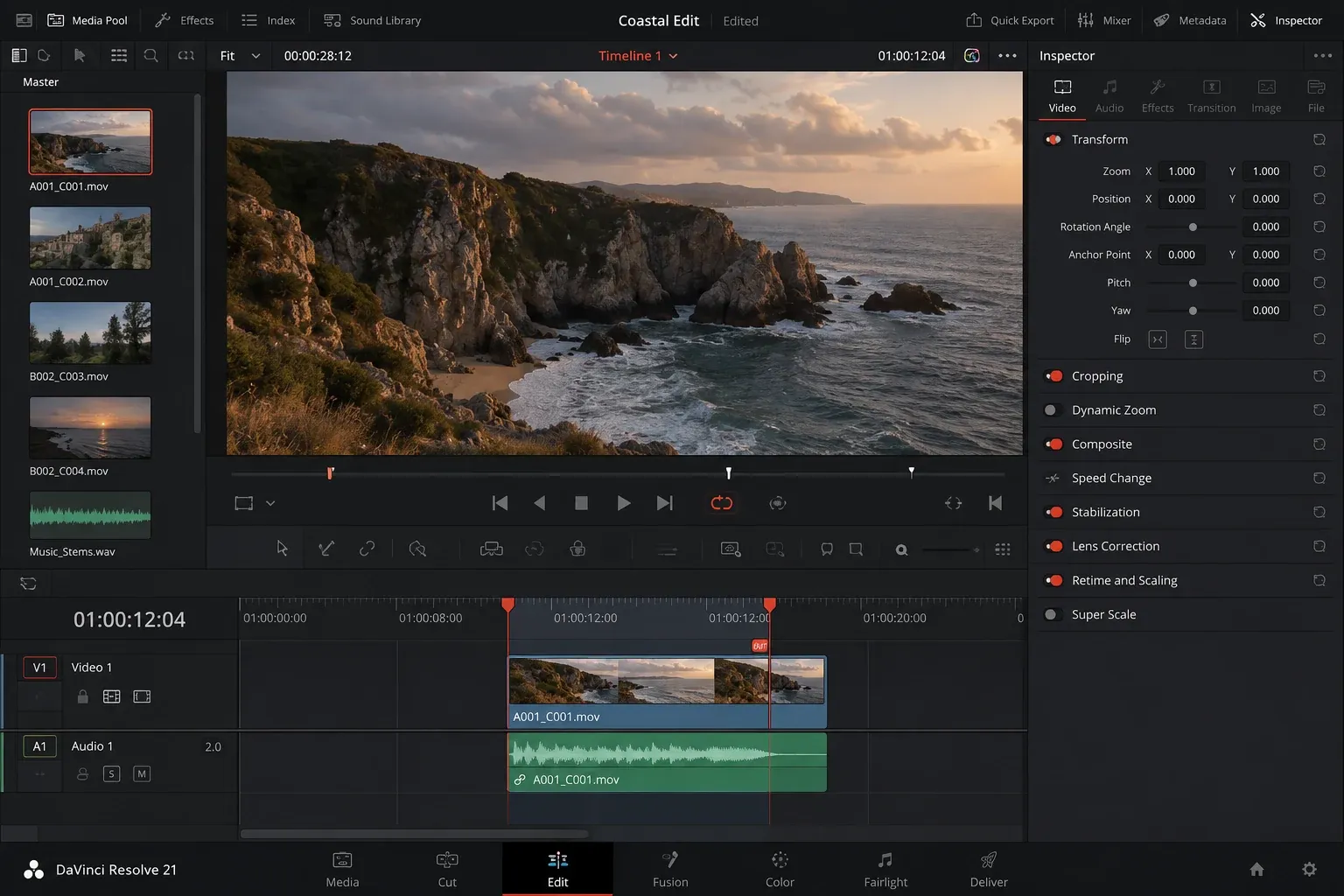
This is the clean way to judge a transition, color match, sound edit, title animation, or loop boundary. The Blackmagic forum documents the same command path: Loop must be active, and Play In to Out defines the range that repeats. If ordinary Play ignores your marks, call the range command directly.
Repeat a Clip in a Longer Timeline
On the Edit page, when the deliverable itself must contain repeated content, place copies directly after the first clip with no gap. The duplicate clip guide covers copy, paste, modifier-drag, and ripple-safe placement. For looping, the important part is the boundary between copies.
- Trim one clean loop unit first.
- Duplicate that complete unit end to end.
- Zoom into every join and remove gaps or overlaps that were not intentional.
- Play across the first join before filling the whole timeline.
- Repeat the proven unit, not the untested source clip.
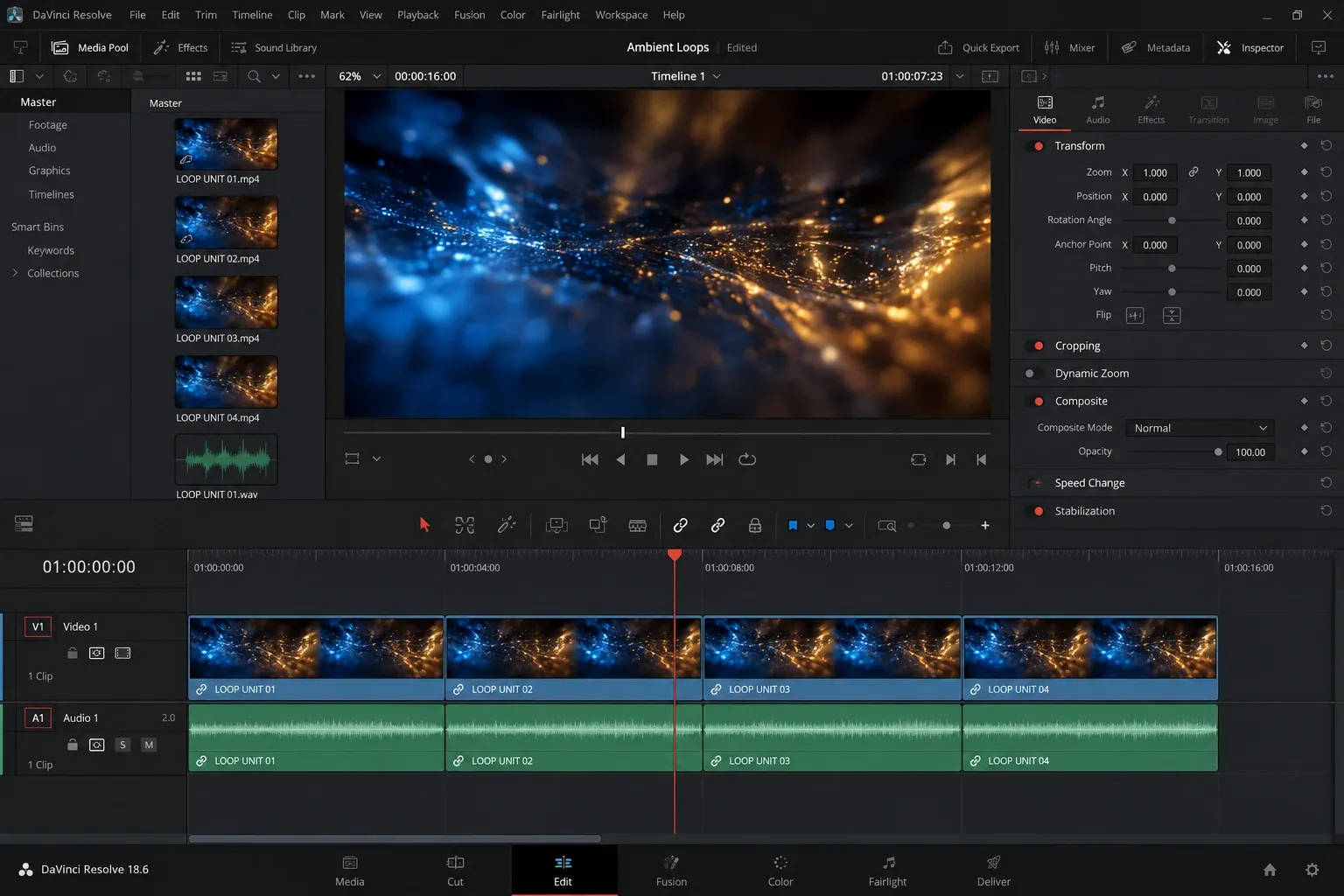
If the first join jumps, twenty more copies create twenty more jumps. Repair one loop unit, include its audio treatment, then use that compound or grouped section as the repeatable building block.
Make a Seamless Video Loop With Swapped Halves
This method works well for continuous textures and motion such as clouds, water, smoke, traffic, abstract light, or a locked-off environmental shot. It preserves the original continuity at the exported loop boundary.
- Choose a section with stable framing, exposure, and motion.
- Make a cut near the middle.
- Move the second half before the first half, so the order becomes B then A.
- Check the new end-to-start boundary. The final frame of A returns to the first frame of B, which were adjacent at the original cut.
- Add a short Cross Dissolve at the new internal B-to-A seam.
- Adjust the cut position and transition duration until the overlap hides the discontinuity without creating a visible double image.
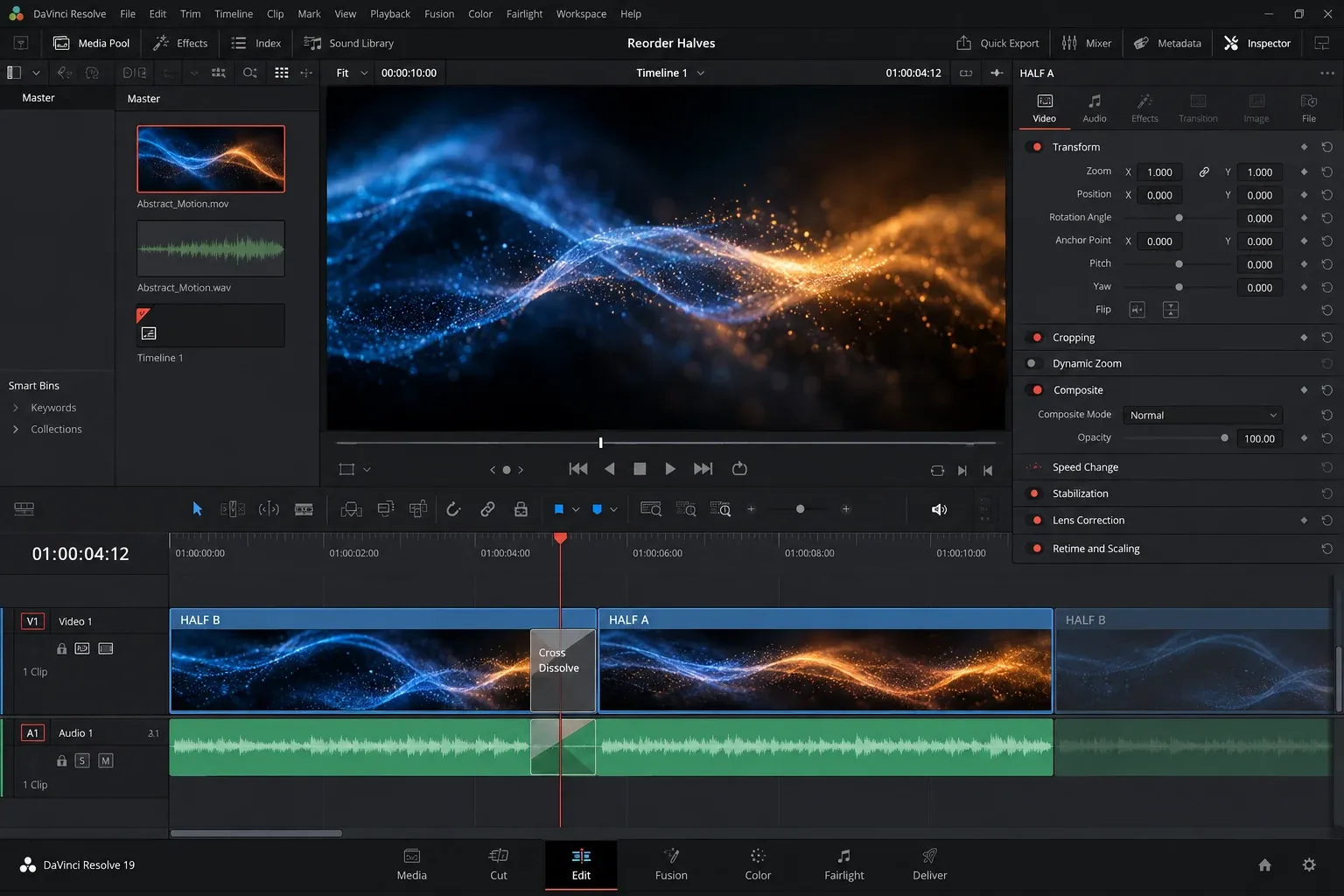
The transitions guide explains transition handles and duration. A dissolve needs source frames beyond the visible edit. If the clips cannot provide handles, trim more material into the loop unit or shorten the transition.
When a Cross Dissolve Makes the Seam Worse
A dissolve blends two moments. It cannot reconcile every motion pattern. Fast objects may appear twice. A person can become translucent. Camera movement can create a drifting ghost. Exposure changes can produce a pulse.
Move the internal seam to a quieter moment, shorten the dissolve, or choose a different source section. For periodic motion, align similar phases before blending: wave crest to wave crest, rotating light to the same angle, or traffic flow with comparable density. If the shot contains a unique event that occurs once, it may never feel endless.
Use a Ping-Pong Loop for Reversible Motion
A ping-pong loop plays forward, then backward. Duplicate the clip, reverse the copy, and place it after the original. The end of the reversed copy returns to the first frame naturally, but the turnaround can hold a duplicate frame and feel like a tiny pause.
Trim one of the repeated endpoint frames when the motion hesitates. Add a very short transition only if the direction change needs softening. The clip speed guide covers reverse playback; use this method for swaying, pulsing, zooming, or abstract motion that looks believable in both directions.
Do not use ping-pong for readable text, people walking, vehicles, pouring liquid, smoke with obvious direction, or any action where reversal reveals the trick.
Loop Audio Without a Click or Rhythm Jump
Video and audio rarely share the same ideal seam. Treat them separately when necessary.
- Cut ambience at a stable section without a transient at the boundary.
- Overlap the end and beginning on separate tracks and add equal-power fades or a short crossfade.
- Keep music edits on musical bars and beats; do not cut only because the picture loop ends there.
- Remove a duplicated endpoint transient that creates a double hit.
- Use continuous room tone or ambience under a visual loop when production audio cannot repeat cleanly.
The audio levels guide helps you compare the repeated unit before and after the crossfade. Listen to the loop boundary on headphones: a low-frequency thump or small click can survive even when the picture looks clean.
Verify the End-to-Start Boundary
Set In and Out around one exact loop unit and repeat it during review. Watch the actual wrap from the last frame back to the first. Do not judge only the dissolve in the middle; the exported boundary is a different edit point.
- Check for a brightness pulse, position jump, repeated frame, dropped rhythm, audio click, or room-tone change.
- Review at normal speed, then step through the final and first frames.
- Duplicate the finished unit twice and inspect the join between copies.
- Check the frame rate and duration expected by the destination.
- Render a short two-loop proof before building a long sequence.
Two copies are the fastest honest test. If the join is invisible and inaudible between those copies, the unit is ready to repeat.
Export the Loop Without Adding an Extra Frame
On the Deliver page, render the exact loop range. Use a timeline range or In/Out range that begins on the first intended frame and ends after the last intended frame. Check the rendered duration and frame count rather than relying on the viewer thumbnail.
A video file has a finite duration. It does not contain an instruction that every website, display, or player must obey forever. The destination player or platform controls repetition. Export one clean loop unit when the player can repeat it; export repeated copies when the delivery system requires a longer fixed file.
Use the video export guide for codec, render range, filename, and post-render verification. Reopen the rendered file, duplicate it in a fresh timeline, and check its boundary independently of the working edit.
Loop Troubleshooting
Loop is enabled, but playback does not repeat the marked range
Use Play Around/To > Play In to Out rather than ordinary Play. Confirm the In and Out marks are on the timeline you are reviewing, then clear and reset them if an old hidden range is active.
A black frame or flash appears between copies
Zoom into the join and remove the gap. Confirm the source and timeline frame rates are interpreted correctly, and inspect the last frame of the rendered unit.
The dissolve creates a ghost or double object
Shorten it or move the seam to a moment with less movement. A different source section is often cleaner than a longer transition.
The video loops smoothly, but the audio clicks
Move the audio seam away from a transient, overlap the two sections, and apply a short crossfade. Picture and sound do not need identical cut points.
The loop pauses at the turnaround
In a ping-pong loop, remove one duplicate endpoint frame. In a normal loop, check for a repeated first or last frame caused by the render range or duplicated clips.
DaVinci Resolve Video Loop FAQ
Does Loop playback make the exported video repeat?
No. Loop playback only repeats a review range inside Resolve. The exported file contains the timeline range you render.
Can I stretch one video clip so it loops automatically?
A normal timeline video clip does not become an endless repeated asset merely by extending its edge. Build one clean loop unit, then duplicate that unit or use the destination player's loop setting.
What is the best method for a seamless background loop?
For continuous footage, split near the midpoint, swap the halves, and dissolve the new internal seam. Then test the end-to-start boundary with two copies.
Do I need DaVinci Resolve Studio to loop a video?
The editing methods here use ordinary timeline cuts, duplication, reverse playback, transitions, and playback controls. The source codec or a separate effect may have its own edition requirements, but the loop construction itself does not depend on a specialized AI tool.
