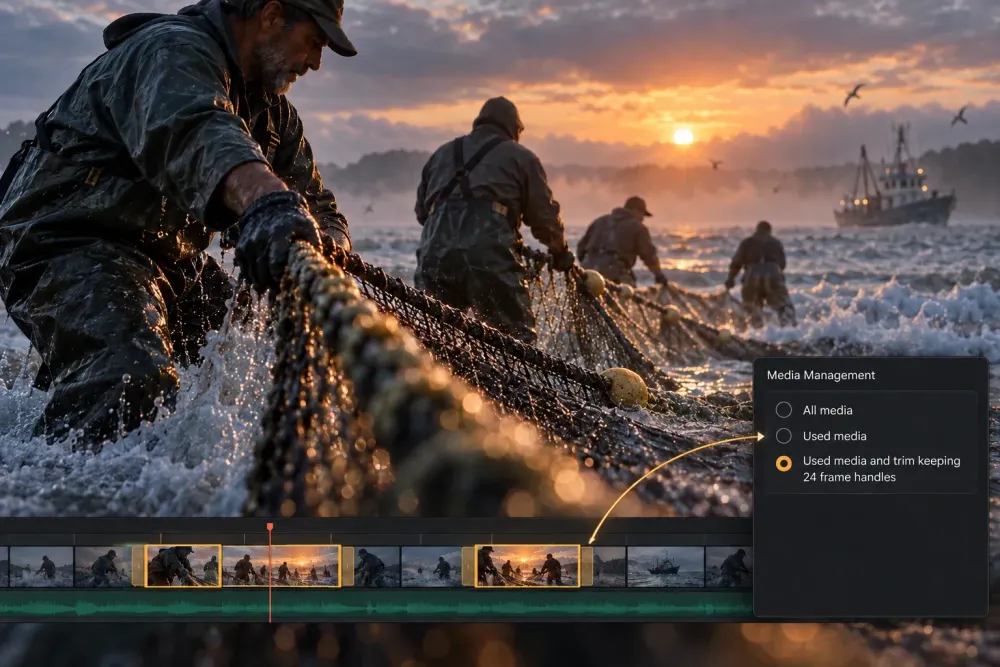
Quick answer: Use File → Media Management when you need a portable copy of the media behind a project, selected timelines or selected clips. Choose Copy when you want to preserve the source files and Transcode only when the handoff or archive requires a new codec. If storage matters, collect used media or trim it with handles, but keep the original drives until a second project opens and plays correctly using only the managed folder.
The last step is the one that makes the package trustworthy. A completed copy job proves that Resolve wrote files to a destination. It does not prove that every still, audio recording, nested timeline, title, LUT or unusual source clip can be restored from that destination.
What Media Management Does
DaVinci Resolve uses the phrase media management in two related ways. The Media page is the workspace for importing, organizing, syncing and inspecting footage. Blackmagic’s current Media page overview also covers metadata, camera-media cloning and backup tools.
The Media Management window under the File menu solves a narrower job: it creates a new media set for a project, one or more timelines, or selected clips. Depending on the source and chosen settings, it can copy full files, collect only used media, trim clips with handles, or transcode the result. A practical walkthrough of the Media Management window shows those scope and operation choices in context.
It does not replace a project backup. A DRP or Project Library backup protects edit decisions, grades, timelines and project metadata; the managed folder protects the files those decisions point to. If project recovery is the problem you are solving, start with the DaVinci Resolve project backup guide and treat Media Management as the media half of the package.
Decide What the Package Is For
Do not open the Media Management window until you can finish this sentence:
This package must let someone complete a defined task without access to my source drive.
The answer changes the safest settings.
- A color or sound handoff usually needs the locked timelines, the media used by them, enough handles for transitions and small revisions, and a written list of external dependencies.
- An active project transfer needs more room for editorial changes. Full source clips or generous handles are usually safer than an aggressively trimmed set.
- A long-term archive needs a restorable project, durable media, documentation and a second physical copy. Saving the smallest possible folder is not the only goal.
- A temporary space-saving copy can be narrower, but it should never become the only surviving media set until it passes the same restore test.
This definition prevents a common mismatch: building a tiny finishing package, then expecting it to support a future re-edit.
Choose the Scope: Project, Timelines or Clips
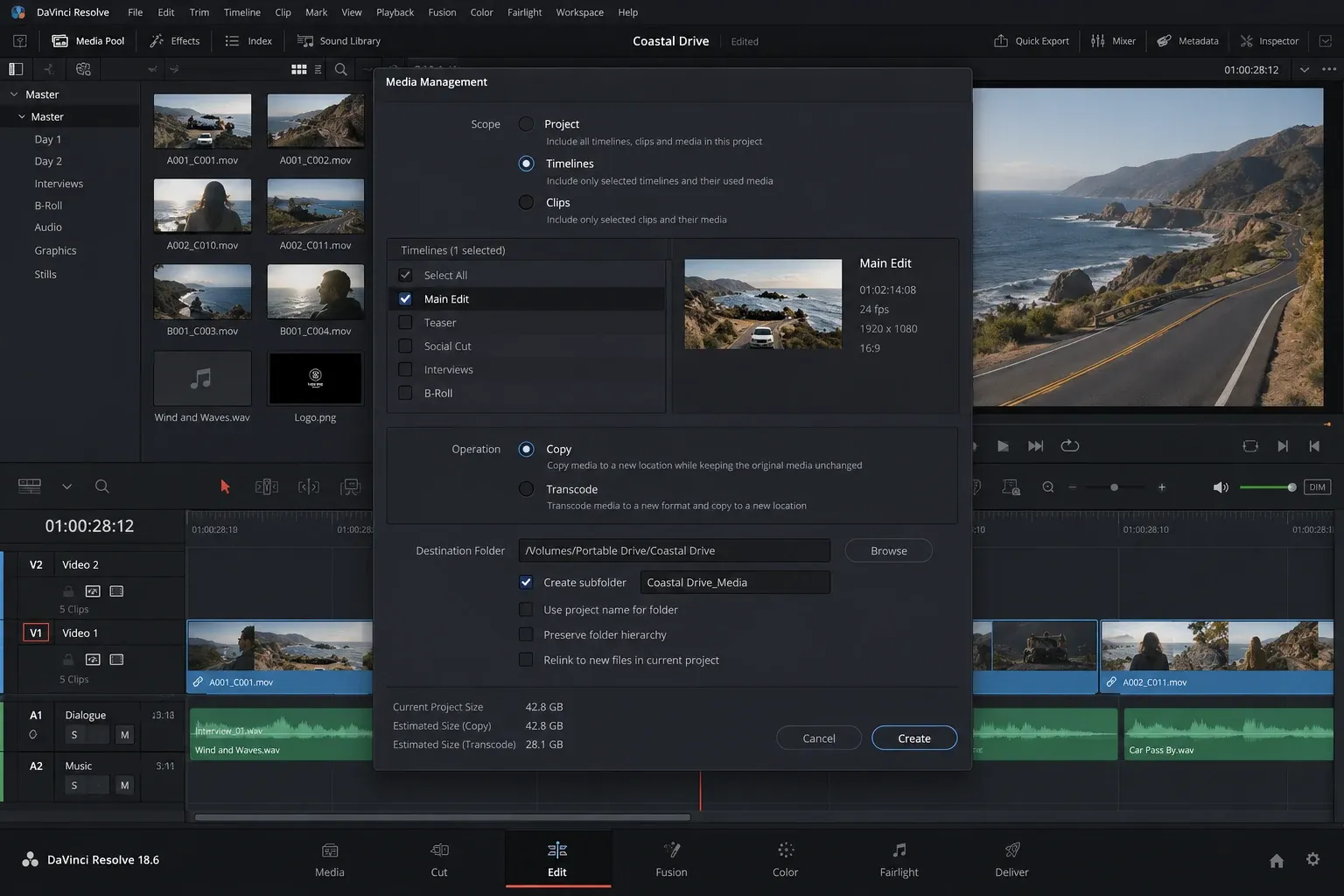
Media Management can work at different levels. Use the narrowest scope that still owns the work you must preserve.
Project
Choose the whole project when several timelines, shared source clips or alternate versions belong together. This is the safer choice when you are unsure which timeline is the final one or when a source clip used in one sequence may be needed in another.
The tradeoff is volume. A project-level collection can include media that a single delivery timeline never touches, especially when bins contain selects, alternate edits or abandoned versions.
Timelines
Choose selected timelines for a locked cut, a color handoff or a delivery-specific archive. This keeps the collection focused without making you select hundreds of individual clips.
Before running it, check that the selected timelines are the actual versions you intend to preserve. Duplicate timelines with names such as Final, Final 2 and Final Approved are an archive problem, not a Media Management setting.
Clips
Choose selected clips when the job is genuinely clip-specific: moving a small group of shots, collecting VFX pulls or isolating media for another project. It is precise, but it places the burden on you to prove that nothing else is needed.
If the package must reproduce a timeline, timeline scope is usually easier to audit than a hand-selected clip list.
Choose Copy or Transcode
This choice determines whether the managed set keeps the original media essence or creates new files.
Use Copy When Source Fidelity Matters
Copy is the default I trust for an archive or transfer when the destination can use the original formats. It avoids introducing a new generation and preserves the source files’ native codec and container where the requested operation is supported.
Copy is also easier to explain later: the managed folder contains copied source media, not a new mezzanine interpretation chosen during cleanup.
That does not mean every source format can always be trimmed exactly as requested. Trim behavior can depend on the source format and clip type. Check what Resolve actually writes rather than assuming every copied file will be reduced to the used range.
Use Transcode for a Defined Delivery Requirement
Transcode creates new media. Use it when the receiving system needs a common finishing codec, when the original format is unsuitable for the intended workflow, or when a controlled mezzanine set is part of the handoff specification.
Before committing, define these properties explicitly:
- codec and container;
- resolution and frame rate;
- bit depth and chroma sampling;
- source timecode behavior;
- audio channel layout;
- alpha-channel requirements;
- whether camera RAW controls must remain available.
A transcode can play perfectly and still be wrong for finishing. A file with reduced bit depth, missing alpha, collapsed audio channels or lost RAW flexibility may pass a casual playback check while failing the actual handoff.
Choose Full Files, Used Media or Trimmed Media
The next decision controls how much source range survives.
Full Source Files
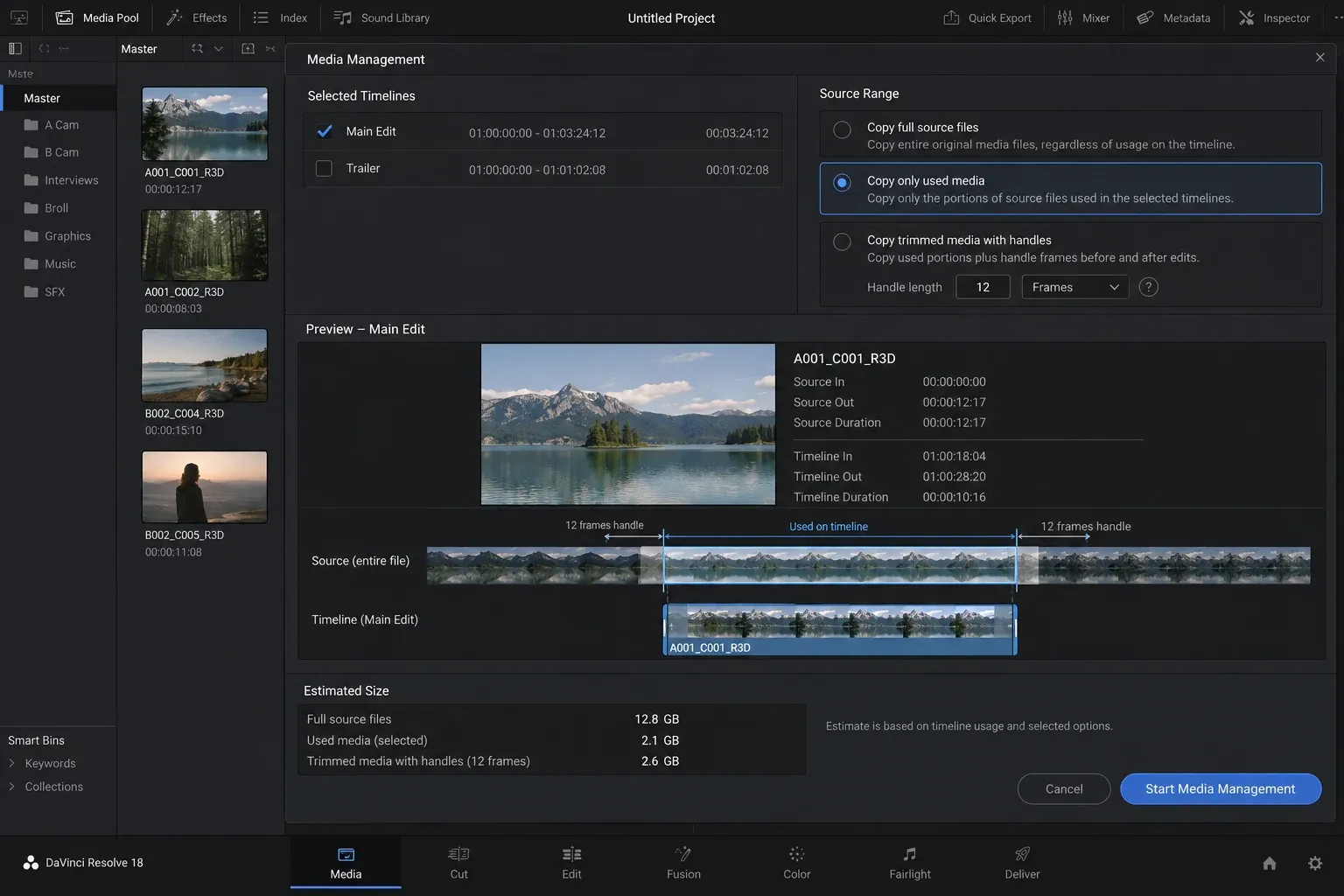
Full files are the least compact and the easiest to reason about. They retain every frame in each collected clip. Choose them when editors may substantially change the cut, when source formats do not trim reliably, or when the project’s future use is uncertain.
Used Media Without Aggressive Trimming
A used-media collection removes clips that are not part of the selected scope while keeping the selected source files intact. This often gives a useful reduction without shortening every file.
It is a good middle ground for active transfers: unrelated footage stays behind, but the collected clips still have their complete source range.
Trimmed Media With Handles
Trimmed media keeps the portions used by the edit plus extra frames before and after each use. A current finishing workflow example shows why editors use this option for compact handoffs, but its handle count and storage result belong to that specific project. They are not universal settings.
Choose handles from the edit, not from habit. Ask what can need frames outside the visible cut:
- dissolves and other transitions;
- speed changes and reverse playback;
- stabilization or reframing that may expose different source areas;
- optical-flow work;
- VFX pulls and replacement shots;
- likely editorial revisions;
- source clips reused in nested, compound or multicam structures.
If you cannot explain why a handle length is safe, increase it or keep full clips. Storage is cheaper than rebuilding an archive around missing frames.
Keep the Destination Readable
Create a new empty destination folder for each managed package. Do not mix it with camera originals, proxies, cache files or an older collection. A clear root might contain:
- the managed media folder;
- the matching DRP or timeline export;
- a text manifest;
- explicitly packaged LUTs, DCTLs, fonts or other dependencies;
- a small verification render, if one is useful for comparison.
Keep the package name tied to the project and date. Record the Resolve version, selected timelines, Copy or Transcode choice, handle policy and any exceptions.
Pay special attention to duplicate file names. Two camera cards can both contain C0001, and separate audio recorders can produce repeated names across shooting days. An official Blackmagic forum discussion about Media Management includes reports of duplicate-name, timecode and folder-structure surprises. Those reports do not prove that every project will fail, but they give you exact conditions to test before trusting a flattened or reorganized folder.
Audit Dependencies That Are Easy to Miss
Media Management primarily collects media. A portable project can depend on more than ordinary camera files.
Review these before the copy:
- separately recorded audio and manually synced clips;
- still images and image sequences;
- nested, compound and multicam timelines;
- retimes, freeze frames and reverse clips;
- Fusion compositions, generated elements and rendered VFX;
- titles, subtitle files and caption data;
- installed fonts and third-party effects;
- LUTs and DCTLs stored outside the project;
- graphics that require alpha channels;
- multichannel or polyphonic audio;
- optimized media, proxies, render cache and gallery stills if the next workstation is expected to use them.
Some items are project data. Some are external files. Some need to be rendered because the receiving workstation does not have the same plugin or font. The right solution is not to assume Media Management will package all of them. List them, decide who owns each dependency and verify the result on the receiving side.
For collaboration built around Blackmagic Cloud and proxies, use the separate Cloud collaboration media handoff workflow. Media Management is better treated as a deliberate collection and archive tool than as a substitute for every collaborative media strategy.
Run Media Management
Once the scope and package rules are clear:
- Save the project and create a restorable project or timeline backup.
- Open File → Media Management.
- Select the intended scope: Project, Timelines or Clips.
- Choose Copy or Transcode.
- Choose full, used or trimmed media and set handles where applicable.
- Select the new empty destination folder.
- Review the estimated result, but treat it as planning information rather than proof.
- Start the job and preserve the originals after it completes.
A Media Management overview from DVResolve describes the durable idea well: collect a streamlined media set for the work you need to keep. Its discussion also contains a report of trimmed RED media reopening with sync and handle problems. One report cannot define current behavior for every R3D project, but it reinforces the need to test the exact source mix you have.
Prove the Managed Package Can Restore
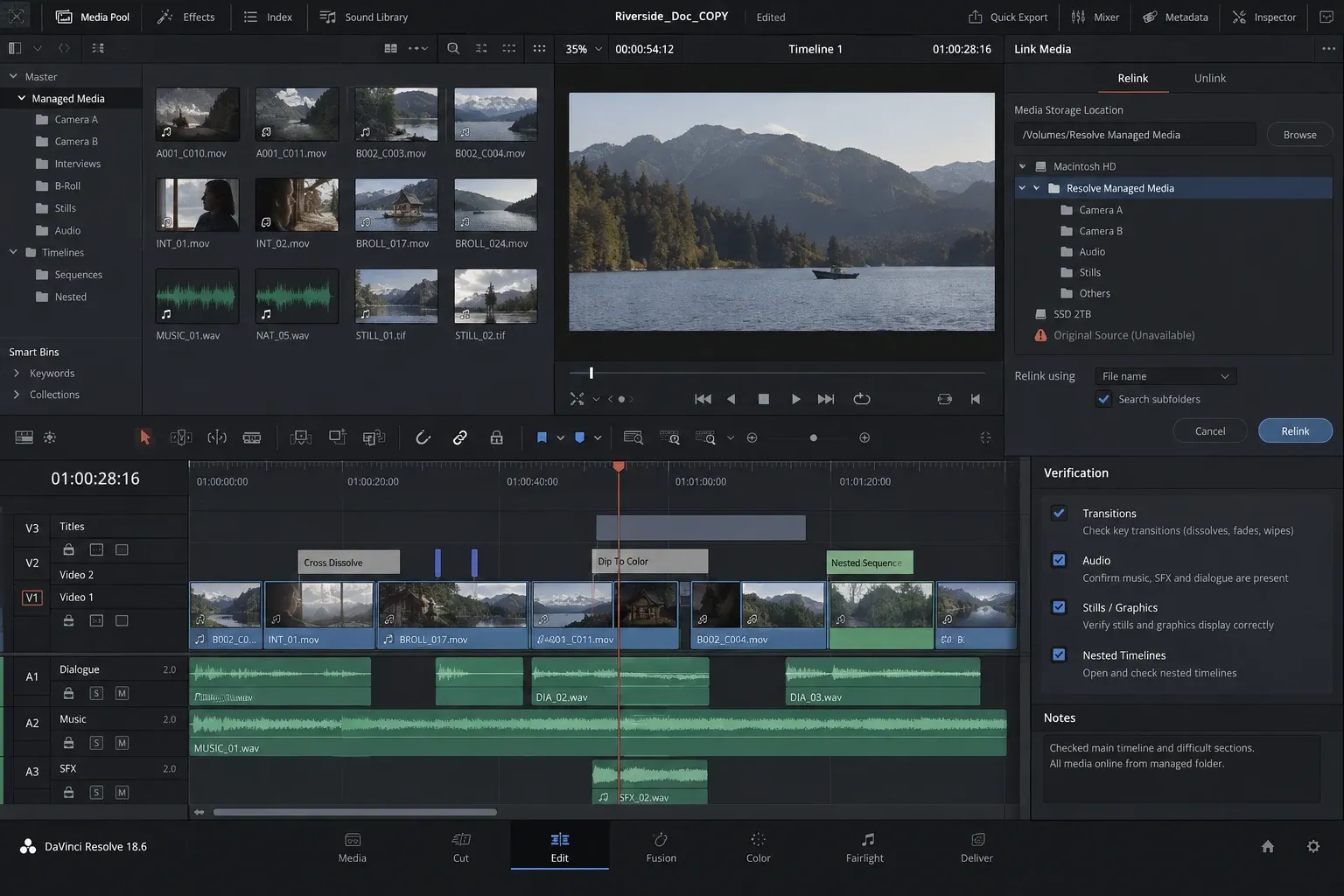
This is the acceptance test.
- Duplicate the project or import the backup intended for the managed package.
- Point that copy only to the managed media root.
- Temporarily unmount the original source drive, or rename its root folder so Resolve cannot fall back to it.
- Reopen the project.
- Confirm that the expected clips are online.
- Inspect difficult sections, not just the opening shot.
- Render representative portions with proxies and render cache disabled when the managed source files are what you need to verify.
Check the first and last frames around cuts, transitions and speed effects. Open multicam, compound and nested timelines. Listen to clips with separate or multichannel audio. Inspect stills, image sequences, graphics with alpha and shots that depend on RAW controls.
Compare properties that matter to the next stage: resolution, frame rate, timecode, audio channels and codec. If you transcoded, confirm that the new files meet the written handoff specification.
Only after this test should you call the package portable. Keep the source drive untouched until the archive exists in at least two places.
Troubleshooting by Symptom
The Managed Folder Is Much Larger Than Expected
Some source files may have been copied in full because the requested trim was not available for that format or clip type. Confirm which files dominate the folder before rerunning the job. If compact size is essential, evaluate a controlled transcode against the finishing requirements rather than changing codecs blindly.
Clips Are Offline When the Original Drive Is Disconnected
First confirm that the managed files exist and that the duplicate project is linked to the new root. Then use the Media Offline troubleshooting guide to separate a path problem from a codec, permission, mount or metadata problem.
Do not reconnect the source drive until you understand the failure. Reconnecting it can make the project appear healthy by silently restoring the old paths.
The Wrong Clip Relinks
Look for duplicate base names, overlapping timecode and media copied from several cards into a simplified folder structure. Compare reel names, source paths and clip metadata. A wrong successful relink is more dangerous than an obvious offline clip because it can reach export unnoticed.
Audio Is Missing or Out of Sync
Check whether separately recorded audio was included, whether synced or multicam structures still point to the intended files, and whether a transcode preserved channel layout and timecode. Inspect several points in long clips; checking only the first frame can miss drift or trimmed-boundary problems.
Titles, Fusion Work or Effects Look Different
Confirm fonts, plugins, LUTs, DCTLs and external assets on the destination system. If the setup cannot be reproduced, render the element or supply an agreed interchange version. Keep the editable original in the archive even when a flattened render is used for the handoff.
The Copy Finished, but Some Clip Attributes Changed
Compare a representative original clip with its managed counterpart. Check framing, transform-sensitive metadata, clip speed, audio interpretation and source properties. Community reports show that unusual formats and clip attributes deserve direct inspection; they do not support a blanket rule that one codec or workflow always fails.
Archive and Handoff Checklist
Before deleting, returning or shelving any source drive, confirm:
- the package has a clear purpose: handoff, transfer or archive;
- the correct project, timelines or clips were selected;
- Copy or Transcode matches the downstream requirement;
- handle length covers transitions, retimes and expected revisions;
- stills, image sequences and external audio are present;
- nested, compound and multicam timelines were checked;
- fonts, plugins, LUTs, DCTLs and other external dependencies are documented;
- the duplicate project opens with the original source drive unavailable;
- representative difficult sections render from the managed media;
- the package includes a project backup and a short manifest;
- at least two copies exist before any original is removed.
Media Management earns its keep when it reduces a project to the media that matters without hiding what was left behind. Build the smallest package that still serves its declared purpose, then try to break it while the originals are safe. That restore test is what turns a copied folder into an archive you can trust.
