
Quick answer: open the Edit page, choose View > Show Duplicate Frames, then scan the timeline for colored bars above clips. Matching colors identify timeline ranges that use the same source frames more than once. Zoom out to find the pairs, then zoom in before changing anything: a duplicate marker can reveal an accidental repeated shot, but it can also mark an intentional cutaway, replay, flashback, split-screen layer, or copied background. This check is part of the wider DaVinci Resolve tutorial hub.
The tool answers one narrow question: where does this timeline reuse the same part of a source clip? It does not prove that the edit is wrong, and it does not detect repeated images already baked into a single media file.
Turn On Show Duplicate Frames
- Open the timeline on the Edit page.
- Open the View menu.
- Enable Show Duplicate Frames.
- Zoom out until you can see a useful span of the timeline.
- Look for short colored bars along the upper edge of video clips.
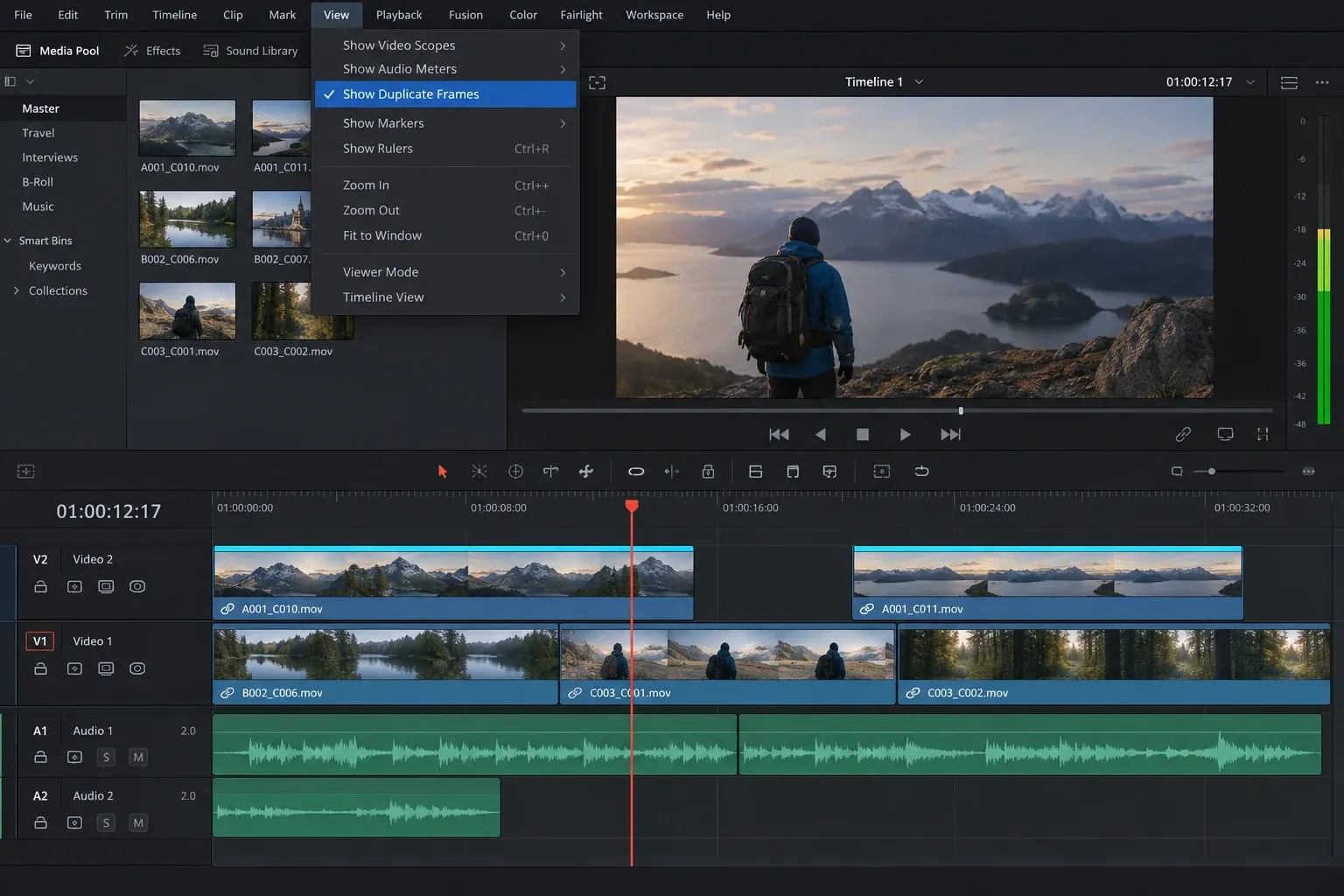
Resolve draws the markers on the clips, not in a separate report window. If the timeline is very dense, start wide enough to spot repeated color pairs, then zoom toward one pair. The overlay is easier to read when video track height is large enough to leave the top edge visible.
What the Colored Duplicate-Frame Bars Mean
A colored bar marks the portion of a clip whose underlying source frames appear elsewhere in the same timeline. Another bar with the same color points to the matching use. The color helps connect occurrences; it is not a warning level and does not tell you which copy is the mistake.
| Marker pattern | Likely meaning | Next check |
|---|---|---|
| Two full-width bars on identical short clips | The complete source range was used twice | Confirm whether the second use is intentional |
| A short bar on part of each clip | Only an overlapping source-frame range is repeated | Compare source In and Out points |
| Several bars with the same color | The same source section appears in several places | Review the edit purpose of every occurrence |
| No marker, but playback repeats visually | The repeated images may be inside one source file or caused by cadence | Inspect the source and frame-rate path |
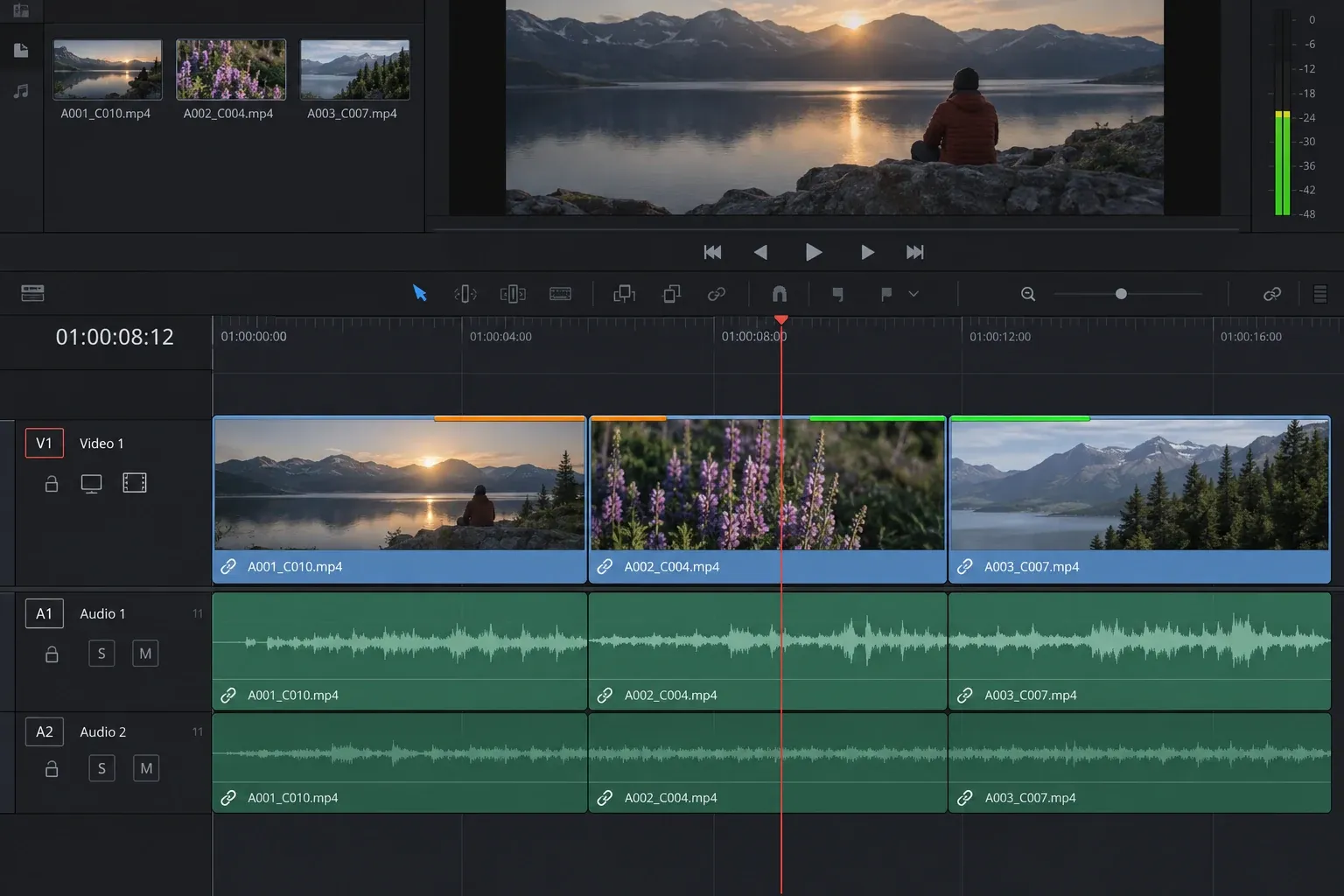
Partial bars matter. Two clips can have different durations, different timeline positions, and different visible content at their ends while still sharing a few source frames in the middle. That is common after trimming alternate versions of the same shot.
Scan a Long Timeline Without Losing Context
- Save the current timeline state or create a named timeline duplicate before making broad changes.
- Disable unrelated overlays if the clip area is visually crowded.
- Zoom out and scan from the first video track downward, one section at a time.
- When a color appears, find every matching bar before judging the first occurrence.
- Zoom in and inspect the exact beginning and end of the marked range.
- Play several seconds before and after each occurrence with audio.
- Record the timeline timecodes if the review is being handed to another editor.
The second occurrence is not automatically the wrong one. The earlier use may be a teaser that spoils a later reveal, or the later use may be the accidental leftover. Judge the pair in story order and listen for duplicated dialogue, room tone, music transients, or ambient sounds that expose the reuse even when the picture is subtle.
Decide Whether the Reuse Is Intentional
Duplicate-frame detection is a QC aid, not an automatic delete list. Keep a repeated range when it serves the edit and the viewer is meant to recognize or accept the repetition.
- Usually intentional: replay, recap, flashback, picture-in-picture, split screen, before-and-after comparison, freeze-frame design, looping background, or a deliberate reaction callback.
- Needs review: generic B-roll, an interview cutaway, establishing footage, or a montage shot that may feel familiar without being obviously repeated.
- Often accidental: two adjacent copies, a paste left under another track, repeated dialogue, or the same insert used twice within a short sequence without a narrative reason.
If you created the repetition on purpose, the duplicate clip guide explains copy-and-paste and modifier-drag methods. The marker remains useful because it confirms exactly which source range was reused.
Remove or Replace an Accidental Duplicate Safely
Do not delete the marked clip before checking what holds the timeline together. A simple delete can leave a gap; a ripple delete can pull every later edit earlier; replacing only the video can break sync with linked audio.
- Select the occurrence you intend to change and confirm its track, linked audio, transitions, keyframes, and connected titles.
- Choose a replacement shot with the same editorial role, or trim a different unused range from the original source.
- Use Replace Edit, overwrite, or a controlled trim when the sequence duration must stay fixed.
- Use ripple removal only when the sequence should become shorter.
- Replay the surrounding edit, then check whether the duplicate marker disappeared or merely moved to a different overlap.
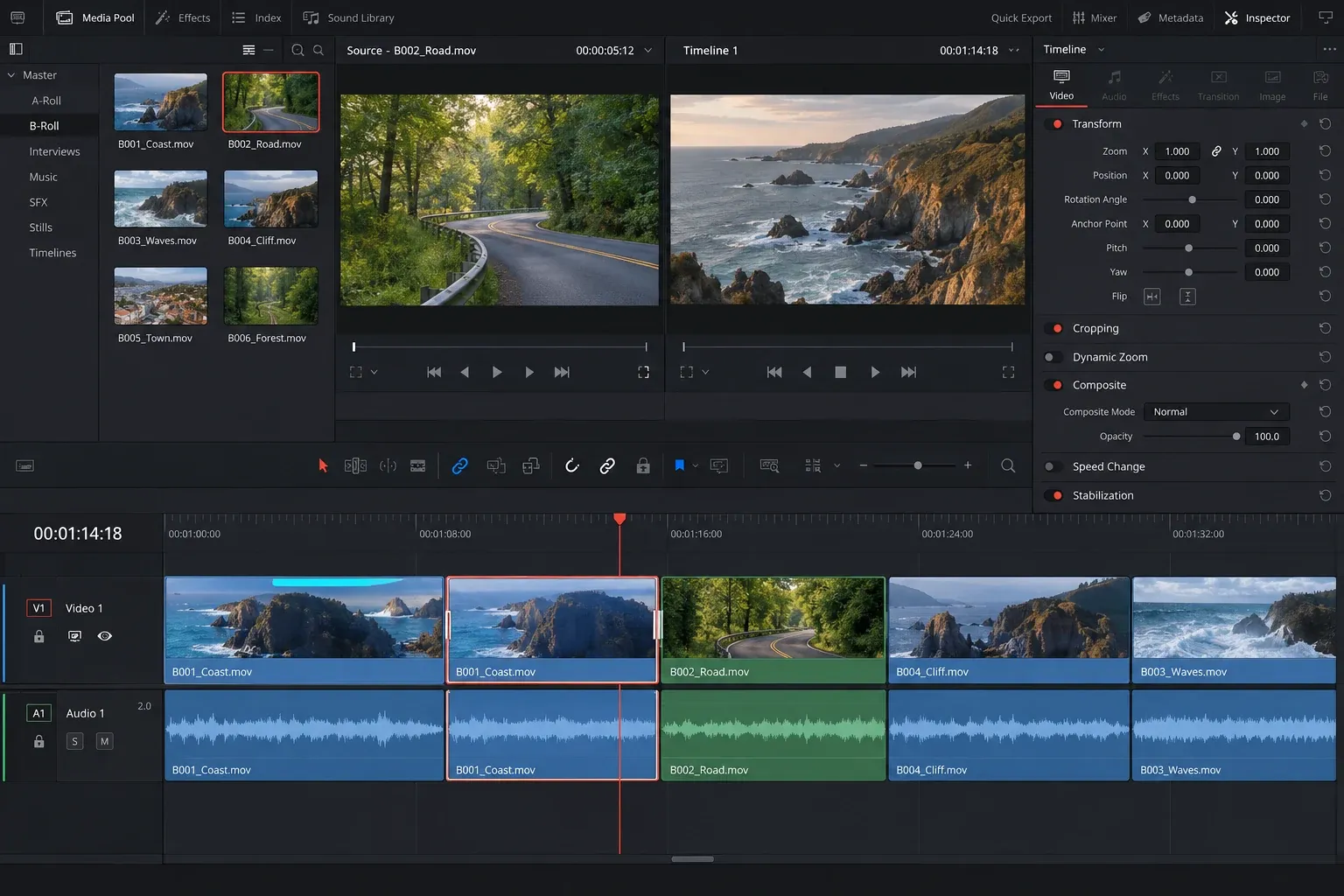
A different trim from the same source clip can still overlap the original occurrence. Move the source In point beyond the marked range, or choose another shot. When the repetition is only a few frames long, one trim may be enough; when the whole clip is marked, a true replacement is usually clearer.
Why Duplicate-Frame Markers May Not Appear
Show Duplicate Frames is not enabled
Return to the View menu and confirm the option is active. Menu state can be overlooked after changing workspaces or opening another timeline.
The timeline is too compressed or the tracks are too small
Increase track height and zoom into the suspected area. A very short repeated range can be difficult to see at a wide timeline scale.
The clips look similar but use different source frames
Two shots may come from the same camera take yet use adjacent, non-overlapping ranges. Visual similarity is not enough; the detector is concerned with repeated source frames.
The repeat is inside a compound clip or nested timeline
The open timeline may treat the compound or nested item as one clip. Open the underlying timeline or compound clip and run the check where the repeated source media is actually edited. The compound clips guide explains how to enter and decompose that structure.
The same recording exists as two separate media files
Duplicate detection is tied to source usage. Two separately imported or transcoded files can contain identical pictures while presenting as different media items. Use filenames, reel or camera metadata, timecode, and visual comparison to find those cases.
Timeline Duplicates Are Not Repeated Frames Inside a Source File
A clip can stutter because its file already contains repeated frames, because frames were created during a frame-rate conversion, or because playback cannot decode media in real time. Show Duplicate Frames is not designed to diagnose those conditions. It looks for the same source range used in more than one timeline location.
If one continuous clip shows repeated motion but has no colored duplicate pair, inspect the source and frame-rate path. The frame-rate guide covers project, timeline, and source FPS decisions. If frames are unique but playback hesitates, use the slow playback guide to separate decoding performance from editorial repetition.
Check Audio Even Though the Overlay Is Visual
The timeline marker points to reused video frames, but the editorial problem may be easier to hear. A duplicated breath, word, footstep, music hit, or room-tone pattern can reveal a copied section that passes a quick visual scan.
- Listen through both occurrences at normal speed.
- Check linked audio and separately edited audio tracks.
- Inspect transitions that may hide the picture cut but repeat a sound.
- Confirm a replacement did not leave the old audio beneath it.
When video reuse is intentional but audio repetition is distracting, replace or extend the sound independently. Keep sync where dialogue or visible action requires it.
Run a Final Duplicate-Frame Check Before Export
Turn the overlay on for the final timeline, not only the assembly or rough-cut version. Scan the full program after relinking, reconforming, copying scenes between timelines, or rebuilding a sequence from XML. Those are the moments when an old clip can survive under a replacement or a section can be pasted twice.
- Scan every visible video track for matching bars.
- Resolve each pair as intentional, acceptable, or accidental.
- Check nested timelines and compound clips separately when they contain editorial content.
- Render a short proof around every corrected section.
- Export the final range and watch the rendered file rather than assuming the timeline state carried through.
The export guide covers render range and post-render verification. Duplicate markers do not appear in the delivered video; they are an editor-side overlay. Your final check must be based on the actual rendered picture and sound.
Duplicate Frames FAQ
Do the colored duplicate-frame bars appear in the export?
No. They are timeline overlays for editing and review, not picture elements.
What does the same marker color mean?
It connects occurrences that share the same source-frame range. Treat the color as a pairing aid, not a severity rating.
Why are two clips from the same file not marked as duplicates?
They may use different, non-overlapping frame ranges from that file. The detector marks reused frames, not every reuse of the same media item.
Which duplicate should I delete?
Neither by default. Review both in story order, identify the intentional use, and change the occurrence that harms continuity, timing, or clarity.
