
To restore DaVinci Resolve’s default workspace, choose Workspace > Reset UI Layout. To keep an arrangement you like, choose Workspace > Layout Presets > Save Layout As Preset, give it a name, and click OK. Bring it back later through Layout Presets > your preset > Load.
I’d check the active page before doing either. If a tutorial shows the Edit page and you’re on Cut, a layout reset won’t give you the same timeline tools. If only the Inspector has disappeared, reopen that panel first. The steps below cover the desktop interface documented in Blackmagic’s Resolve 21.1 manual.
Find the Missing Panel Before Resetting Everything
Resolve’s pages serve different jobs. Cut, Edit, Fusion, Color and Fairlight are separate workspaces, so a control can be absent because you’re on the wrong page. Choose Workspace > Switch to Page > Edit when following an Edit-page tutorial. If the page strip is missing at the bottom, enable Workspace > Show Page Navigation.
For a hidden panel, use its button in the toolbar or open Workspace > Show Panel in Workspace and select it. The choices depend on the active page. Blackmagic documents both methods in its interface customization instructions.
- Switch to the page used by the tutorial or workflow.
- Show the panel you need, such as Inspector or Media Pool.
- Drag the divider between adjacent panels to give it enough room.
- If a tall panel crowds the timeline, check its half-height/full-height toggle in the toolbar.
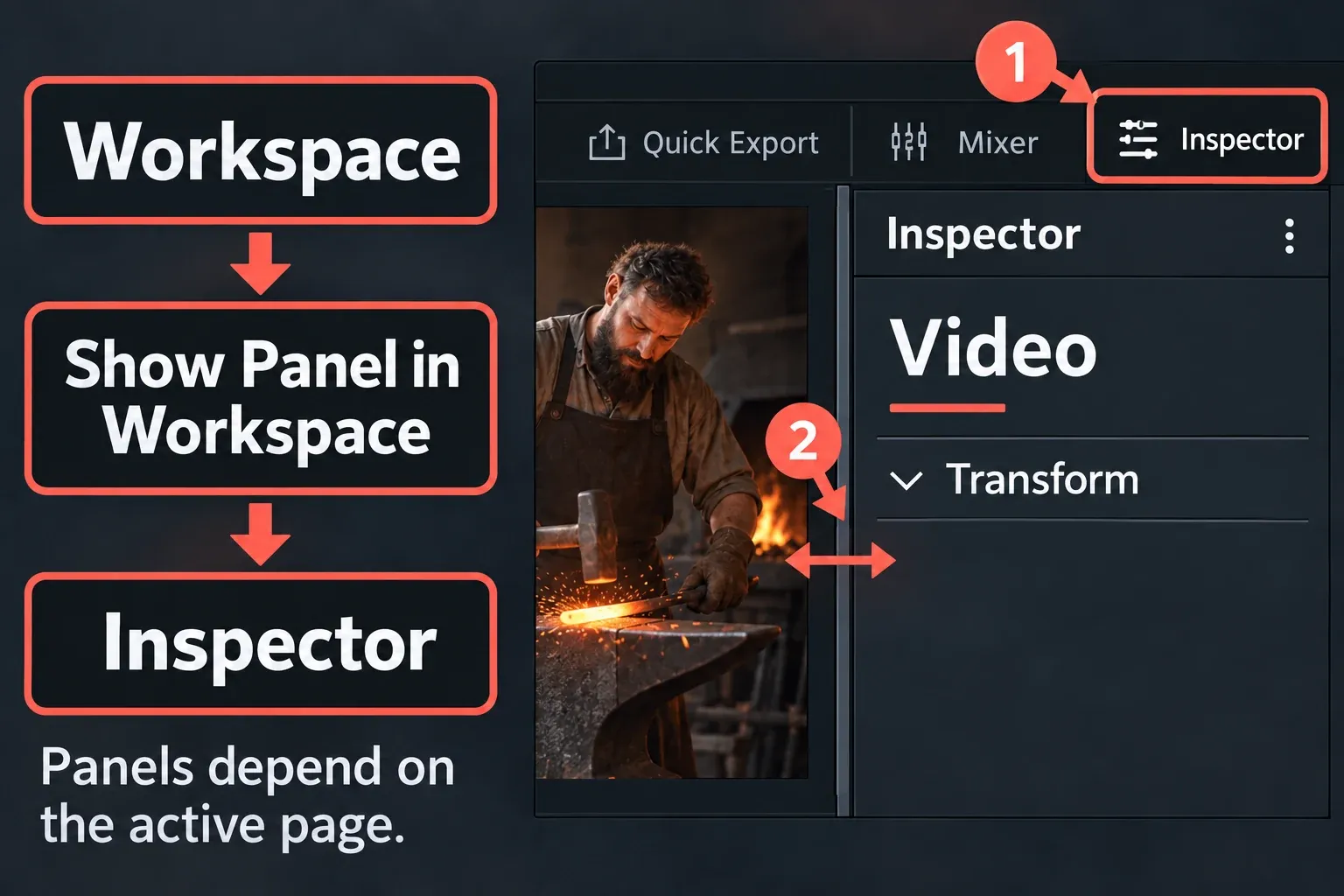
A visible but empty Inspector is a different problem: select the clip, title, transition or effect whose controls you want. The Inspector guide explains that selection and its contextual tabs. Resizing the workspace won’t add a tool that doesn’t apply to the selected item.
Save a Workspace You Can Return To
Arrange the panels around the work you’re doing. For an assembly edit, that might mean a generous Media Pool and timeline; for a detailed adjustment, you might want more Inspector height. These are choices about working space. They don’t change the picture’s crop or the timeline’s output resolution.
- Show, hide and resize the panels you need. Visit the other pages whose arrangements you also want to keep.
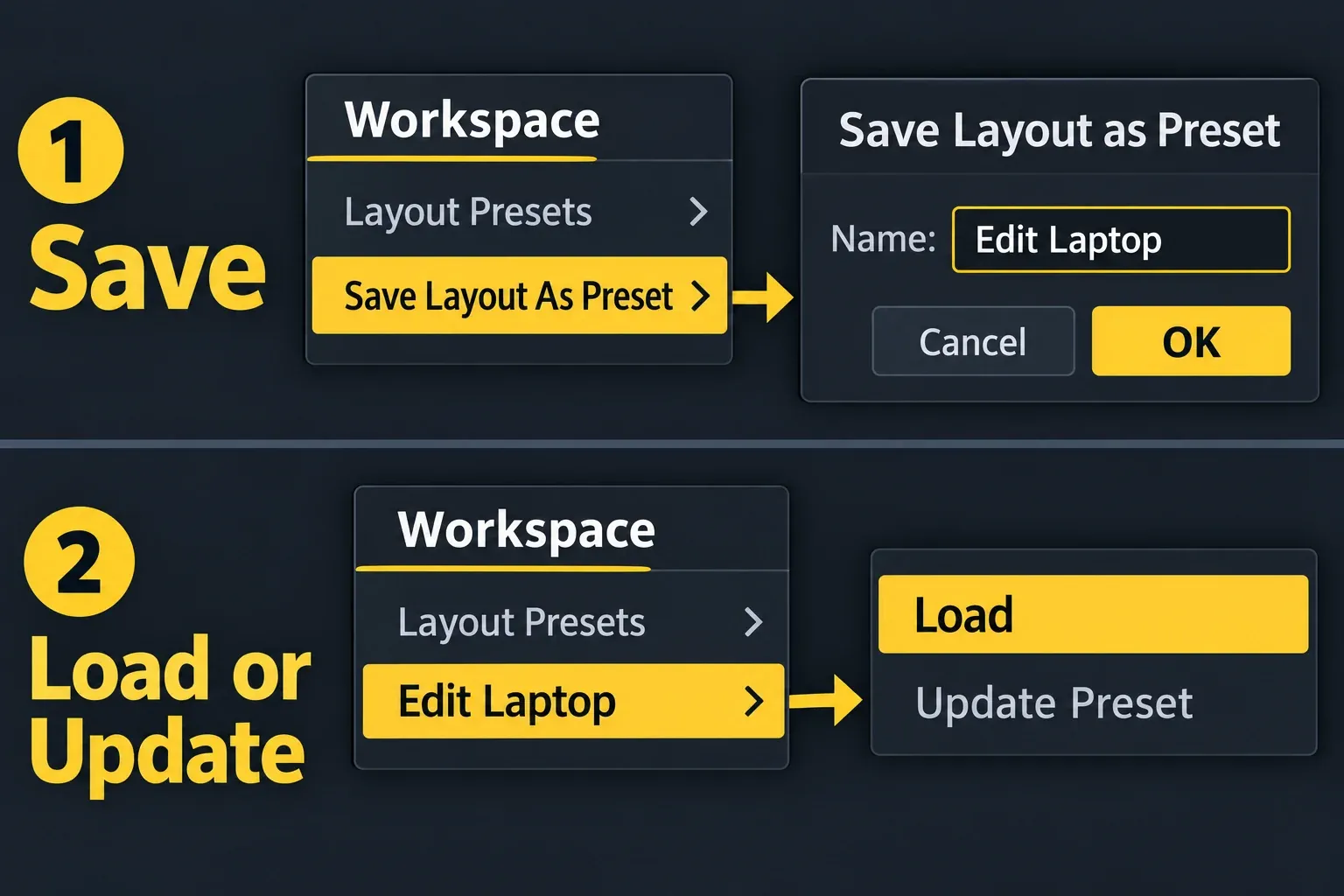
- Choose Workspace > Layout Presets > Save Layout As Preset.
- Enter a recognizable name, such as Edit Laptop or Edit Dual Screen.
- Click OK.
The custom screen layout instructions describe configuring the various pages before saving. I’d use names that identify the task and display setup. “Preset 1” tells you very little when you return to it after unplugging a second screen.
Load the Preset, or Update It Deliberately
Choose Workspace > Layout Presets > your preset > Load to restore the saved arrangement. Check the pages you configured and confirm that the panels and proportions are useful for the current display.
To revise an existing preset, load it, make the changes, then choose Workspace > Layout Presets > your preset > Update Preset. Load recalls the stored layout; Update Preset stores your revised one. If you want to preserve the earlier arrangement, save a new named preset instead of updating it.
Export a Layout for Another Resolve Installation
Use Workspace > Layout Presets > your preset > Export Preset and keep the exported file somewhere you can find it. On the destination installation, choose Workspace > Layout Presets > Import Layout as Preset, select the file, then load the imported preset from the same menu.
Check the result on the destination display, and don’t expect identical proportions on a different screen setup. A workspace preset is also separate from your project and media backup: exporting the layout isn’t a way to move or protect the edit itself.
Give Frequently Used Layouts a Shortcut
Open DaVinci Resolve > Keyboard Customization. In the command list, go to Application > Workspace > Layout Presets. Blackmagic documents shortcut assignments for up to five layout presets. Choose an available combination and save your keyboard mapping; don’t assume a reset or preset shortcut is identical on every machine.
For keyboard conflicts and the Premiere, Final Cut or Avid shortcut sets, use the keyboard customization guide. Those mappings control keys. They don’t rearrange the panels into another editor’s interface.
Reset the UI Without Resetting Your Edit
If the arrangement is still awkward, choose Workspace > Reset UI Layout. This is the interface command for returning the pages to their default layout. It isn’t the reset arrow beside a clip’s Transform controls, and you don’t need to change Project Settings to use it.
Save the current layout as a named preset first if you may want its panel arrangement back. After resetting, return to the page you need, show the relevant panels and adjust their sizes. Save the cleaner arrangement once it works for you.
I wouldn’t delete preference folders or reinstall Resolve just to recover a panel. The documented show-panel and UI-reset commands address that job directly. If a control is still missing after the correct page, selection and layout are restored, check the control’s edition or version requirements instead.
Use Two Screens for the Right Job
Decide whether you need more interface space or a full-screen picture. Resolve provides different commands for those goals.
Dual Screen Spreads the Interface Across Displays
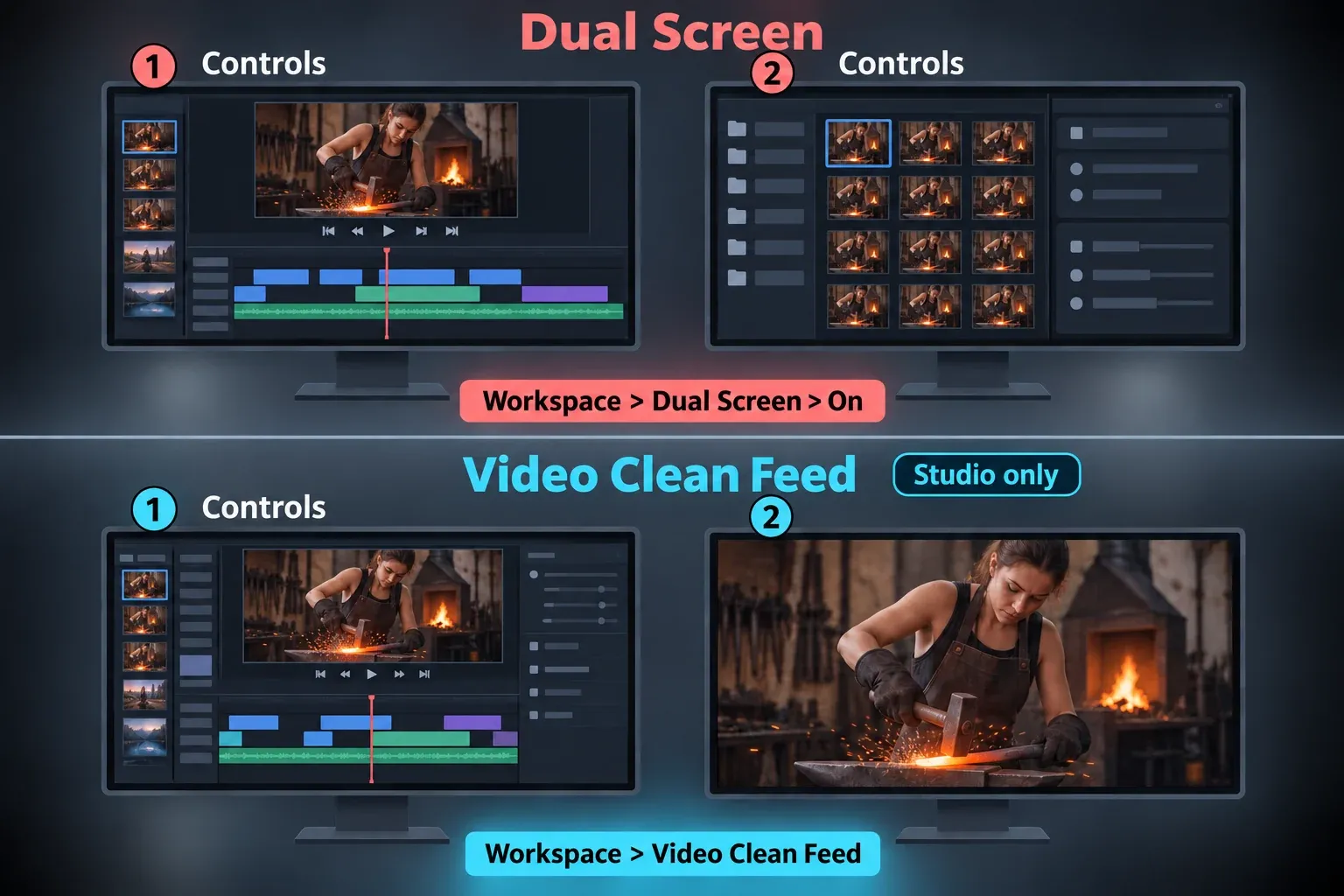
Choose Workspace > Dual Screen > On. The documented dual-screen layouts apply to the Media, Edit, Color and Fairlight pages. They give panels more room; they aren’t an unrestricted system for dragging every panel wherever you like. Blackmagic notes that the second screen can be resized but not reorganized in its single- and dual-monitor layout guidance.
Use Workspace > Primary Display > your monitor to choose the interface’s display in single-screen mode. In dual-screen mode, that choice reverses the contents of the two monitors.
For a large Edit-page timeline, enable Workspace > Dual Screen > Full Screen Timeline. The timeline fills the primary display, while the other Edit-page panels occupy the secondary display. Pick it when the timeline needs the space. If you want only the finished picture on screen two, this is the wrong option.
Video Clean Feed Sends the Viewer to Another Display
In Resolve Studio, choose Workspace > Video Clean Feed > your display for a full-screen viewer on a secondary monitor connected directly to the computer. The manual marks Video Clean Feed as Studio-only. That restriction doesn’t apply to the ordinary Dual Screen interface layout.
Resolve does allow some separate windows. For example, right-click a Media Pool bin and choose Open As a New Window; video scopes can also expand into a floating window. These specific options don’t mean every interface panel can be undocked.
Why a Saved Layout Still Looks Different
The Layout Changed When You Opened a Vertical Timeline
Resolve can automatically switch to an optimized vertical interface when a vertical timeline or project is loaded on the Cut, Edit or Color page. It returns to the original layout for a landscape timeline. Check Preferences > User > UI Settings > Use optimized UI layouts for vertical video if you want to control that behavior; the vertical editing documentation describes the option. An automatic change here doesn’t by itself mean your preset failed.
You Changed the Monitor Setup
Check which displays are connected, the Primary Display choice and whether Dual Screen is enabled. Then load the intended preset explicitly. I’d keep separate laptop and dual-screen presets instead of overwriting a useful layout while working on a different display arrangement.
If the problem persists, record the Resolve version, operating system, connected displays, active page and exact preset command that fails. Don’t assume another user’s report proves a universal fix. A Blackmagic forum discussion about missing layouts mixes Media Pool column presets, conflicting persistence reports and a user’s monitor-setup observation. That’s useful diagnostic context. It isn’t a reason to delete settings.
You Saved a Different Kind of Preset
A Media Pool column layout controls a list’s columns. A keyboard preset controls key assignments. A workspace layout controls the interface arrangement. Go back to Workspace > Layout Presets when it’s the panel arrangement you want to restore.
If you’re still learning which page owns each task, follow the beginner editing workflow before building an elaborate workspace. Keep the controls for the current job visible, save that arrangement, and add another preset only when a different task needs it. The Resolve learning path connects those tasks to the next guide.
