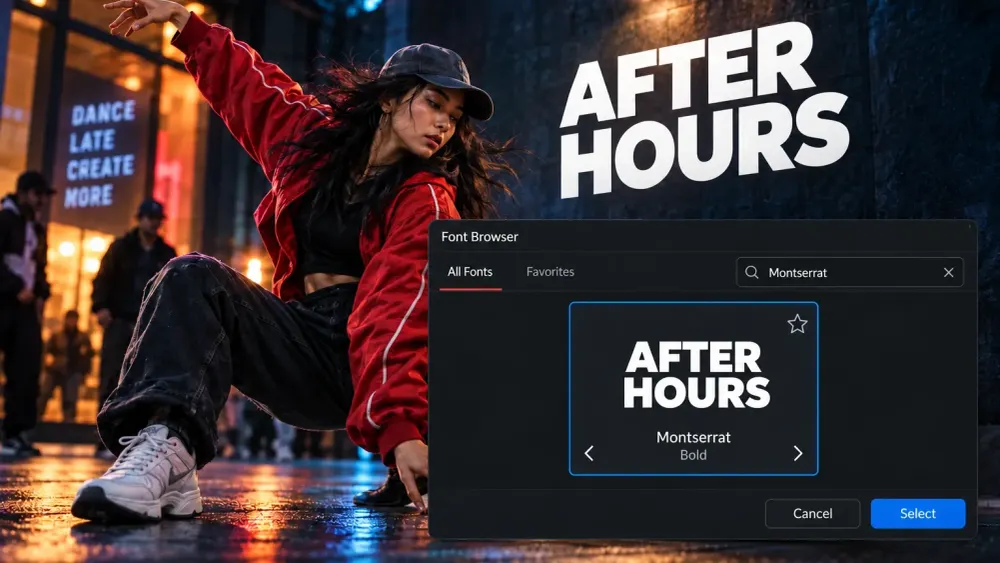
To add a font to DaVinci Resolve on Windows or Mac, install the font on your computer, fully quit Resolve, then reopen it and choose the font in the title’s Inspector. You install the font file, usually .ttf or .otf. Importing its ZIP into the Media Pool won’t do it.
If the download is already installed but still missing, start with the system’s font list. That tells you whether you have an installation problem or a Resolve selection problem. I’d make that distinction before reinstalling anything: a font hidden by a browser filter needs a different fix from a font the operating system can’t see.
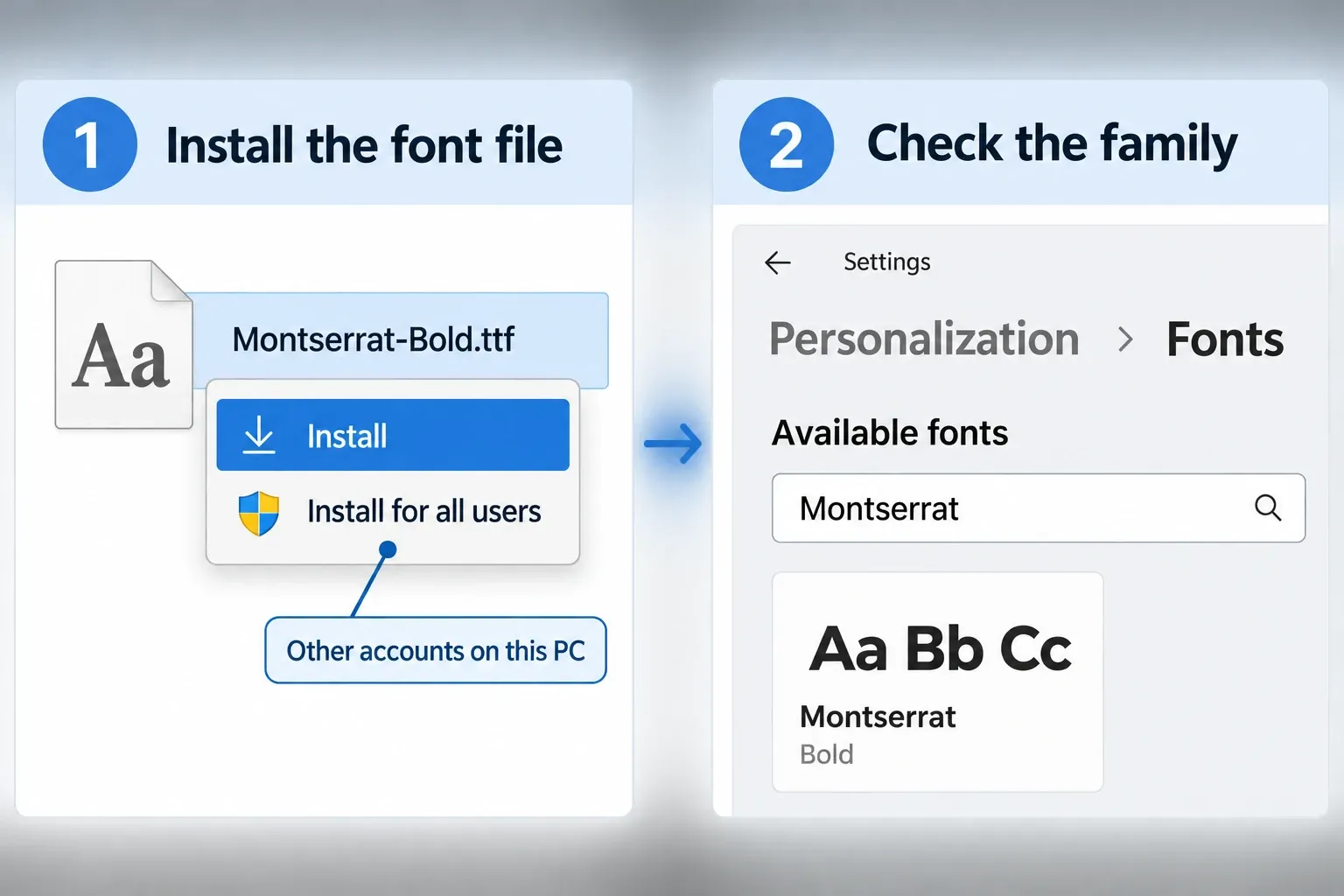
Install the font on Windows
Download the desktop font files from the font’s publisher or a trusted library. Keep the license with the download, especially if you’re using the typeface in paid work. Google Fonts is a useful starting point: its commercial-use guidance allows commercial projects, with use and redistribution subject to each font’s license. A font listed as free on another site may have different terms.
- If the download is a ZIP, extract it first. Open the extracted folder and find the
.ttfor.otffiles. - Right-click the font file and choose Install. Choose Install for all users if other Windows accounts on the same computer need it. Approve an administrator prompt only when you trust the downloaded file.
- Open Settings > Personalization > Fonts and search under Available fonts. Open the family to check its preview and available faces.
- Save your project, quit DaVinci Resolve completely, and reopen it. Select your title and look for the family in the Inspector.
These installation and verification controls are documented in Microsoft’s Windows font settings. If you downloaded separate Regular, Bold, and Italic files, install the faces you need. Installing Regular alone doesn’t install the rest of a family.
Install the font on Mac
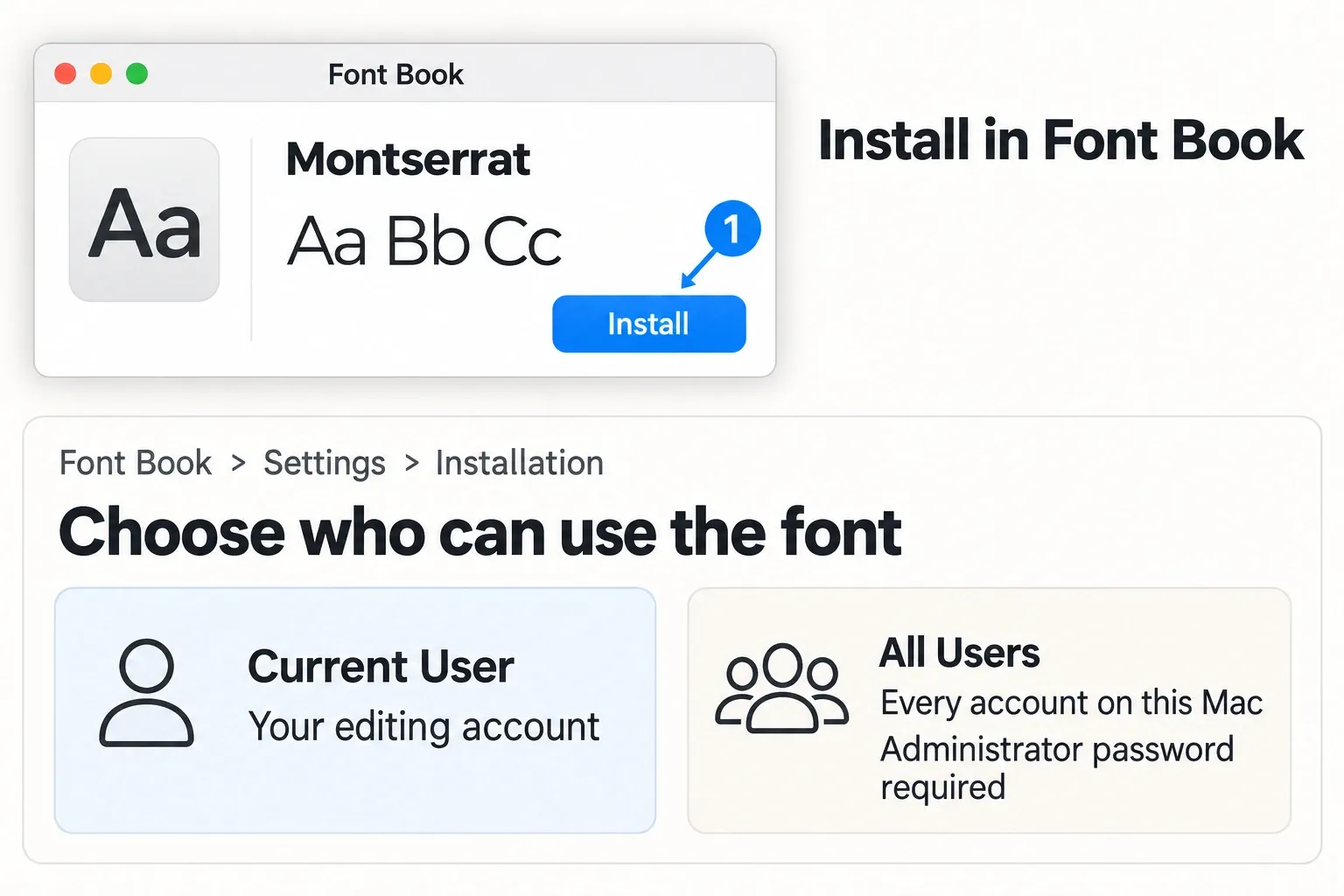
Use Font Book to install the file. Leaving it in Downloads, or copying a ZIP into an application folder, doesn’t install it.
- Extract the download if it is a ZIP, then double-click the font file in Finder.
- Click Install in the Font Book dialog.
- Find the installed family in Font Book and check the faces you need.
- Save your project, quit Resolve, and reopen it before selecting the font in your title.
Apple’s Font Book installation instructions explain that Font Book checks fonts for errors and duplicates during installation. If it reports a warning, read the details. Don’t dismiss it just to get the font into Resolve.
Current User or All Users?
In Font Book > Settings > Installation, the default install location controls who can use a newly installed font. Current User makes it available to your account; All Users makes it available to the other accounts on that Mac and requires an administrator password. Apple documents these font installation locations separately.
Current User is a sensible choice for your own editing account. If you install a font while signed into one account and edit in another, check that scope before trying another download.
Find the installed font in Resolve
On the Edit page, select the Text or Text+ title clip in the timeline and open the Inspector. Choose the family, then its face or style. If you haven’t created a title yet, the guide to adding text in Resolve covers that first step.
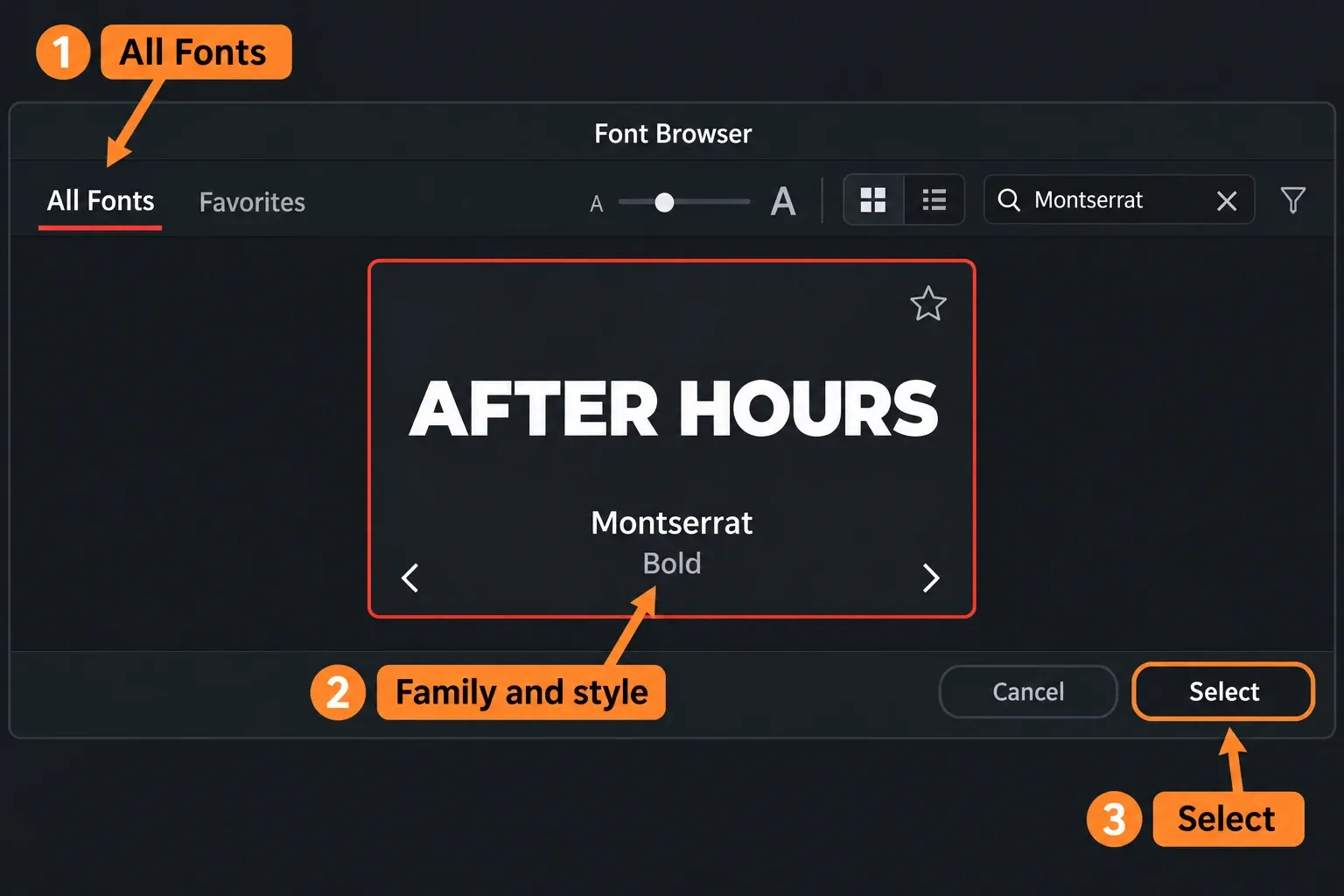
A family and a face are different choices. For example, Montserrat is the family and Bold is a face. Look for the family name shown in the system font preview. Don’t expect a downloaded filename such as Montserrat-Bold.ttf to appear as a separate family.
Use Font Browser in Resolve 21
Resolve 21’s expanded Font Browser makes this easier to inspect. Click the browser icon beside the font selection field, choose All Fonts, search for the family, select it, and click Select. Blackmagic describes the installed-font browser, family selection, and style previews in the Resolve reference manual, in the “Font Browser” section.
If your font seems to have disappeared, clear the search and any classification or weight filters. Favorites only shows fonts you have starred, so switch back to All Fonts when checking a new installation. In thumbnail view, the arrows below a family cycle through its styles; in list view, the disclosure triangle reveals the faces.
Older Resolve versions may give you a simpler dropdown. Use its family and face fields instead. Also, Preferences > User > UI Settings > Show font previews changes how the font menu previews typefaces; it doesn’t install a font.
Installed font not showing? Check where it disappears
Work through these checks in order. Stop when the result identifies the cause. I wouldn’t reset an entire font collection to solve one missing face, since that gains nothing.
1. The font is missing from Windows settings or Font Book
Return to the extracted download. Check that you installed a desktop font file. A downloaded archive or a copied web-font embed code isn’t enough. Use the OS installation steps above, then confirm the family appears in the system list.
Try selecting the font in another desktop application under the same user account. Microsoft recommends that comparison when an app can’t see a custom font. If the second application can’t find it either, concentrate on the installation, file, and account scope before changing Resolve settings.
2. The system sees it, but Resolve was open during installation
Save and quit Resolve completely, then relaunch it. Closing the project alone doesn’t quit the application. In a Blackmagic support reply about newly installed fonts, Dwaine Maggart explains that Resolve needs restarting if the font was added while it was running. The reply dates to 2017. What still applies is the restart itself; the old version’s menus look different.
3. The family appears, but Bold or Italic is missing
Check which faces are installed in the system preview, then check Resolve’s face field. A filename, family name, and style name don’t always match word for word. Use the names reported by the installed font.
A variable font can contain several styles in one file, as Google’s variable-font explanation describes. That doesn’t guarantee that every application exposes every variation the same way. If the publisher also supplies static Regular or Bold files, trying the required static face is a useful diagnostic. I wouldn’t replace the whole family or convert files through an unknown service as the first move.
4. Font Browser opens, but the search finds nothing
Switch from Favorites to All Fonts, clear the search and filters, then search a short part of the family name. If it appears now, the installation was already working. Choose the desired face and click Select.
5. Font Book reports a duplicate or validation error
In Font Book, select the font and choose File > Validate Selection, or use File > Validate File for the downloaded file. Green indicates a pass, yellow a warning, and red a failure. Review the reported details before deciding what to remove.
For duplicates, Apple provides File > Resolve Duplicates. I’d pick the manual review for comparing copies, because automatic resolution can deactivate duplicates or move files to the Trash, depending on Font Book settings. Preserve the original download and license before removing a copy. Don’t reset all Mac fonts just because one title has the wrong family.
6. An Adobe Font appears in Adobe apps but not Resolve
Check the font in Creative Cloud’s Added Fonts list. Adobe says some fonts used in non-Adobe applications may need to be installed again from Creative Cloud using the Install button there. Then restart Resolve. A font being available inside an Adobe application isn’t enough to conclude that it’s currently available to every other desktop app.
7. The font is selectable, but the title is blank or wrong
Select the title you’re viewing, enter a short sample, and compare the same font on a simple Text title and a Text+ title. It’s a diagnostic comparison, and it’s no reason to rebuild the edit. If the font can be selected and the failure is now in the viewer or export, continue with Resolve text not showing; visibility and rendering have their own checks.
If only particular characters fail, check the publisher’s supported languages and character set. Google Fonts offers a Language filter for finding families that cover the writing system you need. Changing size or tracking can’t supply a character the chosen font doesn’t contain.
Keep the font available when handing off a project
Make font installation an explicit handoff step. Record the family, faces, and source used by the title, and have the next editor verify them on the destination computer. Don’t assume that receiving the project makes those fonts available under another operating system or user account.
Share font files only when their license allows it; otherwise send the publisher’s download or activation route. Check the title on the receiving machine before changing its layout, because a replacement family can change character widths and line breaks. For ordinary subtitle-track styling, use the subtitle and caption controls. A Text+ title and a subtitle track aren’t the same kind of element.
