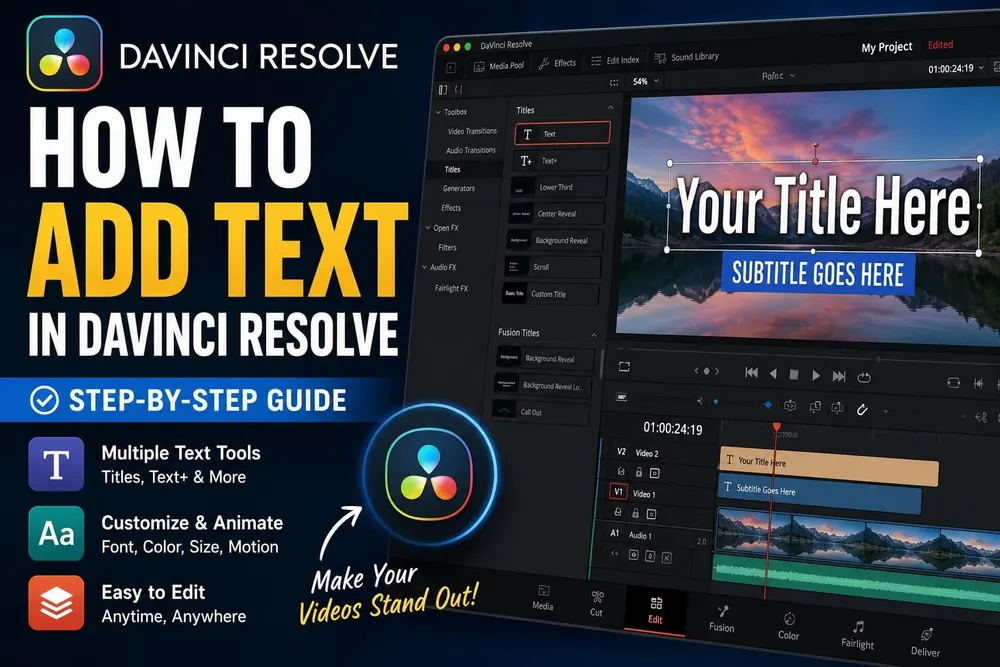
On the Edit page, open Effects > Toolbox > Titles, drag Text above your footage, select the title clip and type in Inspector > Title > Rich Text. Trim the title to the time it should stay on screen. That's all a name, label or opening title needs; you don't have to build a Fusion composition first.
Need motion, several text layers or timed dialogue? Pick the matching tool below. If you're still learning the rest of the editor, the DaVinci Resolve learning path ties this step into the rest of your first edit.
Rechecked October 5, 2026 against DaVinci Resolve 21.1.1 build 10, the October 2 update that followed 21.1. Among its fixes is a problem adding plain Text+ or MultiText to a subtitle track, so update before you chase that one yourself. The title tools and manual subtitle steps here work in the free version; the few Studio-only features are flagged where they come up.
DaVinci Resolve Text Tools: Which One to Use
One distinction saves a lot of rework: a title becomes part of the video picture, while a subtitle track can also deliver a separate timed caption file. Choose with that in mind:
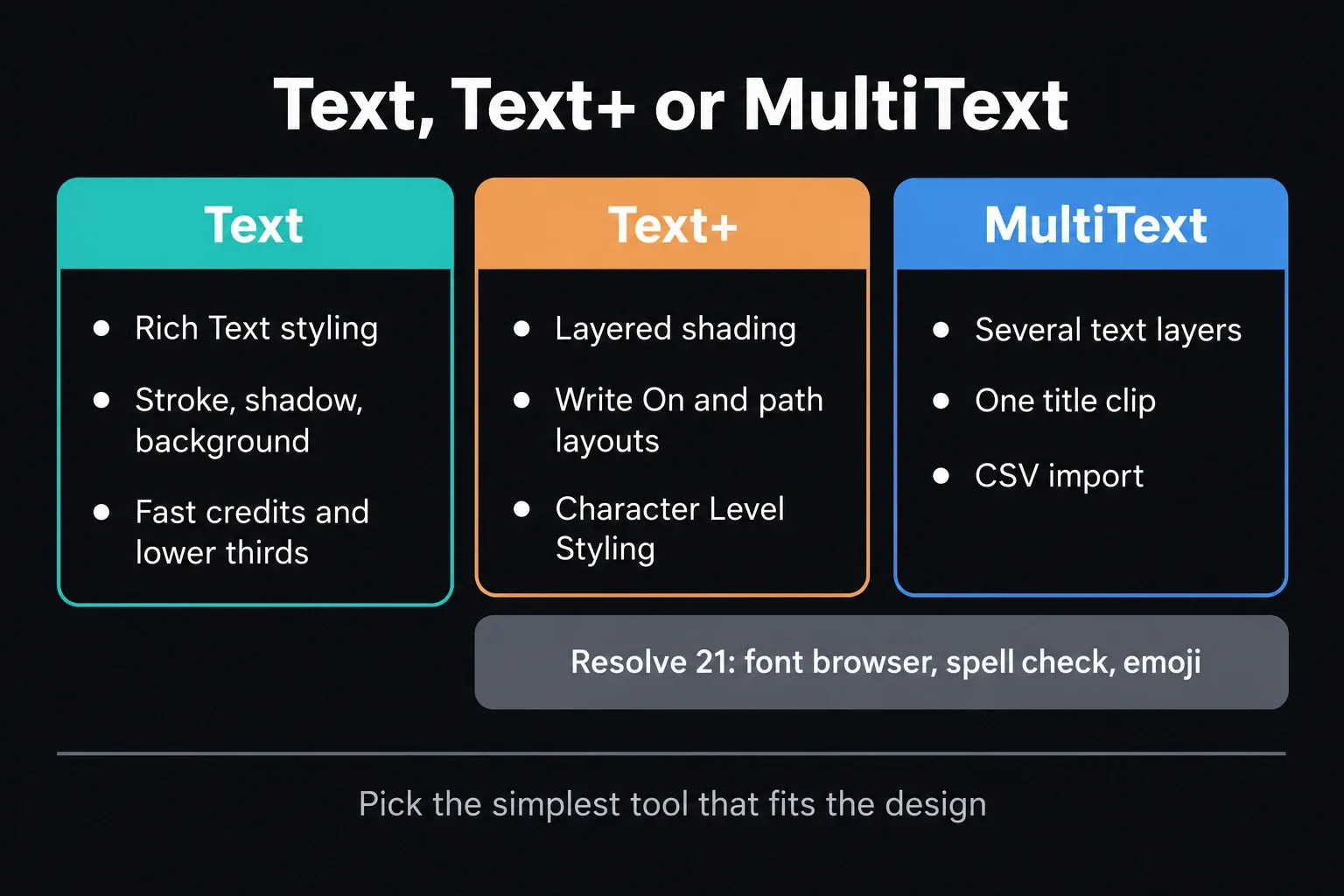
- Text: quick titles, credits and lower thirds with rich-text styling
- Text+: layered shading, Character Level Styling, path layouts, Write On and deeper animation
- MultiText: several independently editable text layers inside one Text+-based title
- Fusion Titles: prebuilt animated templates whose exposed controls vary by template
- Subtitle track: timed captions for SRT/VTT export, separate delivery, embedding or burn-in
Text+ isn't a strict replacement for Text. Text handles mixed formatting directly in Rich Text. Text+ can change selected characters through its Character Level Styling modifier, and on top of that adds layered shading, shape and path layouts, Write On controls and deeper Fusion animation. When several separately editable text layers belong inside one title, MultiText is the better fit.
How to Add Text Using the Basic Text Tool
Open the Edit page, then Effects > Toolbox > Titles. Drag Text to a video track above the footage for an overlay, or onto an empty section for a title over black. If the page layout still feels unfamiliar, spend a few minutes with the DaVinci Resolve beginner tutorial before styling the title.
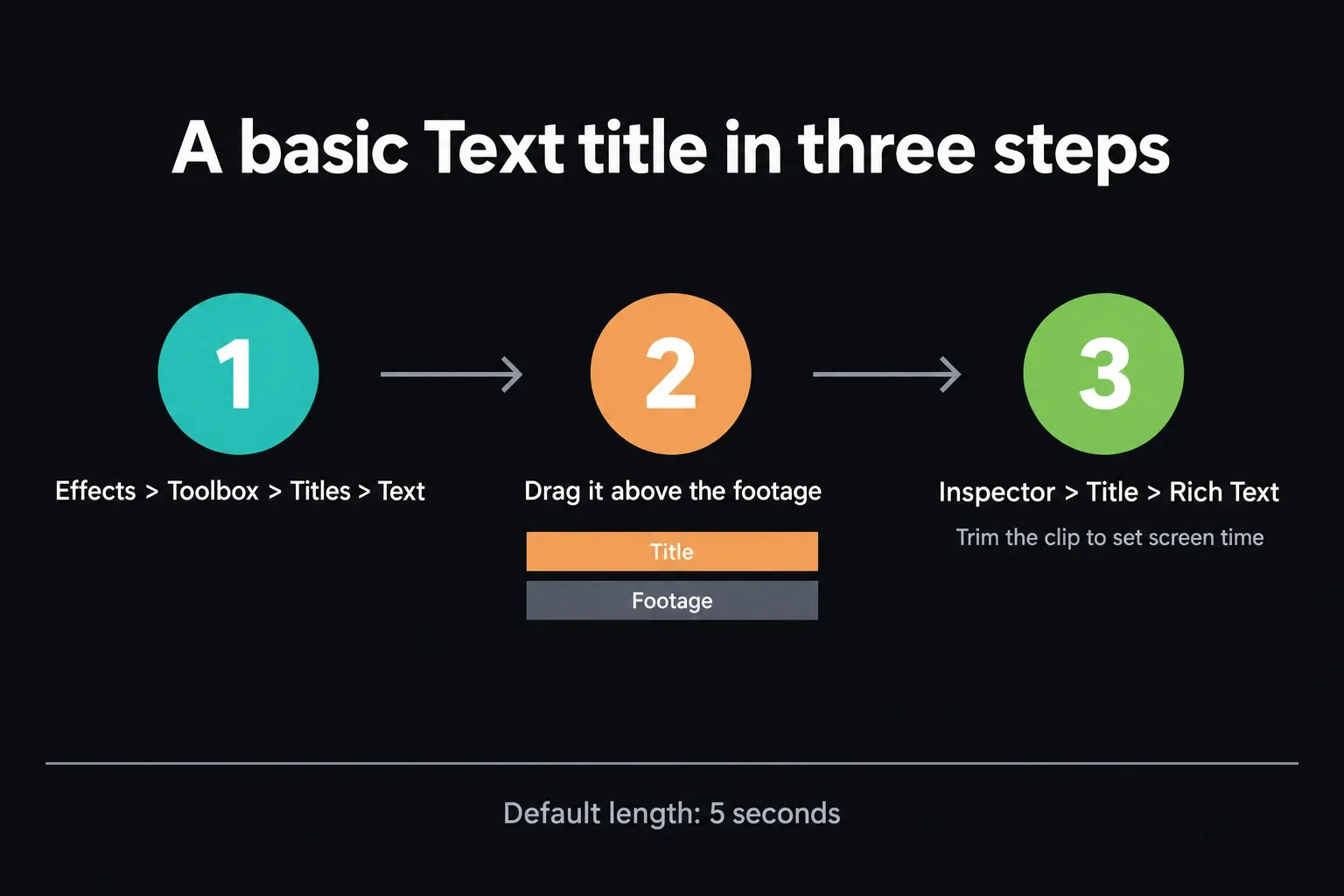
Select the title clip and open Inspector > Title. Enter the copy in Rich Text, select any words that need separate styling, then set font family, face, color, size, alignment, stroke, drop shadow or background. Title clips default to five seconds unless Standard generator duration has been changed in User Preferences; trim the clip edges to set the real screen time.
For the original Text generator, park the playhead over the title and click its text in the Timeline Viewer to bring up on-screen transform controls. Drag to position it, use the Inspector for exact values, or double-click the visible text to edit characters in place. OpenFX Overlay belongs to OpenFX controls; it won't give you the Text title's position handle.
If the title is invisible, first park the playhead inside its duration and check the track order. The title has to sit on a track above the footage, because an opaque video clip on a higher track covers it completely. Confirm the title track is enabled. Then try a plain Text title before a complex template; that tells a placement problem apart from a styling or template problem.
Text, Text+ and MultiText use fonts available on the workstation. Resolve 21's Font Browser can search, filter and preview installed families, and the 21.1 update adds an option to show that preview with the text from your title. If a project opens without a Text+ font, Resolve shows a missing-font overlay; install the intended family and face or choose a deliberate substitute, then check line wraps and spacing again.
Text still earns its place for mixed-style lines, fast credits and simple lower thirds. Its Inspector also includes stroke, drop shadow and a flexible rectangle or rounded-rectangle background. Step up to Text+ when you want layered shading, Write On, path layout or character-, word- and line-level motion.
Text+ and MultiText: More Control
Use Text+ when the design needs deeper styling or motion. Blackmagic introduced MultiText in DaVinci Resolve 20. The Resolve 21 text update improves MultiText positioning, pivot, alignment and CSV import, and it brings a font browser, multilingual spell checking, emoji and broader color-font support to Text+ and MultiText. For per-character formatting in Text+, apply Character Level Styling and select the characters in the Fusion viewer, then change their attributes in the Modifiers controls. Highlighting letters in the modifier's text-entry box is a different operation, so make the selection in the viewer.
Drag Effects > Toolbox > Titles > Text+ to the timeline and select it. Its title controls sit in Text, Layout, Transform and Shading panels, with common clip controls in Settings. Type in the text box on the Text tab, settle the layout and shading, and only then animate the properties the shot needs.
Text+ is a Fusion title available from the Edit page. Select the title and switch to the Fusion page when you need its node graph. In the Edit-page viewer, choose Fusion Overlay to edit and move Text+ on screen. Layout can place text at a point, in a frame or circle, or along a path.
Shading splits fill, outline, shadow and glow-like treatments into layers, and each enabled element has its own appearance and transform controls. Build the simplest stack that gets the design there, because every extra shading element and blur adds Fusion render work.
Reach for MultiText when one title needs several independently editable layers, such as a headline, name and role that must stay together. Its Inspector keeps every layer in a persistent Text List. The Text+-based tool supports Point, Text Box and Circle layouts, plus CSV import for column-aligned text. If the elements need different timing, keep them as separate timeline title clips. Cramming unrelated animation into one MultiText object only makes the title harder to edit later.
When the design needs a reusable rounded panel behind several text elements, build the fill with a Fusion Background node and a Rectangle mask. That's far easier to manage than stacking Text+ shading on every layer. The rounded-corners guide walks through that panel setup, including its rounded edges and transparency.
Fusion Titles: Pre-Built Motion Graphics
Fusion Titles are prebuilt Fusion compositions in the Titles browser. Turn on Hover Scrub Preview, glide across a thumbnail to watch its animation, then drag the template you like to the timeline and open the Inspector.
The Inspector shows only the controls the template author chose to publish. Check the available text fields, colors and timing controls before you commit to a look; two templates with similar thumbnails can expose very different options.
If a property you need isn't exposed, select the title and open the Fusion page to inspect its nodes. Duplicate the title before any structural change so the original stays an easy fallback. The Fusion beginner guide explains the MediaIn, Merge and MediaOut flow before you start editing a template graph.
To reuse a finished title in this project, drag it from the timeline into the Media Pool, then drag a fresh copy back whenever you need it. Change the wording and check its duration and animation. For timeline copies, the clip duplication guide shows how to send the copy to the intended track without overwriting footage.
Subtitle Track: Right Tool for Captions
Subtitle tracks store timed caption items. You can export them as SRT or VTT, deliver them as separate files, burn them into video, or embed them in supported formats. Text, Text+ and MultiText titles are video graphics, so they can't later be exported as ordinary timed subtitle data. When import, formatting and delivery are the main job, switch to the subtitles and captions guide.
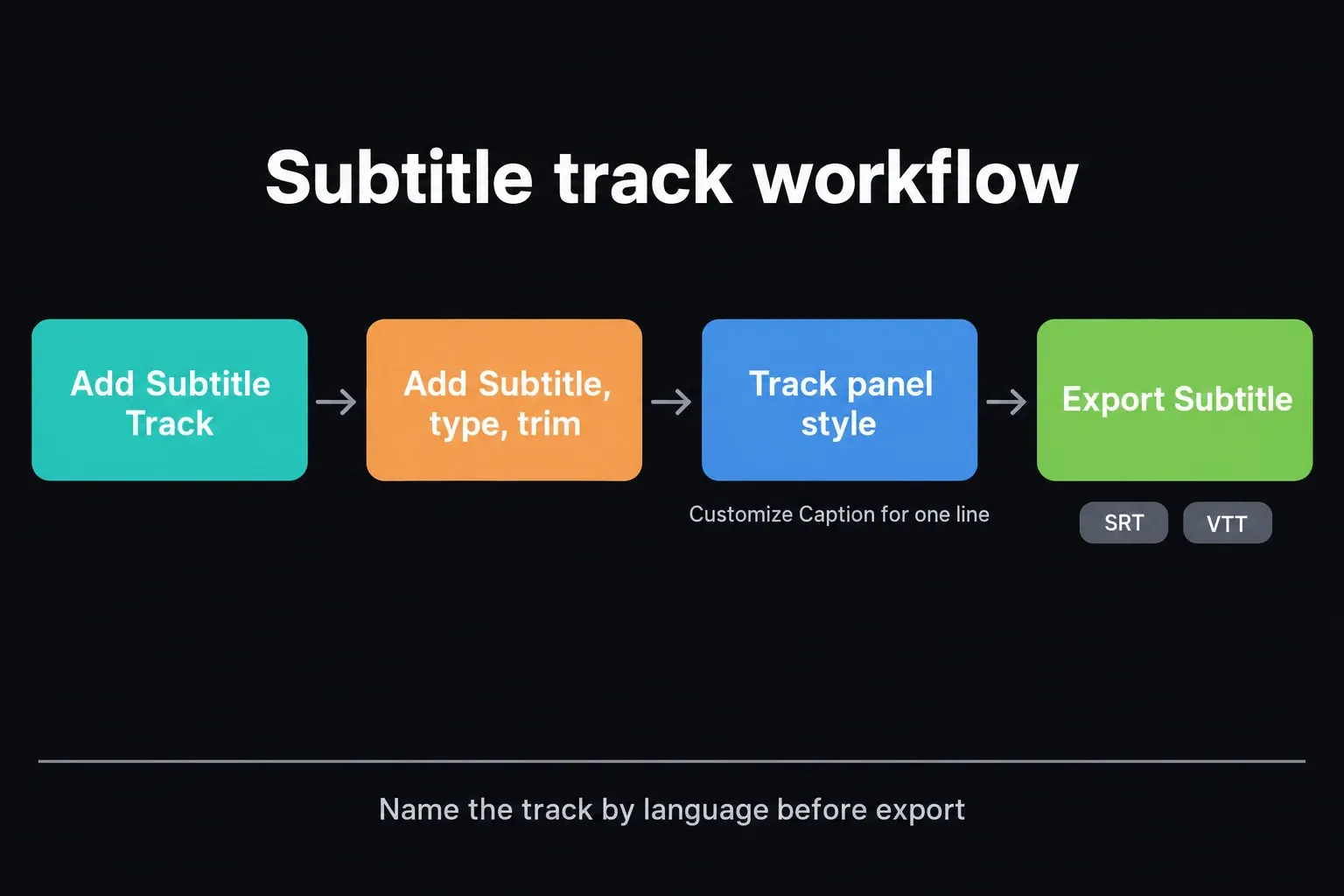
Right-click any timeline track header and choose Add Subtitle Track, or drag a Subtitle generator from Effects > Titles onto the subtitle area. Name the track by language or purpose, because Resolve uses the track name during export and encoding.
Select the subtitle destination track and place the playhead where the line starts. Right-click the track and choose Add Subtitle. In Inspector > Captions, Create Caption starts an empty track; Add New adds another item once captions exist. Enter the line and trim its edges to the spoken phrase.
Select the subtitle track header and open the Track panel in the Inspector to set one font, background and position for every line on that track. The manual calls these the Track Style controls. To restyle a single line, or even a single word, select that caption and tick Customize Caption under Caption; every other caption keeps the track style. Labels can shift between builds, so go by what your Inspector shows. Keep the track style for ordinary lines and override it only where a caption really needs a different treatment.
Auto Captions: What You Actually Need
Create Subtitles from Audio is Studio-only in Resolve 21. The free version can create, import, edit, style and export subtitle tracks by hand, but it doesn't include Blackmagic's native AI transcription command. For speaker review and caption cleanup, follow the Resolve transcription workflow. Blackmagic documents the Studio requirement in its subtitle instructions.
In Studio, open the Edit page and choose Timeline > AI Tools > Create Subtitles from Audio. Select an In/Out range first if only part of the timeline should be transcribed. In the dialog, choose Language, Caption Preset, Max Characters per Line, one or two Lines, and Gap Between Subtitles, then click Create.
Resolve writes to the highest subtitle track, or creates one when none exists. Check every caption for names, punctuation, line breaks and timing before delivery. When dialog overlaps across several audio tracks, mute the tracks that shouldn't be analyzed before you run transcription.
Studio also adds the Animated subtitle templates in the Titles library, such as Word Highlight. Drag one onto the subtitle track header and it uses the transcription timing to highlight each word as it's spoken. Like Create Subtitles from Audio, these AI templates aren't part of the free version.
Don't shift the timeline start timecode just because you're exporting an SRT. Export the subtitle track, open the file in a text editor or on the destination platform, and check the first, middle and last cues against picture. Move subtitle items only when there's a real offset.
How to Add a Drop Shadow to Text
Each title tool keeps its shadow in a different place, which is why this one trips people up. Here's where to look:
- Text and the other rich-text titles: select the title, open Inspector > Title and scroll to the Drop Shadow group. Pick a Color, set Offset X and Y, then soften it with Blur and Opacity. The Drop Shadow controls apply to every character, and I'd keep a little blur and the opacity well below full so the shadow reads as depth instead of a second set of letters.
- Text+: open the Shading panel, choose a number in the Shading Element menu and tick Enabled, because an element's controls stay hidden until you do. Element 1 is the fill, and a long-standing answer on the Blackmagic forum points to element 3, which comes set up as Black Shadow. Shape it with Softness, Opacity and Offset X and Y. With Sort By set to Priority, the Priority Back/Front slider tucks it behind the fill, as the manual's Text+ Shading reference explains.
- Anything else, including Fusion Titles and logos with transparency: drag Drop Shadow from Effects > Open FX > Filters, in the ResolveFX Stylize group, onto the clip. It builds the shadow from the clip's alpha channel and gives you Shadow Strength, Drop Angle, Drop Distance, Blur and Color, as the Resolve FX Stylize chapter lists. It works on Text+ too, when the Shading panel feels like overkill for one shadow.
Subtitle tracks have a Drop Shadow group as well. Select the subtitle track header and look at the bottom of the Track panel, where it sits beside Stroke and Background and applies to every line on that track.
How to Make Text All Caps
Text and the other rich-text titles have a case switch. In Inspector > Title, open the Font case menu and choose All Caps. With nothing selected it changes the whole title; select a few words first to change only those. The same menu also has Small Caps, Title Caps and All Lowercase.
Captions get the same control at the track level. Select the subtitle track header, open the Track panel in the Inspector and set Font Case to All Caps, the setting the subtitles chapter of the manual shows in the Track tab. Every line on that track follows it, so you don't have to retype auto captions.
Text+ is the odd one out. It has no case setting, and a feature request for one on the Blackmagic forum has been collecting votes since 2022. Type the words with Caps Lock on, or try the expression a forum regular posted in that thread in 2022: right-click the text field, choose Expression and change Text("your words") to string.upper("your words"). Another reply notes that the trick doesn't handle UTF-8 characters, so check accented and non-Latin text before you rely on it.
How to Animate Text
Select the title clip, open Settings > Transform and put the playhead at the frame where motion should begin. For a small scale-up, leave linked Zoom X and Y at 1.000 and click the diamond beside Zoom. Move the playhead later in the title and change the linked Zoom values to 1.100. Resolve adds a keyframe there; play the interval to judge the speed. Those numbers are only an example, so pick whatever scale suits the shot.
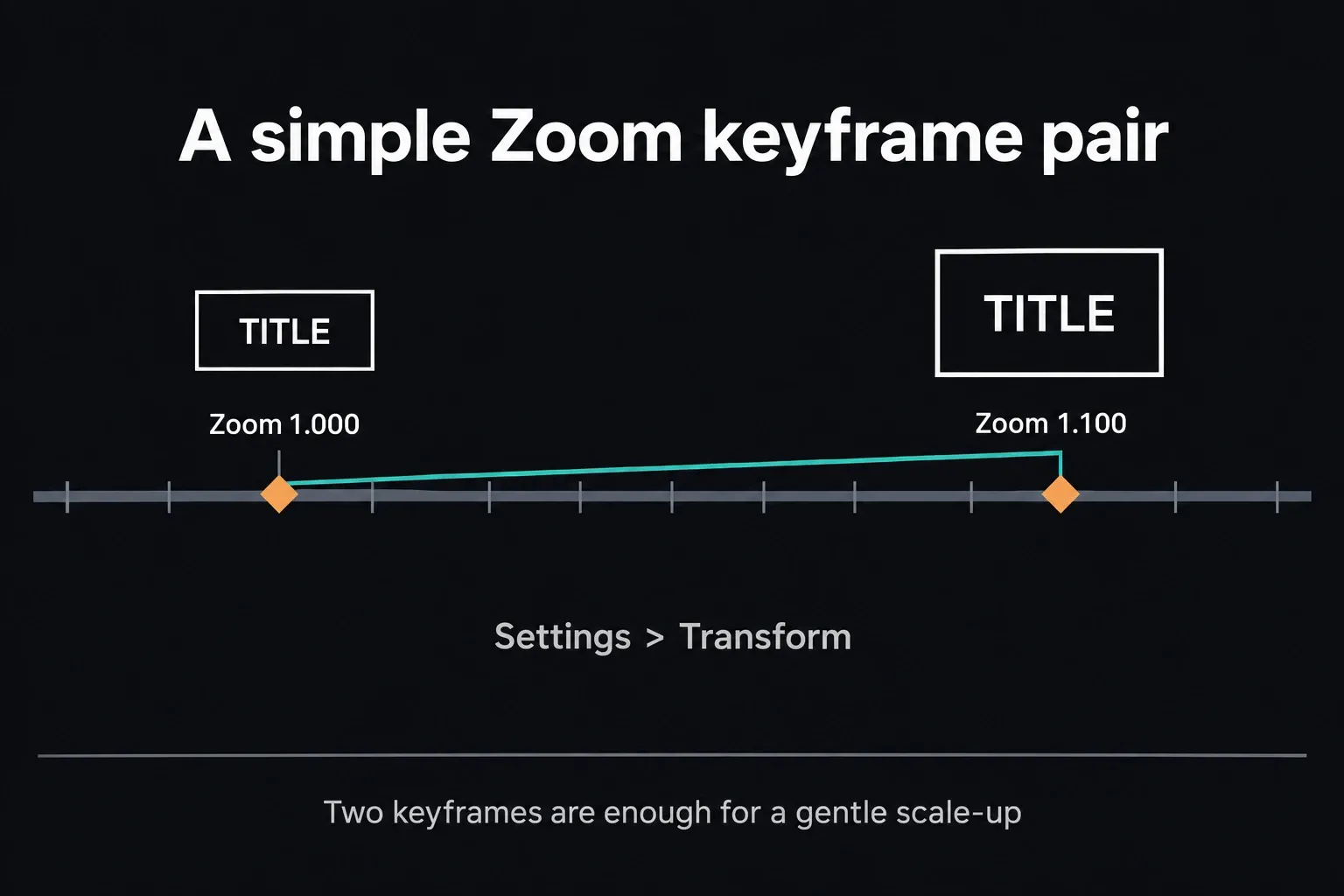
For most titles I'd stop at a short fade, a small vertical move or a gentle scale change. Keep the title inside the safe areas, preview it at delivery resolution and leave it on screen long enough to read the whole line comfortably.
For a fade, keyframe Composite opacity. Text+ also has a Write On range control for revealing or removing characters; animate that range when you want a type-on effect. The Follower modifier handles staggered character animation. These title controls carry their own animation settings, and keyframing in the common Settings panel won't switch on animation for Text+ as a whole.
When the words have to stick to something moving in the shot, such as a sign, a storefront or the side of a passing car, hand-keyframing Position is slow and rarely stays locked. Build that text inside the footage clip's own Fusion composition so a tracker can read the plate; a separate title clip on another track never sees that footage. Add a Tracker after MediaIn, track one distinct feature, set Operation to Match Move, connect a Text+ node to the tracker's green foreground input and choose FG Over BG in the Merge menu. Studio's Tracker defaults to the AI-based IntelliTrack; in the free version, use conventional Point tracking. For text on a flat surface seen at an angle, Planar Tracker usually holds better, and the Fusion tracking guide covers reference frames and drift checks for both.
For more involved title animation, work in the node tree, where timing curves, motion paths and layered effects live. Once the task has outgrown an Edit-page title clip, carry on with the Fusion learning map.
Frequently Asked Questions (FAQ)
Why can't I use my custom font in DaVinci Resolve?
These tools use fonts available on the workstation, but a family or face may be missing, unsupported or different on another computer. Use Resolve 21's Font Browser to confirm the exact family and face. When Text+ reports a missing font, install the correct font or choose a documented substitute, then check line wraps and spacing again.
What is the difference between Text, Text+ and MultiText in DaVinci Resolve?
Text is the quick Edit-page generator for ordinary rich-text titles. Text+ uses the Character Level Styling modifier for selected characters, then adds layered shading, Write On controls, shape and path layouts, and Fusion animation. MultiText is built on Text+ and keeps several independently editable text layers inside one title.
How do I add lower thirds in DaVinci Resolve?
For a fast two-line lower third, try the built-in L, M or R Lower 3rd generator; each provides separate rich-text lines and position controls. Use Text+ or a Fusion Title when the design needs layered shading or animation, and keep the text inside the title-safe area.
How do I add a drop shadow to text in DaVinci Resolve?
For a Text title, open Inspector > Title > Drop Shadow and set Color, Offset, Blur and Opacity. For Text+, tick Enabled on a shading element in the Shading panel (element 3 comes set up as a shadow) and offset it behind the fill. For any other clip with transparency, apply the Drop Shadow filter from ResolveFX Stylize in Effects > Open FX.
How do I make text all caps in DaVinci Resolve?
In a Text title, choose All Caps from the Font case menu in Inspector > Title. For subtitles, set Font Case to All Caps in the Track panel of the subtitle track. Text+ has no case setting, so type the words in capitals or wrap them in a string.upper expression.
Can I export subtitles from DaVinci Resolve as an SRT file?
Yes. Choose File > Export Subtitle, or right-click the subtitle track header and choose Export Subtitle, then select SRT or VTT. Text, Text+ and MultiText overlays are video graphics, so they can't be exported as a timed subtitle file. After export, check several cues against picture before you touch the timeline timecode.
Is auto captioning in DaVinci Resolve free?
No. Resolve 21's Create Subtitles from Audio command is a Studio feature. The free version can still add captions manually, import supported subtitle files, style subtitle tracks, and export SRT or VTT.
How do I position text precisely in DaVinci Resolve?
For the standard Text generator, click the visible title in the Timeline Viewer to reveal its on-screen transform controls, or enter exact Position values in the Inspector. For Text+, choose Fusion Overlay in the viewer. OpenFX Overlay is for OpenFX filters and won't help with either title type.