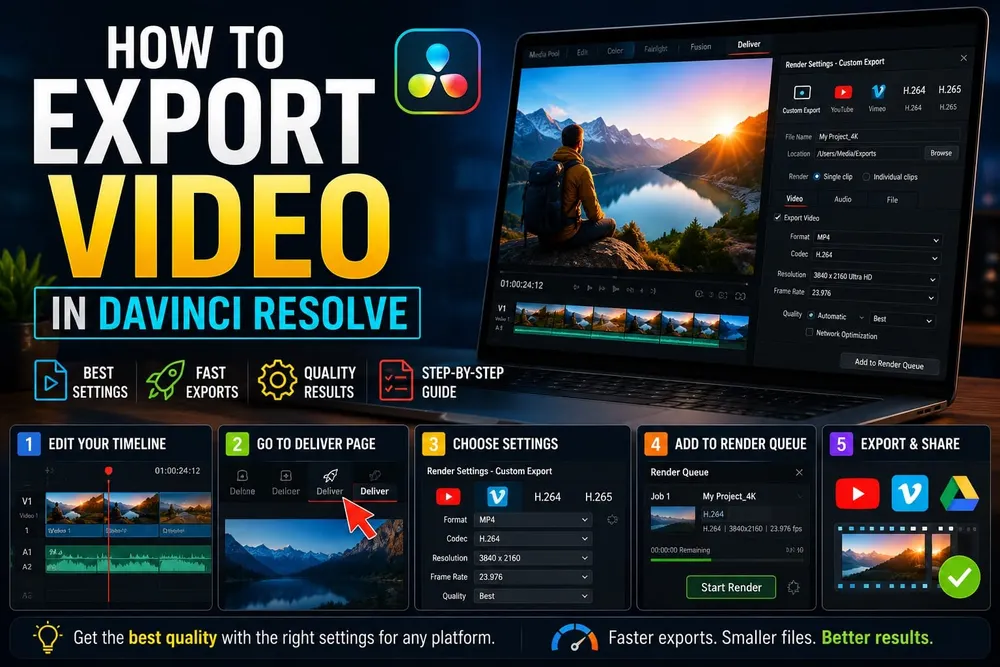
For a normal MP4 video, open Deliver, choose Custom Export, set Format to MP4 and Codec to H.264, and use Single Clip. Check picture, audio and range before adding the job to the queue. Quick Export is faster when a preset already fits the job. For YouTube settings, audio-only output, transparency, captions or render errors, use the DaVinci Resolve export settings hub to open that focused guide; stay here for the complete Quick Export and Deliver workflow.
Quick Export: the fast path
File > Quick Export is the shortest route to a local file or supported upload service. The DaVinci Resolve 21 Reference Manual says it's available across Resolve pages. On the Cut, Edit, Fusion or Color page, timeline In and Out marks limit the export; with no marks, Quick Export renders the entire timeline.
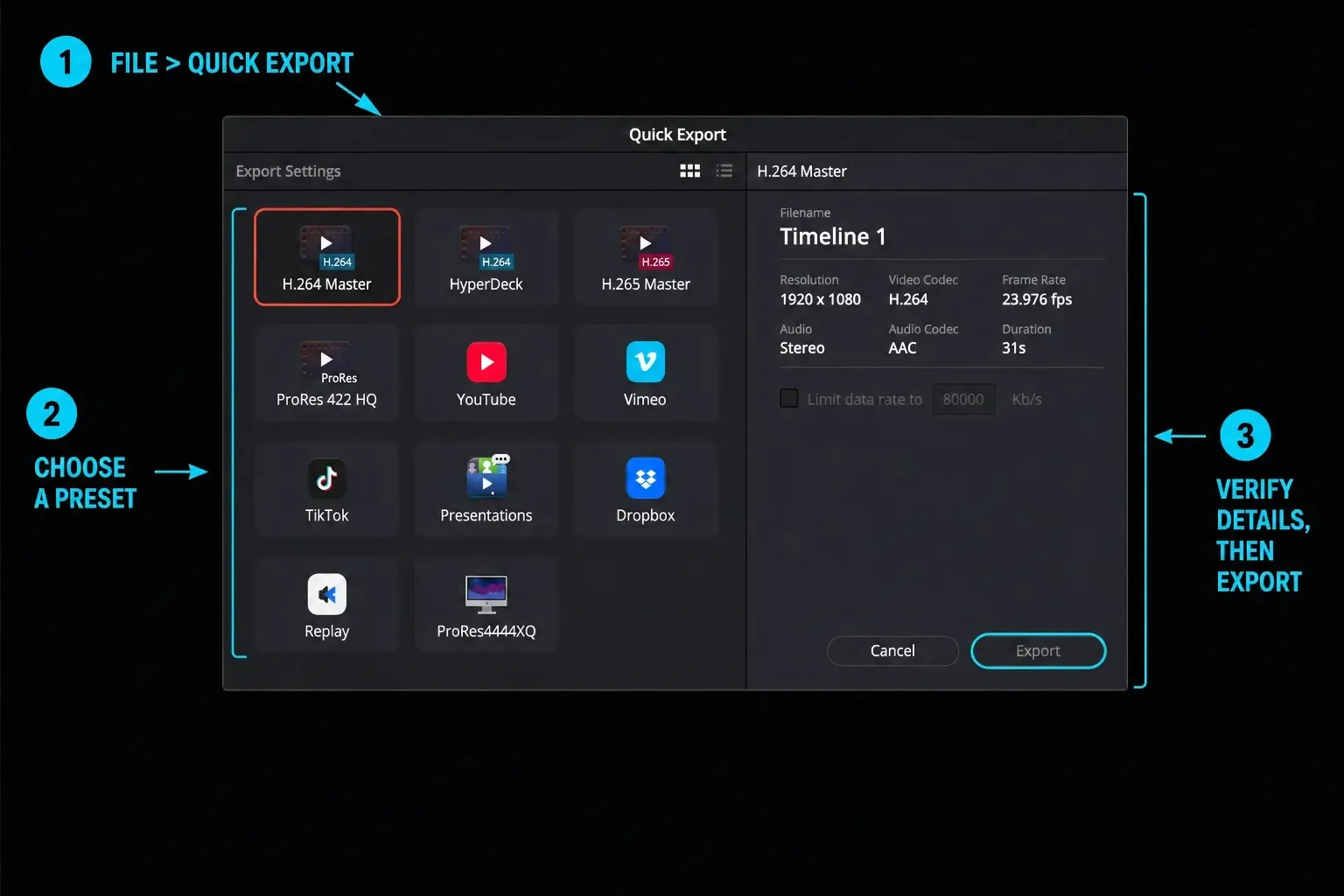
Choose File > Quick Export, select one of the presets available in your installation, click Export, choose the folder and filename, then click Save. Blackmagic currently lists presets for H.264, H.265, ProRes masters and services such as YouTube, Vimeo and TikTok; the exact set varies with platform, version and configured accounts.
Treat a service preset as a fast starting point, not proof that a high-stakes delivery meets a client or broadcaster specification. Check the resulting resolution, frame rate, audio and file before upload. For a review copy, the speed is usually the point; for a master, use a written delivery spec.
Quick Export honors timeline In and Out marks, so it can make a partial export. It doesn't expose the Deliver page's full manual bitrate and audio controls, Individual Clips options or multi-job Render Queue. Use Deliver when those controls matter.
To reuse your own MP4 settings, configure a Single Clip job on Deliver first. In the Render Settings three-dot menu, choose Save as New Preset, enter a name, check Add to quick export and save. That preset appears in Quick Export; Individual Clips settings cannot be saved this way.
The Deliver page in seven steps
For a basic export, work from left to right: Render Settings, the timeline and viewer, then the Render Queue. You can queue a master, review copy and upload file with different ranges or settings, check every job, and render them in sequence.
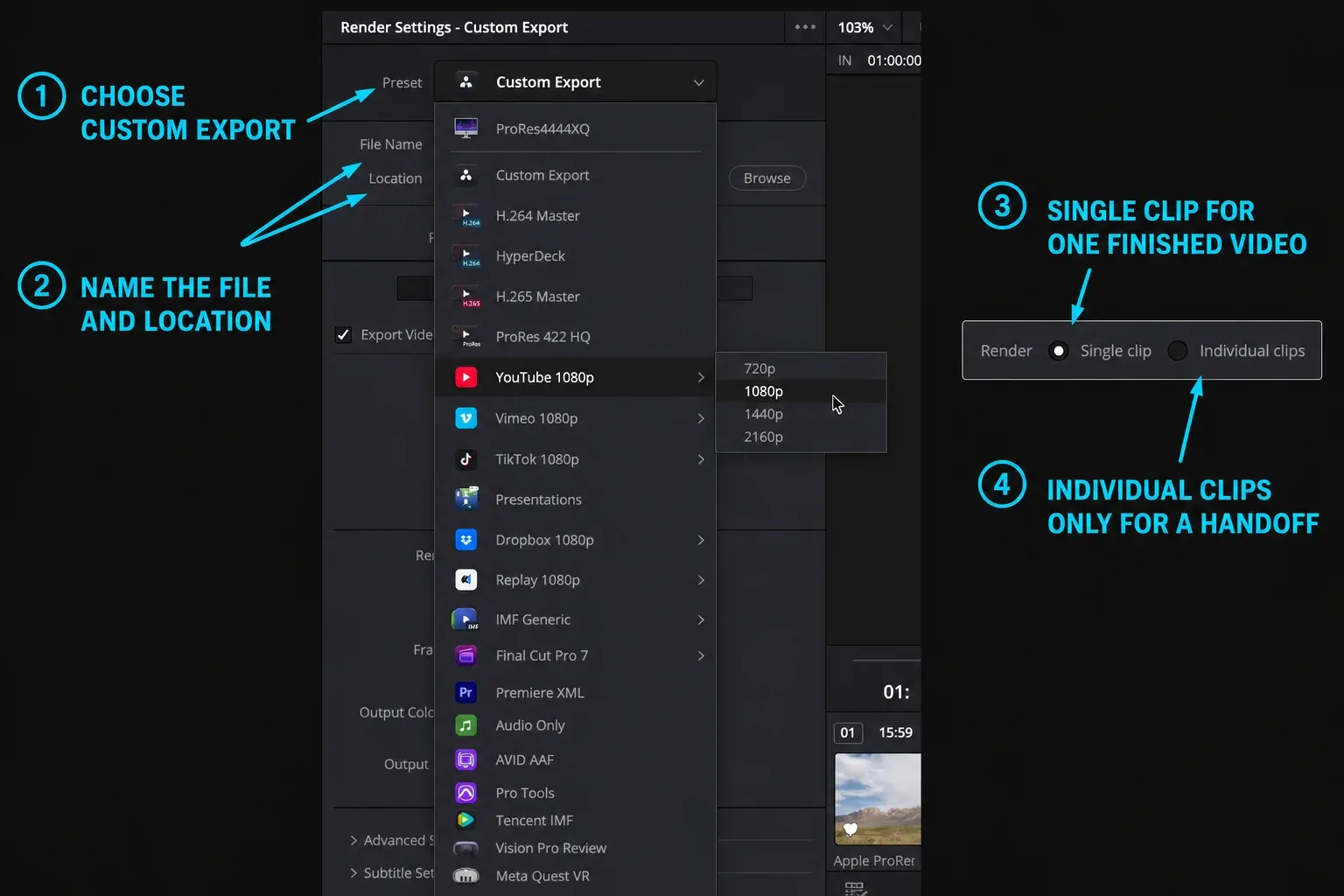
- Open Deliver with the rocket icon at the bottom of the workspace.
- Choose Custom Export, then enter a filename and choose the Location folder.
- Choose Single Clip for one finished video and enable Export Video.
- For a compatibility-first web file, set Format to MP4 and Codec to H.264 where supported. Use a different format when the destination requires it.
- Set the required resolution and frame rate. Do not change frame rate merely to imitate a preset.
- Enable Export Audio, choose the required codec and output track or bus, and check that it carries your mix.
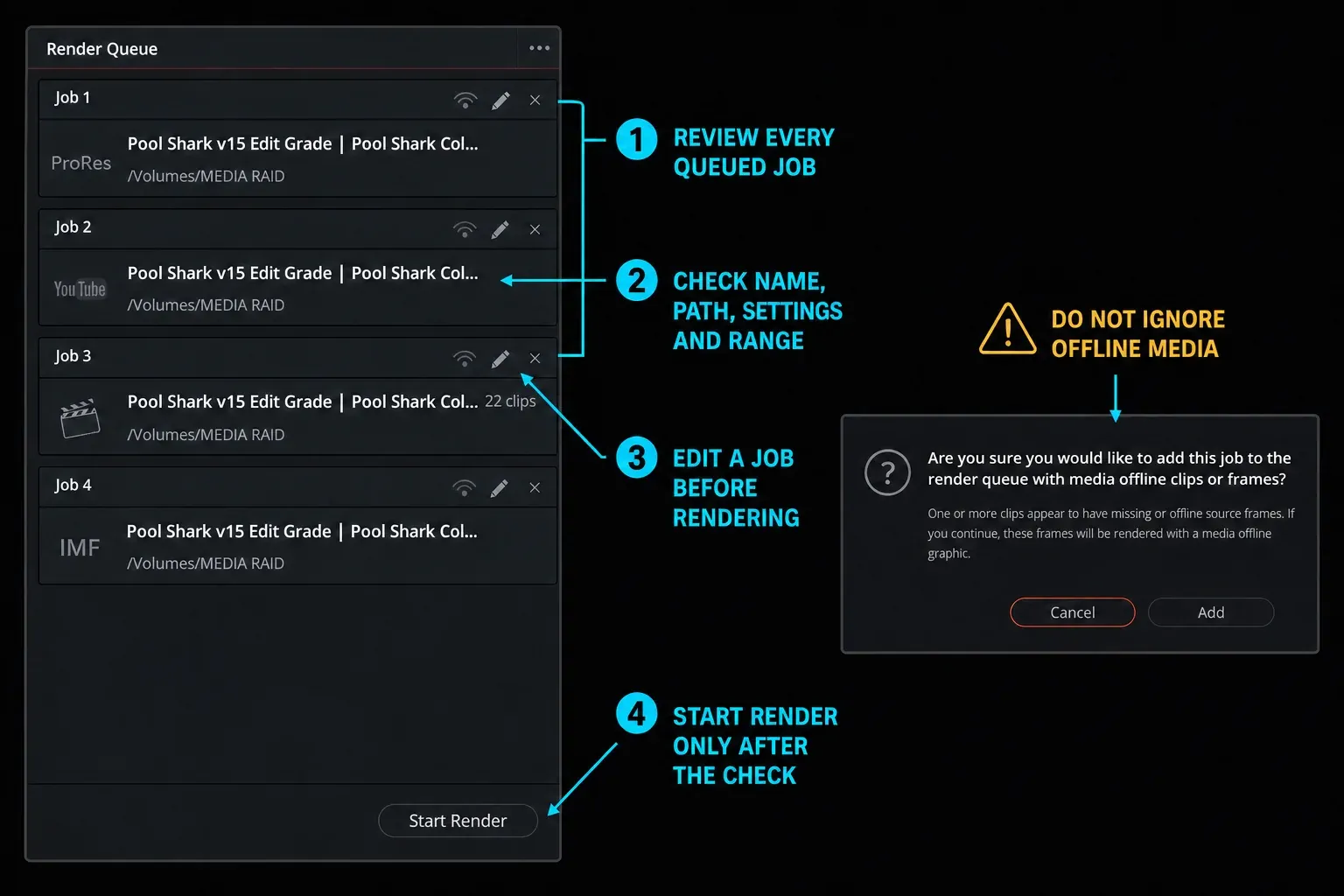
- Choose Entire Timeline or In/Out Range. Click Add to Render Queue, review the saved job, then use the queue’s render button.
Add to Render Queue does not start encoding. To inspect a saved job, use its pencil icon: that restores the job’s settings and range. Make any correction, then click Update Job; changing controls without updating the job does not fix the queued copy. Show Job Details in the queue’s three-dot menu helps you compare resolution, format, frame rate, audio and duration.
MP4 and QuickTime/MOV are containers; H.264 and H.265 are video codecs. Choosing H.264 does not by itself guarantee an MP4 file. If a saved job still produces MOV, edit that job with the pencil, change Format to MP4, and click Update Job. Renaming the extension does not change the container.
Before starting, check which jobs are selected. A selection restricts rendering to those jobs; with none selected, the queue can render all jobs. Click an empty part of the queue to clear a selection when you want the full batch. The button may be labelled Start Render or Render All depending on the build and selection.
The MP4/H.264/AAC path is not universal across operating systems. In particular, Linux has separate H.264/H.265 licensing and GPU requirements and does not list native AAC encoding. Check the platform-specific codec table rather than copying a Windows or Mac preset blindly.
YouTube export settings: official SDR bitrates
As checked on September 13, 2026, YouTube's recommended upload encoding settings publish target bitrates rather than minimums. Use the row that matches both resolution and frame-rate band, and keep the source frame rate instead of converting only to chase a different number.
| YouTube SDR target | Format / codec | Recommended video bitrate | Audio |
|---|---|---|---|
| 1080p, 24–30 fps | MP4 / H.264 High Profile | 8 Mbps | AAC-LC stereo, 384 kbps |
| 1080p, 48–60 fps | MP4 / H.264 High Profile | 12 Mbps | AAC-LC stereo, 384 kbps |
| 2160p (4K), 24–30 fps | MP4 / H.264 High Profile | 35–45 Mbps | AAC-LC stereo, 384 kbps |
| 2160p (4K), 48–60 fps | MP4 / H.264 High Profile | 53–68 Mbps | AAC-LC stereo, 384 kbps |
Uploading 4K is not a way to choose the codec every viewer receives. Check the uploaded picture after YouTube finishes processing, rather than promising a particular VP9 or AV1 result.
The values above are YouTube's recommended SDR upload bitrates, not minimums and not a guarantee of final playback quality. Match the source frame rate, use progressive scan, High Profile H.264 and BT.709 for SDR. The dedicated YouTube export settings guide covers GOP, bitrate and upload-specific checks; for Instagram, TikTok or a client portal, use that destination's current specification instead.
Audio settings you should not skip
Audio has its own controls in Render Settings. A timeline that sounds correct can still render silently if Export Audio is off, the wrong output track or bus is selected, or a required clip, track or main output is muted.
Open the Audio panel in Render Settings and enable Export Audio. Then choose the audio format, codec, sample rate and output source required by the destination. Watch the timeline's main output meter once before queuing the job. If the meter or delivered file is silent, follow the no-audio signal-path checklist before changing codecs.
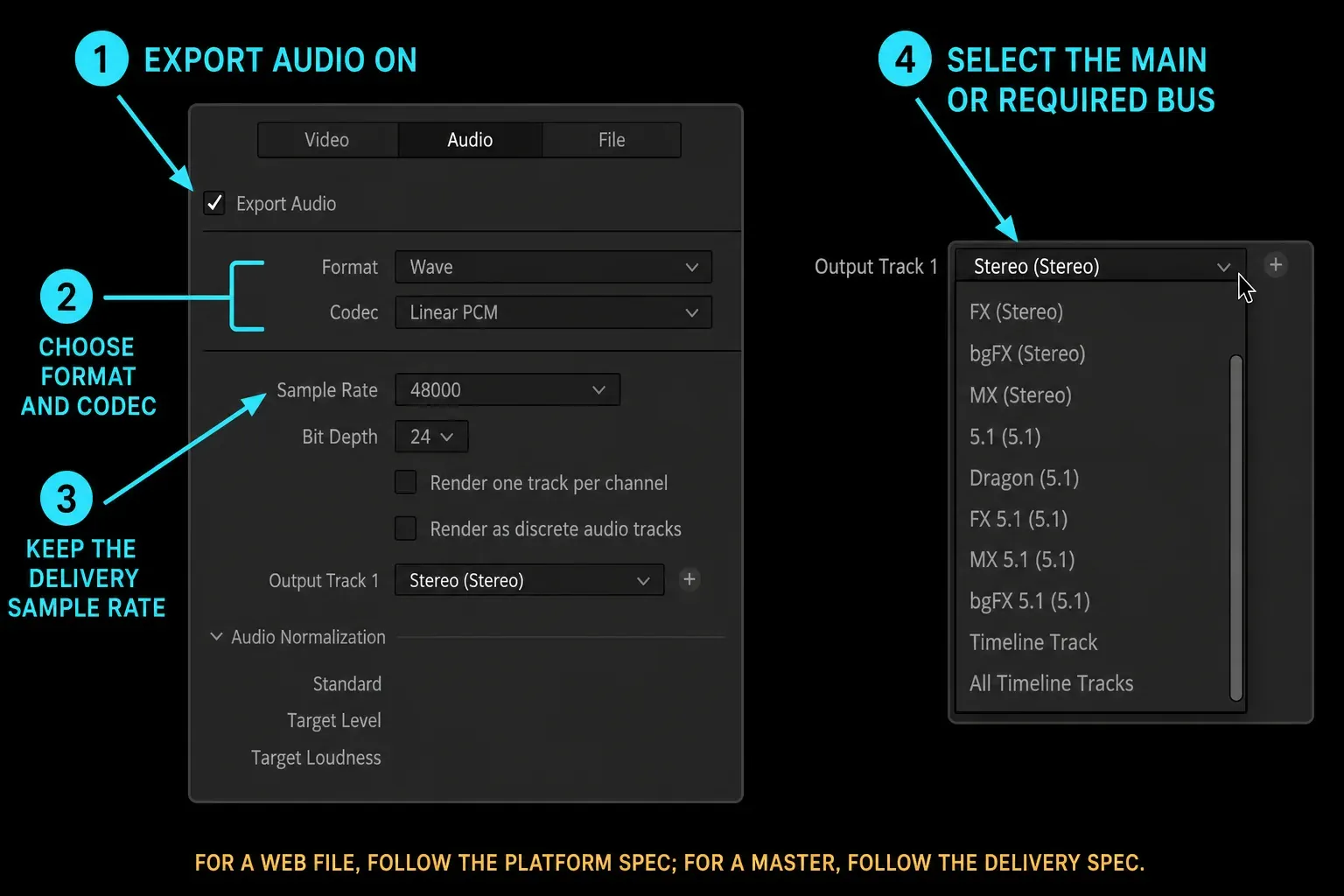
- AAC-LC for a web upload. YouTube's current recommendation for stereo is 384 kbps; use the platform's own specification for other destinations.
- Linear PCM for a lossless master or handoff when the delivery specification calls for PCM. Container, bit depth, sample rate and channel layout must match that specification.
- Output track or bus: choose the main program output or the explicitly requested stem. A correct codec can't repair the wrong source selection.
Single Clip vs Individual Clips
This setting answers a structural question: should the selected range become one finished program or a set of media files for conform, VFX or handoff? It isn't a quality switch.
Single Clip combines the selected range into one output and bakes most timeline effects into that program. Individual Clips creates one file per timeline clip, preserves source-oriented timecode and frame-rate behavior, and exposes options such as Render Timeline Effects and Render at Source Resolution. Those options make it useful for round trips, but they must be configured for the handoff rather than assumed.
Choose Single Clip for a completed edit, client review file, social upload or normal master that must play as one program. Choose Individual Clips only when the receiving workflow explicitly needs separate files and tells you how to handle effects, source resolution, handles, filenames and audio.
Free vs Studio export limits
As checked on September 13, 2026, Blackmagic's Free and Studio feature comparison puts the free-version ceiling at Ultra HD 3840 × 2160 and 60 fps. Studio supports higher resolutions up to 32K and frame rates up to 120 fps, plus accelerated H.264/H.265 hardware encoding and additional professional 10-bit workflows. Resolution limits and codec availability are separate: the exact format, profile and acceleration path still depends on operating system, hardware and container.
UHD 4K isn't a Studio-only export: the free version reaches 3840 × 2160 at up to 60 fps. The upgrade boundary appears when the required raster is wider than UHD, the frame rate exceeds 60 fps, or the requested codec, bit depth or hardware-encoding path is unavailable in the free build on that platform. The Free vs Studio comparison separates those limits from unrelated Studio features.
Four export problems to check first
When a render or delivered file is wrong, isolate the symptom before changing presets. These four checks cover the range, signal and quality choices most likely to explain the result.
Export has no audio. Confirm Export Audio is enabled, then check the selected output track or bus in Render Settings. In Fairlight, verify that the audible tracks reach the intended main output and that clips, tracks, Solo/Mute states and the main output aren't excluding the mix. Individual Clips is a different workflow, not a universal explanation for silence.
The file is much larger than expected. Check the codec before the bitrate: ProRes and DNxHR masters are meant to be substantially larger than H.264 review files. For bitrate-controlled H.264, compare the Quality setting with the destination's recommended range and confirm that the number is entered in the unit Resolve displays.
Colors look different after export. For SDR YouTube delivery, keep the pipeline and output tagged consistently as BT.709/Rec.709, then compare the file in the actual target player. Rec.709-A changes how Apple-oriented workflows interpret gamma; it isn't a universal fix. Don't change tags until you know whether the mismatch comes from color management, output tags, the player or the display.
The render is slow. First identify the expensive clip or effect and confirm Resolve is using the intended GPU. To reuse cached pictures in the final render, the job must enable Use Render Cached Images. Use it for final output only when the cache codec and resolution are suitable for that delivery. If the job stops or reports an error, switch to the render-failed diagnostic instead of changing several export settings at once.
Export only part of a timeline
For Deliver, use Single Clip, mark the required section with I and O, then choose In/Out Range before adding the job. Check the displayed first frame, last frame and duration. Individual Clips snaps the range to clip boundaries, so it is not the mode for an exact partial-clip excerpt. Quick Export also honors timeline In and Out marks; clear the marks when you want the whole timeline.
For a long or expensive timeline, queue a short representative range first. Check picture, audio, captions, color tags and playback in the target application, then queue the full program with the verified settings.
Find the finished export
The Location field is the destination of the current job, not automatically the project library or source-media folder. Set it before adding the job and include the destination in your queue check.
After rendering, right-click the completed job and use the file-location command available in your build: Reveal in Finder on macOS or Open File Location on Windows. Reveal in Media Storage opens it in Resolve’s media browser. You can also open the saved Location folder directly.
If the destination is shared or removable storage, confirm it's mounted and writable before starting. A clear folder plus a versioned filename is safer than trying to reconstruct the path after the queue finishes.
Open the completed video outside Resolve. Check the beginning and end, duration, resolution, picture, audible channels and captions in the player or service that will receive it. For an important delivery, watch the whole file. A completed job tells you the render finished; it does not prove you chose the right content or settings.
Frequently Asked Questions
How do I export an MP4 from DaVinci Resolve?
On Deliver, choose Custom Export and Single Clip. Enable Export Video, set Format to MP4 and Codec to H.264 where supported, match the required resolution and frame rate, and enable Export Audio with the correct output source. Check the range, add the job to the queue and start rendering. Linux has different codec and audio support, so check its support table before choosing this combination.
Can the free version of DaVinci Resolve export 4K?
Yes. The free version exports up to Ultra HD 3840 × 2160 at 60 fps. DCI 4K 4096 × 2160 is wider than that free-version limit; resolutions above UHD and frame rates above 60 fps require Studio.
Why does my DaVinci Resolve export have no audio?
Enable Export Audio, select the intended output track or bus, then follow the signal in Fairlight from audible clips and tracks to the main output. Clear unintended Mute or Solo states and confirm the main output meter moves before adding a new render job.
What's the best export format for YouTube?
YouTube recommends H.264 in an MP4 container, High Profile, progressive scan, the same frame rate as the source and BT.709 for SDR. Its current SDR video recommendations are 8 Mbps for 1080p at 24–30 fps, 12 Mbps for 1080p at 48–60 fps, 35–45 Mbps for 4K at 24–30 fps and 53–68 Mbps for 4K at 48–60 fps.
How do I export only part of my timeline?
Mark the timeline with I and O. On Deliver, use Single Clip and choose In/Out Range before adding the job. Quick Export uses the timeline marks automatically; clear them for the entire timeline. Check the displayed duration before rendering.
Does DaVinci Resolve export ProRes and DNxHR on Windows?
Yes. Blackmagic lists both Apple ProRes and DNxHR encoding for Windows. For ProRes, choose QuickTime as the container and an available Apple ProRes profile; DNxHR is another intermediate option, not a workaround you always need. Check the container, profile and installed build against the codec support table before accepting a delivery specification.