Don't try to learn every page before you make anything. Build a 30 to 60 second video from three to eight clips, with one title and a simple audio mix. A project that small still forces the useful decisions, and in the right order: setup, import, selection, trimming, sound, color and export. Fusion, advanced Fairlight mixing and elaborate grading can wait until your first file plays correctly outside Resolve.
This walkthrough uses Resolve 21 and the Edit page. Blackmagic's latest interface also includes the Photo page, but a first video doesn't need it. The goal here is a finished edit, so I skip the buttons you won't touch yet.
Think of the pages as workspaces you move between, and every one of them is open to you from day one. Media organizes sources, Cut and Edit build the story, Fusion creates composites, Color corrects the picture, Fairlight handles deeper sound work, and Deliver creates the output file. Resolve 21 also has Photo for still-image work. Your video-editing work stays in the same project as you switch workspaces. Photo keeps stills in albums, and this video can skip it entirely.
1. Choose Free or Studio, Then Check the Machine
For a first project, start with the free edition unless you already know which Studio-only tool or delivery requirement you need. When I checked on October 5, 2026, Blackmagic's US product page listed DaVinci Resolve 21 as free and Studio at $295, and 21.1.1 build 10 was the current stable release. Studio adds AI tools, advanced effects, broader professional workflows and other high-end capabilities. The basic import-to-export route in this tutorial stays the same in both editions.
Before downloading, compare your computer, operating system, GPU memory and driver with the maintained Resolve 21 system requirements. RAM alone tells you little about performance. Source codec, bit depth, timeline size, effects, storage and cache state can matter as much as the headline specification.
Keep the first exercise light. A short 1080p project is far easier to diagnose than a long 4K timeline full of effects. If one plain source clip already stutters, sort that out before you build the edit.
If a plain clip plays but an effect-heavy section doesn't, Playback > Render Cache > Smart can build a temporary playable version of the complex sections. Let the cache finish, then play the same range again. Cache only helps performance. It won't fix missing files, unsupported streams or an undersized GPU. If basic source playback still fails, work through the slow-playback diagnostic.
2. Plan One Small Video
Pick a concrete result: a 30-second travel sequence, a short product demonstration, or a talking-head answer with B-roll. Put the camera originals, music, voice recording and graphics in one stable project folder before you open Resolve. Move those files later and you can break the stored paths, which shows up as Media Offline frames.
Write a six-line paper edit before you touch the timeline: opening shot, context, main action, detail, result, ending. Every clip now has a job, so the first cut becomes a matter of selecting and ordering shots you already planned.
- Picture: three to eight useful clips. Leave the rest of the card in its folder.
- Sound: one clear voice or natural-sound track plus optional music.
- Text: one title that the viewer can read at normal playback speed.
- Delivery: decide landscape or vertical, resolution and intended frame rate before import.
3. Create the Project Before Import
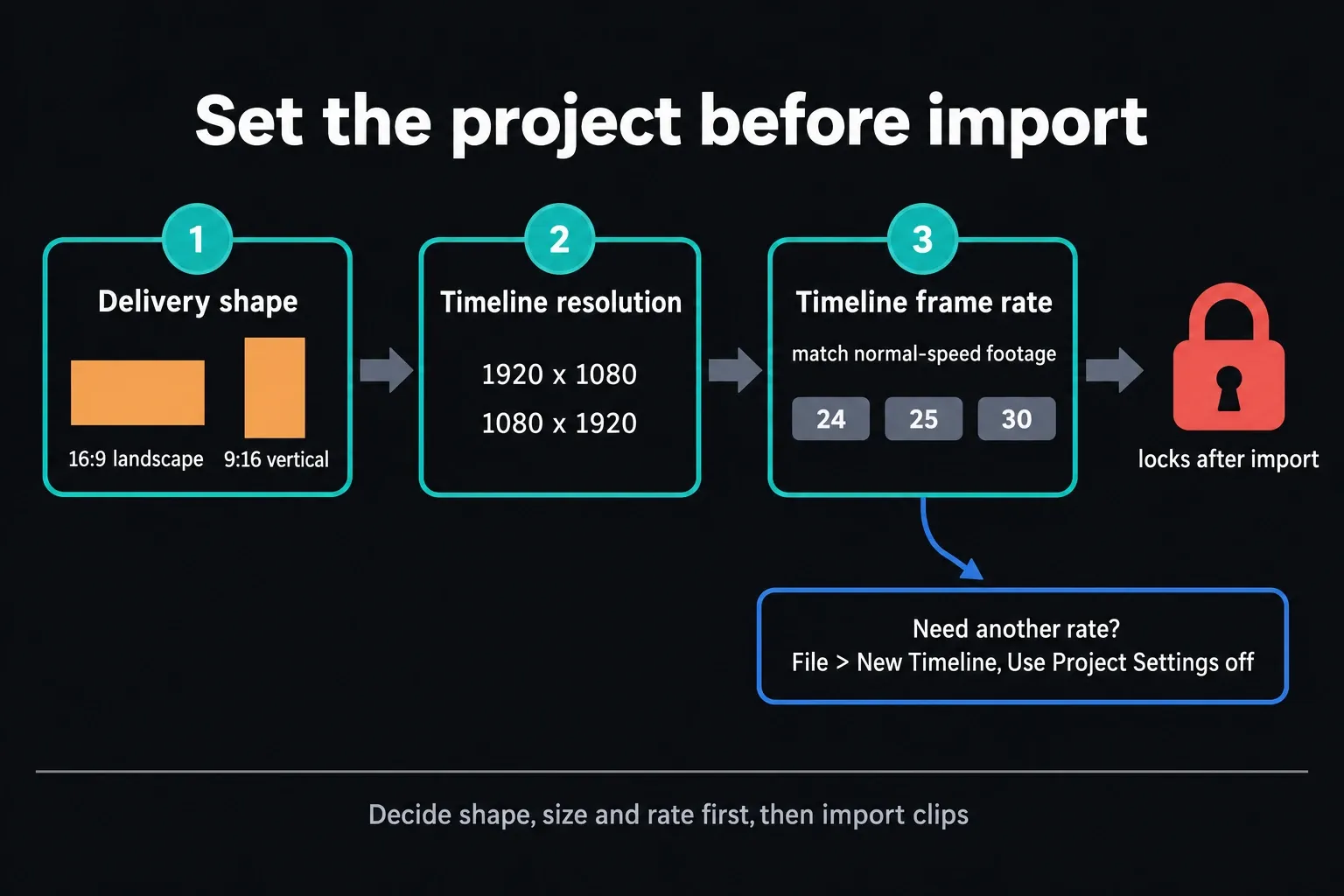
Open Project Manager and double-click Untitled Project or click New Project. Give the project a specific name. Once it opens, click the gear at the lower right and check Project Settings > Master Settings.
Choose the project Timeline frame rate before adding media. When the first clips arrive in an empty project, Resolve can offer to match their rate, and once clips are in the Media Pool that project-wide setting is locked. Read the prompt carefully before you click. You can still create a new timeline with a different rate: choose File > New Timeline, uncheck Use Project Settings and set the rate under Format before adding clips. That gives you a separate timeline. The timing of your existing edit stays exactly as it was.
Set timeline resolution from the intended delivery first, then think about reframing and performance. A 4K source doesn't force a 4K editing timeline when the deliverable is 1080p. A 4K master or heavy reframing, on the other hand, can justify the larger timeline. The delivery spec decides, and no universal preset can make that call for you.
Frame rate describes timing; image quality is a separate matter. Match normal-speed material to the intended playback rate, and treat high-frame-rate clips meant for slow motion as their own creative choice. Resolution describes the pixel canvas. Keep those two decisions apart and you avoid the common mistake of picking the biggest number in both menus without knowing what it does to the result.
Use fast storage with enough free space for cache and renders. Keep camera originals in a stable location that will still be mounted tomorrow. An SSD helps, but the correct storage plan depends on source bitrate, project size and backup needs.
4. Import and Organize the Media Pool
Stay on Edit, open the Media Pool, right-click an empty area and choose Import Media. Select the files and click Open. If you prefer browsing drives inside Resolve, switch to the Media page and drag files from its Media Storage browser into the Media Pool. Those are two different import routes, and the Edit page doesn't carry the same Media Storage browser.
Create only the bins the exercise needs: A-roll, B-roll, Audio and Graphics. Bins organize project references; the camera originals stay where they are on disk. Preview each source, drop obvious misses from the working selection, and confirm that picture and sound decode before you start editing.
If the source frame rate differs from the empty project, Resolve may ask whether to change the project. Decide on purpose. A 60 fps slow-motion source inside a 24 or 30 fps story is no reason by itself to run the whole project at 60 fps.
Before you leave import, open several clips from different cameras or phones. Check orientation, duration, audio channels and smooth decoding. One clip that plays proves very little about the rest, because files with the same extension can carry different codecs or profiles.
5. Build the Rough Cut on the Edit Page
Both the Cut and Edit pages can build a complete timeline. Cut is designed for fast, action-based assembly; Edit shows a traditional Media Pool, source viewer, timeline viewer and track layout. I use Edit in this tutorial because those relationships stay visible.
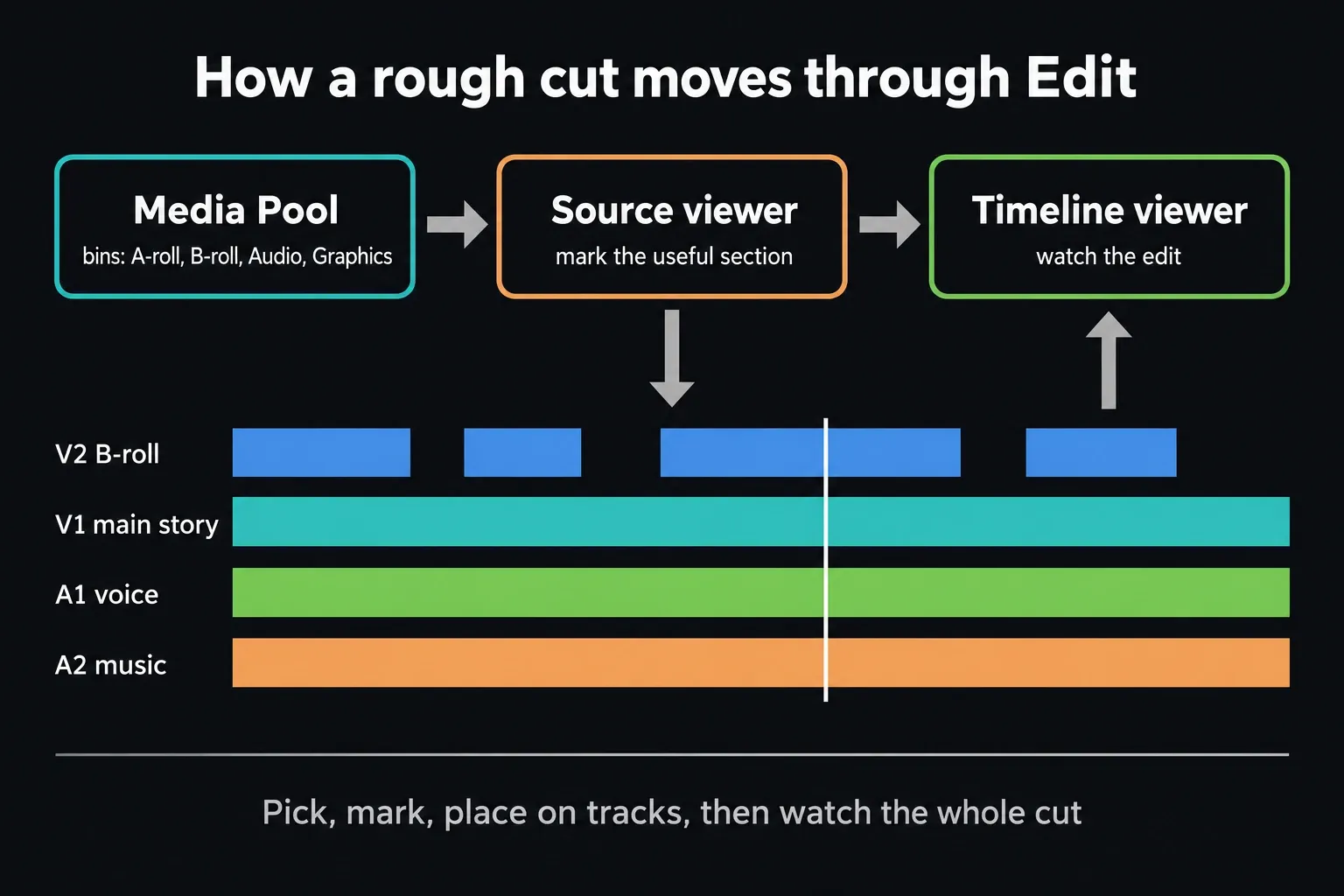
Create a timeline from the selected clips, or drag the first clip into the empty timeline area and name the timeline. Then build the paper edit in order. Don't trim every frame yet. First make sure the story has a beginning, a useful middle and an ending.
- Open a source clip and mark the useful section, or drag the clip to the timeline and trim it there.
- Put the main story on Video 1. Place B-roll above it on Video 2 only when the overlay should cover the picture below.
- Use Selection mode to move clips and trim edges. To split inside a clip, switch to Blade Edit mode, click the frame where you want the cut, then go back to Selection mode before moving the pieces.
- Play the whole rough cut without stopping. Cut repetition before you add effects.
For a precise split, use the full clip-splitting guide. The distinction that matters for a beginner is simple: trimming moves an edge, while splitting creates a new edit point inside the clip.
Press Space to play and stop, and make your decisions while watching motion and hearing sound. Zooming into single frames too early pushes you toward busy editing. First remove shots that don't move the idea forward; then tighten pauses and trim distracting starts and endings.
6. Add One Title, B-Roll and Only Necessary Transitions
Click Effects at the top left to open the Effects Library. Under Toolbox, open Titles, drag a simple Text title above the picture, select it, and edit the wording, font, size and position in the Inspector. The focused text tutorial covers title controls in depth, so this page stays on the first-edit basics.
Use B-roll to show what the voice is talking about or to cover an awkward picture edit. Keep the main audio running underneath when continuity matters. An opaque picture on a higher video track hides the picture below while the two overlap, but the lower clip's audio keeps playing unless you change it.
Start with straight cuts. Add a Cross Dissolve only when it signals a soft change and both clips have enough unused frames for the overlap. If Resolve refuses the transition, the dedicated Resolve transitions guide explains handles and placement.
7. Make a First Audio Pass
Play the timeline with your eyes off the picture. Dialogue should stay intelligible, edits shouldn't create abrupt clicks, and music should sit under the speech so every word stays clear. Adjust a clip with the level line on the audio clip or the Volume control in the Inspector. Use the track faders when the whole track needs to change.
Don't chase one universal meter number for every delivery. Listen on headphones and on speakers, watch the meters for clipping, and compare several passages. If a music bed fights the voice, pull the music down first; compression and sidechain routing belong in a later Fairlight pass.
Check every edit where the sound changes. Add a short audio fade when a cut clicks or room tone ends abruptly. If the voice sits on one channel of a stereo recording, sort out the channel layout first; turning the clip up won't fix it. The waveform helps you navigate, but your ears and the meters decide whether the mix works.
If a clip should be silent, or its picture and sound need separate treatment, follow the mute and split-audio workflow. Save before structural changes, and set up project backups with the Resolve save and backup guide.
8. Make a Restrained Color Check
Open Color once the edit and audio structure are stable. Select one representative clip. On a first pass, fix obvious exposure and white-balance problems, compare neighboring shots, and watch a scope so the display isn't your only reference. Copying one grade across unrelated shots rarely finishes the job.
For ordinary display-ready footage, start in Primaries > Color Wheels. The master controls under Lift, Gamma and Gain handle broad shadow, midtone and highlight balance, and their ranges overlap. Temp and Tint help remove an unwanted warm/cool or green/magenta cast. Make small adjustments while watching the viewer and a waveform or parade. Keep the shadows and highlights you meant to have; a full scope isn't the target.
Log, HDR, camera RAW and mixed-camera color management need a defined input, timeline and output transform. A file extension alone won't tell you which color science to assign. When the source isn't ordinary display-ready footage, use the maintained beginner color-grading workflow.
After balancing one shot, move to its neighbor and match the obvious exposure and color differences by eye and on the scope. Save stylized looks until the shots cut together cleanly. A consistent sequence beats one dramatic thumbnail surrounded by mismatched clips.
9. Export and Play the File
For the fastest first check, choose File > Quick Export and pick a suitable local preset. For control over format, codec, filename, audio, range and queue, open the Deliver page. A broadly compatible starting file is an MP4 with H.264 at the intended resolution and the timeline frame rate, but a platform or client specification always overrides a generic preset.
On Deliver, choose Custom Export, set a filename and location, and select Single clip for one finished video. In Video, enable Export Video and choose MP4/H.264 where available; check the output resolution and frame rate. In Audio, enable Export Audio and pick the bus that carries your finished mix. Choose Entire Timeline for the complete edit, or set a shorter range on purpose. Click Add to Render Queue, then Render All. The complete Deliver-page export guide covers format and queue choices, and the YouTube export settings guide covers YouTube-specific options.
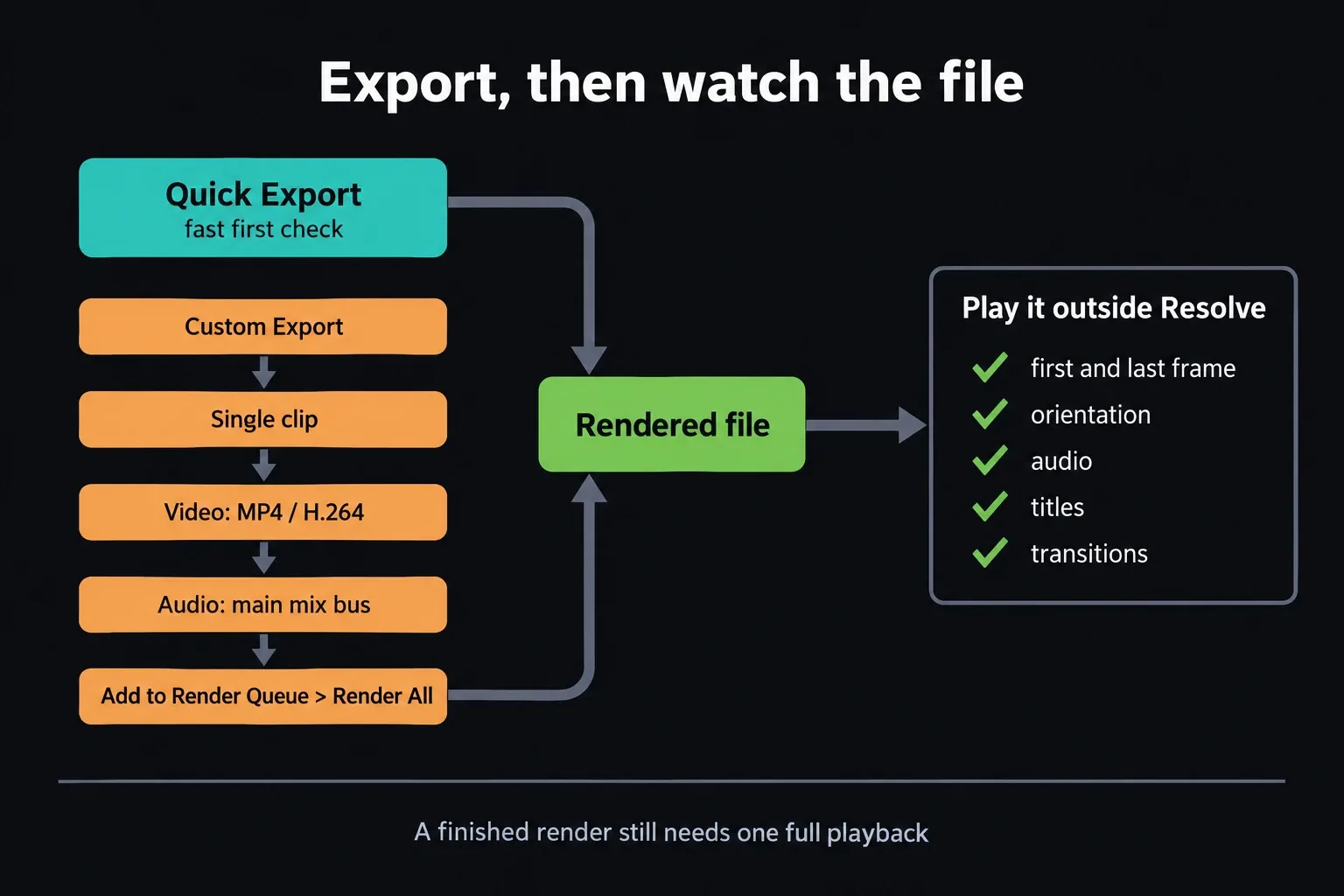
Play the rendered file outside Resolve from start to finish. Check the first and last frame, picture orientation, audio, titles, transitions and any section that relied on cache or an effect. A progress bar at 100 percent only tells you the encode ended. Whether the delivered file is correct is something you confirm by watching it.
What to Learn After the First Project
Repeat the same small project once without looking at the instructions. On the second pass, learn one improvement: cleaner trims, better dialogue, a controlled grade or a more deliberate export. Hold off on collecting unrelated effects until the base workflow feels routine.
Blackmagic offers free official project-based training. Its current structured beginner book is still labeled Resolve 20, while the current application and reference manual are Resolve 21, so expect some interface differences. Use the site's DaVinci Resolve learning path to move from this first edit into editing, color, Fairlight, Fusion and delivery without leaving gaps between those skills.
Beginner FAQ
Is the free version enough for a beginner?
Yes, for a normal first editing project. Blackmagic offers Resolve 21 as a free application, and Studio adds extra AI, effects, format, HDR and performance capabilities. Start with the free version unless a named Studio-only feature or delivery requirement is already part of your job.
Should a beginner use the Cut page or the Edit page?
Either one can make a complete edit. The Cut page favors fast, action-based assembly; the Edit page shows a traditional timeline and more controls. This tutorial uses Edit because its Media Pool, viewers, tracks and timeline make the underlying editing model easier to see.
Why does playback stutter after I import clips?
Stutter can come from the source codec, timeline effects, cache or proxy state, storage speed, drivers, available GPU memory or the machine itself. Test one short clip without effects first. If the source still can't play smoothly, go through the dedicated slow-playback checklist.
Can I change the timeline frame rate after importing media?
The project-wide Timeline frame rate locks after import, but a new timeline can use another rate. Choose File > New Timeline, uncheck Use Project Settings and choose the rate under Format before adding clips. Keep the original edit and a project backup, because moving an edit to another rate means checking cuts, effects and audio sync again. Creating that timeline leaves the project setting locked.
Do I need transitions on a first edit?
No. Start with straight cuts and add a transition only when it signals a change in time, place, mood or viewpoint. A centered dissolve between two clips needs unused frames beyond their trimmed edges. If the handles are missing, shorten or move the transition, or keep the straight cut and avoid an unwanted freeze frame.
Why did my first export have no sound?
Confirm the timeline plays through the intended main mix, then check that audio export is enabled and the correct output bus or track is selected. Render a short test and play the file outside Resolve before you commit to a long export.