Quick answer: Render in Place turns a clip on the Edit page timeline into a new media file with its effects baked in, and swaps that file in for the clip. Right-click the clip, choose Render in Place, pick a high-quality codec such as ProRes 422 HQ or DNxHR HQ, choose which effects to include, click Render and pick a folder. It's in the free version, the final export uses the rendered clip, and Decompose to Original brings the original back with its effects still editable.
The steps and settings here follow the DaVinci Resolve 21.1 Reference Manual. The bugs further down come from dated threads on the Blackmagic forum, and each one names the version it was reported on. More step-by-step guides live in the Tutorials section.
What Render in Place Does
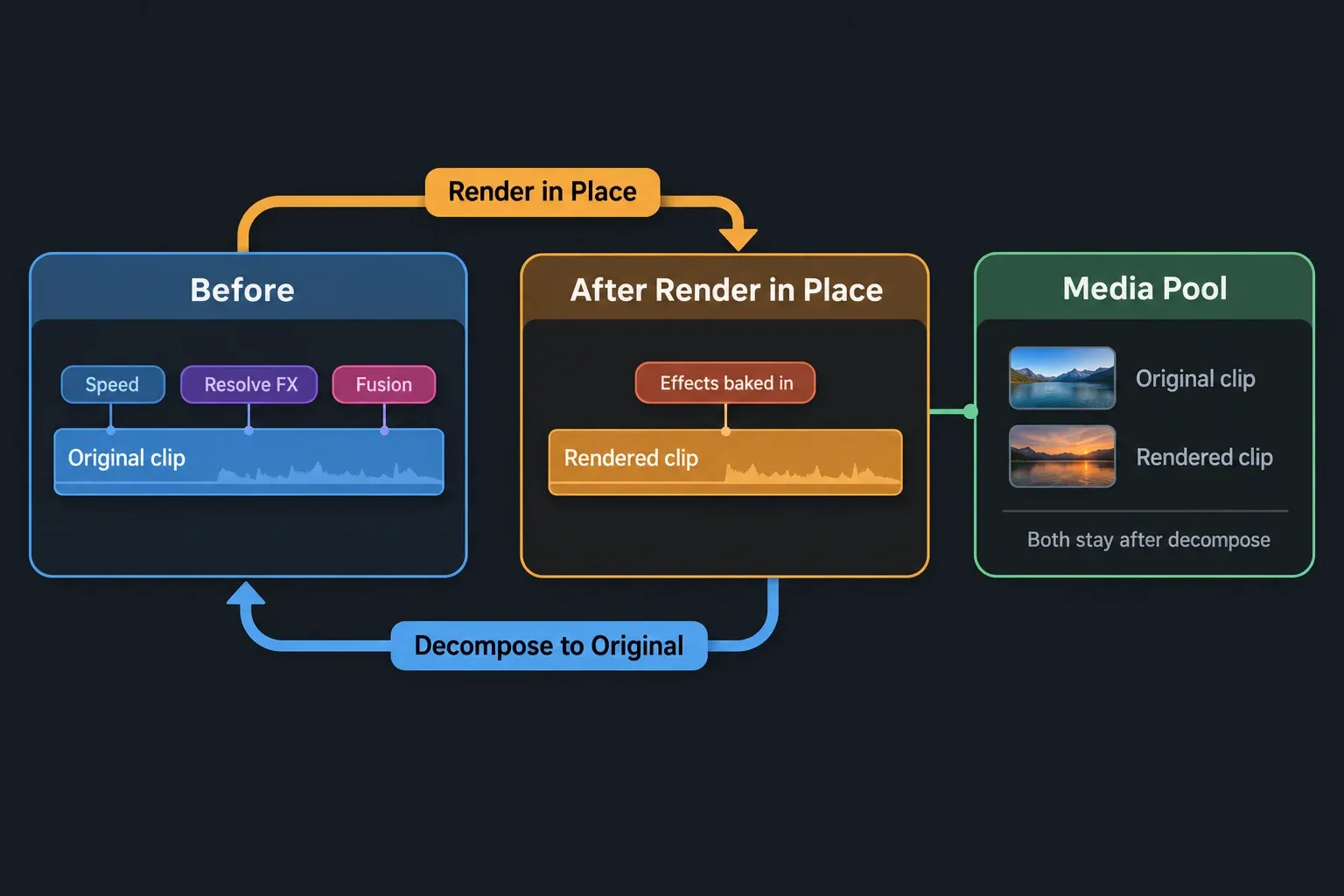
Unless it has been cached, every effect on a timeline clip is worked out again each time Resolve plays that frame. Render in Place does the work once. It renders the clip with its effects to a new media file, puts that file on the timeline where the clip was, and adds it to the Media Pool. The command only works on the Edit page, which is why people looking for it on the Cut page or the Deliver page don't find it.
The manual gives it two jobs. One is smoother playback of a clip that takes a lot of processing. The other is a high-quality master of a clip whose effects are final. Its example is a complicated speed ramp you're handing to another editor or a VFX artist, who might not read Resolve's speed effects the same way. The Surface Tracker notes add a third: if a clip's frame rate differs from the timeline's, tracking can stutter, and rendering it in place bakes the retiming into one frame for every timeline frame.
It isn't a one-way trip, either. Decompose to Original swaps the original clip back in, effects and all, so you can render in place and still change your mind later.
How to Render in Place
- On the Edit page timeline, select the clip you want to bake. To process several, select them all; each one becomes its own file, rendered as a batch.
- Right-click the selection and choose Render in Place.
- Pick the Format, Codec and Type, add handles if you might trim the clip later, and check the effects you want baked in.
- Click Render, choose a folder in the file dialog that opens, and click Open.
- When the progress bar finishes, make sure the timeline clip was replaced and the new file is in the Media Pool, then play it and listen to the sound.
Where the file goes needs a word. The manual's overview says the new file is created next to the original source media, but its steps have you choose the location in a file dialog, so the folder you pick there is the one to remember. In a March 2026 forum thread, a user said Render in Place follows the Project media location set in Working Folders, the folder Resolve uses for media it generates itself. I'd keep these renders in a folder of their own beside the project media, so they travel with the project and are easy to clean up.
The manual describes Render in Place in terms of picture effects and doesn't say anything about the clip's audio. Play the rendered clip with the sound up and check sync before you move on, especially on a clip with a speed change.
Render in Place Settings Explained
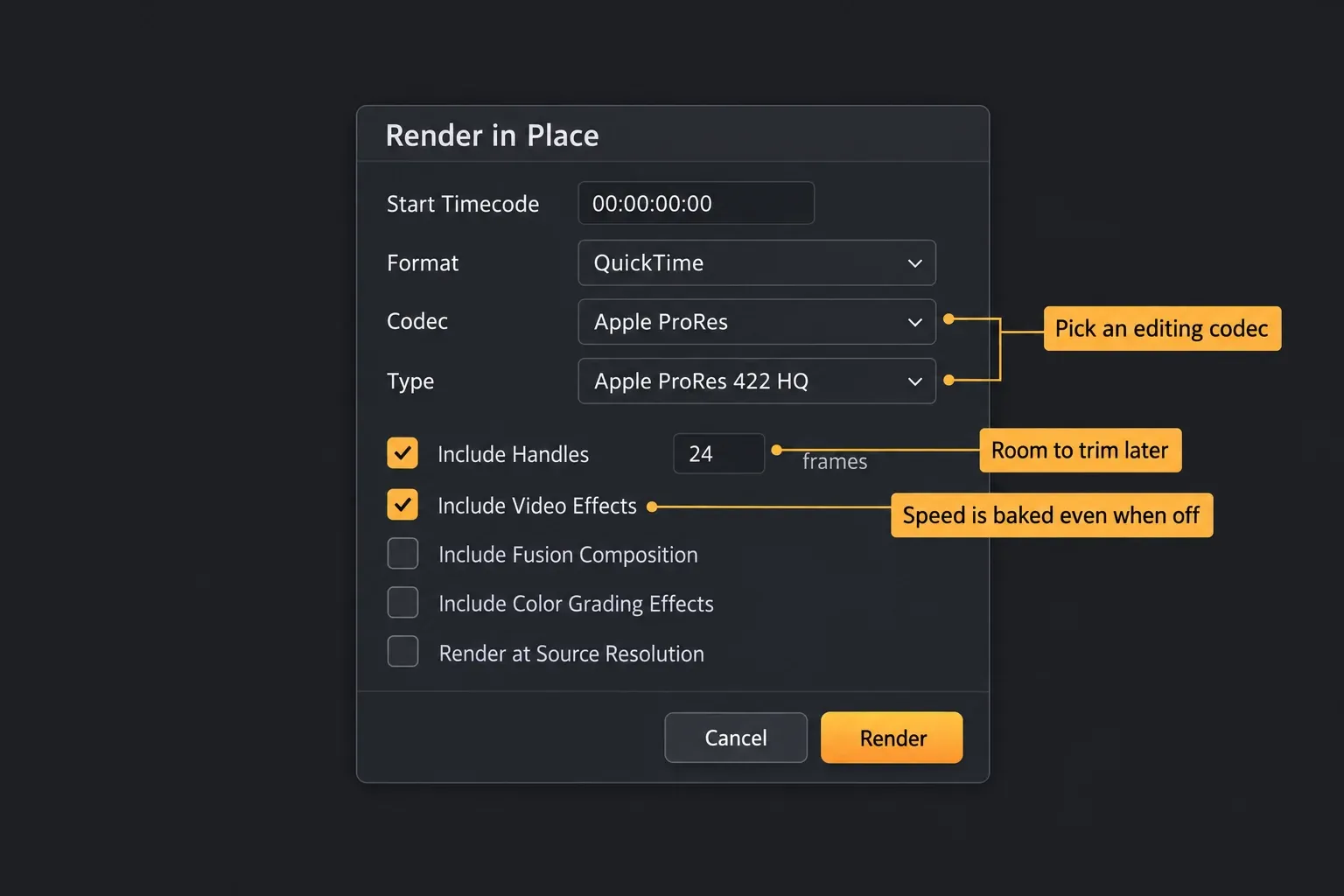
The Render Clip Options window opens when you choose the command. Here is what each setting does, according to the 21.1 manual, and where I'd start:
| Option | What it does | What I'd set |
|---|---|---|
| Start Timecode | Sets the timecode the new clip starts at | Leave it unless a later step needs a particular value |
| Format, Codec, Type | The file container, the video codec and its compression level | QuickTime with ProRes 422 HQ, or DNxHR HQ, for most clips |
| Include Handles | Adds frames before the In point and after the Out point | A second or so if you may trim or add a transition later |
| Include Video Effects | Bakes sizing, Open FX and Resolve FX, and speed effects | On. Speed changes are baked even when it's off |
| Include Fusion Composition | Bakes a Fusion composition attached to the clip | On once the comp is final |
| Include Color Grading Effects | Bakes the clip's grade from the Color page | On if the grade is final, off if you're still grading |
| Render at Source Resolution | Renders at the source media's resolution instead of the timeline's | On if you might reframe or zoom in later |
Two of these deserve a closer look. Include Video Effects sounds like a master switch, but it isn't one: with it off, Resolve still bakes speed effects into the new clip and leaves out only the others. If a retime is the reason the clip stutters, that's often what you want. If you rendered in place to keep a speed ramp editable, it isn't, and the speed ramp controls only come back after Decompose to Original.
The other is Include Color Grading Effects. Turned on, it bakes the Color page grade into the file. The manual doesn't say what happens to a grade you leave out, so open the clip on the Color page afterward and look before you assume either way.
Render at Source Resolution
By default the new clip is rendered at the timeline resolution. Render at Source Resolution keeps the source media's resolution instead, which leaves room to zoom or reframe later. A reply in an October 2024 thread says this option arrived in Resolve 19, so you won't see it in older versions. Another 2024 thread points out that it follows the source clip, not a Fusion comp's own output resolution, so a comp built at a different size may need a different approach.
Which Codec Should You Use for Render in Place?
The codec you pick becomes the quality ceiling for that clip, because every later step, the final export included, reads the rendered file instead of the original. I'd use an editing format such as Apple ProRes 422 HQ or DNxHR HQ, both made for editing rather than delivery. Which ones you can encode depends on your platform and version, and the codecs guide has notes on ProRes, DNxHR and other intermediates.
H.264 and H.265 are tempting because the files are small, but they're delivery formats, not working formats. If you render in place to H.265 and then export to H.265, the clip usually goes through two lossy encodes. Long-GOP files like these are also harder to decode while you edit, which can eat into the playback gain you were after.
Expect big files. In a 2021 forum thread, one user reported 56 seconds of 1080p at 30 fps coming to about 1.4 GB in DNxHR SQ and 833 MB in GrassValley HQ. Your numbers will differ with resolution, frame rate and codec, but intermediates take much more space than the camera's H.264.
Keep Transparency With an Alpha Codec
If the clip has transparent areas, say a title or a Fusion comp over nothing, the codec has to store an alpha channel, or the transparent areas won't survive the render. ProRes 4444 and DNxHR 444 are the usual choices, and the transparent background guide explains which formats can store alpha. A reply in a December 2025 thread lists DNxHR, ProRes 4444, GrassValley and CineForm as codecs that keep alpha when you render in place. H.264 and H.265 don't.
Does the Final Export Use the Rendered Clip?
Yes. After Render in Place, the clip on the timeline is the new file, so that's what the Deliver page renders. The original and its effects only come back if you decompose. The Deliver page has checkboxes that tell Resolve to use optimized media, proxy media or render cached images, but the manual's list of render settings has no equivalent for Render in Place. In a December 2025 thread that asked exactly this, the answer was "Yes, always."
That's why the codec matters. A clip rendered to a lower quality than your delivery format is exported at that lower quality. Going the other way can save time: Bypass re-encode when possible copies the video straight to the output when the Format, Codec and Type match and nothing has been added to the clip. In a 2024 thread, a regular forum contributor, Uli Plank, put it this way: "If codec and resolution are identical, it will use the existing renders." Which formats can bypass depends on your platform, so read the codecs guide on passthrough and alpha checks before you count on it. Any grade, effect or resize you add after rendering makes Resolve re-encode the clip again.
The rest of the export works as usual; the export guide walks through the Deliver page in seven steps.
Undo It With Decompose to Original
Select one or more rendered clips on the Edit page timeline, right-click and choose Decompose to Original. The original clip returns with all of its effects still editable. What it doesn't do is clean up: the rendered file isn't deleted from its folder or removed from the Media Pool. The manual calls it "effectively a new clip". If you don't need it anymore, remove it from the Media Pool and then delete the file, once you're sure no other timeline uses it.
Don't confuse it with Decompose in Place, which is a compound clip command; the compound clip guide shows how to undo a compound with Decompose in Place.
Two Decompose Problems Reported in 2026
- Copied clips can slip. In a February 2026 thread, a rendered clip with a dissolve was copied to a track above and then decomposed, and the original came back shifted by the length of the transition. A second user reproduced it, and a third said the same happens with handles.
- A speed ramp on the rendered clip shifts Fusion work. In an April 2026 thread on Studio 20.3.1, a speed ramp added to a clip after Render in Place moved the Fusion composition's In and Out points when the clip was decomposed. Removing the speed ramp first let it decompose correctly.
Neither has an official answer in those threads, so I'd make speed changes before rendering in place. After any decompose, scrub through the clip to check it lines up.
Render in Place vs Render Cache, Proxies and Compound Clips
Resolve has several ways to make heavy footage easier to play, and they behave very differently at export time:
- Render in Place makes a permanent media file that replaces one clip on the timeline. You choose the codec and the folder, and the export uses it.
- Render cache files are temporary. Resolve makes them itself, redoes them when the clip changes, and manages them at three levels. The export only uses them if you turn on Use render cached images, and the render cache guide explains when that is safe.
- Proxy and optimized media are lighter copies of the source clips that make decoding easier. They sit behind the clips instead of replacing them, and the proxy guide compares proxy media and the render cache and shows how to export without accidentally using proxies.
- Compound clips group several clips into one container. They don't render anything, and Resolve still processes everything inside them.
If the effects on a clip are still changing, the render cache is the better tool, because it keeps up with your edits. Render in Place earns its place once a clip's effects are done.
When Render in Place Helps and When It Doesn't
It's the right tool for one or two clips that are much heavier than the rest of the timeline. Retimed slow motion is the classic case. The poster of the December 2025 thread had Optical Flow and AI Speed Warp slow motion that played badly, and said it played smoothly after Render in Place. The speed guide explains why retime processing is so heavy. Finished Fusion comps and stacks of Resolve FX are the other usual suspects, and the Fusion tutorial covers why comps crawl on some machines.
It's also a tidy way to hand a clip to someone else, since the effects travel inside the file. The cloud collaboration guide covers how to plan a media handoff.
It won't help much in three situations:
- The clip is still changing. Every change means decomposing, editing and rendering again. In the 2024 thread, Uli Plank asked: "But do you really want to wait for that after every little change?"
- The whole timeline lags. If every clip from one camera stutters, the source codec is the first thing to check, and proxies fix a codec bottleneck across the board. The slow playback guide shows how to test whether certain source clips are the cause and how to isolate Fusion, OFX and color work.
- Resolve crashes. In the 2024 thread, Render in Place didn't stop the original poster's crashes, and a graphics card upgrade did. The crash guide shows how to separate GPU memory pressure from a driver failure.
Fix Render in Place Problems
Render in Place Is Missing From the Menu
Check that you're on the Edit page and that you right-clicked a clip in the timeline, not in the Media Pool. The command only works there.
The New Clip Doesn't Replace the Timeline Clip
This comes up again and again in a forum thread that started with Resolve 18.5: the render finishes and the new clip appears in the Media Pool, but the timeline still shows the original. Users reported it on 18.5 in August 2023, on 19.1.4 in March 2025 and again in November 2025. One user found it failed only when the project was a cloud project and the render target was a NAS, and worked when rendering to a local drive. If it happens to you, try a local folder. The rendered file is still usable, so you can also put it on the timeline yourself with a replace edit, which is F11 by default.
The Rendered Clip Ends Up in a Power Bin
In a thread from February and March 2026, users found that with a Power Bin selected, the rendered clip landed in that Power Bin, and removing it from there broke the link. Select an ordinary bin in the Media Pool before you render.
The File Is Named Render.mov
In a June 2026 thread about Resolve 21.0.1, a file name built from the Clip Name metadata variable followed by the word Render produced a file called just Render.mov. If you name files with variables, check the name of the first file before you batch the rest.
The Clip Goes Offline Later
A rendered clip is ordinary media, so if you move or delete its folder, Resolve can't find it. Relink it the same way as any other clip, as the media offline guide explains for clips whose source path was lost. When you archive or move a project, include the render folder, or gather everything with Media Management.
If the render itself fails on a clip, the render failure guide covers renders that fail only on certain clips.
Other Features Called Render in Place
Two other Resolve features use the same name for different jobs:
- Render in Place Magic Mask. On the Color page, Magic Mask can render its matte as an external matte node from the 3-dot menu, so other effects can use the mask as an alpha source. The Magic Mask guide covers how to render a mask in place in Resolve 21.
- Voice Convert. The AI voice effect's Track setting defaults to Render in Place, which overwrites the clip's original audio. Revert to Original Voice in the clip's right-click menu undoes it.
Is Render in Place Free?
Yes. Render in Place isn't on the list of Studio features on Blackmagic's DaVinci Resolve Studio page, and the manual's Render in Place section has no Studio note. Some of the effects you might bake are Studio features, though. Speed Warp retiming is one of the Studio AI tools, and the free version guide lists which AI tools need Studio.
Frequently Asked Questions
What does Render in Place do in DaVinci Resolve?
It renders a clip on the Edit page timeline, with its effects baked in, to a new media file. That file replaces the clip on the timeline and is added to the Media Pool. People use it to make a heavy clip play smoothly or to lock in effects that are finished.
What are the best Render in Place settings?
For most clips, QuickTime with Apple ProRes 422 HQ or DNxHR HQ, Include Video Effects on, and the Fusion and color options on only when that work is final. Add a second or so of handles if you might trim the clip. If the clip has transparency, pick a codec that stores alpha, such as ProRes 4444.
Does the final export use the Render in Place clip?
Yes. The rendered clip is what sits on the timeline, so the Deliver page renders it instead of the original. There is no Deliver setting that switches back to the originals. Decompose the clip first if you want the export made from the original media.
How do I undo Render in Place?
Select the rendered clip on the Edit page timeline, right-click it and choose Decompose to Original. The original clip comes back with its effects still editable. The rendered file stays on disk and in the Media Pool until you remove it.
Where does Render in Place save the files?
In the folder you choose in the file dialog that opens after you click Render. The new file is also added to the Media Pool. Keep it with the project media, because moving or deleting it later takes the clip offline.
Is Render in Place available in the free version of DaVinci Resolve?
Yes. Blackmagic's Studio page doesn't list it as a Studio feature, and the manual doesn't mark it as one. Some effects you might bake, such as Speed Warp, are Studio features, though.
What is the difference between Render in Place and the render cache?
Render in Place makes a real media file that replaces the clip, and the export uses it. The render cache is a set of temporary files that Resolve manages for playback; it updates when you change the clip, and the export only uses it if you turn on Use render cached images.
