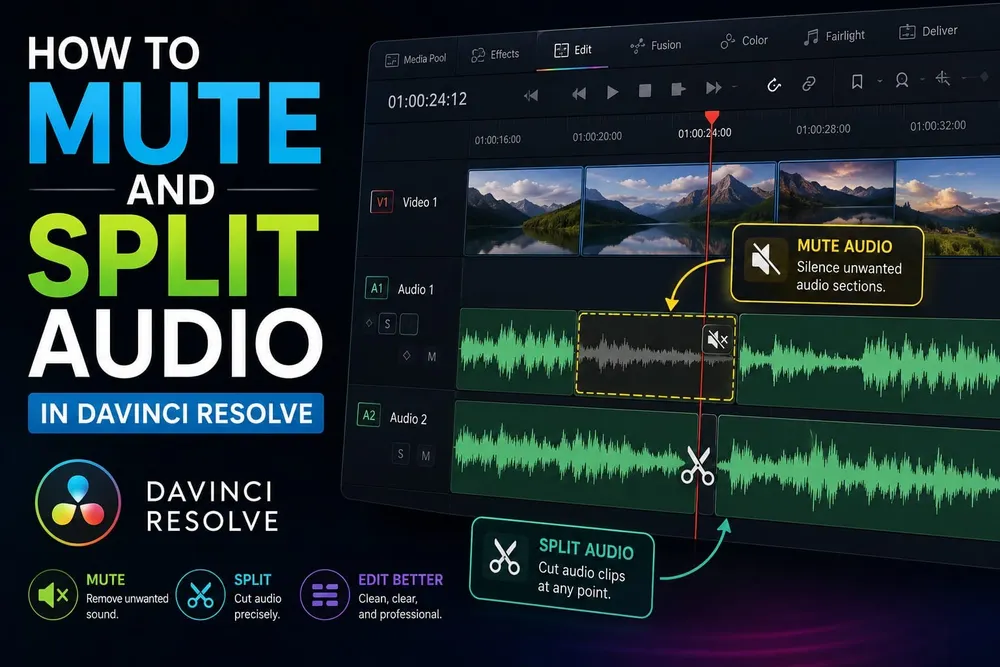
To mute one audio clip in DaVinci Resolve, select only its audio item and press D. For a whole track, click the M button in that track's header. To remove a few seconds of unwanted sound, split the audio at both ends and disable the middle piece; use volume keyframes when you want a gradual level change instead.
This guide uses Resolve 21 menu names. If the task grows from one mute into dialogue cleanup, buses or delivery, use the DaVinci Resolve Fairlight hub for the next stage. The basic mute, link and manual split controls covered here are available in both Free and Studio.
How to Mute One Audio Clip
If you're new to the Edit page workflow, the DaVinci Resolve beginner's guide covers the interface before you start here.
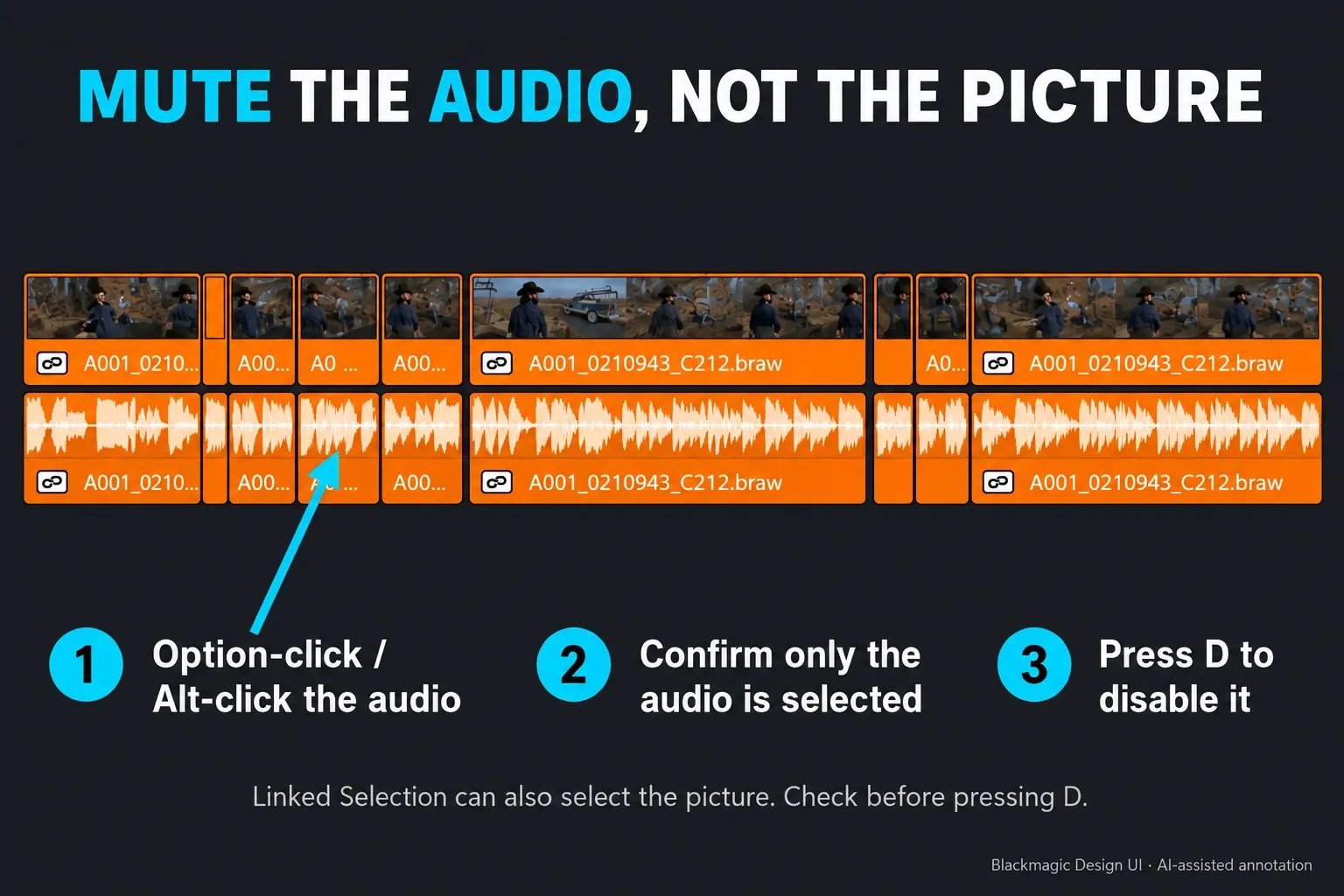
On the Edit page, Option-click the audio item on macOS or Alt-click it on Windows. Check that only the intended audio is highlighted, then press D. Alternatively, right-click that item and toggle Enable Clip, or choose Clip > Enable/Disable Clip. A normal click with Linked Selection on can select both picture and sound, so check the selection before you disable anything.
A disabled item turns gray, stays in place, and doesn't play or render. Older Fairlight versions called this Mute Clip.
The DaVinci Resolve 21 Reference Manual documents this selection behavior, the Enable Clip label, the D toggle, and the difference between permanent linking and temporarily suspending Linked Selection.
If the clip should stay audible at a lower level, drag its Volume overlay down or adjust Volume in the Inspector. Disable the item when it should be excluded altogether.
D is a toggle, not an unconditional 'turn off' command. If you select a mixture of enabled and disabled clips, it can switch them in opposite directions. Work on the intended audio item, or assign the explicit Disable Clip command in Keyboard Customization for a repeated task. On Fairlight, the menu route is Clip > Enable Clip; older instructions may call it Mute Clip.
How to Mute an Entire Audio Track
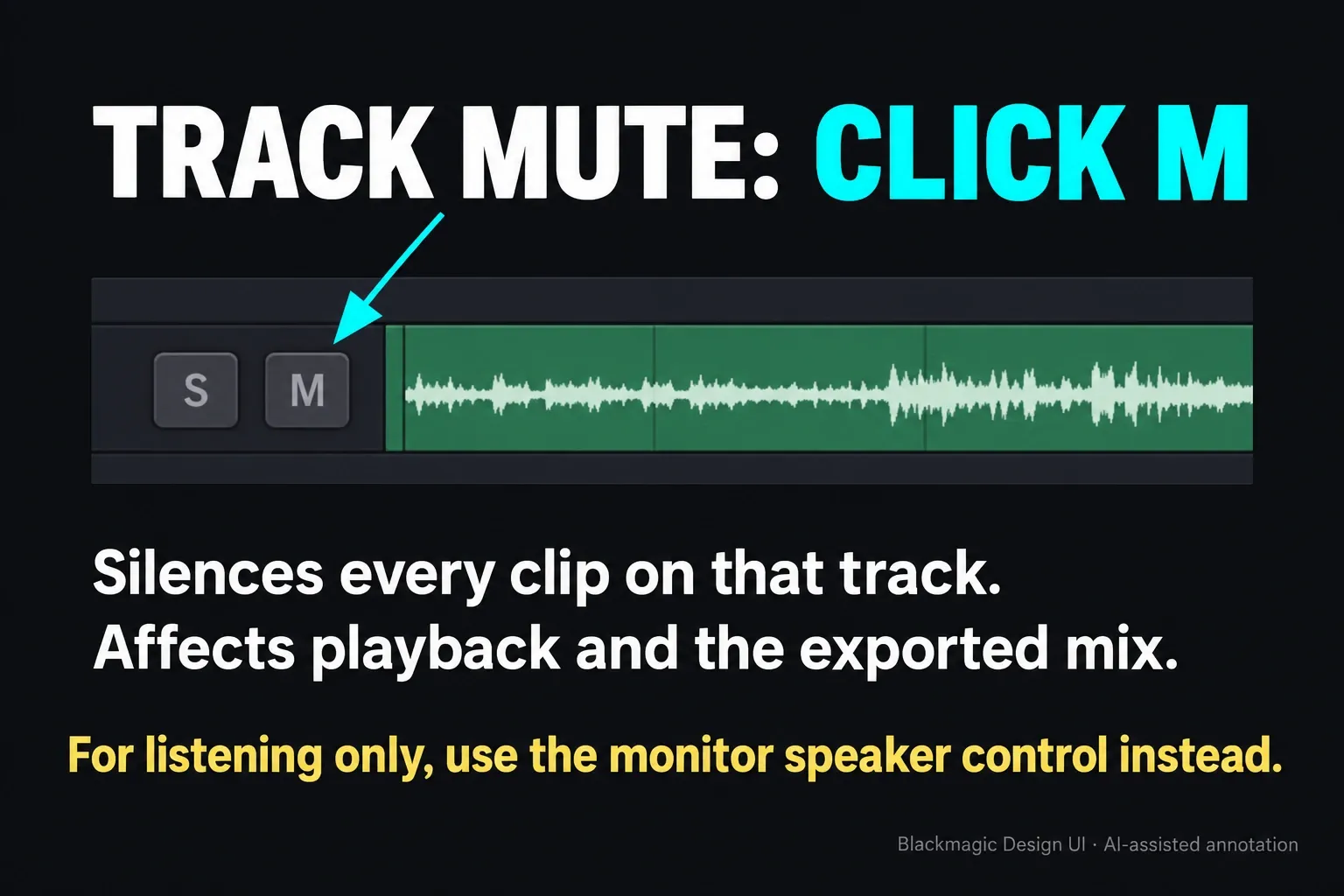
Click the M button in the audio track header or Audio Mixer to silence that track. Blackmagic’s Fairlight controls overview identifies the track mute and solo controls. Unlike monitor mute, track mute affects both playback and the delivered mix.
Solo lets you listen to chosen tracks while suppressing others. Before delivery, clear temporary Solo states and restore any tracks you muted only while checking the mix. Leave an intentional mute in place if that track should stay out of the finished file.
M here means the visible track-header or mixer button, not an instruction to press the M key. If you use a custom keyboard preset, check its assignments in Keyboard Customization. The visible M and S states are the quickest way to see what is currently excluded from the mix.
Mute Part of a Clip or Lower It with Keyframes
For complete removal of a cough or unwanted word, make two audio-only cuts and disable the piece between them. On Edit, temporarily turn off the chain-link Linked Selection button, press B, and click the audio at the start and end of the unwanted section. Press A, select only the middle audio piece, and press D. Re-enable Linked Selection when finished. This leaves the timeline duration unchanged; do not ripple-delete the gap.
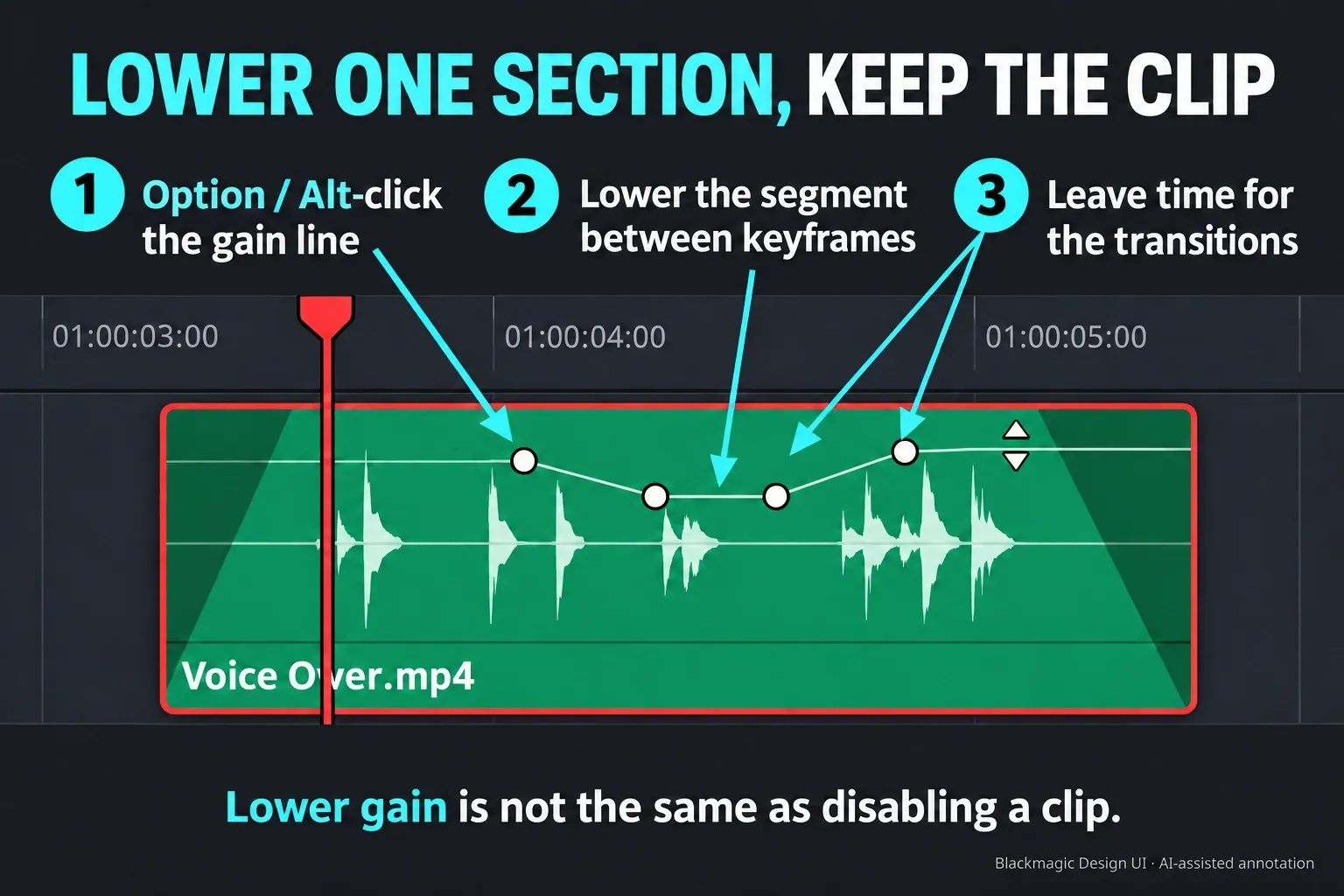
For a softer reduction without extra edit points, use four Volume keyframes. Make the track tall enough to see its gain line. On Fairlight, enable Fairlight > Show Clip Gain Line if needed. Then:
- Option-click (macOS) or Alt-click (Windows) directly on the audio clip's gain line just before the reduction should begin.
- Add a second keyframe at the point where the reduced level should be reached.
- Add a third where that reduced section should end, then a fourth a little later to restore the surrounding level.
- Drag the gain-line segment between the second and third keyframes down. Keep the outer keyframes at the levels you want outside the reduction.
- Play across both transitions, then listen again with the rest of the mix. Adjust the depth and spacing until the change sounds right.
Keep the keyframes at separate time positions. Changing a parameter on an existing keyframe changes its value; it does not create two simultaneous gain values at that frame. Short sloping transitions help avoid an abrupt level jump. A quieter waveform is not proof of complete silence. Use the disabled middle piece when the sound must be excluded.
Fairlight also lets you highlight a range with the Edit Selection tool and adjust the Clip Gain line; Resolve creates keyframes at the boundaries automatically. Zoom around neighboring words before adjusting the range. Clip gain changes that item, not the entire track's mixer fader.
Separate Audio from Video
Keep picture and its associated audio linked for normal edits. Temporarily suspend Linked Selection for an audio-only change; unlink the items only when you actually need to break their relationship. Neither method should be used as a shortcut for repairing an existing sync error.
Option 1: Unlink Clips (Permanent Until You Re-link)
Select the associated items and choose Clip > Link Clips, or use Option+Command+L on macOS / Alt+Ctrl+L on Windows with the default mapping. The chain indicators identify linked items. To link them again, first make sure picture and sound are correctly aligned, select both items, and use the same command. Linking does not move mistimed audio back into sync.
Option 2: Alt/Option Key (Temporary Override)
Hold Option on macOS or Alt on Windows while clicking the audio item to select it without its linked picture. Check the highlight before editing. For several audio-only cuts or trims, temporarily turn off the chain-link Linked Selection button instead, then restore it afterward. This changes how the items are selected; it does not delete their stored link.
Option 3: Extract Audio (Separate File)
In Media Storage, right-click the source video and choose Extract Audio, choose a destination, then click Extract. Resolve writes the channels to a standalone WAV file. Import that WAV into the Media Pool if the project needs it.
Extract Audio creates a file on disk and doesn't change the link between existing timeline items. Use it for an external audio file or handoff, not as a substitute for Linked Selection during routine editing.
Split or Cut Audio Clips
For a cut at the playhead on the Edit page, select the intended audio item and choose Timeline > Razor, or use Cmd+B on macOS / Ctrl+B on Windows in the default keyboard mapping. Confirm that its linked picture is not selected if the cut must affect sound only. B by itself is different: it enters Blade Edit Mode so you can click the cut location.
For several audio-only cuts, temporarily disable Linked Selection, press B, and click the required points on the audio item. Press A to return to Selection mode, inspect the new boundaries, then restore Linked Selection. Do not assume a Blade click can never cut the linked picture; the linking state matters.
Timeline > Split Clips (Cmd+backslash on macOS / Ctrl+backslash on Windows) is the separate playhead split command. Before a track-wide cut, clear unwanted clip selections and check the red destination-track controls and track locks. The Resolve 20.2 track-control update moved the former Auto Track Selector role to the red right-hand controls; the blue source controls are different. Sync Lock governs ripple participation separately. On Fairlight, select the required tracks and use Timeline > Split Clip or Timeline > Razor. Check the active page and keyboard preset rather than assuming every cut command has identical scope.
If a clip should be audible but isn't, stop editing and use the no-audio troubleshooting path: follow the signal from clip and track meters to the bus and monitor output before changing links or making more cuts.
Fix the Common Mute and Split Mistakes
The video turned gray when you pressed D
If the same items are still selected and all were enabled before the mistake, press D again to restore them. Otherwise, check their individual Enable Clip states. Then Option-click or Alt-click only the audio item and disable that. You do not need to unlink a synchronized pair just to make one temporary selection.
Split Clips cut the wrong tracks
Undo immediately. Check the actual clip selection, red destination-track controls and track locks before trying again. For one audio item, disable Linked Selection and use a deliberately targeted Blade click, then restore the linking state. The dedicated split-video guide covers through edits, ripple behavior, and separate A/V cuts in more depth.
Audio moved out of sync with picture
Undo the independent move, restore the matching position, and confirm the chain and sync-offset indicators before continuing. Linked Selection protects normal edits only while it's active; permanent Link Clips defines which items belong together.
The clip is silent but no mute state is visible
Follow the signal instead of cutting again. Check clip gain, track Mute and Solo, the mixer, the main bus, and monitoring. The Resolve no-audio checklist separates an intentional disabled clip from a routing, device, or media problem.
Before You Export or Keep Mixing
Clear temporary Solo states and check every track and clip that should reach the final mix. Keep intentional mutes. The monitor speaker control and DIM change your listening level; track Mute, Solo, disabled clips and clip gain change the mix being delivered. Render a short check and listen to the exported file, not just timeline playback.
For a sound-only deliverable, follow the audio-only export workflow to choose the format, codec and output bus. You do not need to mute video tracks to export an audio file.
Frequently Asked Questions
How do I mute all audio in a DaVinci Resolve timeline?
For a silent exported file, disable Export Audio on the Deliver page. For timeline playback only, use the toolbar audio Enable/Disable control; it doesn't change the mix sent to delivery. Track Mute and disabled clips do affect output, so don't use them as monitoring-only controls.
Why can't I find the mute option when I right-click an audio clip on the Edit page?
Resolve 21 labels the clip command Enable Clip. Select the audio item and press D or toggle Enable Clip to disable it. Older guides and Fairlight versions may call the same idea Mute Clip. Lowering the Volume overlay is a separate gain adjustment.
Does muting affect the exported video?
Track Mute, Solo states, disabled clips and lowered clip gain affect delivery. The toolbar audio Enable/Disable and DIM controls affect what you hear in the room, not the rendered mix. Check both track and clip states before adding a render job.
Can I mute audio without splitting the clip?
For the whole clip, yes: select its audio item and press D. To reduce only part without adding cuts, place four Volume keyframes at separate positions and lower the segment between the inner pair. Leave space for the transitions. That is a gain adjustment, not proof of complete silence; split and disable the middle item when the sound must be excluded.
What's the difference between unlinking and extracting audio in DaVinci Resolve?
Link Clips changes the relationship between timeline items; it creates no new media. Extract Audio reads a source clip from Media Storage and writes its audio channels to a standalone WAV file on disk, which must be imported if you want it in the project.
How do I re-link audio and video after separating them?
Align the matching audio and video, select both, and choose Clip > Link Clips. The default shortcut is Option+Command+L on macOS and Alt+Ctrl+L on Windows. Check the chain indicators and sync before moving either item; linking alone does not correct a timing offset.