“Resolve keeps crashing” describes a symptom. It doesn't name a cause. A crash at launch, a freeze when you import one H.265 clip, a Fusion failure on a single node and a whole-computer lockup during export each need a different test. The order I'd follow is always the same: protect the project, reproduce one trigger, then change one variable at a time.
Before you touch drivers or reinstall anything, write down the exact Resolve version and build, Free or Studio, your operating system version, GPU, RAM, footage format, and the last thing you did before the failure. That short record stops the familiar loop where five settings change and nobody knows which one mattered.
First decide whether it crashed, froze, or exhausted the system
| Symptom | What it means operationally | First useful test |
|---|---|---|
| Resolve disappears to the desktop | Application crash | Reproduce once, then create a diagnostics archive |
| Resolve says Not Responding but the OS remains usable | Application hang or a long operation | Watch whether CPU, disk, or GPU activity continues before force quitting |
| The display resets or the whole machine locks | Driver, hardware, power, thermal, or system-level failure is possible | Check OS event and system logs, temperatures, and stability outside Resolve |
| Only one render stops or fails | Delivery-path failure, not automatically an application crash | Use the render-failed workflow |
| Playback drops frames but Resolve stays open | Performance problem | Use the slow-playback diagnosis |
A busy application can look frozen while it builds waveforms, analyzes media, loads a large project or processes a heavy effect. Give it a short, watched interval and keep an eye on CPU, disk and GPU activity. Clicking the window over and over won't tell you anything.
A hang you can repeat still counts, but describe it accurately. If your symptom doesn't fit this table, go to the Resolve troubleshooting map before you change unrelated settings.
Protect the project before experimenting
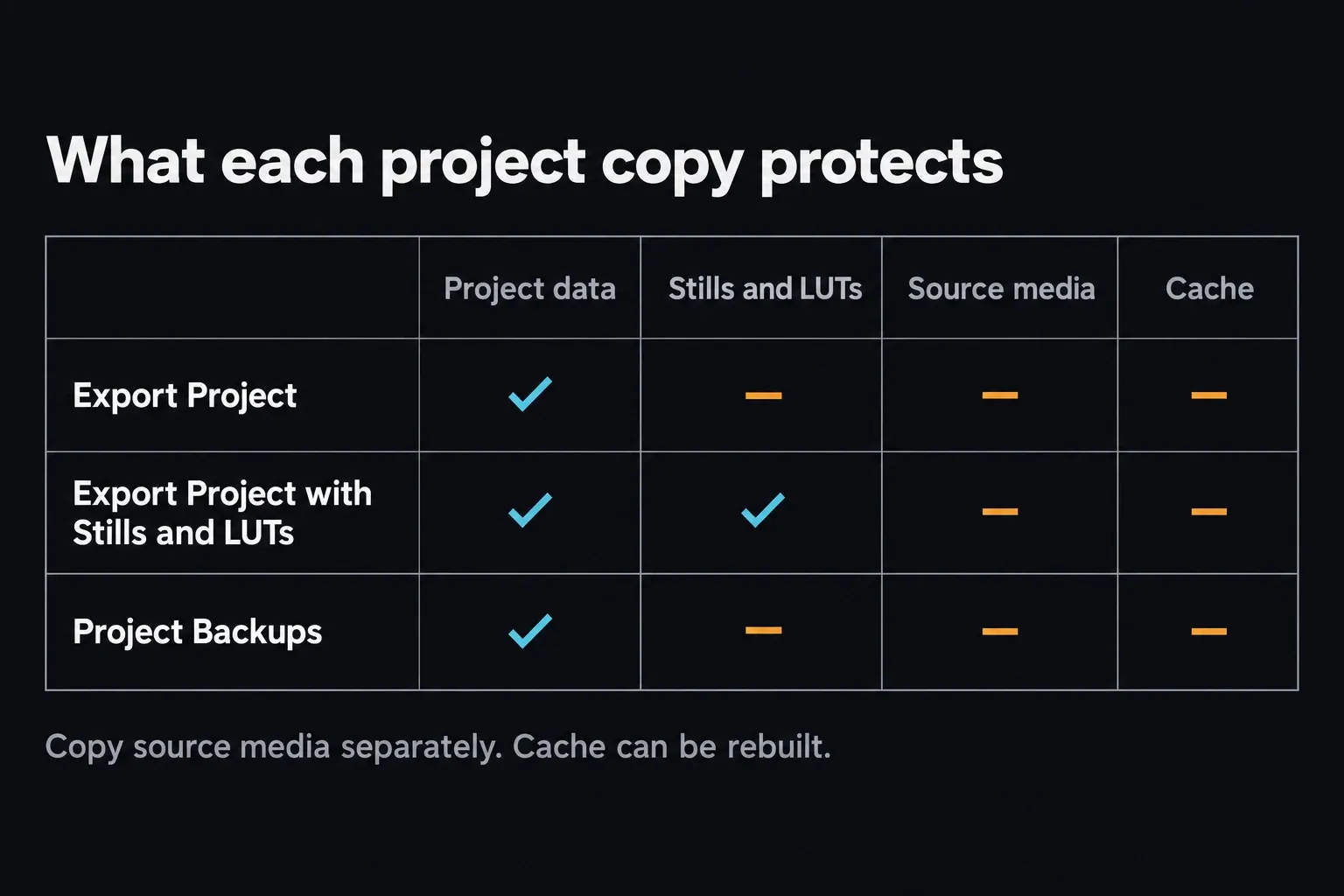
If Resolve still opens, duplicate the affected timeline and choose File > Export Project to create a DRP. According to the Resolve 21 Reference Manual, the standard Export Project leaves out stills and LUTs, while the separate Export Project with Stills and LUTs command includes them.
Neither DRP option carries source media or generated cache, so keep those safe on their own. For work that matters, back up the whole project library from Project Manager as well.
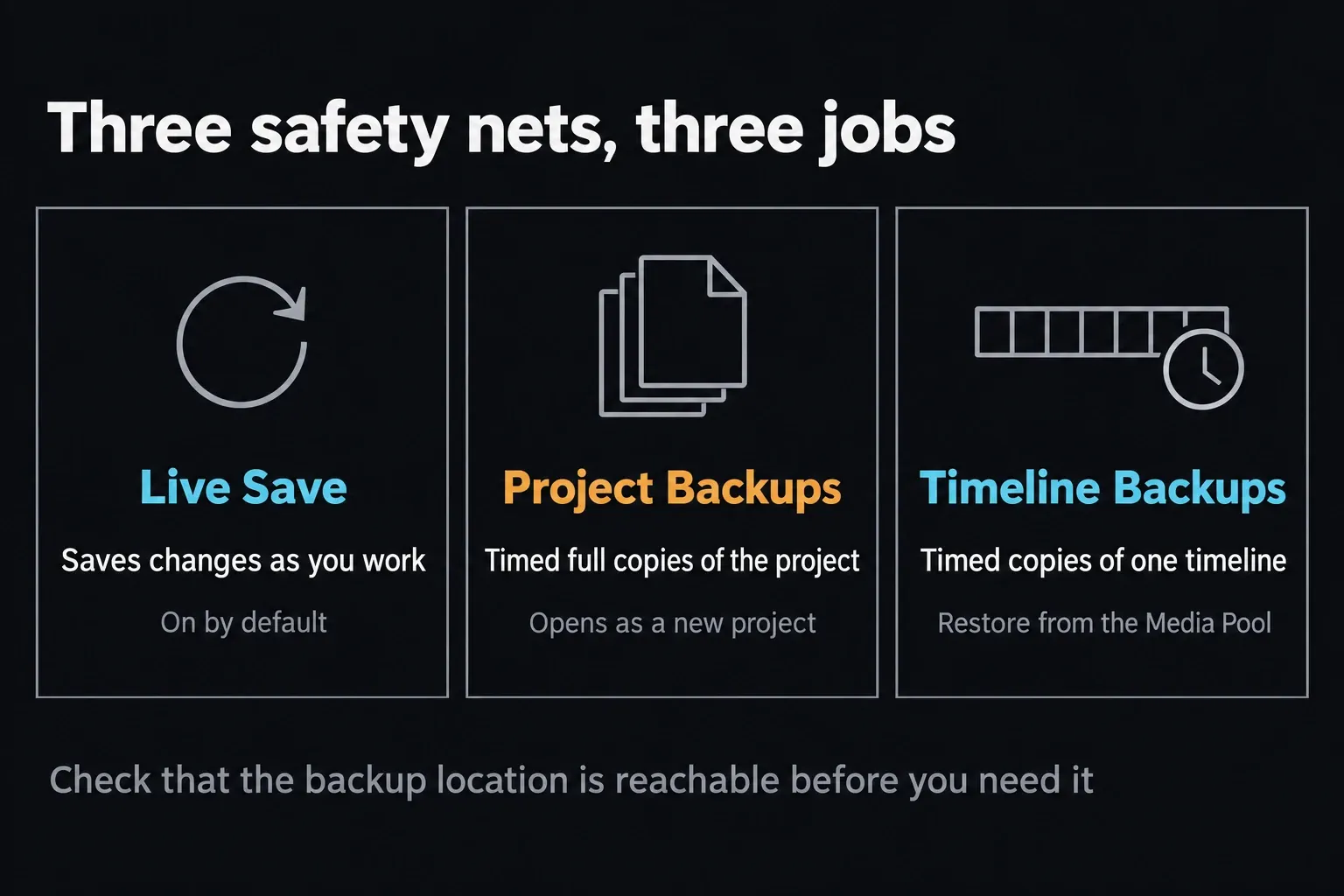
Next, open Preferences > User > Project Save and Load and check the save controls. In Resolve 21, Live Save is on by default and saves your changes incrementally as you work.
Project Backups is a separate net. It keeps timed copies of the project, by default a new one every 10 minutes plus 8 hourly and 5 daily copies, and a restored backup opens as an independent project, so your original isn't overwritten. These backups don't include stills or LUTs. Timeline Backups adds timed copies of individual timelines, which you restore from the Media Pool. Check the schedule and make sure the backup location is actually reachable.
Don't reset preferences, delete a project library or remove application-support folders until you have a copy you can restore. A step isn't safe just because a short video shows it.
Build a reproducible crash note
Open a plain text file and record one failure in this format:
- Resolve 21.x.x build number, Free or Studio.
- Operating system version and any recent OS update.
- GPU model, driver version, VRAM, RAM, and free disk space.
- Project and timeline name.
- MediaInfo details for the source at the crash point.
- Exact action: “Open Color page, select clip 43, enable temporal noise reduction.”
- Result: crash to desktop, hang, display reset, or full system restart.
- Whether the same action fails again after a relaunch.
If you can't repeat it, note what was different before the next occurrence. Intermittent failures often make sense after two or three observations, once they point to a shared effect, media source, display state or background task.
Use the trigger to choose the branch
| Repeatable trigger | Best isolation test | Evidence it produces |
|---|---|---|
| Resolve crashes before the Project Manager appears | Disconnect optional hardware, test a clean OS user where practical, and inspect launch logs | Separates application startup from one project |
| One project crashes while others open | Open a backup or duplicate, then disable the last suspect effect or media group | Project-specific boundary |
| Importing one folder crashes | Add small batches, then individual files | Identifies one malformed or unsupported asset |
| One effect or Fusion comp crashes | Bypass the effect, node group, or third-party plugin | Effect/plugin/GPU branch |
| Moving or minimizing the window crashes | Test one display, remove overlays, and compare the current certified GPU driver | Display/driver/window-state branch |
| Export crashes | Render a short range around the repeatable frame | Separates one clip/frame/effect from general encoding |
When Resolve shows Not Responding or hangs at startup
Not Responding in the title bar, or a spinning cursor on a Mac, only means the window has stopped answering for a few seconds. Resolve may still be working. Before you force quit, open Task Manager (Activity Monitor on a Mac) and watch the Resolve process for a minute or two. CPU or disk activity that keeps moving usually points to a long job, such as a big project loading or plugins being scanned. A process that sits near zero while the window stays frozen is a real hang.
If it hangs before Project Manager appears, try these one at a time and relaunch after each:
- Restart the computer and open Resolve before any screen recorder, capture tool, remote-desktop app or other GPU-heavy program.
- Unplug optional hardware and look for virtual displays. On Windows, check Display adapters in Device Manager for adapters added by remote-desktop or streaming software. In one forum case Blackmagic support worked through, disabling a Parsec virtual adapter was enough for Resolve to start again.
- If Python went onto the machine recently, treat it as a suspect. For a Resolve 20 install stuck at the Project Manager window, Blackmagic support traced the hang to a Python 3.14 install after reading the logs and suggested uninstalling Python, then reinstalling it once Resolve opened. That was one machine's fix, so check what else relies on Python before you remove it.
- If a plugin arrived just before the hang started, take it out of the scan path for one launch, as described in the plugin section below.
- Still stuck? Capture logs without opening Resolve. On Windows, run CaptureLogs from C:\Program Files\Blackmagic Design\DaVinci Resolve, which puts a zip on the desktop, then open System Information and use File > Save to create an NFO. That's the pair Blackmagic support asks for in these threads.
If Project Manager opens and only one project hangs, you're in the project branch from the table above: open a project backup or a duplicate instead of the original. Short freezes while you edit, where Resolve comes back after a few seconds, belong with the performance row in the first table.
Test a new project before blaming the installation
Create an empty local project, add one known-good file, cut a simple timeline and play it. If that clean project is stable, the installation can launch, decode the file and run the basic edit path. Then go back to a duplicate of the problem project and isolate what it adds.
If the clean project fails too, suspicion moves to the application build, GPU driver, system resources, optional hardware, preferences or the OS. Reinstalling the same build without evidence may change nothing, because media, drivers, plugins and preferences all live outside the application bundle.
Isolate media without converting the whole job
A crash on import, or at the same timeline frame every time, can come from one incomplete image, damaged video, an unusual audio stream or an unsupported codec profile. Copy the suspect item to a local drive, inspect it with MediaInfo and test it in an empty project.
Then compare the actual video and audio streams with the Resolve 21 supported codec list. The filename extension alone won't tell you whether Resolve can decode the file.
When a folder import crashes, split it: import half the files, then half of the failing half, until one asset is left. Blackmagic Support has recommended the same divide-and-conquer method for a repeatable folder-import crash.
Don't delete the suspect source. Move a copy out of the test set and keep the original for recovery or vendor analysis.
If a phone or screen recording imports fine but crashes while you seek, create one constant-frame-rate intermediate and repeat the same action. A stable intermediate is evidence about the source path. It isn't yet a reason to transcode every unrelated camera file.
Separate GPU memory pressure from a driver failure
Noise reduction, Magic Mask, Super Scale, optical flow, large Fusion frames, stacks of OpenFX plugins and high-resolution timelines all raise GPU memory and processing load. If Resolve reports GPU memory full, follow the dedicated GPU memory workflow.
A display reset, driver timeout or whole-system lock calls for a wider check. Write down the driver version, compare it with the current support notes and Resolve system requirements, and read the operating system's event or crash report.
On Windows, test the supported driver branch for your installed Resolve build and GPU. For 21.1, the release notes list NVIDIA Studio driver 581.57 or newer, or the official AMD and Intel drivers. On macOS, GPU drivers arrive with the OS, so a Windows clean-driver tutorial doesn't apply.
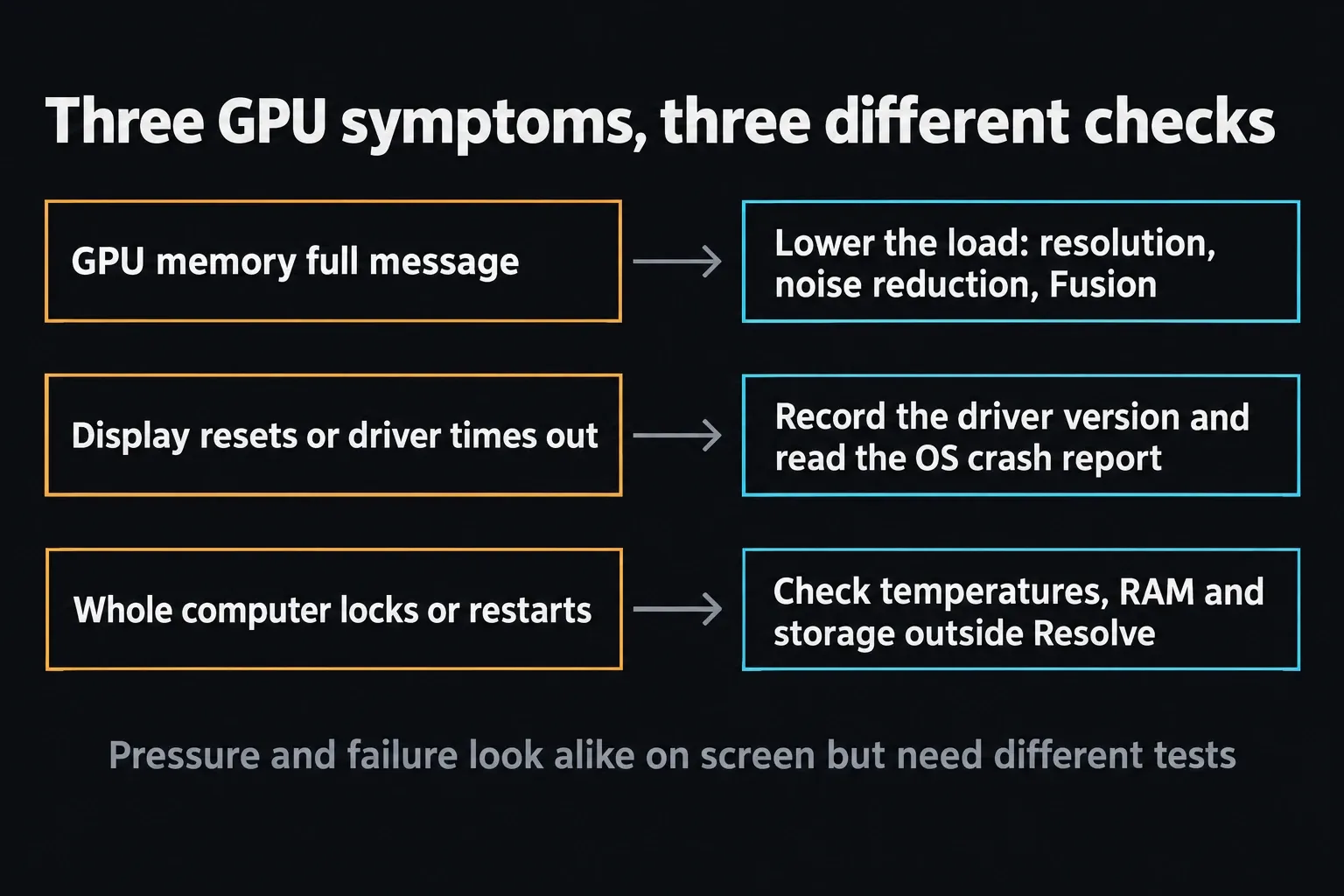
Watch temperatures and system stability during the repeatable test. Resolve loads several subsystems at once, so it can expose marginal cooling, power, RAM, GPU or overclock stability. That doesn't prove Resolve caused the hardware fault. Remove overclocks and test the machine at known-stable defaults before you draw conclusions.
Disable third-party plugins as a controlled test
If the crash starts when a title, transition, audio effect, LUT tool or OpenFX plugin loads, duplicate the timeline and bypass that item. Update the plugin from its vendor only after you've confirmed it supports your Resolve and OS versions.
A plugin can also fail while Resolve scans it at launch. Moving one suspect plugin out of its documented scan path for a while is a useful test, but note the original location and change only one product at a time.
One Maxon support example, written for Universe, goes through Preferences > Video Plugins and the product's own plugin cache.
Don't copy product-specific file paths onto unrelated plugins.
Clear only the cache tied to the failure
Render cache and optimized media are generated files. A damaged cache entry can reproduce a problem at one frame, so deleting the cache for the selected clip or timeline is a fair controlled test. Wiping every cache on every disk isn't a universal crash fix, and it can turn a short diagnosis into hours of regeneration.
Check free space and write access on the cache drive. A full or disconnected cache location can cause failures that look like a bad effect. Keep source media, cache, proxies and project-library backups separate in your head and on disk, so removing generated files never removes the only copy of a source.
Update or roll back with a rollback path
Check Blackmagic's Resolve support page for the current build and its release notes. I rechecked this workflow and its Resolve 21 commands on October 1, 2026 against the Resolve 21.1 manual and release notes.
If the notes describe your failure, or your build is far behind, an update may be worth it. If the crashing started right after an application, OS, driver or plugin update, the previous known-good combination is useful evidence.
Before you change Resolve, back up the project library and export the projects that matter. Going back isn't always possible: the 21.1 release notes say projects created or opened in 21.1 can no longer be opened in 20.3.2, even though the library itself stays accessible. The safe update procedure walks through the backup and verification steps.
Create diagnostics while the failure is fresh
After you reproduce the crash, reopen Resolve, open any project if needed and choose Help > Create Diagnostics Log on Desktop. The command is documented in Resolve 21, and Blackmagic staff on the support forum have asked for that archive together with system information and, for project-specific failures, a DRP plus exact steps to reproduce it.
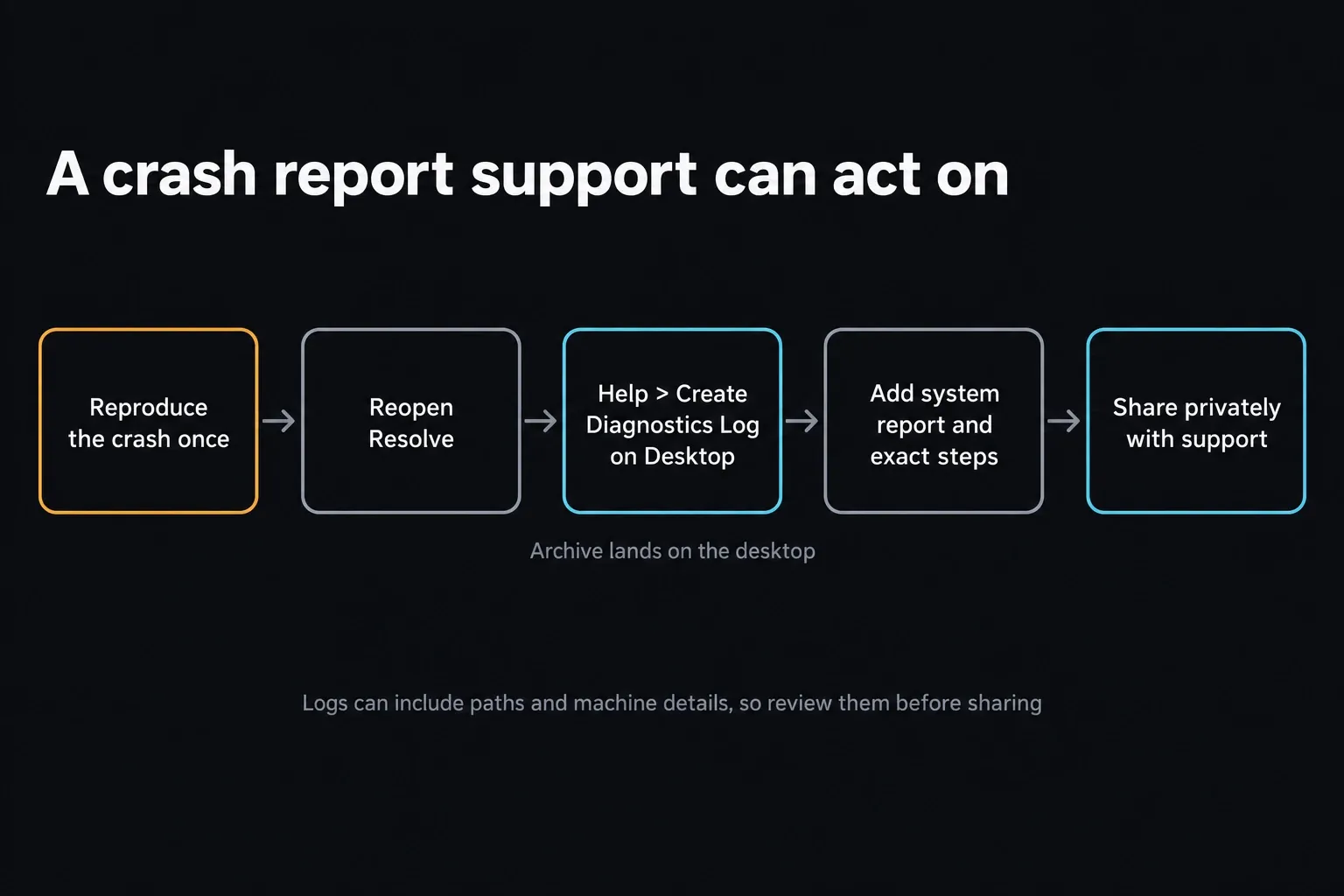
On Windows, save a System Information NFO file when support asks for it, not a text export. On macOS, save the System Report. Review diagnostic archives before you post them anywhere public: they can hold machine details, paths, plugin information and project context. Share them only through the support route you've chosen.
Know when to stop changing settings
Escalate with evidence when a clean project and known-good media still reproduce the failure, when the same action crashes after a supported driver and application update, or when the issue follows one project even after a backup restore.
Send the exact build, system report, diagnostics archive, a minimal project or sample media where licensing allows, and short, exact steps.
For a whole-system restart, thermal shutdown, storage errors, a failed memory test or repeated crashes in other GPU-heavy applications, fix the system before you go back to production. No NLE preference reset can repair unstable RAM or a failing drive.
Frequently Asked Questions
Why does DaVinci Resolve keep crashing?
The common branches are one damaged or unsupported media file, GPU memory pressure, a driver or display failure, a third-party plugin, one project or effect, a full cache drive and an application bug. Reproduce the exact trigger before you pick a fix.
Why does DaVinci Resolve say Not Responding?
Often it's still busy, loading a large project or scanning plugins, so watch CPU and disk activity in Task Manager or Activity Monitor before you force quit. If it hangs at every startup, restart the computer, disconnect optional hardware and virtual display adapters, test any recently added plugin or Python install, then run CaptureLogs so support can see where it stopped.
Will clearing the cache stop Resolve from crashing?
Only when generated cache media is part of the repeatable failure. Delete the cache for the selected clip or timeline as a controlled test. Clearing unrelated cache files won't repair a launch crash, a plugin scan failure, an unsupported source or an unstable GPU.
Should I reinstall DaVinci Resolve?
Not as a first step. Test a clean project and known-good media, collect diagnostics, and isolate plugins, drivers and project-specific factors first. Reinstalling the same build can leave the real cause exactly where it was.
How do I get DaVinci Resolve crash logs?
After the failure, reopen Resolve and choose Help > Create Diagnostics Log on Desktop. If Resolve can't reach Project Manager, use Blackmagic's platform-specific CaptureLogs utility for your installed build. Keep the archive private unless you mean to share it with support.
Can low RAM or VRAM make Resolve crash?
Resource pressure can contribute, especially with high-resolution media, Fusion, noise reduction, AI tools and large frame buffers. Log RAM and VRAM use around a repeatable trigger, but don't treat capacity as proof, because a driver, plugin, damaged file or hardware fault can produce a similar failure.
