DaVinci Resolve Studio 21 has text to speech built in. Install the Speech Generator model from DaVinci Resolve > Extras Download Manager, open Timeline > AI Tools > Speech Generator, type your script, pick a voice and press Generate. The free version doesn't include it, so there you make the voice file in another text-to-speech tool and import the WAV.
The catch is length and language. Published tests put each generation at about 350 characters, roughly 22 seconds of speech, and the built-in voices speak English only. Below you'll find the setup, every control, a routine for long narration, custom voice samples, the test numbers, fixes by symptom and how to make the result sit in a mix.
What you need before the first generation
- DaVinci Resolve Studio 21 or later. The Reference Manual's Speech Generator section marks it Studio Version Only. Check your build under DaVinci Resolve > About DaVinci Resolve. The free vs Studio comparison covers what else the upgrade adds.
- The Speech Generator model. It isn't part of the main install. Open the Extras Download Manager and download the Speech Generator package; it downloads in the background. Digital Production measured it at 1.63 GB, and Matt Johnson got a 1.6 GB download prompt the first time he pressed Generate without it.
- An internet connection once, or an offline package. For an edit machine that stays offline, the manual's offline package option lets you build the package on an internet-connected copy of Resolve Studio and install it by hand. After that, generation runs on your own computer with no account or upload.
- A supported system. On a Mac, Resolve 21.1 needs Apple Silicon and macOS 15 Sequoia or later; the DaVinci Resolve system requirements list the Windows and Linux side. The Speech Generator crash reported in Blackmagic's forum came from a Mac still on Sonoma.
Generate speech step by step
- Park the playhead where the line should start. With Add to Timeline ticked, the new clip lands at the playhead, so pick a spot on an empty track or at the end of your last narration clip.
- Open Timeline > AI Tools > Speech Generator. It works the same way from the Cut, Edit and Fairlight pages.
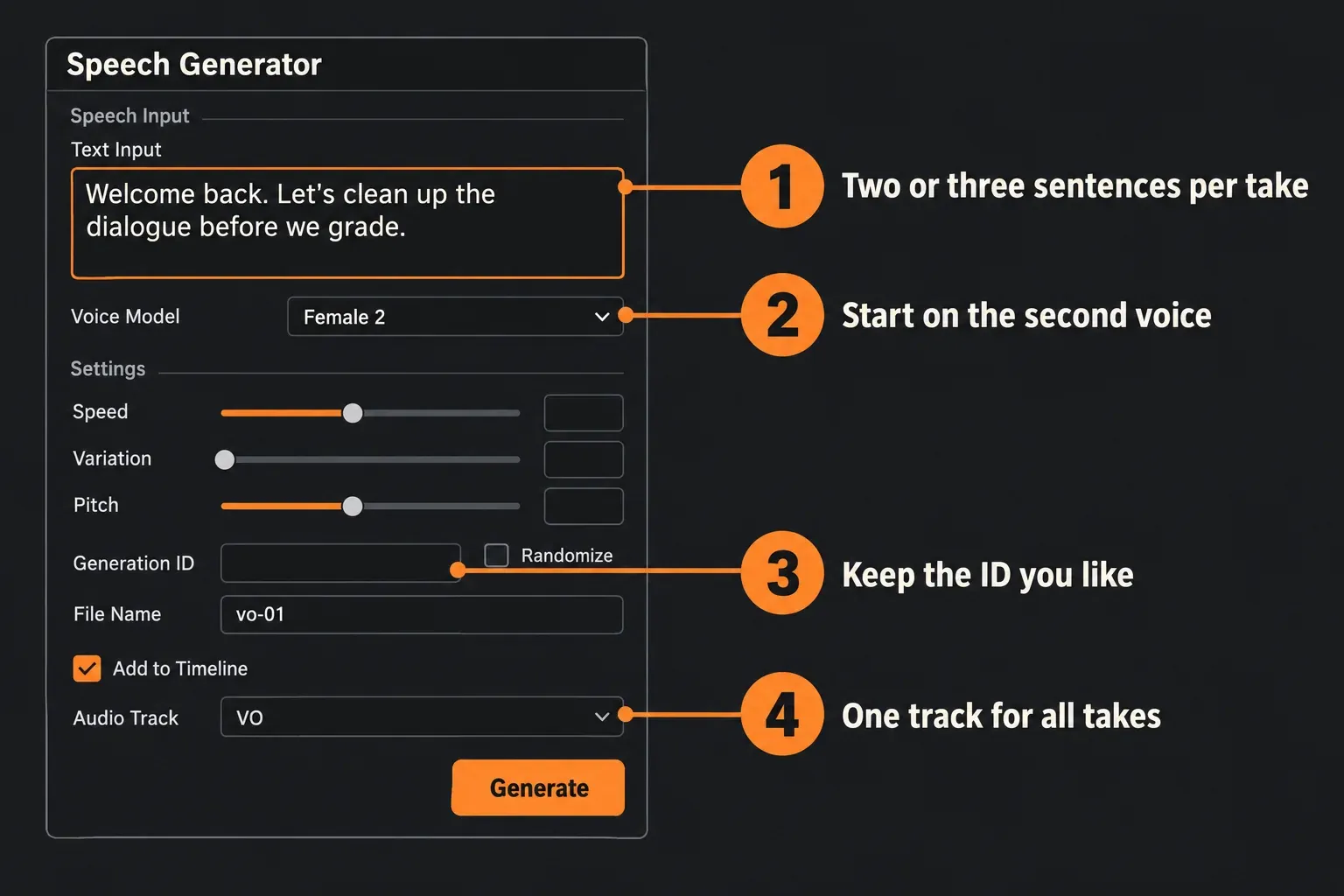
- Paste one short chunk into Text Input. The manual says shorter sentences and paragraphs give better results. Periods make longer pauses, commas shorter ones, and a line break after a period can stretch the pause further.
- Choose a Voice Model. There are four built-in voices, or Custom Voice to load your own sample.
- Set Speed, Variation and Pitch. Leave them at their defaults for the first take; you'll hear what to change.
- Name the file. Type a name such as vo-01 in File Name. Resolve keeps adding a numeric suffix.
- Tick Add to Timeline and pick the Audio Track. The manual calls this checkbox Insert into Timeline. The Audio Track menu lists New Track above your existing tracks. Leave the box unticked if you'd rather drag the clips into place yourself.
- Press Generate. Resolve creates a new audio clip, adds it to the Media Pool and, with Add to Timeline on, places it at the playhead on the chosen track.
The audio files go into the project media location under the project's name. You'll find that folder in File > Project Settings > Master Settings > Working Folders, next to the recordings from the Voiceover tool. Point it at a drive with space before a long session; the project settings guide walks through the rest of that panel.
What each Speech Generator setting does
- Text Input: the script for one take. Punctuation steers the timing, so a comma is the quickest way to add a breath.
- Voice Model: four built-in voices that Blackmagic describes as licensed for use, plus Custom Voice. Digital Production lists two female and two male voices and found the first voice of each pair very robotic, the second a little more convincing. I'd start every new script on the second voice for that reason.
- Speed: how fast the voice reads. A slower read also makes each take longer in seconds.
- Variation: the rhythm, intonation and emotion of the reading. At 0.0 the prosody stays closest to the reference voice. Raising it, together with Randomize, varies the delivery style while keeping the same voice.
- Pitch: positive values raise the voice, negative values lower it.
- Generation ID: the take number. The same number gives the same performance, so you can try other settings and keep the prosody of a delivery you liked. The number is long; copy it into your notes.
- Randomize: picks a random Generation ID on every Generate. Switch it off once a take sounds right.
- File Name: your text replaces the start of the default name; the numeric suffix stays.
- Add to Timeline and Audio Track: place the clip at the playhead on the track you choose, or on a New Track from the same menu.
There's no default keyboard shortcut and no right-click entry; the tool lives only in the Timeline menu. If you generate a lot, assign a key under DaVinci Resolve > Keyboard Customization, as the keyboard shortcuts guide shows.
Build a long narration from short takes
A script longer than a paragraph needs a routine, for three reasons. Each generation only digests about 350 characters. The DaVinci Resolve 21 New Features Guide warns that a voice fed too much text can start to drift into strange territory. And in Digital Production's look at the Resolve 21 AI audio tools, Uli Plank found that the playhead stays put, the open window blocks everything else, and generating again at the same spot overwrites the last clip.
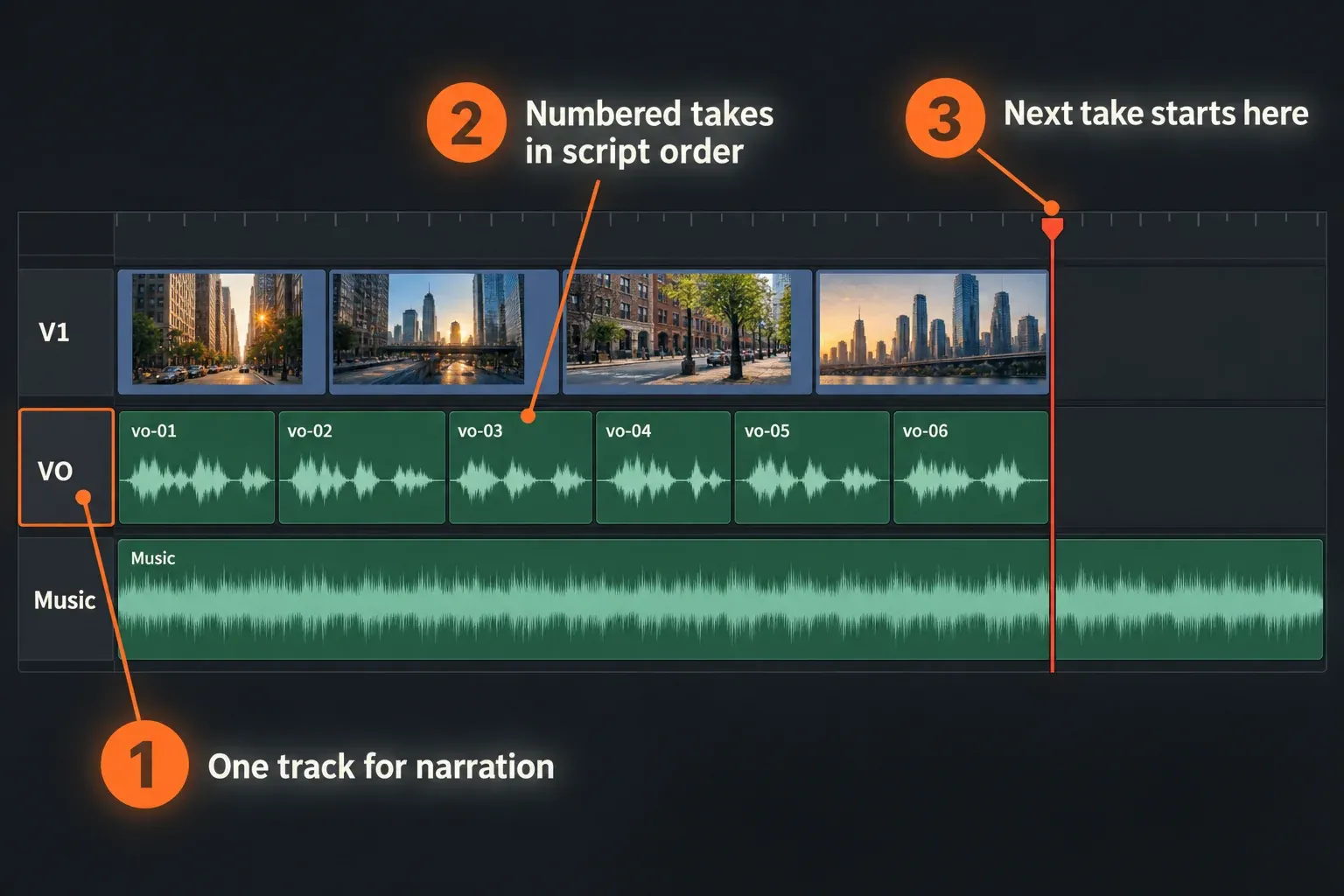
- Split the script before you open Resolve. My default is two or three sentences per chunk, under 300 characters, cut at a sentence end. That leaves headroom below the limit and gives the voice a natural place to pause.
- Number the chunks and use the same numbers in File Name: vo-01, vo-02 and so on. The Media Pool then sorts them in script order.
- Give narration its own track. Set Audio Track to one VO track and keep it there. Picking New Track for every take turns the timeline into a staircase.
- Generate the first chunk, close the window, listen, and move the playhead to the end of the new clip.
- Reopen Speech Generator, replace the text with the next chunk and generate again. Keep the same voice, Speed, Variation and Pitch for every chunk so the narrator doesn't change mood between clips.
- Close the gaps last. Nudge clips together or apart once all chunks are on the track; pacing is easier to judge with the whole narration in place.
If you'd rather not chase the playhead, untick Add to Timeline, generate every chunk into the Media Pool and lay them out in one pass. Digital Production would rather name the clips and arrange the edit later, and it's the route I'd use for anything over a minute. For planning, a minute of speech at Digital Production's rate of about 22 seconds per 350 to 360 characters works out to roughly 950 to 980 characters, or three full takes.
Studio users with long scripts can automate the loop. Atomik Factory describes a script that feeds Speech Generator through Resolve's scripting API, where each call accepts roughly 350 characters and one 2,200-character script became 13 segments. It needs External Scripting Using set to Local in Preferences > System > General, which is a Studio-only option, plus a Resolve restart. On the author's Windows machine, one Python version crashed the moment Resolve's scripting library loaded, while a newer one worked.
Clone a voice with a custom sample
Custom Voice reads your text in a voice taken from a short recording. According to the manual's custom voice tips, the sample should be a clean, high-fidelity recording of one person talking for about 20 seconds. Anything longer is cut to the first 20 seconds. The New Features Guide says 10 to 20 seconds is enough.
- Pick a clean stretch. Good levels, low noise, even pacing, no long pauses and no shouting or whispering. If you're recording from scratch, the manual suggests reading the Harvard Sentences, which cover English sounds evenly.
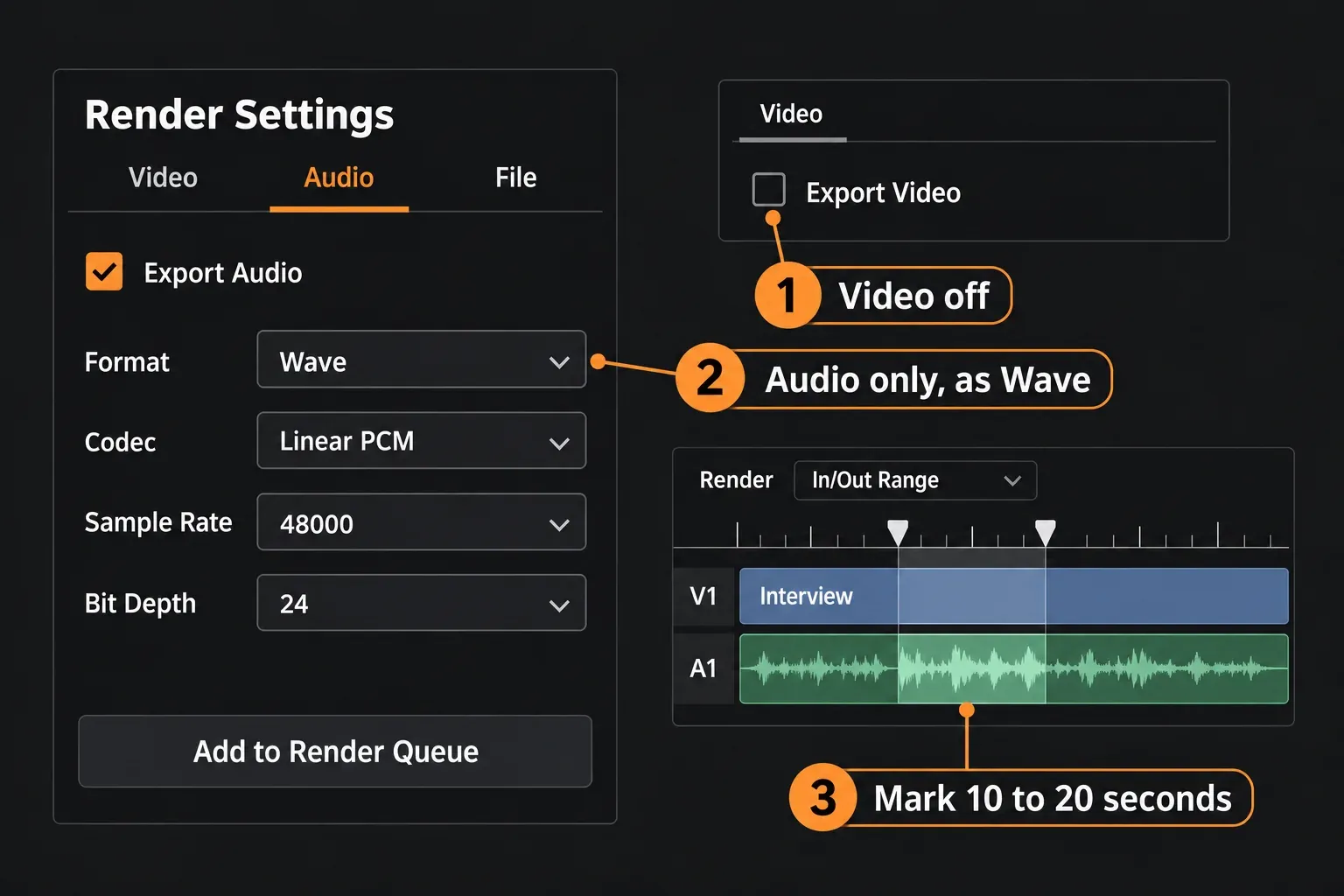
- Export it as WAV. Digital Production found that only WAV works as a sample, with MP3 and other formats refused. In Matt Johnson's voice cloning walkthrough, he sets In and Out points around at least 10 seconds of speech, unticks Export Video on the Deliver page and exports Wave, Linear PCM, 48,000 Hz, 24-bit. The audio export guide covers the Deliver settings in detail.
- Load it. In Speech Generator, open Voice Model, choose Custom Voice, click Load and pick the WAV.
- Keep Variation low for a match. At 0.0 the reading stays closest to the prosody of the sample, which is what you want when the result should sound like that person.
Ask first. The manual's own warning is to get the speaker's permission and pay them fairly before you use a real person's voice.
The most practical use is patching a flubbed line. Matt Johnson typed the corrected sentence in the speaker's cloned voice and placed it over the mistake. The one catch he flags: the speaker's lips don't change, so cover the new line with B-roll. Chadwick Shoults of Creative Video Tips cloned his own voice from a 15-second clip in his tour of the Resolve 21 AI tools.
Speech Generator and Voice Convert are easy to mix up. The manual draws the line clearly: Speech Generator builds a new performance from text and a short sample, while Voice Convert keeps an existing recording's timing and delivery and swaps the voice, and it needs a longer source and time to train a model. Digital Production reports a recommended source length of around 10 minutes for Voice Convert training and saw about an hour of training for 5 minutes of source on the Better setting on an M4 Pro Mac. A trained Voice Convert model can't be loaded into Speech Generator.
Speech Generator test results
Blackmagic doesn't publish speed or length figures, so the numbers below come from published tests and walkthroughs of Resolve Studio 21 on Mac and Windows, with each figure tied to its source.
| Measure | Result | Range and conditions | Sources |
|---|---|---|---|
| Text per generation | About 350 characters | 350 to 360 in the app (Digital Production); roughly 350 per call through the scripting API (Atomik Factory, Windows) | 2 |
| Speech per generation | About 22 seconds | From a 350 to 360 character take (Digital Production) | 1 |
| Generation time | About as long as the speech | Roughly real time with the GPU fully loaded and memory to spare (Digital Production); 10 to 30 seconds per clip depending on the computer and sample size (Matt Johnson) | 2 |
| Model download | About 1.6 GB | 1.6 to 1.63 GB, one time | 2 |
| Custom voice sample | 10 to 20 seconds of WAV | About 20 seconds, cut at 20 (Reference Manual); 10 to 20 (New Features Guide); 15 and at least 10 seconds used in two walkthroughs; WAV only (Digital Production) | 5 |
| Built-in voices | 4, English only | Two female, two male (Reference Manual, Digital Production); English only in Digital Production's test and in forum reports from the first 21 beta | 3 |
| Long script | 2,200 characters became 13 takes | Split at sentence ends by a script (Atomik Factory) | 1 |
My verdict: Speech Generator is ready for scratch narration, explainer voiceovers and one-line fixes, and it saves a round trip to a text-to-speech website because everything runs on your own machine. It slows down on long scripts, since every 20-odd seconds of speech is a separate take that you name and place. For a two-minute narration, budget six or seven takes plus the time to name and place them.
Fix Speech Generator problems by symptom
- No Speech Generator under Timeline > AI Tools: you're on the free version or on a release before 21. Check DaVinci Resolve > About DaVinci Resolve. Both editions are on the official download page.
- Generate asks for a download, or nothing happens: the model isn't installed. Download it in the Extras Download Manager, or install an offline package on a machine without internet.
- Resolve crashes when you press Generate: in a forum thread on the Speech Generator crash, an M1 Ultra Mac Studio on macOS Sonoma 14.6.1 crashed on every generation. Uli Plank replied that his M4 Pro on Sequoia 15.7.5 doesn't crash and that Sonoma is no longer officially supported. Update macOS first; if it still crashes, the crash troubleshooting guide helps find the trigger.
- The voice drifts or goes strange late in a take: the text is too long. Split it into shorter chunks.
- It sounds robotic: switch to the second voice of the same gender, raise Variation and turn on Randomize until a take sounds natural, then note its Generation ID.
- Abbreviations, symbols or numbers come out wrong: Digital Production found that some special characters confuse it and abbreviations sometimes need spelling out. Write "for example" in place of "e.g." and "twenty percent" for "20%". If a capitalized word sounds odd, Matt Johnson's tip is to type the line in lowercase.
- The custom voice won't load or sounds wrong: export the sample as WAV, keep it to 20 seconds of one clean voice and trim off music and room noise.
- A new take replaced the previous one: the playhead hadn't moved. Undo, or drag the old take back from the Media Pool, where every generation is kept. Then move the playhead to the end of the last clip before the next Generate.
- It reads another language badly or not at all: the built-in voices are English only. In the forum thread on AI language support, users reported Speech Generator working in English only in the first Resolve 21 beta, and Uli Plank confirmed text to speech is limited to English for now. The free-version route below works for other languages.
- You can't find the generated files on disk: look in the project media location set under Working Folders, in a folder named after the project.
Make generated narration sit in the mix
A generated voice is clean and dry, so it can sound pasted on next to location sound and music. These Studio tools and Fairlight basics fix most of that:
- Match a patched line to the real dialogue. Dialogue Matcher copies level, EQ and reverb from one clip to another. Right-click the original dialogue and choose Clip > AI Tools > Dialogue Matcher > Capture Dialogue Profile, then right-click the generated clip and choose Apply Dialogue Profile. For a line that replaces a mistake inside a real recording, I'd run it every time, because a dry generated line next to a roomy original gives the patch away.
- Let Resolve rough in the mix. Audio Assistant, also Studio-only, sorts and colors tracks, cleans dialogue, ducks music and works toward the loudness of the delivery standard you pick. Choose Timeline > AI Tools > Audio Assistant, select the Delivery Standard and click Auto Mix. You can undo the whole mix if it misses.
- Duck the music by hand if you'd rather control it; the audio ducking guide covers the Ducker and sidechain options.
- Set the loudness for the platform with the audio levels and LUFS guide, then shape the voice with Fairlight EQ for dialogue and a light dialogue compressor.
- Change the pitch after the fact only if regenerating isn't an option; the Pitch slider before Generate is cleaner. The pitch guide covers the clip and Fairlight pitch tools.
Speech Generator, Voice Convert or a recorded voiceover?
- Scratch track, placeholder or explainer narration: Speech Generator with a built-in voice. It's the fastest way to time an edit before the final voice exists.
- One fixed word or line in a real speaker's voice: Speech Generator with a permitted Custom Voice, Dialogue Matcher and B-roll over the patch.
- A recorded performance that needs a different voice: Voice Convert, which keeps the original timing and emotion but needs minutes of the target voice and training time.
- A final narration that carries the whole video: a human read. I'd still record one for anything an audience listens to for more than a minute, because a person shapes the emphasis across a whole script and the built-in voices work one 20-second take at a time. The voiceover recording guide covers the Cut and Edit page Voiceover tools and Fairlight recording.
Text to speech in the free version and other languages
Free Resolve has no Speech Generator, and neither does any version before 21. The reliable route is to make the narration in a text-to-speech tool you're licensed to use, export it as WAV and import it into the Media Pool. WAV avoids the import problems some compressed formats cause; the guide to MP3 and AAC files that won't import covers those. The same route covers any language the built-in voices can't speak.
A GitHub project called DaVinci-Resolve-TTS puts cloud voices from Azure, MiniMax, OpenAI and Edge TTS into a panel inside Resolve. It needs Python packages and a copy into the Fusion scripts folder, and its open issues include installs failing on missing modules. In issue 4 on the free version, the developer says the free version doesn't support the plugin, so it's another Studio route.
If you need the reverse, speech into text, that's transcription. It's covered in the audio transcription guide and, for free Resolve, the free auto subtitles workflow. The Resolve 21 AI tools overview puts Speech Generator next to the other new Studio tools.
DaVinci Resolve text to speech FAQ
Does DaVinci Resolve have text to speech?
Yes. DaVinci Resolve Studio 21 includes Speech Generator under Timeline > AI Tools after you download its model in the Extras Download Manager. Older versions and the free version don't have it.
Is Speech Generator free?
No. The 21.1 Reference Manual marks it Studio Version Only. In the free version, import narration made in another text-to-speech tool.
How much text can Speech Generator read at once?
About 350 to 360 characters per generation in published tests, or roughly 22 seconds of speech. Split longer scripts into chunks of two or three sentences.
Can Speech Generator speak languages other than English?
Not with the built-in voices. User reports and Uli Plank's forum reply say text to speech is limited to English for now.
Where does DaVinci Resolve save generated speech?
In the Media Pool and on disk in the project media location set in Project Settings > Master Settings > Working Folders, under the project's name.
Are the built-in AI voices licensed for use in videos?
Blackmagic describes the four built-in voices as licensed for use and doesn't spell out further terms in the manual. For a custom voice made from a real person, the manual says to get their permission and compensate them fairly.
Does Speech Generator need an internet connection?
Only to download the model, and an offline package covers machines that never go online. Generation itself runs locally.