If DaVinci Resolve will not import an MP3, AAC, or M4A file, first decide whether the file failed before the Media Pool or imported successfully and only became silent afterward. An item that never appears in the bin points to file access, protection, codec support, or file integrity. A clip that appears normally but produces no sound belongs in the DaVinci Resolve no-audio signal path.
For an import failure, use this order: make the file fully local, play it outside Resolve, identify the real audio stream with MediaInfo, check the protection state and platform support, then convert one duplicate to uncompressed PCM WAV if the compressed source remains unreliable. Do not rename the extension or batch-convert a folder before one test file proves the cause. For a wider troubleshooting path, use the Resolve troubleshooting hub.
| Symptom | First check | Likely branch |
|---|---|---|
| The file is missing from the import browser | Confirm it is downloaded locally and the path is accessible | Cloud placeholder, permission, disconnected storage, or file filter |
| Resolve rejects the file or nothing happens | Play the original elsewhere and inspect it with MediaInfo | Unsupported stream, protected media, incomplete download, or malformed file |
| The clip appears but duration, waveform, or channels are wrong | Compare MediaInfo duration and channel count with Resolve | Damaged header, unusual encoding, or partial decode |
| The audio imports on Windows or macOS but not Linux | Identify the codec, then verify support for that Resolve build | Platform-specific AAC or compressed-audio limitation |
| The file imports and meters move but speakers are silent | Follow track, bus, monitor, and output-device routing | Playback and monitoring, not import |
Make Sure the Audio File Is Actually Local
A filename in Finder or File Explorer does not always mean the complete media file is on the computer. iCloud Drive and OneDrive can show a placeholder while the bytes remain in cloud storage. Resolve may not import that item, may receive an incomplete path, or may lose access when the sync client changes its state.
On a Mac, inspect the iCloud status icon. Apple’s iCloud Drive status guide distinguishes downloaded items from files that remain in iCloud. Download the problem file, wait for the transfer to finish, then copy it to a short local folder such as Movies/Resolve Import Test. Keep the original name for now.
On Windows, right-click a OneDrive item and choose Always keep on this device when the test must remain local. Microsoft’s Files On-Demand documentation explains the cloud-only and locally available states. Wait for the solid availability indicator before importing.
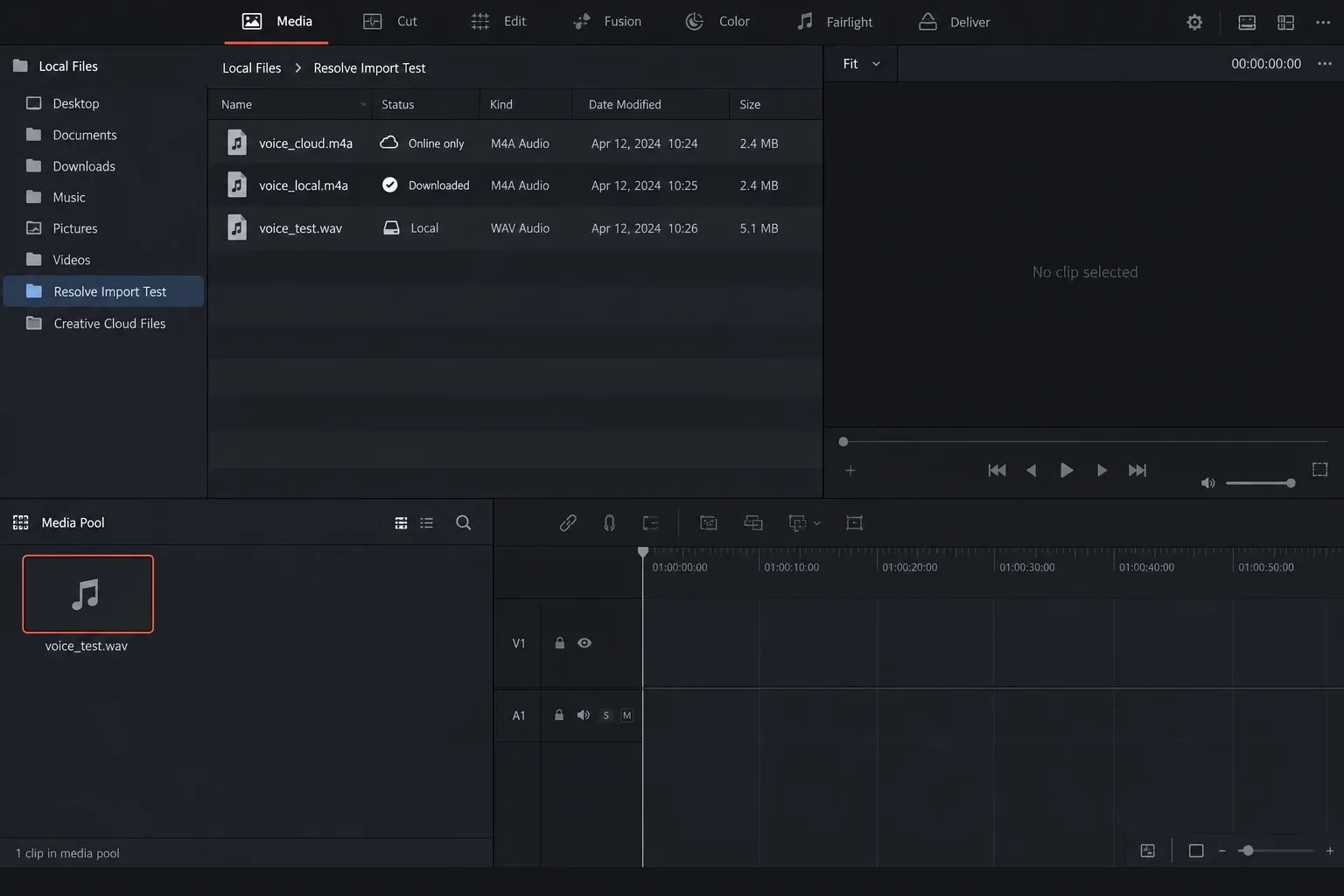
Test the local copy in another trusted player and scrub near the beginning and end. Successful playback does not prove Resolve has the same decoder, but failure outside Resolve is strong evidence that the source is incomplete or damaged. If the local copy works and the cloud location does not, keep the working media in managed project storage instead of editing directly from an on-demand folder.
If Resolve previously knew the clip and now reports a missing path, use the Media Offline and relinking guide. This article covers a new audio source that Resolve does not accept correctly.
The Extension Does Not Identify the Audio Stream
MP3 usually names both the familiar extension and the compressed audio format. M4A is a container extension: it can carry AAC, Apple Lossless, and media with different protection histories. An AAC stream can also live inside MP4 or MOV. Changing `.m4a` to `.mp3` does not transcode the audio, and changing any extension to `.wav` does not create PCM.
That distinction matters because Resolve checks the stream and container structure, not the promise made by the filename. Two `.m4a` files from different sources can behave differently. One may be ordinary AAC exported by a recorder; another may be an Apple Lossless purchase; another may be tied to an Apple Music subscription; a fourth may be an incomplete cloud download.
Use MediaInfo from MediaArea and switch to Text or Tree view. Record the audio section rather than stopping at the general container name:
- Format and codec ID: identifies MP3, AAC, ALAC, PCM, or another stream.
- Duration: exposes a zero-length, truncated, or implausibly short file.
- Sampling rate: commonly 44.1 kHz for music and 48 kHz for video production.
- Channels and channel layout: confirms mono, stereo, or a multichannel arrangement.
- Bitrate mode and bitrate: useful when comparing a failing file with a working file from the same source.
- File size and stream size: helps spot a placeholder or incomplete transfer.
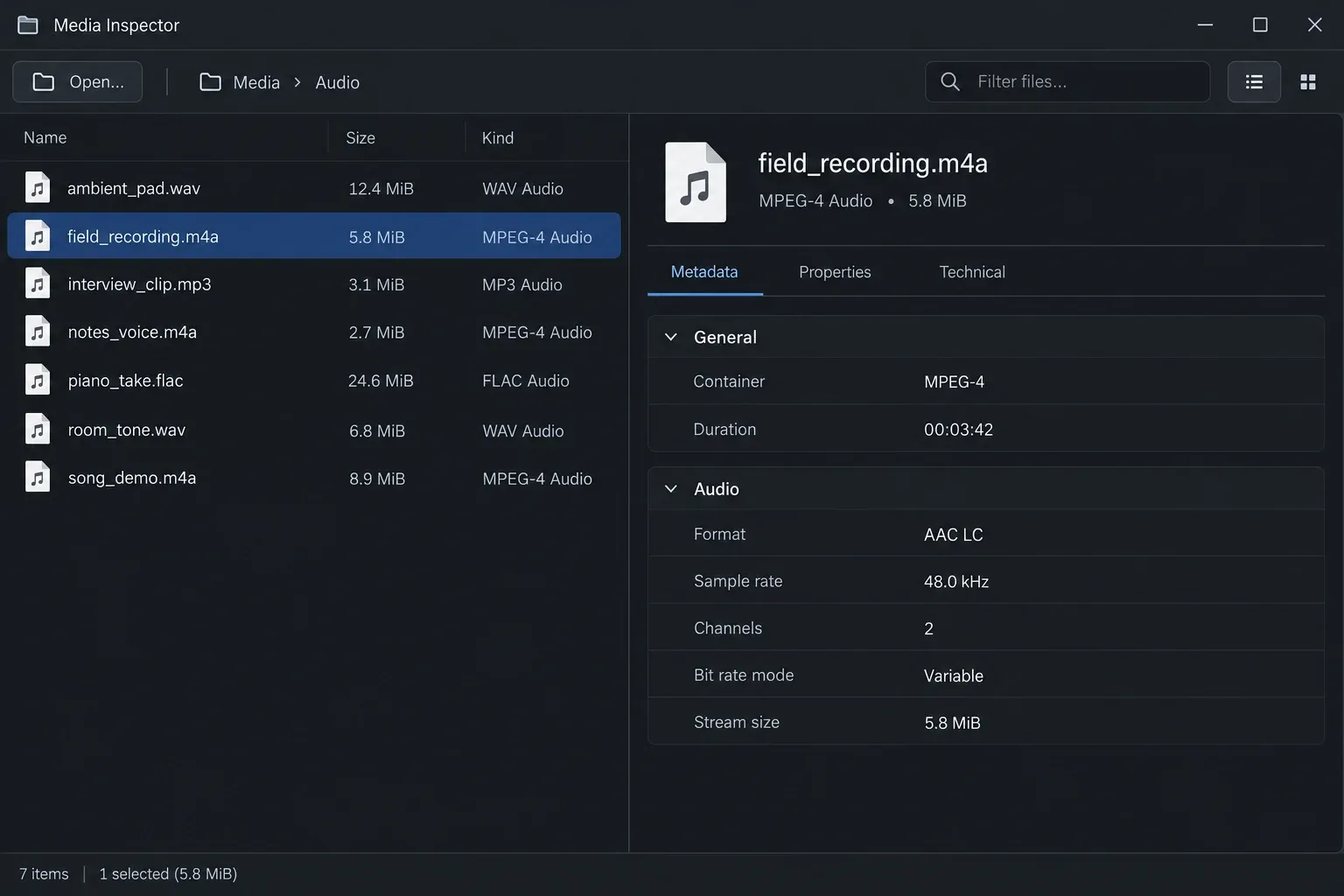
Compare the failing report with a small file that imports on the same computer. If both streams match but only one fails, suspect file integrity, tags, transfer completion, or a parser edge case. If the codecs differ, check the actual codec against your operating system, Resolve edition, and build on the Blackmagic Design Support page.
Do not infer a universal rule from variable bitrate alone. A normal VBR MP3 can work, while one malformed file with a broken header or bad duration table can fail. The useful evidence is that this file reports strange values, fails near the end, or behaves differently from another file produced by the same tool.
Check Apple Music Protection Before Converting M4A
An Apple Music download is not automatically an ordinary portable AAC file. Subscription content can be protected and tied to playback through Apple’s authorized apps and account. A purchased or independently encoded unprotected M4A is a different case even when both files use a similar extension.
Apple’s support material on protected and unprotected music describes the difference between older protected purchases, iTunes Plus purchases, and other library items. Check the song’s source and file information in the Music app. If the item is subscription-protected, obtain a licensed production source from the rights holder, your own original recording, or a legitimate unprotected purchase or download.
Do not use a converter as a DRM bypass. Even if a player can play the song, that does not grant Resolve access to a reusable decoded source or grant permission to use it in a video. Resolve import and content licensing are separate questions, and both need a valid answer.
If the M4A is unprotected and MediaInfo identifies AAC or ALAC, continue with platform support and file-integrity checks. If it is protected, changing the container or extension will not turn it into ordinary production audio.
Linux AAC Needs an Early Platform Check
A file that imports on macOS or Windows can fail on Linux because Resolve’s media support differs by platform. AAC has been a recurring Linux exception. Blackmagic forum guidance in the Linux AAC discussion reports that the Linux builds discussed there did not decode AAC in either Free or Studio.
Treat that as version-specific evidence, not a timeless statement about every future release. Check your exact Resolve version and build, the current support notes available from Blackmagic, and the MediaInfo report for the source. Buying Studio, moving AAC from MP4 to MOV, or renaming an extension should not be presented as a guaranteed fix when the decoder is absent.
If AAC is the only blocked stream and the source plays correctly in an authorized external tool, create an uncompressed PCM WAV copy for the edit. For a video with working picture and blocked embedded AAC, extract or transcode the audio without altering the camera original, then sync and verify the replacement. The broader DaVinci Resolve for Linux guide covers installation, GPU, and media-planning concerns beyond this one codec.
Repair One Bad MP3 Without Converting the Whole Library
When most MP3 files import and one does not, the application already demonstrates that it can read ordinary MP3 in that environment. Focus on the failing source.
- Copy the file to a local folder and preserve the original unchanged.
- Play from the first seconds through the end in a second player.
- Read duration, sample rate, channels, bitrate mode, and file size in MediaInfo.
- Compare those fields with a known-good MP3 from the same recorder, downloader, or export application.
- Create one PCM WAV test copy and import it into a new empty Resolve project.
A test project removes timeline routing, old database state, and project-specific media paths from the diagnosis. If the WAV imports and the original MP3 does not, the practical issue is the compressed source or how its container and metadata were written. If neither imports, check local access, file permissions, storage health, and whether every known-good audio file fails in that Resolve build.
Do not strip tags, rewrite headers, and run several converters against the only copy. Every repair step should produce a new file with a clear suffix such as `_pcm48k.wav`. Keep the original until the project and final delivery are complete.
Create a Safe PCM WAV Edit Copy
For video work, uncompressed PCM WAV at 48 kHz is a conservative replacement because it avoids another compressed-audio decoder and matches the common production sample rate. Use the source channel count unless you deliberately need a new layout. A mono interview should not become fake stereo, and a multichannel source should not be collapsed without listening and documenting the decision.
A tool such as Shutter Encoder can convert audio to WAV. Other trusted audio applications can do the same. The settings matter more than the brand of converter:
- Output container: WAV
- Audio codec: uncompressed Linear PCM
- Sample rate: 48,000 Hz for a normal video timeline unless the project requires something else
- Bit depth: 24-bit when the source and workflow justify it; do not claim that raising bit depth restores lost MP3 or AAC detail
- Channels: preserve the source layout unless a documented downmix is required
- Normalization, noise reduction, EQ, speed, and loudness processing: off during a compatibility conversion
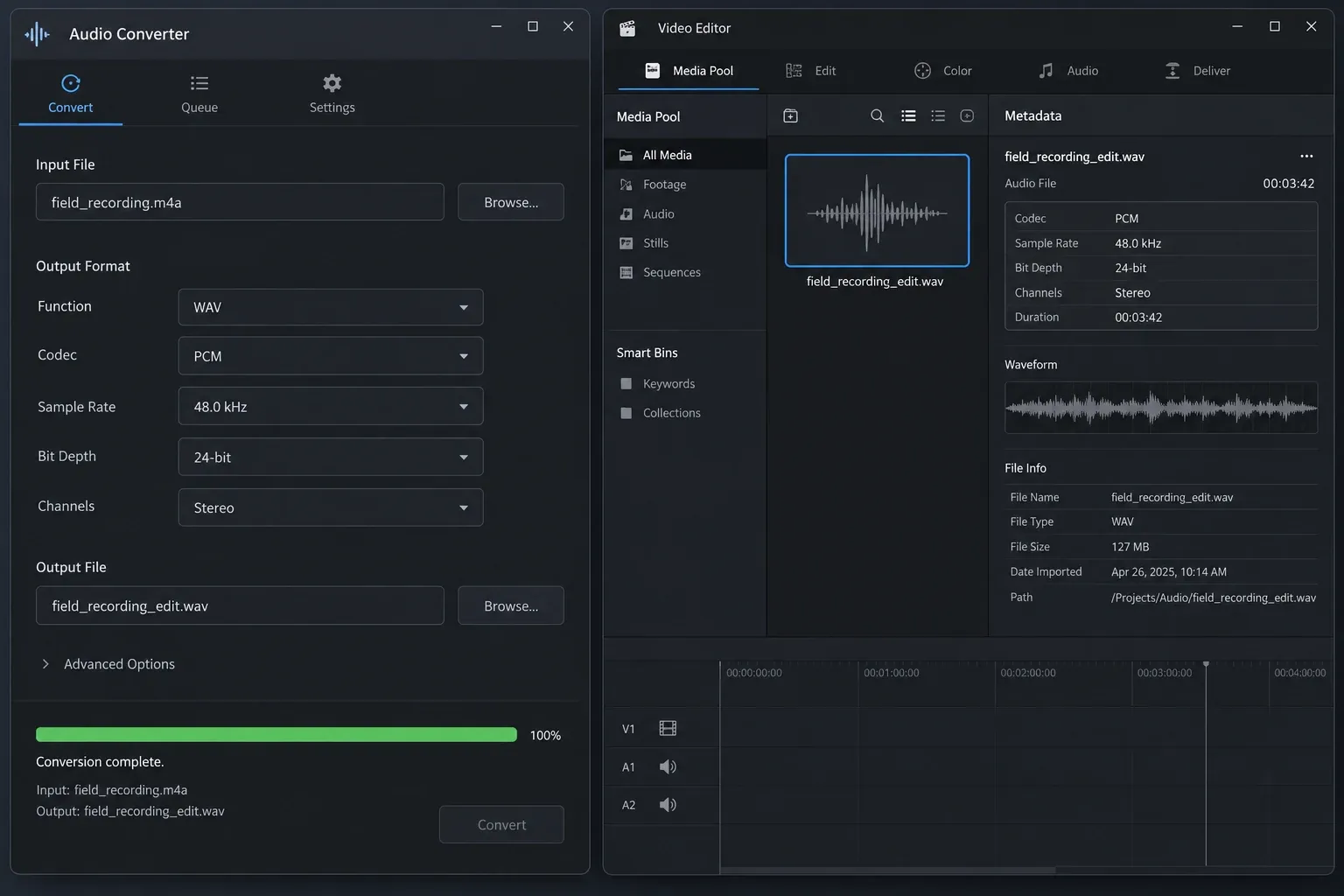
Convert one file first. Then re-import it and verify:
- The duration matches the source.
- The waveform covers the expected program and is not cut off.
- The channel count and left/right content are correct.
- The beginning and end play without gaps or truncation.
- When replacing embedded audio, sync remains correct at the start, middle, and end.
A 44.1 kHz source does not need to be “improved” by conversion. The 48 kHz copy is for predictable project compatibility. It cannot restore frequencies or detail already removed by MP3 or AAC compression. Keep the original as the source record and label the WAV as an edit derivative.
Re-Import Before You Touch Playback Settings
Import the WAV into the Media Pool first, inspect its metadata, and open it in the Source Viewer. If Resolve shows the expected duration and the clip meter responds, the import problem is solved. Only then edit it into a timeline.
If the clip exists but you still hear nothing, stop changing codecs. Follow the no-audio guide through clip enable state, source-channel mapping, track mute and solo, faders, bus assignment, monitor selection, output device, and operating-system app volume. Re-encoding an already decoded clip will not fix a muted bus.
If the problem file came from an MP4 and Resolve sees audio but not picture, use the MP4 audio-only import guide. That path checks the video stream and source patching. Do not use an audio-only article to diagnose a missing H.264, H.265, or other video decoder.
Fixes That Usually Waste Time
- Renaming `.m4a` to `.mp3` or `.wav`: the encoded stream and protection remain unchanged.
- Buying Studio before identifying the codec: edition changes do not repair a damaged file or guarantee Linux AAC decode.
- Deleting every cache folder: import rejection happens before render cache can make the source decodable.
- Resetting all audio preferences: device and bus settings do not make a rejected file appear in the Media Pool.
- Converting an entire music library: prove the workflow with one duplicate and inspect the result first.
- Using an online converter for protected or confidential media: it can create rights, privacy, and retention problems without solving the underlying license issue.
Fast MP3 and AAC Import Checklist
- The complete file is downloaded locally, not a cloud-only placeholder.
- The original plays from beginning to end outside Resolve.
- MediaInfo shows plausible duration, size, codec, sample rate, and channels.
- An M4A from Apple Music is checked for protection and source rights.
- The exact stream is compared with the reader’s operating system, Resolve edition, and build.
- Linux AAC is checked early instead of assuming Studio or MOV will fix it.
- One duplicate is converted to PCM WAV at a project-appropriate rate.
- The WAV is checked for duration, channels, waveform, end-of-file integrity, and sync.
- Playback routing is diagnosed only after the file imports normally.
MP3 and AAC Import FAQ
Why does my MP3 play in VLC but not import into Resolve?
Players and editors can use different decoders and tolerate different file errors. Confirm the file is local, inspect its stream and duration in MediaInfo, compare it with a working MP3, then test a PCM WAV copy. Keep the original unchanged.
Does DaVinci Resolve support M4A?
The extension alone is not enough to answer. Identify whether the file contains AAC, ALAC, another stream, or protected subscription media. Support also depends on platform and Resolve build. An unprotected file with a supported stream is a different case from an Apple Music subscription download.
Should I convert MP3 to WAV before editing?
Not automatically. If the MP3 imports and behaves correctly, converting it does not restore quality already lost to compression. A PCM WAV copy is useful when the source is malformed, unreliable, or unsupported in the target environment.
Why does AAC fail only on DaVinci Resolve for Linux?
Resolve media support differs by platform, and Blackmagic forum guidance documents AAC decode limitations in the Linux builds discussed. Check the exact current build and source stream. When AAC remains unsupported, create a legitimate unprotected PCM WAV edit copy and verify sync.
Can I import a song downloaded from Apple Music?
A subscription download can be protected and is not an ordinary production audio file. Use a licensed unprotected source that you have permission to include. Do not rename the file or use a conversion workflow to bypass protection.
