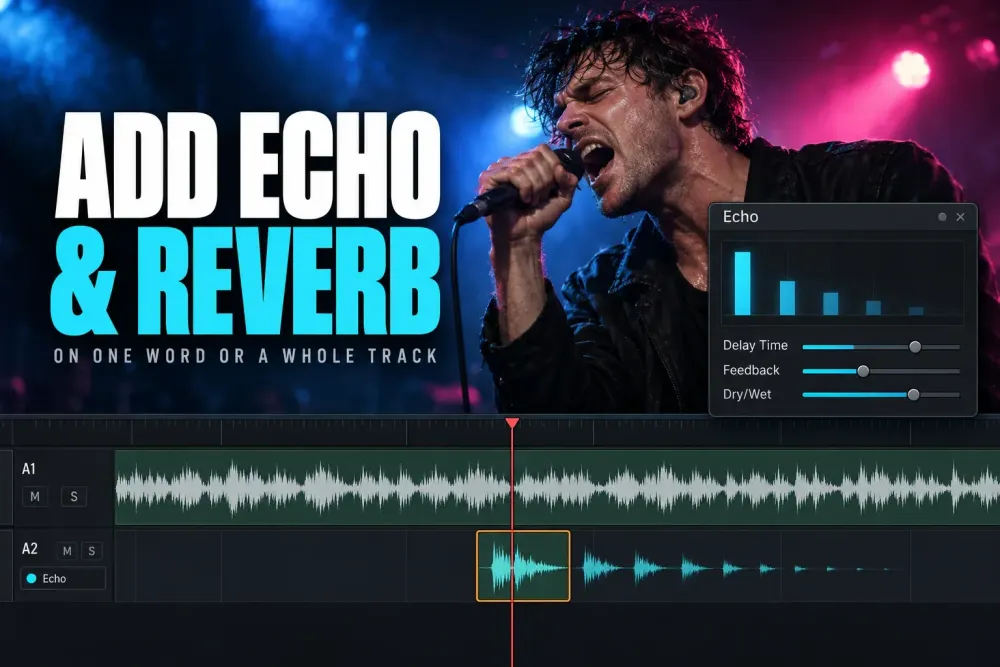
Quick answer: Drag Echo from the Audio FX panel of the Effects Library onto an audio clip, on the Edit page or the Fairlight page. Then select the clip and open the Inspector: Delay Time and Feedback Delay set the spacing of the repeats, Feedback sets how long they keep coming back, and Dry/Wet sets how loud they are. For the sound of a room rather than separate repeats, use Reverb the same way. Both are free, built-in Fairlight FX. If the echo stops dead at the end of the clip, put it on the track instead, as covered below.
Menu names and controls here follow Resolve 21. I checked them against the 21.1 Reference Manual on October 6, 2026, when 21.1.1 was the current update. Fairlight FX come pre-installed with every installation, so nothing here needs Studio except one optional video effect at the end. Shortcuts are written the Mac way; the manual's keyboard note explains the swap for Windows, where Command becomes Ctrl and Option becomes Alt. If you came here to get rid of echo in a recording, that is the opposite job, and the guide to reducing room echo covers it. The Fairlight audio hub collects the rest of the audio guides.
Echo, Delay or Reverb: Which One Do You Need?
Resolve has three Fairlight FX that make a sound come back, and they suit different jobs. Echo is described in the manual as a classic echo that simulates sound reflecting back after the direct sound. Delay is a general-purpose stereo delay for doubling, early reflections and timed repeats. Reverb models a room, from a cathedral or an empty room to a tiled bathroom, so you hear space rather than distinct repeats.
| Effect | What you hear | Main controls | Good for |
|---|---|---|---|
| Echo | Separate repeats of the sound that fade away | Delay Time, Feedback Delay, Feedback, L > R and R > L Feedback, Dry/Wet | A voice calling out, the last word of a line, a stinger |
| Delay | Repeats timed in milliseconds, set per channel | Left and Right Delay (ms), Left and Right Feedback (%), Stereo Blend, Dry/Wet | Doubling, slapback, repeats that land on the beat |
| Reverb | A room of reflections with no separate repeats | Room Dimensions, Pre Delay, Reverb Time, Brightness, Dry/Wet | A voice in a hall, church or small room; song endings |
If you can count the repeats in your head, you want Echo. If the voice should sound like it's in a bigger space, you want Reverb. I'd reach for Delay when the repeats have to land on the beat of the music: a quarter note lasts 60,000 divided by the tempo in milliseconds, so at 120 BPM a 500 ms delay repeats on every beat.
How to Add Echo to an Audio Clip
This works the same way on the Edit page and the Fairlight page:
- Click Effects Library in the toolbar at the top of the Edit page, or Effects on the Fairlight page, then open the Audio FX panel.
- Look for Echo among the Fairlight FX in the Audio FX panel.
- Drag Echo onto the audio clip in the timeline. For several clips, select them first and drop it on any one of them.
- Select the clip and open the Inspector. Echo appears in the Effects tab, under its Audio section on the Edit page. The custom control button next to the trash can opens the full Echo window with its graph.
- Play the clip while you adjust Delay Time and Feedback Delay for the spacing of the repeats, Feedback for how long they keep coming back, and Dry/Wet for how loud they sit.
- If the last repeats stop abruptly where the clip ends, move the effect to the track, as covered below.
Once the effect is on, a small badge appears to the left of the clip's name bar, so you can see at a glance which clips carry an effect. The same steps work for Delay, Reverb and any other audio filter in the Audio FX panel. The toggle at the far left of the effect's title bar in the Inspector switches it off and on, which is the quickest way to compare the clip with and without the echo. On the Edit page, the Inspector puts audio effects in the Audio section of the Effects tab, not with the clip's volume and EQ controls in the Audio tab.
The Echo Controls Worth Knowing
Echo's controls look technical, but only a few of them change the sound you are after:
- Delay Time and Feedback Delay. The manual describes them only as the global delay time and the echo delay time for each channel. Move one at a time while the clip plays and watch the graph, which shows when each repeat lands and how loud it is.
- Feedback. The percentage of each channel fed back into itself. Low values give one or two repeats; high values give a long trail, and a long trail is the one most likely to be cut off at the end of the clip.
- L > R and R > L Feedback. On a stereo track these send repeats from one side to the other, so the echo moves between the speakers. On a mono track Echo shows a single section with only Delay Time, Feedback Delay and Feedback.
- Low Cut, High Cut and the Feedback filter. Low Cut keeps the repeats from getting muddy, High Cut makes them duller and more distant, and the Feedback filter damps each repeat a little more than the last.
- Dry/Wet. 0 is only the original sound and 100% is only the effect. On a voice, I'd start low and raise it until the repeats are clear without burying the words.
Every Fairlight FX window has the same preset, A/B and reset controls. A/B is the one I'd use most: set one version of the echo, switch to B, try a different spacing, and flip between them while the clip plays. When you find a setting you like, Add Preset saves it for the next project.
Add Echo to One Word or the End of a Song
Dropping Echo on a whole dialogue clip echoes every word. To echo only the last word, cut that word out and give it a track of its own:
- Turn off Linked Selection with the chain-link button, or press Shift-Command-L, so you can cut the audio without touching the picture.
- Put the playhead at the start of the word, select the audio clip and press Command-B. Do the same at the end of the word.
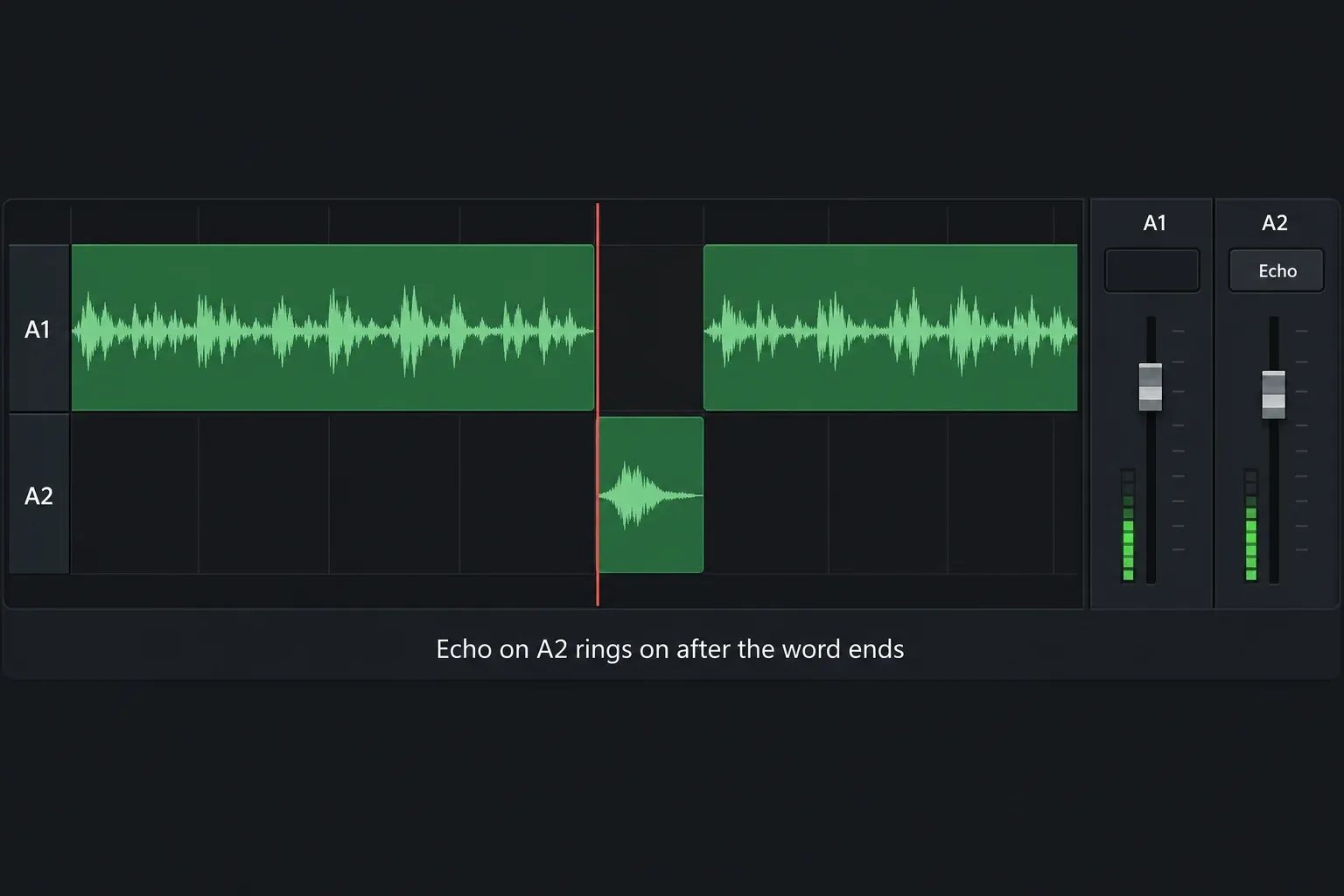
- Select only the cut-out word and press Option-Up Arrow. It moves a clip to the next higher-numbered track, so the word goes from A1 to A2, the track below it, without changing its timing. A2 should be empty around the word. If there is no second audio track yet, right-click a track header and add one first.
- Switch to the Fairlight page and drag Echo onto the header of that track.
- Turn Linked Selection back on.
The extra track is the point of the exercise. An effect on a clip stops when the clip stops, and a one-word clip is very short. On its own track, the echo keeps ringing over the words that follow. The guide to splitting clips with a keyboard shortcut covers the cut itself, and the manual lists Option-Up Arrow among the commands for moving a selected clip to a higher-numbered track.
A song ending works the same way. Cut the music a bar or two before the last note, move that piece to an empty track and put Echo or Reverb on the track, with a long Reverb Time if you want the final chord to hang in the air.
Why Your Echo Cuts Off at the End of the Clip
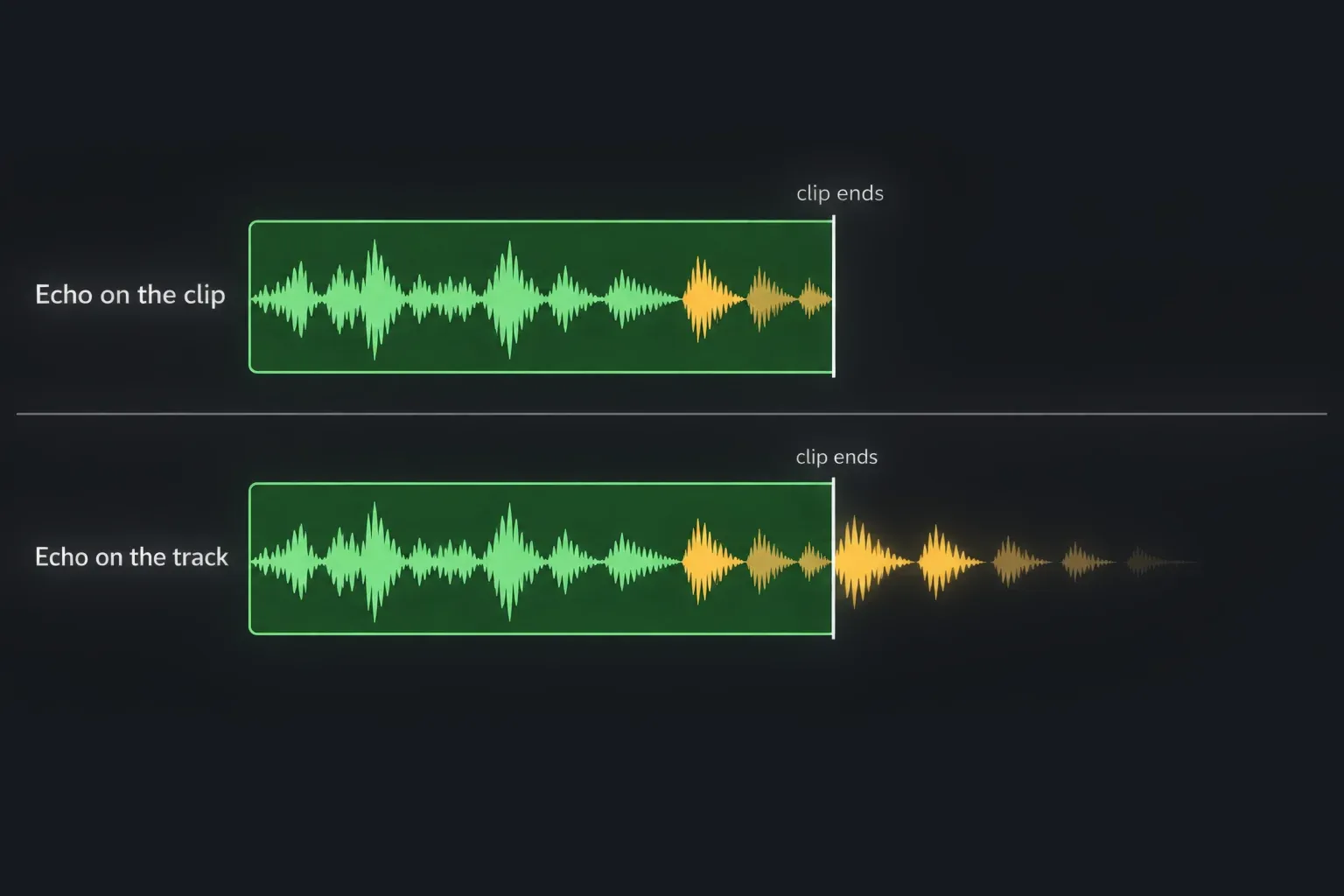
This is the most common echo complaint. In a 2022 Blackmagic forum thread, a user asked how to keep an echo going after a one-second clip, because it ended abruptly as soon as the audio did. The reason is simple: an effect applied to a clip only processes that clip, and when the clip ends, so does the tail. There are three ways around it.
Fix 1: Put the effect on the track
On the Fairlight page, drag the effect onto the track header or click the plus button in that track's channel strip in the Mixer. Effects in the Mixer apply to the entire track, not to individual clips, so the tail plays out over whatever follows on that track. A reply in the same 2022 thread suggested exactly this. To adjust a track effect, click the background of the track header and open the Inspector, or use the custom UI button next to the effect's name in the Mixer. Because the effect now hits everything on that track, give the echoed clip a track of its own.
Fix 2: Extend the clip and fade it to silence
In a later forum thread on the same problem, a user posted a workaround in 2025: add volume keyframes that drop the clip quickly to -100 where the sound should end, then drag the end of the clip out so the effect keeps running over the silent part. It only works if the source media continues past the current end of the clip. The section on fading with volume keyframes shows how to set those keyframes.
Fix 3: Bounce the tail on the Fairlight page
In the same thread, Reynaud Venter explained in 2024 how to make the tail part of the clip. Open the effect's options menu (the three dots), choose Enable Bounce Tail, then choose Bounce Audio Effect from the same menu, or right-click the clip and choose Bounce Audio Effects. Once the bounce completes, the clip is extended to hold the tail. He noted that Enable Bounce Tail can only be selected on the Fairlight page. Enabling Bounce Tail on its own is not enough: one user enabled it and changed Tail Threshold without bouncing, heard no difference, and after a reply concluded that a bounce is required. Another user wrote in 2025 that they still could not get it to work. The manual mentions Bounce Audio Effects only in passing, so settle on your echo settings before you bounce.
For most edits I'd use the track: it stays live, so you can keep adjusting the echo. Bounce when the echo has to travel with the clip, for example when you move it around or hand the timeline to someone else.
How to Add Reverb Instead
Reverb goes on exactly the same way: drag it from Audio FX onto a clip or a track header. It comes with Cathedral, Concert Hall and Studio presets, which are a quick starting point. Reverb's controls that matter most:
- Reverb Time. The decay time of the tail. Longer sounds like a bigger or more reflective room.
- Pre Delay. The gap between the sound and the first reflection. A little pre delay keeps a voice clear in front of the reverb.
- Room Dimensions. Height, length and width of the virtual room, in meters.
- Brightness. At minimum, high frequencies die away faster, so the reverb sounds duller and further away.
- Dry/Wet. How much of the room you hear against the original voice.
Reverb tails are usually longer than echoes, so the cut-off problem shows up even more often. The same three fixes apply, and the 2025 forum workaround above was in fact for a Cathedral reverb set to 100% wet.
Make the Echo Come In and Out
You do not have to echo the whole clip. Audio effects can be keyframed or automated just like volume and pan. Set Dry/Wet to 0 at the start and raise it just before the last word, so only that word rings out. On the Edit page, use the keyframe buttons next to the effect's controls in the Inspector, the same way you would keyframe volume. On the Fairlight page, you can also record the move with automation; the section on Fairlight automation in the fade guide walks through it.
If Playback Stutters With Echo or Reverb
Several reverbs and echoes across a long timeline can be heavy on playback. Right-click the clips and choose Cache Audio Effects. Caching is non-destructive, and Resolve re-caches automatically when you change the effect. If you want the effect baked into a new file, Export Audio Files bounces the clip to another layer with the effect rendered in.
Echo for Video: the Ghost Trail Look
Sometimes "echo" means the picture, not the sound: the ghost-like trail behind a moving subject. In the free version, the Fusion Trails node creates that after-trail. It only draws motion that has already happened, and it needs to play or pre-roll a few frames before the trail appears. The Motion Trails Resolve FX does a similar job on the Edit page but is Studio only. The Fusion hub is the place to start if you have not used nodes before.
Frequently Asked Questions
Is the echo effect free in DaVinci Resolve?
Yes. Echo, Delay and Reverb are Fairlight FX, which come pre-installed with every installation of DaVinci Resolve, including the free version. Only some tools, such as Voice Isolation, need DaVinci Resolve Studio.
What's the difference between echo and reverb in DaVinci Resolve?
Echo gives you separate repeats of the sound that fade one after another. Reverb gives you the wash of reflections a room produces, with no distinct repeats. Use Echo when you want to hear the word come back, Reverb when you want the voice to sound like it is in a bigger space.
Why does my echo cut off at the end of the clip?
An effect on a clip only processes that clip, so the repeats stop where the clip ends. Put the effect on the track instead, extend the clip and fade its volume to silence, or on the Fairlight page turn on Enable Bounce Tail and run Bounce Audio Effect from the effect's options menu.
How do I end a song with echo in DaVinci Resolve?
Cut the song a bar or two before the last note, move that last piece to an empty track, and put Echo or Reverb on that track so the tail can run past the end of the music. Keyframe Dry/Wet if you want the effect to come in only on the final note.
Can I add echo on the Edit page?
Yes. Drag Echo from the Audio FX panel of the Effects Library onto the clip and adjust it in the Inspector. Putting the effect on a whole track is documented for the Fairlight page, and Enable Bounce Tail can only be selected there.
How do I add echo to just one word?
Turn off Linked Selection, cut the word out of the audio clip, press Option-Up Arrow (Alt-Up Arrow on Windows) to move it to the next higher-numbered track, such as A2, without changing its timing, then put Echo on that track.
