If Music Remixer silences your song the moment you switch it on, update DaVinci Resolve Studio to 20.3 or later, which fixed the Remixer muting audio on macOS 26.1. On macOS 27, install 21.1.2 or later, because its Studio release notes address Remixer issues on that system. If you can't find it, you're on the free version or looking in the wrong place: it's a Studio-only Track FX in the Inspector's Audio tab, and on the Fairlight mixer it stays hidden until you add it under Visible Track FX.
A Music Editor clip that plays silence after you reopen a project is a different bug, tied to locking the track. Below you'll find where the controls live, a fix for each symptom, a summary of the published reports with versions and outcomes, what the five stem sliders can and can't do, how clean stem separation gets in an 11-tool test, and a safe routine for Music Editor clips.
Find Music Remixer and switch it on
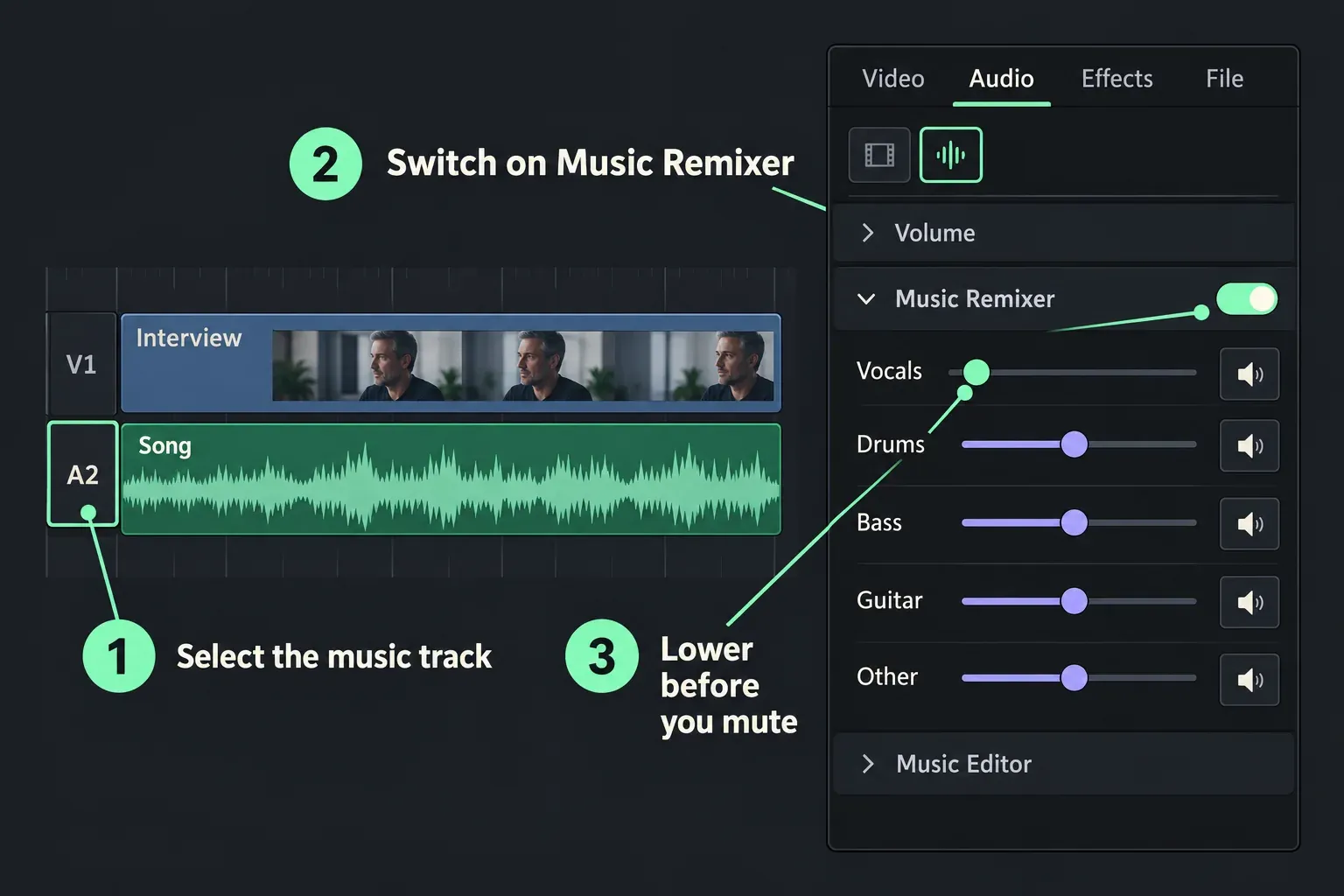
Music Remixer is a DaVinci Neural Engine plugin in DaVinci Resolve Studio. The Reference Manual's Music Remixer section lists five stems, Vocals, Drums, Bass, Guitar and Other, which holds everything else. Each stem has a level control and a Mute button. On the Edit or Cut page:
- Give the song its own audio track. The manual calls the Remixer a Track FX plugin, so it works on the track rather than on one clip. I keep the song alone on that track, because a voiceover or effect sitting on the same track would be split into stems too.
- Select the song and open the Inspector's Audio tab. The Audio Inspector switches between Clip and Track mode depending on whether you clicked a clip or a track header. If Music Remixer isn't in the list, click the track header or the mode icon in the Inspector's upper left.
- Turn Music Remixer on and play the song. Move one stem slider at a time while the music plays, so you can hear what each change does.
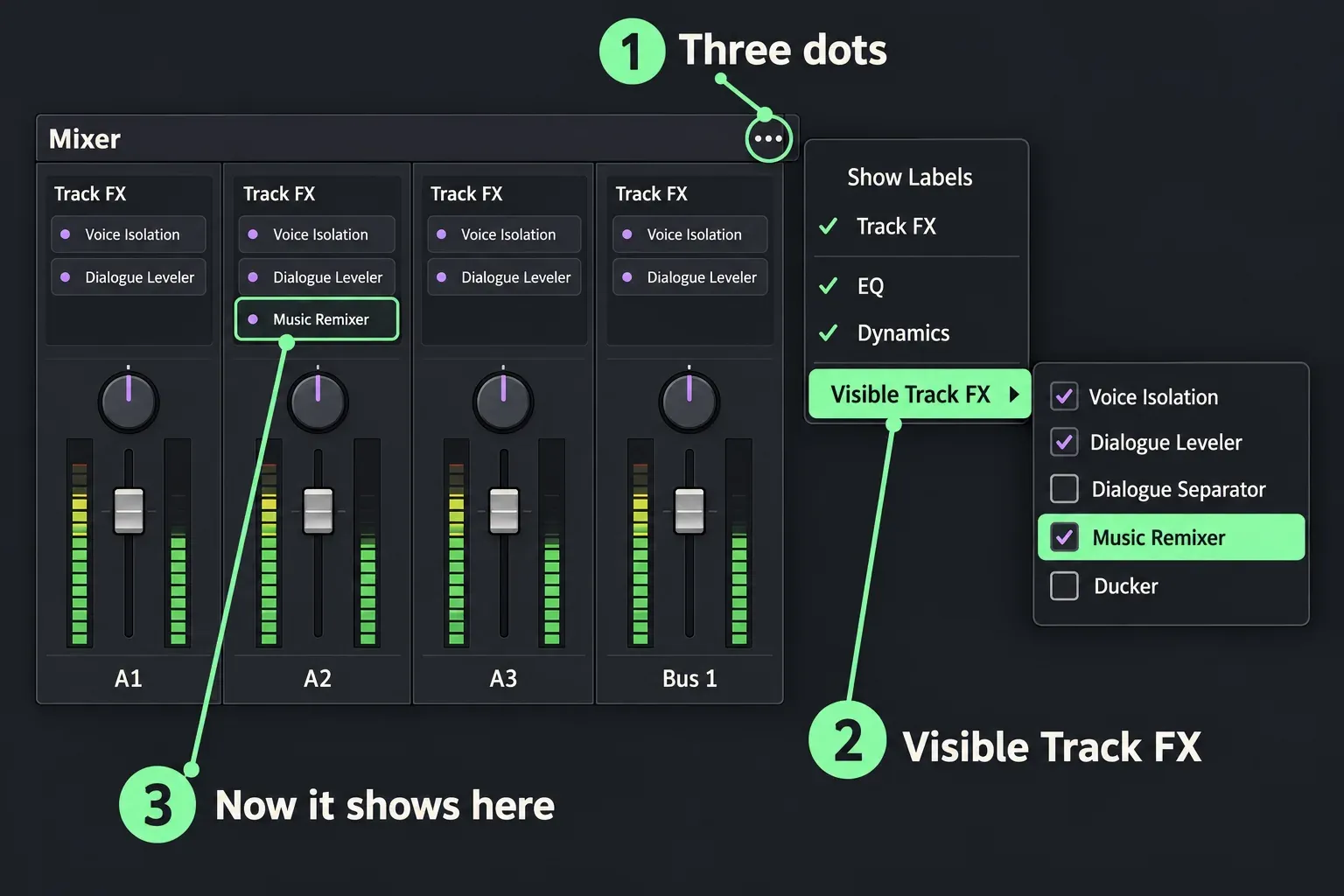
On the Fairlight page the same plugin sits in the Track FX section of the mixer channel strip. The Fairlight FX chapter explains the catch: only Voice Isolation and Dialogue Leveler are visible by default. Click the three dots in the upper right of the Mixer and pick Music Remixer from the Visible Track FX submenu. If the strip has no Track FX section at all, choose Track FX from the same menu first. A forum regular reports the Remixer working from both places, the Edit page Inspector and a Fairlight Track Effect, so pick whichever page you're mixing on.
Fix Music Remixer by symptom
Start by checking which build you have under DaVinci Resolve > About DaVinci Resolve. Most of the fixes below depend on it.
- The track goes silent as soon as you switch the Remixer on: on a Mac with macOS 26.1 and Studio 20.2.x, this is the bug Blackmagic fixed in 20.3. The official 20.3 release notes list "Addressed AI Music Remixer muting audio on macOS 26.1". Update, but back up your project library first, since the same notes warn that projects opened in 20.3 no longer open in 19.1.3. Until you update, switching the Remixer off brings the sound back.
- Silent on one computer, fine on another: in a thread on the Remixer not working in Studio 19, a Windows 10 user found it silent on a desktop while Voice Isolation worked and the same setup worked on a laptop; reinstalling Windows didn't help. The thread never found a cause, and Blackmagic support's last reply there, after a Mac user added the same symptom in late 2025, was to try 20.3. Update Resolve and your GPU driver (the 20.3 notes ask for NVIDIA Studio driver 570.65 or newer on Windows), then check which hardware runs the AI tools, as in the next item.
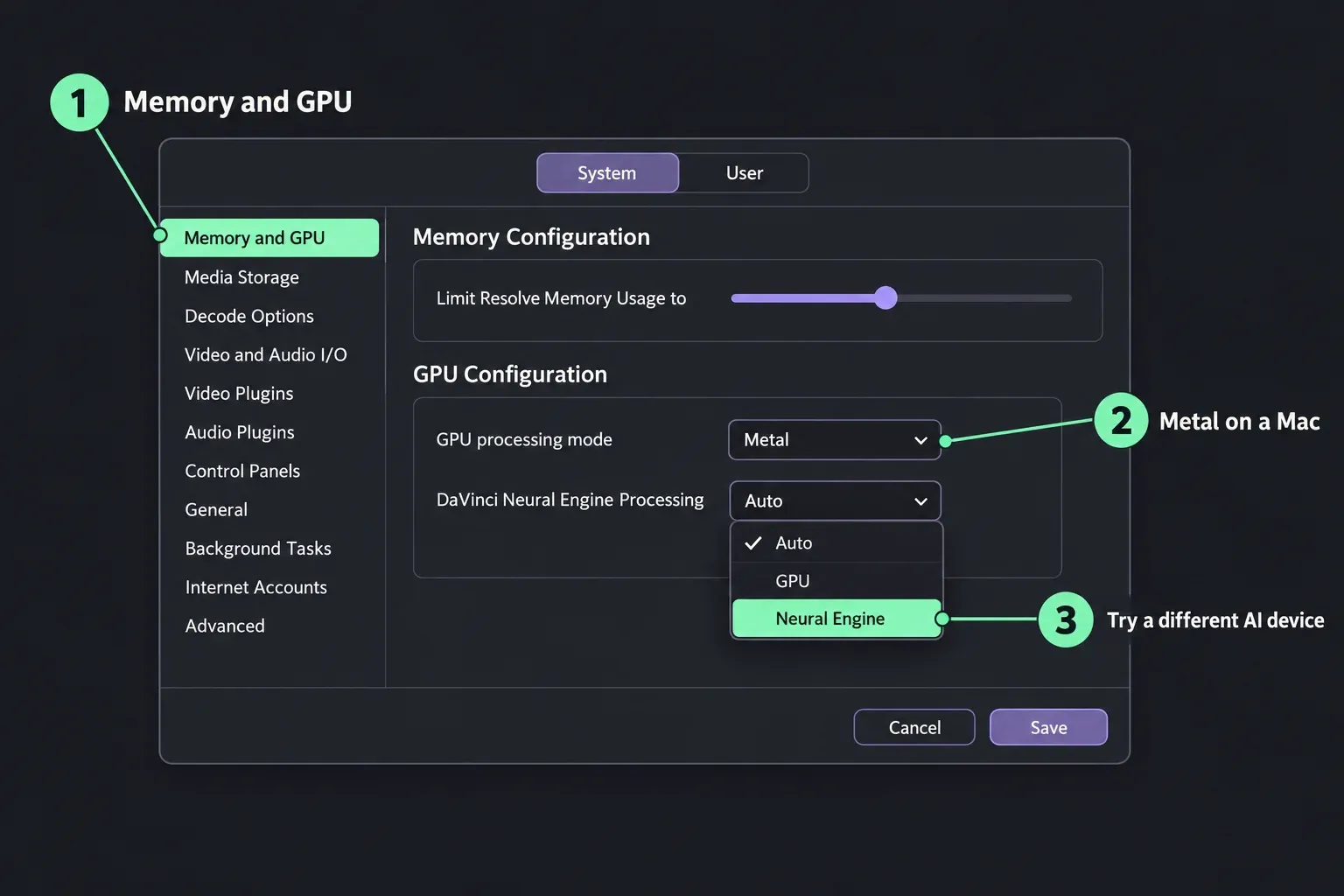
- A buzzing noise while the Remixer is on: a HansenMedia short on the buzzing Remixer points to a setting in the Memory and GPU section of Preferences without naming it in the title or description. In that section, DaVinci Neural Engine Processing chooses the hardware for the AI tools, so it's the one I'd switch first: from Auto to a specific GPU or to the Neural Engine, then play the song again. Set it back if nothing changes. On a Mac, GPU processing mode should be Metal; OpenCL isn't supported on macOS from 20.3.
- Clicks and pops only while the Remixer is active: one user still heard them after 20.3 fixed the silence. Bypass the Remixer to confirm it's the source, then bounce the remixed track (the routine is in the Music Editor section below), since the manual's answer for processor-heavy effects is to bake them into a new file. If clicks remain with the Remixer off, work through the audio clicks and pops guide.
- No Music Remixer in the Inspector: it's a Studio feature, so the free version doesn't have it; the free vs Studio comparison lists the other AI tools that need the upgrade. In Studio, click the track header so the Inspector switches to Track mode.
- No Music Remixer on the Fairlight mixer: it's hidden by default. Mixer three dots > Visible Track FX > Music Remixer.
- A ghost of the vocal stays in the instrumental: that's the separation itself, not a fault. Every stem tool leaves some artefacts, as the test section below shows. Lower the stem instead of muting it.
- It won't split two people talking: it isn't built for that. In the Studio 19 thread above, a forum regular explains that neither Voice Isolation nor the Remixer can pick one voice out of two mixed together; the Remixer is for vocals and instruments in music. For voice against noise, see Voice Isolation vs Dialogue Leveler.
- A Music Editor clip plays silence after reopening: a separate bug linked to locked tracks. Jump to the Music Editor section.
- No sound on any track, with the Remixer off too: that isn't the Remixer. Start with the DaVinci Resolve no audio fixes.
What the published reports show
There's no lab test of Remixer failures, so the evidence is the public bug reports: distinct users across four Blackmagic forum threads and two YouTube videos, with the versions they gave and what happened next.
| Symptom | Setup in the reports | Reports | Outcome |
|---|---|---|---|
| Remixer silent as soon as it's on | macOS 26.1 and 26.2, Studio 20.2.3, M1 and M2 Macs | About 10 users in 2 threads, Oct to Dec 2025 | Fixed in 20.3; 2 users confirmed the same day |
| Silent on one Windows desktop only | Windows 10, Studio 19.0.1.6 and 19.0.2.7 | 1 user | No cause found; support's last reply: try 20.3 |
| Clicks and pops while active | macOS 26.1, Studio 20.3 | 1 user, Dec 2025 | Open |
| Buzzing noise | Not stated | 1 video, Mar 2026 | A Preferences setting, not named |
| Music Editor clip silent after reopening | Locked track; Studio 20.0.1 to 20.1.1; macOS 15.5 and 15.6 where stated | About 8 users in 2 threads plus 1 video, Apr to Sep 2025 | Staff: 20.1 should address it; still reported in 20.1.1; no fix in release notes through 21.1.2 |
The big one is the first row. In the thread on the Remixer going silent after activation, users on macOS 26.1 tried an older Resolve, a cleared render cache and relinking without success, and one quoted Blackmagic support saying there was no workaround except rolling back the operating system. On 1 December 2025 Blackmagic staff wrote that 20.3 should address it, and two users confirmed it did. One of them still hears clicks and pops while the Remixer runs, which is the third row.
My read: the silent Remixer was a macOS 26.1 compatibility bug with an official fix, so on 20.3 or later I'd check settings and hardware before blaming the plugin. The Music Editor bug is the one I'd still plan around, because no release note since 20.0.1 mentions it.
Use the five stem controls
The level sliders rebalance the song and the Mute buttons pull a stem out completely. The manual's own example is lowering a vocal that clashes with a featured piece of dialogue. The moves that cover most edits:
- Vocals under dialogue: pull Vocals down until the singer stops competing with the speaker and leave the band alone. The music keeps its energy and the words stop fighting. If you want the music to dip only while someone talks, the audio ducking guide covers the Ducker.
- An instrumental bed: mute Vocals. Expect traces of the voice on sustained notes and reverb tails.
- Bass under a deep voiceover: lower Bass a little so the low end of the voice comes through. EpicTutorials' Remixer walkthrough uses the same move for cleaner voiceovers.
- A calmer bed: bring Drums and Guitar down for a quieter version of the same track under talking.
- One part on its own: mute the other four stems, for example drums only when you're cutting to the rhythm. The beat detection guide shows how to mark those hits.
Piano, synths, strings and anything else without its own stem go into Other, so lowering Other affects all of them at once. And I lower before I mute. A stem pulled down a few decibels leaves the rest of the band to cover its artefacts; a muted stem leaves a gap where the leftovers are easy to hear.
How clean the stems can get
Blackmagic doesn't publish separation quality figures for the Remixer, and the most thorough recent stem test doesn't include Resolve. It still sets fair expectations. In MusicRadar's test of 11 stem separation tools, published in January 2026, each tool split three songs: a busy band mix, a vocal with acoustic guitar that includes slaps on the guitar body, and an EDM track. The stems were also mixed against a phase-reversed copy of the original, where silence means nothing was lost.
Only the top five got published scores: Logic Pro 11.2.2 at 16 out of 20, LALAL.AI and SpectraLayers Pro 12 at 15, LANDR Stems and Ultimate Vocal Remover's MDX-Net mode at 13. That's a median of 15 with a range of 13 to 16 for the best tools in the test. Only three of the 11 were completely lossless, and the verdict says none gives perfect results: warbling artefacts come from the spectral processing itself and show up in every tool to some degree, and parts that sound alike are the hardest to pull apart. Even SpectraLayers put a piano into the guitar stem.
That matches what the Remixer complaints describe once the silence bug is out of the way. My verdict: treat the Remixer as a mixing tool, not a stem exporter. For pulling a vocal under dialogue or thinning a bed under a voiceover it's quick and good enough; for a clean a cappella or a release-quality instrumental, these test results say to expect artefacts from any tool.
Music Editor clip went silent after reopening
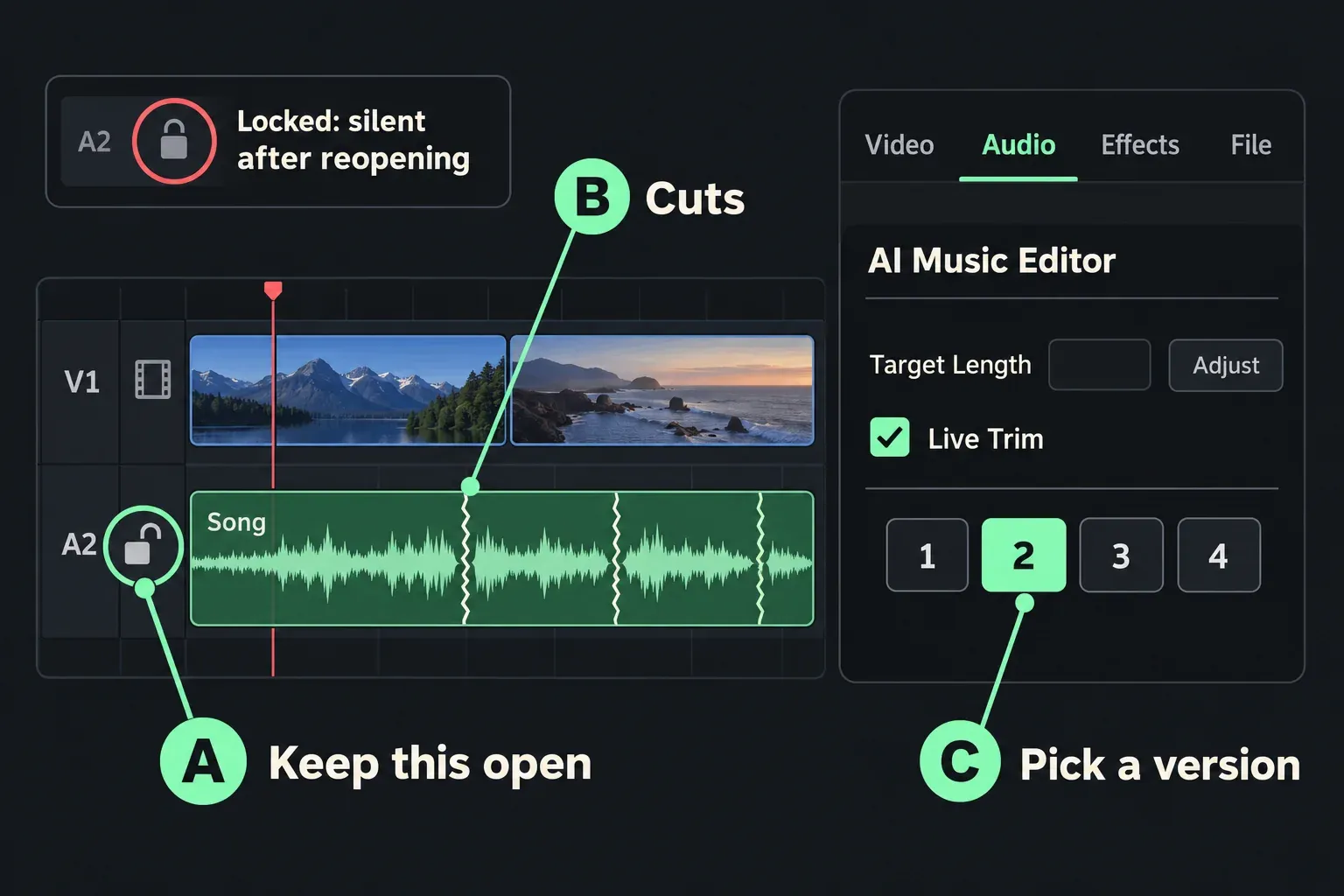
Music Editor sits under Music Remixer in the same Audio tab and is just as Studio-only. You enter a target length and press Adjust, and it cuts the song to that length without stretching time or changing pitch. The manual says it works best on beat-driven music, not free-form or ambient pieces. You get four edit versions numbered 1 to 4 and a Live Trim checkbox that lets the trim tools retime the music, with jagged marks on the clip where it was cut.
The bug: after reopening a project, the clip shows a flat waveform, plays silence and the Music Editor controls are greyed out. In the thread on Music Editor losing its source file, Thomas Finke traced it to a locked track. Lock the track, save, close and reopen, and the clip is silent and Deliver renders silence; leave it unlocked and it plays. Another regular reproduced the lock issue, and an archive of a locked-track project came back unrecoverable. Blackmagic staff said 20.1 should address it, a user reported it again in 20.1.1, and an earlier thread on Music Editor audio going away shows the same lock pattern.
The trap is that the manual suggests locking an edited music track while you cut other clips to it. With a Music Editor clip on that track, don't. A safer routine:
- Leave the music track unlocked. I'd rather undo a stray trim than lose the song on reopening.
- Pick a version and finish the length. Choose 1 to 4, fine-tune with Live Trim, and if a cut lands slightly off, the manual suggests Elastic Wave on the Fairlight page with the general purpose (music) algorithm.
- Bake the result once the length is final. On the Fairlight page, set In and Out points around the song (without them nothing happens), Command-click the track header (Ctrl-click on Windows) and choose Timeline > Audio > Bounce Selected Tracks to New Layer. The bounce is a new audio file in the folder set under Project Settings > Capture and Playback > Save clips to, and it plays as the top layer of the track. Finke's alternative is exporting the clips as WAV on the Fairlight page and importing them again; the audio-only export guide covers the settings.
- Bypass the Remixer after a bounce. If the track also runs Music Remixer, the bounce already carries the remix, and Track FX process everything that plays on the track. Leaving it on would run the bounced audio through the Remixer again.
- Archive only after baking. A project archive won't rescue a clip that's already silent.
Right-click > decompose is the other way out: it turns the Music Editor clip into ordinary clips with the edit points and crossfades exposed, though you can no longer trim it as one piece. None of the threads say whether a decomposed clip survives the lock bug, so bouncing is the safer exit. If a clip has already gone silent, Finke's test suggests unlocking the track, saving and reopening. If it's still silent, run Music Editor again on the original song. A flat waveform on every clip, not only Music Editor ones, is a different problem covered in the missing waveform guide.
Music Remixer FAQ
Is Music Remixer available in the free version of DaVinci Resolve?
No. Music Remixer and Music Editor are both Studio-only in the 21.1 manual. The free version features list shows what else you give up without Studio.
Which version fixed Music Remixer going silent?
DaVinci Resolve Studio 20.3, released on 1 December 2025, fixed the Remixer muting audio on macOS 26.1. Any later version includes that fix. The Studio 21.1.2 release notes, posted on 27 October 2026, also address Remixer issues on macOS 27.
Can Music Remixer remove one voice from a conversation?
No. It splits music into vocals and instruments. It can't tell two speakers apart, and neither can Voice Isolation.
How do I save the remixed music as an audio file?
Bounce the track on the Fairlight page as described above, or render an audio-only file from the Deliver page and import it back. Then bypass the Remixer on the track that plays the new file.
Does Music Remixer work on iPad?
Yes, in DaVinci Resolve Studio for iPad. The EpicTutorials walkthrough linked above covers the same stem controls on iPad and desktop.
Why is my instrumental full of watery artefacts?
Every stem separator leaves some warbling, according to the 11-tool test above. Lower the vocal instead of muting it, or keep the remix under dialogue, where the artefacts are masked.