"No DaVinci control panels found" comes from DaVinci Control Panels Setup, a separate utility that installs alongside DaVinci Resolve to configure Blackmagic hardware such as the Speed Editor or the Micro Color Panel. If you don't own one of those panels, the message is correct and harmless: you opened the utility instead of the editor, so close it and launch the app named DaVinci Resolve. If you do own a panel, the utility can't see it, and the fix runs in a fixed order: power and cable, what the operating system sees, firmware, Resolve's own preferences, then a reset.
I'd work through that order before reinstalling anything, because the installer puts the same utility back and most public reports end at a cable, a Bluetooth pairing or a Windows service. The steps below cover the Speed Editor, Editor Keyboard, Micro Color Panel, Micro Panel, Mini Panel and Replay Editor, the different warning Resolve shows inside a project, and the case where interface panels vanish from the screen.
What "No DaVinci control panels found" means
The DaVinci Control Panels Setup chapter of the DaVinci Resolve 21.1 manual describes the utility as "a separate application automatically installed alongside DaVinci Resolve". When it starts, it shows the hardware it detects, with arrows to step through several devices. If it detects nothing, the window says "No DaVinci control panels found."
That's why a fresh install leaves you with several icons. The DaVinci Resolve 21.1.2 readme says the installer adds Resolve "as well as additional utilities for setting up hardware control panels", along with Blackmagic RAW Player and Blackmagic Proxy Generator. Pick the wrong icon and you get a hardware window with nothing in it. The search results for this message carry that exact case: a Blackmagic forum thread from someone who installed Resolve 16.2.7 on Windows and got the popup "when I try to run it", and a Reddit post from a new user asking how to reinstall the panel driver because Resolve itself never showed up.
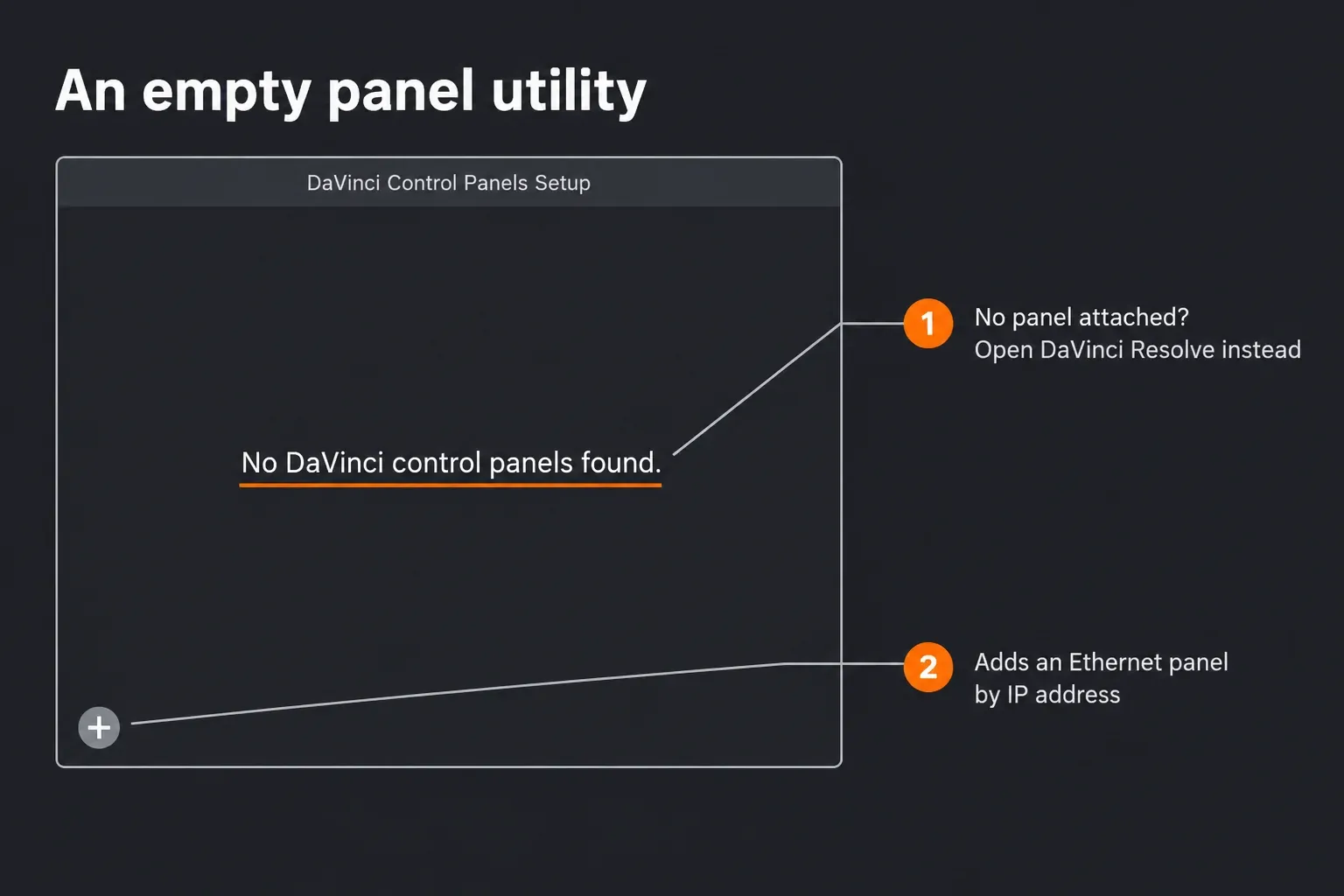
Open DaVinci Resolve, not the panel utility
The manual gives two ways into the utility: Help > DaVinci Control Panels Setup from inside Resolve, or the DaVinci Resolve folder in your operating system. The editor sits in that same install, under the name DaVinci Resolve. Close the panel window, open DaVinci Resolve itself and pin that icon to the Dock or taskbar so the wrong one stops getting clicked. You don't need any control panel to edit; the hardware is an add-on.
If DaVinci Resolve itself won't start or won't install, that's a different problem with its own causes. Our installation errors guide covers failed installs, Resolve keeps crashing covers crashes at launch, and the setup guides for Mac, Windows and Linux cover a clean install on each system.
If you own a panel: checks in order
Each step rules out one layer, so stop at the first one that brings the panel back.
- Connect and power it before you open the utility. The manual says to make sure the hardware is connected and powered on before launching Control Panels Setup. If you plugged it in afterwards, quit the utility and open it again. A Mini Panel needs its own power from the mains, a 12 V XLR supply or Power over Ethernet, according to the Blackmagic panel tech specs.
- Use a direct USB-C cable. The Micro Color Panel manual's USB troubleshooting lists the checks: cable seated at both ends, no USB-C hub in between, no USB-C to USB-A adapter if you can avoid one, and a different USB-C cable. The top search result for this message, a Blackmagic forum thread about a Speed Editor, starts the same way: try a different USB port.
- Check whether the computer sees the device at all. Look for it in the system's USB list: System Information on a Mac, Device Manager on Windows, or
lsusbin a Linux terminal. If it isn't there, Resolve can't find it either, and the cable or port is still the suspect. - On a Mac laptop with Apple silicon, allow the accessory. Apple's support note on allowing USB accessories to connect says a new or unknown USB or Thunderbolt accessory triggers an alert, the Mac must be unlocked to allow it, and after Don't Allow the Mac won't recognize the accessory, although it still charges. Check Apple menu > System Settings > Privacy & Security > Accessories, where "Allow accessories to connect" defaults to Ask for new accessories.
- Update the firmware. Once the panel shows up, Control Panels Setup checks Blackmagic's servers for newer firmware on startup and offers the update. The manual's firmware section warns not to unplug or power down during the update, says some new Resolve features need it, and recommends updating unless you have a reason not to. Connect a Micro Color Panel by USB for this step; its manual says firmware updates need the USB connection.
- Reset the panel. The utility's Settings icon below the device has Reset > Factory Reset, which the manual calls useful "in some troubleshooting situations". That route only works once the utility can see the panel. For a panel that never appears, use the key reset: on the Micro Color Panel, connect by USB-C and hold AUTO COLOR and STOP until the LEDs cycle off and on again, as its manual's reset section describes. For the Speed Editor, an older edition of the Resolve manual quoted in an EEVblog repair thread gives CUT and SMTH CUT held the same way.
- Test on a second computer. If a known-good cable on two machines shows no LEDs and no USB device, treat it as hardware. That's how the EEVblog thread ended: a Speed Editor invisible on both Linux and Windows didn't respond to the reset or another cable and was replaced under warranty.
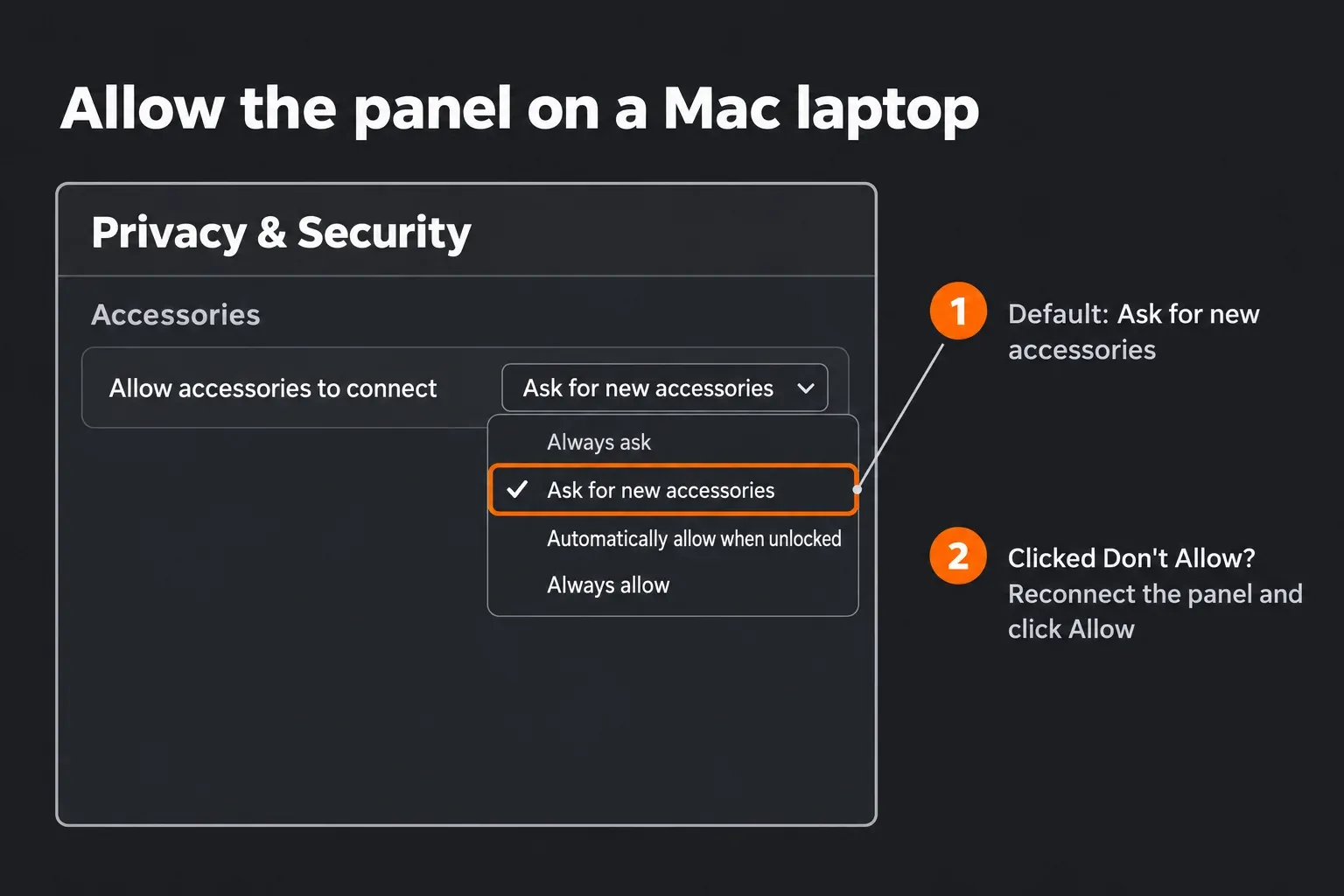
I'd try the key reset before a factory reset for one reason: a panel the utility can't see never gets as far as the Settings icon. Keep in mind that a reset also clears the Bluetooth pairing stored in the panel, so you'll pair it again afterwards.
Bluetooth panels: pairing, cable and battery
Three current panels connect wirelessly: the Speed Editor over Bluetooth LE, the Micro Color Panel over Bluetooth 4.2 and the Replay Editor over Bluetooth 5.1 LE, per the tech specs. The Editor Keyboard, Micro Panel and Mini Panel are wired only. Blackmagic publishes step-by-step pairing for the Micro Color Panel:
- Charge it over USB-C first.
- On a Mac, press the Bluetooth button on the back of the panel until the blue light flashes, open System Settings > Bluetooth, find Micro Color Panel and click Connect. If macOS asks to pair, click Connect again.
- On Windows, open Settings > Bluetooth & devices, switch Bluetooth on, choose Add device > Bluetooth, select Micro Color Panel and click Done once it connects. If Windows asks to pair, click Allow.
- Open DaVinci Resolve. The key LEDs light up once the panel is connected.
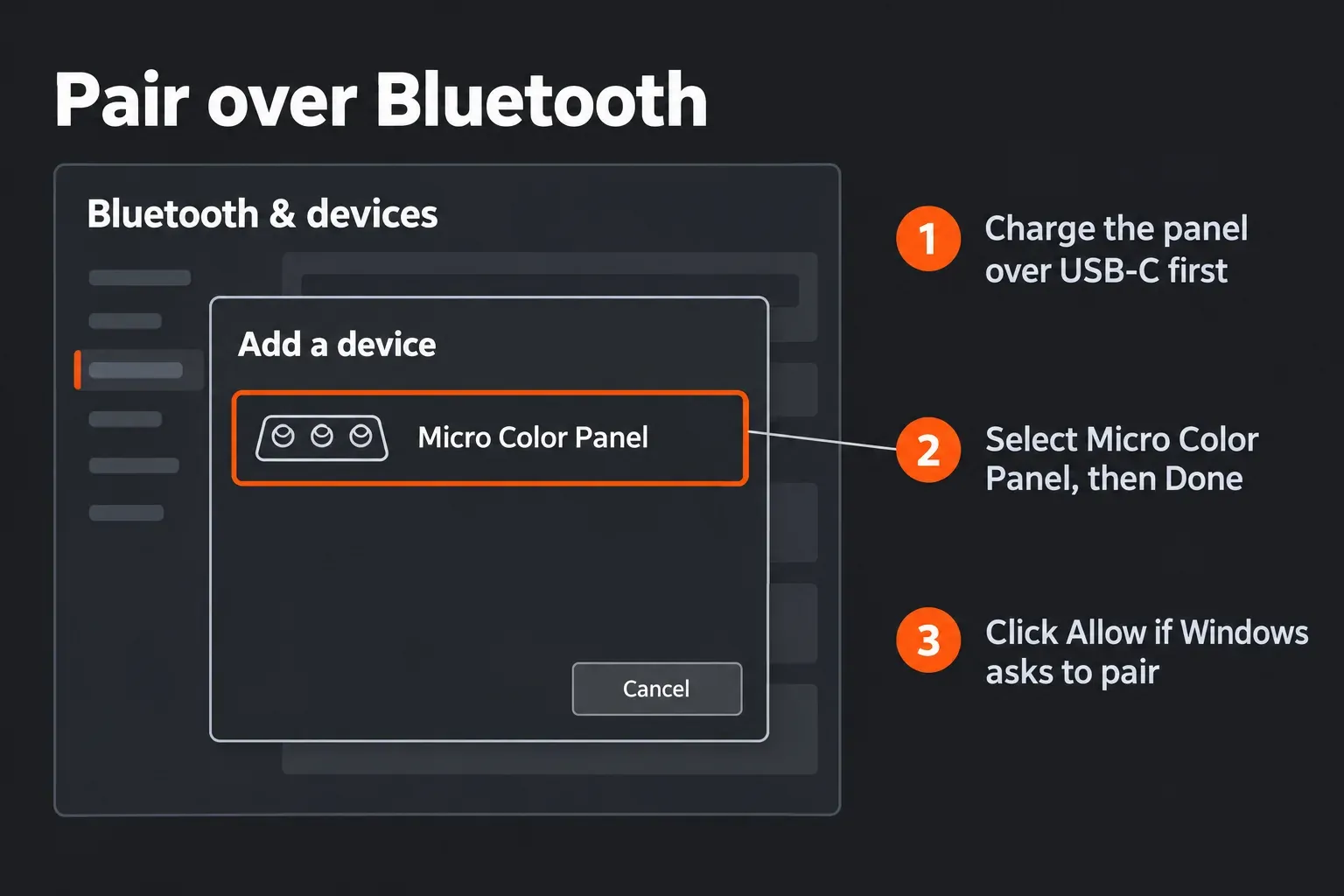
If pairing fails, the Micro Color Panel Bluetooth troubleshooting asks for Resolve 19 or later, a charged battery, a working USB-C connection first, other nearby Bluetooth devices switched off to rule out interference, and a reset if the panel still won't pair. Community threads add details the manual doesn't. In a Blackmagic forum thread on a Speed Editor not working over Bluetooth, the answer is to disconnect the USB cable and charge it, because below about 10% battery Bluetooth stops working. A Reddit user fixed theirs by unpairing, switching Bluetooth off and on, and pairing again. One report in a Facebook user group runs the other way: a Speed Editor that worked over Bluetooth on Studio 18 only worked with the cable after the upgrade to 19, still at 19.1.3.
On an iPad the Micro Color Panel connects by Bluetooth only; its USB-C connection only charges. Our DaVinci Resolve for iPad guide covers what else changes there.
Windows: the LampArray service reports
Two Windows threads in the results point at the same culprit. In a Blackmagic forum thread titled "Speed Editor not working. Connected but no lights.", the poster marked it solved after disabling the "Logitech LampArray Service" and stopping it from starting again. In another, the suggested steps for a Speed Editor no longer recognized by Resolve were to confirm it appears in Control Panels Setup and then stop a Windows 11 system service.
That's the case where the utility sees the panel and Resolve ignores it. If you have Logitech software installed, open Services (type services.msc in the Start menu search), find Logitech LampArray Service, stop it and restart Resolve. If the panel comes back, set the service's startup type to Disabled. If nothing changes, set it back the way it was. Two threads aren't proof that every Windows case is this service, so I'd only go here after the USB and firmware steps.
Set the panel in Resolve's preferences
Resolve keeps its panel choices in DaVinci Resolve > Preferences > System > Control Panels. According to the manual's Control Panels preferences:
- Color Grading Panel: leave it on None for a Mini Panel or Micro Panel; Resolve detects those automatically when they're plugged in. A panel connected by USB is chosen from the list.
- Mini Panel over Ethernet: choose "DaVinci Resolve Mini Panel (Ethernet)", then the panel from the menu below it.
- Audio Console: the Fairlight consoles. Third-party HUI or MCU consoles go through Use MIDI Audio Console.
- Display Control Panels Status on Main Footer: shows the Control Panels icon in the lower-right corner. Its popup lists every connected panel, how it's connected and its battery level, which makes it the quickest check that Resolve sees your hardware.
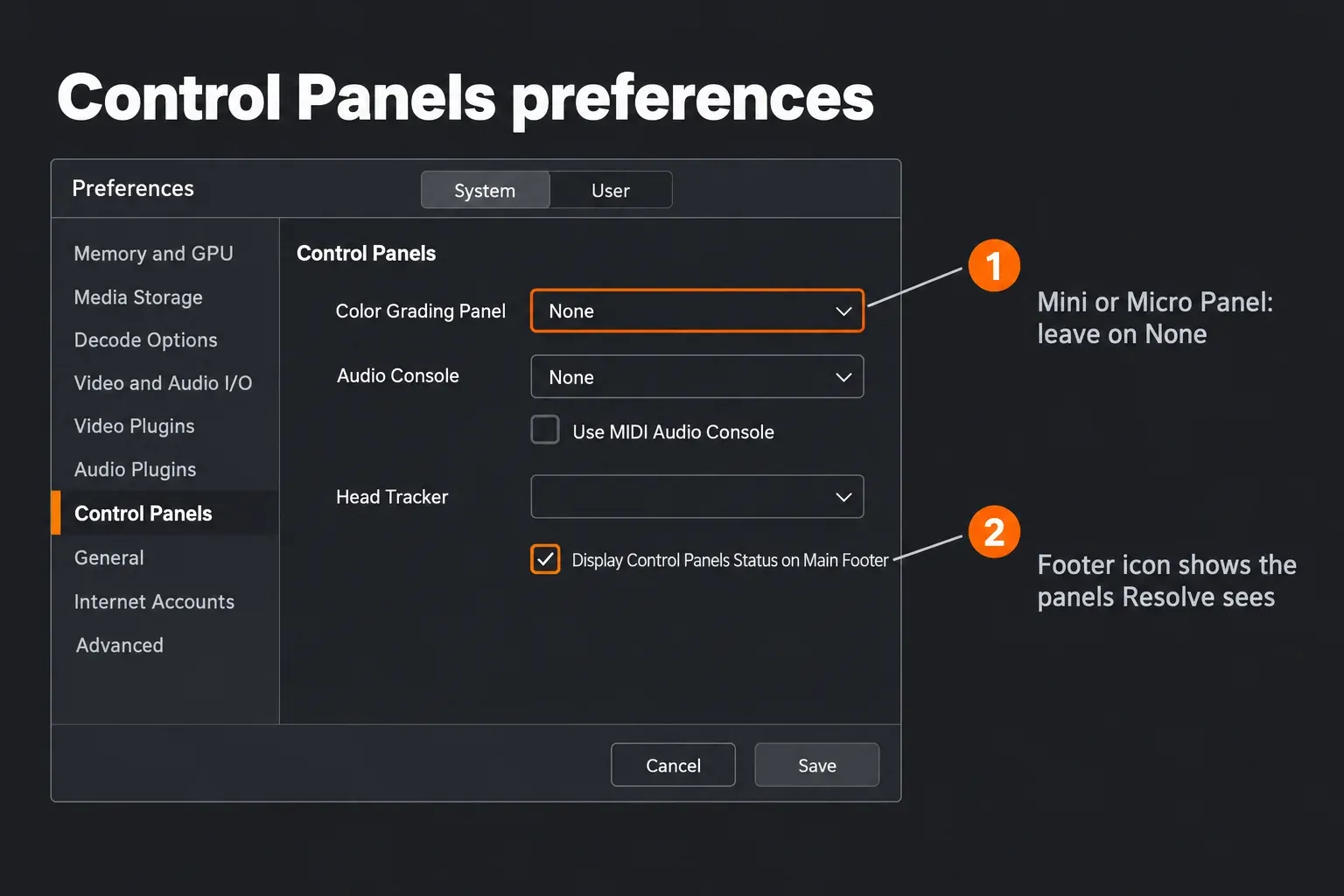
A Mini Panel on Ethernet may need its IP address before the utility can configure it. The manual's Ethernet section has you click "+" in the lower-left corner of Control Panels Setup, type the address in the Add DaVinci Control Panel window and keep the panel on the same network as the computer; DHCP is the suggested setting for anyone new to networking. The User tab's Control Panels page only holds sensitivity and backlight brightness, so it won't fix detection.
"One or more DaVinci panels cannot be found" inside Resolve
This one appears inside Resolve, not in the utility. A Blackmagic forum thread called "Missing DaVinci Panels" quotes it after opening a project, and the cause isn't visible from the results page. My first check would be the System > Control Panels page above: if it names a panel that isn't connected, such as an Ethernet Mini Panel you've since moved, reconnect that panel or set the menu back to None. Then confirm the footer popup lists what's plugged in.
Start order matters for some setups. In one forum thread the owner says their Speed Editor always needed to be disconnected from USB after Resolve started up. If yours behaves like that, plug it in first, launch Resolve, and replug only if the footer popup doesn't list it.
Version and system floors for each panel
A panel can be connected perfectly and still not work if Resolve or the operating system is too old. The Micro Color Panel manual is blunt: Resolve 19 or higher, not compatible with lower versions. The rest come from the tech specs.
| Panel | Connects by | Operating systems |
|---|---|---|
| Speed Editor | USB-C or Bluetooth LE | macOS 13 Ventura or later; Windows 10 Creators Update, Windows 11 and Windows 11 for ARM; Rocky Linux 8.6 |
| Editor Keyboard | USB-C, with two USB-A hub ports | macOS 13 Ventura or later; Windows 10 Creators Update, Windows 11 and Windows 11 for ARM; Rocky Linux 8.6 |
| Micro Color Panel | USB-C or Bluetooth 4.2; Bluetooth only on iPad | macOS 14.3 Sonoma or later; Windows 11; Rocky Linux 8.6; DaVinci Resolve 19 or later |
| Micro Panel | USB-C | macOS 13 Ventura or later; Windows 10 Creators Update and Windows 11; Rocky Linux 8.6 |
| Mini Panel | USB-C or Ethernet, one port with PoE | macOS 13 Ventura or later; Windows 10 Creators Update and Windows 11; Rocky Linux 8.6 |
| Replay Editor | USB-C or Bluetooth 5.1 LE | macOS 14.3 Sonoma or later; Windows 10 Creators Update, Windows 11 and Windows 11 for ARM; Rocky Linux 8.6 |
Panels also get fixes through Resolve updates. The 21.1.2 readme, for example, lists improved HDR global wheel trackball sensitivity on color panels. If your Resolve version is older than your panel, update Resolve first; our guide to updating DaVinci Resolve safely covers the backup side, and the system requirements guide covers the computer itself. The DaVinci Resolve hardware compatibility guide covers the wider picture of what runs with what.
Free version, Studio and iPad
The free version isn't why a panel goes missing. The DaVinci Resolve Studio 21 features list marks Studio-only features with the word Studio, and the Speed Editor, Replay Editor and color panels are marked Yes on the desktop, which means both editions. On iPads, the Speed Editor and Replay Editor are supported and the Micro Color Panel is the color panel listed, while Fairlight panels and third-party grading or MIDI panels are desktop only. The one panel feature the sheet reserves for Studio is networking grading panels to remote grading machines, which a missing panel on your desk has nothing to do with.
The Speed Editor and Editor Keyboard ship with a Studio activation key, according to the tech specs, which is a nice bonus but has nothing to do with detection. Our Resolve vs Studio comparison and the free version features guide cover what that key unlocks.
What 13 public reports show
I sorted every public thread on the first results page for the two searches readers use, "no panels found" and "Speed Editor not connecting", by the cause or fix each one shows. That's 13 threads across the Blackmagic forum, Reddit, Facebook and EEVblog. Most bodies are only visible as search snippets, so the groups rest on titles and visible answers, and the counts are threads, not users.
| What the thread shows | Threads | Where |
|---|---|---|
| Opened the utility instead of Resolve, or couldn't find it | 3 | Blackmagic forum (Resolve 16.2.7, Windows), Reddit, Facebook group (Micro Panel, Resolve 19) |
| USB port, cable or reset suggested | 3 | Two Blackmagic forum threads, EEVblog (faulty unit, replaced) |
| Bluetooth pairing, cable or battery | 3 | Blackmagic forum, Reddit, Facebook group |
| Windows service stopped (LampArray named in one) | 2 | Two Blackmagic forum threads |
| Start order: unplug after Resolve starts | 1 | Blackmagic forum |
| "Cannot be found" inside Resolve, cause not shown | 1 | Blackmagic forum |
Nine of the 13 end at the connection, the pairing or the operating system side, and one of those nine was a dead unit. Three more are about the utility itself: opening it instead of Resolve, or not finding it. None points at the Resolve edition, which is why the checklist above starts with the cable and leaves reinstalling Resolve off the list.
When the missing panels are on screen, not on your desk
Some people search the same words because part of Resolve's interface disappeared, not a piece of hardware. Workspace > Reset UI Layout brings the default arrangement back. Our guide to workspace layout presets shows how to save a layout you like so a reset doesn't undo your own setup.
Questions about No DaVinci control panels found
Is "No DaVinci control panels found" an error?
Not on its own. It's the DaVinci Control Panels Setup utility saying no Blackmagic hardware is connected. Without a panel, close it and open DaVinci Resolve.
Do I need a control panel to use DaVinci Resolve?
No. Panels such as the Speed Editor and Micro Color Panel are optional hardware. Resolve works with a mouse and keyboard, and the utility only matters once you buy a panel.
Why is my Speed Editor not detected?
Check it in order: a direct USB-C cable and port, whether the computer's USB list shows it, the accessory prompt on an Apple silicon Mac laptop, firmware in Control Panels Setup, then a reset. On Windows, two forum threads point at a background service.
Does the Micro Color Panel work with DaVinci Resolve 18?
No. Blackmagic's manual says it needs DaVinci Resolve 19 or higher and isn't compatible with lower versions. It also needs macOS 14.3 Sonoma or later or Windows 11.
Does the free version of DaVinci Resolve support the Speed Editor?
Yes. Blackmagic's features list marks the Speed Editor, Replay Editor and color panels as supported in both editions, so a free install isn't the reason a panel goes missing.
Why does my panel work on USB but not Bluetooth?
Disconnect the USB cable, make sure the battery is well above 10%, switch off other nearby Bluetooth devices and pair again from the operating system. If pairing still fails, reset the panel, which clears its old pairing.
Verdict: open Resolve, or check the panel from the cable up
"No DaVinci control panels found" is usually not a fault at all. Three of the 13 public reports were about the panel utility itself, opened by mistake or not found, and the Help menu and the DaVinci Resolve folder answer both. For panel owners, nine of the threads ended at the cable, the Bluetooth pairing or the operating system, so my default order is a direct USB-C cable, the system's USB list, the Mac accessory prompt, firmware, Resolve's Control Panels preferences, then a key reset. Leave the free version and reinstalling Resolve out of the suspects, and if two computers can't see the panel, claim the warranty.