Download it from Blackmagic Design’s official Resolve page. Before you click a Windows button, check two things: the processor type and whether Windows itself is 64-bit. Updating an existing install? Back up the project library and export any project you can't afford to lose before the new version opens it.
When I rechecked Blackmagic's download catalog on October 5, 2026, the newest Free and Studio packages were DaVinci Resolve 21.1.1, posted October 2. Its readme repeats the 21.1 Windows requirements and the rollback warning unchanged, so the 21.1 figures below still apply. If the official picker shows something newer when you visit, read that release's notes before installing it.
Need another platform or an older release? The Download & Install hub covers those choices. For this Windows setup, get the correct package, check the current system requirements, then test a clip before you move real work onto the machine.
Get the Windows Installer From Blackmagic, Not a Mirror
Blackmagic's download picker offers both Free and Studio. Pick the edition first, then the Windows architecture. The free download asks for registration details; the Studio support download has its own route for people who already own a license. Go by the labels Blackmagic shows, not by a Windows logo on an advertisement.
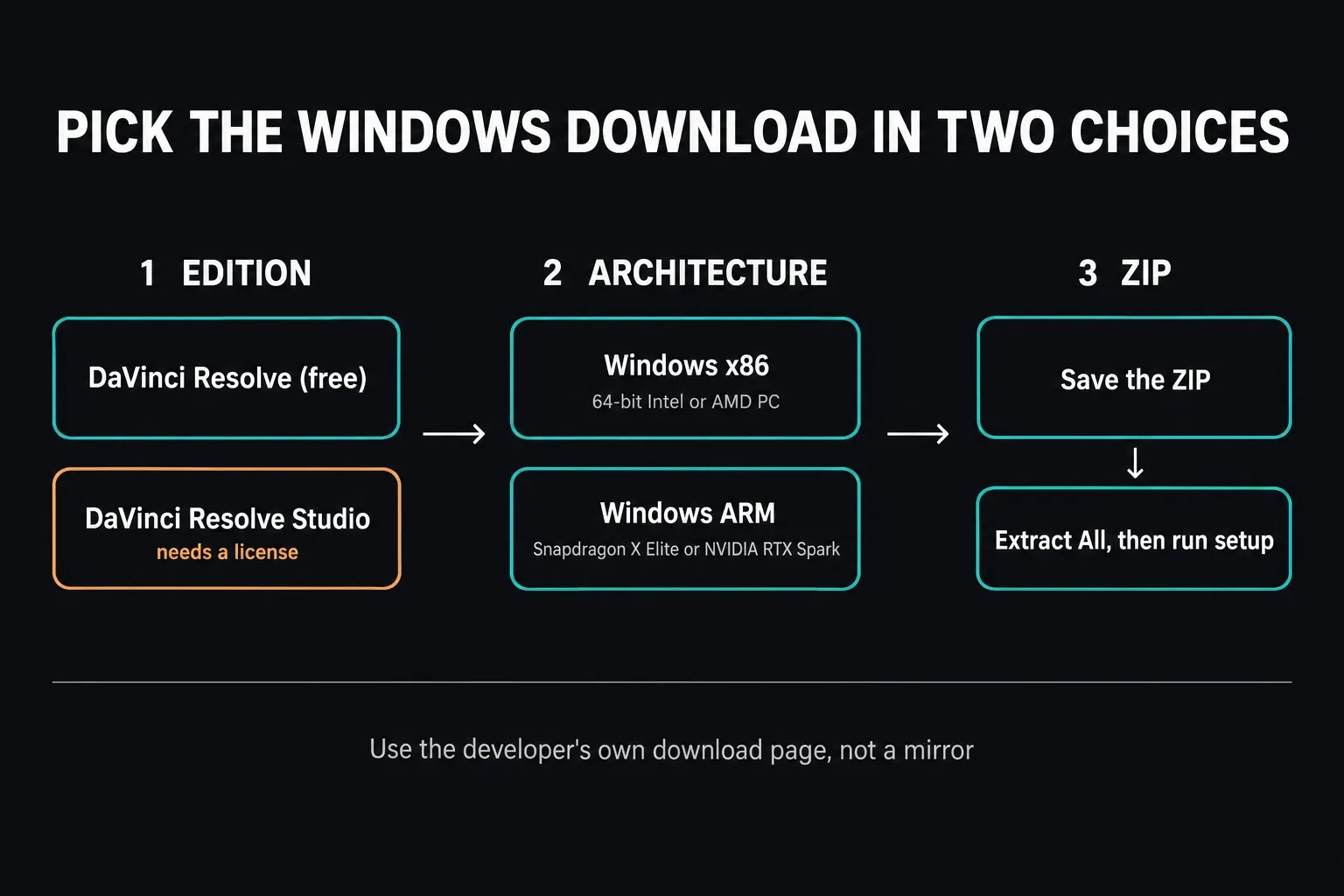
- Open the official DaVinci Resolve product page.
- Select Free Download Now or the Studio download option.
- Pick the edition you actually intend to run: Free or Studio.
- Match Windows x86 or Windows ARM to the system type.
- Save the ZIP archive somewhere with enough free space to download and extract it.
We link to the developer and don't host or repackage the installer. Look at where a download link really goes before you click: a page that calls itself "latest" can still hand you an older release. A file size or checksum copied from some other site doesn't replace getting the exact official package.
Windows x86 or ARM: Check System Type First
"Windows 11" names the operating system, not the processor architecture. On Intel and AMD PCs, Blackmagic labels its 64-bit x86 build “Windows x86.” That button doesn't mean a 32-bit Windows edition is supported. Windows on Arm machines need the separate ARM package, and only when they match Blackmagic's ARM requirements, which in 21.1 means Snapdragon X Elite or NVIDIA RTX Spark.
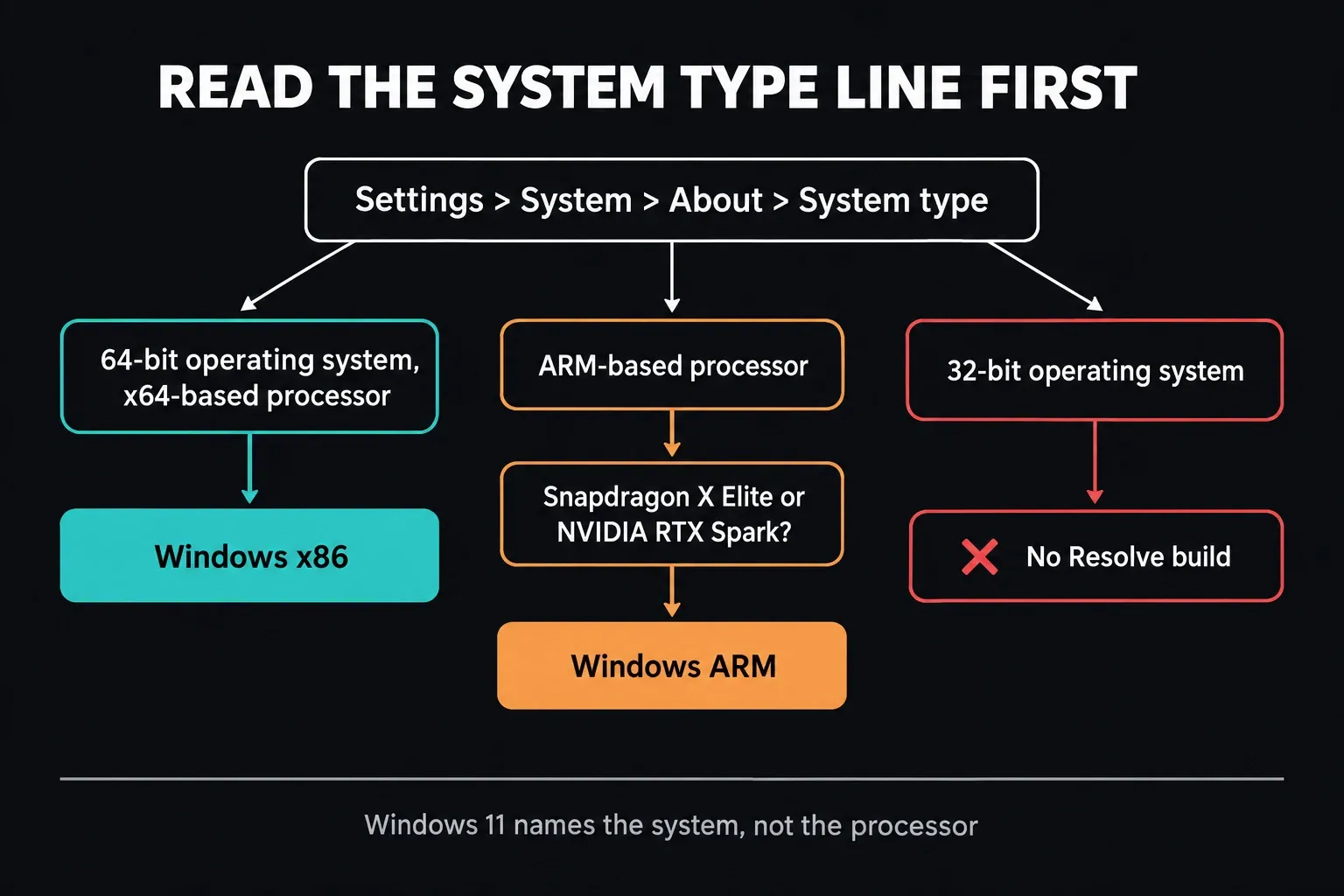
- Open Settings.
- Go to System, then About.
- Find System type in the device information. Microsoft's page calls that section Device specifications; some Settings layouts label it Device info.
- 64-bit operating system, x64-based processor points to the Windows x86 package. Read both halves of the line.
- An ARM-based processor means you check the ARM requirements below before downloading anything.
Blackmagic's Resolve 21.1 readme is narrower than "any ARM-based Windows PC." For Windows for Arm it lists Windows 11 for ARM, a Qualcomm Snapdragon X Elite or NVIDIA RTX Spark processor, and 16GB of memory, or 32GB for 4K or Fusion work. RTX Spark systems also need NVIDIA Studio Driver 616.0 or newer. Another ARM processor isn't covered just because Windows runs on it.
Microsoft's Windows architecture guide explains how System type separates the operating system from the processor. If it says 32-bit operating system, no Resolve download button will get around that limitation. Windows 11 is 64-bit only anyway. If you're making a buying or migration decision, our Windows x86 versus ARM guide covers the wider compatibility trade-offs.
Check the Current Windows Requirements
The table combines Blackmagic's Resolve 21.1 minimum requirements with the architecture check above. Where the ARM readme gives no separate GPU spec, or no driver floor for Snapdragon, the table says so instead of inventing a minimum.
| Check | Windows x86 | Windows ARM |
|---|---|---|
| Operating system | Windows 10 Creators Update or a supported newer Windows release; 64-bit installation | Windows 11 for ARM |
| Processor platform | x64-based Intel or AMD PC | Qualcomm Snapdragon X Elite or NVIDIA RTX Spark |
| System memory | 16GB; 32GB when using Fusion | 16GB; 32GB for 4K or Fusion |
| Graphics | Integrated or discrete GPU with at least 4GB VRAM; OpenCL 1.2 or CUDA 12.8 | The ARM readme lists the processor platform rather than a separate discrete-GPU specification |
| Graphics driver | Official AMD/Intel GPU drivers; NVIDIA Studio Driver 581.57 or newer | NVIDIA Studio Driver 616.0 or newer on NVIDIA RTX Spark systems; the readme lists no separate driver floor for Snapdragon X Elite |
Windows 10 compatibility is not the same as Windows support. Microsoft ended ordinary Windows 10 support on October 14, 2025. For a new setup, I'd use a supported Windows 11 installation. If you have to stay on Windows 10, check the support lifecycle and whether your exact edition qualifies for Extended Security Updates, separately from Resolve.
Using Blackmagic video hardware for external monitoring? The Windows readme also asks for Desktop Video 12.9 or later in that workflow. You don't need Desktop Video just to use an ordinary computer display.
All of this is compatibility, not a promise of smooth editing. Codec, resolution, bit depth, effects, multicam and Fusion can change the workload a lot. Before buying hardware, compare your project with the full requirements guide and our Resolve PC checker. A 4GB VRAM minimum isn't advice to buy a 4GB GPU for demanding work.
Free Is the Default; Studio Needs a License
Start with Free if you don't own a Studio license. Blackmagic's current Studio download listing accepts a license dongle, a software activation code or a Blackmagic Cloud license. If Studio came with hardware you bought, check the license details that came with it. Downloading the Studio installer doesn't activate anything on its own.
Choose the edition that fits the work you do. See what the free version includes and the Free versus Studio comparison for feature limits; the cost guide covers pricing and license choices.
Protect an Existing Resolve Installation Before Updating
First installation? Skip ahead to the install steps. Updating a machine that already works? Stop before 21.1 touches a production project.
Blackmagic says 21.1 makes an effort to keep the project library compatible with 20.3.2, but it also warns that any individual project created or opened in 21.1 will no longer be accessible in 20.3.2. So uninstalling the new application doesn't give you a safe rollback on its own.
- Create a full project library backup.
- Export separate backups of active, irreplaceable projects.
- Write down the current Resolve version and the GPU driver version.
- Where you can, keep installation media and backups off the working drive.
- Only then install the new release and open a copy of a representative project.
Our safe Resolve update workflow walks through the backup and rollback steps. Keep the old installer if you might need it, but it can't reverse a project-format change; the backup you made before updating is what protects that project.
Extract the ZIP and Install Resolve
Extract the whole ZIP before running setup. In File Explorer, right-click it and choose Extract All, as described in Microsoft’s extraction instructions. Run the installer from the extracted folder, not from inside a ZIP preview.
- Right-click the downloaded ZIP and choose Extract All.
- Open the extracted folder once Windows finishes.
- Run the DaVinci Resolve installer.
- Before you approve User Account Control, check the publisher and file origin Windows shows.
- Follow the onscreen installer prompts.
- Restart Windows if setup or a driver update asks for it.
The readme says the package also installs Blackmagic RAW Player, Blackmagic Proxy Generator and utilities for hardware control panels, so seeing those names doesn't mean you grabbed the wrong download. Read the installer's component descriptions before changing selections, and don't install an unrelated offer just because it sits next to a download button.
Verify the First Launch Before Moving Real Work
"Finished" only tells you setup completed. A short test with your own footage checks something more useful: whether Resolve can open, find the media, play picture and sound, and produce an export on this computer.
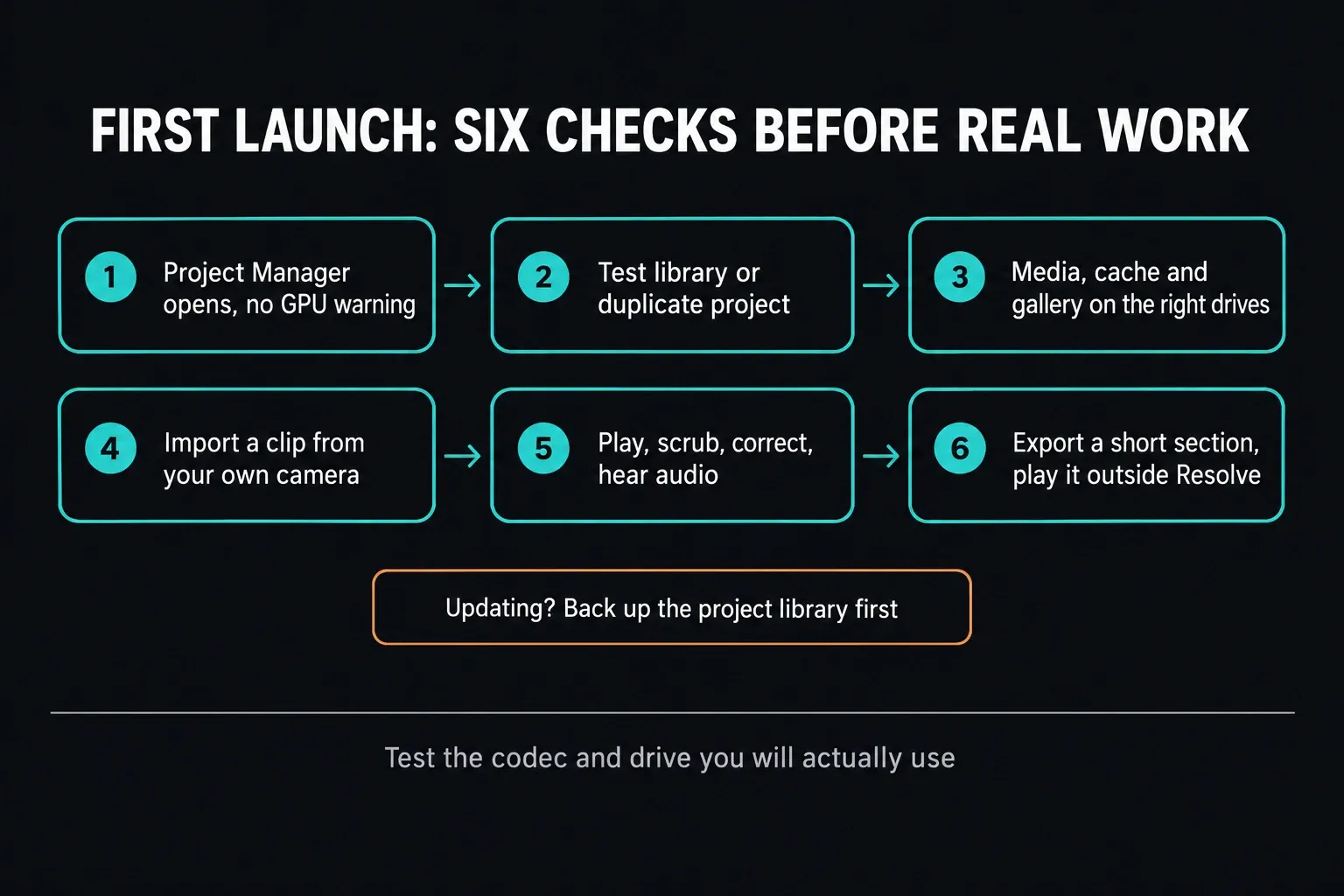
- Launch Resolve and confirm it reaches the Project Manager without a GPU initialization warning.
- If this was an update, create a test library or open a duplicate project first.
- Check that media, cache and gallery locations point to drives you actually intend to use.
- Import a clip from your real camera, phone or screen recorder.
- Play it, scrub it, add a simple correction and confirm audio output.
- Export a short section using a normal delivery preset and play the rendered file outside Resolve.
Test the footage you expect to edit. A friendly H.264 sample proves nothing about a project built on 10-bit HEVC, RAW, mixed frame rates or heavy Fusion. The test only counts when it touches the codec and storage path you'll really use.
If Resolve Will Not Install or Open
| Symptom | First check |
|---|---|
| The installer will not start | Confirm the ZIP was fully downloaded and extracted, then run setup from the extracted folder. |
| Windows says the app cannot run on this PC | Check both OS and processor architecture: 64-bit Windows plus the matching x86 or supported ARM package. |
| Resolve reports an unsupported GPU or fails at launch | Install the current supported driver from NVIDIA, AMD or Intel and compare it with Blackmagic's current readme. |
| The official file was quarantined | Verify that it came directly from Blackmagic and review the exact security alert. Do not disable protection globally. |
| Resolve opens but playback is unusable | Test a simple supported clip, then separate codec, driver, storage and effects problems using the slow playback guide. |
| An older Resolve version will not open an updated project | Restore the separate project or library backup made before the new version opened it. |
Change one reversible thing at a time and keep the exact error message. Don't delete project libraries, reset everything or switch off Windows protection to see what happens. If the basic checks don't point to the problem, the installation-errors guide separates a failed setup from a failed first launch.
How to Uninstall DaVinci Resolve on Windows
Blackmagic's current readme sends Windows users to Programs and Features, then DaVinci Resolve, then Uninstall. Current Windows settings also list installed apps. Either way, removing the application is a different job from deleting project libraries, source media, cache or exports.
A reinstall doesn't require erasing project data. Back it up, uninstall Resolve, restart if Windows asks, then reinstall the correct official build. Only delete cache when you know which cache location belongs to the affected project and you've confirmed the source media is safe.
Frequently Asked Questions
Is DaVinci Resolve free on Windows?
Yes. Blackmagic Design offers a free Windows edition. Studio is separate and needs a valid activation code, license dongle or Blackmagic Cloud license; downloading the Studio package alone doesn't activate it.
Should I download Windows x86 or Windows ARM?
Choose Windows x86 when System type shows a 64-bit operating system and an x64-based processor. Choose Windows ARM for an ARM-based computer that meets Blackmagic's current ARM requirements; for 21.1 and 21.1.1 that means a Qualcomm Snapdragon X Elite or NVIDIA RTX Spark processor. The Windows x86 label doesn't mean 32-bit Windows is supported.
Does DaVinci Resolve work on Windows 11?
Yes, Resolve 21.1 works on supported Windows 11 systems, as long as the computer also meets the memory, GPU, driver and processor requirements. Windows 11 by itself doesn't prove a machine is suitable for Resolve, and it doesn't tell you whether it needs the x86 or ARM installer.
How much RAM does DaVinci Resolve need on Windows?
Blackmagic's Resolve 21.1 minimum for Windows x86 is 16GB of system memory, or 32GB when using Fusion. Its Windows ARM minimum is 16GB, or 32GB for 4K or Fusion. Those are compatibility minimums, not guaranteed smooth-performance targets.
Can I install DaVinci Resolve without uninstalling the old version?
An in-place update can work, but protect the project library first. Blackmagic warns that projects created or opened in 21.1 can't then be opened in 20.3.2. Make a full library backup and export important individual projects before you open them in the new version.
Why does DaVinci Resolve not open after installation?
Check the exact error, the architecture you downloaded, complete ZIP extraction, GPU support and the graphics driver. Then compare the PC with the current minimum requirements. These are diagnostic starting points, not proof of one cause; don't delete project data or switch off Windows security.
Where should I download DaVinci Resolve for Windows?
Use Blackmagic Design's official DaVinci Resolve product or support page. It has the current Free and Studio installers for Windows x86 and Windows ARM. This guide links to that official source and doesn't host, mirror or repackage the installation file.
