Quick answer: match the DaVinci Resolve installer's exact message before you delete or reinstall anything. Start with a fully extracted official package for your operating system and processor. If Windows says an existing version is in the way, check the installed Resolve entry; if macOS blocks the file, read which warning it is before you consider an exception. And keep project backups well away from installer cleanup.
Deleting Blackmagic folders or registry keys is the wrong first move. Protect the project library first, then record the error word for word, confirm whether you downloaded Resolve or Resolve Studio, and note the operating system and architecture. The repair for “ResExt.cab is corrupt” isn't the repair for “a newer version is already installed,” and mixing them up is how a small problem eats an afternoon.
Still choosing the package? Use the Download & Install hub first. This page picks up when the official package won't extract, install, update or complete normally.
Before You Change Anything
If Resolve still opens, back up the project library and export the projects you can't lose before you change versions, and keep the source media backed up separately. This matters more than usual right now: the Resolve 21.1 release notes warn that projects created or opened in 21.1 cannot be opened in 20.3.2, even though the library itself stays accessible. Reinstalling an older editor won't undo that. Work through the safe-update backup steps before you go further. If Resolve can't open at all, leave its existing library and media locations exactly where they are; deleting them won't make setup run.
- Photograph or copy the complete error, numeric code included.
- Write down the current Resolve version and whether it's Free or Studio.
- Note the OS version and, on Windows, whether the computer is x64 or ARM64.
- If you might need to roll back, keep a known-good previous installer. A damaged or security-flagged download doesn't count.
- Restart once before you retry, so a pending update or a stuck installer process isn't holding files.
Then pin down the last stage that worked: download, extraction, setup or first launch. If the installed editor opens and then hangs, the launch message is your real clue. That doesn't prove every installed file is healthy, but it's a different problem from a ZIP that never extracted.
Match the Symptom to the First Safe Fix
| Message or symptom | What to check | First safe action |
|---|---|---|
| “Failed to open, extract all files before executing” | Incomplete extraction or failure opening the installer payload | Extract the entire official ZIP to a new local folder |
| “A newer version of Resolve is already installed” | Existing version, downgrade or stale Windows installer data | Check Settings > Apps > Installed apps before deeper recovery |
| “ResExt.cab … is corrupt” | Package or file-reading failure | Delete that extracted copy, download again and extract again |
| Setup completes, but Resolve is missing | Wrong component, installer reopened or app search confusion | Check Installed apps and the Resolve component selection |
| macOS cannot verify or open the package | Gatekeeper, damaged file or wrong package | Verify source and warning type before any override |
| Linux permission or unsupported GPU message | Executable permission, distro or driver stack | Compare the system with the current Resolve readme |
| “Network resource unavailable” or missing ResolveInstaller.msi | Windows needs installation data it cannot find | Record the exact requested file and version; use the matching Windows recovery path |
| Error 2755 | Unexpected package-install error; the nested error matters | Keep the full message and package path before attempting a fix |
Start with a Fresh Official Package
Get a fresh package from the Blackmagic Design Support Center, not from a mirror or a repacked installer. Check two things: the edition and the operating-system button. DaVinci Resolve and DaVinci Resolve Studio are separate downloads, and choosing Studio won't repair a broken free install.
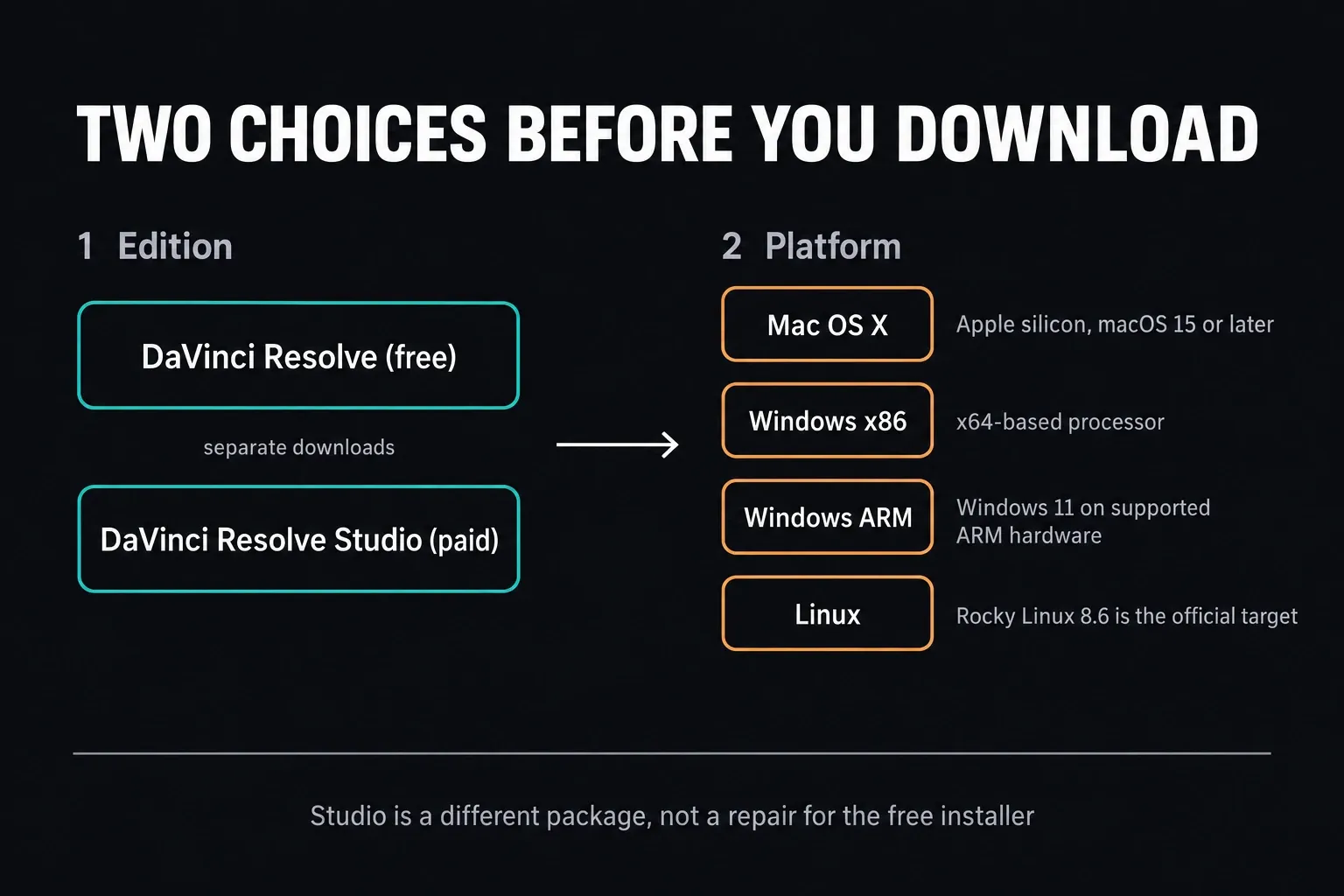
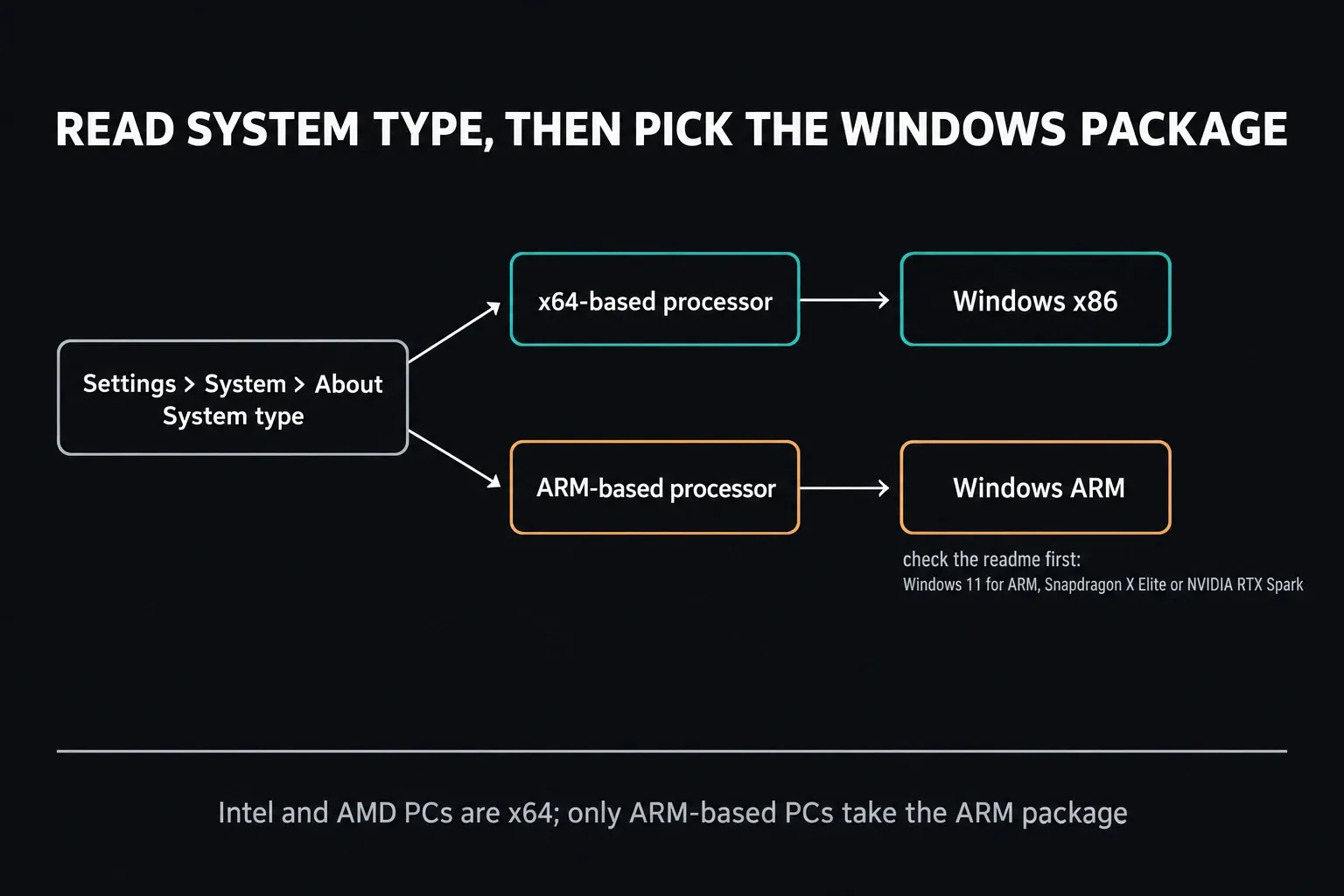
On an Intel or AMD x64 Windows PC, pick Windows x86 in Blackmagic's picker. On an ARM-based PC, check the supported hardware before you choose Windows ARM: the 21.1.1 readme, which I checked on October 5, 2026, lists Windows 11 for ARM with Qualcomm Snapdragon X Elite or NVIDIA RTX Spark processors. Not sure which kind of PC you have? Open Settings > System > About and read System type. The x86 versus ARM guide explains the labels and where compatibility stops.
Download to local storage with room for both the archive and the extracted files. On Windows, right-click the ZIP and choose Extract All, let extraction finish, then open the installer from the new folder. Keep everything extracted together, and skip any partly extracted folder left over from a failed attempt.
Fix Windows Extraction and Corrupt Cabinet Errors
For “Failed to open, extract all files before executing,” close setup and extract the entire ZIP to a fresh local folder. The message is a reason to check extraction; it doesn't prove you forgot to unzip. If it comes back after a complete extraction, write that down and move to a fresh official download; don't just repeat the same attempt.
A ResExt.cab corruption message means setup couldn't use a cabinet payload it needs. Microsoft's Windows Installer error reference lists this as error 1335 and says a network error, a read error or a problem with the package itself can be behind it. So remove only the failed extracted installer copy, download again and retry from local storage. If it repeats, record the full message, check available system-drive space and report any other file-reading errors to support. Leave the Windows Installer cache folder alone.
Some community threads suggest cracking open the installer's internal DAT file and running whatever MSI turns up inside. I wouldn't start there. Blackmagic's documentation says to run its installer and follow the prompts. If a complete fresh package still fails, keep the filename, the exact message and any log setup offers, so support can identify the failing component.
Fix “A Newer Version of Resolve Is Already Installed”
That message can be telling the truth. In a 2023 Windows reinstall discussion, Blackmagic support explains that newer versions can install over the current one, while same-version installs and downgrades need the existing Resolve entry removed first. Their example is a Free-to-Studio change at the same version. Take it as a cue to look at what's installed, not as a reason to erase every Blackmagic folder.
- Open Settings > Apps > Installed apps.
- Look for DaVinci Resolve specifically. Blackmagic RAW, Fairlight and the hardware drivers share the vendor name, but that alone is no reason to remove them.
- If Resolve is listed and you really do need a same-version reinstall, a downgrade or a Free/Studio swap, back up projects and uninstall that Resolve entry.
- Restart Windows.
- Run the fresh extracted package that matches the edition and architecture you want.
If removal fails, follow Microsoft's recovery instructions for your Windows version. For Windows 11 it starts with a restart, then the app's Repair or Reset options where they exist, then uninstalling from Settings; not every desktop app has Repair or Reset. The downloadable Program Install and Uninstall troubleshooter is described under Windows 10, so an older video's screens and tools may not carry over to Windows 11. If Windows offers troubleshooting when removal fails, keep its exact result for support.
Skip the vendor-wide registry purge and the sweeping “cleaner” apps. If the normal Resolve uninstall entry is broken, ask Blackmagic support for a repair matched to that version and message, and keep your backups and the failed setup evidence intact.
Missing MSI, “Network Resource Unavailable” or Error 2755
If uninstall asks for ResolveInstaller.msi or an unavailable network resource, save the exact filename, the requested location and the installed version. Despite the word “network,” it doesn't necessarily mean your internet connection failed. Pointing Windows at an arbitrary MSI from a different release, or at a loose installer file from a mirror, only makes things murkier. Use the Windows recovery steps above and ask Blackmagic for the matching package if setup really needs the original source.
Error 2755 doesn't point to one missing folder. Microsoft defines it as the server returning an unexpected error while installing a package, followed by a second error value and the package name. Capture those details. A fresh official package on accessible local storage is a reasonable first check. Recreating Windows system directories, changing their permissions or switching off security isn't a general fix for this number, even when a comment thread swears by it.
When Setup Finishes but You Cannot Find Resolve
The installer you downloaded and the Resolve application it installs are different files. Reopening the installer just starts extraction again; it won't launch the editor.
On Windows, search the Start menu for DaVinci Resolve and check Settings > Apps > Installed apps. If only control-panel software shows up, rerun the official package and make sure the DaVinci Resolve application component is selected. On macOS, look in Applications. On Linux, check the application entry and the installation output instead of reopening the .run package.
If the installed Resolve application closes, hangs or reports a GPU error, you've moved on to startup-crash troubleshooting. A partial installation is still possible, but reopening the ZIP again and again won't tell missing files apart from GPU drivers, plugins or preferences. Keep the launch message separate from any setup error.
Fix macOS Package and Security Messages
Apple's Gatekeeper guidance separates a routine first-open confirmation from an unverified developer, damaged software and a malware warning. For software downloaded outside the App Store, macOS checks developer signatures and notarization. Those warnings mean different things, so they don't all get the same response.
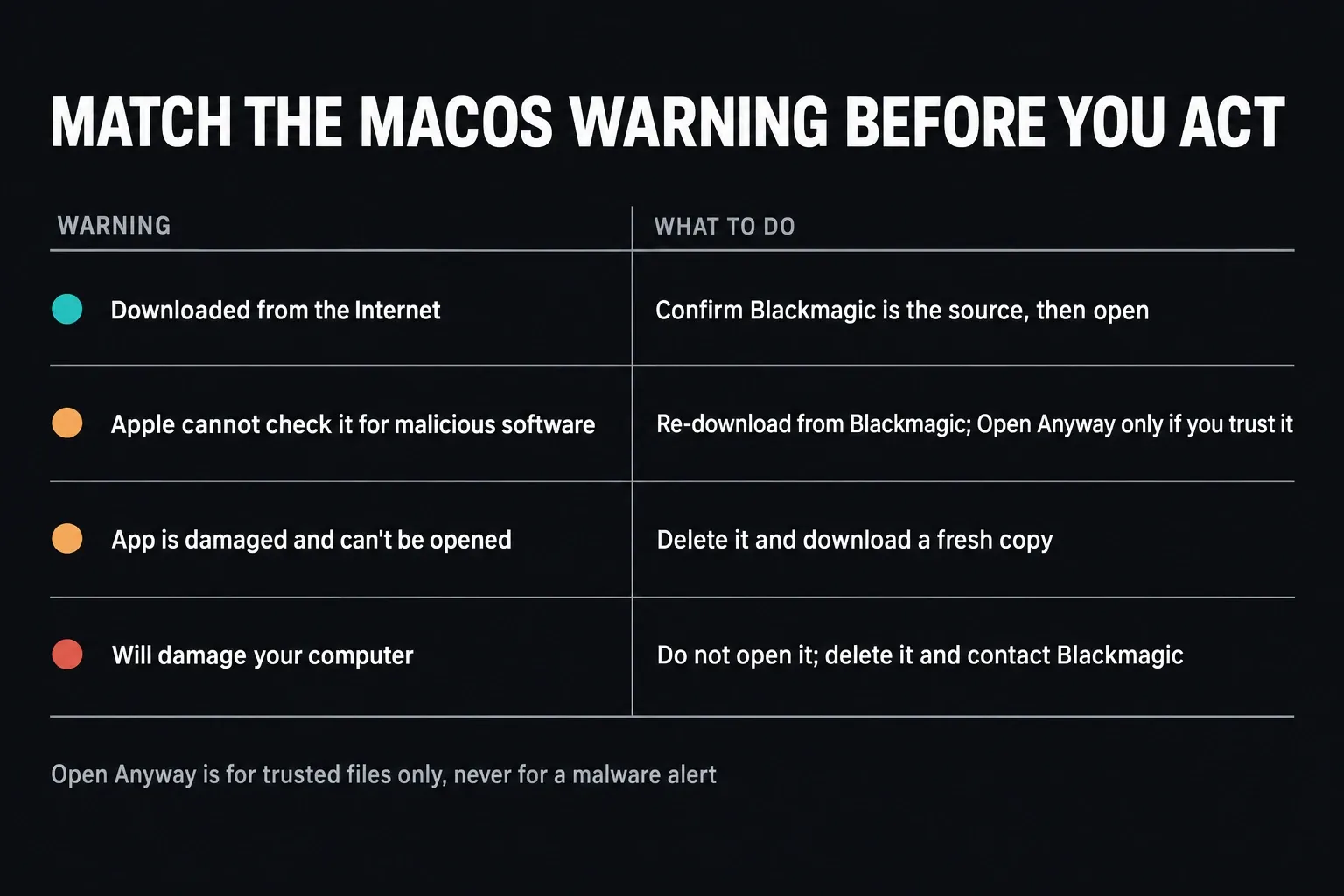
- Downloaded from the Internet: the normal first-open confirmation for an identified developer. Confirm that the file came from Blackmagic, then carry on.
- Apple cannot check it or the developer cannot be verified: delete that copy first and download the current package straight from Blackmagic. Open Anyway is only for a source and package you trust.
- Will damage your computer or contains malware: leave this warning in charge. Delete the file, and contact Blackmagic if a fresh official copy gets the same alert.
- App is damaged: treat the copy as corrupted or altered. Download it again; switching Gatekeeper off globally isn't the answer.
For a generic installer failure, check the package's requirements first. Resolve 21.1 lists macOS 15 Sequoia or later and Apple Silicon, and a security exception cannot make an Intel Mac compatible. Check free startup-disk space and whether you have the administrator access setup needs. If a managed Mac hides the security option, talk to its administrator. The Mac installation guide covers the correct package and platform route; renaming or removing Application Support folders shouldn't be your opening move.
Fix Linux Installer Failures Without Hiding a Platform Mismatch
The Resolve 21.1 readme lists Rocky Linux 8.6, 32 GB of system memory and a discrete GPU with at least 4 GB VRAM as the basic Linux requirements, plus OpenCL 1.2 or CUDA 12.8 and the required driver versions. Treat those as the floor, not a Studio workload recommendation: the Studio 21.1 notes list higher memory and VRAM requirements for advanced AI tools and background rendering. Keep a permission failure separate from a missing library or an unsupported GPU.
- Confirm that the package is the current Linux download from Blackmagic.
- Extract it completely and read the release notes that come with it.
- If the .run file isn't executable, add execute permission to that exact downloaded file, then run it from a terminal so the message stays visible.
- Compare your OS, RAM, GPU, VRAM and driver against the current readme.
- On Ubuntu, Debian, Fedora or Arch, separate third-party packaging problems from official Rocky Linux support.
If the terminal names a missing library, note the exact name and your OS version before you install packages. A dependency command written for Ubuntu 22.04 may be wrong for another distribution or release. The Linux installation and compatibility guide covers the distro-specific routes. Community repackaging isn't Blackmagic support, and bypassing a dependency check doesn't install the dependency.
Prove the Repair
Launch the installed editor, confirm its version, and try a disposable project with representative media. Check picture and sound, then play a short export outside Resolve. That's a useful check of your own setup, not a guarantee that every plugin, codec or long render will work. Before you open valuable projects, confirm the version you meant to install and where your backups are; if you're downgrading, run the older-version compatibility checks first.
If setup still fails, send support the installer filename, edition, OS build, processor architecture, the complete error, the failed stage and the available system-drive space. Include any log or log location setup shows you; if it shows none, ask which installer log they need. A launch diagnostic isn't automatically an installer log. Before you post logs publicly, scrub account names, local paths and other private information.
Frequently Asked Questions
Why does DaVinci Resolve say “extract all files before executing”?
It's asking you to check extraction, but it can appear even after you've unzipped. Extract the entire official ZIP into a fresh local folder, keep its files together and run setup there. If it repeats, try a fresh official download and keep the complete error.
How do I fix “a newer version of Resolve is already installed”?
Check the existing DaVinci Resolve entry under Installed apps in Windows. Same-version installs, downgrades and a Free/Studio swap may require uninstalling that entry first. Back up projects, use the normal uninstall route, and follow Microsoft's instructions for your Windows version if removal fails. Leave registry branches alone.
What does a corrupt ResExt.cab error mean?
Setup cannot use a required cabinet payload; a damaged package or a file-reading problem can be behind it. Remove only the failed extracted installer copy and retry a fresh official download on local storage. If the same message returns, keep the full error and any installer log, check available disk space and contact support.
Why did installation finish but DaVinci Resolve is missing?
You may be reopening the downloaded installer, you may have installed only an optional component, or you may be looking outside the installed-app list. Search for DaVinci Resolve in Start or Applications and confirm the Resolve component was selected in setup.
Should I disable antivirus or Gatekeeper to install Resolve?
No, keep system security switched on. Read the exact warning and verify that the download is official. A malware alert or your organization's security policy isn't something to override. On macOS, Apple allows a per-app exception for certain verification warnings, but only when you're sure the app is trustworthy and untampered; a malware warning is a different case.
Do I need to uninstall Resolve before updating?
On Windows, a newer Resolve release can usually be installed over the current version. A same-version reinstall, a downgrade or a Free/Studio swap may need an uninstall first. Back up projects before you change versions: installing an older editor won't reverse changes made when a newer version opened a project.
Why does Resolve still fail after it installed successfully?
Then you have a first-launch failure to investigate, not an installer one. GPU drivers, unsupported hardware, plugins, preferences or incomplete installation files can be involved. Keep the launch message and use startup troubleshooting; repeating the installer is unlikely to show you the cause.
