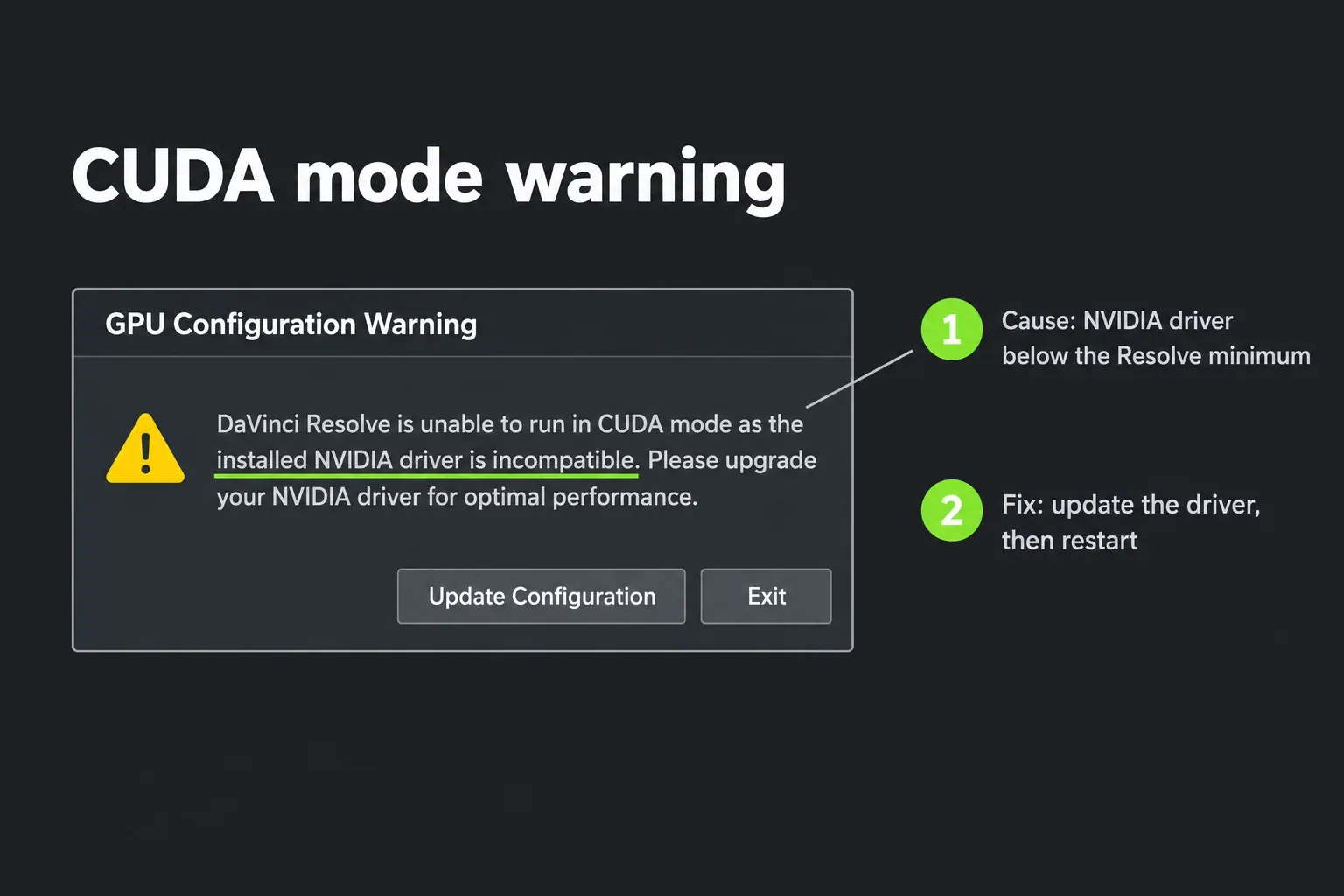
DaVinci Resolve shows the "unable to run in CUDA mode" warning when the installed NVIDIA driver is older than the minimum that Resolve version was built for. For Resolve 21.1.2 that minimum is NVIDIA Studio driver 581.57 or newer on Windows and 580.119.02 or newer on Linux, as the DaVinci Resolve 21.1.2 readme lists. Install a driver at or above that number, restart the computer, then open DaVinci Resolve > Preferences > System > Memory and GPU and set GPU processing mode to Auto or CUDA.
You don't need the CUDA Toolkit, and the CUDA number nvidia-smi reports isn't the one to compare. The driver number is. Switching GPU processing mode to OpenCL gets Resolve open on the same card, but I'd keep that only long enough to finish a job, because the manual recommends CUDA for NVIDIA cards on Windows and Linux, and the one published render comparison has OpenCL taking three times as long.
What the CUDA mode warning means
The current wording appears in a GPU Configuration Warning dialog at launch: "DaVinci Resolve is unable to run in CUDA mode as the installed NVIDIA driver is incompatible. Please upgrade your NVIDIA driver for optimal performance." The dialog offers two buttons, Update Configuration and Exit. A Linux Mint forum thread quotes exactly that text and the prompt to "update configuration or exit".
Older builds said it differently. An older Blackmagic forum thread carries the version "DaVinci Resolve is using OpenCL for image processing because the installed NVIDIA driver does not support CUDA 12.3. Upgrade your NVIDIA driver." Different words, same cause: the driver on the machine can't run the CUDA version that build of Resolve uses.
CUDA support lives in the driver. NVIDIA's CUDA compatibility documentation says the driver package includes the user-mode CUDA driver and the kernel-mode components an application needs to run. Developers install the CUDA Toolkit to build software. Resolve is already built, so it needs a recent enough driver and nothing else from that toolkit.
The GPU Configuration section of the DaVinci Resolve 21.1 manual says most users can leave GPU processing mode on Auto, and that Windows and Linux users with NVIDIA cards should use CUDA with the correct drivers for the system and "the latest update to CUDA installed". On a Resolve workstation that latest CUDA update arrives with the driver. I wouldn't install the toolkit to chase this warning, because Blackmagic's readme lists a driver number and no toolkit at all.
Read your driver number first
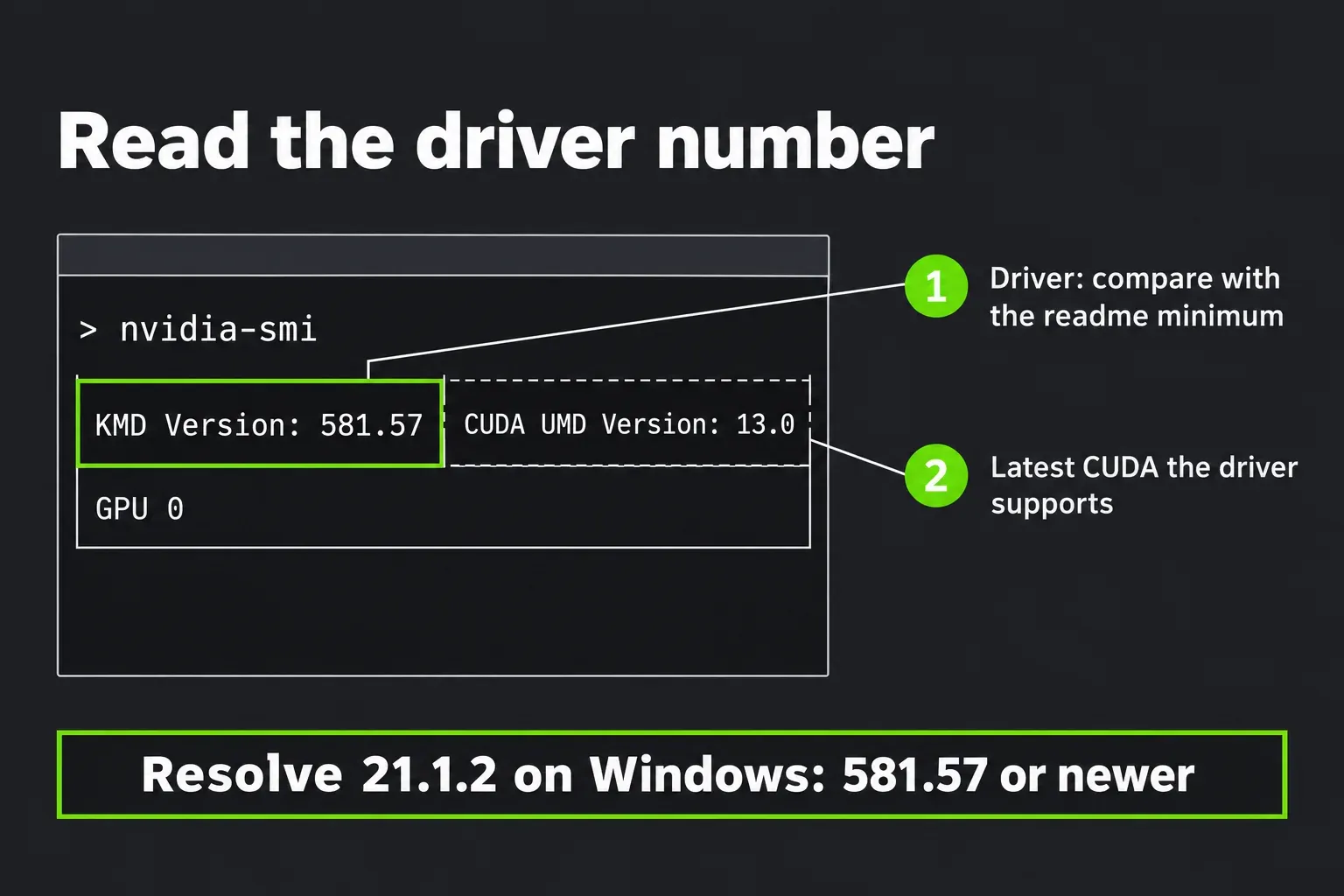
Check before you download anything. NVIDIA's nvidia-smi documentation covers the command-line tool for Linux and 64-bit Windows: open a terminal, or Command Prompt or PowerShell on Windows, type nvidia-smi and press Enter. Two numbers in its header matter here.
- KMD Version (shown as Driver Version on older drivers) is the installed NVIDIA display driver. Compare this one with the readme minimum, for example 581.57 on Windows for Resolve 21.1.2.
- CUDA UMD Version (formerly CUDA Version) is the latest CUDA version the driver supports. NVIDIA notes it's usually, but not always, the installed toolkit version.
The CUDA figure misleads people. A driver can report CUDA 12.8 or higher and still sit below the Resolve floor, because Resolve 20.3.3 raised its minimum driver without moving to a newer CUDA version. Compare the driver number group by group, reading each group as a whole number: on Linux, 580.95.05 is older than 580.119.02, because 95 is lower than 119.
NVIDIA driver floor for each Resolve version
Blackmagic publishes the minimum in the readme of every release. The table groups 13 readmes, from 18.6.6 to 21.1.2, by the floor they share. Every readme that gives a number asks for the NVIDIA Studio driver.
| Resolve version | CUDA | Windows driver | Linux driver | VRAM |
|---|---|---|---|---|
| 21.1.2, 21.0, 20.3.3 | 12.8 | 581.57 or newer | 580.119.02 or newer | 4 GB |
| 20.0 to 20.3.2 | 12.8 | 570.65 or newer | 570.26 or newer | 4 GB |
| 19.1.4 | 12 | 550.58 or newer | 550.40.07 or newer | 4 GB |
| 19.0 | 12 | 550.58 or newer | As required by your GPU | 2 GB |
| 18.6.6 | 11 | As required by your GPU | As required by your GPU | 2 GB |
The 20.0 to 20.3.2 row covers seven releases: 20.0, 20.1, 20.2, 20.2.3, 20.3, 20.3.1 and 20.3.2. The Linux floor applies to Rocky Linux 8.6, the distribution the readmes name. The rest of each readme, memory and operating system included, sits in our DaVinci Resolve system requirements guide, and a card near the VRAM minimum runs into a different warning covered in the GPU memory full fix.
Fix it on Windows
- Find your Resolve version. Open DaVinci Resolve > About DaVinci Resolve, then find its row in the table above.
- Read the driver number. Run
nvidia-smiin Command Prompt and compare KMD Version (or Driver Version) with that row. - Install the NVIDIA Studio driver at or above the floor. Pick the Studio driver for your card and Windows version from NVIDIA. I'd use Studio because it's the driver Blackmagic's readme names.
- Restart the computer before you open Resolve again.
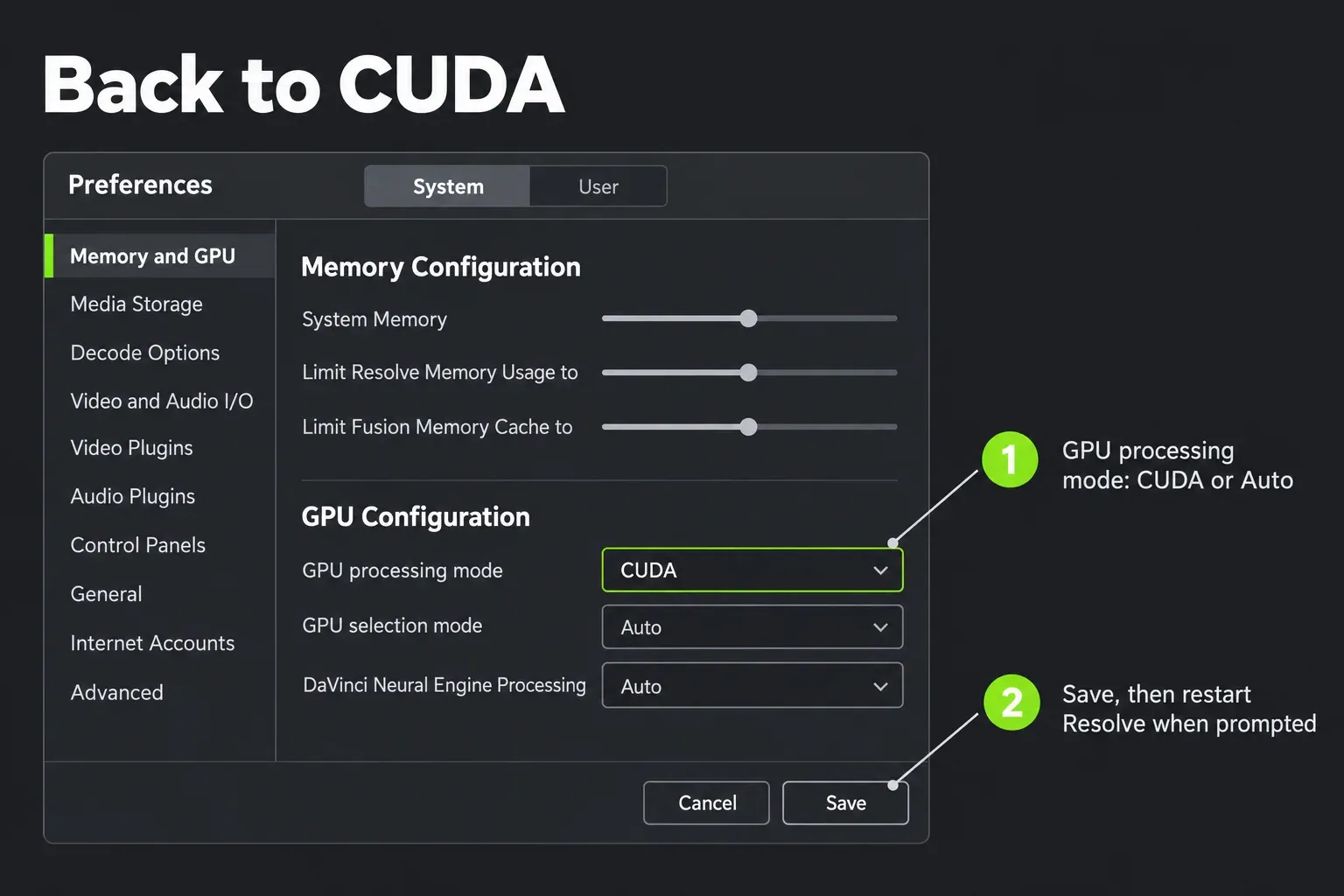
- Set GPU processing mode back. Open DaVinci Resolve > Preferences > System > Memory and GPU and set GPU processing mode to Auto or CUDA, then click Save. Resolve prompts for a restart after some System changes, as the manual's preferences section notes.
If the warning still appears after a restart, read nvidia-smi again before anything else. A driver that failed to install or rolled back shows the old number, which takes the guesswork out. A Resolve that still won't launch with a correct driver is an install problem; the installation errors guide covers that, and our DaVinci Resolve for Windows guide covers a clean setup.
Laptops and machines with two GPUs
Laptops add a step. On the NVIDIA driver page for 581.57, NVIDIA says its Game Ready and Studio drivers can be installed on supported notebook GPUs, but the laptop maker provides certified drivers for that notebook, and NVIDIA recommends checking with the maker first. Look at the maker's driver number. If it's below the Resolve floor, the same note confirms NVIDIA's own package installs on supported notebook GPUs, which is the way back to CUDA mode.
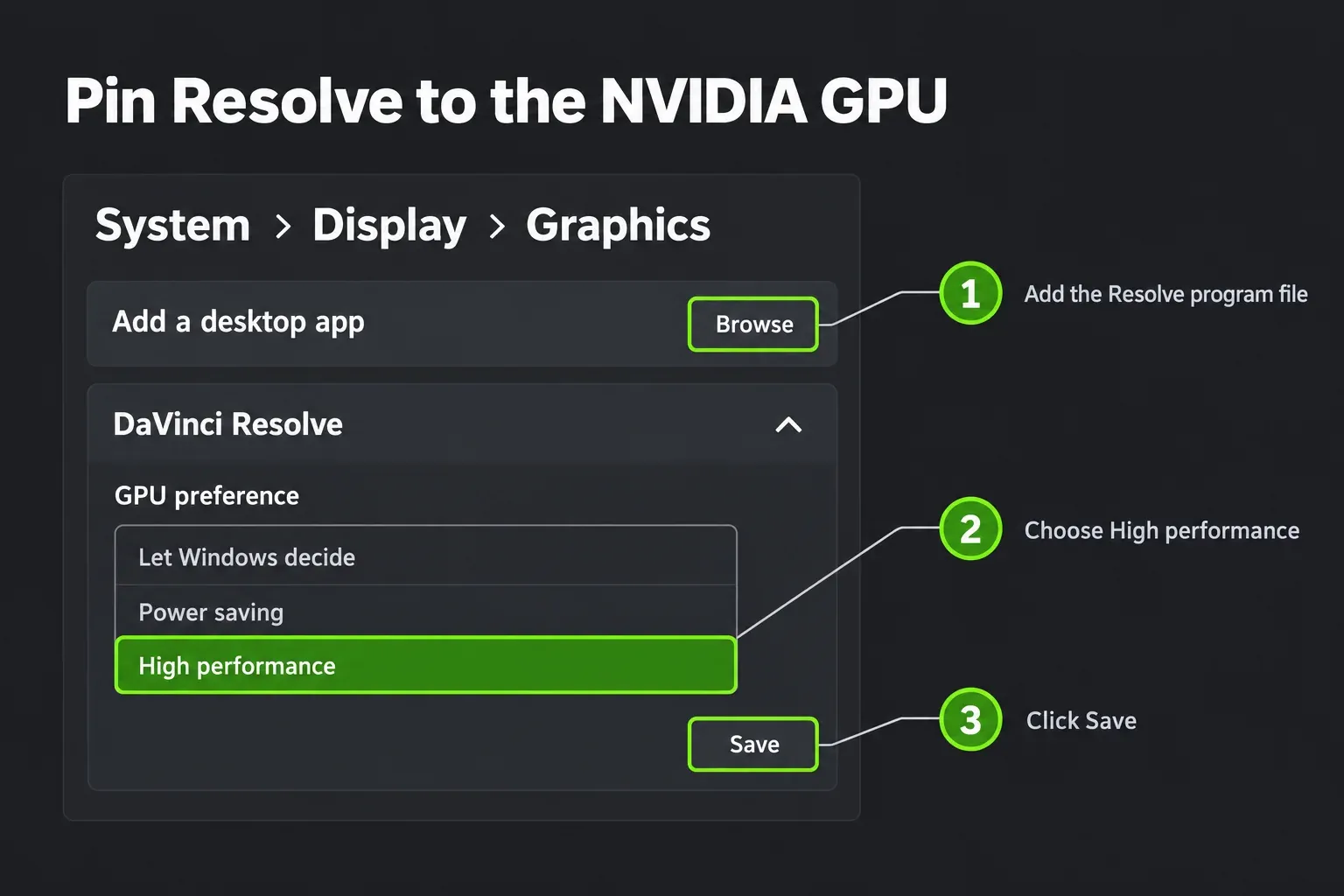
The second laptop trap is the integrated GPU. On Windows 11 you can pin Resolve to the NVIDIA card, as XDA's guide to choosing a GPU per app walks through:
- Open Settings > System > Display > Graphics.
- Click Add a desktop app and browse to the Resolve program file.
- Expand the Resolve entry, choose High performance, then click Save.
- NVIDIA Control Panel offers the same choice: Manage 3D Settings > Program settings, add Resolve, choose High-performance NVIDIA processor and click Apply.
I'd do the pinning on every hybrid laptop as a precaution. It doesn't fix an old driver, but it keeps Resolve on the card the driver belongs to. The free version uses a single processing GPU on Windows and Linux, and support for multiple GPUs is a Studio feature, as the 21.1.2 readme lists. Our Resolve vs Studio comparison covers the rest of that split, and the best laptops for DaVinci Resolve page lists machines with enough VRAM.
Fix it on Linux
Linux follows the same rule with different numbers: 580.119.02 or newer for Resolve 20.3.3 through 21.1.2, and 570.26 or newer for 20.0 to 20.3.2. Blackmagic writes those floors for Rocky Linux 8.6. On Ubuntu, Mint or Debian, install the NVIDIA driver packages your distribution provides at or above the floor, then reboot.
The Linux Mint thread is a clean example. The poster installed Resolve 20 with nvidia-driver-550 on a Turing card and got the warning, since 550 sits below the 570.26 floor Resolve 20 had. The repository listed 570-series packages at the same time. A forum moderator asked why they'd chosen 550 over the recommended 570-open driver and quoted NVIDIA guidance from July 2024: open kernel modules are recommended for Turing and newer cards, while Maxwell, Pascal and Volta cards must keep the proprietary driver. The thread is marked solved.
Restart after any driver or kernel update. In an Arch Linux forum thread, an RTX 2070 on driver 455.28 returned cuInit error 999 to Resolve and to a test program. The poster traced it to a new kernel that didn't match the installed NVIDIA driver, and a reboot solved it.
OpenCL is where Linux users get stuck. The Mint poster switched to OpenCL, Resolve opened, and imported videos showed up as gray, silent clips while separate audio files imported fine. The thread doesn't name the video format. On Linux, H.264 and H.265 decode is Studio-only in Blackmagic's codec list, as our supported codecs and formats guide shows, and our DaVinci Resolve for Linux guide notes there's no AAC support either. Test with a file Resolve can read on Linux before you blame the GPU mode.
Older NVIDIA cards: Kepler, Maxwell, Pascal and Volta
Card generation decides whether a driver update is possible at all.
- Kepler (GeForce GTX 600 and most 700 cards): NVIDIA ended Kepler support with the R470 driver series, as Phoronix reported on the Kepler end of life, and the CUDA 12.0 release notes removed Kepler support from the toolkit. Resolve 19 and later run on CUDA 12 and ask for 550 or newer drivers, so CUDA mode is out for Kepler on current versions.
- Maxwell, Pascal and Volta (GTX 750, GTX 900 and 1000 series, TITAN V): R580 is the last driver branch, according to Phoronix on the 580 Linux driver, and NVIDIA's announcement reported by Tom's Hardware ends Game Ready driver updates in October 2025, with quarterly security updates through October 2028. Driver 581.57 is an R580 release, so these cards still meet the Resolve 21.1.2 floor.
- Turing and newer (GTX 16, RTX 20 series and later): still on current driver branches.
The CUDA Toolkit release notes show CUDA 13 dropping library support for Maxwell, Pascal and Volta, but Resolve 21.1.2 still targets CUDA 12.8. Before you update Resolve on a GTX 900 or 1000 card, I'd open the new readme and check its driver floor against the newest driver your card can get. Our guide to updating DaVinci Resolve safely covers the backup side of that.
For a Kepler card, the choices are OpenCL as a stopgap, an older Resolve from our old versions guide only after checking its readme floor in the table, or a new card. The Resolve PC checker sorts out what your machine can run, and the best GPU for DaVinci Resolve guide covers the upgrade.
When CUDA won't show up in the GPU list
The GPU list only shows up under two settings. According to the manual's GPU selection notes, the list of cards appears only when GPU processing mode is set to OpenCL, CUDA or Metal by hand and GPU selection mode is set to Manual. Leave both on Auto and there's no list to tick.
- CUDA can't be selected: update the driver first. A Blackmagic forum thread titled "Cannot select CUDA in GPU configuration" was answered with the Resolve 20 floor of the time, Studio driver 570.65 or newer.
- Two cards, only one used: the free version processes on one GPU on Windows and Linux, so a second NVIDIA card waits for Studio.
- A Mac: the manual recommends Metal on macOS, and AMD cards on Windows and Linux use OpenCL, so the CUDA warning is an NVIDIA problem.
If the settings got messy while you experimented, click the Option menu at the upper-right corner of the Preferences window and choose Reset System Preferences to return them to defaults.
What 13 readmes and 7 user reports show
The readmes show why the warning comes back after updates. Across 13 releases, the Windows floor rose three times: 550.58 at 19.0, 570.65 at 20.0 and 581.57 at 20.3.3. The 20.0 floor matches the minimum driver the CUDA Toolkit release notes list for CUDA 12.8, 570.65 on Windows and 570.26 on Linux, digit for digit. The 20.3.3 raise came without any change to CUDA, so a driver that ran 20.3.2 fine triggers the warning on 20.3.3.
The user reports point the same way. Every public thread on the first results page and its follow-up searches with a visible cause adds up to seven threads across four platforms. Six show a driver below the readme floor and one a kernel and driver mismatch on Linux. A Reddit thread whose cause isn't visible stayed out of the count.
| Thread | Setup named | Cause |
|---|---|---|
| Blackmagic forum, "Cannot select CUDA" | Resolve 20; answer cites Studio 570.65, Resolve 19 needed 550.58 | Driver below the floor |
| Blackmagic forum, Resolve 20 and CUDA 12.8 | Resolve 20 needs 570.65 or newer for CUDA 12.8 | Driver below the floor |
| Blackmagic forum, CUDA 12.3 wording | Build not named; warning cites CUDA 12.3 | Driver without CUDA 12.3 support |
| Linux Mint forums | Resolve 20, nvidia-driver-550, Turing card | Driver below the 570.26 floor |
| Facebook user group, two posts (not linked) | Resolve won't open; driver update fails | Driver below the floor |
| Arch Linux forums | RTX 2070, driver 455.28, CUDA 11.1 | New kernel out of step with the driver |
Speed is the main cost of staying on OpenCL. One older Blackmagic forum report describes a 5-minute video with Fusion and color work taking 10 minutes on CUDA and 30 on OpenCL. It's a single report from an older build with no system named, so read it as a direction, not a figure for your machine. Puget Systems' Resolve hardware recommendations say that "dollar-for-dollar" NVIDIA cards give better performance in Resolve, a comparison with AMD cards that doesn't isolate CUDA against OpenCL. If OpenCL playback stutters while you wait for a driver, the slow playback fixes help more than fiddling with GPU modes.
Other GPU errors look similar but have different causes. Crashes with a correct driver belong in Resolve keeps crashing, and a failed export with a GPU message is covered in the render failed guide.
Questions about the CUDA mode warning
Do I need to install the CUDA Toolkit for DaVinci Resolve?
No. The NVIDIA driver includes the CUDA driver components Resolve uses, and Blackmagic's readme lists only a driver version. The toolkit is for developers building CUDA software.
Can I use the Game Ready driver instead of the Studio driver?
Blackmagic's readme names the NVIDIA Studio driver and gives its minimum version. A Game Ready driver isn't listed there, so the Studio driver at or above the floor is the safe match for Resolve.
Why did the warning appear right after a Resolve update?
The new version raised its driver floor. Resolve 20.0 moved Windows from 550.58 to 570.65, and 20.3.3 moved it to 581.57 without changing the CUDA version. Check the readme of the new build against your driver number.
Is OpenCL a fix for the CUDA warning?
It's a stopgap. Resolve runs on OpenCL with an NVIDIA card, but the manual recommends CUDA for NVIDIA cards, and the one published CUDA vs OpenCL report has OpenCL taking three times as long.
Does the free version of DaVinci Resolve use CUDA?
Yes. The free version uses one processing GPU on Windows and Linux, and the same driver floor applies. Multiple GPUs need Studio.
Will my GTX 1060 keep working with DaVinci Resolve?
On Resolve 21.1.2, yes, if it runs driver 581.57 or newer on Windows or 580.119.02 or newer on Linux. R580 is the last driver branch for Pascal cards, so check each new readme before you update.
Verdict: update the driver, then switch back to CUDA
The CUDA mode warning is a driver-number problem in nearly every report. Six of the seven threads with a visible cause had a driver below the floor, and the seventh fixed itself with a reboot after a kernel update. My default is to read the driver number with nvidia-smi, install the Studio driver at or above the readme floor, restart and set GPU processing mode back to Auto or CUDA. The CUDA Toolkit can stay uninstalled, and OpenCL is for finishing a deadline only. On a laptop, check the maker's driver and pin Resolve to the NVIDIA card. On a Kepler card, CUDA is over for current versions, and on a GTX 900 or 1000 card, read the floor in every new readme before you update.