Start at Blackmagic Design’s official Resolve page, then check your Mac before you pick a download. Updating an existing installation? Back up the project library and export the projects that matter before the new version opens them.
An Intel Mac needs its own compatibility check. If About This Mac shows Processor followed by an Intel model, don't assume the current installer supports it: Intel sits outside Blackmagic's listed 21.1.1 baseline. That doesn't prove every Intel Mac is technically unable to launch it. It means you should take the official older-version download route and match the release to both your hardware and your macOS version.
When I rechecked Blackmagic's download catalog on October 5, 2026, the newest Free and Studio Mac packages were DaVinci Resolve 21.1.1, posted October 2. Its readme repeats the 21.1 Mac requirements unchanged, so the figures below still apply. If the official download shows something newer when you visit, read its release notes first. The Download & Install hub covers the other platforms and download choices.
Check the Mac Before You Download
Open the Apple menu, then About This Mac. Apple's current identification guide says an Apple silicon model shows Chip, while an Intel model shows Processor. The same window also tells you the installed macOS version and how much memory the Mac has.
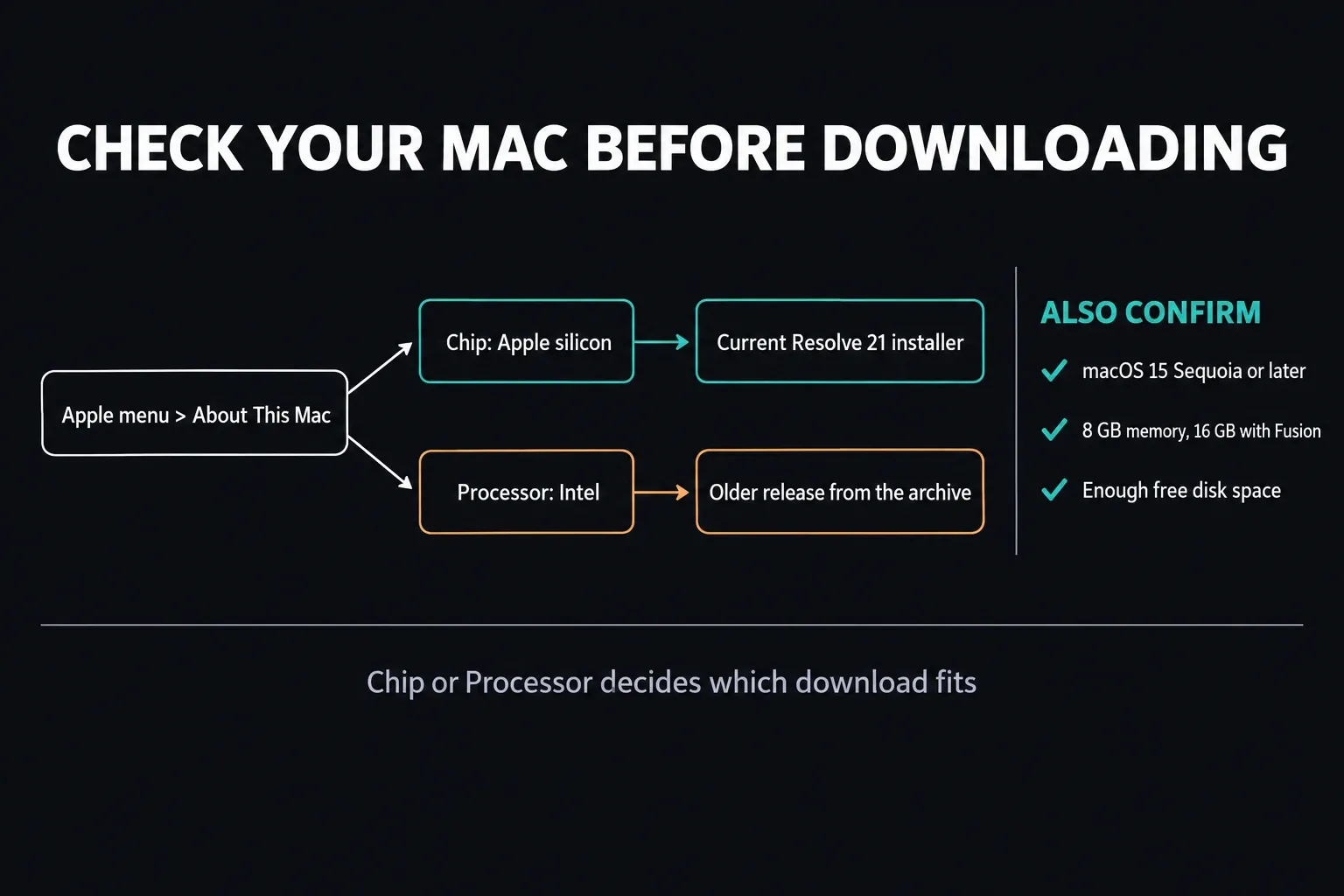
| Current Resolve 21.1.1 Mac minimum | What it means |
|---|---|
| macOS 15 Sequoia or later | An older macOS release is outside the current minimum. |
| Apple silicon computer | About This Mac should show Chip, not an Intel Processor field. |
| 8GB system memory | This is a compatibility floor, not a comfortable target for every project. |
| 16GB when using Fusion | Fusion raises Blackmagic's stated memory minimum. |
| Desktop Video 12.9 or later for monitoring | Relevant when the workflow uses supported Blackmagic video I/O hardware. |
These values come from Blackmagic's Resolve 21.1.1 readme. They describe a compatibility floor, not smooth playback with every camera format, noise-reduction stack or Fusion composition. For the broader hardware question, use the complete system requirements guide.
Apple silicon covers families such as M1, M2, M3, M4 and M5, and Apple's own list of Apple silicon models now includes the MacBook Neo too. Sharing that processor class doesn't make every Mac equally capable, though. Memory, the exact chip, cooling, source codec and effects decide how demanding the job will be. If you're buying rather than installing on a Mac you already own, compare configurations in our Resolve laptop guide.
Blackmagic Website or Mac App Store?
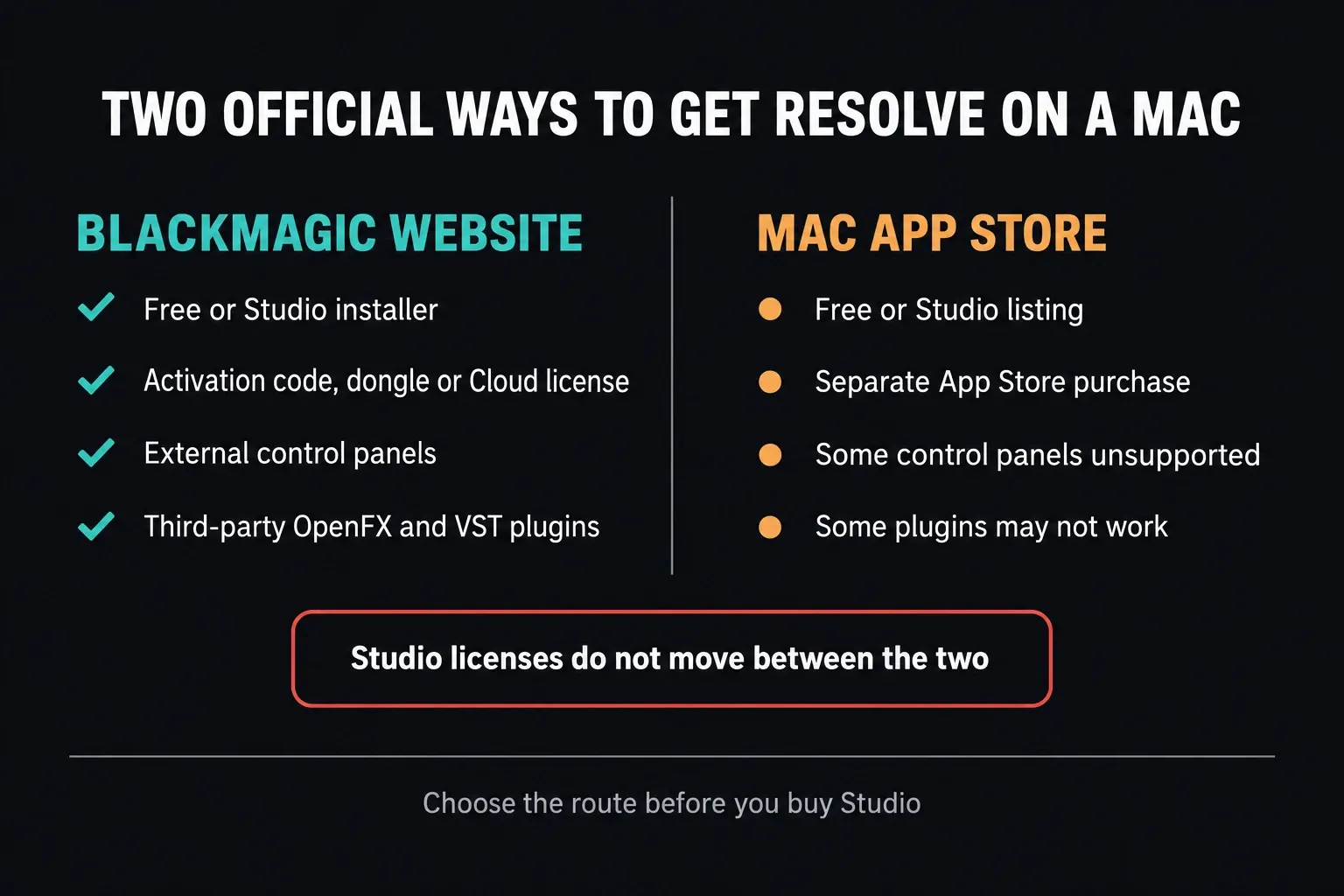
Both routes are official, but they solve different problems. The current Mac App Store listing, written by Blackmagic, says its build doesn't support some external control panels and may not work with every third-party OpenFX or VST plugin. Anyone who needs those integrations is sent to Blackmagic's support website.
| Your situation | Download route to check |
|---|---|
| You rely on a control panel or third-party OpenFX/VST plugins | Start with the direct Blackmagic build; check the specific integration’s requirements. |
| You prefer App Store installation and its stated limitations do not affect your work | The official Mac App Store listing is a valid option. |
| You already own a Studio activation code, dongle or Blackmagic Cloud license | Use the direct Studio build for that license, not the separately purchased App Store edition. |
| You bought Studio through the Mac App Store | Use that App Store purchase; do not expect it to activate the direct Studio installer. |
For a working edit station, I'd start with the direct Blackmagic build unless you have a specific reason to use the Store. That's about integration and licensing, not a claim that one build renders faster. Blackmagic's September 2026 Studio features sheet also marks workflow integrations, the scripting API and the Fusion VR and Immersive toolset as unavailable in Mac App Store installations. Check the panel or plugin you actually need instead of assuming every third-party tool behaves the same way.
Free or Studio on Mac?
Free doesn't need a paid Studio license. For direct Studio downloads, Blackmagic's current release listing accepts a software activation code, license dongle or Blackmagic Cloud license. Downloading the Studio installer doesn't give you that entitlement.
The Mac App Store is a separate license channel. Blackmagic's Studio licensing table says a Store purchase isn't interchangeable with other desktop or Cloud licenses. A Store purchase won't activate the direct Studio installer, and a direct activation code isn't a Store purchase. For feature limits, see Free versus Studio; the cost and license guide covers buying choices.
Download the Direct Mac Installer From Blackmagic
- Open the official Blackmagic Resolve product page.
- Choose the Free download, or the Studio route that matches your license.
- Select Mac OS X in Blackmagic's download picker.
- Fill in the registration details if the Free download asks for them.
- Save the file locally and let the download finish completely.
- If the browser saved a compressed archive, expand it before you run the installer.
We link to the developer instead of hosting or repackaging the installer. Start from Blackmagic's product or support page and check the exact version you picked. A file size or checksum copied from a different release doesn't validate your download.
Back Up an Existing Project Library Before Updating
Installing for the first time? Skip to the next section. Updating a system that already works? Protect the downgrade path before the new version opens a production project.
Blackmagic says it has tried to keep the 21.1.1 project library compatible with 20.3.2. It also says individual projects created or opened in 21.1.1 are no longer accessible in 20.3.2. So reinstalling the old application isn't a complete rollback plan.
- Make a full project-library backup.
- Export separate backups of active or irreplaceable projects.
- Write down the current Resolve version and any critical plugin versions.
- Keep the backups away from the cache and working-media locations.
- Open a duplicate test project in the new version before any production work.
Our safe Resolve update workflow walks through the backup and rollback steps. Keeping the old application helps, but it can't undo a project-format change; only the pre-update backup protects that project.
Install the Blackmagic Build on macOS
Blackmagic's readme says to double-click the DaVinci Resolve Installer icon and follow the onscreen instructions. On a Mac you first open the downloaded disk image to get to that installer, as Apple's disk-image and package installation instructions describe.
- Find the finished download. If it arrived as a ZIP archive, expand it first.
- Open the .dmg disk image, then double-click the DaVinci Resolve Installer inside it; the name may include the version number.
- Make sure this is the package from the official download you asked for, and read the installer's prompts before you approve them.
- Follow the installation steps and enter administrator credentials only if asked. Keep the normal Applications location.
- Close the installer when it's done. Restart if asked, then open Resolve from Applications.
Read the exact macOS warning before you decide anything. Apple's safe-app guidance separates an app it can't verify from one reported as damaged, malicious or revoked. An official-looking filename on its own is no reason to override a warning.
For an eligible unverified-developer or notarization warning, Apple describes one specific exception: System Settings > Privacy & Security > Open Anyway. Only consider it when you trust the source and you're confident the app hasn't been altered. If you can't establish that, stop and get a fresh official copy, or ask the developer about the alert.
Do not use that exception for a malware, damaged-app or revoked-authorization alert. Deal with the cause of the warning instead of forcing the package to run. Don't switch off Gatekeeper globally or paste Terminal bypass commands from an install tutorial. On a managed Mac, your organization may restrict installation or exceptions.
Install From the Mac App Store
Open the official Free or Studio listing in the Mac App Store and check that the developer is Blackmagic Design Inc. Sign in with the Apple Account you mean to use, especially for a Studio purchase. When checked on October 17, 2026, the Free listing and Studio listing both showed version 21.1.1, dated October 8 and October 6 respectively. Both specify macOS 15 or later, Apple silicon, 8GB memory or 16GB with Fusion, and a 1440×900 display. That display figure comes from the Store listings; you won't find it in the direct-build readme.
Before switching from the Store edition to the website edition, back up your projects and confirm your license channel. Don't erase libraries or preferences just to change distribution. Install and test the build you want before you remove anything you might need for recovery.
Prove the First Launch With Real Media
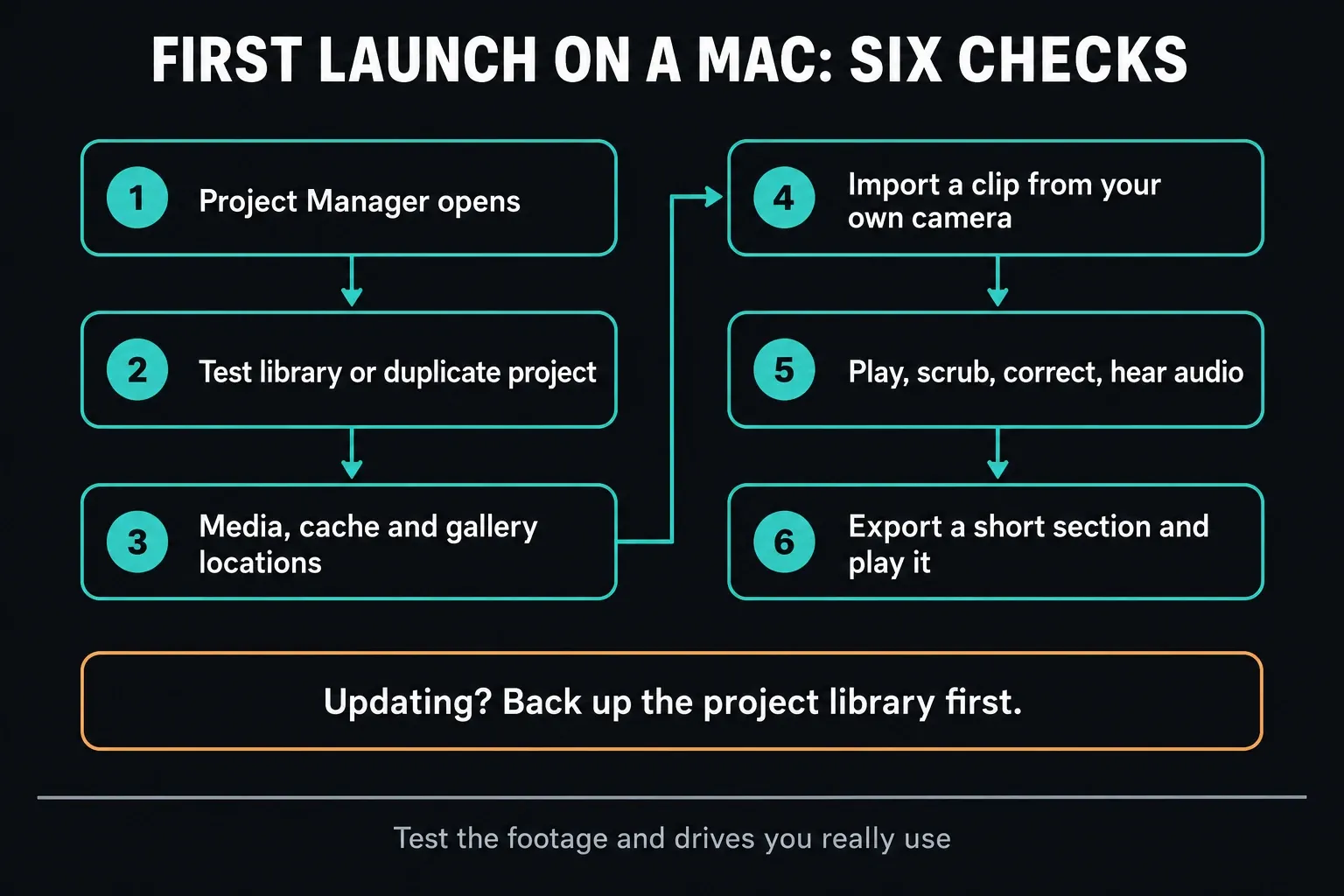
- Launch Resolve and check that it reaches the Project Manager.
- If this is an update, start with a test library or a duplicate project.
- Check the media, cache and gallery locations before Resolve generates large files.
- Import one clip from the camera, phone or screen recorder you actually use.
- Play and scrub it, apply a simple correction and confirm that you hear audio.
- Export a short section and play the result outside Resolve.
A sample clip can't stand in for every 10-bit HEVC, RAW, multicam or Fusion workload. Test footage from the camera, phone or screen recorder you normally use, with an effect that's typical of your work. If Resolve launches but playback is poor, go through the slow-playback diagnosis before reinstalling anything.
If Resolve Will Not Install or Open on Mac
| Symptom | First check |
|---|---|
| The current installer will not run on an Intel Mac | Intel is outside the current 21.1.1 listed minimum. Use Blackmagic's archive and match an older Resolve release to the Mac and macOS version. |
| macOS says the package cannot be opened | Read the exact alert. Only an eligible unverified-app warning has a limited exception path; do not override malware, damaged-app or revoked-authorization warnings. |
| Resolve opens but a panel or plugin is missing | Check whether this is the Mac App Store build and compare the device or plugin with the App Store limitations. |
| Resolve opens but media is slow or offline | Separate source-codec, storage, permission and performance problems from the installation itself. |
| An older Resolve version will not open an updated project | Restore the library or individual-project backup made before the update opened it. |
Change one reversible thing at a time. Keep the exact error, install source, Mac chip and macOS version together; they help separate incompatible hardware, permissions, licensing and a failed setup. If those checks don't find the problem, use the installation-errors guide. Don't delete preferences, libraries and cache all at once to see what happens.
How to Uninstall Resolve on Mac
For the direct Blackmagic build, the 21.1.1 readme points to the Uninstall Resolve icon. For a Store installation, follow Apple's app-removal instructions for that copy. Neither one tells you to delete project libraries, source footage, galleries or exports by hand.
Back up projects before removing anything. For a clean reinstall, work out the install source, license channel and exact problem first. A destructive “clean up everything” pass is rarely the safest first repair.
Frequently Asked Questions
Is DaVinci Resolve free on Mac?
Yes. The Free edition is available for Mac from Blackmagic Design and through the Mac App Store. Studio is a separate paid edition. Choose the distribution and license path on purpose, especially if you use external panels or third-party plugins.
Does DaVinci Resolve 21 work on Intel Macs?
Blackmagic's Resolve 21.1.1 Mac minimum lists an Apple silicon computer, not Intel. Treat an Intel Mac as outside that supported baseline and match an archived release to its hardware and macOS version. That isn't a claim that every Intel Mac is technically incapable of launching the app.
Does DaVinci Resolve work on M1, M2, M3, M4 and M5 Macs?
Yes, on paper: these are Apple silicon families, the processor class the 21.1.1 minimum names. You also need to meet the macOS and memory requirements. Chip tier, memory, cooling, codec and effects still affect performance; the chip name alone doesn't guarantee smooth editing.
Should I download Resolve from Blackmagic or the Mac App Store?
Use the Blackmagic website when you need external control panels or third-party OpenFX or VST plugins. Blackmagic's current App Store listing says some panels are unsupported and some plugins may not be compatible. The App Store is still an official route when those limits don't affect you.
How much memory does DaVinci Resolve need on Mac?
Blackmagic's Resolve 21.1.1 minimum is 8GB of system memory, or 16GB when using Fusion. That's a compatibility minimum. Bigger projects, Fusion, noise reduction and multitasking can justify a lot more memory.
Why will DaVinci Resolve not open on my Mac?
Check the exact alert, Mac chip, macOS version and download source first. An unsupported configuration, a security warning, a missing plugin and an updated project that won't open in an older release are different problems. Don't bypass a malware or damaged-app warning, and don't delete project data as a first repair.
Can I update Resolve on Mac without backing up?
You can install an update, but opening a production project without a backup throws away a safe downgrade path. Blackmagic says projects created or opened in 21.1.1 can't then be opened in 20.3.2. Back up the full library and export important projects first.
