Quick answer: for mixed DaVinci Resolve work, my first shortlist pick is the 16-inch MacBook Pro with M5 Pro, 48GB memory and a 1TB SSD. For Windows editing, compare the ASUS ProArt P16 and the Lenovo Legion Pro 7i with an RTX 5070 Ti Laptop GPU, 12GB of VRAM and at least 32GB of system memory. Those Windows configurations fall below Studio 21.1's 16GB VRAM requirement for advanced AI tools, so pick a bigger GPU if that work pays your bills.
That answer shifts if you mostly cut travel edits, work from proxy media or run straightforward 4K timelines. A 24GB MacBook Air M5 can make sense there, and an RTX 5060 Windows laptop with 32GB of RAM is a reasonable lower-cost place to start. Buying more machine than your projects use wastes money. Buying from a vague product-family name can leave you with the wrong GPU, memory or SSD.
On a small screen, swipe the table sideways to see every column. With a keyboard, focus the table and use the arrow keys.
| Best for | Configuration to look for | Main compromise |
|---|---|---|
| My first pick for mixed work | 16-inch MacBook Pro, M5 Pro, 48GB, 1TB | High entry cost and no later memory upgrade |
| Portable professional work | 14-inch MacBook Pro, M5 Pro, 24GB or 48GB, 1TB | 24GB is below the Studio background-task memory minimum |
| Creator-first Windows laptop | ASUS ProArt P16, RTX 5070 Ti 12GB, 64GB, 2TB where available | 12GB VRAM is below the Studio advanced-AI minimum; check regional SKU |
| Desk-first Windows GPU work | Lenovo Legion Pro 7i Gen 10, RTX 5070 Ti 12GB, 32GB or 64GB | 12GB VRAM is below the Studio advanced-AI minimum; heavy to carry |
| Lower-cost Windows shortlist | Lenovo Legion 5i Gen 10, RTX 5060 8GB, 32GB, 1TB | 8GB VRAM is below both Studio feature thresholds described below |
| Quiet travel and proxy editing | MacBook Air M5, 24GB, 512GB or 1TB | Fanless; 24GB is below the Studio background-task memory minimum |
I first checked the specifications, supporting reviews and Resolve 21.1 requirements on September 9, 2026, and rechecked them on October 1, 2026, while DaVinci Resolve 21.1 was still the current update. Prices and stocked configurations change by country. These are editorial shortlist picks, not a live price ranking or a claim that one machine wins every test. Match the full manufacturer part number before you pay.
Start With the Resolve Workload, Not “4K Capable”
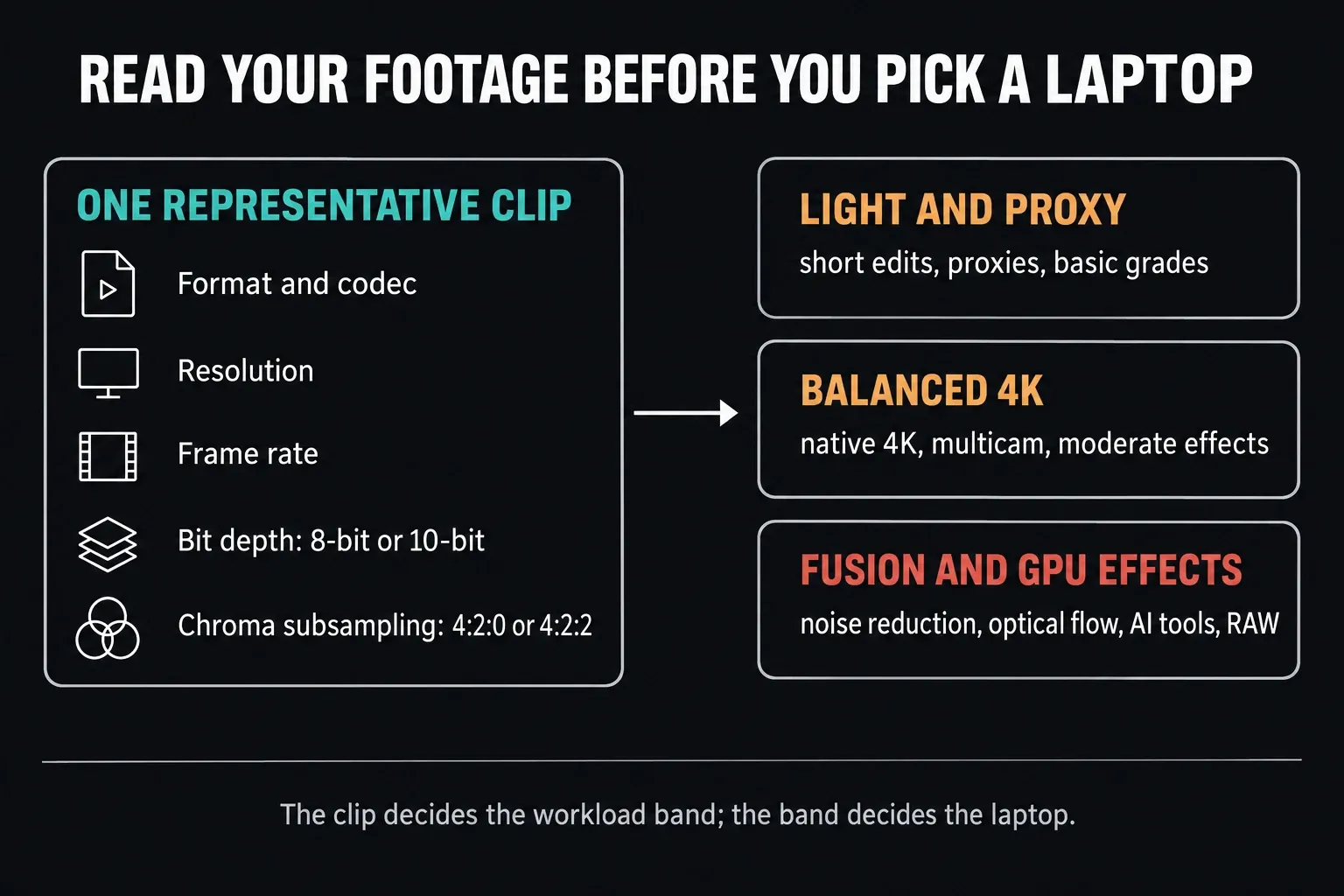
Resolution on its own is a poor laptop filter. One 4K timeline may hold easy-to-decode camera media and a simple grade. Another may stack 10-bit long-GOP footage, multicam streams, noise reduction, Magic Mask, optical flow and a Fusion composition. Both are “4K,” yet they ask very different things of the CPU, GPU, memory and media engines.
Before you compare laptops, open a typical camera clip in MediaInfo and write down its format, resolution, frame rate, bit depth and chroma subsampling. The example below is 8-bit 4:2:0 footage, so a recommendation built on it proves nothing about your 10-bit source.
PugetBench for DaVinci Resolve splits its tests into encoding, processing, real-world timelines, Fusion, GPU effects and AI workloads. The tests run inside Resolve, but most of the measurements come from export or render time. A high score is useful evidence. It doesn't promise that scrubbing your own camera footage will feel just as quick.
I sort projects into three practical workload bands:
- Light and proxy: short-form edits, one or two camera streams, basic correction, titles and optimized or proxy media. Memory and storage still matter, but you rarely need a high-end GPU here.
- Balanced 4K: native 4K editing, several nodes, moderate effects, multicam and regular H.264, HEVC or ProRes delivery. This is where an M5 Pro or an RTX 5060/5070-class configuration starts to make sense.
- Fusion and GPU effects: temporal noise reduction, optical flow, AI tools, heavy Fusion compositions, high-resolution RAW or lots of effects at once. Put sustained cooling, memory headroom and more VRAM first.
If a lighter laptop otherwise suits your life, a planned DaVinci Resolve proxy workflow can be a smarter buy than hauling a much heavier machine around every day. Proxies speed up the editing path. They won't turn a light laptop into a fast Fusion or noise-reduction workstation.
How These Laptops Were Chosen
This is an evidence-led buying guide. I'm not claiming I owned and benchmarked all six laptops. I checked Blackmagic's requirements, the exact manufacturer configurations and reviews that name their test hardware. The M5 Pro benchmark cited below ran on Resolve 20.3 Studio, not Resolve 21. A spec sheet tells you what a laptop contains; only a relevant test tells you how fast it finishes a job.
Blackmagic's Resolve 21.1 readme lists 8GB of system memory on Mac, or 16GB if you use Fusion. On Windows it asks for 16GB, or 32GB with Fusion, plus a GPU with at least 4GB of VRAM. Treat those as compatibility floors, not comfortable buying targets for every project. Our current Resolve system requirements guide covers the full OS and driver matrix.
Studio 21.1: Check the Feature, Not Just the App
The Studio 21.1 requirements add memory conditions of their own. They're minimums for the named features. They don't prove fast playback, and they aren't a blanket ban on every AI-assisted feature below them.
Windows Intel/AMD laptops: advanced AI tools require at least 16GB VRAM. Background rendering requires at least 32GB system RAM and 12GB VRAM. A 12GB RTX 5070 Ti configuration can clear the background-rendering memory condition and still fall short of the advanced-AI one.
Apple Silicon laptops: advanced AI tools require at least 16GB system memory; background rendering and analysis require at least 32GB. The 24GB MacBook Air and 24GB MacBook Pro picks below are editing choices, not configurations for those background features. If you need that memory capacity, choose at least 32GB on the Air or 48GB on the shortlisted M5 Pro, and still weigh cooling against your project.
For a new Windows laptop, I'd start at 32GB of system memory. For a new Mac, 24GB is a workable starting configuration for balanced editing, while 48GB gives M5 Pro buyers more room for Fusion, multitasking and a longer life. Unified memory and Windows RAM plus dedicated VRAM are different architectures, so no honest one-number conversion exists between them.
1. MacBook Pro 16 with M5 Pro: My First Pick for Mixed Work
Buy: M5 Pro with 20-core GPU, 48GB unified memory and a 1TB SSD.
This is where I'd start for a mix of editing, grading and delivery when you want a big working display and still need to move. Apple's MacBook Pro specifications list media hardware for H.264, HEVC, ProRes and ProRes RAW, plus AV1 decode. Those are chip capabilities. They don't promise that every format is supported or accelerated in every Resolve edition, so keep your actual camera codec in the comparison.
The 16-inch M5 Pro pairs an 18-core CPU with a 20-core GPU and 307GB/s memory bandwidth. Notebookcheck's review tested a different memory/storage configuration: 64GB and 4TB. In Resolve 20.3 Studio its PugetBench 2.0.0 results landed close to the RTX 5090 ProArt P16 in that comparison, though the P16 scored higher in both Resolve presets. That earns M5 Pro a place on the shortlist. It doesn't promise the same result from a 48GB/1TB machine in Resolve 21.
Choose it if: you want one mobile machine for a broad mix of editing, color and delivery, and its size fits your bag. Apple's web-browsing battery figures describe a different workload from rendering in Resolve, so don't read them as editing-runtime estimates.
Skip or step up if: your work is dominated by demanding Fusion, temporal effects or high-resolution RAW, and every render minute you save is worth real money. Compare an M5 Max configuration or a larger-VRAM Windows system, but run that comparison against your own project files before paying the premium.
2. MacBook Pro 14 with M5 Pro: Best Portable Pro Choice
Buy: M5 Pro with a 1TB SSD; 24GB for mainstream editing or 48GB for heavier Fusion and multitasking.
The 14-inch Pro is the easier one to carry: Apple lists the M5 Pro models at 1.60kg for the 14-inch and 2.14kg for the 16-inch, before the charger. You give up screen area for Resolve's dense interface. Check the chip as well. The 14-inch M5 Pro comes with 16-core or 20-core GPUs, so two listings that both say “M5 Pro” may not hold the same processor configuration.
Leave room in the budget for storage. Source media, proxies, optimized media, cache and exports pile up fast. I'd pick 1TB for a primary editing laptop whenever possible, even if active media lives on an external SSD. That's my buying preference, not a Resolve installation requirement.
3. ASUS ProArt P16: Best Creator-First Windows Option
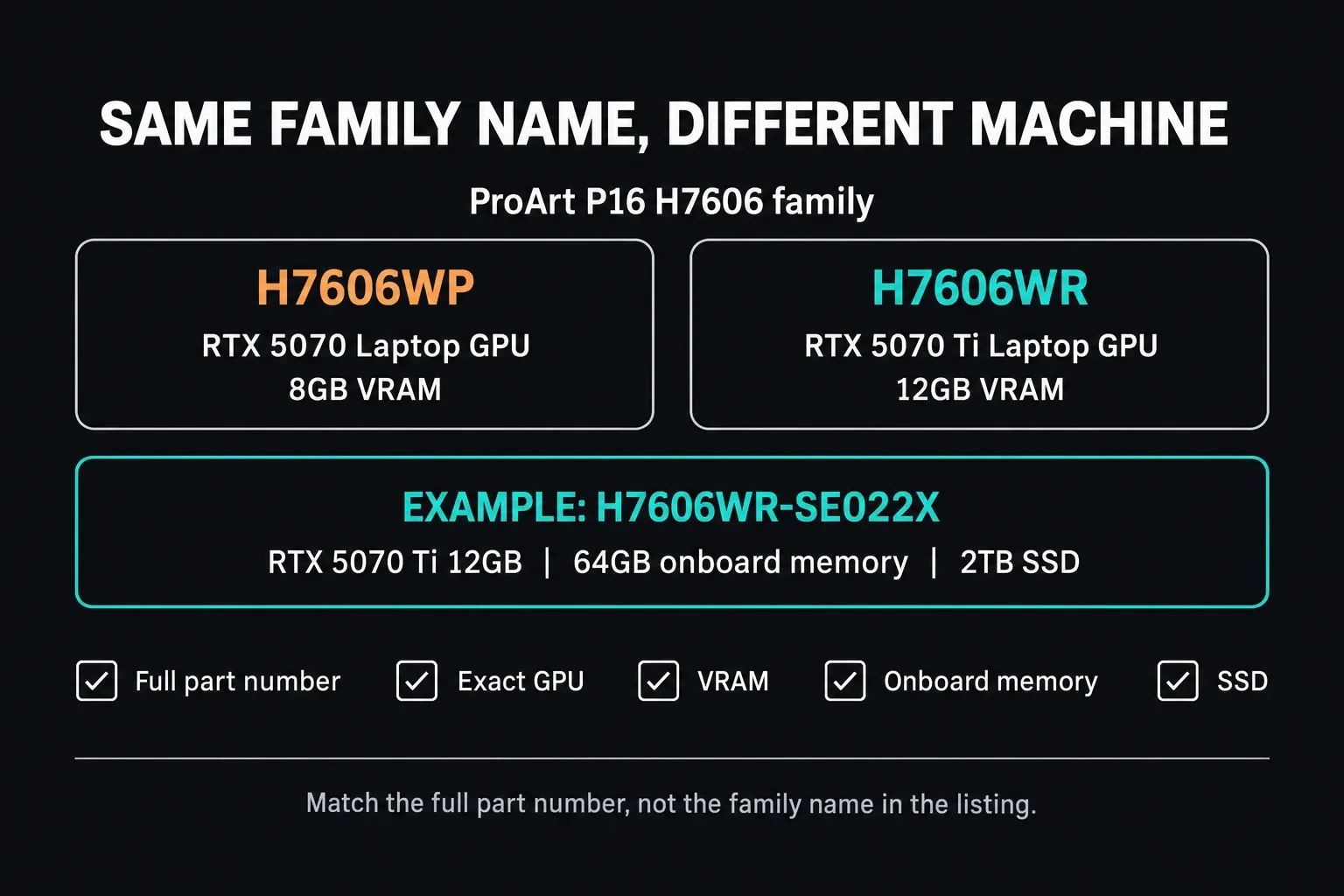
Configuration to compare: RTX 5070 Ti Laptop GPU with 12GB VRAM, 64GB system memory and a 2TB SSD. One verified regional example is the ASUS H7606WR-SE022X, which has all four of those specs. Another P16 listing may not.
The ProArt P16 earns a look when you want Windows and NVIDIA hardware in a chassis built for creators. ASUS's regional specification table shows why the part number matters: the H7606 family spans several GPUs and memory configurations. Its system memory is onboard, so you can't upgrade the RAM later.
Don't assume every RTX 5070 Laptop GPU has 8GB of VRAM. NVIDIA added a 12GB variant in April 2026, and XMG's manufacturer explanation separates the 8GB and 12GB versions from the RTX 5070 Ti. The P16 H7606WP in the ASUS table has 8GB; the H7606WR example above carries a 12GB 5070 Ti. Check the actual laptop, not just “5070” in the title. Equal memory capacity doesn't make two GPUs equally fast, either.
Watch out for reviews of the same family. Notebookcheck's May 2025 P16 review tested the H7606WP with an RTX 5070, 64GB RAM and a 2TB SSD. Its limited generational performance gain says nothing direct about the 5070 Ti model recommended here, and it wasn't a Resolve 21 benchmark. Use that review for the configuration it actually measured.
4. Lenovo Legion Pro 7i Gen 10: A Desk-First Windows Option
Buy: RTX 5070 Ti 12GB with 32GB or 64GB of system memory and at least 1TB of SSD storage.
Look for the 16IAX10H platform. Lenovo's official Pro 7 specifications list the RTX 5070 Ti Laptop GPU with 12GB GDDR7 and a 140W TGP, plus memory offerings up to 64GB through two CSODIMM slots. Those specs explain why it belongs in the comparison. They don't show a measured Resolve advantage over the ProArt or the MacBook.
The trade-off is mobility. Lenovo lists a starting weight of 2.57kg, and the power adapter adds to the load. This platform has no built-in card reader. I'd compare it for a mostly plugged-in workstation role, then try a representative Fusion or effects-heavy project before paying more for the GPU. If most of your work is cuts and basic grades away from a desk, the extra size may be solving the wrong problem.
5. Lenovo Legion 5i Gen 10: A Lower-Cost Windows Shortlist
Buy: RTX 5060 8GB, 32GB system memory and a 1TB SSD.
The platform here is the Legion 5 15IAX10. Lenovo's 15IAX10 specifications list an RTX 5060 Laptop GPU with 8GB VRAM, memory offerings up to 32GB and a 1TB SSD option. Put a real 32GB/1TB listing next to newer and discounted alternatives in your country. Gen 10 isn't automatically the cheapest or best-value purchase just because it made this shortlist.
Eight gigabytes of VRAM can handle balanced 4K editing, especially when you manage proxies, cache and effects. It leaves less room for high-resolution textures, demanding temporal processing and larger Fusion compositions than a 12GB configuration. If Resolve already throws GPU memory full errors in your normal projects, don't treat another 8GB GPU as a lasting upgrade without testing it first.
6. MacBook Air M5 with 24GB: Best for Quiet Travel Edits
Buy: 24GB unified memory with a 512GB or 1TB SSD.
The MacBook Air M5 earns its spot with a narrow job description. Apple's current Air specifications include H.264, HEVC, ProRes and ProRes RAW media engines, and you can configure it above the 16GB base memory. It's silent and light, and it suits selects, proxy editing, short-form delivery and travel work.
There's no fan. RTINGS' public M5 Air review reports performance dropping during long, demanding workloads. Its test unit was the base 13-inch model with 16GB RAM, a 512GB SSD and an 8-core GPU, not the 24GB buying configuration above, and more memory doesn't add a fan. For repeated long exports or substantial Fusion work, I'd look at a cooled MacBook Pro instead.
Mac or Windows for DaVinci Resolve?
Mac is worth putting first when the balance of mobility, supported media hardware and the macOS apps you already use matters most. The M5 Pro shortlist is an editorial pick for mixed work. It isn't a blanket claim that a Mac is faster, quieter or longer-lasting on battery for every Resolve task.
Windows gives you a wider range of NVIDIA laptop GPUs and chassis designs, with replaceable RAM or storage on some models. Check that upgradeability on the actual platform: the ProArt P16 has onboard RAM, while both Lenovo platforms above have memory slots. Dedicated VRAM figures and Apple unified-memory capacities aren't interchangeable performance scores.
No platform wins every codec. Before buying, check the exact camera format, bit depth and chroma subsampling against our Resolve codec and format guide. Free and Studio can also behave differently with hardware acceleration, so a laptop recommendation can't be separated from the software edition and the source media.
How Much Memory, Storage and VRAM Should You Buy?
System memory
For Windows, start at 32GB for a new Resolve machine. Go to 64GB if you regularly build substantial Fusion comps, run several creative apps side by side or keep machines for many years. For Apple Silicon, 24GB is a practical starting point for balanced work, and 48GB is the safer M5 Pro configuration for heavier projects. These are my buying recommendations, not reworded official minimums.
VRAM
On Windows, 8GB is an entry point for controlled editing, and 12GB leaves more room for effects and higher-resolution media. Neither meets Studio 21.1's stated 16GB VRAM requirement for advanced AI tools. For that work, compare a configuration with at least 16GB VRAM, such as the RTX 5080 option on the Legion Pro 7 platform above. Capacity still isn't a speed score, because power limits and cooling also shape sustained performance.
Storage
Pick at least 1TB for a primary editing laptop when you can. A 512GB model can work as a travel machine if projects and cache live on fast external storage, but you'll be managing space constantly. Plan source media, cache and backups as separate jobs. One large internal SSD is not a backup.
Display and ports
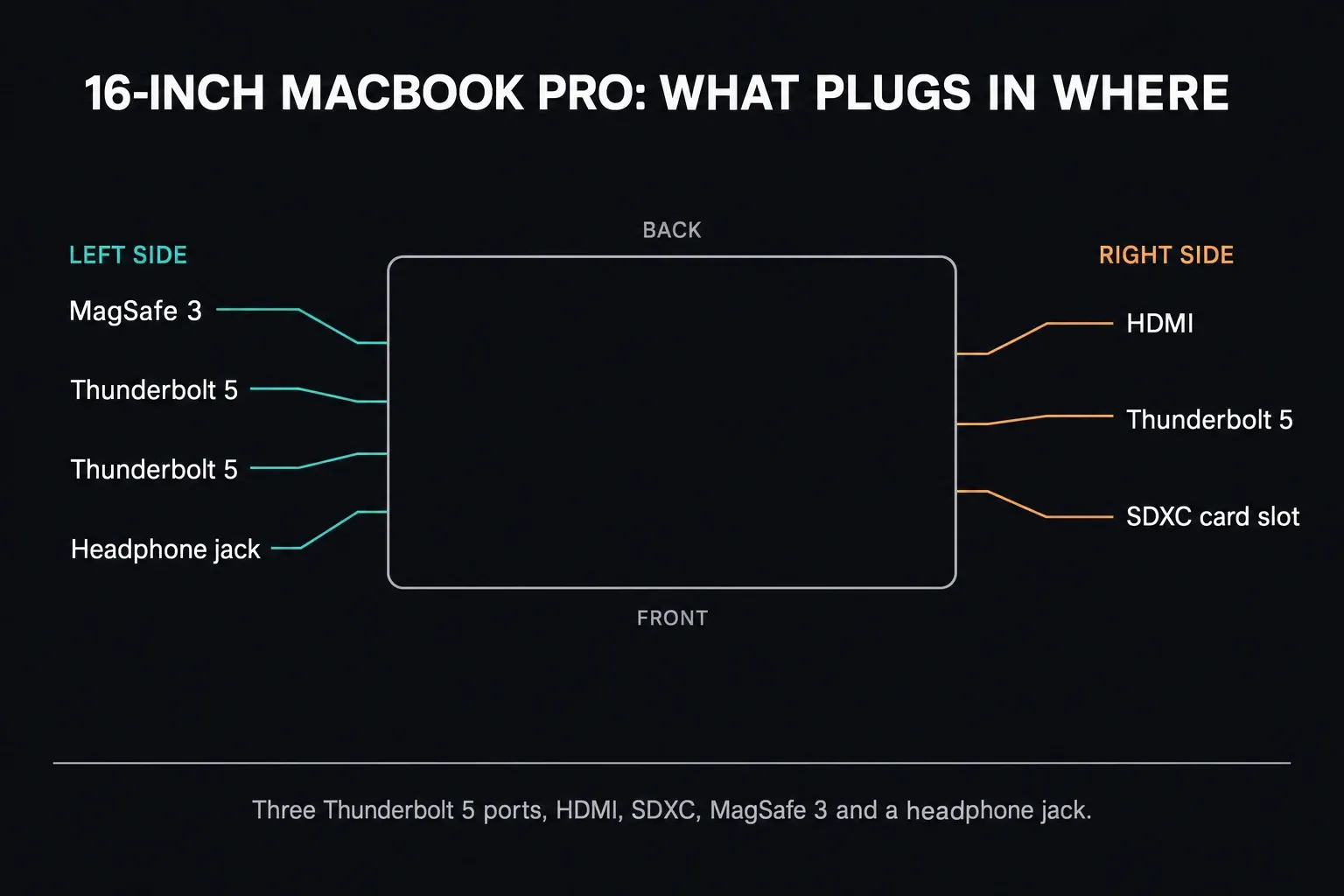
A wide-gamut, accurate internal display is valuable for editing and client review. It still isn't a controlled reference-monitoring path. Color-critical delivery needs a calibrated workflow and, where the job demands it, dedicated video output hardware and a suitable display. Check for the ports your storage, monitoring and power setup actually use instead of assuming a dongle will cover every path.
Verify the Exact SKU Before Checkout
- Exact GPU: confirm the full laptop GPU name, not “RTX 50 series.”
- VRAM: check the capacity separately. RTX 5070 Laptop GPUs come in both 8GB and 12GB variants, so the name alone won't tell you.
- System or unified memory: find out whether it's upgradeable. Apple memory and the ProArt P16's onboard memory can't be expanded later.
- SSD: confirm the capacity, and whether a second drive slot exists if your media plan depends on one.
- Ports: map out external SSDs, displays, card readers, audio devices and power before you pick a chassis.
- Display: confirm the actual panel in that part number. Resolution, refresh rate, gamut and brightness can vary inside one family.
If a retailer won't show the manufacturer part number or the exact GPU and memory configuration, buy somewhere else. One family name can cover machines that belong in different workload tiers.
For a used or refurbished laptop, add condition, battery health, warranty, return terms and the accessories you'll need to the comparison. A discounted older machine can be a sensible buy if its exact hardware still meets the current software requirements and passes your project test. An old premium model isn't automatically a better buy than a new midrange one.
What Should You Buy at Each Performance Tier?
Lower-cost Windows target: start the comparison around an RTX 5060 Laptop GPU with 8GB VRAM, 32GB RAM and a 1TB SSD. It's one useful configuration to price, not the cheapest machine that can run Resolve. Plan proxies and cache for difficult sources, and don't expect every temporal effect to play in real time.
Mainstream professional tier: an M5 Pro MacBook Pro with 24GB or 48GB, or an RTX 5070 Ti Windows laptop with 32GB or 64GB. This is the comparison that matters for editors who earn money in Resolve and need broader workload coverage.
Heavy GPU tier: if Studio 21.1's advanced AI tools are part of your Windows workflow, filter for at least 16GB VRAM before you compare performance. Larger-VRAM Windows GPUs or higher-memory M5 Max configurations can also make sense when repeated Fusion, noise-reduction or RAW jobs cost you time. Test a representative project first; extra hardware won't fix an unsuitable codec or workflow on its own.
If your current machine feels slow, work through the causes in our slow playback troubleshooting guide before you replace it. Decode limits, render cache, storage and project settings can all look like a hardware shortage.
The Hardware & Compatibility hub ties that diagnosis to the requirements, GPU and codec guides. Use it to find out what's actually limiting your current setup before you decide which component to upgrade.
Test the Laptop Before the Return Window Closes
Use a copy of a real project. Play a difficult section with your usual grade, scrub the timeline, open a representative Fusion comp and export a short section in your actual delivery format. Note the Resolve version and Free or Studio edition, the driver, the power mode, whether the laptop is plugged in, and whether proxies or cache are active. Then put both laptops through the same conditions.
If you also run PugetBench, match the application version, benchmark version and preset. Puget notes that Blackmagic removed scripting from the free version in Resolve 21.1, so its benchmark now supports Resolve Free only up to 21.0; on 21.1 every preset, Basic included, needs Studio. Puget's benchmark guide warns that mismatched versions and power profiles can explain different scores. A controlled benchmark and your own project answer different parts of the buying question.
Frequently Asked Questions
What is the best laptop for DaVinci Resolve in 2026?
My first pick for mixed editing, color and delivery work is a 16-inch MacBook Pro with M5 Pro, 48GB memory and a 1TB SSD. For Windows editing, compare a ProArt P16 or Legion Pro 7i with an RTX 5070 Ti Laptop GPU, 12GB VRAM and at least 32GB RAM. If you need Studio 21.1's advanced AI tools on Windows, choose at least 16GB VRAM instead. The best fit still depends on your footage, effects, portability needs and local price.
How much RAM does a DaVinci Resolve laptop need?
For a new Windows laptop, 32GB is a sensible starting point, and 64GB gives more room for substantial Fusion work or multitasking. On Apple Silicon, 24GB is a practical editing configuration and 48GB gives an M5 Pro more headroom. Studio 21.1 needs at least 32GB on a Mac for background rendering and analysis. On Windows, background rendering needs both 32GB system RAM and 12GB VRAM, and system RAM can't stand in for dedicated VRAM.
Is a MacBook Air good enough for DaVinci Resolve?
A MacBook Air M5 with 24GB of memory can suit light editing, proxies, short-form projects and travel work. That configuration falls below Studio 21.1's 32GB Mac requirement for background rendering and analysis. Its fanless design is also a compromise for long exports or substantial Fusion work, and more memory doesn't add cooling. For sustained heavy use, compare a MacBook Pro.
Is an RTX 5060 laptop enough for DaVinci Resolve?
An RTX 5060 Laptop GPU with 8GB VRAM and 32GB system memory is a configuration worth comparing for controlled 4K editing, not a guarantee for every format or effects stack. Its 8GB VRAM falls below Studio 21.1's Windows requirements for advanced AI tools and background rendering. Proxies and cache help editing, but they don't change those published hardware requirements.
Is Mac or Windows better for DaVinci Resolve?
Neither wins every Resolve project. Weigh a Mac's media-engine support and portability against the GPU, cooling and upgrade options in the exact Windows laptop. Check your source codecs, your Free or Studio edition and the features you need. Apple unified memory doesn't map directly onto a Windows laptop's system RAM plus dedicated VRAM.
Can I use a laptop screen for professional color grading?
A good laptop display is useful for editing and review, but a gamut figure or HDR badge doesn't turn it into a controlled reference path. Color-critical delivery needs a calibrated workflow and may need dedicated video output hardware plus a suitable reference display.
Can an older laptop run DaVinci Resolve 21?
It may run Resolve 21.1 if it meets the current OS, memory, GPU and driver requirements. The Mac readme requires Apple Silicon and macOS 15 or later, so an older Intel Mac falls outside that supported baseline. Meeting the minimums doesn't guarantee smooth playback, so test your actual codecs and effects before you buy a used laptop.
