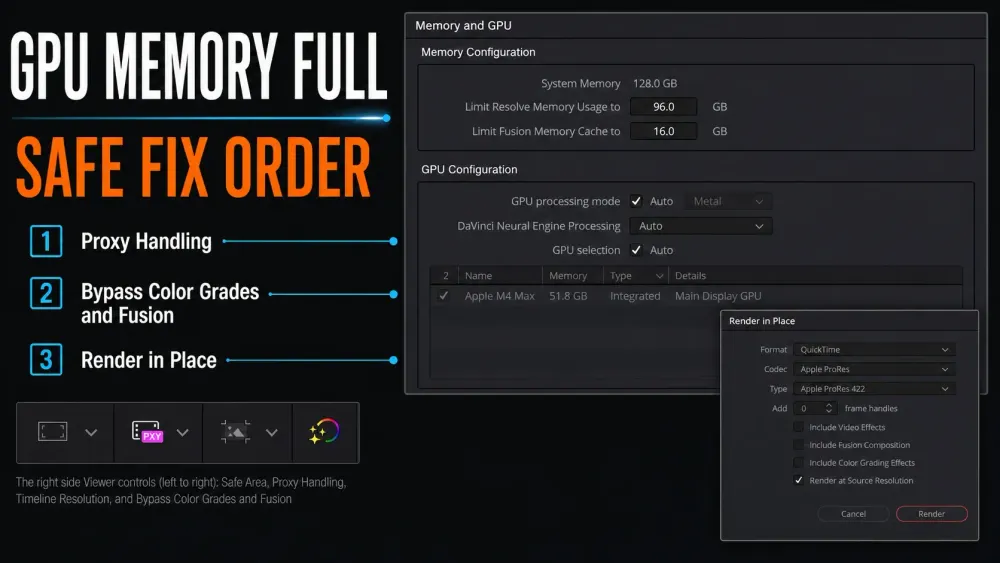
When Resolve reports “GPU memory is full,” it means the requested GPU allocation failed; it doesn't prove that every byte of VRAM is occupied. The cause may be genuine capacity pressure, one extreme frame or node, the wrong selected adapter, or a driver, compute-API, display, or offload fault.
This guide isolates that specific message. If Resolve has a different symptom, begin with the symptom-first Resolve troubleshooting hub instead of applying GPU fixes blindly.
First, classify the failure
| What happens | Most likely area | First useful test |
|---|---|---|
| Only one frame or clip fails | Source media, huge still, transition, node, or effect | Bypass that clip’s Color and Fusion processing |
| Playback works but Deliver fails | Full-resolution processing, render-only setting, or cache difference | Render five seconds around the first failing frame |
| Every project fails immediately | Driver, processing API, selected GPU, hybrid graphics, or unsupported configuration | Open a new empty project and verify Memory and GPU preferences |
| The error starts after one effect | Temporal or AI memory demand | Disable only that effect and retest the same frame |
| The error follows a Resolve or driver update | Version compatibility or changed GPU selection | Check Blackmagic’s current notes and the selected adapter before rolling back |
Don't begin by deleting cache folders or reinstalling Resolve. Record the exact timeline, frame, page, operation, Resolve build, operating system, GPU model, VRAM or unified-memory amount, driver version, timeline resolution, and source resolution. A screenshot of the full error and the node/effect state is more useful than the sentence “it happens randomly.”
Protect the project before troubleshooting
- Save the project.
- Duplicate the project or export a project backup.
- Duplicate the failing timeline when you need to disable nodes, remove effects, or render in place.
- Keep source media untouched. A cache cleanup is never permission to delete camera originals, graphics, or project libraries.
If project libraries and backups are unfamiliar, read where DaVinci Resolve projects are stored before changing folders. For an application update or rollback, follow the safe Resolve update workflow; project-library compatibility matters more than getting through one launch.
Find the clip, node, or effect that crosses the limit
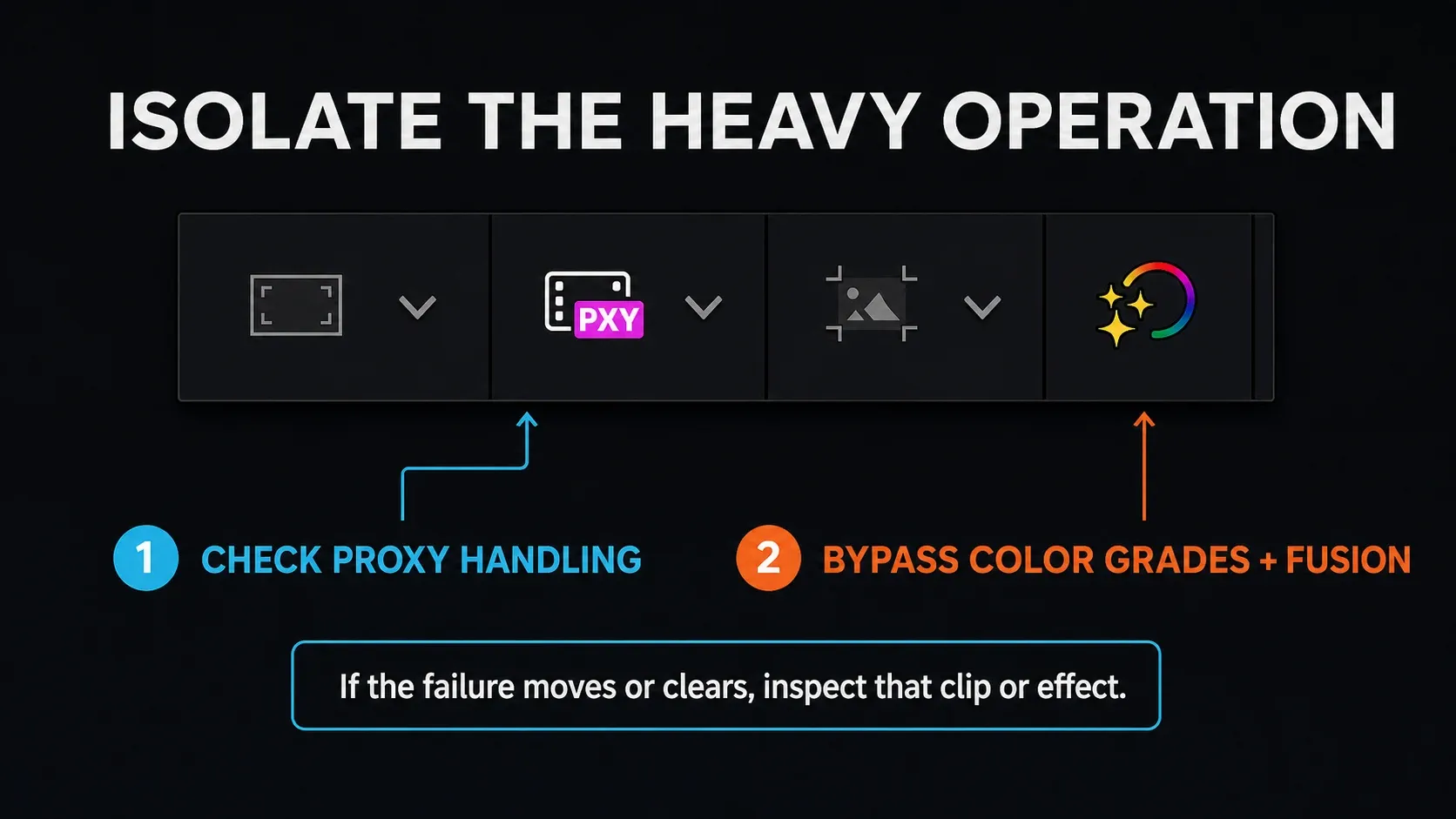
Duplicate the timeline and place a short In/Out range around the first failing frame. Disable one processing family at a time:
- temporal and spatial noise reduction;
- Speed Warp, optical-flow retiming, motion estimation, and frame interpolation;
- Super Scale and other high-resolution transforms;
- Magic Mask, Depth Map, object removal, relighting, and other AI analysis;
- large blurs, defocus, glow, film grain, and third-party OpenFX;
- Fusion compositions, especially deep branches and large Loader images;
- stacked Adjustment Clips processing the same range.
Re-enable items one by one on the same short range. The goal isn't merely to make the popup disappear; it is to identify the smallest change that makes the failure return. The number of Color nodes alone is a poor measure, one temporal effect can demand more memory than many simple correctors.
For AI features, the Magic Mask guide shows how to limit analysis and repair only the necessary section. If a long Adjustment Clip carries a heavy effect across many shots, use the Adjustment Clip scope guide to shorten or split it instead of disabling unrelated work.
Reduce GPU memory demand without damaging the edit
Lower Timeline Proxy Resolution
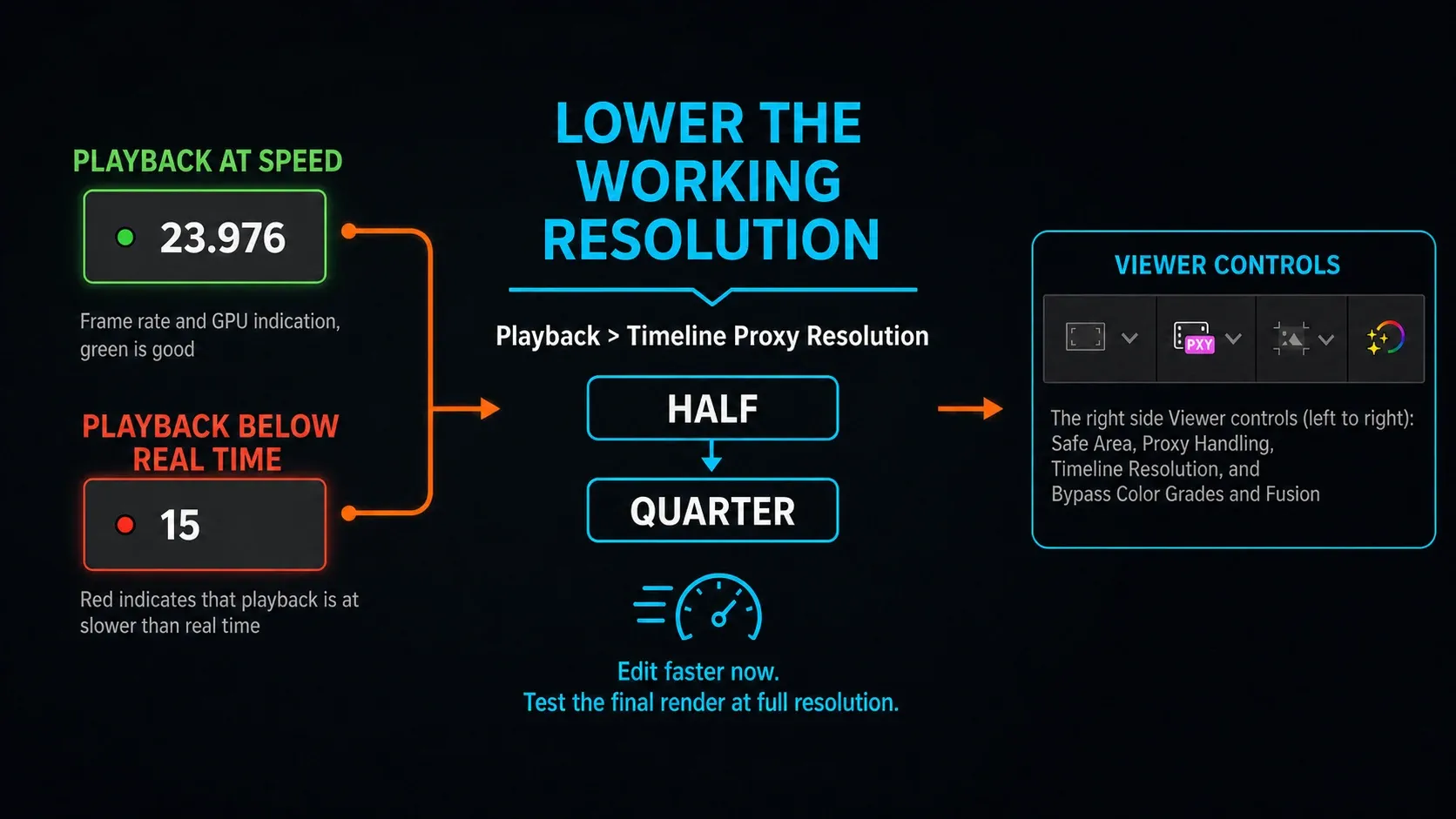
Choose Playback > Timeline Proxy Resolution and test Half, then Quarter. The final Resolve 21 Reference Manual describes this as a lower working timeline resolution; it's reversible and doesn't rewrite the source clips.
If the lower working resolution succeeds, the failure is resolution-dependent; it doesn't prove the full-resolution delivery will succeed. Keep a short final-resolution render in the test loop. If the project only stutters without the allocation message, use the slow-playback workflow rather than treating every performance problem as exhausted VRAM.
Use proxy or optimized media for difficult codecs
Proxy media and optimized media can reduce decode pressure and improve playback, especially with highly compressed H.264 or H.265 camera formats. They do not guarantee that every Color or Fusion effect will run at proxy resolution. Verify the result rather than assuming a lightweight proxy removes all GPU demand.
Reduce oversized stills and Fusion inputs
A very large PNG, TIFF, EXR, or layered graphic can consume more memory than the timeline suggests. Resize a copy to the largest resolution the shot actually needs and preserve the master file. In Fusion, keep the working canvas and branches only as large as the output requires.
Complex tracking and 3D scenes can also expand memory use. The Fusion tracking guide helps choose a 2D or planar solution when a full 3D camera solve is unnecessary.
Reduce temporal history
Temporal noise reduction, optical flow, and AI tools need information from multiple frames. Reduce the temporal radius or frames, lower the quality mode, or process the demanding clip separately. Compare the lighter setting against the original at the delivery resolution before accepting it.
Cache or render the proven bottleneck
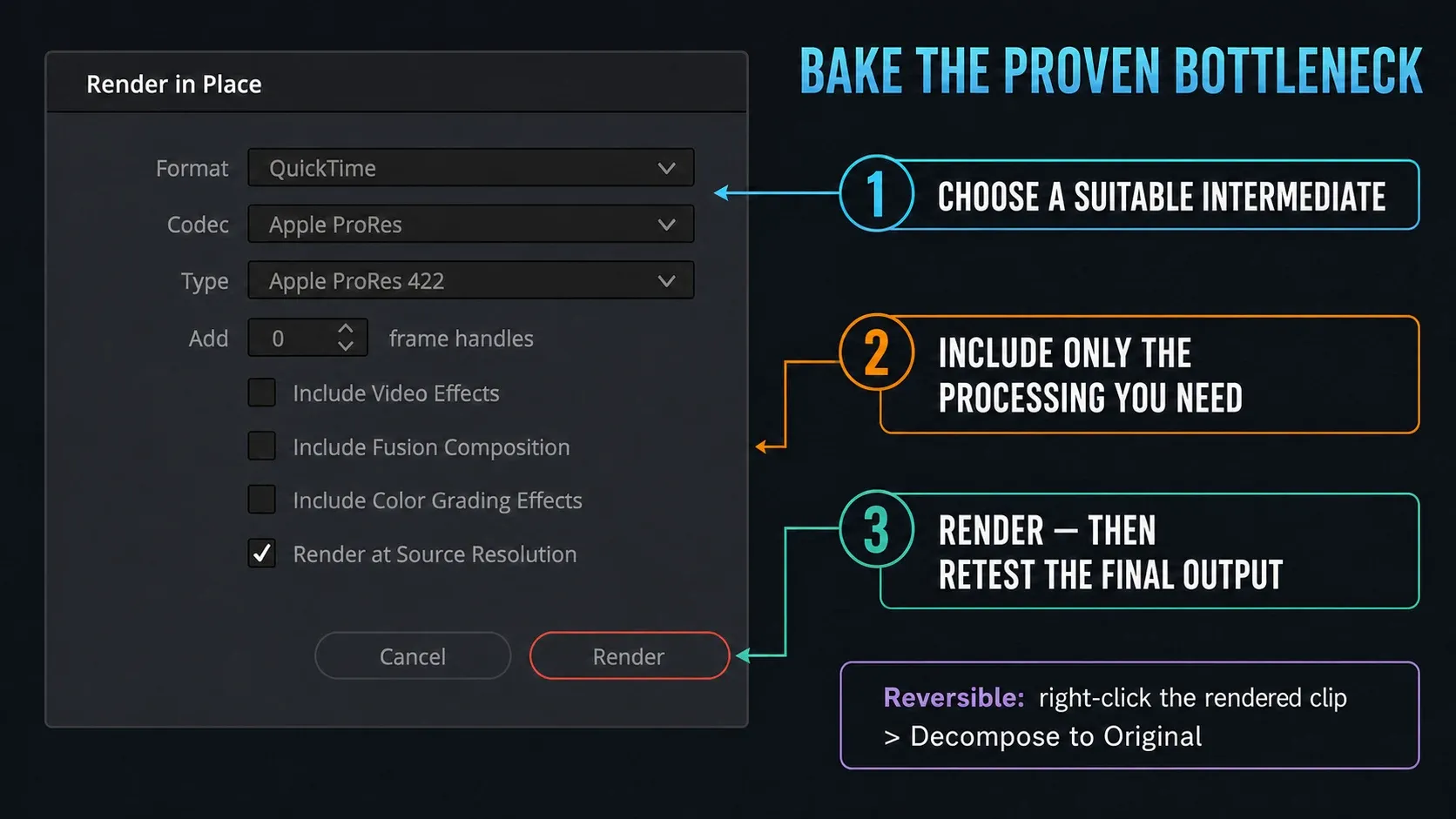
Once the expensive operation is proven, cache that node or clip, or use Render in Place to create a suitable intermediate. This trades repeated live GPU work for disk storage and a rendered file.
Preserve an untouched timeline, or use Decompose to Original to return the rendered clip to its source and effects before later changes.
What clearing cache can and cannot fix
Render cache lives on storage; VRAM lives on or is allocated to the GPU. Deleting cache doesn't increase the GPU’s physical memory. It can help when cached frames are stale, corrupt, or built under settings that no longer match the timeline, but it shouldn't be the first response to every GPU allocation error.
Use Resolve’s Playback, then Delete Render Cache controls and target Selected Clips or the smallest relevant scope. Confirm the project cache location before touching files outside Resolve. Never delete a broad folder because its name contains “cache” unless you've verified what owns it.
Restarting Resolve is different: it can release allocations and reset a failed GPU context. If a restart fixes the problem temporarily but the same action recreates it, continue isolating the operation or driver fault.
Check Memory and GPU preferences
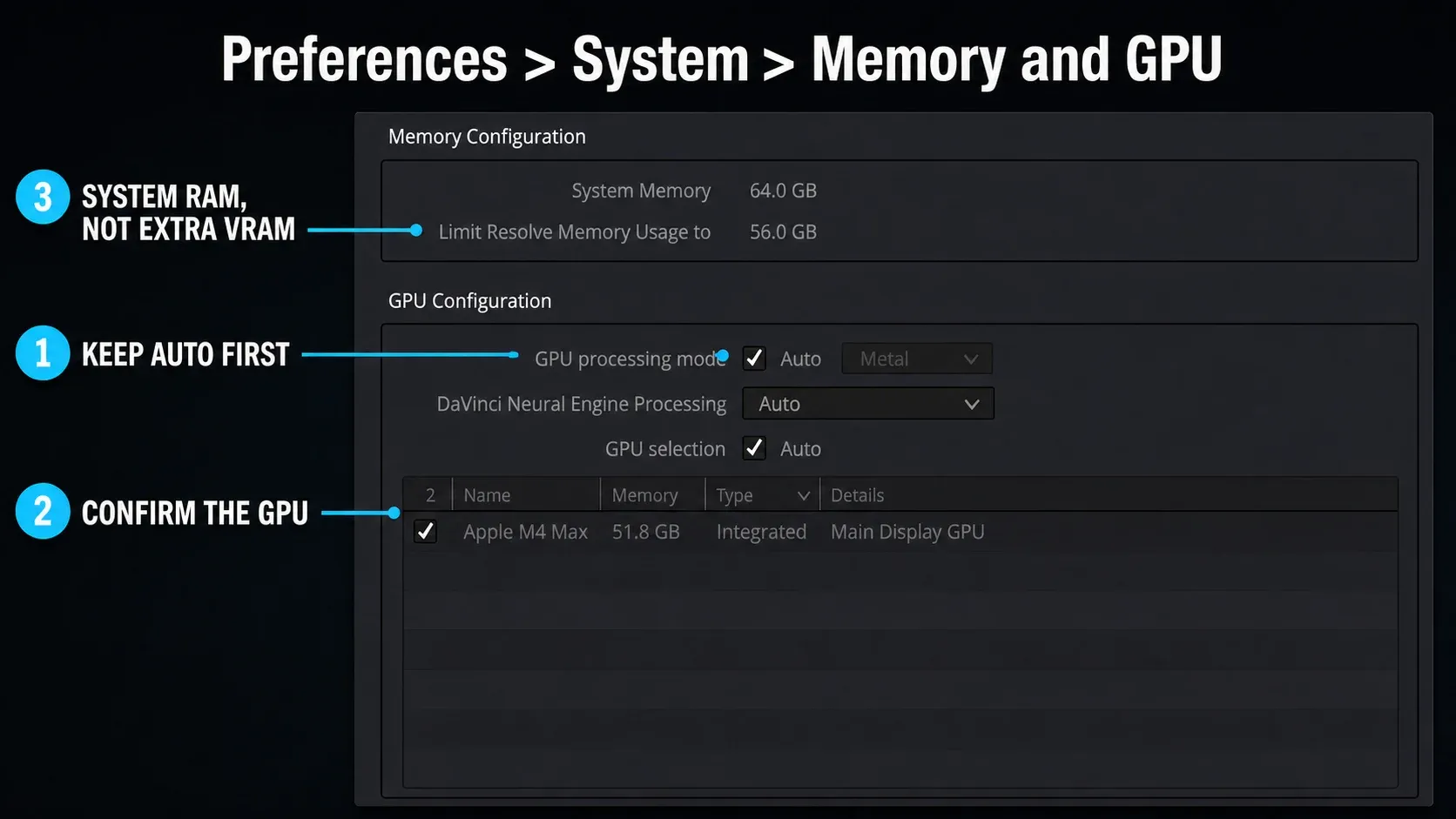
Open DaVinci Resolve, then Preferences, then System, then Memory and GPU. On supported Windows and Linux configurations, confirm that Resolve sees the intended discrete GPU, the processing mode is appropriate for the installed driver, and an integrated GPU isn't being selected for compute by mistake.
Depending on platform, hardware and build, the processing API may be Automatic, CUDA, OpenCL or Metal; don't force a mode copied from a guide for another system.
Checked September 5, 2026, the Memory and GPU page in the final Resolve 21 manual describes the application memory limit as system RAM. It isn't hidden extra VRAM, and raising it can't enlarge a discrete card’s physical GPU memory. Apple silicon uses shared unified memory, so its diagnosis is different and is covered below.
Automatic selection is normally sensible, but hybrid laptops and mixed-GPU desktops deserve verification. After changing GPU selection or processing mode, save preferences and restart Resolve before testing the same project.
Don't blindly disable integrated graphics in firmware or Device Manager. On many laptops it drives the display and power-management path. Prefer the operating system’s per-application high-performance GPU setting and the laptop vendor’s supported hybrid/discrete mode.
Use a supported driver, not a random driver
Start with the exact Resolve build and platform notes on Blackmagic’s official support page. If those notes name a minimum driver or a known issue, follow that boundary.
For NVIDIA, choose a compatible package from the official driver page; the Studio branch is one vendor-supported option for creative applications, not a universal cure. For AMD, use the appropriate package from AMD Support. Don't copy a driver prescription from another operating system, GPU generation, or Resolve point release.
The newest driver isn't automatically the best match for every Resolve point release, and an old “known good” driver isn't safe forever. Change one variable, restart, and retest the same frame. Keep the installer and version record for rollback.
Windows, macOS, and Linux differences
Windows
Verify the discrete GPU in both Resolve and Windows Graphics settings, then confirm the installed vendor driver. Hybrid laptops can launch Resolve on the low-power adapter even when a discrete GPU is present.
macOS and Apple silicon
Apple silicon uses unified memory rather than a separate user-visible VRAM pool. The same error can still reflect an allocation limit.
Close other GPU-heavy apps, reduce working resolution and temporal effects, and verify that the macOS and Resolve versions are compatible. Adding system RAM later is not possible on current integrated Apple silicon machines, so project design matters.
Linux
Driver, compute API, display server, and hybrid-GPU configuration can matter as much as nominal VRAM. A current Resolve 21 Linux case reported the error with low apparent usage and traced it to the Wayland/X11 and NVIDIA offload stack.
Treat that as directional evidence, not a command recipe: distributions and GPU setups differ, so use documented settings for your exact system.
Do not assume multiple GPUs combine their memory
Two 8 GB cards don't become one 16 GB memory space for an individual operation. Resolve can distribute processing across supported GPUs while the frames and resources needed by an operation still have to fit the active configuration.
Don't add the capacities together when sizing a job; test the exact Blackmagic-supported configuration for the platform, and compare stability with the weaker processing GPU excluded.
Playback works, but export fails
A final render can exercise a different resolution, cache, codec, or effect path from timeline playback, and temporal processing may need neighboring frames.
Find the first failing frame from the progress point or log and render a very short range around it. If the failure isn't the GPU-memory message, follow the broader DaVinci Resolve render-failed diagnosis so codec, destination, media, and frame-specific errors stay in scope.
- Disable the suspected effect and rerun the short range.
- Restore it with a lighter temporal or quality setting.
- Cache or render in place only the confirmed bottleneck.
- Render the same short range at final resolution.
- Reopen the file and check the transition into and out of the processed section.
Don't lower the final deliverable below the specification just to make the queue finish. If the approved effect genuinely exceeds the hardware at final resolution, render an intermediate on a suitable system or redesign that specific operation.
When a GPU upgrade is actually justified
Consider more VRAM only after all of these are true:
- the failure is repeatable at the required final resolution;
- Resolve selects the intended supported GPU;
- the driver and Resolve build are known compatible;
- the source file is valid and not absurdly oversized for the shot;
- the expensive effect is necessary and can't be cached or rendered separately;
- lower working resolution proves that memory capacity is the deciding variable.
System RAM can help decode, Fusion, and overall stability, but it doesn't turn a discrete card’s fixed VRAM into a larger pool. Before buying hardware, compare the project’s resolution, codecs, effects, and Fusion workload with the current Resolve system requirements guide.
Once the allocation error is stable, return to the DaVinci Resolve tutorial roadmap and test editing, Fusion, Color, Fairlight, and delivery as separate stages. Keep the troubleshooting hub for symptoms that no longer reproduce as this specific GPU-memory message.
GPU Memory Full FAQ
What causes “GPU memory is full” in DaVinci Resolve?
Resolve can't complete a GPU allocation. High resolution, temporal effects, Fusion, AI tools, oversized stills, a wrong selected adapter, or a driver/API problem can all cause the message.
Will clearing render cache fix GPU memory errors?
Only when the cached data is stale or corrupt. Cache is stored on disk and deleting it doesn't increase physical VRAM. Restarting Resolve can release allocations, but a recurring failure still needs diagnosis.
Should I lower the timeline resolution?
Yes, as a reversible diagnostic and editing workaround. Always repeat a short render at the required final resolution because the memory demand can return during delivery.
Why does the error appear when VRAM monitoring shows free memory?
A utilization graph may not expose every resource or the failed request, and the GPU or driver context may be at fault.
Reproduce the same frame after a restart and in a new empty project. If the empty project also fails, investigate GPU selection, the processing API, driver, and display or offload configuration before assuming capacity.
Can more system RAM fix GPU memory full?
It can improve system and Fusion headroom, and it contributes to the unified pool on Apple silicon, but it doesn't increase fixed VRAM on a discrete GPU.
Does Resolve Studio use less GPU memory than Resolve Free?
Not as a general rule. Studio unlocks additional accelerated and AI tools that may increase demand. Codec acceleration can improve performance on supported hardware, but the project’s processing chain still determines memory use.
