Short answer: if the clip plays but its waveform is missing, open Timeline View Options above the Edit timeline and enable Display Audio Waveforms. Then increase the audio-track height. If only one clip remains blank, open the Fairlight page, right-click that clip, and choose Clip Operations > Regenerate Waveforms.
Do not start by deleting caches or changing audio devices. A missing waveform can be a display setting, a track that is too short to draw useful detail, or a clip whose waveform needs to be rebuilt. Those are different from a project that has no sound.
Match the fix to what you see
- Every audio clip is blank: check Display Audio Waveforms first.
- The tracks look like thin bars: increase the audio-track height.
- One clip is blank while the others look normal: compare it in File Inspector > Audio Configuration, then regenerate that clip's waveform.
- A waveform appears in the Inspector but not the timeline: the source has readable channel data; focus on timeline display and waveform generation.
- There is no sound and no waveform: switch to the DaVinci Resolve no-audio guide. That path checks channel mapping, tracks, buses, monitoring and output devices.
This order matters. It keeps a small visual problem from turning into a project-wide troubleshooting session.
1. Turn on Display Audio Waveforms
On the Edit page, find the timeline toolbar and open Timeline View Options. Enable Display Audio Waveforms, then raise audio-track height if the waveform is still compressed or hidden. The label or exact position can move between Resolve builds, so use the equivalent waveform display control in your installed version.
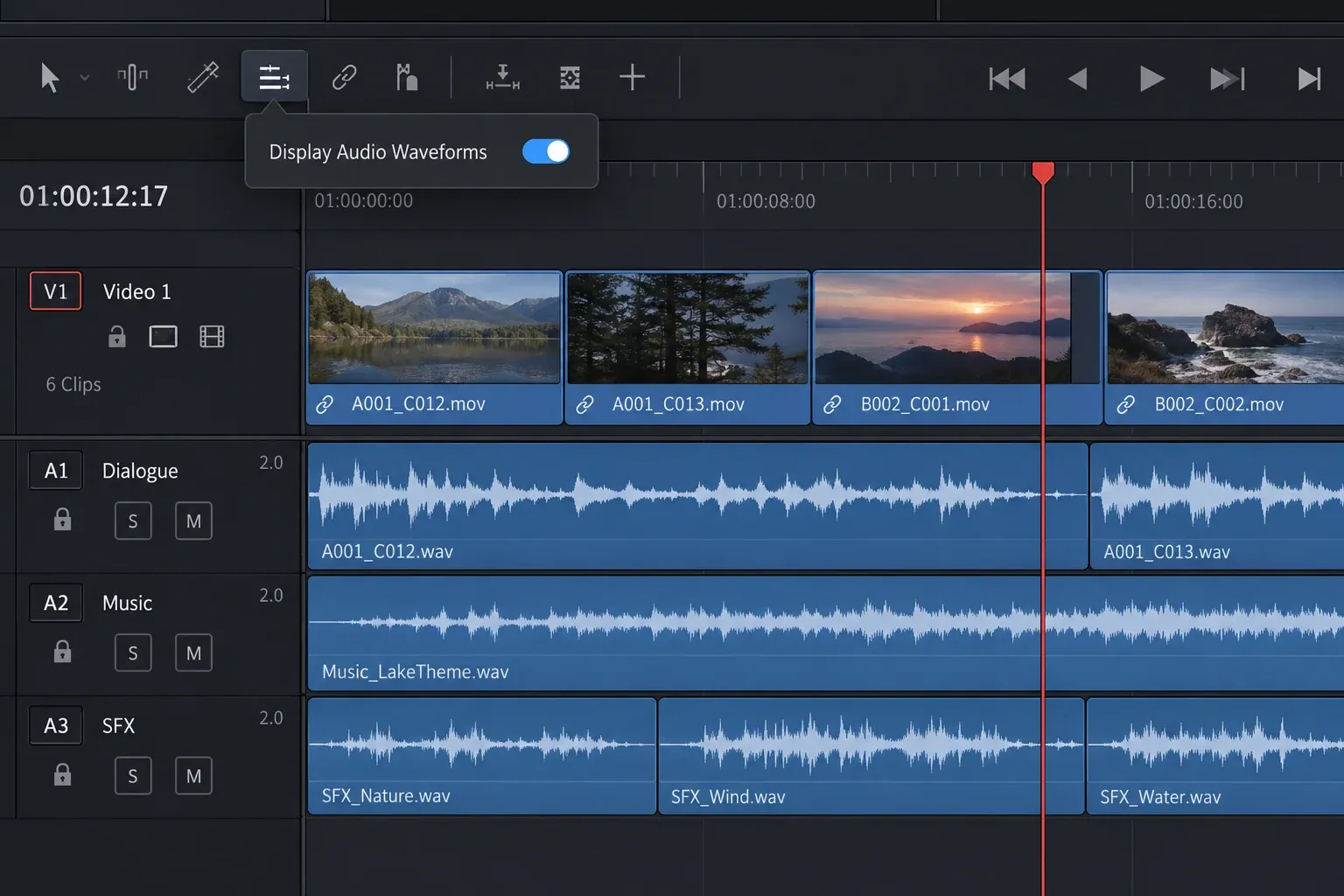
That second behavior explains why the problem is easy to misread. You may think the waveform is present but compressed into a tiny track, when the display option is actually off. Turn the option on first, then judge the track height.
If the button is already active, toggle it off and on once. This is a harmless display refresh. If nothing changes, leave it enabled and continue to the height controls rather than repeating the same toggle.
2. Increase the audio-track height
A waveform can be technically visible and still look blank when an audio track is too short. Open Timeline View Options again and move the Audio track height slider to the right. That slider resizes all audio tracks without changing the video-track height.
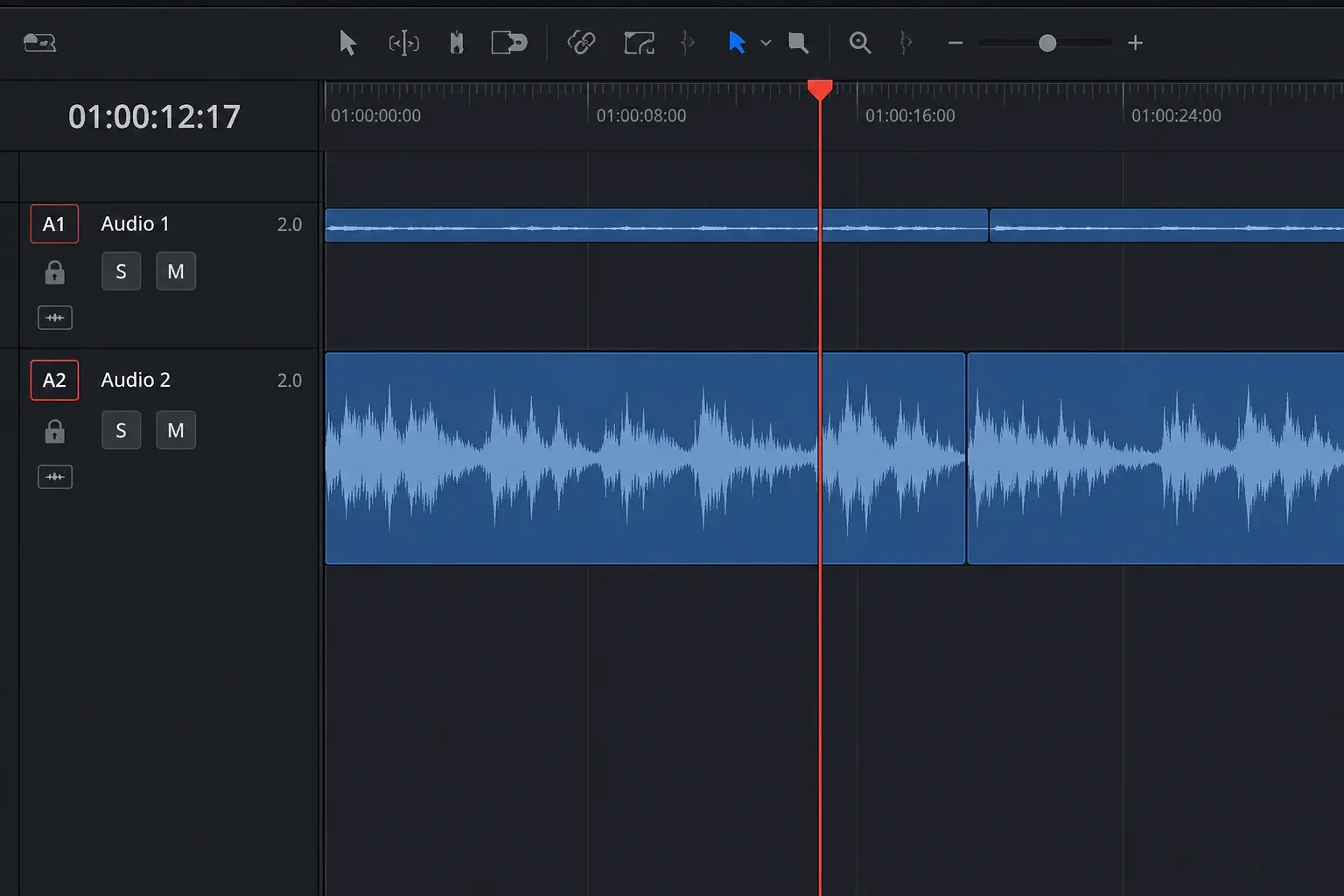
If only one track is cramped, move the pointer to its upper divider in the Track Header and drag. Resolve lets you resize an individual track independently. This is useful when dialogue needs a large waveform but music and ambience can stay compact.
Also check the timeline zoom. A long clip viewed across a long timeline compresses transient detail horizontally. Zoom closer before deciding that Resolve has failed to draw the waveform. Track height controls the vertical detail; timeline zoom controls how much time is compressed into the visible width.
3. Compare the timeline with Audio Configuration
When one clip is blank, select it and open the File tab in the Inspector. Expand Audio Configuration. This view can show a composite waveform and per-channel lanes for the selected source or timeline clip. The label and layout can differ between builds, but the check is still useful: if channel data appears here while the timeline remains blank, focus on timeline display or regeneration before changing the media file.
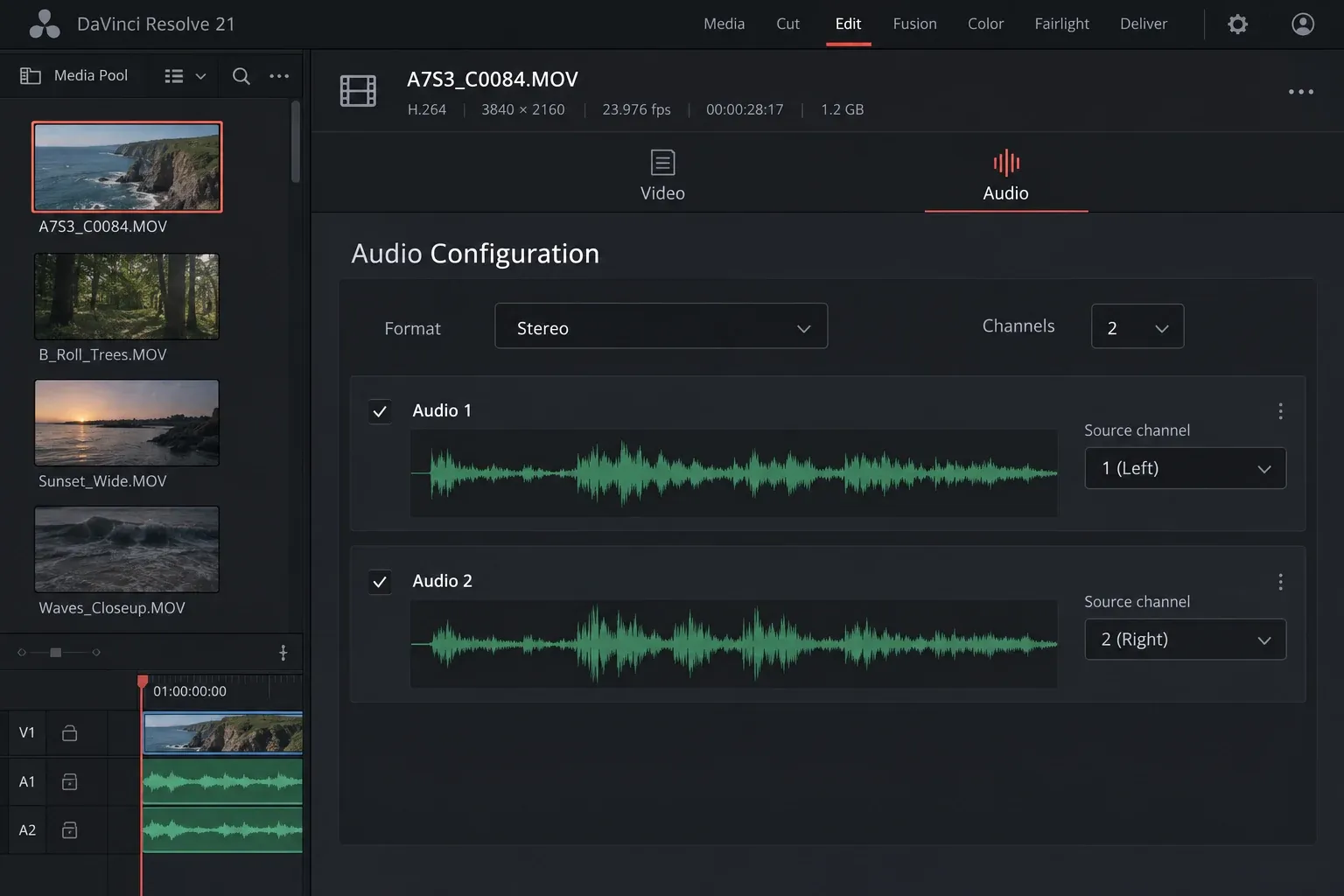
This comparison gives you a useful split:
- Waveforms appear in Audio Configuration: the clip contains readable audio-channel data. Return to the timeline display, track height and regeneration steps.
- Audio Configuration is also blank or the expected channel is disabled: inspect that clip's channel format, enabled channels and source file. Do not change every project track to repair one unusual file.
Audio Configuration is not a substitute for output routing. A channel waveform can exist even when the project is silent at the speakers. If you can see channel data but cannot hear playback, follow the no-audio guide instead.
4. Regenerate the waveform for one bad clip
If other clips draw normally and the selected clip has readable audio in the Inspector, rebuild its timeline waveform. Go to the Fairlight page, right-click the clip, and choose Clip Operations > Regenerate Waveforms.
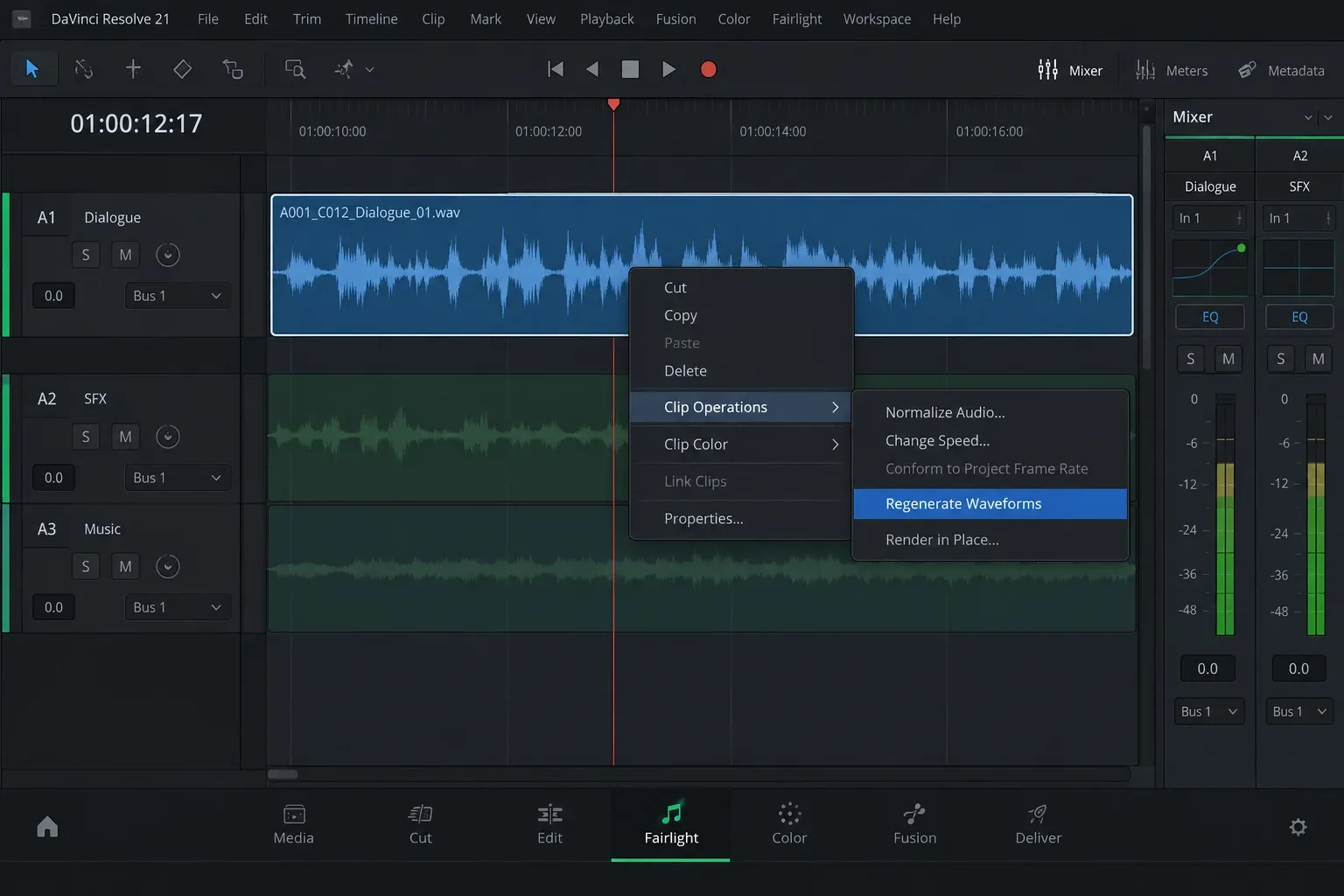
The scope is important. Regeneration is the right move when one timeline clip has lost its waveform. It is not the first move when every track is minimized or the global display control is off.
Give Resolve time to redraw a long or multichannel file before clicking around again. If the waveform returns, stop there. You do not need to convert the source, rebuild every cache or re-import the whole project.
5. Check Audio Configuration when only one file stays blank
If regeneration does not help, return to File Inspector > Audio Configuration and verify that the expected channels are enabled and assigned to a sensible format. A stereo file may be interpreted differently from a mono recording or a multichannel production file. The waveform lanes in this panel show what Resolve can see inside the selected clip.
Do not use the filename extension as your diagnosis. An M4A, MP3 or MOV label describes a container or common file type, not every detail of the audio stream inside it. If the file will not import cleanly or its channels do not appear in Audio Configuration, use the MP3 and AAC import guide for local-file, protection, codec and safe-conversion checks.
Test a second known-readable audio clip in the same timeline. If the second clip draws normally, keep the investigation scoped to the first file. If both fail, return to the global display and layout checks.
6. Reset the UI layout only when the controls are missing or displaced
If the timeline toolbar is clipped, panels are stuck in an unusual arrangement, or the display controls seem to have vanished, save the project and choose Workspace > Reset UI Layout. Resolve documents this command as the way to return the interface to its default layout.
This is a workspace fix, not an audio repair. It can bring hidden or displaced controls back into a predictable arrangement, but it will not decode an unsupported audio stream or repair bus routing. Use it after the direct display and clip checks, not before them.
7. Keep waveform display separate from silent playback
A waveform is a visual representation of clip audio. It does not prove that a track reaches the monitored bus, that the bus reaches the selected speakers, or that the operating system is using the intended output device. The reverse is also true: audio may play while the timeline waveform is hidden.
Use this simple branch:
- Sound plays: stay on this page and fix waveform visibility, height, source-channel display or regeneration.
- Sound does not play: use the no-audio signal-flow checklist.
- The file will not import or exposes no usable channel: use the audio import guide.
Fast waveform checklist
- Open Timeline View Options.
- Enable Display Audio Waveforms.
- Increase the Audio track height slider.
- Drag the upper divider of one track if only that track is compressed.
- Zoom closer on the timeline.
- Compare the clip in File Inspector > Audio Configuration.
- On Fairlight, use Clip Operations > Regenerate Waveforms for one blank clip.
- Use Workspace > Reset UI Layout only if the interface itself is displaced.
- If playback is silent, move to the dedicated no-audio guide.
Audio waveform FAQ
Why does DaVinci Resolve play audio but show no waveform?
The waveform display may be disabled, the audio tracks may be minimized, or the clip's timeline waveform may need regeneration. Start with Timeline View Options and track height. Use Regenerate Waveforms only if one clip remains blank.
Where is Display Audio Waveforms in DaVinci Resolve?
Look in Timeline View Options on the toolbar above the Edit page timeline. The same area typically includes audio-track height and waveform display controls. Labels or placement can differ between builds, so use the equivalent waveform option in your installed version.
Why is the waveform visible in the Inspector but not on the timeline?
That usually narrows the problem to timeline display or waveform generation because Audio Configuration can read the clip's channel data. Confirm Display Audio Waveforms, increase track height, and regenerate the timeline clip on the Fairlight page.
Does deleting render cache fix missing audio waveforms?
It is not the first fix. Resolve has a direct Regenerate Waveforms command for a missing timeline-clip waveform. Check the global display and track height before changing or deleting other generated media.
Can I regenerate waveforms from the Edit page?
On the Fairlight page, right-click the affected clip and look for Clip Operations > Regenerate Waveforms. If the command is named or placed differently in your build, use the current equivalent for regenerating that clip’s waveform rather than deleting unrelated cache first.
For other visible Resolve failures, use the Fix DaVinci Resolve troubleshooting hub to choose the next guide by symptom.
