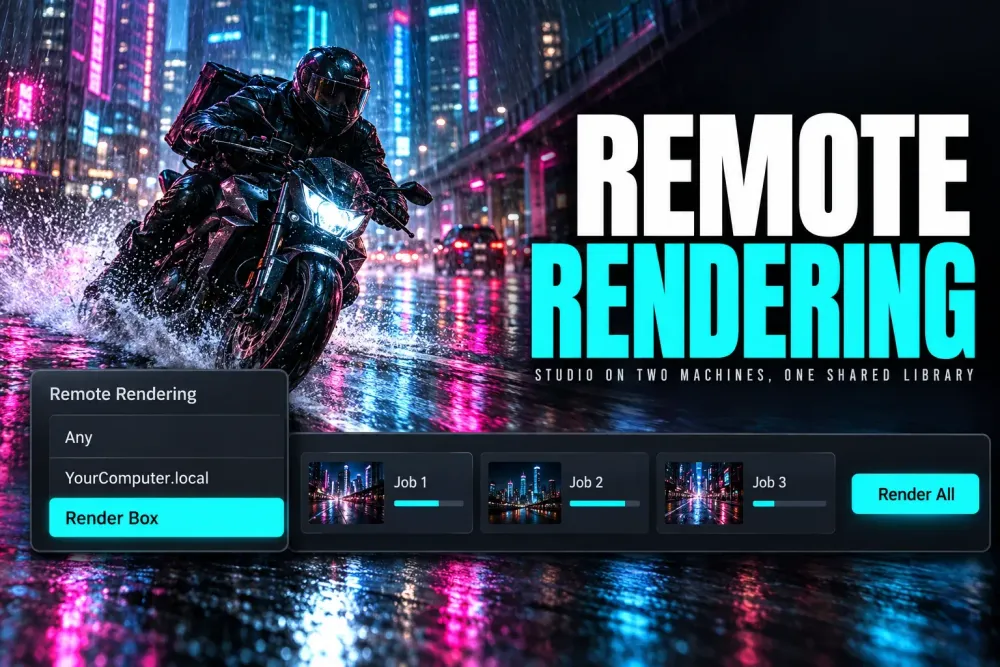
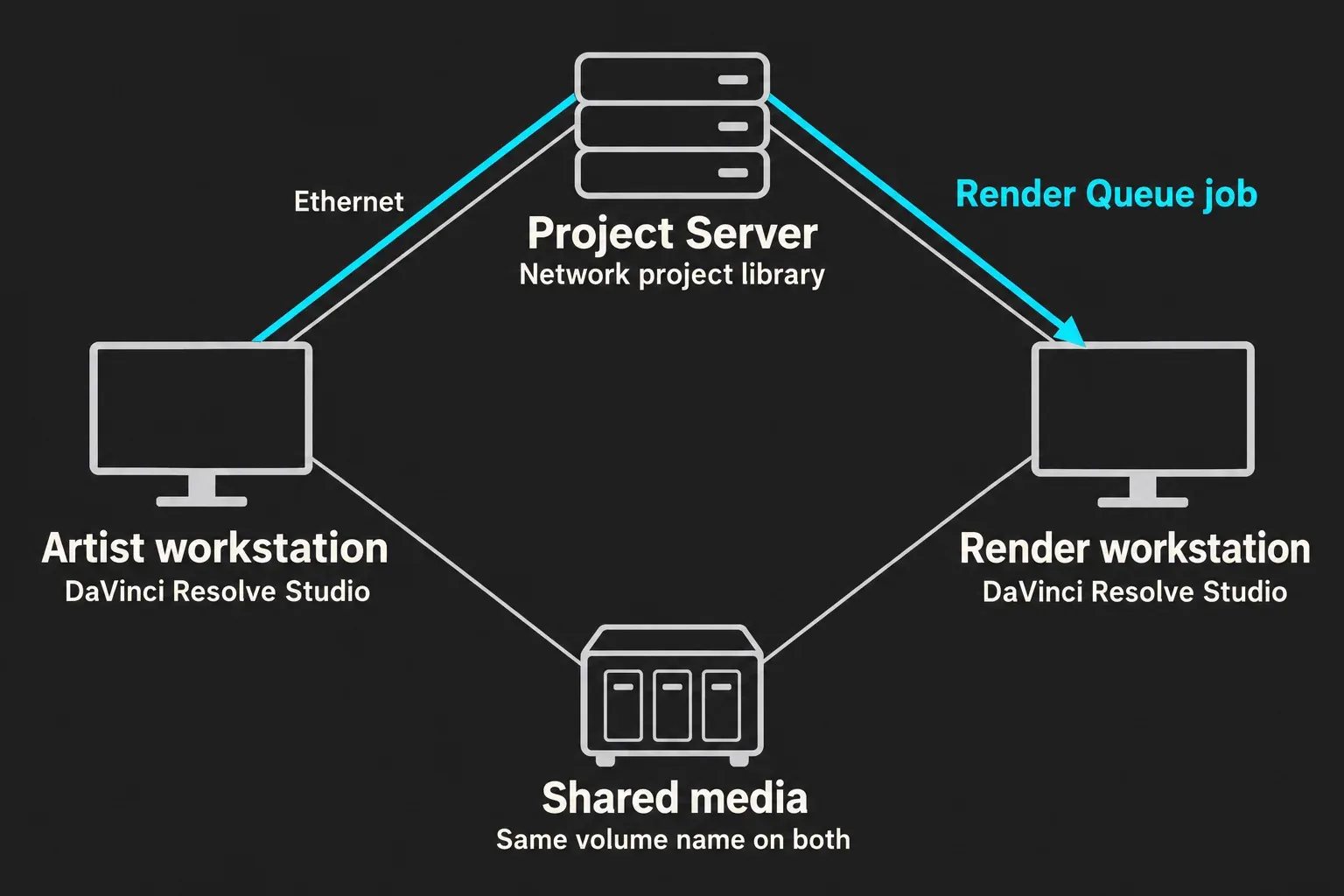
Remote rendering in DaVinci Resolve Studio sends a Render Queue job to a second computer on your network while you keep editing on the first. It works when three things line up: Studio on both machines, the project in a shared network project library that both connect to, and the media on the same or identically named volumes. Put the second machine in Workspace > Remote Rendering, pick it from the job's Remote Rendering button in the Render Queue and click Render All.
The most common reason it fails is a local project library: the remote button never appears, and no setting fixes that until the project lives in a network library. Each job goes to one machine, so a render box gives you a second render running in parallel, not a faster single export. Below you'll find the Project Server setup, media paths across macOS, Windows and Linux, headless mode, the published speed numbers, fixes by symptom and the licensing rules.
What remote rendering needs
- DaVinci Resolve Studio on both computers. The Reference Manual's remote rendering criteria say it doesn't work with the free version. The free vs Studio comparison lists what else the upgrade adds.
- A shared network project library. Both machines use the same network library, another PostgreSQL library connected to either machine, or a dedicated project library server. In a Blackmagic forum thread on a missing render machine, Dwaine Maggart of Blackmagic support put it plainly: remote render only works with a shared network project library. Local libraries don't work.
- The same media on both. The media has to sit on the same volume or on identically named volumes. A SAN works, and so does one volume mounted over the network, which the manual calls slower but workable.
- A wired network. Blackmagic asks for reasonably fast connections, preferably Gigabit Ethernet or faster, for a shared Project Server library. Chadwick Shoults of Creative Video Tips recommends 10GbE or 2.5GbE Ethernet in his remote rendering checklist.
- Everything the project uses, on the render box too. Fonts, Fusion macros in .drfx files, OpenFX plugins and their licenses all have to be installed on the second machine, because it builds every frame from the project, not from your screen.
- Matching Resolve builds. A library's details show its status as compatible or upgrade required, so I keep both machines on the same Resolve version and update them together. The safe update guide covers the backup to make first.
Set up a shared project library with Project Server
DaVinci Resolve Project Server is a stand-alone app that creates, backs up and shares project libraries without launching Resolve. Host the library on a computer that never sleeps; the collaboration chapter asks for the same thing. The server doesn't need a fast GPU, so the render box itself or an always-on office Mac will do. I'd put it on the render box, since that machine is switched on whenever remote rendering runs anyway.
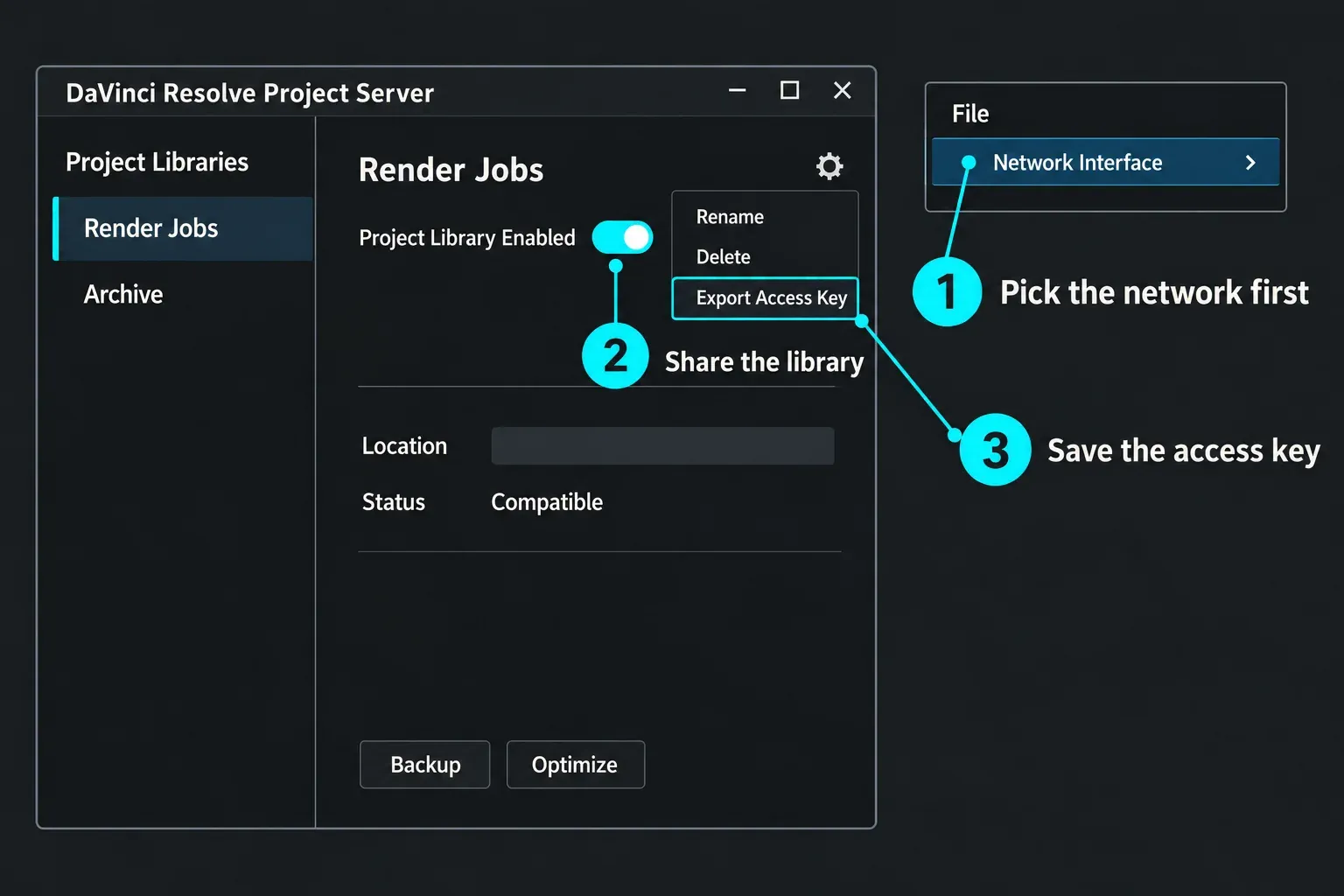
- Open DaVinci Resolve Project Server on the host computer. On first start it asks you to create an admin account with full rights over the server and its libraries.
- Choose File > Network Interface and pick the IP address on the network your editing machines use. Do this before you share anything. The manual warns that a key created on the wrong interface ends in a connection error.
- Create or select a library and switch on the Project Library Enabled slider at the top of its details. Click Authorize when the dialog asks.
- Export an access key. Click the library's settings gear, choose Export Access Key and save the .resolvedbkey file.
- Connect both machines. Copy the key to the artist workstation and the render workstation. Open Resolve, show the Project Libraries sidebar and drop the key anywhere in the Project Manager. The network library appears in the sidebar.
- Move the project into it. A project in a local library won't show the remote option. Right-click it in the Project Manager and choose Export Project, select the network library, then drag the .drp into the Project Manager to import it. The .drp carries the project, not the media, which stays where it is.
Without the app, you can also connect to a network library by name and server IP from the Project Manager. The manual lists the default user and password as postgres and DaVinci for that route. The access key is simpler, and it's the route I'd use for a two-machine setup. If you set up sharing on a laptop and later move it to another network, switch sharing off and on again before you export new keys; the manual's note on moved servers covers this case.
Resolve 21.1 bundles PostgreSQL 18 with Project Server and still works with network libraries based on PostgreSQL 13 and above, according to the DaVinci Resolve release notes, so an existing server from an older install can stay. The guide to where Resolve saves projects explains the difference between local and network libraries.
Make the media paths match on both machines
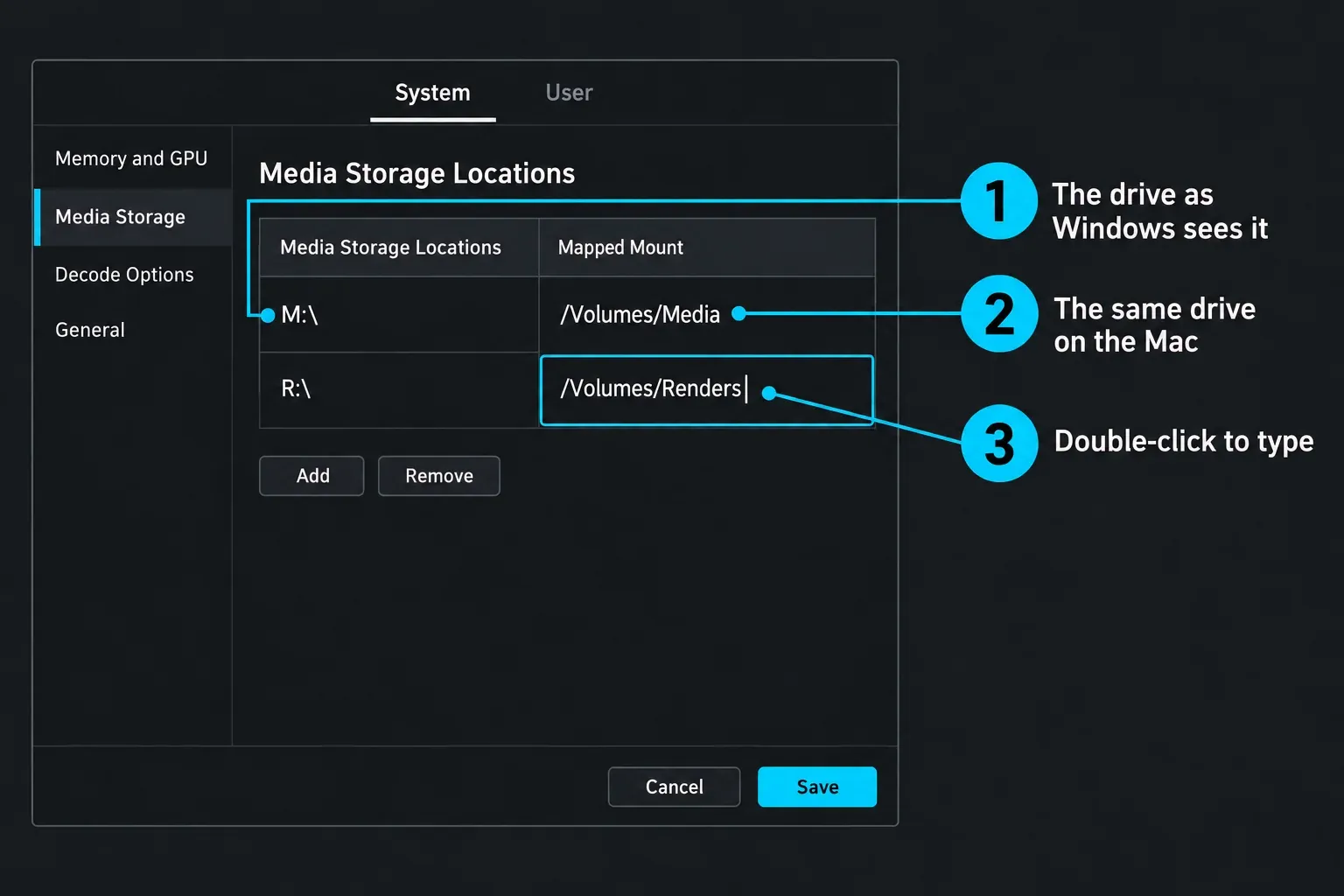
The render box reads the same media paths the project stores. On two Macs that's easy: mount the share under the same volume name on both, and the paths match. Mixed systems need a translation, because a Mac sees /Volumes/Media where Windows sees M:\ and Linux sees /mnt/media.
- Mount the media volume on both machines. On Windows, EposVox found in his Level1Techs render server guide that mapped drive letters worked more reliably than added network locations.
- Open Preferences > System > Media Storage on the render workstation and add the volume to the list.
- Double-click the Mapped Mount column next to it and type the path as the other machine sees it. The manual's Mapped Mount steps give the example of a Windows workstation reading a Linux volume, where you type the Linux path into Mapped Mount.
- Do the same for every scratch disk the project uses, then save the preferences.
The June 2024 forum thread on a Mac artist with a Windows render box shows how far apart the names drift: the media was Y: on the PC and /Volumes/Nitor on the Mac. That poster's projects also sat in local libraries, so the remote icon never showed, and support's answer was that remote rendering needs a network library.
Three more things have to match:
- The render cache. By default Resolve keeps its cache in a CacheClip folder on the first Media Storage volume, often a fast local drive. Robbie Carman of Mixing Light points out in his remote rendering write-up that a local cache isn't shared with the remote machine. Either render without the cache or regenerate it on shared storage. Turning off Use render cached images in the job's Advanced Settings makes Resolve process the original media, which the manual also advises whenever the cache is lower quality than the output. The render cache guide covers the cache settings.
- The output folder. Point the job at a location the render box can reach under the same path. EposVox found that writing to a drive local to the render machine performed best, which means collecting the files from that machine afterwards.
- Fonts, macros and plugins. Install the same fonts, .drfx packs and OpenFX plugins on the render box, with their licenses. On Linux, EposVox put OFX plugins in /usr/OFX/Plugins. The guides on adding fonts and the OpenFX plugins folder show where each goes.
Send a job to the render machine
- Turn on the scan preference on both machines. In Preferences > System > General, tick Automatically scan other project libraries for Remote Rendering jobs. It lets the render box pick up jobs from every connected library, not just the active one. Dwaine Maggart added in January 2026 that the library has to be connected in the Project Manager, though it doesn't need to be selected.
- Start Remote Rendering mode on the render box. Open Resolve, right-click anywhere in the Project Manager and choose Remote Rendering, or choose Workspace > Remote Rendering if a project is open. Resolve opens the Deliver page and waits.
- Open the project from the network library on the artist workstation, set up the render as usual and click Add to Render Queue. The export guide covers the render settings.
- Click the job's Remote Rendering button in the Render Queue. It looks like a Wi-Fi symbol and lights up once the job is assigned. Choose Any for the next idle machine, YourComputer.local to render on the artist workstation, or the render box by name.
- Click Render All under the queue. The job goes to the machine you picked, and the artist workstation stays free for editing. The manual's remote rendering steps still call this button Start Render.
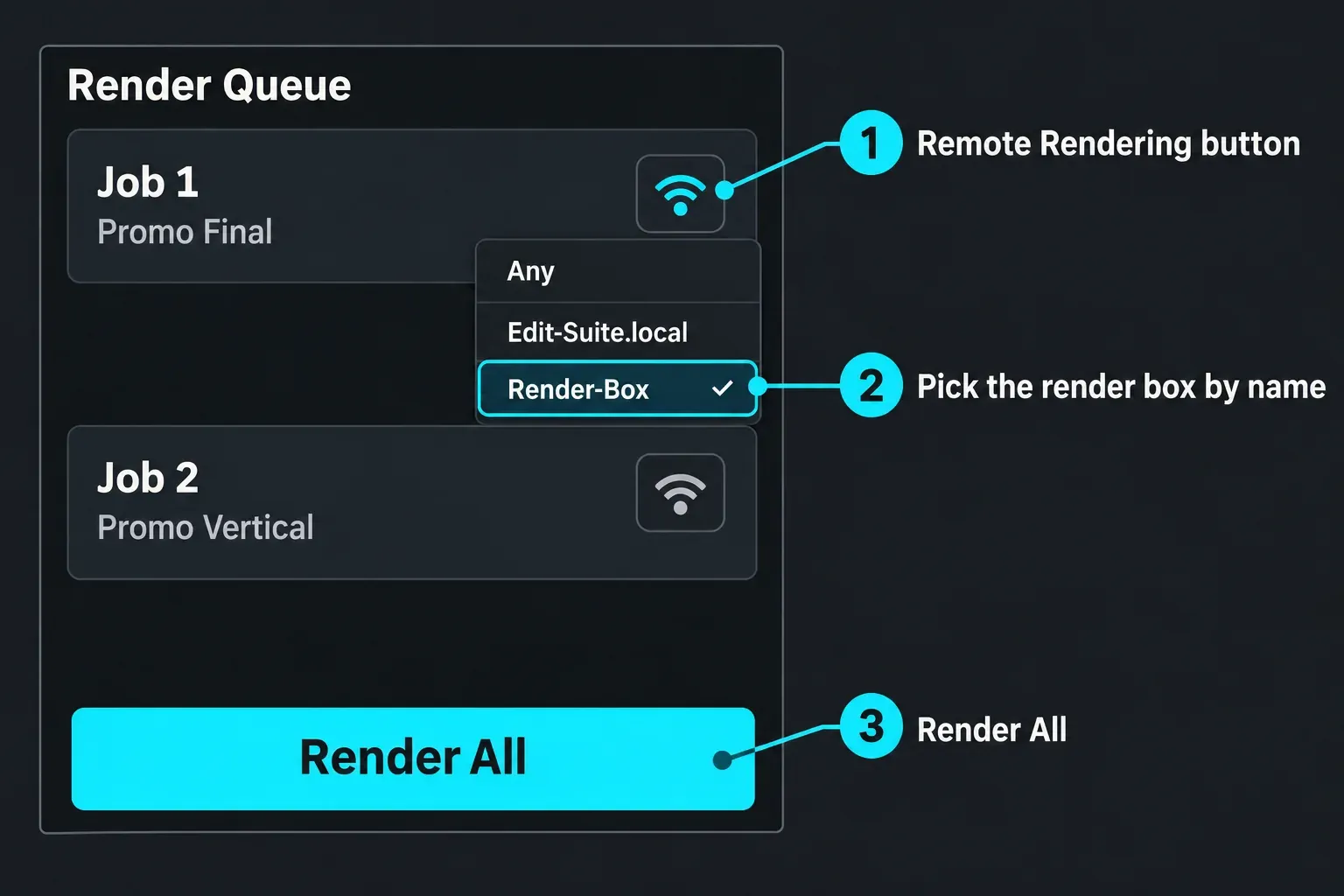
I pick the render box by name rather than Any. The list keeps every machine that has ever been in Remote Rendering mode for that library, and naming the box tells you exactly where the file will land, which matters when the output folder is local to it. On the render box itself, Remote Rendering mode starts from the Project Manager with no project open, and Robbie Carman's walkthrough stresses keeping it that way. To hand the render box back to normal work, choose Workspace > Remote Rendering on it again; Resolve returns to the Project Manager.
Run the render box headless with -rr
A render box doesn't need its interface open. Started with the -rr flag, Resolve runs in Remote Rendering mode with no window and waits silently for jobs. Open a terminal, change to the app folder and run the command for your system:
- macOS:
cd /Applications/DaVinci\ Resolve/DaVinci\ Resolve.app/Contents/MacOS/, then./Resolve -rr - Windows: in Command Prompt,
cd "C:\Program Files\Blackmagic Design\DaVinci Resolve", thenResolve.exe -rr - Linux:
cd /opt/resolve/bin, then./resolve -rr(the manual's example is CentOS 7)
On a Mac you can start it over SSH after turning on Remote Login, as Creative Video Tips shows, and stop it with Ctrl+C. Headless mode gives no progress output, as EposVox and Robbie Carman both note. On a Mac, quitting Terminal also kills the headless Resolve, so Carman starts it inside a screen session that keeps running after the window closes. I'd watch progress from the Render Queue on the artist workstation instead of leaving a remote desktop open on the render box, for the reason in the test results below.
Remote rendering test results
Blackmagic doesn't publish speed figures for remote rendering, and few people have measured it. These are the published numbers worth knowing, with their conditions:
| Measure | Result | Conditions | Source |
|---|---|---|---|
| Main grading rig, local render | 100 to 130 fps, about 6 to 7 minutes | 24-minute broadcast show, ProRes 1080i60, no render cache, four GPUs; Resolve 12.5, 2016 | Mixing Light |
| 5K iMac as remote render box | 40 to 50 fps, just under the program length | Same show sent as a remote job over shared storage and a shared database; iMac with a 4 GB GPU; the main rig stayed free for grading | Mixing Light |
| Remote desktop on the rendering machine | 6.6% slower LongGOP encoding | Resolve Studio with a Parsec session open, on RTX 5090 and RTX 5070 alike; other GPU tasks a few percent slower | Puget Systems, 2025 |
The Mixing Light run is old hardware on Resolve 12.5, but the shape still holds. Robbie Carman's main rig rendered at roughly three and a half to four times real time, and the remote iMac at about real time. The slower machine took three to four times as long, and it didn't matter much, because the main rig stayed free for the next grade. The second number comes from Puget Systems' remote desktop benchmark by Evan Lagergren. Streaming the desktop of a machine while it encodes cost 6.6% on LongGOP encoding, an overhead a headless render box never pays.
My verdict: remote rendering pays off when you have several deliverables or long renders and a second Studio machine that would otherwise sit idle. It doesn't make a single export finish sooner. A render box slower than your edit machine is still worth setting up for the editing time it gives back; just budget its render time from its own speed, not from your main machine's. The GPU guide helps if you're choosing hardware for the box.
What remote rendering won't do
- Split one job across machines. The manual's steps send each job to one workstation, and acecloud's remote rendering explainer sums it up as jobs, not frames. Two machines render two jobs at once; one long export still takes as long as the machine rendering it.
- Replace background renders in Resolve 21. Background Tasks run renders, quick exports and proxy generation on the same computer while you keep working. They're off by default because they can slow the system, and Pause background renders on foreground activity hands power back while you work. It's the option for a single machine; remote rendering moves the load to other hardware.
- Use Fusion render nodes. Fusion Studio is licensed for unlimited Render nodes, but those render Fusion Studio compositions through its Render Manager. They don't take Deliver page jobs from Resolve.
- Need Blackmagic Cloud. Creative Video Tips and a forum regular on the Blackmagic forum thread about a Mac mini render server both list a Blackmagic Cloud library as an option, and the cloud collaboration guide covers that route. For two machines in one room I'd still run Project Server, because the manual's three criteria describe a network library and the media already has to travel over your own network.
Licensing for a second render machine
- An activation key covers two of your own machines. In a forum reply on activation limits, Blackmagic's Shrinivas Ramani wrote that activation keys are personal licenses meant for two devices for the same person. Your edit machine and your render box fit that. The guide to using one Studio license on two computers covers moving activations.
- A dongle covers one machine at a time. Robbie Carman needed a second dongle for his iMac, because a dongle license follows the dongle.
- Plugins need their own licenses. Carman names Neat Video, FilmConvert and Boris FX as the kind of third-party OpenFX plugins that need an additional license for the render box.
- Studio on both. The free version can't send or receive remote jobs. The Studio price guide covers the cost of a second license if your activations are taken.
Fix remote rendering problems by symptom
- No Remote Rendering button on the job: the project is in a local library, or you opened it from one. Move it into the network library as a .drp and reopen it from there. EposVox found the icon only shows for projects opened from the PostgreSQL database.
- The render box isn't in the list: tick the scan preference on both machines, connect the network library in the render box's Project Manager and put it in Remote Rendering mode again. Creative Video Tips found the artist machine needed a restart the first time. In the December 2025 forum thread, Blanca Auber's render station showed up in the list only days after she set it up.
- Old machine names stay in the list: that's by design. Dwaine Maggart wrote that once a machine has been in the Remote Render list, it stays there for that project library, and the only way to clear the list is a new network library. Pick the render box by name and ignore the rest.
- Media offline on the render box: the volume name or path differs. Match the names or fill in Mapped Mount on the render box. The media offline guide covers relinking.
- Encoder error on the render box: the render box lacks the encoder the job uses. EposVox saw a job set to the Windows Native H.264 encoder fail on a Linux render box. Pick a codec and encoder both machines support; the render failed guide has the other causes.
- Titles or effects look different: a font, .drfx pack or plugin is missing or unlicensed on the render box. Install the same set on both.
- Stale or soft cache in the render: the cache isn't shared. Turn off Use render cached images in the job, or rebuild the cache on shared storage.
- Slow Deliver page: the Render Queue keeps every finished job. Choose Show All Projects in the Render Queue options menu and delete old jobs, as Creative Video Tips suggests.
- The project opens read-only: it's open on another machine, often the render box before it went into Remote Rendering mode. In a shared library, the second user gets read-only access and can only keep changes with Save As. Close the project there and start Remote Rendering from the Project Manager.
- Connection error with the access key: Project Server is on the wrong network interface, or the host moved networks. Pick the right IP in File > Network Interface, switch sharing off and on, and export a new key.
- Remote renders crawl: check for Wi-Fi or a 100 Mbit link between the machines. Use Gigabit Ethernet or faster and render to a drive local to the render box.
DaVinci Resolve remote rendering FAQ
Does remote rendering work in the free version of DaVinci Resolve?
No. Both the artist workstation and the render workstation need DaVinci Resolve Studio. The free version features list shows what the free edition does include.
Can two computers render one export together?
No. Each Render Queue job goes to one machine. Two machines save time when you have two or more jobs to render.
Can the render machine run Windows or Linux while I edit on a Mac?
Yes. Any computer running Studio on a supported system works. Mixed systems need the Mapped Mount column so each machine can find the media under its own path, plus the same encoders, fonts and plugins on both.
Does remote rendering work over Wi-Fi?
Blackmagic asks for Gigabit Ethernet or faster for a shared library, and the media streams over the same link. I'd use a cable for both machines.
Do I need a second Studio license for the render box?
Not with an activation key: Blackmagic staff say a key covers two devices for the same person. A dongle license needs a second dongle, and third-party plugins need licenses on the render box too.
Does the render box need the same version of Resolve?
Keep both on the same build. Library details show whether a library is compatible or needs an upgrade, and matching builds also keep the same encoders and effects on both machines.
How do I stop Remote Rendering mode?
Choose Workspace > Remote Rendering on the render box to return to the Project Manager. In headless mode, press Ctrl+C in the terminal that started it.