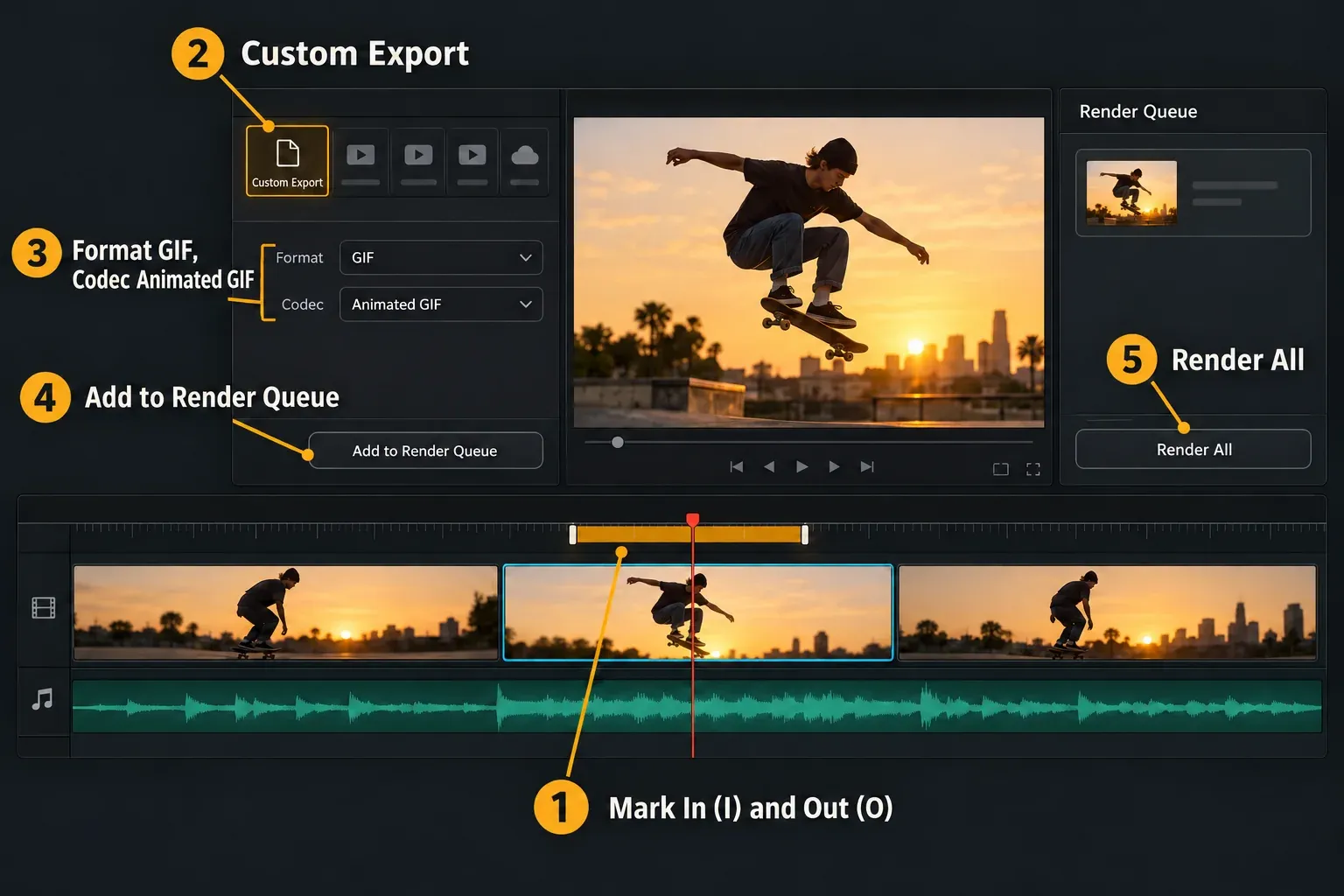
To export a GIF in DaVinci Resolve, open the Deliver page, choose Custom Export, set Format to GIF, mark In and Out around the moment you want, then click Add to Render Queue and Render All. Native GIF export arrived in Resolve 18.5, and it works in the free version.
The catch is file size. GIF compression is lossless and each frame is limited to 256 colors, so a clip that's a few megabytes as MP4 can come out many times bigger. Most of the work happens before you press Render: a short range, a small timeline and a frame rate that suits GIF timing.
Export a GIF from the Deliver page
- Mark the range. On the Deliver page timeline, park the playhead on the first frame and press I, then on the last frame and press O. An orange bar in the ruler shows what will render, and the Duration field counts the frames, as the manual's render range section describes.
- Choose Custom Export in the Render Settings, type a file name and pick a location.
- Set Format to GIF. The Codec menu then shows Animated GIF.
- Check Resolution. It follows the timeline resolution by default. The next section explains why the size and frame rate belong on the timeline.
- Click Add to Render Queue, then Render All.
Blackmagic's Format list in the Reference Manual describes GIF as an option for web animations and memes in up to 256 colors. In the DaVinci Resolve 18.5 release notes, the line "Support for rendering animated GIF clips" carries no Studio label, while the paid features in the same list do. If Format shows no GIF at all, you're on a version older than 18.5.
A GIF has no audio track, so whatever is on your audio tracks stays out of the file. If the clip needs sound, export an MP4 with the regular export video workflow instead.
If you make GIFs often, save those settings once. In the Render Settings 3-dot menu, choose Save as New Preset, name it and check Add to quick export. The Quick Export section of the manual notes that only Single Clip settings can become a preset. After that, File > Quick Export renders the GIF from the Cut, Edit, Fusion or Color page, using the timeline's In and Out points or the whole timeline if none are set. Once GIFs become a weekly job, that preset pays off, because it skips the Deliver page entirely.
Set the GIF's size and frame rate on the timeline
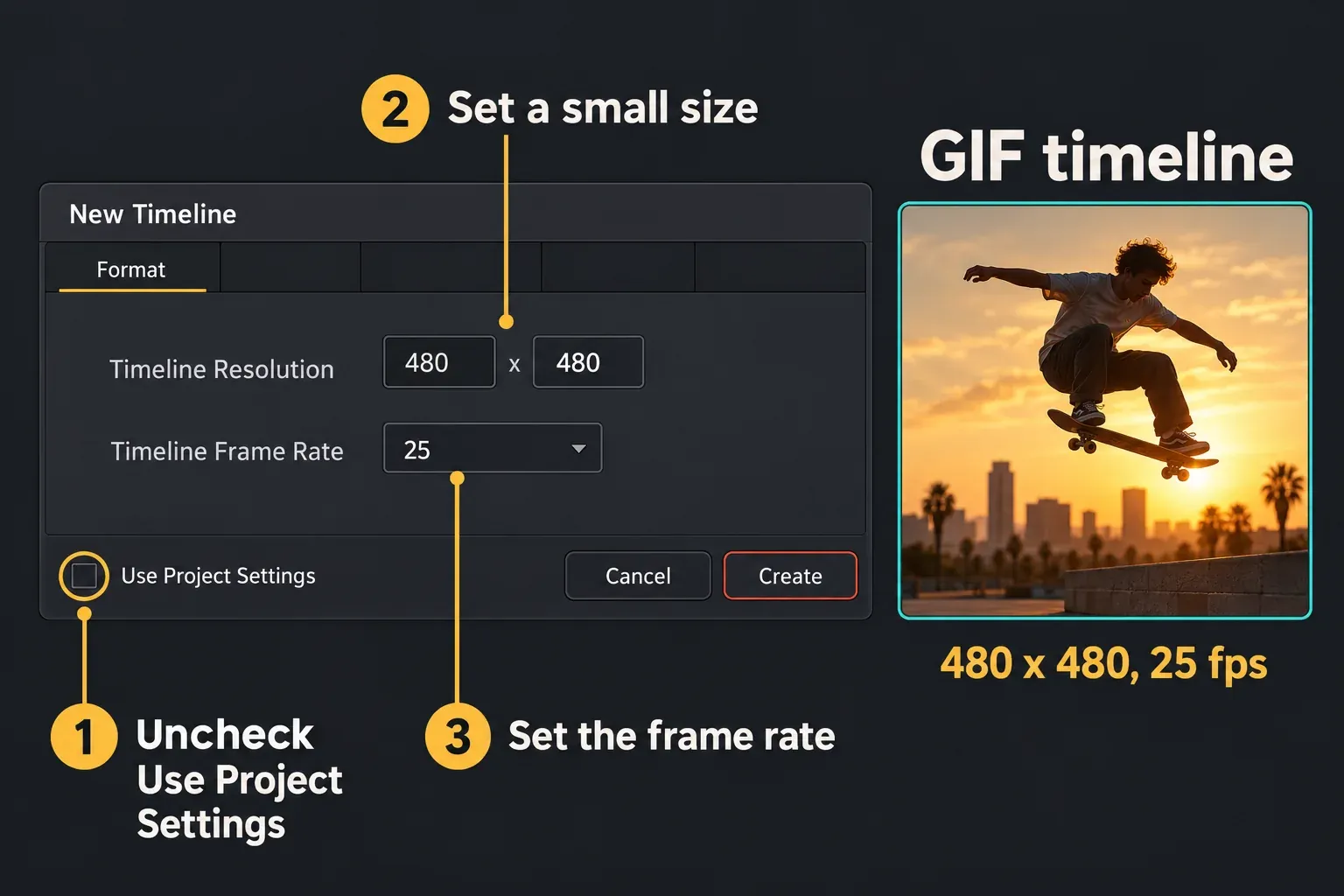
The Frame rate menu on the Deliver page won't make a lighter GIF. According to the render settings reference, it defaults to the timeline frame rate, and choosing a variant such as 23.98 or 24 only adjusts the metadata written into the file. To drop frames for real, and to get a small frame without scaling tricks, build a separate GIF timeline:
- Create a new timeline with File > New Timeline and uncheck Use Project Settings. The manual's timeline settings section says extra controls then appear, so this timeline can have its own resolution and frame rate.
- Set the size in the Format panel. 480 x 480 for a square GIF or 640 x 360 for a landscape one are sensible starting points.
- Set the timeline frame rate in the same panel.
- Copy the clips for the GIF from your main timeline and paste them into the new one, then reframe them in the Inspector.
- Render with Resolution left at the timeline resolution.
Your project's frame rate locks once media is in the Media Pool, but a new timeline can still carry its own rate. Our frame rate guide explains how Resolve maps 30 or 60 fps footage onto a different timeline rate, and the new timeline guide covers the dialog itself. For square or vertical framing, the aspect ratio guide shows how to keep the subject inside the new frame.
Very small sizes can hit a wall. A forum thread of GIF requests includes a user making a 540 x 150 banner for Tumblr who ran into Resolve's minimum timeline height. If Resolve won't accept your size, render the nearest frame it allows and crop the finished GIF in an editor such as Ezgif.
Frame rate also changes playback speed in a way MP4 never does. The GIF89a specification stores each frame's delay in hundredths of a second. At 25 fps every frame lasts exactly 4/100 of a second; 24 and 30 fps don't divide evenly, so each delay has to be rounded. At 60 fps or higher, a frame lasts one or two hundredths, and a long-standing Firefox bug report describes 10 ms frame delays being shown as 100 ms, which turns a fast GIF into slow motion. My default for a GIF timeline is 25 fps: motion stays smooth and the timing stays exact.
How big a Resolve GIF gets: published results
File size is the complaint that comes up again and again. These are the published reports with enough detail to compare:
| Report | What was exported | Result |
|---|---|---|
| Blackmagic forum, Dec 2023 | Under a minute of footage as GIF from Resolve | Almost 2 GB; the H.264 export was much smaller |
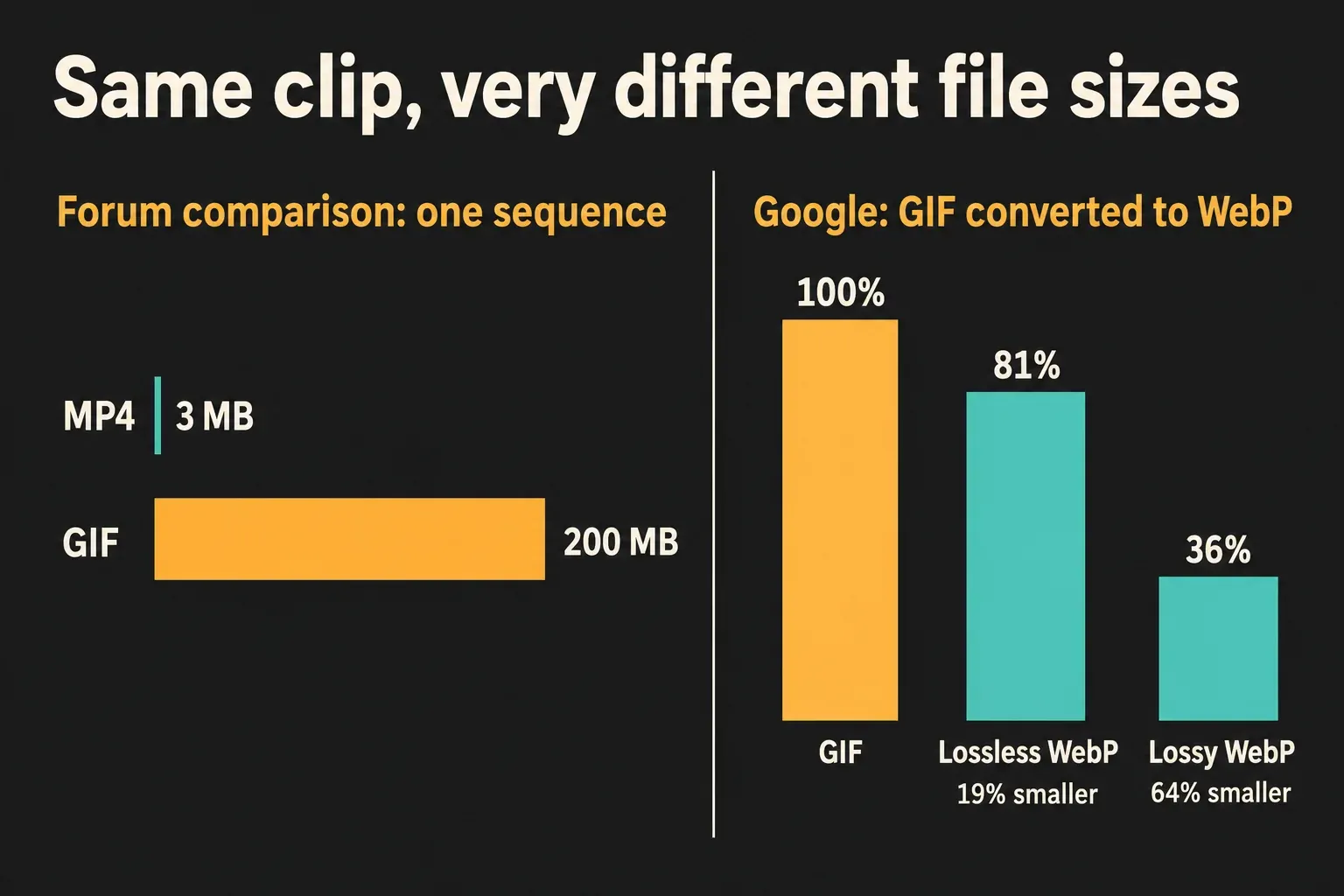
| Same thread, Jan 2024 | One sequence as MP4 and as GIF | MP4 3 MB, GIF 200 MB (about 67 times larger) |
| Blackmagic forum, May 2023 (18.5 beta) | A short test GIF for Tumblr | Over 6 MB, past the site's 5 MB GIF limit |
| Video with Jens, 2022 | 480 x 480 H.264 export from Resolve at 24 fps, sped up 200 to 300%, converted in Ezgif | About 10 times the H.264 file; 6.8 MB after maximum compression, with visible quality loss |
Across the two direct comparisons, the GIF came out 10 to 67 times larger than the same footage as H.264 or MP4, and three of the four describe files too heavy for where they were going. A reply in the December 2023 thread explains why. GIF uses lossless LZW compression, so there's little Resolve can do inside the encoder, and the only levers are resolution, the number of colors and the frame rate. The same reply adds that "less than one minute" is about 58 seconds too long for a GIF.
So I size a GIF from the destination backward. Video with Jens cites Giphy's advice to stay under 6 seconds and 720p, and recommends 480p; the Tuts+ GIF tutorial suggests 2 to 6 seconds at a lower resolution. I'd stay within 6 seconds and about 480 to 640 pixels across. Anything longer, wider or full of fine detail should go out as MP4 or WebP. Size is the first lever to pull: halving the width and height leaves a quarter of the pixels, which saves far more than dropping a few frames per second. If a finished GIF still breaks an upload limit, an optimizer such as Ezgif can squeeze it further, at the cost of the quality loss Jens describes.
For the MP4 side of the same problem, our export file size guide covers bitrate and codec settings.
Export a GIF with a transparent background
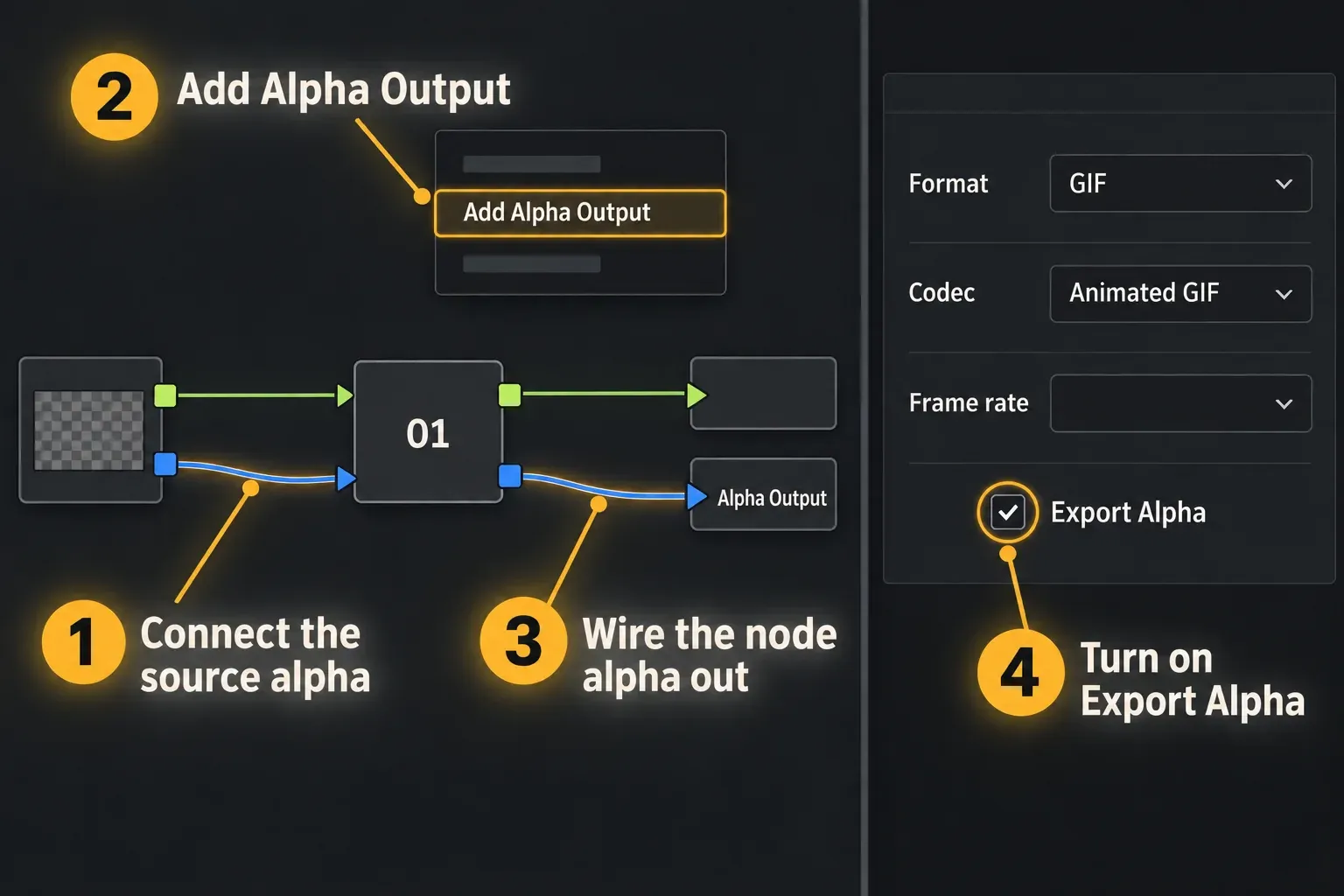
Resolve's Deliver page offers Export Alpha for GIF; the manual's alpha section places that checkbox under the Frame rate selector in Single Clip mode whenever the codec supports alpha. The checkbox alone often isn't enough. In a forum thread on GIF transparency, a user exporting a bumper for an email signature got black wherever the clip should have been transparent. The fix posted there works on the Color page:
- Connect the source alpha to the alpha input of the node in the Node Editor.
- Right-click an empty area of the Node Editor and choose Add Alpha Output.
- Connect the node's alpha output to that Alpha Output.
- Turn on Export Alpha in the Deliver page Video settings and render the GIF.
The same thread spells out GIF's limit: a pixel is either fully transparent or fully visible. Soft edges, glows, drop shadows and motion blur have nowhere to go, and a 2024 report in the GIF requests thread shows black fringes around edges exported with alpha. To check the result, bring the GIF back into Resolve over a bright layer, or turn on the checkerboard viewer background, as the same thread suggests. Our transparent background export guide covers keying and the video formats that keep soft alpha. For a logo with a shadow or feathered edges, I'd skip GIF and export animated WebP, which handles gradual transparency.
Animated WebP: the smaller option in Resolve 20.1 and later
Resolve 20.1 added WebP decoding and encoding, according to its 20.1 release notes, and the manual's format list says WebP can export animated video losslessly or with compression. Choose WebP in the Format menu instead of GIF; the rest of the export stays the same. A 2025 forum thread on animated WebP reports alpha exporting from the Deliver page, with the audio settings greyed out.
WebP files come out much smaller. In Google's WebP FAQ, GIFs converted to lossy WebP came out 64% smaller and lossless WebP 19% smaller. The same FAQ lists animated WebP support in Chrome 32+, Edge 18+, Firefox 65+, Opera 19+ and Safari 14+, and notes that WebP support is less widespread than GIF's. I'd use WebP on web pages I control and keep GIF for chat apps, forums and anything else that only accepts GIF.
Make a GIF loop or bounce
A GIF is usually watched on repeat, so the cut from the last frame back to the first is the moment people notice. Pick a range where the motion ends close to where it began, or build a bounce. The Tuts+ tutorial makes one by speeding the clip up to 300%, duplicating it and turning on Reverse Speed for the copy, so the motion plays forward and then backward.
On the Edit page, right-click the copy, choose Change Clip Speed and check Reverse Speed; the clip speed guide covers the dialog. Our loop video guide shows the same ping-pong pattern and how to hide the seam. After rendering, open the GIF in a web browser and watch several cycles; a jump at the loop point is easier to spot there than in the Resolve viewer.
Older versions: export MP4 and convert
Before 18.5 there was no GIF in the Format list. The route then was to export an H.264 MP4 at the GIF's final size and convert it with a tool such as Ezgif, GIMP or Photoshop; the GIF requests thread mentions VirtualDub for the same job. Updating is the simpler fix, since the free version has rendered GIF since 18.5. Our safe update guide covers backing up projects first.
GIF export problems and fixes
- No GIF in the Format menu: check DaVinci Resolve > About DaVinci Resolve. Anything older than 18.5 needs the MP4 route or an update.
- The file is huge: shorten the In/Out range first, then render from a small GIF timeline at 25 fps. Changing the Deliver frame rate won't help.
- Black instead of transparency: wire the Alpha Output on the Color page and turn on Export Alpha. Only fully transparent pixels stay transparent.
- Dark fringes around a cutout: those are semi-transparent edge pixels. Tighten the matte or export animated WebP.
- Banding in skies and gradients: 256 colors per frame can't hold smooth gradients. Choose a moment with fewer gradients, or send MP4 or WebP.
- Playback runs at the wrong speed: set the frame rate on the timeline, prefer 25 fps and avoid 60 fps or higher.
- The render stops with an error: work through the checks in our render failed guide.
GIF export FAQ
Can DaVinci Resolve free export GIFs?
Yes. GIF rendering arrived in version 18.5, and the release notes don't mark it as a Studio feature. Choose GIF in the Format menu on the Deliver page.
Why is my DaVinci Resolve GIF so big?
GIF compression is lossless and each frame is limited to 256 colors, so GIFs grow much faster than MP4. Published comparisons put Resolve GIFs at 10 to 67 times the size of the same footage as H.264. Shorten the clip, render from a smaller timeline and keep the frame rate moderate.
Can a GIF from DaVinci Resolve have sound?
No. The GIF format has no audio track, and animated WebP doesn't carry sound either. Export an MP4 when the clip needs audio.
What frame rate should I use for a GIF?
Set it on the timeline, because the Deliver frame rate menu only changes metadata. 25 fps matches GIF's timing in hundredths of a second exactly, and rates of 60 fps or higher risk slow playback in browsers.