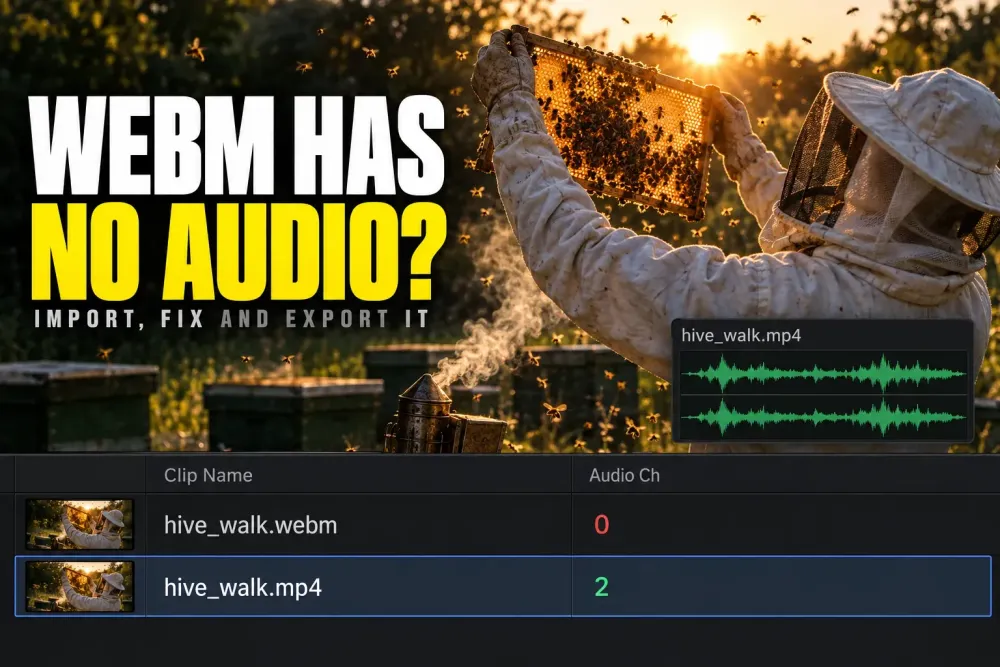
Quick answer: DaVinci Resolve imports WebM only when the video inside is VP8, and only from version 20.2.3 on. A lot of WebM, YouTube downloads included, carries VP9 or AV1 video with Opus audio, and Resolve 21.1 doesn't read those streams from a .webm file. Copy the video into an MP4 with ffmpeg and convert the audio to AAC, and the same picture imports without being re-encoded. Resolve also has no WebM render option, so for WebM delivery you render a master and convert it with HandBrake, ffmpeg or Shutter Encoder.
I checked this against Blackmagic's supported formats and codecs list for Resolve 21.1, dated September 2026, and the 21.1 Reference Manual on October 6, 2026, when 21.1.1 was the current update. Codec support changes between releases, so on an older version check its own list. The list also notes that on macOS and Windows Resolve reads most formats the operating system supports natively, which is why a file can behave differently on two machines. More file and delivery topics live in the Workflow section.
Can DaVinci Resolve Import WebM?
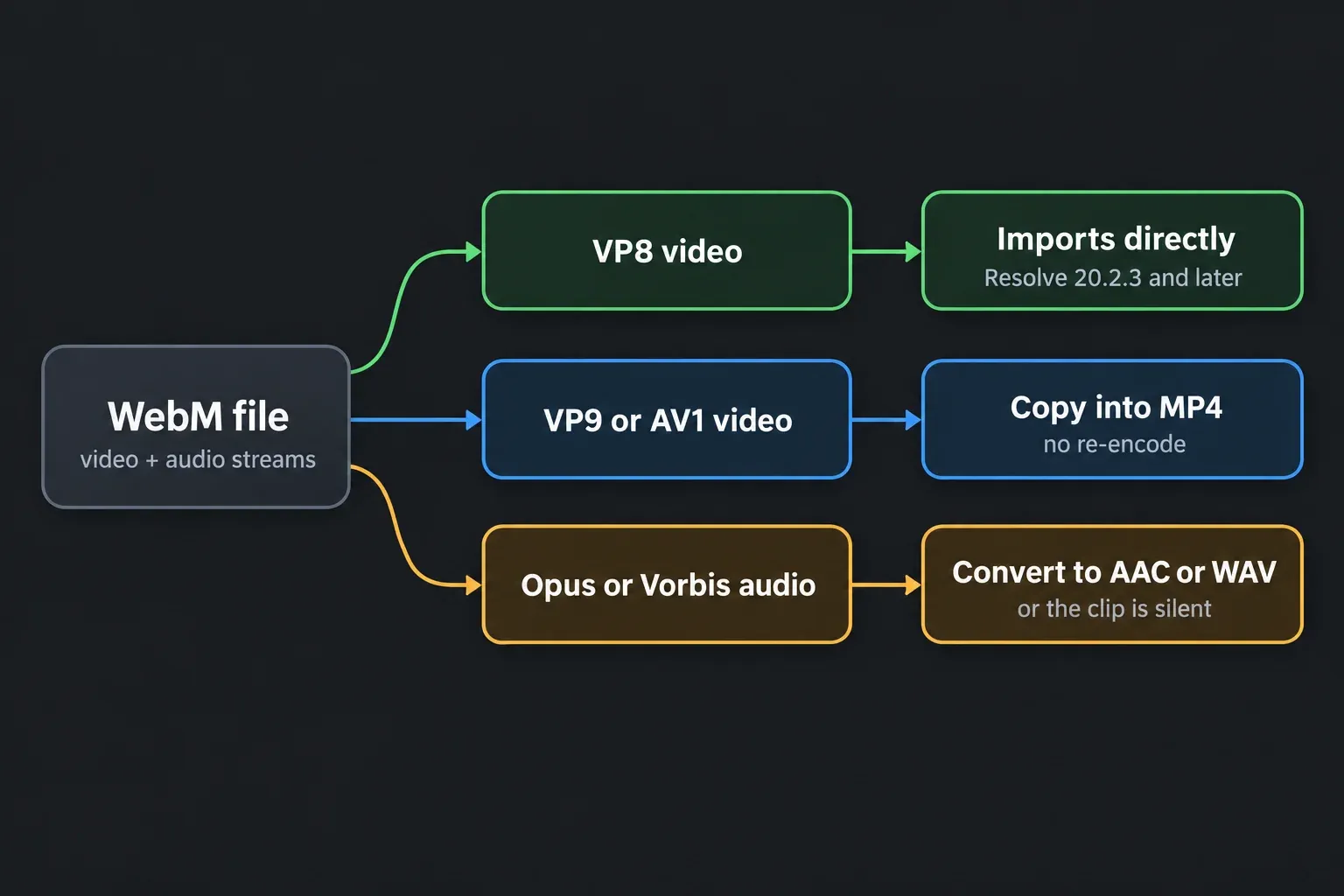
Partly, and it depends on what is inside. WebM is a container, a subset of the Matroska format, and the WebM Project's container guidelines say its video should be VP8 or VP9 and its audio Vorbis or Opus. What Resolve reads depends on each stream and on the container around it, and the 21.1 list treats every case differently:
| If MediaInfo shows | Resolve 21.1 | What to do |
|---|---|---|
| VP8 video | Reads it from .webm and .mkv, since 20.2.3 | Import the file as it is |
| VP9 video | Reads it from .mp4 and .mov, not from .webm | Copy the video into an MP4 |
| AV1 video | Reads it from .mp4, .mov and .mkv, not from .webm | Copy the video into an MP4 |
| Opus audio | Reads it from .mp4 and .mov only | Convert to AAC, or copy into an MP4 |
| Vorbis audio | Not in the codec list | Convert to AAC or WAV |
| WebM export | No WebM render format on any platform | Render a master, then convert it |
Two things follow from that. The picture is often fine and only the wrapper is wrong, which is why a quick remux works. And the audio is a separate problem with its own fix, so a WebM can come in with picture and no sound.
Check What's Inside Your WebM First
Open the file in MediaInfo and read two lines: Format under Video (VP8, VP9 or AV1) and Format under Audio (Opus or Vorbis). Those two words tell you which of the fixes below you need. If that view is new to you, the codec guide shows how to read the streams in MediaInfo and explains why decoding and encoding are separate promises in the codec list.
Import VP8 WebM Directly
Blackmagic added decoding for WebM and MKV clips with VP8 video in DaVinci Resolve 20.2.3, released in November 2025, and the 21.1 list still shows it on all three platforms. So if MediaInfo says VP8 and you're on 20.2.3 or later, drag the file into the Media Pool as it is. There's no VP8 encoding, so this only works in one direction.
The catch is the sound. WebM audio is Opus or Vorbis, Resolve 21.1 reads Opus only from MP4 and MOV, and the codec list leaves Vorbis out entirely, so a VP8 clip can come in silent. Take the audio out as a WAV file with the command in the no-audio section below and put it under the picture.
Convert VP9 or AV1 WebM for Resolve Without Re-encoding
VP9 and AV1 are both on the decode list, just not inside a .webm file. Moving the same video into an MP4, called remuxing, fixes that quickly and doesn't touch picture quality. With ffmpeg it goes like this:
- Open the WebM in MediaInfo and confirm that the video is VP9 or AV1 and the audio is Opus or Vorbis.
- Open a terminal in the folder that holds the file and run the first command below, with your own file names.
- On Linux, where the codec list shows no AAC support, run the second command instead if the audio is Opus.
- Drag the new MP4 into the Media Pool, and keep the original WebM until the project is delivered.
- Play part of the clip with the audio meters open, and compare its duration with the original.
ffmpeg -i input.webm -c:v copy -c:a aac -b:a 192k output.mp4
-c:v copy moves the video stream across untouched, -c:a aac converts the Opus or Vorbis audio to AAC, and -b:a 192k sets its bitrate. This is the fix a forum member posted in 2022, pointing out that Resolve read VP9 from an MP4 even when it refused the WebM, and the 21.1 list still lines up with it: VP9 and AV1 from MP4, AAC on macOS and Windows.
ffmpeg -i input.webm -c copy output.mp4
That second command is for Linux. The Linux section of the list leaves AAC blank but shows Opus decoding from MP4, so -c copy moves both streams into the MP4 untouched. It only helps when the audio is Opus. With Vorbis, use the WAV command further down for the sound.
If you'd rather avoid a terminal, Shutter Encoder's Rewrap function swaps the container the same way, and the MP4 import guide explains when a rewrap can and cannot help. If the MP4 still fails, or it imports but stutters, a new container is not enough; transcode to an editing codec such as ProRes or DNxHR. It takes more disk space, and the clip becomes far easier to edit.
Can You Just Rename .webm to .mp4?
No. Renaming changes the label on the file, not the container inside, even though some converter sites still suggest it. The MP4 import guide covers why a new extension cannot fix a file.
Renaming to .mkv is a closer call. WebM is a subset of Matroska and Resolve reads MKV, so the picture sometimes comes in, but the file's own header still identifies it as WebM, and the Opus or Vorbis audio inside Matroska is not on the list either. A real remux is the cleaner version of the same idea: in a 2021 thread, a user remuxed 4K HDR WebM captures from a PS5 into MKV with ffmpeg and reported that the VP9 video played well in Resolve. For the sound I'd still go to MP4 with the commands above.
WebM Imports but Has No Audio
A WebM that arrives with picture and no sound usually has an audio codec problem rather than a wrong setting. Resolve 21.1 lists Opus decoding only from MP4 and MOV files, and Vorbis not at all. In a 2025 forum thread, a Windows 11 user found that MP4 files had sound while their WebM files came in silent. A reply pointed out that WebM usually carries Opus audio, which Resolve didn't support there, and suggested converting the audio to AAC or WAV while copying the video, which is exactly what the commands above do.
Before you convert anything, make sure the audio actually reached the timeline. Earlier replies in that thread suggested checking the waveform and meters, and warned that audio tracks deactivated by accident with the Auto Select controls keep the sound out of the edit. The no-audio guide covers the video-only edit case.
On Linux, converting to AAC does not help, because the list leaves AAC decoding blank there. For Vorbis audio, or any time you just want the sound in a format every version reads, write it out as WAV:
ffmpeg -i input.webm -vn -c:a pcm_s16le audio.wav
-vn drops the video and pcm_s16le writes plain 16-bit PCM. Put the WAV under the picture at the same start, or let Resolve line them up with auto sync by waveform. If the sound is still missing, the no-audio guide goes through channel mapping and codec checks, and the output device setting is worth a look when the meters move but you hear nothing.
Make WebM Footage Smooth to Edit
VP9 and AV1 are delivery codecs built to keep files small, and the computer works harder for every frame it plays. If a remuxed clip stutters while the rest of the timeline doesn't, test that codec on its own. For a longer edit, make proxies or optimized media, and choose between them by the job.
Can DaVinci Resolve Export WebM?
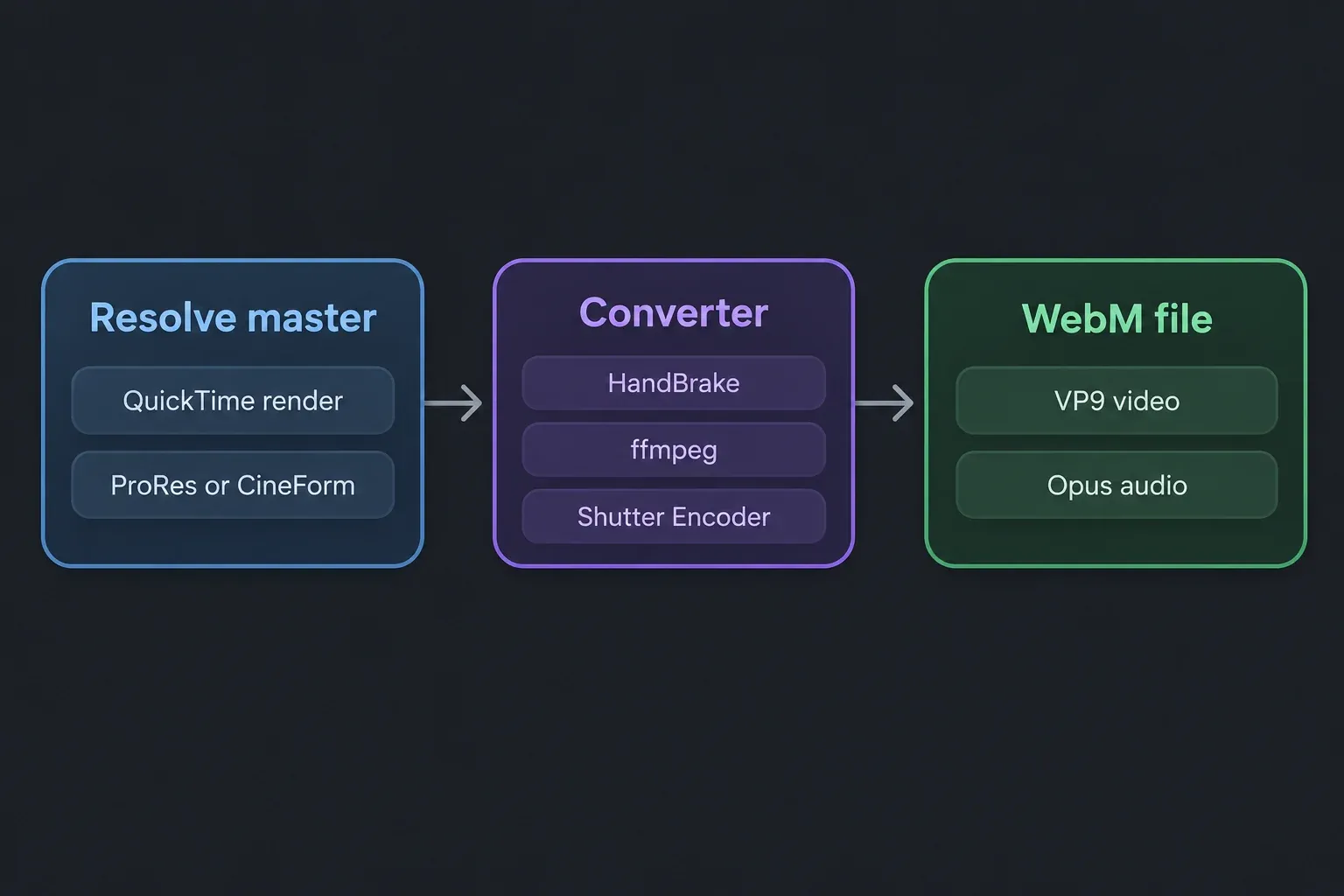
No. The 21.1 codec list has no WebM format to render on macOS, Windows or Linux, and a Studio 21 user asked for it as a feature in April 2026. VP9 encoding exists only on macOS, inside a QuickTime .mov file. The usual route, which forum members have suggested for years, is to render a high-quality master and convert it:
- HandBrake lists WebM as an output with VP8, VP9 and AV1 video and Opus or Vorbis audio, and gives you presets in a normal window.
- ffmpeg gives full control. Google publishes VP9 settings for on-demand video with bitrates and quality values for each frame size.
- Shutter Encoder documents VP8, VP9 and AV1 functions and an Enable alpha option, which matters for overlays.
For the master, a QuickTime render with ProRes or DNxHR at the timeline resolution works well; the export guide walks through the Deliver page in seven steps. This is Google's example for 1080p at 24, 25 or 30 fps, with the scale filter dropped because the master is already 1080p:
ffmpeg -i master.mov -b:v 1800k -minrate 900k -maxrate 2610k \
  -tile-columns 2 -g 240 -threads 4 -quality good -crf 31 \
  -c:v libvpx-vp9 -c:a libopus -pass 1 -speed 4 output.webm && \
ffmpeg -i master.mov -b:v 1800k -minrate 900k -maxrate 2610k \
  -tile-columns 3 -g 240 -threads 4 -quality good -crf 31 \
  -c:v libvpx-vp9 -c:a libopus -pass 2 -speed 2 -y output.webm
The first pass analyzes the video and the second encodes it. -crf 31 is Google's quality value for 1080p, the bitrate settings keep the file in its range, and libopus writes Opus audio. For other sizes, take the numbers from its table. The backslashes continue the line in macOS and Linux shells; in Windows Command Prompt, run each pass as a single line.
On a Mac there's a shortcut worth trying: render QuickTime with the VP9 codec from Resolve, then copy that video into a WebM and convert the audio to Opus. Try it on a short clip before you trust it with a whole project.
How to Make a Transparent WebM
Transparent WebM is popular for OBS overlays, stinger transitions and web animation, because WebM can carry an alpha channel. Resolve can't write it directly, so it takes two steps. First render a master that keeps the alpha: QuickTime with ProRes 4444, or GoPro CineForm at RGB 16-bit. The 21.1 list shows both exporting alpha in a .mov on all three platforms, with Export Alpha turned on. The transparent background guide covers which codecs can store alpha and the Deliver settings in detail.
Then convert the master to VP9 with alpha. In an OBS forum thread about a stinger rendered from Resolve as CineForm with alpha, a 2022 reply shared this command for the .mov:
ffmpeg -i input.mov -c:v libvpx-vp9 -pix_fmt yuva420p output.webm
-pix_fmt yuva420p is the part that keeps transparency; the a stands for alpha. Without rate settings, ffmpeg's defaults decide the quality, so compare the result with the master and add settings from Google's table if it looks soft. Shutter Encoder's VP9 function with Enable alpha is the point-and-click version.
In the same thread, the black in a track matte came out as a very dark gray, so the scene behind showed through slightly, until Data Levels in the render settings went from Auto to Full, a fix the poster credited to a user on the Blackmagic Design Discord. Auto picks the level the codec expects, so I'd only change it when mattes or blacks look wrong, and the washed-out export guide explains why Data Levels is not a general fix. For stingers, OBS reads track mattes from version 27.0 on, per its track matte guide.
Before a transparent WebM goes on a website, play it in the browsers your audience uses, because players differ in how they show video alpha. Checking it over a solid color beats trusting a thumbnail.
When You Don't Need WebM at All
For YouTube, Vimeo and social uploads, MP4 with H.264 is the normal choice, and the YouTube preset in the Deliver page sets exactly that. The export settings hub collects the presets for each platform. If small files are the reason you wanted WebM, AV1 is the other modern option: the 21.1 list shows AV1 encoding with GPU acceleration on Windows and on Linux with Nvidia graphics, though not on macOS. And for a short animation with transparency, Resolve renders WebP directly, which the manual describes as able to export animated video losslessly or with compression for web use; the codec list shows alpha support for it too.
Frequently Asked Questions
Can DaVinci Resolve import WebM files?
Only WebM files with VP8 video, from version 20.2.3 on. Resolve 21.1 reads VP9 and AV1 from MP4 and MOV files but not from WebM, so copy the video into an MP4 with ffmpeg and convert the audio. Check the streams in MediaInfo first to see which case you have.
Why does my WebM import without audio in DaVinci Resolve?
WebM audio is normally Opus or Vorbis. Resolve 21.1 reads Opus only from MP4 and MOV files and does not list Vorbis at all. Copy the video into an MP4 and convert the audio to AAC, or on Linux, where AAC is not supported, extract the audio as a WAV file.
Can DaVinci Resolve export WebM?
No. Resolve 21.1 has no WebM render format on macOS, Windows or Linux. Render a high-quality master and convert it with HandBrake, ffmpeg or Shutter Encoder. On a Mac, Resolve can render VP9 video, but only inside a QuickTime .mov file.
Can I rename a WebM file to MP4 so Resolve opens it?
No. Renaming changes the label, not the container or the streams inside it. Remux the file with ffmpeg instead, which copies the video into a real MP4 without re-encoding it.
How do I make a transparent WebM from DaVinci Resolve?
Render a QuickTime master with ProRes 4444 or GoPro CineForm RGB 16-bit and Export Alpha turned on, then convert it to VP9 with an alpha pixel format, for example ffmpeg with -pix_fmt yuva420p, or Shutter Encoder with its Enable alpha option.
Is WebM good for editing in DaVinci Resolve?
Not really. WebM is a delivery format, and its VP9 or AV1 video takes a lot of processing to play back. Remux it to MP4 to get it in, use proxies or transcode to ProRes or DNxHR for a long edit, and keep WebM for the final web version.
