A DaVinci Resolve Studio activation key can be active on two computers at the same time, but the license is for one person. The clean way to move Studio to a replacement computer is to open Resolve Studio on the machine you are retiring, choose Help > Deactivate License, install the Studio build on the new computer, and enter the same activation key there. For edition and value decisions around Resolve, see the DaVinci Resolve comparisons hub. Check the current installer and edition route in the Resolve download guide.
If the old computer is dead, lost, stolen, reformatted, or otherwise unavailable, the activation system has a failsafe reset. When no activations remain, activating another system can clear the previous activation instances. You then enter the key again on the computers you still intend to use. Blackmagic staff describes that reset as recovery for failed or inaccessible systems, not the normal way to rotate one key through a room of workstations.
| License method | Where it can be used | How you move it |
|---|---|---|
| Activation key | Two computers at once for the same person | Help > Deactivate License, then enter the key on the replacement |
| USB dongle | One computer at a time | Move the physical dongle and keep it connected |
| Blackmagic Cloud rental | One activated computer for the assigned license | Open License Details, deactivate the computer, then sign in on the new one |
| Mac App Store purchase | Apple-managed Mac entitlement | Install through the Mac App Store with the purchasing Apple account |
The Two-Computer Rule
Blackmagic’s current staff guidance is specific: an activation-key license is personal and supports two devices for the same person. It is not a two-user license. A desktop in your edit room and your own laptop fit that rule. Two editors working independently need separate licenses even if they never launch Studio at exactly the same time.
The two computers do not have to use the same operating system. A supported macOS system and a supported Windows system can use the same key. The key activates the Studio edition you download directly from Blackmagic Design; it does not turn the free DaVinci Resolve installer into Studio. If Resolve never asks for a key and the About window does not identify the application as Studio, verify that you installed the Studio build.
For download choices and the difference between the free and Studio installers, use our DaVinci Resolve Studio download guide. If you are still choosing a license channel, the DaVinci Resolve cost guide separates the perpetual purchase from Cloud rental and other purchase routes.
Transfer the License When the Old Computer Still Works
When you can still open the old installation, release that activation before wiping, selling, returning, or rebuilding the machine. In DaVinci Resolve Studio, open the Help menu and choose Deactivate License. Resolve Studio closes after the deactivation. That activation is then available for the replacement system.
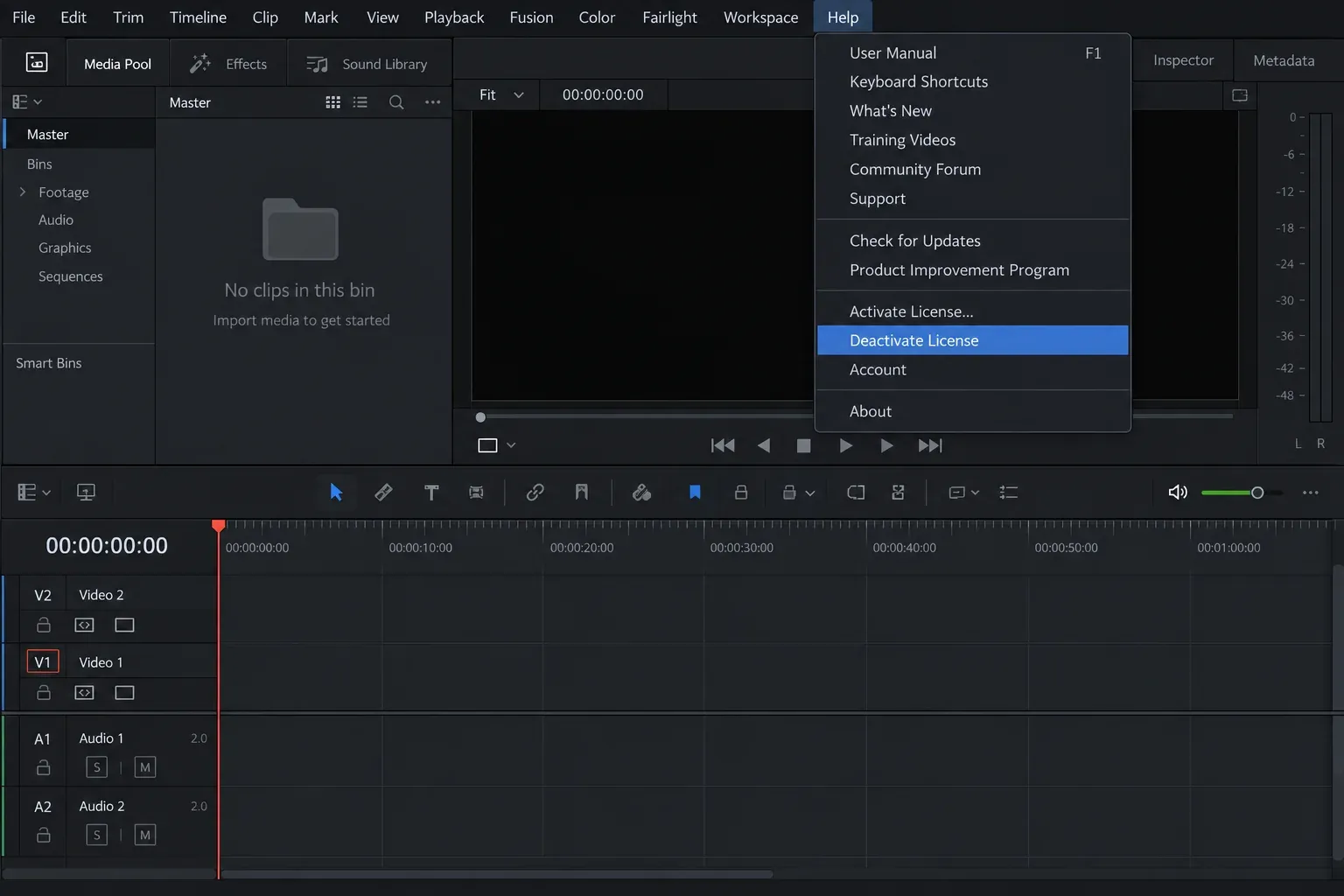
I recommend deactivating before any operation that may make the existing installation unreachable: a clean operating-system install, motherboard replacement, drive migration, company laptop return, or disposal of an old machine. A system restore or major hardware change can cause licensing to see the rebuilt environment as another computer. Deactivation removes the guesswork while the old system is still available.
Deactivating Studio does not transfer your projects, databases, LUTs, presets, plug-ins, fonts, media, or render files. Licensing and project migration are separate jobs. Back up the project library and export critical projects before changing the computer. If the transfer is part of an application upgrade, follow the backup order in our safe DaVinci Resolve update workflow.
After deactivation, do not erase the old machine until you have confirmed that your project backup can be restored and the required media is accessible. The activation can be moved again; missing project data may not be recoverable.
Activate Studio on the New Computer
- Download the current supported DaVinci Resolve Studio installer from Blackmagic Design Support.
- Install Studio on the replacement computer.
- Launch the application and choose the license-key option.
- Enter the activation key exactly as supplied. Hyphens and character groups help catch transcription mistakes.
- Complete online activation, then confirm that the application identifies itself as DaVinci Resolve Studio.
- Restore or reconnect your project library only after the application and storage paths are ready.
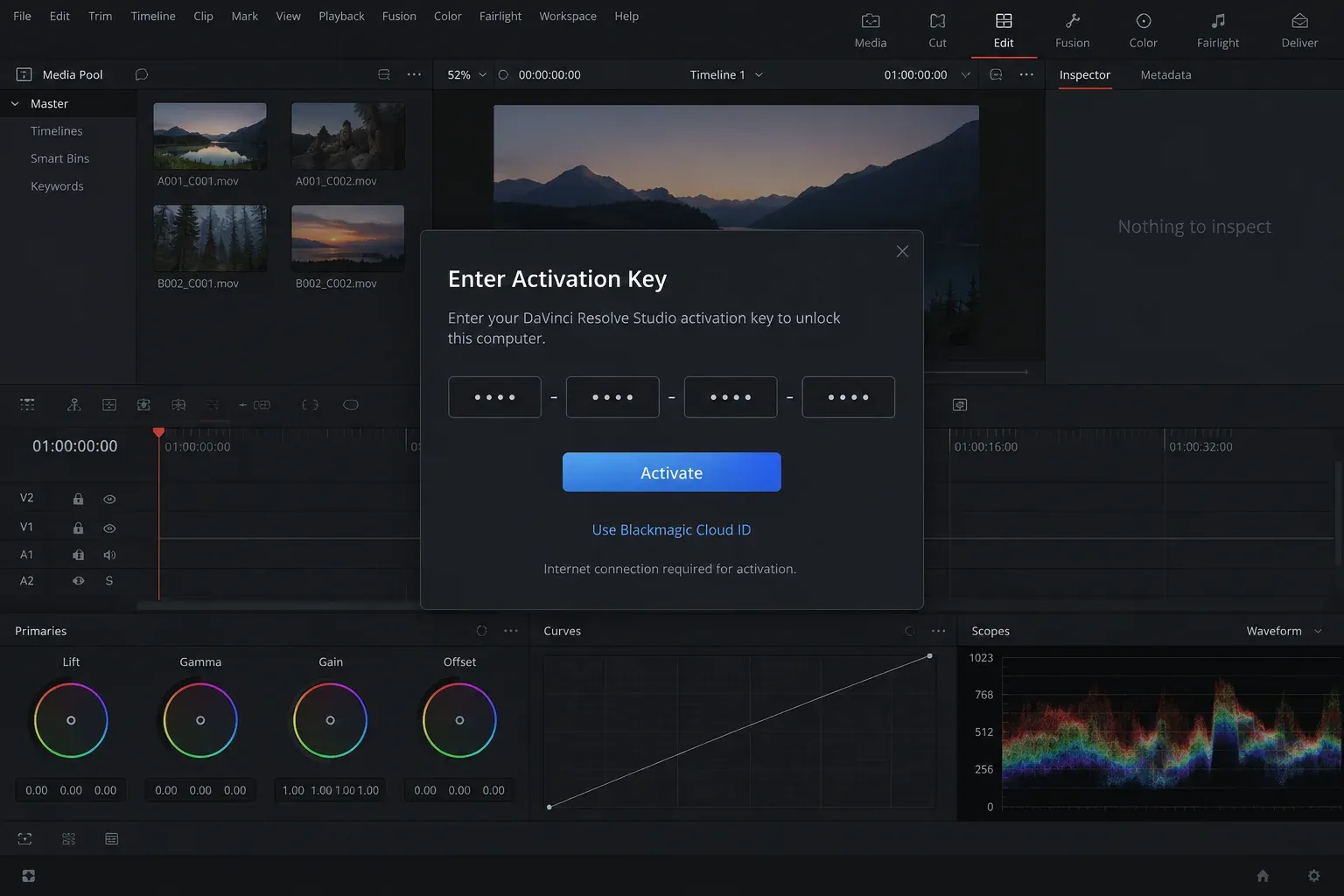
If only one of your two activations was in use, you may activate the new computer without deactivating the old one. Both can remain active for your use. The safer habit is still to deactivate a machine that is leaving service. It keeps your second activation available for a laptop, an emergency rebuild, or the next planned replacement.
A cross-platform move does not require a new purchase. Install the correct Studio build for the new desktop operating system and enter the existing key. Platform-specific plug-ins, codecs, fonts, storage paths, and project-library connections still need their own migration checks, but the activation key itself is not restricted to a single desktop platform.
If the Old Computer Is Lost or Broken
You cannot use Help > Deactivate License if the computer no longer starts. This is where the activation reset exists. Blackmagic staff explains that when both activation instances are occupied and no activations remain, you can reset the prior activations as a fallback. The old instances are cleared, and you enter the key again on the one or two computers you want to keep active.
This recovery path covers cases such as a corrupt disk, a failed machine, an operating-system reinstallation that consumed another instance, or a computer you no longer possess. It also explains why activating a third system can cause two previously working systems to request the key again. The license has not been converted into a three-computer license; the activation set has been reset.
After a reset, launch Studio on each computer you still use and enter the key again. Expect the other previously activated installation to need reactivation. Do not start the reset minutes before a deadline unless the existing systems are already unusable, because every intended system may need internet access and the key.
Blackmagic also warns that too many resets within a short period can trigger a requirement to contact Support and verify the activation details. That limit is a reason to use normal deactivation whenever possible. The reset protects you from a failed computer; it is not a license manager for constantly swapping seats.
What a Third Activation Actually Does
The phrase “third activation” is easy to misunderstand. An activation key allows two current activation instances. When you attempt to activate another computer after both are occupied, the recovery flow can reset the old instances. It does not add a third concurrent seat.
Consider a desktop and laptop that are both active. If you replace the desktop without deactivating it, the new desktop may consume a reset. The old desktop and laptop can then lose their current activation state. You reactivate the laptop and new desktop, returning to two active systems. If the old desktop still works, using Deactivate License first avoids that disruption.
Do not confuse this with signing out of Blackmagic Cloud collaboration. A standalone activation key is not attached to your Blackmagic Cloud account and does not expose a normal account device list where you remove the old key activation. Cloud project libraries, media sync, presentations, and Cloud licensing are related services with different controls.
Fix “No Activations Left” and Key Errors
If Studio reports that no activations remain, check the situation before buying another license:
- Both intended computers are working: deactivate the one you are replacing from the Help menu.
- One computer is gone: continue with the failsafe reset, then reactivate the computers you still use.
- The same rebuilt computer used both instances: a disk restore or operating-system reinstall may have been recognized as another system. Reset and reactivate, then avoid repeating rebuilds without deactivation.
- The free edition is installed: download the Studio installer. The free application does not become Studio merely because a key exists.
- The key is rejected immediately: verify every character, remove accidental spaces, and confirm that you have an activation key rather than a Mac App Store receipt or Cloud rental.
- Activation repeatedly fails: check internet access, date and time, firewall or filtering rules, then contact Blackmagic Support or the authorized reseller with proof of purchase.
Keep the full error text and note what changed immediately before it appeared. “No activations left” points to activation state. “Invalid key” or a missing key points to a different problem. A private capture of the full error for your own support case is useful, but do not post the activation key publicly or include it in a forum image.
Activation Key, Dongle, Cloud Rental, and Mac App Store
The transfer instructions above apply to a perpetual activation key purchased through Blackmagic Design or an authorized reseller. Other Studio license methods behave differently, so first identify what you own. Our Resolve Free vs Studio comparison explains the feature decision; the sections below cover license movement.
USB Dongle
A Resolve Studio dongle works on one computer at a time and must remain connected while Studio runs. Moving the license usually means closing the application, safely moving the physical dongle, and launching Studio on the other computer. There is no two-computer concurrent allowance from one dongle.
The benefit is physical portability without entering a key or resetting online activation instances. The cost is that the dongle occupies a USB connection and can be misplaced, damaged, or left at another location. Treat it as the license itself and keep a secure transport and storage routine.
Blackmagic Cloud Rental
Blackmagic Cloud rental is account based and distinct from a standalone activation key. Blackmagic’s License Manager documentation describes one activated computer for the assigned license. To move it, open the license in the Cloud account, use License Details to deactivate the current computer, then sign in to Resolve Studio on the new computer with the assigned Blackmagic Cloud ID.
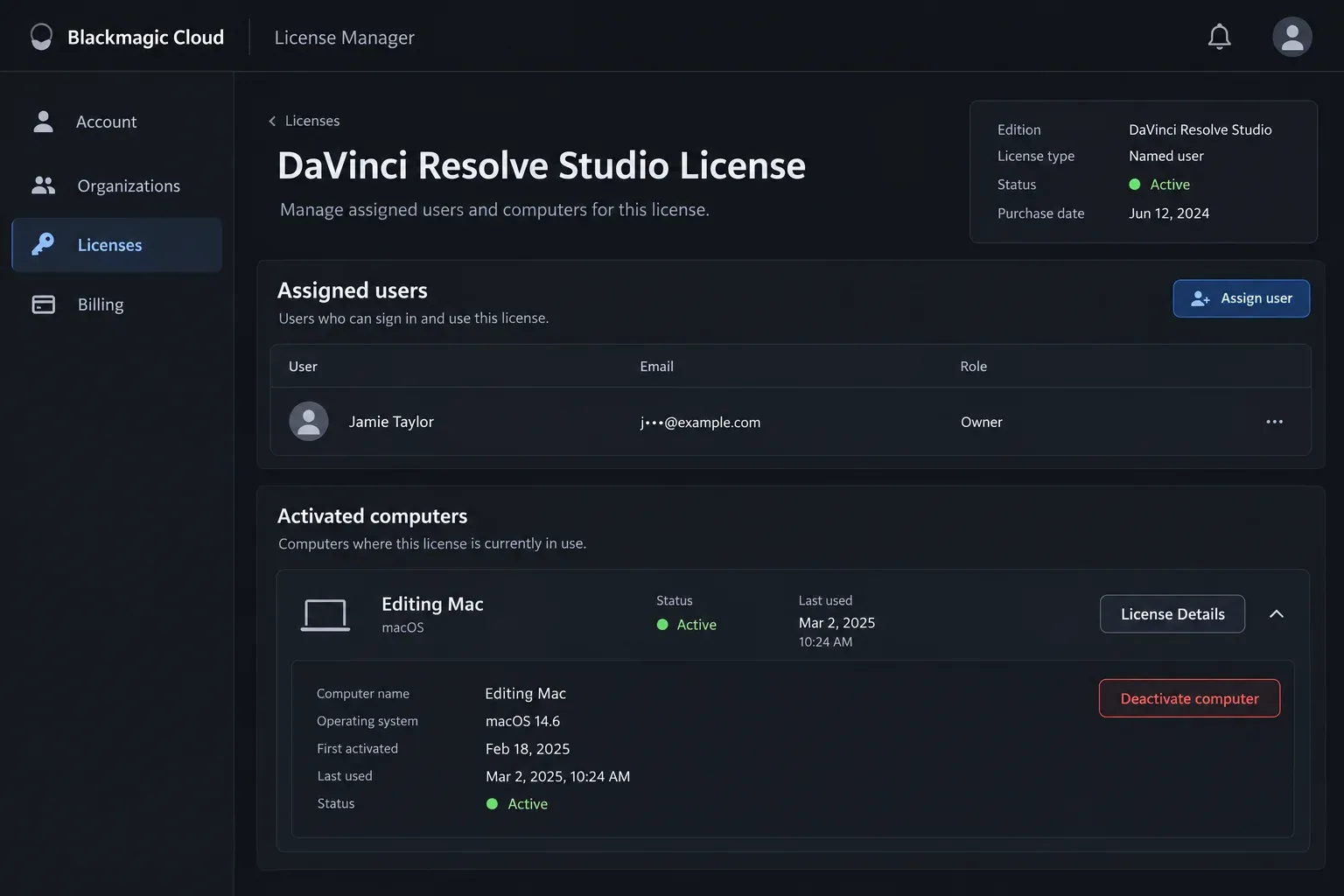
Deactivating a computer and unassigning a license from a person are different actions. Deactivate the computer when the same assigned user is moving to another system. Unassign the license only when the organization intends to give that rental entitlement to another person, subject to the account’s license-management rules.
Mac App Store Edition
The Mac App Store edition is purchased and installed through Apple. It does not provide a Blackmagic activation key for the direct Studio installer. A direct activation key, dongle, or Cloud rental likewise does not unlock the App Store download. If your receipt is from Apple, manage installation through the Mac App Store and the Apple account that owns the purchase.
This distinction matters during a move from Mac to Windows. A direct Blackmagic activation key can cover supported desktop platforms, but an App Store entitlement stays inside Apple’s distribution channel. Do not assume that an App Store purchase contains a transferable key simply because both applications are named DaVinci Resolve Studio.
Store the Key Like a Financial Credential
Blackmagic staff recommends treating the activation key like cash. A standalone key is not normally recoverable from a Cloud device dashboard. Keep the original card, reseller invoice, and purchase email in a secure place. Store a protected digital copy where it will survive the loss of the editing computer, but do not leave the key in project notes, unprotected image captures, shared folders, or public support posts.
Record which two computers you intend to keep active and note each planned deactivation. You do not need a complex asset system for one license; a short private record prevents accidental resets during a hardware refresh.
If the key is lost or the failsafe reset is blocked, contact Blackmagic Design Support or the authorized reseller. Provide proof of purchase, the license type, the exact Studio version, the operating system, and the complete error text. Do not expect a reseller or support agent to reconstruct ownership from a cropped image with no order information.
Transfer Checklist
- Confirm that you own a Blackmagic activation key, dongle, Cloud rental, or Mac App Store edition.
- For an activation key, remember the limit: two computers for one person.
- Back up the project library, critical projects, presets, LUTs, plug-in information, and media paths.
- If the old computer works, choose Help > Deactivate License before wiping or returning it.
- Download and install the Studio build on the new computer.
- Enter the same activation key and confirm the application opens as Studio.
- If the old computer is unavailable and no activation remains, use the failsafe reset and reactivate both intended systems.
- Avoid repeated resets; contact Blackmagic Support if verification is required.
- For Cloud rental, deactivate the computer in License Details and sign in on the replacement.
- For a dongle, move the physical device. For the App Store edition, reinstall through Apple.
- Keep the key and proof of purchase outside the editing computer in secure storage.
Primary References
- Blackmagic Design forum staff: two devices for the same person and recommended deactivation
- Blackmagic Design forum staff: activation recovery, reset behavior, and repeated-reset limits
- Peter Chamberlain: one user on two machines, not two users
- Blackmagic Design staff: activation key, dongle, and Cloud rental are distinct license options
- Blackmagic Cloud Help: signing in to DaVinci Resolve with a Cloud license
- Blackmagic Cloud Help: managing assigned licenses and activated computers
- Apple Mac App Store: DaVinci Resolve Studio listing
- Blackmagic Design Support: Studio installers and current documentation
The dependable transfer path is simple: deactivate while the old computer is still available, activate the Studio build on the replacement, and reserve the reset for machines you cannot reach. Once you identify the license channel, the rest of the process becomes predictable.
