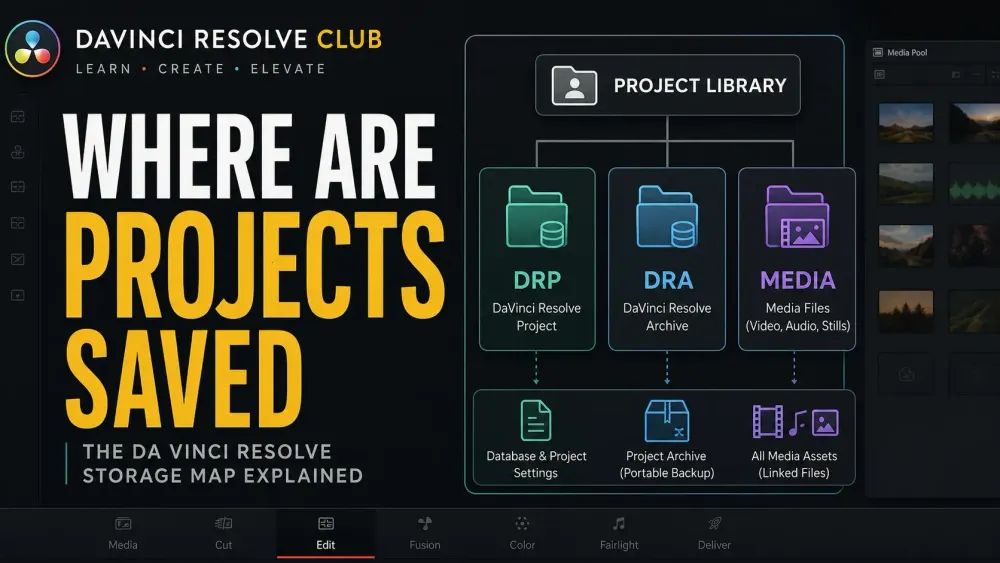
Resolve doesn't save an active desktop project beside your footage as a normal project file. It writes the project inside the selected Project Library. Before moving, updating, or cleaning a drive, identify that library in Project Manager and create a separate export you can test.
Where DaVinci Resolve Projects Actually Live
A project library is the working database that holds your timelines, edits, grades, Fusion compositions, Fairlight work, bins, metadata, and project settings. Your camera originals usually live somewhere else. So do render cache, proxies, optimized media, gallery stills, and automatic project backups.
| Item | What it contains | Use it for |
|---|---|---|
| Project Library | One or many live Resolve projects | Daily work and library-level backup |
| .drp | One exported project, without source video/audio | Small, portable checkpoints and handoffs |
| .dra | Project archive plus selected media and dependencies | Moving a self-contained job |
| Project Backups | Timed versions of a project | Rolling back after a bad edit or corruption |
| Source media and dependencies | Video, audio, graphics, fonts, LUTs, and other assets | Rebuilding and relinking the edit |
| Cache/proxies | Replaceable performance files | Smoother playback, not disaster recovery |
Checked against the September 2026 Resolve 21.1 Reference Manual, this guide separates the working library from exports, archives and media. Use the selected library's details to find your actual location; do not move database files to match a path from a tutorial.
Do Not Guess the Folder: Check the Active Library
The Resolve 21.1 manual says the default local-library location depends on the operating system. You can choose a different folder when creating a library, and an upgraded installation can keep using an older library. The library name does not tell you which drive contains it. Read its Location before searching hidden folders.
Common path lists show Windows AppData/Roaming, macOS Library/Application Support or Linux .local/share/DaVinciResolve. Treat those as search clues, not verified defaults for every 21.1 installation. Older layouts and Mac App Store installations can differ. If Resolve opens, use its recorded Location; if it does not, preserve the suspected library before attempting recovery.
| Library type | Where the project data lives | Reliable way to identify it |
|---|---|---|
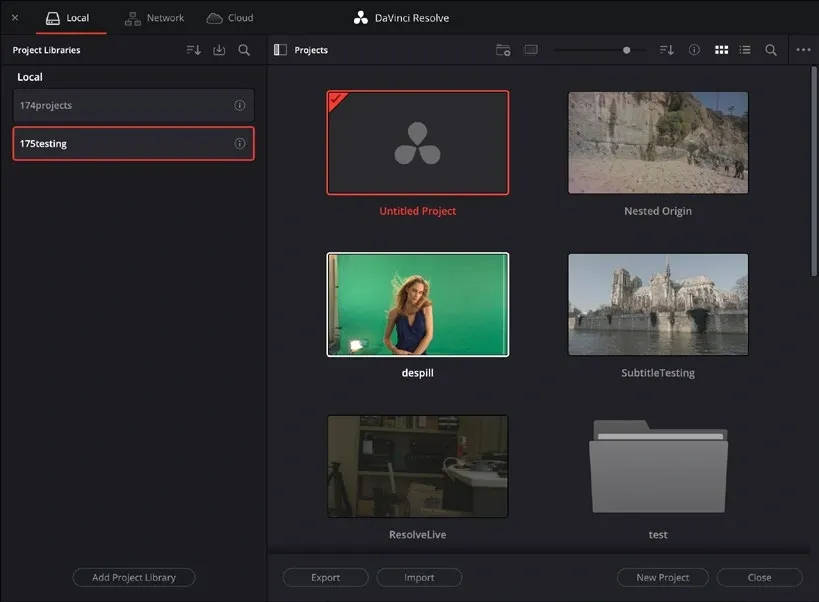
| Local | A filesystem directory recorded for that library | Select the library, read Location in its details and use the file-location control |
| Network | A managed project library on the selected network server | Verify the selected Network library and its connection details; do not look for a matching project folder |
| Cloud | The selected Blackmagic Cloud project library | Verify the signed-in account and library in Project Manager; source media remains a separate storage decision |
Select the local library and click its circled i details icon to read Location. The manual calls the right-click reveal command Reveal in Finder; Windows interfaces also label it Open File Location. Use the file-location control shown by your build. Network and Cloud selections identify a server-backed library, not a matching folder on this computer.
Inside a local library, a path may end in Resolve Projects/Users/guest/Projects/Project Name/Project.db. That Project.db belongs to the managed library structure. It is not a portable DRP: do not rename, delete, replace or manually edit it to make a project appear. Use Resolve to connect the parent library or import an export.
The manual documents a complete project-folder copy method for local libraries on macOS and Windows, not Linux. That is a constrained migration procedure, not permission to swap individual database files. For the steps here, use a tested DRP, DRA or library backup instead, with the original library kept intact.
Find the Exact Library Resolve Is Using
If the page layout is still unfamiliar, keep our DaVinci Resolve beginner guide open beside this checklist; Project Manager sits outside the normal Edit, Color, Fusion, and Fairlight pages.
- Open Project Manager. Click the house icon at the lower-right of the Resolve window, or use File, then Project Manager.
- Show the Libraries panel. If the left column is closed, click the Project Libraries button at the top-left.
- Select the library that contains the project. Do not assume the library called “Local” is the one you used last year.
- Read the exact location. Click the circled i details icon to display Location. Use the local library's reveal/open-location control if available, then compare the opened directory with that recorded path. A file manager window alone may not identify the correct folder among several libraries.
- Record the name, type, and location. Save that note with the job. For a custom or upgraded library, this is more reliable than any default path copied from the web.
To open a recorded path on macOS, use Finder > Go > Go to Folder and paste it, as explained in Apple's folder-navigation instructions. If AppData is hidden on Windows 11, Microsoft documents View > Show > Hidden items. Neither operation changes which library Resolve uses.
Local libraries use a directory on your workstation. Network libraries use PostgreSQL on a server, often managed through the DaVinci Resolve Project Server application. Ask the administrator to verify the library and server connection; a shared media drive is not itself the project database. Do not move PostgreSQL data folders in Finder or File Explorer.
Blackmagic Cloud libraries keep project data on Blackmagic's servers. In Project Manager, check Cloud, the signed-in personal or organization account, and the selected library, including Shared with me. The Blackmagic collaboration overview treats library access and media synchronization separately: opening the project does not prove that this computer has every original clip.
Export a DRP: The Smallest Useful Safety Copy
A .drp is an exported snapshot of one project. It carries project data and references source media where it already lives; it doesn't package the camera originals. The normal Export Project command also excludes Gallery stills and LUTs. Choose Export Project With Stills and LUTs when the recipient needs those embedded project dependencies, but copy or archive the source media separately.
- Open Project Manager and right-click the project thumbnail.
- Choose Export Project.
- Name it with the project, date, and a short milestone, such as
Documentary_2026-08-04_picture-lock.drp. - Save it outside the live Project Library, ideally on storage covered by a second backup.
- Test it: import the DRP into a non-production test library, open it, and verify the important timelines before relying on the export.
Export a DRP before a Resolve upgrade, before a destructive timeline change, and after any work session whose loss would be expensive. Project Backups provide rolling recovery; a dated DRP is a separate checkpoint you choose and can test. If you're upgrading, follow the full safe DaVinci Resolve update checklist before opening important projects in the new version.
Create a DRA When the Media Must Travel
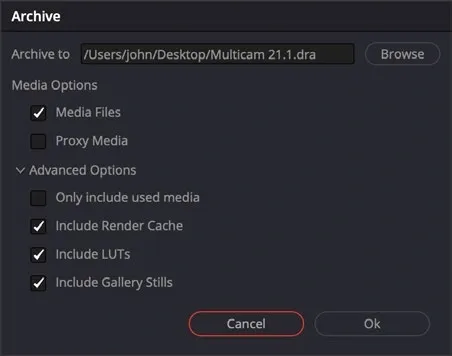
A .dra is an archive folder containing a project and the media you select. In Resolve 21.1, the Archive dialog offers Media Files, Proxy Media, Only include used media, Include Render Cache, Include LUTs and Include Gallery Stills. A proxy-only archive omits camera originals; a used-media archive can omit clips that are not in a timeline.
- Open Project Manager and right-click the project. Choose Archive in the current manual's interface; older builds call this Export Project Archive.
- Choose a destination with enough free space.
- Select Media Files when original video, audio and graphics must travel. Review the used-media filter and optional proxies, cache, LUTs and Gallery stills. Choose deliberately rather than assuming every dependency is included.
- Wait for completion and check any missing-media errors. Put the complete DRA folder on the destination storage, then use Restore in Project Manager (Restore Project Archive in older interfaces), or drag the DRA into Project Manager. Restore imports the project; it does not relocate the archive's media.
A DRA shouldn't be the only copy of irreplaceable camera originals. Keep an independently verified media backup and a DRP even when you make an archive. If the restored project opens but clips are red, use the steps in the Media Offline relinking guide.
Project Backups, Live Save, and Library Backups Are Different
Live Save incrementally updates the current project in its library and is on by default. It does not create an independent copy of that library, and it can save an unwanted edit too.
Project Backups store periodic recovery versions separately. Read Project backup location under DaVinci Resolve > Preferences > User > Project Save and Load; it is not the library Location. These backups exclude stills and LUTs and load as independent projects. For enabling them, intervals and rollback steps, use the Resolve saving and Project Backups guide.
For a local library, open Project Libraries, select its circled i details icon and choose Back Up. Save the .resolve.backup outside the live library. The sidebar Restore control imports it into a separate library name and location. For Network/PostgreSQL libraries, use the Project Server tools or an administrator-approved database backup, not a manual copy of a running database.
Cloud library Back Up works differently: the backup is made in Blackmagic Cloud. In the Cloud library details, Restore lets you select a saved version and assign a new library name. That does not put a .resolve.backup file on your local drive. Export a separate DRP when you also need an offline copy of project data.
Cache, proxies and optimized media help playback; they are not project-library backups. Do not classify recorded audio, custom assets or Gallery stills as disposable just because they sit near cache. Inspect the project's configured media and working-folder paths before any cleanup. If opening or saving fails, use the non-destructive checks in our DaVinci Resolve troubleshooting guide rather than deleting a whole storage folder.
Safest Way to Move a Project to a New Computer
Use a DRA with Media Files selected when you want Resolve to gather the job's media. If you already have a verified media copy, import a DRP and relink that copy instead. Neither approach automatically installs fonts or licensed plug-ins. Keep their installers, license details and version notes separately.
- On the old computer, export a dated DRP.
- Copy and verify the source media. Compare file counts and, for critical work, hashes.
- Install the required fonts and audio plug-ins on the destination under their licenses. Transfer custom LUTs, Gallery stills and external graphics when they are not already included in the chosen export or archive.
- Install a compatible Resolve version on the new computer. Check the current Resolve system requirements first.
- Import the DRP into a new or existing library.
- Relink media at the highest common parent folder.
- Check timelines, grades, Fusion comps, audio plugins, frame rate, color management, and deliver presets before retiring the old machine.
To relocate an entire local library, make and test a library backup before changing its location. Restore to a new name and destination, open representative projects and verify their media. Keep the original library unchanged until the new copy and an independent backup are checked. Do not rename or delete live database directories to force a reconnection.
Project Missing? Use This Recovery Order
This recovery sequence belongs to the Fix DaVinci Resolve hub. Start with the library list and verified exports before reinstalling, moving folders or deleting cache.
- Stop cleaning or reinstalling. Do not write more data to a drive that may contain the only library.
- Check every listed library. A blank “Local” library may simply be a newly created library, not proof that the old project was deleted.
- Reconnect known storage. Confirm the external drive is mounted under the expected Windows drive letter or macOS/Linux volume path.
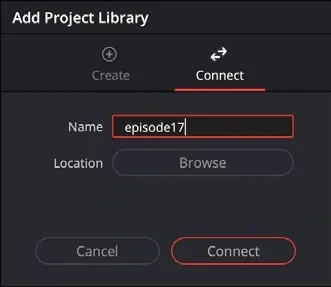
- Connect the parent library. In Project Manager, use Add Project Library, then Connect and select the library root, not an individual
Project.db. - Look for your exported DRPs and library backups. Restore them into a separate library so you do not overwrite evidence.
- Inspect Project Backups through Resolve. Right-click the expected project and choose Project Backups when the library still sees it.
- Relink media only after the project opens. Offline clips and a missing project are two separate problems.
Cache, Project Backups, and live Project Library data are easy to confuse, and Resolve can open a different empty library after an installation change. Treat those symptoms as diagnostic clues, not permission to paste a random Project.db into a managed library. If storage may be physically failing, stop using the drive and involve a data-recovery specialist before experimenting.
Back Up Before a Project Library Upgrade
Resolve may request a library schema upgrade for a major release or a point release. Back up before accepting that prompt. Test restoration separately, and do not upgrade the only surviving library merely to see whether a missing project returns. A successful backup operation is not the same as a successful restore test.
Treat a library upgrade as a compatibility boundary, not as a routine file open. Keep the old application and original library untouched until the upgraded copy, its timelines, media links, grades, Fusion compositions, Fairlight work, and deliver settings have been checked. Don't assume an older Resolve release can reopen a library after its schema has been upgraded.
A No-Surprises Project Backup Checklist
- Confirm the active library name, type, and exact location in Project Manager.
- Export a dated DRP after every meaningful edit session.
- Enable Project Backups and verify the destination is actually writable.
- Back up the complete library on a regular schedule.
- Keep at least two verified copies of original media on separate storage.
- Include fonts, LUTs, graphics, audio assets, and plugin notes.
- Create a DRA when a self-contained handoff is worth the extra space.
- Test-import a DRP and test-restore a library backup before deleting or upgrading anything.
Before retiring the old storage, open the restored library and test an exported project with its media. Check an actual timeline, grade, title and audio section. Keep the original copy until those checks and an independent backup are complete.
Project-library safety comes before every workflow in the DaVinci Resolve Workflow hub, especially updates, editing, and delivery.
DaVinci Resolve Project Storage FAQ
Does DaVinci Resolve save projects as normal files?
Working desktop projects normally live inside the selected Project Library. A .drp is a portable project export you save to a chosen folder; it is not the same thing as the internal Project.db file.
How do I find the Resolve Project Library on Windows, macOS, or Linux?
Open Project Manager, show Project Libraries, select the local library and click the circled i details icon to read Location. The reveal command is called Reveal in Finder in the manual and Open File Location in Windows interfaces. Follow the label in your build and confirm the opened path matches the selected library.
Why does my Project Library path differ from a tutorial?
Local libraries can use a folder chosen during creation or retained from an older installation. OS and installation differences also matter. Network and Cloud libraries identify server-backed storage rather than an equivalent local folder. For a local library, trust its recorded Location instead of a generic default path.
Does a DRP include video and audio files?
A normal DRP export contains project data, not your source video and audio. Copy media separately or create a DRA with Media Files selected. A proxy-only DRA is not a copy of the camera originals.
Can I open or move a Project.db file manually?
Do not treat an individual Project.db as a portable project. Connect the parent library or use Resolve's export, import, backup, and restore commands to avoid damaging its managed structure.
Are cache and proxy files a project backup?
No. Cache, proxies, and optimized media are replaceable performance files. They don't preserve the project database and they don't necessarily contain your original-quality source media.
Should I use DRP or DRA to move a project?
Use a DRP when media is already copied or will be relinked separately. Use a DRA when you want Resolve to package the project with selected media for a more self-contained transfer.
