An MP4 that comes into Resolve as audio only isn't one problem with one fix. The file may carry a video stream your Resolve edition can't decode, the MP4 container may be damaged, or the video may be perfectly readable while the timeline's V1 source patch is switched off.
All three look the same when you drag the clip in, and converting every file just in case burns time and can cost you quality.
So start by finding where the picture disappears. If the clip is already audio-only inside the Media Pool, inspect the file and codec. If video plays in the Source Viewer but only audio lands on the timeline, inspect source patching. Either way, keep the original file untouched until you know which problem you're dealing with.
Match the symptom before changing anything
| What you see | Most useful first check | Likely route |
|---|---|---|
| The MP4 is missing from the import browser or Resolve rejects it | Open it in another player, then inspect its streams in MediaInfo | Codec, container, file access, or damaged media |
| The clip appears as audio-only in the Media Pool | Read the video codec, profile, bit depth, and chroma sampling | Unsupported video stream or incomplete file |
| The Source Viewer plays picture and sound, but dragging adds only audio | Look at the V1 source patch and destination track | Timeline patching, not conversion |
| The clip imports but displays Media Offline | Check the path, drive access, and decoder details | Use the dedicated Media Offline diagnosis |
| Picture works but audio is silent or absent | Inspect the audio stream and Resolve's track and bus routing | Use the no-audio troubleshooting path |
That split matters more than any single fix. A valid video stream doesn't need to be re-encoded because V1 was disabled, and a genuinely unsupported stream won't come back because you toggled a track control. If your symptom isn't in the table, start with the DaVinci Resolve troubleshooting map before you touch the file.
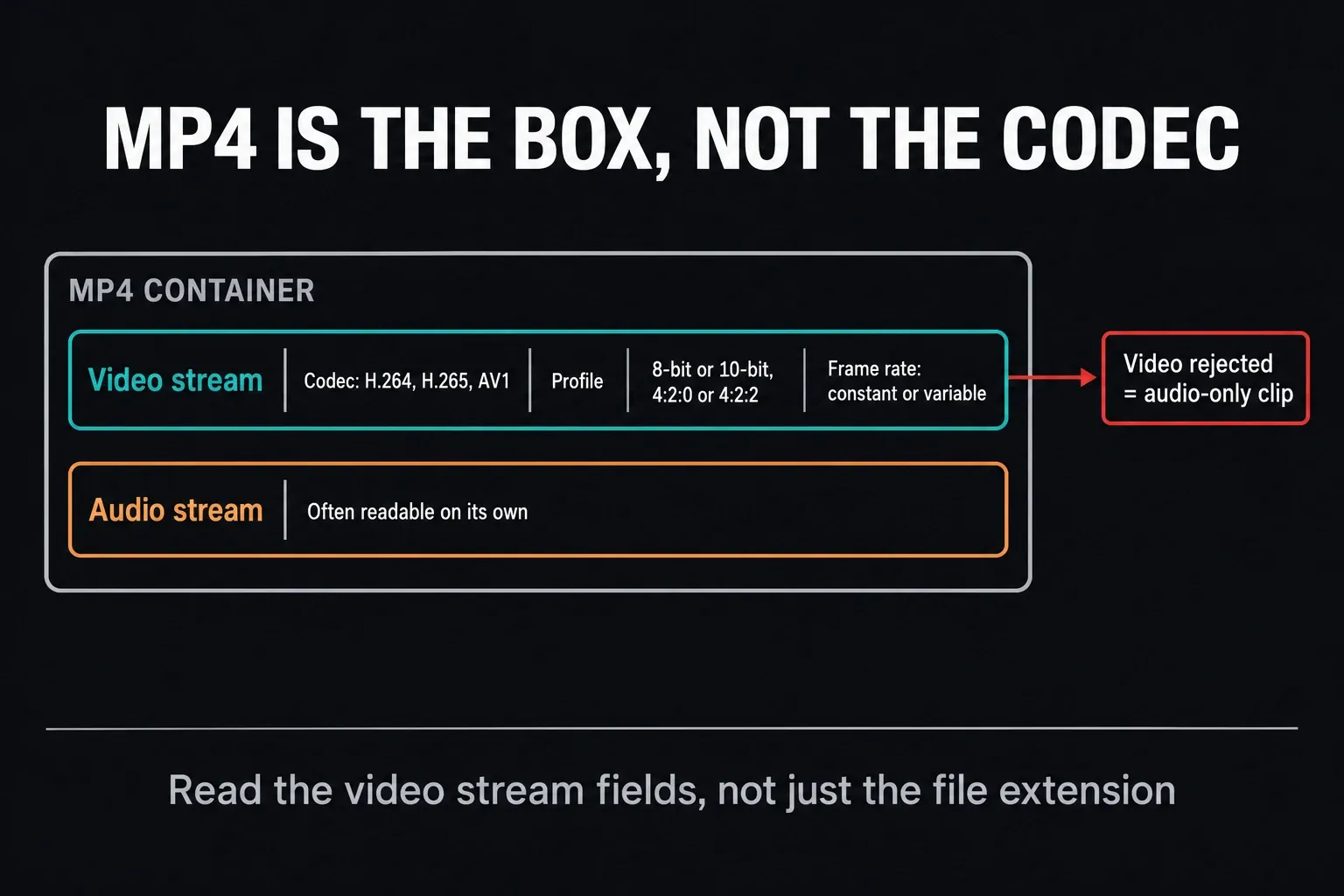
MP4 is a container, not the video codec
The `.mp4` extension tells you how streams are packaged, and that's all. It won't tell you whether the video inside is H.264, H.265, AV1, MPEG-4 Part 2 or something rarer. It also says nothing about the profile, bit depth, chroma sampling, frame-rate mode, or whether the recorder finalized the file properly.
That's why two files from the same folder can behave completely differently. A phone export, a screen recording, a camera original and a downloaded clip can all end in `.mp4` while carrying different video streams. Resolve can read the audio stream and reject the video stream, and that's exactly the audio-only result you're looking at.
Blackmagic's Supported Formats and Codecs list for Resolve 21.1 breaks support down by operating system, container, codec and edition. Check the row for your own operating system rather than relying on a general list copied from another tutorial.
I rechecked this guide on October 1, 2026 against that list, which Blackmagic dates September 2026 and labels for Resolve 21.1. That's a documentation check, not a claim that I imported every kind of MP4. If Blackmagic publishes a newer list for a later build, trust that one over this page.
Read the file with MediaInfo
Install MediaInfo from its official site, open the problem file and switch to Text or Tree view. Don't stop at the line that says MPEG-4, because that only names the container. Write down these fields:
- Format and codec ID: identifies the actual video compression.
- Format profile and level: narrows down which decoder capability the stream expects.
- Bit depth and chroma subsampling: for example 8-bit 4:2:0 or 10-bit 4:2:2.
- Frame-rate mode: constant or variable.
- Audio format: the audio can be perfectly readable even when the video isn't.
- Duration and stream count: confirms that the file actually contains a video stream.
Then note Resolve's exact version and build from DaVinci Resolve > About DaVinci Resolve, whether you're on Free or Studio, your operating system and your GPU. That isn't forum bureaucracy. Those details decide which row of the codec matrix applies to you.
Compare the stream with your OS and Resolve edition
H.264 and H.265 in MP4 are everywhere, but support for them isn't identical on every platform.
In the 21.1 list, macOS decodes H.264 and H.265 in MP4 with GPU acceleration. Windows covers 8-bit H.264 and 8- or 10-bit H.265 in OS-supported profiles, with more profiles and GPU acceleration in Studio. Linux is the most restrictive: on Rocky Linux, H.264 and H.265 decoding is Studio only, GPU accelerated on Nvidia graphics, so a stream that opens fine on a Mac can fail on a Linux workstation running the free version.
| Environment | What to verify | Do not assume |
|---|---|---|
| macOS | Codec, profile, OS-native decode support, and current Resolve build | Every damaged or unusual MP4 will decode because ordinary H.264 does |
| Windows | Codec profile, bit depth, chroma sampling, Free/Studio differences, and GPU path | Every 10-bit file fails in Free or every H.265 file requires Studio |
| Linux | The Linux section of the matrix, Resolve edition, codec, and Nvidia requirements | A file that works in VLC or on Windows must work in Resolve for Linux |
Don't buy Studio because of the MP4 extension. Identify the exact stream first. Studio can expand supported profiles and hardware decoding, but it won't repair a truncated recording, a bad container header or a disabled V1 patch.
Fix V1 source patching when the Source Viewer has picture
If the clip plays normally in the Source Viewer, Resolve has decoded the video. The codec isn't your problem.
Look at the far left of the Edit page timeline. Resolve 21.1 uses a two-column Source Track Selector: the blue column on the left represents the source clip's components, and the red column on the right represents timeline destinations. That two-column layout arrived in Resolve 20.2, so forum screenshots from older builds may not match what you see.
- Load the clip into the Source Viewer and confirm that you can see picture.
- On the timeline, make sure an unlocked video destination track exists in the red right column.
- Enable the blue source V1 control and map it to the intended red video destination. You can drag blue V1 next to the red track, or click blue V1 and then click the red destination.
- Enable only the blue source audio components you actually want and map them to suitable red audio destinations.
- Do a short overwrite or insert edit as a test.
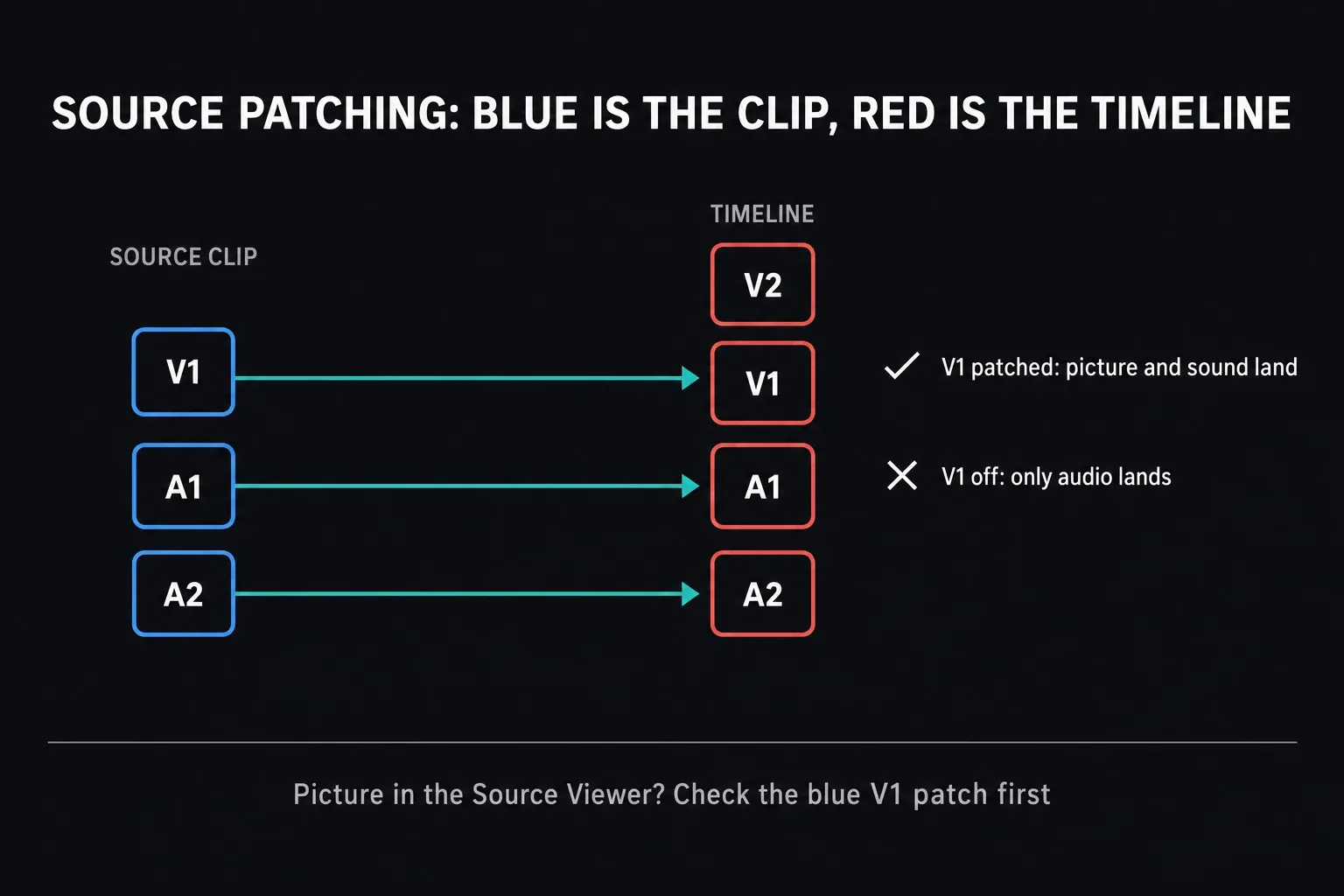
If blue source V1 is missing because the Source Viewer holds an audio-only item, go back to codec diagnosis. If blue V1 is there but won't select, check that a compatible red video destination exists and isn't locked. Don't transcode anything until you've ruled this branch out.
Use a safe repair ladder
Work from the least destructive test up to the most expensive conversion. Before any of it, save the original camera or downloaded file in a separate location.
1. Test the file outside Resolve
Open the MP4 in a second player and scrub near the beginning and end. A player that succeeds doesn't prove Resolve supports the stream, because players ship different decoders. A player that fails, freezes or reports a much shorter duration is useful evidence, though: the file is probably incomplete or damaged.
2. Copy one clip to a simple local path
Copy a single source to a local folder with a short filename. That separates codec trouble from cloud placeholders, disconnected volumes, read permission problems and flaky network storage. Import the copy into a new empty project. Don't move the whole production until the test proves location is the cause.
3. Compare it with a known-good file
Import a small MP4 that already works on the same machine. If every supported test file fails after an update, look at Resolve, the GPU driver or the operating system. If only files from one camera or recorder fail, put their MediaInfo reports side by side.
4. Remux only when the streams are already supported
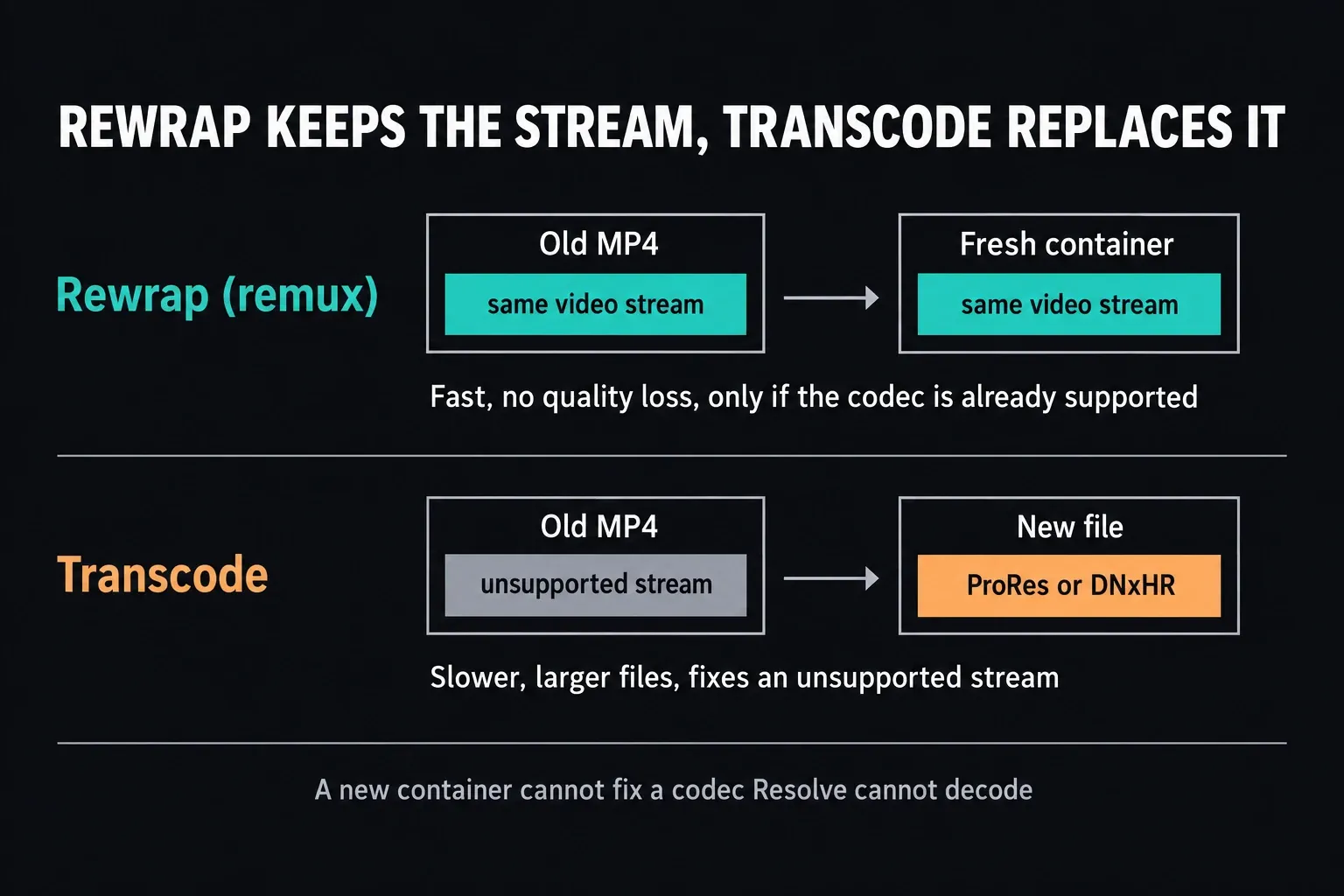
A remux places the existing streams into a fresh container without re-encoding them. It's fast and you lose nothing to another generation, but it can't turn an unsupported video codec or profile into a supported one.
The Shutter Encoder documentation calls this Rewrap and says it only works when the output container supports the source codec. I'd use it only when MediaInfo shows compatible streams and the evidence points to a malformed header or container.
After rewrapping, check duration, picture, audio and sync. Keep the untouched source until the edit and the final export are done.
5. Transcode an unsupported or unreliable stream
Transcoding creates a brand-new video stream. For editing, ProRes or DNxHR is usually a safer intermediate than converting yet again to another highly compressed delivery MP4.
Pick a flavor that suits the source quality, preserve the source dimensions and intended cadence, and keep audio uncompressed when practical. Encode one short clip and check picture, audio, duration and sync before you process a batch.
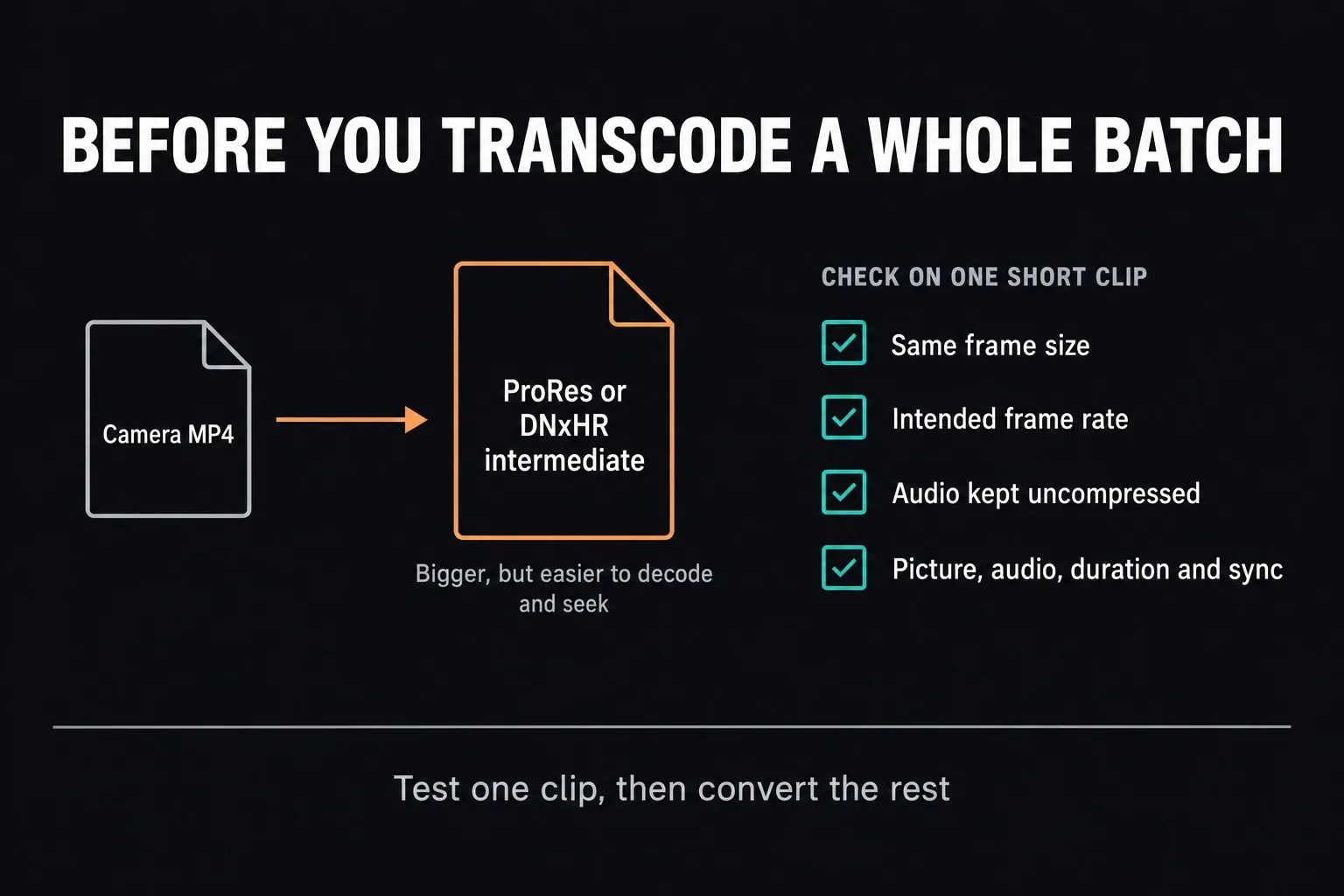
The intermediate will be larger than the camera MP4. That's expected. You're trading storage for easier decoding and more predictable seeking. If storage or playback is the real constraint, the proxy workflow explains how to create lighter working media without replacing your masters.
Treat variable frame rate as a separate risk
Phones, screen recorders, meeting apps and browser capture tools often produce variable-frame-rate media. VFR can cause drifting sync, uneven playback and frame-accurate editing problems. What it doesn't do on its own is explain why Resolve sees no video stream at all.
If MediaInfo reports variable frame rate and the clip imports but behaves unpredictably, encode a test copy to the constant frame rate you actually intend and check it from start to finish.
Be careful with Shutter Encoder's Conform control: it changes frame-rate metadata, and its own documentation says plainly that it doesn't solve VFR. Don't type a frame-rate number into any converter until you've confirmed the source cadence and the timeline target.
Update Resolve only when the evidence supports it
A newer Resolve build can include decoder fixes, but updating isn't the first move for one unusual file. Read the release notes, back up the project library, export a project archive for important work and confirm system compatibility. Follow the safe Resolve update checklist instead of changing the application in the middle of a diagnosis.
If the whole application is unstable, or decoding fails across many known-good files, confirm that the machine meets the current Resolve system requirements. One unsupported MP4 and a general GPU or driver failure need different repairs.
Avoid the fixes that create new problems
- Don't rename `.mov`, `.mkv`, or another extension to `.mp4`. A new filename doesn't change the container or the codec.
- Do not transcode before reading MediaInfo. You might hide a V1 patching error or convert hundreds of clips for nothing.
- Don't assume HandBrake is a remux tool. Its normal video workflow re-encodes, so choose the settings deliberately and inspect the result.
- Don't delete the only source after one successful import. Check the full clip, sync, metadata and the final render first.
- Don't clear every cache folder for an import rejection. Cache covers generated working media; clearing it won't make an unsupported source stream decodable.
Prevent the next MP4 import failure
- Record a short test with the exact camera or capture settings you plan to use on the job.
- Import it into the same Resolve edition and operating system you'll use for the edit.
- Check the first and last minute for picture, audio, sync and seeking.
- Save a MediaInfo report alongside your camera preset notes.
- If the source is VFR or hard to decode, plan intermediates or proxies well before the deadline.
- Keep camera originals read-only and separate from generated media.
Frequently Asked Questions
Why does DaVinci Resolve import my MP4 as audio only?
Resolve may be able to decode the MP4's audio stream but not its video stream. Use MediaInfo to check the actual video codec, profile, bit depth and chroma sampling.
Then compare those fields with your operating system and your Free or Studio edition in Blackmagic's codec matrix. If picture plays in the Source Viewer, check V1 source patching instead.
Does DaVinci Resolve support MP4 files?
For many streams, yes. Resolve reads common H.264, H.265 and AV1 video stored in MP4 containers, but support varies by operating system, codec profile, hardware and edition. The `.mp4` extension alone can't prove compatibility.
Can I fix the file by changing its extension?
No. Renaming changes the extension, not the container, the video codec or the file structure. Remux the streams into a fresh container when they're supported, or transcode to a supported edit codec when the video stream itself is the problem.
Should I convert the MP4 to H.264?
Not automatically. H.264 still comes in different profiles and bit depths with platform-specific decoding limits, and another delivery codec may stay awkward to edit. For an unsupported source, ProRes or DNxHR is usually the more predictable intermediate. Test one clip before you process a batch.
Why can I see video in the Source Viewer but only audio reaches the timeline?
That symptom usually points to source patching rather than codec support. Enable the blue source V1 control, map it to an unlocked red video destination track and repeat a short insert or overwrite edit.
