Home Beginner Guides
DaVinci Resolve topic library
Beginner Guides
New to DaVinci Resolve? Start here. These beginner guides cover your first project, the page-based workflow, basic editing and color, and how to export, one step at a time.
What this library covers
Choose the task, then open one focused guide
Choose by the result you need, not by the name of a Resolve page or tool. Each card takes one job from the first setting to a result you can check.
Start with the resultPick the card that matches what you need to finish, fix or understand.
Use one guide at a timeEach article owns one task, so you do not have to decode a giant index.
Move to the next real stepRelated tasks stay visible without repeating every link on the page.
Choose the task
Guides in this library
One card opens one focused guide. Covers stay visible, and the same article is not repeated in a second link list.
 How to Change Clip Speed in DaVinci Resolve
Right-click a timeline clip and choose Change Clip Speed for a fixed rate. Use Retime Controls for speed points and freezes, then the Keyframes panel for curves. Check ripple, audio and interpolation before keeping the change.
How to Change Clip Speed in DaVinci Resolve
Right-click a timeline clip and choose Change Clip Speed for a fixed rate. Use Retime Controls for speed points and freezes, then the Keyframes panel for curves. Check ripple, audio and interpolation before keeping the change.
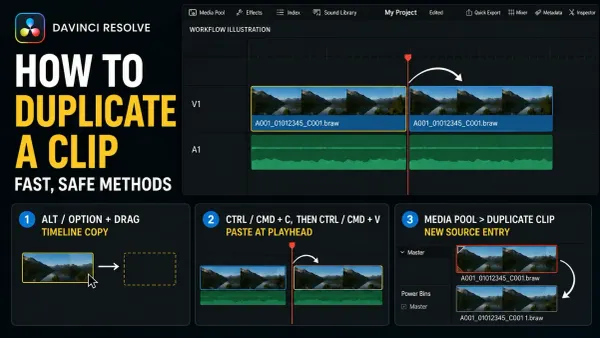 How to Duplicate a Clip in DaVinci Resolve (Fast Ways)
Select a timeline clip, hold Alt on Windows/Linux or Option on Mac, and drag. Release the mouse before the key. Use Paste Insert to make room, and check Sync Lock before moving later clips.
How to Duplicate a Clip in DaVinci Resolve (Fast Ways)
Select a timeline clip, hold Alt on Windows/Linux or Option on Mac, and drag. Release the mouse before the key. Use Paste Insert to make room, and check Sync Lock before moving later clips.
 How to Clone Yourself in DaVinci Resolve (Clone Effect)
Lock the camera, match exposure and timing, then choose a fixed Edit-page crop, a maintained Power Window, Studio Magic Mask 2, or Fusion tracking. Crossing paths adds an animated matte plus explicit occlusion and shadow decisions.
How to Clone Yourself in DaVinci Resolve (Clone Effect)
Lock the camera, match exposure and timing, then choose a fixed Edit-page crop, a maintained Power Window, Studio Magic Mask 2, or Fusion tracking. Crossing paths adds an animated matte plus explicit occlusion and shadow decisions.
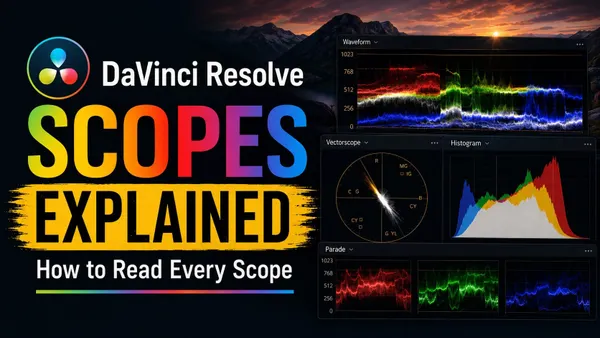 DaVinci Resolve Scopes Explained: How to Read Every Scope
Read every DaVinci Resolve 21 scope by the question it answers: exposure, channel balance, hue and saturation, tonal distribution or gamut boundary. Includes current paths, scale behavior and practical mistakes to avoid.
DaVinci Resolve Scopes Explained: How to Read Every Scope
Read every DaVinci Resolve 21 scope by the question it answers: exposure, channel balance, hue and saturation, tonal distribution or gamut boundary. Includes current paths, scale behavior and practical mistakes to avoid.
 DaVinci Resolve Fusion Tutorial for Beginners
Learn Fusion through three finished comps: a surface-tracked title, a Delta Keyer green-screen composite and an animated lower third, with exact node inputs, viewer fixes and current Resolve 21 boundaries.
DaVinci Resolve Fusion Tutorial for Beginners
Learn Fusion through three finished comps: a surface-tracked title, a Delta Keyer green-screen composite and an animated lower third, with exact node inputs, viewer fixes and current Resolve 21 boundaries.
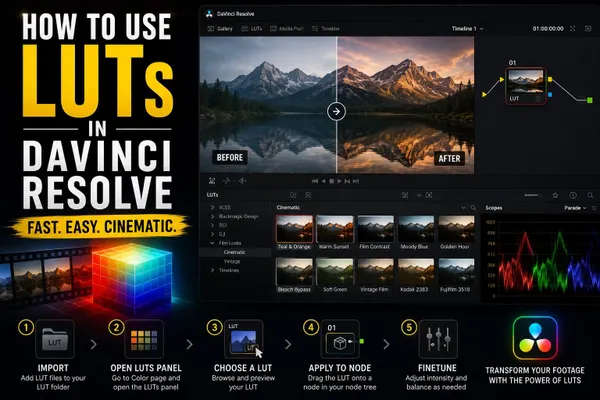 How to Use LUTs in DaVinci Resolve
Install LUTs through Open LUT Folder and Update Lists, apply them to a node, then verify the expected input before adjusting strength, node order or color management.
How to Use LUTs in DaVinci Resolve
Install LUTs through Open LUT Folder and Update Lists, apply them to a node, then verify the expected input before adjusting strength, node order or color management.
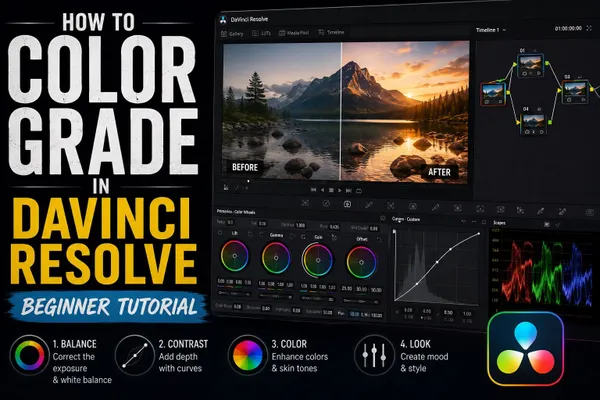 How to Color Grade in DaVinci Resolve: Beginner Tutorial
Set a deliberate input, working and output color path first; then correct exposure and balance, match the sequence, build the look, and inspect every secondary correction in motion.
How to Color Grade in DaVinci Resolve: Beginner Tutorial
Set a deliberate input, working and output color path first; then correct exposure and balance, match the sequence, build the look, and inspect every secondary correction in motion.
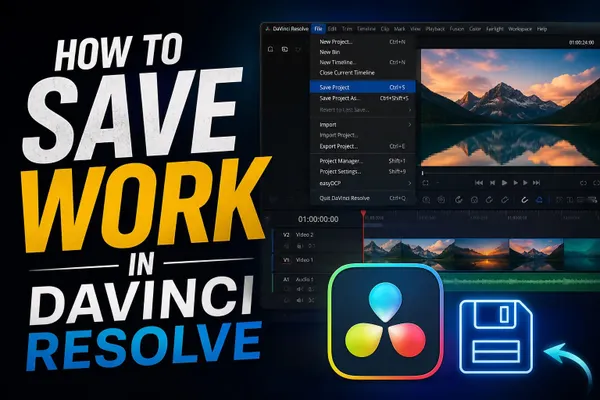 How to Save Work in DaVinci Resolve
Press Ctrl+S on Windows/Linux or Cmd+S on Mac to save. Keep Live Save on, enable Project and Timeline Backups for rollback, export a DRP for project data, or create a DRA with selected media. Keep a separate copy of your originals.
How to Save Work in DaVinci Resolve
Press Ctrl+S on Windows/Linux or Cmd+S on Mac to save. Keep Live Save on, enable Project and Timeline Backups for rollback, export a DRP for project data, or create a DRA with selected media. Keep a separate copy of your originals.
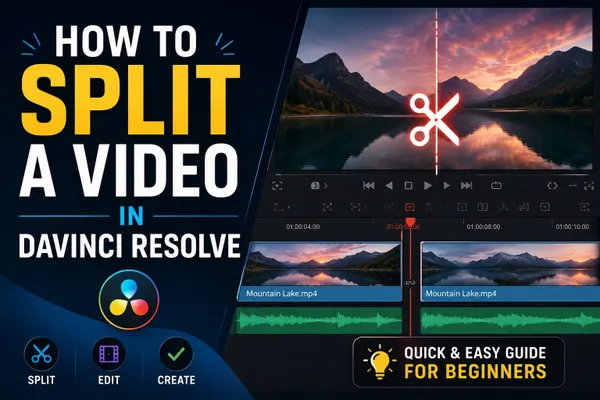 How to Split a Video in DaVinci Resolve
Press B and click to cut, or use Split Clips at the playhead. Check clip selection, red track controls and linked audio before deleting or moving a section.
How to Split a Video in DaVinci Resolve
Press B and click to cut, or use Split Clips at the playhead. Check clip selection, red track controls and linked audio before deleting or moving a section.
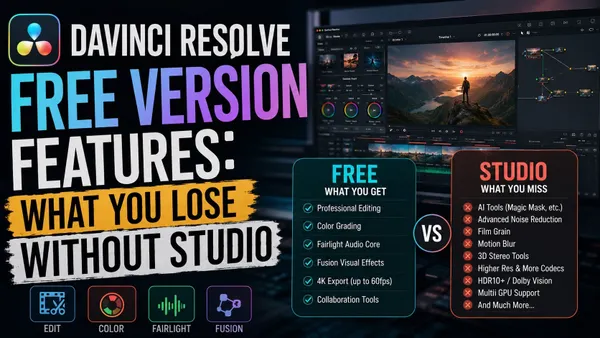 DaVinci Resolve Free Version Features: What You Lose Without Studio
DaVinci Resolve 21 Free includes Cut, Edit, Color, Fusion, Fairlight, Photo, HDR grading and collaboration. Video output tops out at UHD 3840 x 2160/60 fps. Studio adds Neural Engine AI, video noise reduction, extra Resolve FX, multiple GPUs, broader formats and advanced delivery.
DaVinci Resolve Free Version Features: What You Lose Without Studio
DaVinci Resolve 21 Free includes Cut, Edit, Color, Fusion, Fairlight, Photo, HDR grading and collaboration. Video output tops out at UHD 3840 x 2160/60 fps. Studio adds Neural Engine AI, video noise reduction, extra Resolve FX, multiple GPUs, broader formats and advanced delivery.
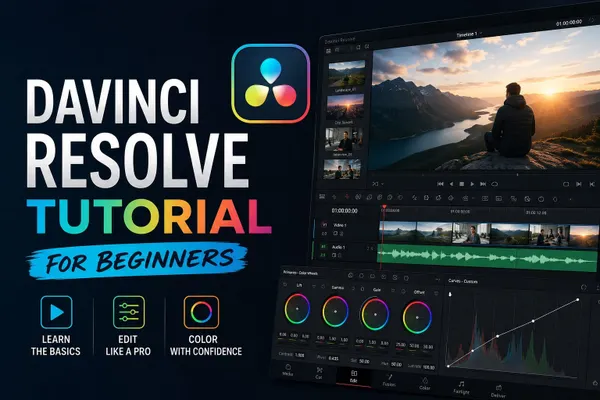 DaVinci Resolve Tutorial for Beginners
For a first Resolve 21 project, use the free version unless you already need a Studio-only feature. Set frame rate before importing, build a short edit on the Edit page, add one title, balance audio, make a restrained color pass, then export and play the file from beginning to end.
DaVinci Resolve Tutorial for Beginners
For a first Resolve 21 project, use the free version unless you already need a Studio-only feature. Set frame rate before importing, build a short edit on the Edit page, add one title, balance audio, make a restrained color pass, then export and play the file from beginning to end.
 DaVinci Resolve System Requirements (2026)
Resolve 21.1 starts at 16 GB RAM on Windows, 8 GB on Apple Silicon Mac and 32 GB on Linux. Studio advanced AI and background rendering have higher memory requirements; the base 4 GB GPU figure does not cover every feature.
DaVinci Resolve System Requirements (2026)
Resolve 21.1 starts at 16 GB RAM on Windows, 8 GB on Apple Silicon Mac and 32 GB on Linux. Studio advanced AI and background rendering have higher memory requirements; the base 4 GB GPU figure does not cover every feature.