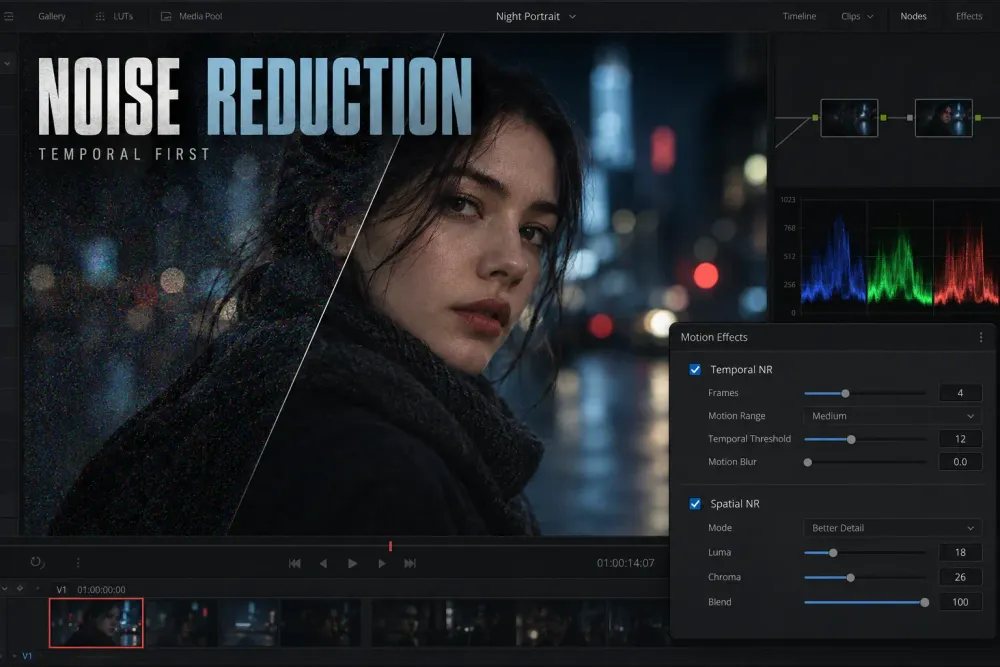
DaVinci Resolve’s built-in video noise reduction lives on the Color page in the Motion Effects palette. The native Temporal and Spatial controls are Studio features. Start with Temporal Noise Reduction because it compares neighboring frames and can separate random noise from stable image detail. Add restrained Spatial Noise Reduction only when noise remains inside individual frames.
This guide is about visible picture noise: colored speckles, crawling shadows, coarse low-light texture and unstable grain. If the problem is hiss, hum or room sound, use the separate Fairlight background-noise guide. Video NR and audio cleanup are different systems.
| What you see | First response | Main risk |
|---|---|---|
| Random noise changes from frame to frame | Start with Temporal NR | Ghosting or trails around movement |
| Fine noise remains within each frame | Add restrained Spatial NR | Soft texture, waxy skin or unstable edges |
| Noise is limited to one dark area or color range | Use a tracked window or qualifier | A visible correction boundary |
| Audio hiss, hum or rumble | Move to Fairlight | Treating the wrong problem |
Identify the Noise Before Changing Controls
Noise reduction is a repair step, not a substitute for correct exposure or color management. View a representative moving section at a useful zoom before changing a control. Include a face, hair, fabric, foliage, text or another area with real fine detail. Those areas reveal excessive processing much faster than a flat wall.
Separate the problem into the closest category:
- Luma noise: unstable brightness texture, often most obvious in shadows and flat surfaces.
- Chroma noise: colored red, green or blue speckles that can distract even when the image does not look heavily grainy.
- Banding or fixed-pattern structure: repeating lines or broad tonal steps that general denoising may soften without truly repairing.
- Compression artifacts: block edges and mosquito noise caused by limited encoding information rather than ordinary sensor noise.
- Intentional film grain: a chosen texture that belongs to the look. Removing it changes the finish instead of correcting a capture problem.
If the noise becomes visible only after the shadows are lifted, the grade is exposing a weakness that was already in the source. If a log or HDR clip is interpreted incorrectly, fix that transform first. The RCM and CST guide covers that decision. Disable strong sharpening, added grain and texture effects while judging the cleanup so another node does not exaggerate what the NR node is trying to remove.
Add a Dedicated Noise-Reduction Node
Open the Color page, create a serial node for noise reduction, then open the Motion Effects palette. Keeping cleanup in its own node makes bypass comparisons immediate and keeps repair settings separate from the balance and look. The nodes guide explains how serial nodes pass the image from left to right.
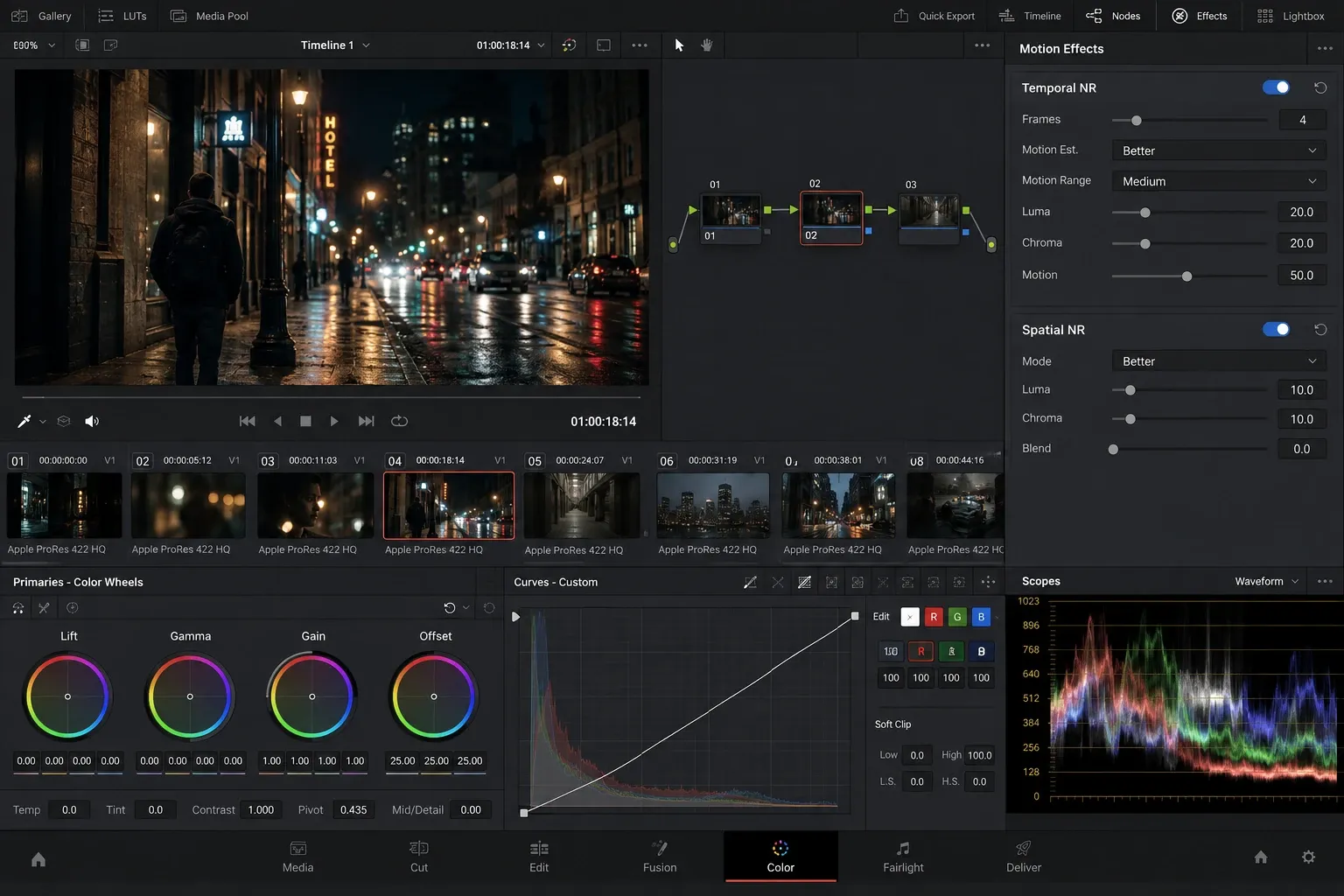
Blackmagic lists Temporal NR, AI Spatial NR and UltraNR among Resolve Studio features. If the controls are unavailable, confirm the installed edition before searching for a hidden preference. The Free-version feature guide and Free versus Studio comparison explain the wider edition boundary.
Use Temporal Noise Reduction First
Temporal NR analyzes several frames. That makes it effective against random sensor noise, but it also asks Resolve to distinguish noise from movement. Build the first pass on a moving section, not on a convenient still frame.
- Keep the treatment on a separate, bypassable node.
- Begin with a short frame history and restrained strength.
- Play through the fastest or most detailed movement in the shot.
- Compare a noisy shadow with a moving edge and a textured subject.
- Increase processing only while the remaining noise is more distracting than the detail loss.
A wider temporal sample can calm a stable background while making motion harder to interpret. A turning face, a hand crossing dark clothing, hair against the sky or a branch moving in low light will expose the tradeoff quickly.
Where the installed release exposes separate luma and chroma thresholds, treat them independently. Colored speckles may tolerate more chroma cleanup than brightness texture tolerates luma cleanup. Where motion controls are available, use them to protect real movement rather than selecting the most intensive option by default. Labels and available modes can change between releases, so the footage should decide the setting.
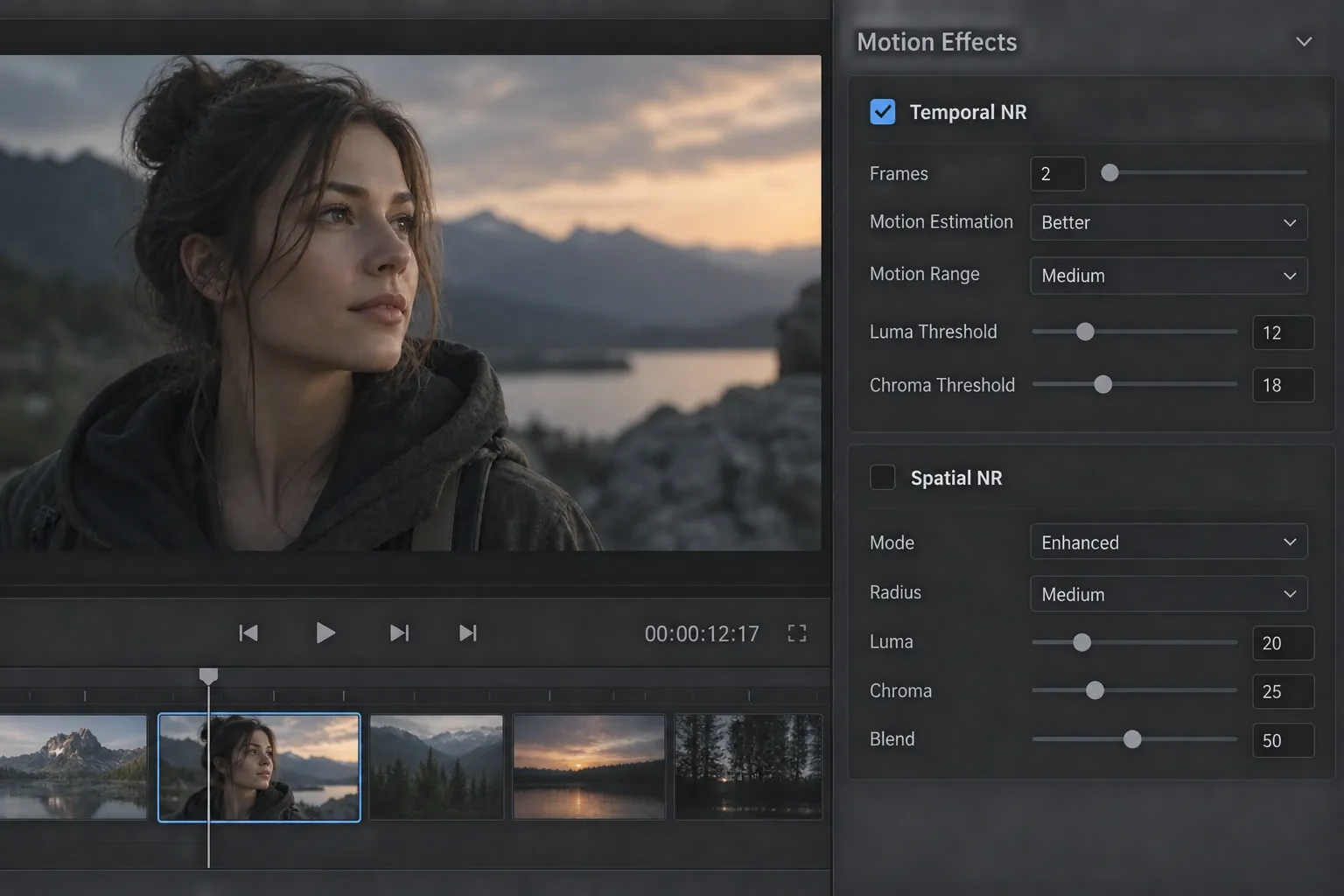
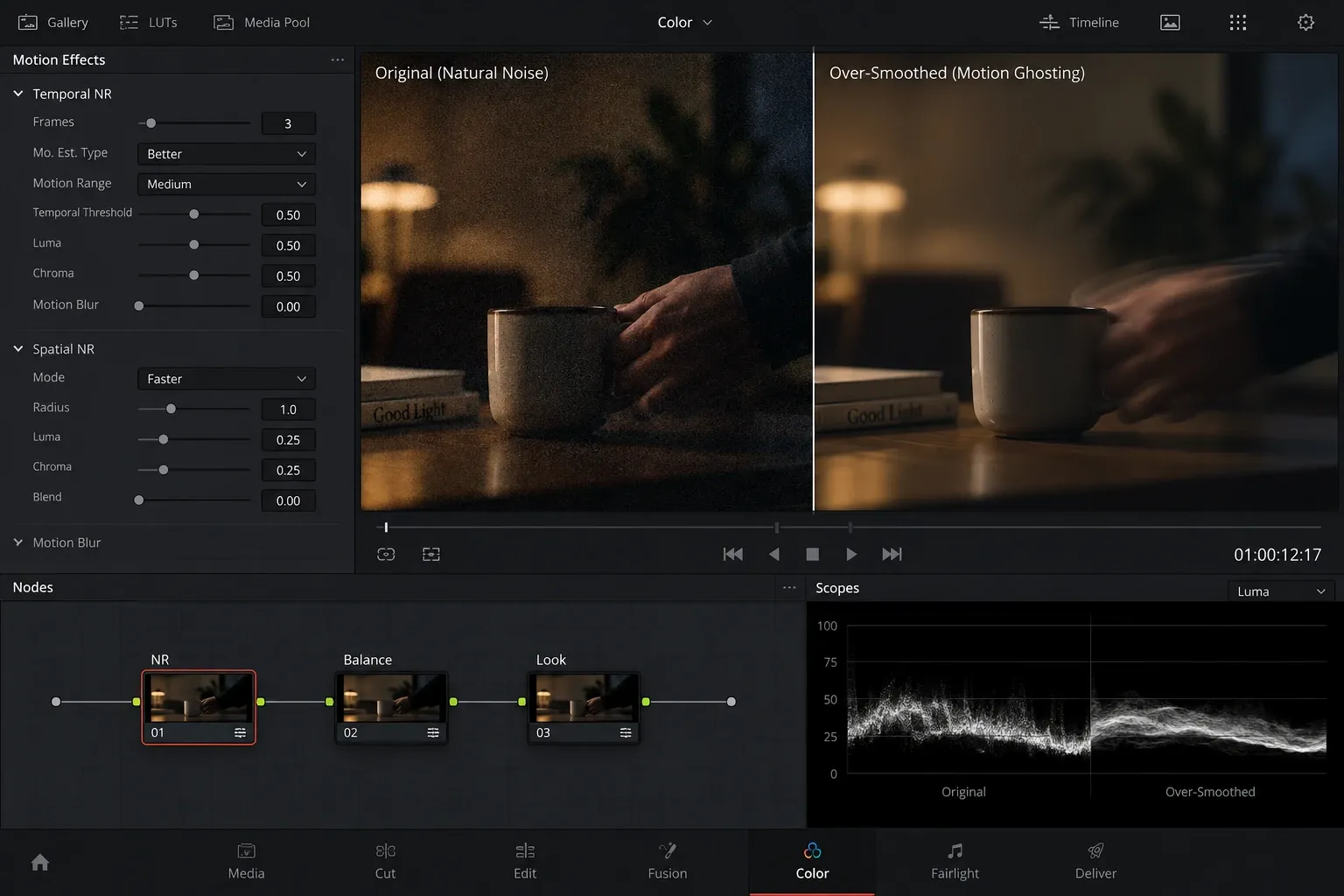
Watch for ghosting, smearing and crawling edges. Ghosting leaves a soft echo behind movement. Smearing removes the crisp transition around a moving object. Crawling edges make hair, foliage or small type shimmer from frame to frame. Reduce temporal processing when one of these appears instead of adding another correction to hide it.
Add Spatial Noise Reduction Only for What Remains
Spatial NR works within a single frame. It can clean residue that Temporal NR leaves behind and can help when neighboring frames differ too much for a stable temporal result. Its weakness is direct: smoothing neighboring pixels can remove real texture along with noise.
Start with a small radius or mild spatial treatment in the controls available in the installed release. Inspect skin, hair, fabric weave, brick, leaves, small highlights and fine type. These high-frequency details disappear quickly when spatial cleanup is too strong.
A spatial pass that has gone too far creates a waxy or painted surface. Broad shapes may remain sharp while pores, fibers and natural surface variation disappear. A technically smoother frame is not automatically a better image. Leave some texture when removing it would make the shot synthetic.
Resolve Studio also includes AI-based spatial options such as UltraNR in supported releases. Treat them as alternative processing modes, not as a promise that every noisy clip can be rescued. The same motion and detail checks still apply.
Choose Node Order by the Visible Problem
A useful starting structure is a dedicated NR node near the beginning of the grade, before the main balance and look. That gives later corrections a cleaner signal and keeps the cleanup easy to find. It is a starting point, not a universal law.
A source transform, exposure correction or creative look can change which noise is visible. If the grade strongly lifts shadows, compare the early NR node with a later placement on the actual shot. Keep the version that removes the distraction with the least damage to edges and texture.
When noise is confined to one part of the frame, restrict the NR node with a Power Window or qualifier. Soften the selection edge and track it when the subject moves. A hard or drifting mask can create a halo that is more noticeable than the original noise.
Judge Noise Reduction in Motion
A paused frame is useful for checking texture. Playback reveals the failures that a still image hides. Review the correction through:
- a face turning or a hand moving across the frame;
- hair, grass, leaves, fabric or another fine repeating texture;
- small lights against a dark background;
- an edge crossing a flat area;
- a fast pan, focus change or exposure change;
- the cut into and out of the corrected shot.
If the subject becomes soft only while moving, inspect the temporal pass first. If fine texture disappears in every frame, reduce the spatial pass. If an artifact appears only at a shot boundary, inspect the neighboring clip and the node structure before changing the whole correction.
Troubleshoot Common Noise-Reduction Failures
The image looks plastic. Reduce Spatial NR and inspect skin, hair and fabric at the delivery size. Some remaining texture is usually preferable to a painted surface.
Moving objects leave trails. Reduce temporal frame history or temporal strength. Check the fastest movement with the NR node bypassed and enabled during playback.
Edges crawl after denoise. Inspect fine contrast boundaries and lower the treatment. Check whether sharpening or a later look node is exaggerating the remaining pattern.
Noise remains in one region. Use a restrained tracked window or qualifier instead of increasing the whole-frame correction. Watch the selection edge during movement.
The controls are unavailable. Verify the installed edition and release. The native controls described here belong to Studio, and product labels can change between versions.
The viewer looks clean but the export does not. Render a short proof at the delivery resolution and inspect it in motion. If contrast or gamma also changes, use the export color and gamma guide to separate a display or color-management problem from denoising.
Manage Performance Without Changing the Creative Decision
Temporal analysis and higher-quality spatial processing can reduce playback performance. The cost depends on source format, resolution, hardware, settings and the rest of the node tree. A fixed render-time promise would be misleading.
If playback is too slow to judge motion, use the Render Cache workflow for the affected clips or follow the slow-playback checklist. Caching does not improve the NR settings. It gives Resolve time to prepare frames so you can review those settings at a useful playback rate.
What to Do in DaVinci Resolve Free
DaVinci Resolve Free does not include the native Temporal and Spatial NR controls described here. In the Free edition, make the source easier to grade: correct the input color space, avoid lifting shadows farther than the image supports, reduce unnecessary sharpening and use targeted color work so the noisy region does not dominate.
A controlled softening on a qualified area may hide distracting texture, but it is not motion-aware noise reduction and should not be presented as an equivalent replacement. If low-light cleanup is a regular project requirement, compare the cost and workflow of Studio with an external denoising tool. Compatibility, render handoff and licensing matter as much as a short visual demo.
Video Noise Reduction Checklist
- Confirm that the problem is picture noise rather than Fairlight audio noise.
- Fix color-management and exposure interpretation before judging the source.
- Decide whether you are seeing luma noise, chroma noise, banding, compression or intentional grain.
- Use a dedicated serial node and compare it with bypass.
- Start with restrained Temporal NR and review real movement.
- Add Spatial NR only for frame-level noise that remains.
- Inspect faces, hands, hair, fabric, foliage, text and moving edges.
- Back off at the first sign of ghosting, waxy texture, smearing or crawling edges.
- Render a short proof when the correction matters to the final delivery.
- Use caching when playback performance prevents a fair motion check.
Blackmagic’s current Color page overview, Studio feature page and What’s New page are the primary references for feature availability. The dependable workflow remains controlled: identify the noise, use temporal information only while motion stays natural, add spatial cleanup only where it earns its place, and judge the result while the footage moves.
